Archive for ‘Digital’ Category
Digital Disaster Prep: How to Organize Your Tech Info Before You Need It

Do your digital devices ever frustrate you?
You probably use your computer much of the day. Even if you don’t, you likely grab your phone or your tablet with some frequency. You’re on the internet, and you want to connect to Wi-Fi. Perhaps someone in the house plays online multi-player video games or likes to stream movies or TV shows.
And when something goes wrong with any of it and you can’t figure out why, you may find that you want to exhibit less than delicate language and less than genteel behavior.
I feel your pain.
MONGO AND A TALE OF TWO PRINTERS
Decades ago, I needed to install more memory in my Ruby iMac G3 (may it rest in peace) and had been assured that it was a simple process. I just had to turn the computer upside down, remove some teeny screws holding a panel in place, and insert the memory card thingy. Except, it didn’t work. I mean, it would go in, but it didn’t seem to be going in properly. I gingerly pressed it as far as it would go, but it did not give that satisfying “click” you expect, like with a seatbelt. (Oh, how I wish I’d thought of “seatbelt” as a metaphor at the time!)
After more than a few frustrating minutes, I called my grad school friend Phil, one of my BFFs and the person who knew my level of tech capabilities. After multiple go-rounds, Phil could not understand what I meant by “The memory thingy is going in, but it’s not clicking like a compact.” Frustrated, he passed the phone to Mongo.

iMac G3 series courtesy of Stephen Hackett, CC BY-SA 4.0, via Wikimedia Commons
Mongo listened to my woes, figured out what I meant by “clicking like a compact” (which, at the time, seemed perfectly comprehensible to me) and eventually the problem was solved. I realized that day that if we were going to survive the internet revolution and live in a digital world, we would all need a Mongo (and a Phil), as well as a better sense of how to detail and explain our tech situations.
I was recently reminded of this by two experiences. First, I had a problem with printer/scanner. It would not scan. Or print. Although it had worked perfectly two days prior, my computer couldn’t see it, and vice versa. I suspected the printer/scanner had lost connection to my Wi-Fi network.
I set about manually inputting the network passcode into the printer, which is like old-timey texting, because you only have an Up and a Down arrow and a Select button. To get to a capital M, you have to scroll through 1-9, then lowercase a-z, then A-M uppercase before saying “select” and then move on to the next letter.
Still, nada.
I eventually asked ChatGPT, which walked me step-by-step through each possible activity, brimming with (sometimes misplaced) confidence. Over the course of an hour, I deleted my printer, re-installed it, then installed the printer and scanner drivers. I’d done everything right and it was STILL not working. The scanner driver troubleshooting mechanism alerted me that it couldn’t see the Wi-Fi and encouraged me to make sure the computer and scanner were on the same network. Doh!
Would you believe that although my printer/scanner was on the right network, my desktop computer (which I use everyday, and which I never manually change to any other network) had somehow been reset to the Xfinity public hotspot network rather than my own, private network?
Weird. However, had I not had all of the various network information written down and handy, from the beginning, the process would have taken much longer.
In a second case, I was working with a beloved elderly client whose family had just bought her a new printer to replace her formerly reliable but lately exhausted one. We’d even used it to make copies at the prior session. However, on deadline to print some documents and to take to a notary, the new printer wouldn’t print.
My client abandoned ship to make a cup of coffee and play Sudoku.
With a series of questions to Google and many false starts, I was able to install the correct drivers (because contrary to what the client’s family had told her, printers are not plug-and-play) and get the printer on the correct network. However, had I not previously secured the client’s home internet and computer information all in one place, I’d probably still be struggling.
Whether you have a Mongo and Phil, or a well-intentioned if bewildered Paper Doll, the key to a happy and well-connected digital life is organizing your tech information. You definitely don’t want to act out the printer-beating scene from Office Space.
Please don’t wait until the next time you need your tech information to start amassing it. Instead, develop a cheat sheet/folder and keep it someplace safe and accessible, whether on paper or digitally.
NETWORK AND DEVICE INFORMATION
Your home (or office) network is the lynchpin to getting anything done. Without a network, you wouldn’t be able to surf the internet (sigh, maybe sometimes access to the internet is keeping you from getting things done, but let’s circle back to that), scan documents to your computer, print from your various devices, or do much of anything.
There are four basic “chunks” of information you’ll need to have and/or know to keep your network running smoothly: your IP address, your router and modem information, your Wi-Fi network essentials, and your ISP details.
IP Address
IP stands for Internet Protocol. Think of your IP address as a unique identifier or label assigned to every single device connected to a computer network that uses the Internet Protocol for communication. You’re probably thinking about computers, tablets, and cell phones, but lots of other things have IP addresses that you might not expect, such as:
- Boring tech, like printers, scanners, and peripherals
- Internet of Things devices, like smart fridges, smart thermostats, or smart lighting use IP addresses to allow you to monitor or remotely control them
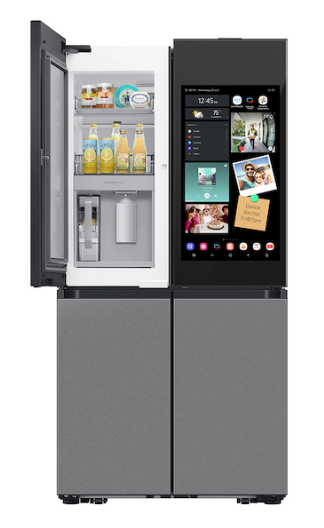
- Security devices like doorbell cameras similarly use IP addresses for remote control and remote access monitoring.
- Gaming consoles like PlayStations and Xboxes need IP addresses to connect to online gaming services and other players
Think about how you might use your label maker or a chalk outline on a pegboard to show where a coffee mug or your favorite wrench lives. The IP address is a digital version of that, a digital address, making it possible for your devices to send (and receive) information — data, instructions, etc. — over the internet as a whole or, across a local network in your workspace. The IP address is how your devices are able to identify and locate each other online.
Why and when do I need my IP address?
All the devices on your Wi-Fi network get assigned an IP address, ensuring the system will avoid conflicts and be able to smoothly communication. Your network administrator at work may need your IP address to optimize system performance or manage bandwidth. Security firewalls use IP addresses to filter unauthorized devices for incoming and outgoing traffic.
But what about you? You might need to access or provide your IP address in the following circumstances:
- Setting up a new modem or router when your internet provider sends you email saying “Hey, dude, your hardware is out-of-date! Trade it in for something that’s faster and shinier and won’t freeze during Zoom or your favorite MMORPG (Massively Multiplayer Online Role-Playing Game).”
- Troubleshooting connection problems. Maybe you want to access a streaming service but are being blocked because they’re not supposed to let people in your country (or wherever you are) access their good stuff. (In which case, you might want to look into a VPN.)
- Tech support, whether you’re getting assistance from your internet service provider or your grad school BFF.
- Beef up your network security so you don’t get hacked.
- Increase or modify your privacy so that advertisers (and their delicious cookies), your ISP, or your government can’t peek at what you’re doing (or, in the case of your smart fridge.
Where can I find my IP address?
You can find your IP address in two general ways.
- Use a website that shows your IP address. If you click on the link for https://whatismyipaddress.com or https://www.whatismyip.com/, it will automagically detect and your IP address and show you two different flavors of your IP address assigned by your internet provider.
- IPv4 addresses are a string or set of four numbers separated by dots. It’ll look something like 172.16.0.1. (Sometimes, when you’re trying to set up a router or deal with a tech kerfuffle, you’ll be advised to use the IP address 10.0.0.1 to access the admin panel.)
- IPv6 addresses use eight hexadecimal groups separated by colons. They’re freakier looking, like 2001:0db8:85a3:0000:0000:8a2e:0370:7334.
- Let your fingers do the walking to find your IP address.
If using the internet feels like cheating and you want to pretend you’re a programmer, you can:
-
- Use the Windows Command prompt — click the Start button, type “cmd”, and press Enter. Type ipconfig /all and press Enter: This will display detailed network configuration information. Find your IP: Look for the “IPv4 Address” under the appropriate adapter (Ethernet or Wireless LAN).
- On a MacOS or Linux machine, run “ipconfig” or “ip a” in Terminal.
- On mobile devices, like iPhones and Androids or tablets, go to your Wi-Fi settings.
- iPhone/iPad — Navigate to the Settings app and tap on “Wi-Fi”. Then tap the “i” icon next to the network to which you’re currently connected and you’ll see your IP address.
- Android — Go to the Settings app and pick “Wi-Fi.” Then tap on the to which you’re network you’re connected and you’ll see your IP address displayed under “network details.”
You can find a tutorial on the ins-and-outs of IP addresses at Computer Networking Notes.
Router and Modem Information
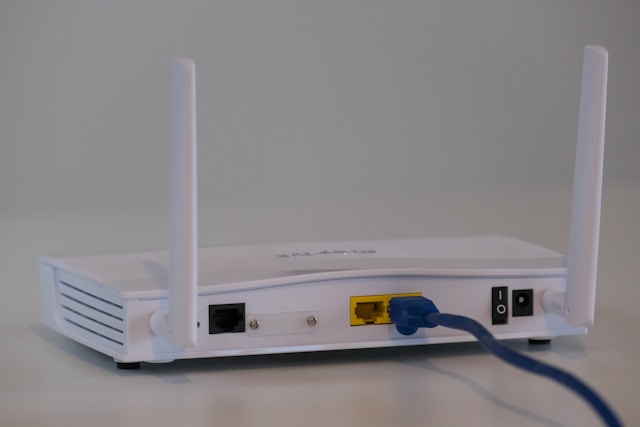
Router by Compare Fibre on Unsplash
Maybe you’re thinking, what’s the difference between a modem and a router?
In the simplest terms, a modem connects your house to your internet service provider (ISP). Your router then creates a network — a local area network (LAN) within your home, enabling all sorts of devices to connect to your internet simultaneously, generally via Wi-Fi. These days, your modem and your router are usually housed in one “box” that your ISP gives you.
Why and when do I need my router and modem information?
- To troubleshoot your network
- To update the firmware for your equipment
- To set parental controls
Document the following router and modem information
- The manufacturer, model number, and serial number of your router or modem. It’s generally written right on the housing. If the typeface is too small for you to read, use the magnifying tool on your cell phone.
- The default administrator login and password (plus any changes you’ve made) — Save the information in your digital password manager, or write it on a piece of paper and put it in an easily-grabbed folder called “Home Tech Stuff.” If you haven’t made any changes, the default might be as simple as “admin”/”admin” or “admin”/”password,” so check the sticker on your router’s manual or a sticker on the device.
- The Configuration URL for your router. It’s usually something like 192.168.0.1 or 192.168.1.1. You just copy it into the URL bar in any browser, the same way you’d type https://www.juliebestry.com to get to Paper Doll HQ.
- Current firmware version and instructions for updating it. It’s shocking how much we own requires “firmware” updates.
To find your current firmware version, go to your Configuration URL, log in, and yo’ll find a section with a label that says something like “System,” “Device Info,” “Firmware,” or “About” and it will show you something that looks like Firmware Version: v3.1.0.4.384_45678.
Alternatively, if your router has an app, check the app’s dashboard.
Wi-Fi Network Information
Why and when do I need my Wi-Fi network information?
You’re going to need to know (or access) this information when you:
- Set up a new router or connect devices to your existing router.
- Reconnect devices — I needed this when I had to get my scanner and computer to talk to one another again.
- Help guests or service workers access your WI-FI — If you don’t want them to know your Wi-Fi password, you have a few alternatives:
- Set up a guest network — If you log into your network’s administrator page as described above, there will be an option for setting up a new network name (SSID) for guests. For example, my home network is Pride & Prejudice; I could make a guest network and call it Longbourne or Pemberley.
- Some routers let you generate a QR code your guests can scan to connect to the network without knowing the password.
- Mobile devices have specific sharing options. On iOS or MacOS, you’ll see a pop-up prompt for sharing; on Android, look for the Quick Share option.
Document the following network information
- Your network’s name (SSID)
- The WI-FI password
- The encryption type (WPA2/WPA3)
- Guest network information, if you’ve created a guest network
Again, collect this information and keep it in an easily accessible digital or analog document. If you maintain it in the cloud, you can access it while traveling if you need to help someone at home, like your teens or a pet sitter.
Internet Service Provider (ISP) Information
Internet service providers are often frustrating, but the more information we have, the better prepared we can be.
Why and when do I need my ISP information?
This section is probably going to be the easiest for you, and you may be tempted not to document this information because you already know it. But what if your spouse or adult child or someone with your Power of Attorney had to help solve a problem?
You’ll may need this information if you want to upgrade (or downgrade) your service, report outages, solve billing questions or problems, or return equipment.
Document the following ISP information
- Your internet service provider’s name — Unless you live in Mayberry, the name isn’t going to be Floyd or MarySue. It might be Comcast/Xfinity, Spectrum, AT&T, Verizon Fios, T-Mobile, Google Fiber, or even a municipal or regional utilities provider.
- The customer support phone number — Note, you may need two different numbers, one for tech support and one for customer support, though they’re usually part of the same phone tree selection of options.
- Your account number — This is printed on your billing statement; if you don’t get printed bills (whether you are on auto-pay or just log in to pay each month), find your account number in your online account portal.
- Your login credentials for your account portal
COMPUTERS, PHONES, TABLETS, AND PERIPHERALS
While network information may be the most confusing — and thus most essential to write down, there are other essentials to capture on a technological cheat sheet.
Device Identifiers
For each device or peripheral, document the following:
- Serial number — You may find this imprinted on a peripheral, but on computers, phones, tablets and other digital devices, log into your Settings app. For example, on an iPhone, navigate Settings>General>About and you will find your serial number.
- MAC address — A MAC address has nothing to do with Apple Mac; it stands for Media Access Control, and it’s a unique hardware identifier that’s assigned to any network-enabled device. It’s a permanent characteristic, like a fingerprint, as opposed to an IP address, which can change. A MAC address looks like 00:1A:2B:3C:4D:5E
You may find a MAC address imprinted on the bottom or back of a physical device, labeled as MAC Address, MAC, LAN MAC, WAN MAC, or Wi-Fi MAC, in the router’s admin dashboard, or in the router’s app.
Alternatively, use a MAC address lookup site like MacAddress.io or MacLookup.app.
- Model name/number — Like the serial number, it may be imprinted in the bottom/back of the device but can also be found in the settings section.
- Operating System — e.g., Windows 11 or macOS 15 Sequoia. Don’t worry about noting the periodic version numbers (like 15.5.1) as that will update too often to make it worth logging.
- Device Name — This is whatever you call your devices so you’ll recognize them when you look at the network. For example, “Julie’s Purple iPhone.”
- On a Windows device, look at Settings>System>About
- On a Mac, it’s in System Settings>General>Sharing
- On iOS, navigate to Settings>General>About>Name
- On Android, it varies by manufacturer, but try Settings>About Phone>Device Name
Why might I need device identifiers?
Try to log your device identifiers as soon as possible after acquiring them in case you need to:
- locate a device on your network
- get warranty support
- get help with tech support or repair
- file insurance claims
- submit a filing for a class action lawsuit — Recent, I filed a claim in the Lopez Voice Assistant Settlement. Although I only had proofs of purchase for three of the four devices, I was able to complete the claim for the fourth by submitting the serial number for my 2015 iPhone6!
Operating System License Keys or Activation Codes
If you ever have to re-install your operating system because something implodes or if you need to transfer the operating system to a new device, you’ll need the license keys or activation codes, which are generally long alphanumeric strings.
In the olden days, we had stickers on the envelopes for installation disks and on older computers, stickers with the packaging. These days, look in your digital accounts, like Microsoft or Apple, to find your keys and codes, and save them locally, just in case.
Installed Software and Product Keys
Whenever you buy, download, and install software or other digital “products,” you may get keys to prove you haven’t “borrowed” someone else’s software. This includes anti-virus software, productivity suites like Microsoft 365 apps, or Adobe products.
Log everything you already own and then make a point of cataloguing new software purchases with:
- a list of all of essential apps and software licenses with the:
- product name
- license number
- date you installed or acquired it
- installation files (or locations) and download links from which you got the software
- activation codes
If you ever have to re-install software after a crash, or if your computer is lost or stolen and you have to move to a new device, you’ll need this data.
Peripheral Setup Information
When you fight the Devil — I mean, reconnect or troubleshoot your printer, scanners, Wi-Fi label makers — you need this information.
For the same technological, financial, insurance, or legal reasons you may need to track your digital devices, you need to record essential information about your peripherals. For each printer, scanner, copier or other peripheral, write down the:
- make
- model
- driver download page URL
- IP address (if it’s networked)
- current driver version
Smart Home Device Information
Do you have a futuristic home? Document the following for each of your smart home devices in case you have to reset your network and everything “smart” gets stupid.
- smart device app logins
- setup instructions
- device warranties and supporting info, including:
- purchase date
- warranty terms
- tech support contact numbers and websites
WHAT OTHER TECH INFORMATION DO YOU NEED TO TRACK?
If you manage to collect and safeguard all of the above information, you’ll be ahead of the game. Still, there are myriad other things to track.
Passwords
You already know that having a strong password is essential. Still, to stay on the cutting edge, read The 2025 Hive Systems comprehensive Are Your Passwords in the Green.
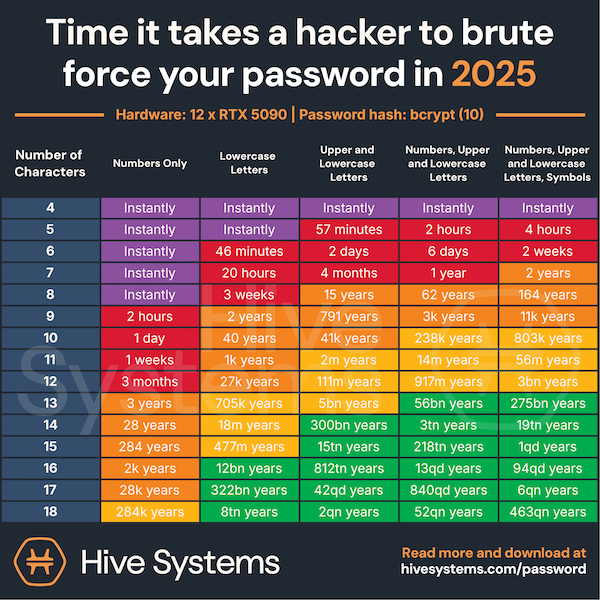
Infographic courtesy of Hive Systems at www.hivesystems.com/password
If you ever need to recover files, sync devices, or re-set your accounts after something goes awry, make doubly sure you’ve captured:
- logins for all of your cloud accounts, like iCloud, Dropbox, OneDrive, Google Drive, Evernote
- recovery email and backup options
- password manager login — If one password or passphrase is the key to your digital kingdom, keep it safe! You may think you’ll remember it forever, but if you get bonked on the head by an Acme anvil or a piano dropped from a high window, you (or your family) will be glad that you recorded it.
2-Factor Identification Backup Codes and Recovery options
Text-based 2-factor identification is quickly being replaced by 2FA backup codes. Take note of your:
- backup codes for services with two-factor authentication
- authenticator app information like which app you’re using, and which phone or tablet it’s installed on
in case you ever lose your phone or switch devices and can no longer have ad hoc codes automatically sent to your phone.
Backup Configurations
I can’t tell you how many times I’ve asked a client, “Do you back your phone up to the cloud?” or “How do you back up your computer?” and received a blank, panicked stare. First, be sure you are backing things up and then document:
- which devices are being backed up?
- how often?
- to where — the cloud? an external hard drive? network-attached storage (NAS)?
- instructions for restoring from backup
If you’ve never had a crash or data loss, you’re lucky. Preserve your luck and back up!
Digital Legacy Information
Think about who should have access to your accounts if you’re incapacitated or unavailable. Then make a plan to provide instructions and logins for your personal accounts. You can put much of this information in your digital password manager and arrange for an emergency or legacy contact. Beyond that, review:
How to Create Your Apple & Google Legacy Contacts
Paper Doll Explains Digital Social Legacy Account Management
Is your tech information captured and organized?
Global Day of Unplugging 2025: Phones and Apps to Reduce Phone Use and Improve Your Life
Do you get shaky when your phone isn’t in your hand? Are you chronically online? Do you need a digital detox?
A year ago, I wrote Celebrate the Global Day of Unplugging. In that post, I explained the observance’s purpose, to bring attention to the importance of taking a break from 21st-century technology, embracing silence, and interacting directly with others. I also did a deep dive into the mental and physical dangers, as well as the damage to our productivity, wrought by the oh-so-compelling devices we carry everywhere.
We examined why it’s so hard to step away from our phones, from dopamine-dripping design to always-on culture, and explored tips for de-centering phones in our lives. It focused on lifestyle changes as well as ways to alter phones settings to make them less compelling. I mentioned some apps for reducing screen use and a phone designed to make essential work easier but social media less appealing.
The next Global Day of Unplugging is from sundown this Friday, March 7, 2025 to sundown on Saturday, March 8, 2025.
According to Backlinko, in 2025, American adults spend an average of 4 hours and two minutes a day on phones. We are spellbound! (Cell-bound?)
Reducing screen time (and replacing it with a phone-free activity) can decrease depression and anxiety and improve social connections. What could you accomplish if someone gave you back even one of those four hours? What dreams could you achieve? (What literal dreaming could you do if you weren’t doomscrolling into the wee hours?)
Most of the strategies I shared last year required willpower. Today, we look at tech that maximizes functionality but inserts friction to minimize the seductive draw of our phones.
MINIMAL PHONE
Minimal is an upgraded version of the phone I previewed last year. Resembling an early Kindle more than a modern phone, it use an E-Ink Touch display to reduce eye-strain and promote healthy sleep.
It’s higher tech than a flip phone, but less inviting than a typical smart phone. Fewer hits of dopamine means you’ll only grab it when you need it instead of when you want it, and you’ll want it less often. Plus, without blue light, it’s less destructive to your sleep patterns.
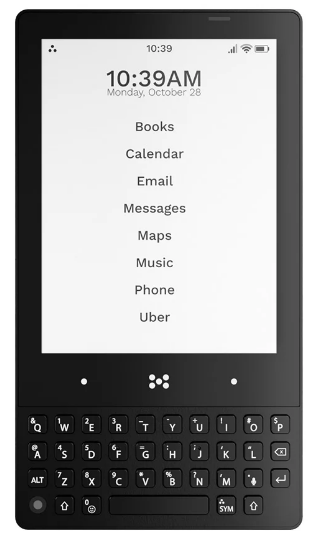
Some of the key features and benefits of Minimal are:
- The black-and-white E-ink display is designed for eye comfort — With a 4:3 aspect ratio for optimal viewing, 4.3″ screen size for productivity without distractibility, and 230 ppi for improved readability, you could use Minimal to read all day long (but don’t!) without eye strain.
- It dramatically reduces distractions — There are no intrusive blink-y features and bright colors. The more you focus on the actual work you need to do, the quicker you’ll be off your phone and spending time with family, friends, hobbies, or even your dream world.
- The QUERTY keyboard is tactile — Remember how powerful you felt when you used your BlackBerry? Wouldn’t you love that sense of accuracy and speed again? With a 74mm-width keyboard for comfort, a 35-key (plus hot-key) layout, and .25mm key travel (the depth a key can be pressed) for precision tactile sensation, you’re set up for old school power.
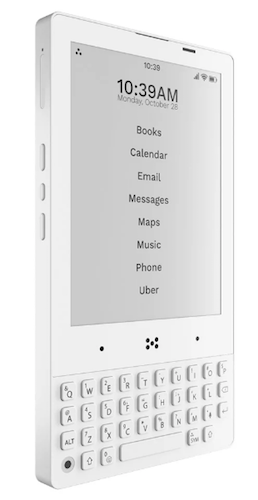
- Minimal is made for the long run — Too often, phone batteries die after about two years and the hardware stops being supported by the upgrades far too soon. Planned obsolescence is a huge part of most manufacturing models, but Minimal promises it will be supported by software updates for five years and is “crafted with quality materials…to stand the test of time.”
- Minimal still has all the essential Android apps you need — With full access to the Google Play Store, you can download any necessary apps (like Dropbox, CashApp, Google Maps, etc.) with no muss and no fuss. It supports Android Auto, can be linked via Bluetooth to fitness watches,,,, and supports contactless payments like Google Pay.
Minimal may be visually minimal, but it’s maximal when it comes to features:
- Along the top phone edge, there’s a microphone, phone speaker, and proximity sensor.
- The bottom edge has a 3.5mm headphone jack (for all of us who are tired of cordless ear buds falling into the street (or soup!), a USB-C port for charging, and an audio speaker.
- There are two cameras: a 5 MP rear-facing (selfie-taking) camera to the bottom left of the keyboard, and a 16 PM front-facing camera (with flash) on the back.
- Above the keyboard, there’s a simple navigation bar.
- Side buttons provide a fingerprint unlock power button, dual sim/expandable storage, volume up/down and an E-ink refresh button. (Note: Minimal does not support E-Sim.)
- Built-in goodies include a flashlight, compass, and gyroscope, and it supports Wi-Fi calling and hotspot functionality.
Choose 6 GB memory with 128 GB storage or 8 GB memory with 256 GB storage.
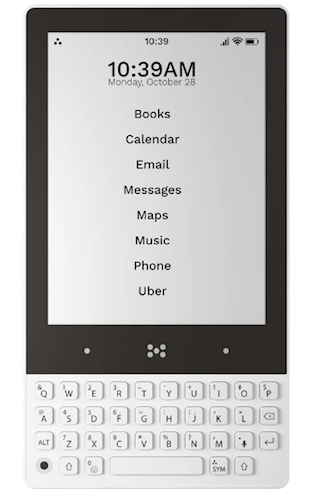
There are three versions of the Minimal Phone: Pebble (white), Onyx (black) and Fusion (black top with white key board). Minimal is $499.00, they’re offering $100 off of pre-orders. (Shipping is free world-wide!)
MINIMALIST PHONE (APP)
Not to be confused with the Minimal Phone, there’s also a Minimalist Phone, which isn’t a phone at all. Rather, it’s an Android app designed to reduce cell phone addiction by changing the user interface by which you see and launch your apps.
Minimal Phone replaces the default Android screen with a custom home screen which encourages more mindful use of phones and directs your focus to your most productive apps. Instead of being pestered by pop-ups, counters, bright colors, and icons on a traditional home screen, the mostly icon-free, minimalist user interface helps you recognize how unhealthy your usual phone usage patterns are (all those dopamine-seeking behavior!) and curb mindless scrolling.
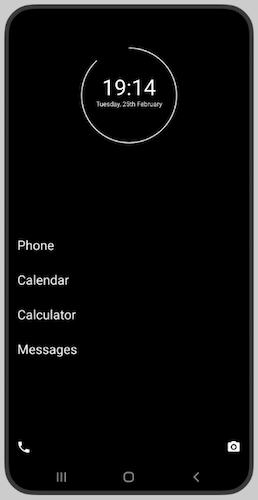
Note, Minimalist Phone’s monochrome interface isn’t the same as just setting your Android to black-and-white or your iPhone to greyscale. Instead, it also lets you view selected apps in black-and-white. Use it just where it’ll be the most helpful, while leaving color in place for apps like Maps, where color is essential.
Monochrome reduces screen time because image-focused apps (like games and social media) just aren’t that appealing in black-and-white. Reducing color and vibrancy curbs the impulse to “bed rot” and scroll until the sun comes up.
- Install Minimalist Phone as you’d install any other app from the Google Play Store; uninstall it just as easily to return to a traditional home screen. There’s no hardware or tinkering. Add your essential apps to the launch screen — but seriously, don’t add the time vampires!
- Minimalist Phone supports all versions of Android phones with operating systems v 6.0 and higher — dating back to 2015!
- It’s privacy-focused. Minimalist Phone “doesn’t sell any personally identifiable information (PII) to 3rd parties” and it’s GDPR-compliant, complying with stiff European privacy regulations.
- Maintain access to all of your apps; the non-essentials are just hidden to keep from going down a rabbit hole. If you want to open a hidden app or unhide an app, just access the phone settings through a gear icon on the app page and select Home screen> Hidden apps.
- The app links to your Google account, not your device, so you can use it on any/all devices linked to your Google neighborhood.
- Other features include app blocking (so you don’t need willpower), time limits, and mindful launch delays to prompt you to reconsider opening an app.
Minimalist Phone has a 7-day free trial, after which there are three different plan levels: monthly, annual, or a one-time purchase. Unfortunately, you have to download the app to see the pricing. (To change your plan, you must cancel it in the Google Play store or wait for the current period to expire, and then re-subscribe at a different level, or email them to request a change.)
DUMB PHONE (APP)
We’ve had the “benefit” of smart phones for a while, but wasn’t life blissful apps and texting? Remember feature phones? Flip phones? We weren’t so stressed before we carried the power of a desktop computer in our pockets.
Enter: Dumb Phone. As with Minimalist Phone, it’s not a phone, but an app, and one designed to help you avoid (and conquer the cravings for) easy distractions and dopamine hits. If you liked the idea of the Minimalist Phone app but were bummed that it was Android-only, Dumb Phone has you covered — it’s for iOS users.
Michael Tigas came up with the Dumb Phone when he was creating features for the focusedOS app, which hides iOS distractions with one click; he hoped to further reduce all of the visual distractions that suck us into using phones longer than planned.
Apps are still on the phone, and they still work. They’re just not imitating street-corner floozies or three-card monte hucksters, begging for attention.
The idea is that if the icon and dopamine rush of tapping aren’t front-and-center, you’ll only use the apps you really need and want.

Download the app and add the Dumb Phone widget and wallpaper to your home screen. Then Dumb Phone takes your fancy, expensive, bells-and-whistles iPhone and transforms it into a minimalist-styled phone that:
- Simplifies your busy home screen — It eliminates photo-filled, graphics-heavy wallpapers, colorful icons, and notification badges, leaving just text-based buttons. Your phone becomes a sleek time traveler from the late 1990s.
- Breaks your “Oh, let me just grab my phone so I never have to be left alone with my thoughts” habit — Without all the “Hey, look over here!” yoohoos, you’ll use your phone when you want and need it, without unnecessary distractions.
- Gives you speedy access to your most important apps — Whatever apps you want to use frequently will be just one tap away, without having to swipe pages of screens.
- Access everything with just one hand — even with the largest iPhones, your thumb can reach everything!
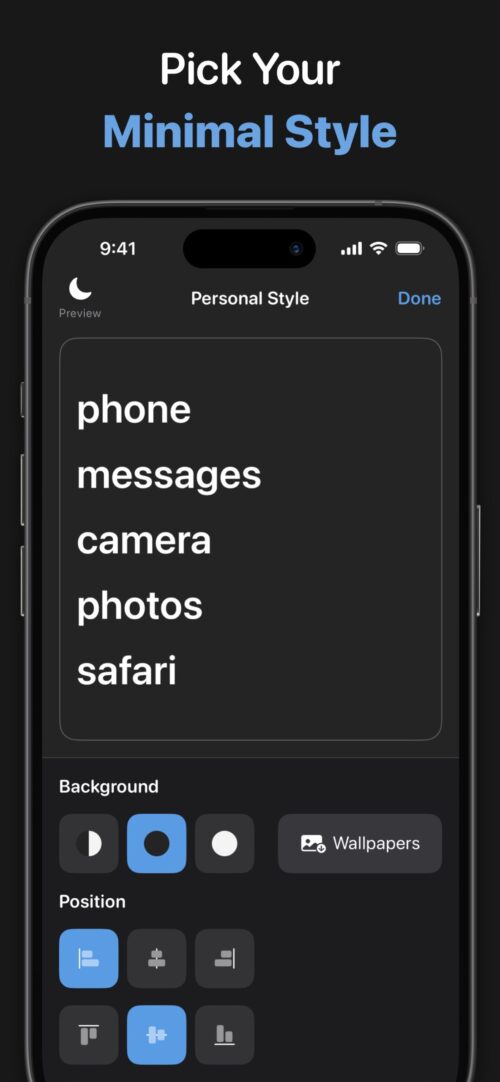
With the Dumb Phone app in place, tweak it make your phone less seductive.
- Make the home screen minimalist (but not unappealing) by picking either a Light or Dark theme.
- Select the font and font sizes, positioning, color(s) if you want any, and more.
- Designate multiple “app launchers” for different periods of your life/day — Have one app launcher screen with work day apps; have another with NO work-related apps (so your brain can have real downtime without checking for emails from the boss during your toddler’s birthday party).
Dumb Phone’s basic level is free. It costs $2.99/month to upgrade, or $9.99/year at a discount, or $24.99 for a one-time purchase to gain access to all functionality and configurations. Get it on the iOS App Store.
Dumb Phone’s blog is also full of advice for curbing the addiction to specific apps. (Sigh, TikTok, I’m looking at you.)
BRICK (DEVICE)
Brick is neither a phone nor an app. But it is an actual device. It’s a bit like a chastity belt for your phone, and the key is kept out of convenient reach.
The creators, two college students, looked at the concept of distraction-free flip phones, which had hardly any useful tools, and modern smart phones, which have all sorts of useful apps, but ceaseless distractions. Where’s the middle ground? You can’t just leave your phone at home if you still want to be able to hail a ride share, make contactless payments, map your way to the right street, or tell someone you’re running late.
Brick’s creators felt that an app or software solution (like Apple’s Screen Time limits that blocked you from using distracting apps wasn’t the way to go. You could always do an end-run around your carefully-made plans, just like when you put the chocolate in a high cabinet to discourage yourself from snacking but find yourself climbing a step-stool at 1 a.m.
Instead, by having a physical device acting as a “key,” and the key is elsewhere, temptation is easier to ignore.
Taking the notion of bricking your phone (a colloquialism for making a device useless), they found a way to make your phone brickable, but not permanently bricked.

Buy the Brick device, then download the Brick app from the iOS App Store, create an account, and follow the steps in the set-up guide. From there, create up to five custom “modes” (like “work mode” or “home mode”), to limit what apps you can access during specific times of day. (You can even block specific websites in Safari.)

To (temporarily) brick your phone to focus on what’s important, tap the center Brick icon on the screen and press the phone to the Brick. Alternatively, if you don’t have the Brick device with you, you can “remotely” Brick your phone: just hold down on the Brick button in the app for 5 seconds.
However, you still need the physical device to unBrick your phone.
The video of how it works can’t be embedded, but you can view it on the Brick site. Other features:
- View your history — Track how much time you spend Bricked each day.
- There’s no battery, so there’s nothing to charge.
- Brick doesn’t track which apps you use, nor does it access any of your data.
- You can use one Brick with any number of phones; you could also buy multiple Bricks to assign to one phone so that you could have one at your office and one at home (or your significant other’s home) to cover lots of different life situations.
- Brick supports iPhones running iOS 16.2 or later; an Android version is expected in the future.
It comes in grey and white, and has anti-slip silicone surface and a high-grade magnet in the bottom to ensure it stays securely in place, wherever you decide to put it — on the fridge at home or a whiteboard or filing cabinet in the office.
Think carefully about where your Brick(s) should live so you don’t counteract your productive work time by searching all over your home, office, or car when you’re ready to switch modes. You don’t want to finish work, head to the airport, and realize your vacation-related apps are bricked and your Brick is back in the suburbs or at your office.
Buy the brick for $59 and you get complete access with no subscriptions or fees; there’s a 30-day money-back guarantee. If you buy two Bricks, you get 10% off and free shipping; for three or more Bricks, you get 15% off and free shipping. You can also sign up for email and get a “mystery” discount.
LIGHT PHONE
A Light Phone is a bare-bones, 5G/4GLTE, unlocked cell phone with just a few non-negotiable tools. Rather than changing the way you launch apps, it’s specifically designed for “going light” so your quality time has fewer distractions and more quality in it.
Light Phone III has a black-and-white E-Ink screen, similar to the Minimal Phone. Because these screens don’t emit blue light, they won’t impact sleep patterns; it can also be read in direct sunlight. To clear the screen between different pages, the E-Ink screen “refreshes,” flashing the screen between black and white, making previous information go “poof.” There’s also a screen light for being able to view the phone at night.
Use it to make calls and send text messages. When you have a voicemail, there are no floating badge notifications, just an asterisk next to the digital clock. Tap to see your recent (unanswered) interactions, then return the message with a call or text (or, y’know, don’t).
Press the large center button on the right side of the phone to access the toolbox menu, your key to navigating to the Light Phone’s various settings and tools, and back to the home screen.
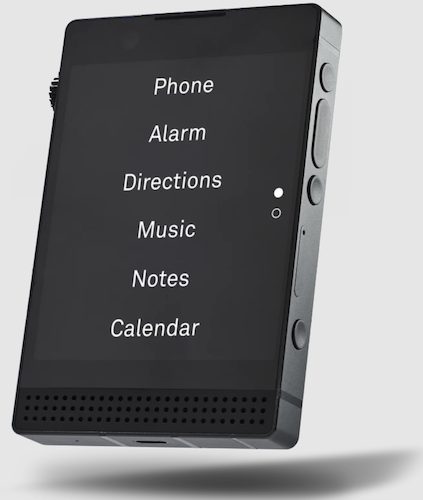
Manage your Light Phone from a dashboard on the website to import contacts or add/remove optional tools. Adjust brightness with an analog wheel (like a radio dial) on the phone’s left side.
The Light Phone’s other tools include an alarm, timer, calculator, music and podcast apps, notes, calendar, directions, and a phone directory. The updated Light Phone III also has GPS, a fingerprint ID power button, Bluetooth, a noise-cancelation microphone, camera (with a two-step shutter button), and flashlight, can be used as a hotspot and it supports voice-to-text.
Light Phones operate on the Light operating system (i.e., not Apple or Android) and requires active, compatible nano-SIMs and work a standalone devices; they don’t need to connect with a smartphone (though you can use them to complement your usual iPhone or Android phone when you need to take a break). Either swap your SIM between your Light Phone and other smart device, or get a second phone number assigned to the Light Phone, as you prefer.
The older Light Phone II comes in black or light grey, and includes a free SIM card for $299; the new Light Phone III is $799 but is currently $599 on pre-order and will be available June 2025. (Light Phone II will continue to be available Light Phone III launches.) There are colorful cases to fit the Light Phones.
The three Light Service plans are limited to the United States and run on AT&T cell towers:
-
- $30+tax/month for unlimited domestic calls and messages with 1GB of data
- $45+tax/month for unlimited domestic calls and messages with 5GB of data
- $70+tax/month for unlimited domestic calls and messages, plus data for hotspot usage.
However, because the Light Phone is unlocked, you don’t have to use Light Service; use a SIM from your own carrier and keep your service from AT&T, T-Mobile, Verizon, Ting, Mint, or US Mobile.
Changing how your phone works is great, but in the end, the best solution to toxic scrolling and phone addiction isn’t to change your phone, but to change yourself. Here are some apps that give keep your behavior accountable.
CLEARSPACE (APP)
Clear Space calls itself “a lever for you at your best to influence you at your most distractable.”
Personally, I think it’s more like tollbooth, requiring you to pay a toll that prompts you to slow down and consider your route.
Clear Space recognizes that dopamine cravings will be less powerful when you pause, creating a virtuous “atomic” habit to replace an unappealing one. Aligning intentions with actions can be hard, but Clear Space offers accountability in three ways:
- Before you can use an app, you must do a centering exercise. The screen guides you through a prompt to breathe, do a push up, or similar, and then tells you how many times you’ve visited the apps you’ve cordoned off (and where you are in your scrolling budget), and provides a motivating quote.
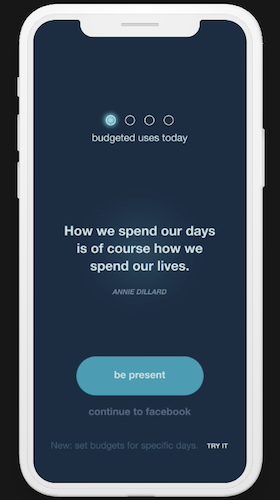
- Set a session length for using any app or block some altogether, and ClearSpace will literally do an intervention before the social media addiction monkey gets on your back.
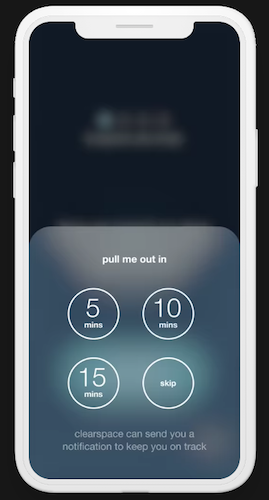
- Pick specific apps in which you want avoid getting entangled.
Clear Space redirects those impulse clicks (like the Reese’s Peanut Butter Cups I grab when I’m waiting too long in the cashier line) and prompts you to think before you click. It retrains you to stop impulsively opening apps “to check” them; instead it encourages you to stop, breathe, and think about what you really want to achieve.
Clear Space also provides data insights to analyze app usages patterns and track your progress over time.
Clear Space is free and available for iOS and Android phones, as well as a Chrome extension for the web.
Check out Clear Space’s great productivity blog posts to help break phone addiction.
STEPPIN (APP)
Steppin gets you off your butt, locking you out of your social media accounts until you go for a walk! Created by Paul English, the founder of the travel search engine Kayak), Steppin has you trade steps for screen time.
In other words, if you want to scroll, you have to roll! (Oy. Sorry.)
- Identify which apps you want to limit (social media, games, streaming videos, or whatever steals your focus) and use the app blocker controls.
- Set your own rules — For example, set a minute of app time for every 100 steps you take; decide how often you want the limits to refresh. Customize goals to fit your focus: reducing screen time, motivating yourself to get fit, or achieving digital wellness. Re-set available screen time daily, weekly, or not at all.
- Earn your screen time — The more you walk, the more screen time you unlock.
- Track your steps seamlessly across your favorite fitness trackers — Steppin syncs with the built-in step counter in your iPhone and integrates with Apple Health App. Hitting step goals reinforces the habit, and habit tracking motivates you to maintain a healthier) balance.
 You can also connect Steppin to your Apple Watch, Oura Ring, Fitbit, Google devices, or Garmin tracker, and your privacy is protected: “Steppin uses Apple’s Screen Time API to enable app blocking without storing sensitive personal data.”
Steppin is currently free, but may have an annual fee in the future. Find Steppin for iOS in the App Store or for Android at the Google Play Store.
(A similar app, promoting fitness and discouraging chronic scrolling is the iOS-only Fitlock.)
ONE SEC
The One Sec app uses powerful research on phone (and specifically, social media) addiction to halt mindless instant gratification in its deeply-scrolled tracks:
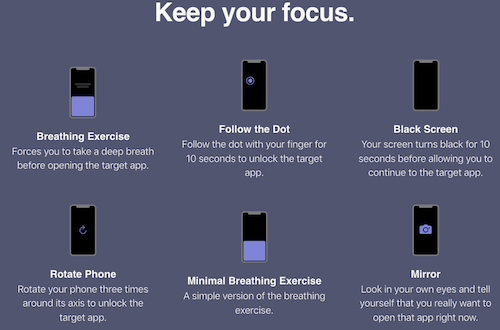
- Configure One Sec to make you think twice, prompting you to explain the purpose for each attempt to access social media apps. Do you really want to go to Instagram or are you seeking an escape from work, stress, or boredom?
- Trigger One Sec to stop you whenever you open Facebook, Instagram, Twitter, WhatsApp, TikTok or any other app on your iPhone or Android device. You can also block/limit web sites!
- Set an intention for your social media use. If you planned to just check if people are reacting to your blog post share, One Sec will check in with you in one-to-five minutes to make sure you haven’t gone down any rabbit holes.
- Visualize your “open attempts” data in graphs to motivate further progress.
- One Sec prompts you to take healthy pauses to focus:
One Sec is free for iOS, Android, and Mac browsers and can be synced across devices.
This is only a sampling options to get some accountability from your phone when it’s hard for you to summon the willpower to step away from the addictive aspects of modern technology.
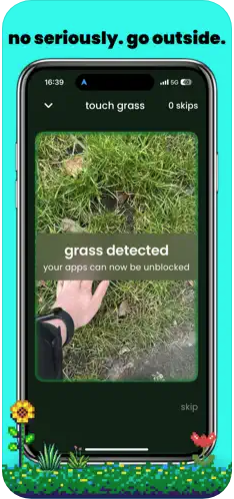
Just last week, Rhys Kentish, a London-based app designer, announced the Touch Grass app. When it launches later this month, the iOS app will require users to go outside, take a photo of themselves touching grass, and upload it before they can access distracting apps. (It’s based on a Gen Z slang expression: when someone is melting down or acting weird, they are told to “touch grass” to get fresh air and gain perspective.)
 Whatever it takes, right?
Organize to Help the Seniors in Your Life With Technology
This post was originally published on May 27, 2024, and has been updated as of September 8, 2025 to reflect additional information and resources, including revised links.
We love technology. However, it does not always love us.
Technology is not always (or even often) intuitive, which makes it hard to organize the technology and the content provided by the technology. This is especially true for our parents and grandparents (or ourselves, if we happen to be seniors).
Whether the seniors in your life embrace technology or eschew it, the digital realm has a lot to offer them.
Health and Safety Technology
- Wearable fitness trackers like Fitbit, Garmin, and Apple Watch (and associated apps) for tracking:
- nutrition and calories burned
- steps taken and stairs climbed
- health metrics like heart rate, blood pressure and glucose levels
- Reminder alerts and alarms for taking medicine and testing blood pressure and blood glucose.
- Phone-based magnifiers for helping read medicine bottle labels and prescription instructions.
- Phone-based cameras for supporting memory (noting parking locations, remembering hotel names and room numbers, etc.).
- Videoconferencing for telehealth allows seniors to stay connected with their physicians for regular visits and making inquiries without having to venture out to drive in inclement weather or seek rides when an in-person appointment isn’t necessary.
- Fall detection and emergency hotline hardware and software, or medical alert systems, allow seniors to get help if they suffer falls or medical emergencies in their homes, even if they are not positioned near their phones or are unconscious.
Paper Mommy and I call these the “I’ve fallen and I can’t get up” buttons after the famed grating commercials.
They range from wearables like bracelets and pendants to wall-based systems, and are connected through phone lines to base stations, so if someone suffers an emergency, they can “call” through that base station, like an intercom. If the user does not respond to the service’s inbound call, emergency services are dispatched. Common systems include Life Alert, Medical Guardian, and ADT Medical Alert.
Smart Home Technology
As with health technology, a variety of smart home technologies can make life easier and more convenient for all users, but especially seniors. These include:
- smart lighting and blinds
- smart plugs and timers that turn appliances off and on
- digital monitoring systems for temperature control, CO2 detection, humidity, and air quality
- smart thermostats
- robot vacuums
- GPS-based trackers to locate lost items
- digital doorbell cameras to help monitor who is at the front door (delivery workers, visitors, bad guys, ding-dong-ditchers, etc.)
Digital monitoring and home management can make it easier for seniors with low mobility or low vision to be able to care for their homes and personal comfort with minimal effort.
For more on smart home tech for seniors, the New York Times’ Wirecutter site has a great piece on the 14 Best Smart Home Devices to Help Aging in Place.
Entertainment and Social Connection Technology
There is no age limit on enjoying books, TV, movies, or music, but the same technology that brings a wider variety of options into our homes, but these technologies are not always intuitive. It’s not that Spotify or Netflix is easier to use when you’re 25 than when you’re 85, but those who have always lived with technology are quicker to note and understand user interface changes and make quicker guesses as to where missing options may be hiding.
Retirees who no longer interact with others in the workplace or at as many social gatherings as previously can benefit from all the modern offerings, including:
- Smart TVs with cable or satellite programming
- Streaming entertainment from mainstream services like Amazon Prime, Netflix, Apple+ TV, Hulu, as well as niche programming services like AcornTV or BroadwayHD
- Music streaming services like Spotify, Apple Music, Amazon Music, or Pandora
- Podcasting apps
- Book and audiobook services and apps like Audible, Libby, and others that allow you to purchase entertainment or borrow from your public library.
When Tech Go Wrong
We’ve all dealt with the frustration of tech going wonky. The difference is that the younger we are, the more likely we are to recognize a problem that we’ve seen before and recall how to solve it. We’re also more likely to visit the service’s FAQ pages or Google the problem. Seniors, however, may be both less likely to have experienced (or recall experiencing) similar problems and less adept at digital search and the right prompts to solve the problem easily.
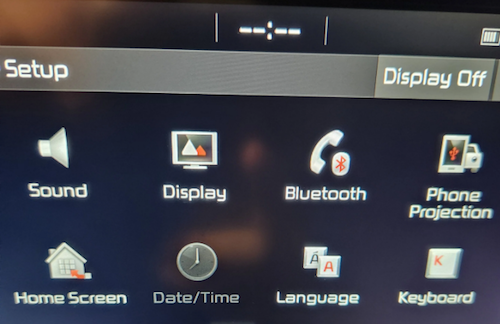
When I got in the car to run errands this weekend, in place of the digital clock on my car’s navigation screen, it just said “–:–“ so I immediately went to the on-screen settings icon. However, on the resulting screen, the date/time icon was greyed out. I vaguely recalled this having happened once before, so I wasn’t immediately worried that my car was “broken” or that there was an expensive onboard computer problem.
First, I checked social media reports of widespread problems. That’s still my go-to for “is it happening right now” technology issues unless it’s an internet-based issue, in which case I follow the steps I described in Paper Doll Organizes the Internet: 5 Tools for When the Web Is Broken.
Then I Googled “Kia date/time setting greyed out and not working” on my phone. I got varying reports of it being a satellite issue that would self-correct; others suggested pulling one of two different fuses and/or resetting the onboard programming.
I can just shout, “Hey, Siri, what time is it?” so this wasn’t an emergency. Thus, so I didn’t get flustered, and figured if the problem continued I would check it out later in the weekend. An hour later, after a trip to Walmart (where the cashierless payment technology had everyone frustrated), I returned to my car to find the clock working again.
Now, take a moment to imagine your Great-Grandpa dealing with this clock kerfuffle, getting progressively more annoyed that the auto manual’s index and table of contents yielded no immediate solutions. Would he head to the search engines or YouTube? Would he become agitated?
We all love technology and we all hate when tech doesn’t work as it’s supposed to. The only difference is that the younger we are, and the more privileged (financially, socially, and educationally) we are, the more exposure we’ve likely had to potential solutions. The best thing we can do to make technology easier for our elders is to help them when we can, and connect them to others who can help them when we are not able to do so.
HOW TO HELP THE SENIORS IN YOUR LIFE WITH TECHNOLOGY
Let’s get the giggles out of the way, first.
Don’t laugh at them
When possible, do laugh with them.
This should be obvious. But it’s also hard. While serving as Paper Mommy‘s tech support over the phone, I kept trying to point out the lock icon so that she could recognize secure websites.
Because we couldn’t see one another’s screens, I was trying to give her landmarks, and I could tell she was looking in the right location in the URL bar at the top of the screen, but she kept not seeing the lock icon. Finally, Paper Mommy, frustrated, insisted “It’s not there! The only thing there is something that looks like a little purse.”

By Santeri Viinamäki, CC BY-SA 4.0
Um. OK. I had to laugh. While yes, to anyone thinking in terms of technology, that secure URL icon is a padlock. But if you’re in your 70s or 80s and haven’t been technology-focused for your entire adulthood, yep, it’s a purse. A green handbag.
Start with, and explain, the basics
Use proper lingo when you can, but if your person just can’t get a handle on remembering the term “scroll bar,” try saying, “Do you remember the vertical bar that makes the screen move up and down, like an elevator?” Use vivid, memorable language, and be prepared to backtrack. Often.
Let them make mistakes
Many seniors are afraid that they will “break” the computer or gadget by clicking on the wrong link. Assuming you’ve covered the basics of avoiding phishing and other scams (see below), assure them that changing settings isn’t going to void the warranty or damage the software or the hardware.
Do not condescend
If this senior is your senior (parent or grandparent), remember how many times they needed to help you learn how to use a spoon or spell your name.
Be patient
Go slowly and be as patient as you can be. (And if you can’t be patient with your mom even though you are known for being patient with clients or colleagues, recognize that you and your favorite senior will have different perspectives, and find them an alternate IT help desk, once that doesn’t look like you.)
Explain online dangers and prepare them for what they should NEVER do
Technology doesn’t need to be scary, but it often is, and especially so for seniors. Teach the seniors in your life about phishing scams, how to identify the true source of emails (by hovering over the sender name and looking at the actual domain name of the address), how to look for secure sites (and the “purse”), and how companies, banks, and the government will never call or email and ask for passwords or other information (or ask you to make urgent payments via purchases of gift cards!).
For more on this, refer to my post from March, Slam the Scam! Organize to Protect Against Scams.
Teach them where to look for resources and how to ask search engines for help
My mom once called me because every bit of text on her Facebook screen had turned German. I knew immediately that this was because Facebook had a word cloud of language names in the lower right-hand corner of the screen.
If you were holding an iPad (as she was) on the right side, it would be easy to press your thumb on one of the languages and change your settings. (Facebook has since moved this element off the main screen.)
I’d once accidentally turned my Facebook default language to French, and had to Google the solution, and my Google-fu is pretty strong. However, to the uninitiated senior, it can be tempting to ask a question as you might ask someone sitting next to you on the couch: “Why is my Facebook in German?”
However, to yield a more helpful answer (at least until our AI overloads take complete control), a better query might include, “revert Facebook default language from German to English.”
Search engine language is not intuitive, but we can all — including seniors — learn better queries to find help more quickly.
Customize accessibility settings
When the seniors in your life get new devices, sit down with them to customize the accessibility and assistive settings:
Sometimes, just making text larger, increasing display brightness, or addressing basic accessibility issues will make the entire navigation process easier for them. However, there’s a ever widening range of accessibility tools that can making digital devices easier — or even a joy — for any user, not just seniors.
For addressing visual or hearing impairments, magnification/zoom settings, larger text, screen readers, high contrast mode, live captioning, voice assistants, and LED flashing (for notifications for the hearing impaired) all support smoother use. For those with mobility or dexterity obstacles, you can customize accessibility shortcuts, create “sticky” keys (so key combinations aren’t required), and assistive touch on-screen menus.
You can also activate device settings for “simplified views” or “easy mode” to reduce visual clutter and make navigation more intuitive.
There are also user-friendly apps like Be My Eyes to connect individuals with vision impairment with volunteers who can read labels or identify street or in-home objects.
Google’s Lookout app offers a similar assisted vision option.
BUILD ON INITIAL GUIDANCE WITH MORE COMPLEX TECH SUPPORT
Use Screen-Sharing Technology Options
If you’re helping a senior long-distance, it can be maddening for both of you. They may feel rushed, and you might be knocking your head against the wall because they can’t “see” what you know or believe to be right there!
At minimum, seek solutions that grant you remote screen viewing so you can see what they’re doing at their end and provide tactical directions. Be aware that there’s often a delay between what they’ve done and what you see, so just as when you’re working on the phone, try to discourage them from jumping multiple steps ahead.
In addition, there are remote access software programs and apps that allow you to manipulate someone else’s device from wherever you are. This is how the help desks at Apple and other big software and hardware companies guide you through IT troubles. Unfortunately, it’s also how scammers get access to your loved one’s computers, so it’s important that they understand not to provide this access to anyone they don’t know unless they are seeking the help of an authorized, respected technology expert and NOT someone who randomly calls and claims that “There is a problem with your Microsoft computer.” (There isn’t.)
I used to help Paper Mommy and my virtual clients with LogMeIn (which is no longer consumer-oriented) However, there are still free and affordable options for providing remote tech support to your beloved seniors, including:
- Zoom will let you request or offer remote access (as part of your account). It works on computers as well as iOS and Android devices.
- Microsoft Teams has a similar function for sharing content, as well as giving and receiving control.
- TeamViewer used to be free, but (as with most remote access programs, has moved to a subscription model for all users). Still, $24.90/year for a single user remote license should give you piece of mind that you can help your senior for less than fifty cents a week.
- Chrome Remote Desktop — This option is free and low-cost. You may find that you need to help your senior set up Chrome Remote Access first to make the process work.
All of the above options will work whether you and your senior have the same platform (Apple or Windows) or are mismatched. Other options require you to be using the same platform.
- Apple Mac users have a few options. If you’re both using Apple computers, you can make use of the free Apple Remote Login, but as with the Chrome option above, you’ll need to set it up in advance.
- Alternatively, without any advanced prep, (and again, if you’re both using Macs), you can use “Screen Share” from within the Messages app:
-
-
- Open the Messages app on your Mac.
- Select a conversation with your senior relative or friend. (If you haven’t ever texted with them, start a new conversation.)
- Click the “i” button in the upper right-hand corner of the window. A set of options will drop-down.
- Click “Share.”
- Ask your senior to share their screen. (Alternatively, they can also go to this same menu and invite you to view their screen.) They’ll get a pop-up requesting permission to share their screen with you. They need their “Control My Screen” option selected and should click “Accept.” From this point, you can control their Mac and show them what to do, step-step, or fix problems yourself.
-
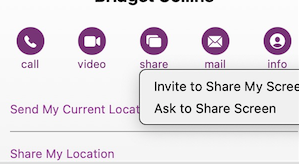
Finally, I find it helpful to initiate a Facetime (Mac-to-Mac) call before starting the process, but you can also speak on the phone while troubleshooting.
- Windows users have similar built-in options, including Quick Assist and Windows Remote Desktop Connection.
Write Down Instructions, Step-By-Step
Don’t expect seniors to remember intricate processes they’ve only seen once or twice, or to intuit the workings after minimal practice.
When one of my clients (senior or otherwise) is learning new processes on the computer or another device, I teach the step and then write it down on a numbered list. Once we’re all done, I create a title with “if,” such as “If you want to listen to your new voicemails…” or “If you want to download an app from the App Store…”
Make a notebook of these lessons so your senior can flip through the pages, or even create an index in the front. (And yes, you can type these lessons and store them in Notes, Dropbox, or Evernote if that’s something your senior is comfortable navigating.) If you are at a distance, encourage them to take notes for themselves, if possible, and repeat back to you what they’ve written.
HOW TO OUTSOURCE TECH SUPPORT FOR SENIORS
Do you and your senior end up fighting when you try to help with tech? Sometimes, the best way to help is to arrange alternate help. (This is why, when adult children and their seniors spar over downsizing, bringing a professional organizer in is the best option.)
Outsource To Your Teenager(s)
Assign your teens to help their grandparents (or neighbors or friends who are grandparent-ish age).

Too few young people have the opportunity to learn from older generations, and this kind of bonding can be good for both. Seniors will feel younger when engaging with teen family members or neighbors, and the teens can connect with grown-ups with different perspectives on career, family, life, and history. (And shockingly, they’ll be more patient with Grandma than they are with you.)
AARP’s Senior Planet

Senior Planet is a free technology service sponsored by AARP, but you don’t have to be an AARP member to use it. (That said, at $16/year for anyone over 50, AARP’s discounts and educational resources definitely make it valuable.)
Senior Planet offers in-person virtual sessions, in-person classes in major cities, and online classes, like “How to Choose a New Computer.” There’s a hotline for those who need immediate assistance for simple questions. It’s available weekdays from 9 a.m. to 8 p.m. Eastern, during which Senior Planet’s “technology trainers” (employees and volunteers) can answer questions about email, texting, app notifications, video conferencing, and other tech conundrums.
Anyone needing personalized tech help can call the hotline at 888-713-3495 or fill out a form to schedule a help session.
Cyber Seniors

Cyber Seniors is a volunteer-based, non-profit organization and is available at no cost to users. Most volunteers are in their late teens and twenties and have training to serve as “digital mentors” to seniors. Think of it as digital natives guiding digital immigrants through the cyber world.
Cyber Seniors provides both one-on-one individualized support and as well as group education.
For individual needs, fill out a request form with general information(contact email, birthdate) and situation (device type, etc.), and then select an appointment date and time for a volunteer to contact you by phone. Once the mentor calls, you explain what you’re trying to do (e.g., attach a photo to an email, set up a Facetime call, change the settings in a program). Users can request a specific mentor by name or work with anyone on the CyberSeniors team, so if Grandma meshes well with a certain person, request a repeat session.
Cyber Seniors offers weekday group webinars over Zoom on tech and cybersecurity (and other) topics, and recorded prior webinars are also accessible.
GoGo Quincy

GoGoQuincy, promising “tech support for non-techies” started as a service to help seniors with but has expanded to assist anyone, no matter the age, with technology difficulties. For up to one call per month, the service is free; after that, there’s a $5/month fee plus $11 per call, so if there’s any chance you or your senior might be making more than two calls a month, the unlimited plan (for $19/month) is the way to go. (Reviewers note that experts didn’t try to upsell memberships or get callers to sign up for the paid service. Still, I’d encourage exhausting free options first.)
GoGo Quincy has a telephone hotline if you need immediate technology assistance; otherwise, schedule a session through the GoGo Quincy website.
[Editor’s note:
Hire a Technology Specialist
Your best bet for a loved one (or yourself) maybe to hire a professional technology consultant. I have senior clients who are active in their non-tech lives but for various reasons need support with their web sites, social media, or ever-more-complex devices, and having a paid consultant, either on retainer or paid per call, gives them confidence that they’re getting professional level services.
Online, you can find a variety of in-person and virtual technology coaches, like Tech Coaches or Candoo Tech.
Additionally, there are professional organizers, working both locally and virtually, who can assist with making technology more accessible. My technology-minded colleagues in the National Association of Productivity and Organizing Professionals (NAPO) can be found by going to NAPO’s website and conducting a search, as follows:
- Go to NAPO.net.
- Select “Professional Directory” from the FIND A PRO drop-down menu at the top of the screen.
- On the resulting search page (which defaults to a radius search, though you can switch to search by geographic location name), type in the requested information and select Digital Organizing from the residential organizing drop-down. The screen will refresh, giving you professionals guide you in organizing your technology.
Consider Artificial Intelligence
It’s not always ready for prime time, but there are AI options for getting tech support when humans aren’t available. One option is HelpMee.ai, which promises patient, voice-enabled conversations and screen sharing to guide seniors step-by-step through computer problems.
HelpMee.ai has multiple price points, from a free trial for 30 minutes of support, to two different levels of monthly support ($12/month for 4 hour, $20/month for 10 hours of support).
With all of these options, seniors can enjoy the benefits of technology while minimizing the frustrations. Don’t give up on helping your seniors with tech, and don’t let them give up, either!
If you have your own favorite tips and services for helping seniors with technology, please share in the comments.
Slam the Scam! Organize to Protect Against Scams

Being organized and productive depends on having systems in place. The problem is that sometimes things happen that throw all of our carefully curated systems out the window. Things like getting the flu, having your car break down (or get stolen), your computer crashing — or getting scammed.
It’s shockingly easy to fall for a scam, and frustratingly difficult to recover financially and legally after being a victim. It may require time, money, the services of specialists (like attorneys) and more. The best thing you can do is to organize yourself to protect against being victimized.
SCAMMERS PREY ON EVERYONE
You may have heard about a recent viral article in The Cut by Charlotte Cowles, the online magazine’s financial advice columnist. You wouldn’t have expected someone with that professional identity to write a column entitled, The Day I Put $50,000 in a Shoe Box and Handed It to a Stranger. But she fell for a scam, and she fell hard. And now, risking public and professional embarrassment, she has spoken out.
For weeks, there’s been debate online regarding what happened to Cowles. Many people can’t imagine that a grown woman with a professional background in financial writing could have been fooled by the ring of scammers who convinced Cowles that they were representatives of Amazon, of the Federal Trade Commission, and of the CIA.
But scams are real, they are everywhere, and we need to organize ourselves (and warn our loved ones) to be vigilant. Gallup found that 15% of American households were victims of financial scams just last year.
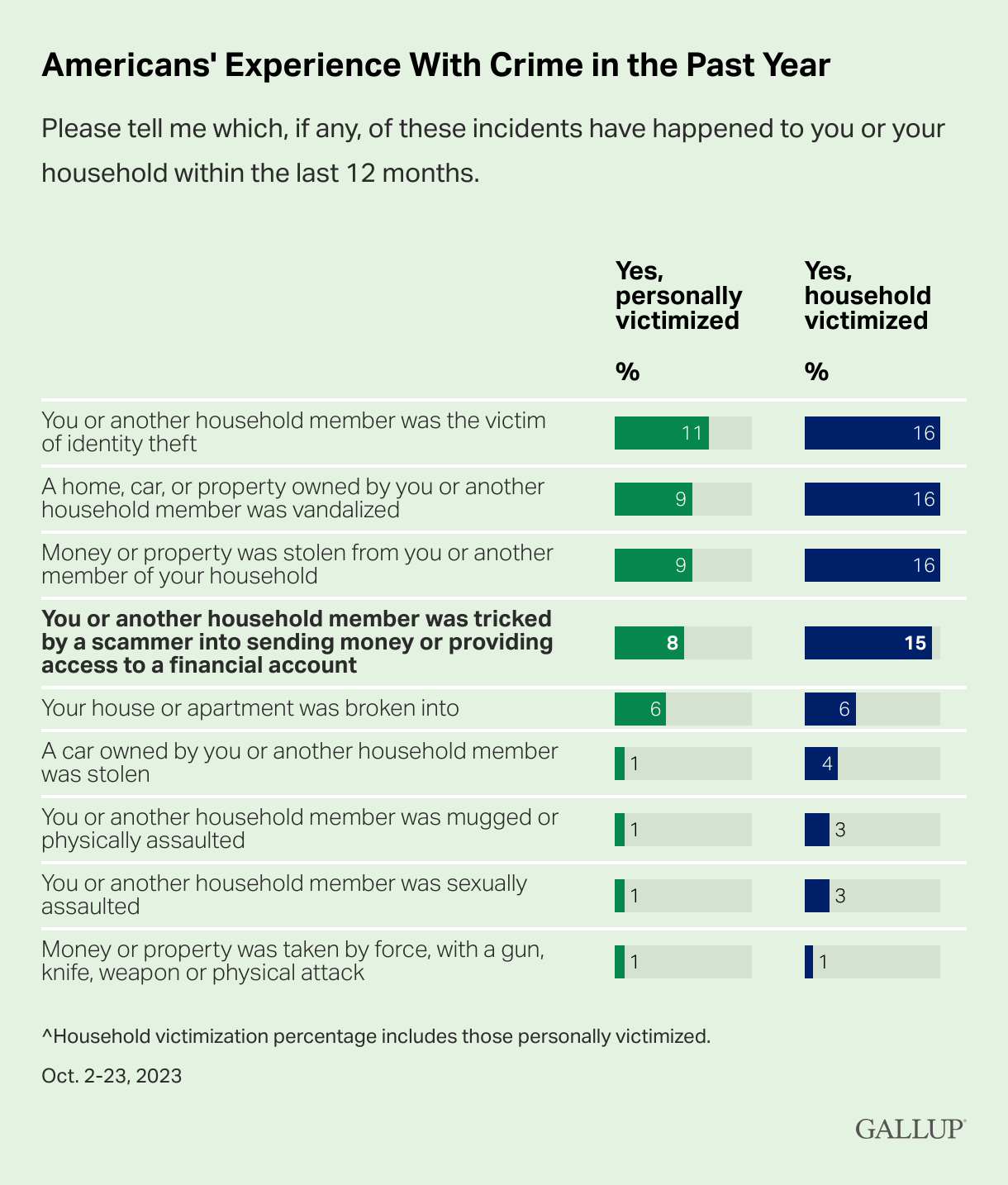
Graph provided by Gallup
And, while we tend to think of victims as being older, every demographic group is at risk. In fact, younger adults (like Gen Z and the youngest Millennials) are overrepresented as victims of scamming (at 22%); meanwhile Gen Xers like Paper Doll and Baby Boomers are somewhat less likely to be scammed, at 9% and 14%, respectively.
The rate of victimization is lower among adults without a college education and with lower incomes than those who have college educations and who earn at least $50,000 per year. One might surmise that both of the latter groups have more opportunity to be warned and prepared to identify elements of scams.
But people with education, experience, savvy, and money can also be scammed. Last month, author Cory Doctorow wrote How I Got Scammed, explaining how a Christmas holiday travel week, a failed ATM transaction, and the post Alaska Air 737 Max door-plug disaster created a perfect storm for him being taken advantage by a phone-phishing fraudster pretending to be from his credit union.
Sometimes, a scam is obvious. Out of nowhere, you’ll be cooking or watching TV and the phone will ring. A mysterious and heavily accented speaker will say that there is “something seriously wrong with your Microsoft computer.” It doesn’t matter if you actually have a Mac, or if you don’t even have a computer. They’ll use that wearily patient voice so identifiable as IT customer support.
You immediately know it’s fake; but would your grandparents? Would your teenager?
Other scams are less obvious because they come wrapped in the kind of tech-related language we see every day. In just the 24 hours prior to writing this post, Paper Doll and Paper Mommy experience attempted scams.
I received an email claiming that I’d purchased $500+ in services, and if had not made those purchases, I should immediately click to be connected with the company’s fraud department. Of course, merely hovering my cursor over the return email address (displayed as the company’s name) showed it was actually sent by gibberishletters@Yahoo.com. Real companies don’t use Yahoo addresses; in theory, they shouldn’t even use Gmail addresses. Dependable companies have their own domains.
Meanwhile, Paper Mommy got the all-too-common email advising her to click because her iCloud was full. [Be assured, her iCloud was not full. It has a backup of her iPad and probably a few dozen photos and not much more.] Paper Mommy may be 87, but she is one smart cookie, and even if she hadn’t received one of these same phishing attempts previously, she knows enough to verify such things.
However, it’s common enough to get random notification texts, popups, and emails claiming that something is awry. One of the immediate clues is bad spelling, grammar, or punctuation, something that older generations are more likely to take seriously; a 50- or 70-year-old is more likely to immediately realize that a poor command of English (in an email sent, ostensibly, by an American company to an American customer) is a sign of a scam. Thus, given the propensity of younger people for text-speak and a lesser reliance on standard usage, younger adults might be more easily tripped up.
Still other scams prey on the inclination of individuals to be good natured. One popular scam comes in the guise of a text regarding a sick or injured dog. The sender addresses you by the wrong name and says that they’re at the vet; their dog won’t eat and is whimpering, and they’re waiting for assistance. I “fell” for such a scam a few months ago, in that I replied and said, “Sorry, you have the wrong person. I hope everything turns out OK for you and the dog.”

Sad Doggie Photo by Bruno Cervera at Pexels
I thought nothing more of it until the person kept texting and trying to inveigle me in conversation, asserting that I must be a dog lover, too. (Readers, while I’d hate for you to think I’m a Disney villainess, I’m not fond of animals in person, though I do love monkeys, puppies, kittens, and penguins, as long as they’re on my device screens and nowhere near me.)
I Googled, and immediately found that this is a long-running scam to convince text recipients to get emotionally enmeshed in the condition of the dog, and end up giving money. One can understand how Congressman George Santos managed to set up fake Go Fund Me accounts for animal care and steal the proceeds. People are softies and want to be kind.
We’re also inclined to be law-abiding. There have been a number of jury duty scams where recipients get calls or texts saying that there’s a bench warrant for them to be arrested because they have not shown up for jury duty. Sometimes, recipients are warned that deputies are on the way to arrest them unless they pay a fee over the phone, or buy gift cards and send them to the caller.
Government agencies don’t text you out of the blue. In most cases, none but teeny, hyper-local government offices will even email. They certainly don’t take payment in gift cards.
Scams are designed to prey on your lack of experience or information, your good nature, and your fear of getting in trouble (as with Cowles’ example). Do not let scammers waste your time, ruin your productivity, or take advantage of your goodwill.
SOCIAL SECURITY: SLAM THE SCAM DAY
The Social Security Administration has declared this Thursday, March 7, 2024 Slam the Scam Day!
On National Slam the Scam Day and throughout the year, the SSA provides tools to help seniors and others recognize scams related to Social Security and prevent scammers from stealing both funds and personal information.
Social Security and Paper Doll want you to protect yourself, your loved ones, and people in your community this Slam the Scam Day by educating everyone about government imposter scams. Discuss the issue and let people in your life know they shouldn’t be embarrassed to report if they shared personal information or suffered a financial loss. It’s important to report scams as quickly as possible, both to aid recovery and identify the culprits.
The Social Security Administration encourages us to share their Scam Alert fact sheet to help educate others about how to protect themselves. Report Social Security-related scams to the Social Security Office of the Inspector General (OIG).
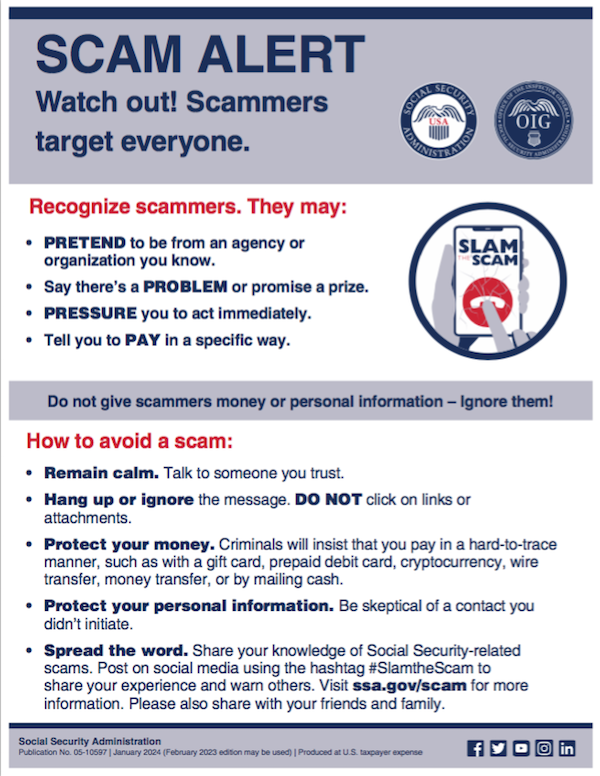
If you do encounter scammers in any way related to Social Security, report the scam online with as much information as you have regarding the characteristics of their claims.
Social Security encourages you to visit www.ssa.gov/scam for more information and follow the SSA OIG accounts on Facebook, Twitter, and LinkedIn. Those accounts aren’t going to share the newest viral dances or memes, but will keep you informed of the latest nasty tactics. Please consider sharing this post with the #SlamtheScam hashtag on your social media platforms.
OTHER SCAMS TARGETING SENIORS
Scams targeting seniors aren’t limited to those involving Social Security.
The “Grandma, I’m in Jail!” scam has been prevalent for more than a decade. Your phone rings and you hear a young person’s distraught voice begging for help. The caller, ostensibly your grandchild, has somehow accidentally run afoul of the law and is in jail. “Please send bail money but don’t tell Mom and Dad,” the caller begs, providing a phone number and case number; you call as directed and the faux police officer verifies the case number and takes your money. These scams assume Grandma doesn’t hear your voice often enough to recognize it on the phone.
Help your grandparents not fall for such scams by 1) explaining how they work and 2) calling them more often so that they recognize your voice!

Photo by RepentAndSeekChristJesus on Unsplash
Elders are often the victims of medical scams designed to impersonate legitimate agencies related to Medicare, diabetes supplies, medical equipment, hospice, and more. Romance scams, which prey on lonely people of all ages, but especially tender-hearted seniors, are also on the rise.
The American Association of Retired Persons (AARP) is great resource for keeping on top of scams targeting the elderly. Bookmark AARP’s Scams and Fraud page to learn about new schemes as they become known.
KNOW THE SCAMMERS’ TRICKS
Similar to “Grandma, I’m in Jail” is “Dad, I’ve had a car accident!” There’s loud traffic noise (and perhaps sirens) in the background and the faux-distraught caller is saying that they’ve caused an accident and that the police say they need to pay a fine right away. Don’t fall for it.
Remember how I said that government agencies won’t ask for payment in gift cards? Neither will your boss. The Do Me a Favor scam shows up via email or text, when your boss (or maybe the CEO of your company) sends a message asking you to purchase gift cards for a work-related charity promotion, promising to pay you back after he receives them.
Yeah, no. The email or text may look like it’s coming from your work contact, your church leader, or your Facebook friend, but it’s almost certainly not.
Similarly, your friends aren’t going to be at the Paris Olympics and lose their wallets and ask you to send them money via Facebook.
The best way to organize yourself against scams is to stay informed of what scams are popular. When you know what to expect, it’s easier to identify scammers and avoid engaging.
- 5 Financial Scams To Avoid in 2024 as Expert Warns Fraud Has Reached ‘Crisis Level’ (NASDAQ)
- 6 Top Scams to Watch Out for in 2024 (AARP)
- 10 Scams You Should Know About in 2024 (Express VPN)
- 17 Facebook Marketplace scams to avoid in 2024 (Lifelock)
- Credit Card Scams to Know in 2024 (and How to Avoid Them) (Time Magazine)
- Five Biggest Frauds To Watch Out for in 2024 (Kiplinger)
- The Latest Scams You Need to Be Aware of in 2024 (Experian)
- No Love for Romance Scammers in 2024 (IRS)
DON’Ts AND DOs TO KEEP YOURSELF SAFE FROM SCAMMERS
DON’T CLICK — If you receive an email or text with links to your bank or other financial account, go instead to the official website and log in from there. If you don’t know the URL, look it up on the back of your bank or credit card or on your statements. And, as you’ve been told since the dawn of email, do not click on attachments from somebody you don’t know.
DON’T TRUST — The Caller ID may say that the inbound call is coming from your bank or the IRS, but it’s ridiculously easy to “spoof” (that is, fake) the identity of a caller. Consider not answering; scammers rarely leave voicemail.
Don’t assume that the caller having the last four digits of your Social Security number or even all of the digits of your account number is on the up-and-up; there’s just too much of our private information on the dark web. Instead, hang up and call the official number for your financial institution and request to be connected to the fraud department.
DON’T DIVULGE — If a stranger claiming to be from your bank or credit card’s fraud department contacts you, ask for a case number. Do not give out your personal information. Do not give out your PIN.
DON’T SAY YES — Do not answer questions in the affirmative. That is, if they ask, “Is this Jane Smith?” don’t say yes; if you must say something, reply, “What is this regarding?” Your voice could be recorded and cloned for AI-related scams. The less you say, the better.
DON’T RUSH (OR BE RUSHED) — It’s the nature of scammers, like the stereotypical used car salesman, to use the pressure of time to get you act against your best interest. Don’t be fooled into making a decision or taking action quickly. Check with advisors, whether more technologically savvy friends or relatives, your accountant or financial advisor, your attorney, or the police.
DO READ UP — The American Bankers Association has a nifty website called BankersNeverAskThat.com. The site explains what to watch out for in terms of email, text, phone, and payment app scams, and also has a great eight-question quiz where you can walk through the situations (on your own, or as part of coaching with a loved one) to identify whether something is a scam or legitimate.
For reference, I did pretty well, but I dithered on the question regarding payment app alerts; if you’ve only recently begun using apps like Zelle, Venmo, or other peer-to-peer payment services, you might find the example sneaky, too, so read (and share) AARP’s How to Avoid Scams on Zelle, Venmo and Other P2P Apps.
The site offers a goofy “retro” scam-themed video game and a series of lighthearted videos to drive the point home.
>
DO HAVE FAMILY PASSWORDS — Schools have security that was non-existent when I was a kid; there are lists of who is allowed to pick up little Johnny or Janey from school to ensure not only that there’s no Stranger Danger but that wackadoodle exes and pushy in-laws don’t insert themselves between you and your kids. Modern parenting includes having family passwords so that if someone says, “Hi, your mommy told me to come pick you up from soccer practice today,” even if the child recognizes Mommy’s best friend as Auntie Karen, the kids know to wait for the official password.
This concept should be applied to families at all ages. Have a communication password designed so that if Grandma or Dad or College Kid gets a call purporting to be from one of the others and is in in need of emergency funds, there’s a level of security involved. (But, y’know, if Grandma calls from jail too often, maybe let her think about the consequences of her actions for a little while.)
DO TELL THE AUTHORITIES — No matter how embarrassing it is to have been scammed, it’s important to report suspected and actual scams.
- Notify your bank, credit card company, brokerage, or other financial institution immediately. If scammers have actually taken your money via credit card, the company should be able to flag the transaction as fraud and reverse it immediately; other financial institutions may also be able to freeze the transaction and save your money. Take screenshots of texts or emails, and don’t delete the original messages in case law enforcement wants to dig more deeply into the source code.
- Contact the police, and file a police report. Do not be dissuaded if the police officer seems blasé about the crime.
My credit card company once notified me that someone had used my card number to buy an inordinate amount of mail order men’s underwear and stereo equipment. Algorithms had already flagged the purchases as fraud, but they asked me to file a police report. The police officer who took the report at my workplace could not have looked more bored if I’d asked him to watch paint dry. It doesn’t matter. Report!
- File reports with applicable state and federal agencies. Whether the case involves the Social Security Administration, Medicare, or other federal crimes, report scams to the applicable agencies. The Federal Bureau of Investigation (FBI) and the Federal Trade Commission (FTC), as well as your state’s bureau of investigation all have fraud departments. Learn more at the FTC’s Reportfraud.ftc.gov and the FBI’s Internet Crime Complaint Center at IC3.gov.
THE FUTURE OF SCAMS
Scams — and scammers — aren’t going away. There will always be scammers who take advantage of anyone more easily duped because they have less information, less experience, and fewer people watching out for them. But, as I alluded to earlier, there are higher tech scams on the horizon.
Artificial intelligence is scary. I bet you’ve heard about deepfakes, video imitations made to sound and look like a real person is saying something they never actually said.
Voiceprints and voice cloning constitute the audio version of deepfakes. A scammer can record you — or take your teenager’s Instagram or TikTok video — and create a completely new message using words and expressions that were never actually said, and then create an “emergency” where it’s believable that money or your Social Security number or other private information is requested. If your college-age kid still hasn’t memorized his Social Security number, you might be tempted to believe it if “he” calls from a spoofed number that looked like his and says he’s filling out a form at school and needed his (or your) digits.
Voice cloning is already being used. Scammy deepfake videos could just as easily be to sent via Facetime or text video. Be careful.
FUNNY THINGS (NOT) TO DO TO SCAMMERS
You shouldn’t engage with scammers, so don’t emulate Paper Mommy or her friend in the stories below. Still, it’s fun to imagine retribution against bad guys.
When I was a teen, my mother was visiting a friend, a suburban woman of (shall we say) means. A phone scammer interrupted their visit and was urgently pushing some sort of financial scheme. Mom’s friend told the caller that she was sorry, but he’d have to wait, that her husband busy shoveling the cow s***.
Later, my mother spoke of her friend’s response with a twinkle in her eye.
Paper Mommy, as longtime readers know, is a hoot. After a friend briefly fell prey to the “Grandma, I’m in jail!” scam (until she learned that her teen grandson was fast asleep in his own bed), Paper Mommy began plotting her revenge on scammers. A few years ago, she called me with delight to report that the day she’d been anticipating had finally arrived.
“Grandma, I need your help!” the voice implored. The scammer had already made a tactical error; much to Paper Mommy‘s chagrin, neither my sister nor I have made her a grandmother. My mom tut-tutted as the scammer wove his tale, offering periodic, “Oh, no, darling! … Oh, you poor thing? … You need me to send you money?”
She kept him on the line for eons, repeatedly leading the evil-doer to believe she was prepared to turn over her credit card number to secure grandson’s release. Oh, she just had to find her purse. Oh, fiddlesticks, where was her wallet? Just when his frustration led him to almost crack and he implored, “Grandma, aren’t you going to help me?” my mom uttered her Oscar-worthy line:
“No, Sweetheart. I never really liked you that much.” Click.
#SlamTheScam
Celebrate the Global Day of Unplugging
From the moment you open your eyes in the morning until you finally nod off at night, do you experience over-stimulation? Do you suffer from over-availability, whether to your boss, colleagues, or clients, or to everyone who wants to talk to you about their political campaigns or your auto warranty?
Even if you’re overly connected with the world via glass screens, do you feel a lack of connection — with your loved ones, nature, or even your inner self?
Have I’ve got a holiday for you! From sundown this Friday, March 1, 2024 until sundown on Saturday, it is the Global Day of Unplugging!
WHAT IS THE GLOBAL DAY OF UNPLUGGING?
The Global Day of Unplugging is an annual campaign to bring attention to the importance of taking a break from 21st-century technology, whether that’s your computer, your cell phone, or your brand new Apple Vision Pro. The goal is to embrace person-to-person connection, the kind where you can see deeply into someone else’s eyes because you’re in the same space at the same time.

It’s not that digital engagement is bad, per se. Zoom meetings and remote work means we reduce our overall carbon footprint from work-related road trips and airline travel. Cell phones (even if people mostly communicate by text) let us know when our friends are running late or if the kids need someone to pick them up.
But being on-all-the-time keeps us from ever refreshing. When it’s our boss that keeps us connected, that’s toxic, as we’ve discussed previously:
- Toxic Productivity In the Workplace and What Comes Next
- Toxic Productivity Part 2: How to Change Your Mindset
- Toxic Productivity Part 3: Get Off the To-Do List Hamster Wheel
- Toxic Productivity, Part 4: Find the Flip Side of Productivity Hacks
- Toxic Productivity Part 5: Technology and a Hungry Ghost
I mean, we could move to France, as covered in the first post above, or to Australia, which has just voted to allow workers to ignore after-hours phone calls and email from their companies. That could help reduce any employer-related tethering to our devices.
But we do this same damage to ourselves! Like a digital pacifier, we reach for our devices when we’re bored or anxious: in line at the grocery store, waiting for a doctor’s appointment, on the other end of the couch from our kids or significant other.
Technology is pushed on us from above and from all sides, but it has the potential to become an addiction that pushes us further away from our loved ones.
Wouldn’t you benefit from a little escape? For one 24-hour period starting on Friday, people from all four corners of the globe (yes, I know globes have no corners), will intentionally walk away from their digital lives and meet IRL (in real life).
WHY UNPLUG?
Let’s look at the dangers of the attention economy, which treats our eyeballs (attention) as a scarce commodity. We can prevent some of the problems by decluttering our digital spaces; other parts require concerted efforts at unplugging.
Distractions
Our computers and devices bring so much digital clutter to our attention. Some of it involves what other people want us to pay attention to, things we may or may not find important. But other distractions we bring on ourselves by clicking our way into deeper and deeper rabbit holes, directing us to an article online or a video on TikTok, but then we stay, enraptured and forget what we were doing.
These distractions take our focus off where we intend it to be. Intention is how we make sure we handle what we prioritize and not someone else’s priorities. Decluttering minimizes those distractions.
When we’re organized in our homes or offices, the clutter and inefficient systems make it hard to find what we want when we want it. Digital clutter is more insidious because we don’t even realize that we’re being distracted — we’ve become so used to it, and because nobody else sees our digital clutter they don’t call attention to it.
When we eliminate digital excess and distractions and create new, more efficient pathways, we feel calmer and more in control. When that happens, we’re in the zone, better able to do deep work and get into flow, with less wasted time searching for whatever we want — or what our boss or client wants.
However, of all the ways digital addiction hurts us, perhaps the distractions and lack of productivity are the least important.
Physical Health
Digital overuse is bad for our physical health. We develop bad posture from shlumping at our desks, gripping our phones, and hyperextending our necks.
Tech Neck is an informal term for the medical condition we experience when we use our devices. We flex our necks and shoulders, causing strain strain on the muscles and joints; the more we do it, the greater the build-up of tension, leading to muscle pain and headaches. Some research even suggests that overusing mobile devices can cause bone spurs to form at the nexus between the neck and head!
Additionally, exposure to the blue light emitted by phones, tablets, and computer screens can cause insomnia and decrease the quality of our sleep, which can further impact our ability to focus. Of course, when our attention span is decreased (whether due to sleepless nights or being trained to think in tweet-length chunks of language), it takes ever more effort to interpret complex material or be creative.
And, of course, repeated digital interruptions from our devices leads to higher rates of exhaustion and stress-induced ailments.
Stress
Speaking of stress, staying plugged in messes up our psyches in multiple ways:
- Information overload leads to overwhelm — To borrow a movie title, it can seem like we’re dealing with everything everywhere all at once. Your work, your children’s homework portal, national disasters, politics — it’s all so important.
The problem with everything seeming like a priority is that eventually nothing is a priority. All issues, large and small, compete on a stage the size of the planet, the form of your smartphone, and the synapses in your brain simultaneously.
The problem with everything seeming like a priority is that eventually nothing is a priority. All issues, large and small, compete on a stage the size of the planet, the form of your smartphone, and the synapses in your brain… Share on X- Overwhelm leads to increased anxiety — Think about the last time you were trying to juggle multiple problems at the same time. I bet you were trying to give your attention to so many interested parties that one last, small request (“Honey, where’s the Costco card?” “Mom, can you take me to the mall?”) made you feel like your limbs where going to fly off in different directions.
- Use of social media leads to a variety of emotional dysfunctions. Over the last decade, social media use has grown; in 2022, the average person spent 2 hours and 27 minutes on social media per day. Why is that worrying?
- The more we connect online, the more we experience FOMO (fear of missing out).
- We more see other people having fun (attending parties, going on vacation, celebrating life milestones), the more likely we are to feel lonely.
- Comparing one’s own life to other’s highlight reels can lead to lower levels of self-esteem. If you judge your own self-worth by comparing yourself to others, social media may make you feel like you’re failing.
- As people — particularly younger folks — spend less time developing in-person social interactions and more time on social media and dating apps, there’s an increase in social awkwardness when they finally do meet face-to-face. This contributes to more social anxiety. Additionally, the social relationships we do have tend to fray without positive, in-person interactions.
- Social media makes it easier for people to exhibit bad behavior. Bullied teenagers used to have a respite from their cruel classmates once the school day was over; now, it follows them home on their phones and social gaming sites. And we all know about rude online treatment of anyone who dares to have a differing opinion on anything, whether politics, sports, or music, or has a different religious, national, ethnic, or other kind of identity.
- More nuanced unkindness online occurs in the withholding of likes or social approval, which again, when we compare our “performance” and “appeal” to that of others, can make us feel like we’re lacking.
- All of this can lead to depression.
- We can lose the ability to ability to self-soothe when we’re constantly tethered to our digital pacifiers. On the plus side, our devices can distract us from very real things that, well, suck. But when we become dependent on that kind of distraction, our former life skills dissolve. We used to be able to make polite conversation with strangers in line or read books for extended periods of time. We could go to sleep without an hour of scrolling. Now, we’re often unable to tame our thoughts unless we allow the internet to do it.
WHY IS IT SO HARD TO UNPLUG?
Every app and the whole on the internet is purposely designed to keep you coming back.
There’s a scientific explanation. Every time we use our devices, it reinforces the pathways taken by dopamine, a happy-making neurotransmitter at the base of our reward-seeking behaviors. Just like the bells and blinking lights on a Vegas slot machine condition us to pull the lever or push the buttons one more time, the notifications, “Breaking News” headlines, daily streaks in apps, and aforementioned “likes” draw us back in.
Worse, as with other addictions, when this neurotransmitter pathway doesn’t get reinforced, we actually experience something very similar to a chemical withdrawal. Have you ever found yourself without your phone, feeling jittery and unable to tame your mood?
It’s not your fault. You have to use modern devices for work, and you really do want to have access for many of life’s convenience. But you will feel better if you can lessen your dependence.
HOW TO UNPLUG FOR A DAY
To celebrate the Global Day of Unplugging, you can look for a community event near you. There’s everything from a musical chairs event in Charleston to Yoga and Sound Healing in Gainesville, from a Family Bonfire & S’Mores in Star, Idaho to something called a Disco Get Down-Dog in San Diego. And this truly is global, with events from Denmark to Bolivia, Virginia to Switzerland!
The Global Day of Unplugging organization has listed over 200 ideas of what you can do instead of being plugged in!
The idea isn’t to become a Luddite, but to find ways to feel less isolated or disconnected (whether from others or yourself). Ideas range from the tame (unclutter your pantry, take a hike, do some gardening) to those that indulge your inner child (build a living room fort, blow bubbles, put on a puppet show).
Create art (decorate a lantern, have fun with origami) or go on a quest (create a scavenger hunt or go on a Gnome hunt)! And while I’d be hopeless at crocheting for a cause or going on an ice-block slip & slide, all of these events would definitely be healthier for my brain, heart, and soul than scrolling through the curated slime-fest some platforms have become.
You can also support the global unplugging movement by making a donation or purchasing “merch,” but even joining at the free plan lets you download their “I/We Unplug” signs.
If you enjoy the Global Day of Unplugging, consider taking a tech sabbath as described by Tiffany Shlain in 24/6: Giving up Screens One Day a Week to Get More Time, Creativity, and Connection or doing a digital detox on a more regular basis, so you and your devices take a real break from one another.

TRY BABY STEPS TO GET MORE COMFORTABLE WITH UNPLUGGING
Nobody is saying that you have to become an in-person social diva overnight and join with others. If you’re more the “lone wolf” type, there are many ways to make it easier to unplug.
- Make it less convenient to access your phone when you should be doing something else. At work, put it in a drawer; if you work from home, take it to another room. When out and about, put your phone in your purse or work bag, inside a zippered compartment. Add friction!
- If you can’t keep your hands off your phone, use the accessibility functions to turn your phone to “grayscale.” When the display is limited to black, white, and grey, your brain gets fewer dopamine hits and you’ll be less compelled to reach for it.
- Use positive reinforcement. Doodle a message (like “UNPLUG!” or “Put me down!”) to yourself and take a photo (or create a graphic in Canva) that reinforces your goal on your locks screen.
- Silence notifications when you need to do focused deep work (but set expectations so co-workers or family trust you’ll get back to them).
- Don’t use your devices in the bedroom, at night or in the morning. Remember, the blue light from devices detracts from your ability to get recuperative sleep (meaning you’ll be distracted the next day), and using them first thing in the morning keeps you from starting your day focused and intentional. Don’t get sucked in to what’s trending.
- Don’t text and drive. Don’t dictate and drive. Don’t let your phone read texts aloud. Unless you’re getting directions or there’s an emergency, put your phone away.
And if you’re worried about your family, remember: it’s hard to limit screen time for kids and teens when you don’t model healthy digital hygiene yourself. Work together to support alternatives to an always-online life.
Ironically, the more technology gains a pernicious hold on our attention, the more we may need to consider technological solutions to untether.
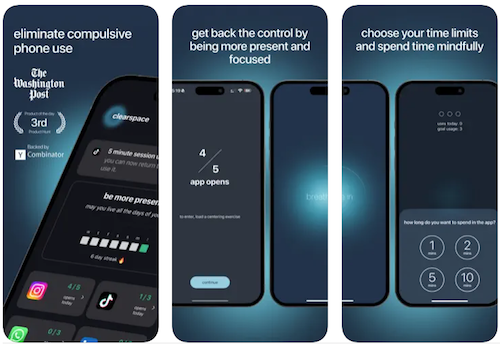
For example, there’s an increase in apps to make it easier to not use apps! ClearSpace claims that 97% of its users reduced their screen time in the first week of use. It uses a minimalist design to block and limit distracting apps, reduce time spent doom scrolling, train attention through screen time challenges, and provide screen time accountability and reporting.
Similar apps for helping reduce screen use include Forest, Space, Off the Grid, and Elqi.
There’s even a new phone, the Minimal Phone, designed to make essential work easier but social media use less appealing.
The Minimal Phone uses an E-Ink display that’s supposed to reduce eye-strain and promote healthy sleep. The claim is that it’s “designed to discourage prolonged social media use, while still being perfect for essential tasks like emails and texts.” It’s higher tech than a flip phone, but less inviting than a typical smart phone.
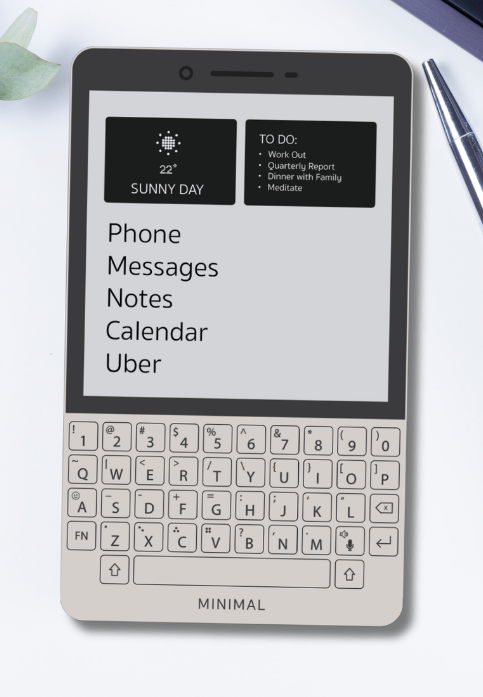
UNPLUG TO ACHIEVE SILENCE
We tend to think of unplugging as it affects our eyes, but our ears get overstimulated, too.
The Sounds of Silence
Even 65 years ago, individuals were trying to unplug from the experience of audio overload, as The Restorative Pause of Silent Record Week and the below video both explain.
(Learn more about the phenomenon of “silent” records in Spin Magazine’s Silence is Golden and Music Weird’s The Sounds of Silence: A Brief History of Silent Recordings.)
A study entitled Is silence golden? Effects of auditory stimuli and their absence on adult hippocampal neurogenesis, published in 2013 in the journal Brain Structure and Function found that, for mice at least, silence can be “a proactive catalyst for neurogenesis.” In other words, silence can stimulate the creation of new brain cells. Stepping away from the pings and buzzes might not just make you calmer, but smarter!
And it’s not just the one-way silence that might benefit us. Last year, researchers found a problematic aspect of video conferencing. When we chat in person, we respond to yes-or-no questions, on average, within 297 milliseconds; on Zoom, it’s 976 milliseconds! We may not perceive the delay, but the slowdown interferes with the neural mechanisms regulate human conversation? Our physiological response? (Zoom) fatigue.
And one study found that two minutes of silence interspersed with, or after, relaxing music increased the calming power of music on cardiovascular, cerebrovascular, and respiratory systems. Silence combats the negative aspects of our online life.
You may find these trends toward silence intriguing enough to consider other ways you might unplug.
Silent Reading Groups
Silent Book Club has over 500 chapters in 50 countries. There’s no assigned reading, and you can meet, eat and drink, and read silently for an hour along with others equally craving silence. (They do socialize after the reading time.)
Carving Silence from Chaos
Earth FM offers a search engine to find the quietest places in the word’s loudest cities. Unplug from your devices, then escape the high decibels of your city and enter peaceful gardens, parks, pools, and arboretums.

Los Angeles Ornamental Japanese Garden, photo by Glen Bowman (CC 2.0)
Silent Salons
In many beauty salons, you can request a silent appointment or silent chair. It might seem contradictory to the idea of unplugging from the digital realm to have more one-to-one interactions. But sometimes, a person is overwhelmed by all auditory experiences. It’s OK to unplug from conversation, too.
Silent Travel
Unplugging is hard. Most of us would feel accomplished enough if we could put our phones away for an entire day. Given that, I’m fascinated by a new trend of traveling unplugged.
Silent travel is designed to be restorative and mindful, so when you return, you don’t need a vacation to recover from your vacation. Options include:
- Silent meditation retreats — Monks and nuns may be the best-known practitioners of silent meditation, but interest grows every year. A colleague has attended multiple silent retreats over the years, each scheduled in proximity to her birthday. The experience gives her the opportunity to focus on her thoughts and feelings, and do some self-analysis, things that would be very difficult amid the FOMO and constant contact inherent in carrying the internet around in her pocket.
- Quiet and silent nature reserves — Nature is not silent (though I wish the tree frogs outside my suburban home would considering hushing themselves.) Animals are, however, unlikely to buzz or ping or otherwise carry on a loud one-side conversation with a fellow creature halfway across the country. Organizations like Quiet Parks International promote awareness of listening to nature and our inner voices, reduce the impact of noise pollution, and foster the benefits of experiences that allow for embracing silence and the sounds of nature.
- Silent walks and walking tours — We already knew that walking was good for us, and silent walking didn’t begin with the TikTok trend, but it definitely increased in popularity as a result. However, reaping the emotional and cognitive benefits of walking is difficult when one’s phone is buzzing; walking while checking email (or stalking exes on Instagram) defeats the purpose.
For those of us who struggle with traditional meditation, especially the kinds that require sitting still, silent walking sans devices are an anxiety-busting revelation. Several organizations support such efforts by identifying locations and providing advice, including SilentWalks.org, Sharing Nature, and Ideas for Educating.
- Sleep tourism has become a whole thing in recent years, with the hospitality industry investing deeply in wellness options like specialized in-bed therapies, guided meditations, in-room essential oil infusers, and other treats. Sleep retreats offer options to modify sounds, aromas, temperatures, textures, surfaces, and experiences.

Bed in the Clouds Photo by Mo Eid
Escaping the negative effects of your phone is just the beginning; even the most middlebrow of hotel stays now include combination alarm clocks and sound machines so that your business trip dreams can be accompanied by the sounds of rushing water or birdsong.
If you’re a light sleeper, quiet hotels help unplug from other people’s conversations and devices. Quiet Hotels and QuietHotelRooms can help you find quiet spaces is noisy cities.
As you unplug from the digital world and sensory inputs, consider silent options.
READ MORE ABOUT UNPLUGGING
Attention and Mental Health (Center for Humane Technology)
Safe Technology North Carolina




Follow Me