Paper Doll
Paper Doll Organizes Snoop-Proof Ways To Hide, Label, and Wrap Holiday Gifts

With only a week until Hanukkah and 2-1/2 weeks until Christmas, we’re in the home stretch of the holiday season.
It’s possible you’re the kind of person who bought all your presents over the summer, wrapped and labeled them, and stored them in your secret hiding place months ago. (It’s also possible now you’re wondering why you can’t recall where that secret hiding place might be.)
Or maybe you haven’t even started buying gifts yet.
Either way, how are you going to keep the gifts a surprise until unwrapping time? How are you going to keep the kids (and the grownups who act like kids) from finding the gifts, poking at them, shaking them, and generally behaving like the gang on Friends.
ORGANIZE YOUR HOLIDAY GIFT HIDING PLACES
Very often, I find that the best place to keep gifts, wrapped or otherwise, from the prying eyes of tiny humans and others with insatiable curiosity is in an old suitcase. People may in cabinets and closets, but nobody looks in those cheerless valises in the basement, the ones that are faux leather and lack wheels and haven’t been used in 40+ years.
Yes, as a professional organizer, I encourage people to donate or recycle things that they don’t use, but quietly repurposing that blue vinyl-and-cardboard suitcase circa 1978 counts as recycling!
Develop a Variety of Hiding Places for Gifts
Obviously, if you’ll be traveling for the holidays and using all of the suitcases at your disposal, you may need a bevy of secret-stash solutions:
- Hidden in plain sight — Would your kids (or your spouse) actually show any interest in prying up the lid of a Bankers Box labeled “2015 Tax Receipts,” “college textbooks,” or something similarly boring? Probably not. (Piling other stuff on top of those couldn’t hurt.) If you’re the only one in your house who cooks, a small wrapped gift or two hidden in the back of a kitchen cabinet, inside a rarely-used fondue pot, may be just what you need to stymie the sneaky searchers.
- In a decoy household container — A similar idea, depending on the size of the gifts you want to hide, is using a decoy box may be just the ticket. Check your own storage spaces or ask your friends if they have boxes that were used for vacuums, TVs, or other medium-to-large appliances. A box labeled “seasonal décor” may suffice, unless someone else in your home is really eager to start decorating without your assistance.
- Masquerading as kitchen equipment — The people who are most likely to sneak around and try to find their gifts are probably not looking in the Crock-Pot. A bread maker or ice cream machine may serve similarly. If you’ve got small-to-medium-sized gifts and unused, lidded pots and pans, this may work. Just don’t put a gift inside kitchen equipment and then gift that kitchen item as a gift and then let your wacky boss throw a hissy fit and turn the Secret Santa into a Yankee Gift Swap. (If you know, you know.)
- At your friends’ and neighbors’ houses — One solution is just to trade storage. Take your wrapped gifts in boxes or lidded tubs to your cousin’s, co-worker’s, or BFF’s place, and return with hers. You can even tell your family not to bother snooping because you’ve made this trade. (Note: if your kids and their kids are friends, one may spy on the other’s behalf.)
- In trunk of your car — Obviously, this works in only two situations, when you normally have an incredibly tidy trunk (with ample room to store a gift-filled box labeled “work project”) or if you normally have a predictably packed and untidy trunk (in which case you’ll need to hollow it out and hide gifts underneath the faux facade of mess. (Do not mark any boxes as “donations” or someone may unhelpfully deliver all your holiday gifts to charity!)
- Cardboarded up — Store all your wrapped, labeled gifts in the million Amazon and Chewy boxes you already have laying around your house. You can just stack them in the corner until you’re ready to put them under the tree or at people’s place settings, and then open the big cardboard boxes.
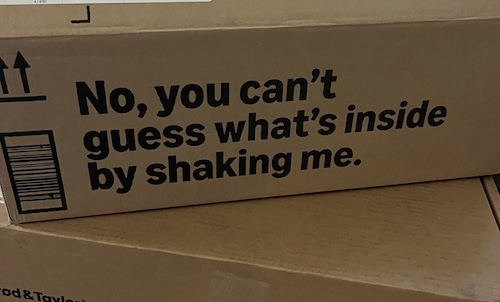 Photo courtesy of Kimberley Purcell
- Up in the attic — The upside is that children and pets generally can’t get up to the attic on their own. The downside? It’s probably not that easy for you to get up there, either. Also, it’s probably dusty, there may be “critters,” and there’s almost certainly temperature and humidity variations throughout the year. Keep that in mind if you’re storing any gifts that are sensitive to those kinds of changes, and store the gifts in a tightly lidded tub.
- Inside old purses and backpacks — This is a riff on the old suitcase approach, but may be easier to access. If a shelf of your closet has all of your handbags, messenger bags, no longer used diaper bags, computer cases, or backpacks, load them up with wrapped gifts, as long as they’ll fit without scuffing the wrapping or stretching the container too much.
- In guest room — This is a good option assuming a) you won’t have guests between now and gift-giving time or b) the storage space in your guest room is ample enough to hide the kids’ things, at least, in drawers or closets, or under the bed.
- In the guest bathroom — Sandwich wrapped flat gifts between guest towels; there’s almost no reason those box-shakers will be thinking to peek between the layers of towels. Consider it a fabric lasagna of secrecy.
- Laundry hamper — Let’s face it; nobody is enthusiastic about doing laundry. Your kids aren’t about to suddenly volunteer to take the laundry to your room to the washer/dryer, even to please Santa. Note: the humidity in a laundry room may be unfriendly to your wrapping paper, so try keep gifts well protected in the hamper or basket, perhaps covered by an old blanked or comforter.
- Inside board game boxes — Do you have board games that nobody has played since the Eisenhower administration? You have two options. You could just jettison the contents and replace it all with someone’s (or a bunch of someone’s) small gifts. Or, you could turn some of the gifts into surprises, if your family is more loosey-goosey with the gift exchange present exchange: put a LEGO mini-fig in with the Monopoly tokens or a gift card in your old game of Life, and then suggest a game.
- Hiding inside trash bags — Big, black trash bags or leaf bags, especially if you have an attic, or garage, or basement with a variety of things already obscured by bags, may be the ticket. The problem? If there’s anyone who ever visits your house trying to be “helpful,” they may assume it’s trash and toss it out. You may want to warn your spouse, in-laws, or houseguests.
- Inside other holiday decorations — If you’ve got a hollow ceramic tree, a Santa cookie jar in which nobody expects to find actual cookies, or a Nutcracker the size of a Buick, gifts can wait within.
- Up, up, and away, or down among the dust bunnies — Let’s face it, you may not need to be creative at all. If everyone in your household is staring at screens all the time, just hiding gifts in a nondescript box at the top of any closet may work just fine. Similarly, if you’ve got a dust ruffle hiding the area underneath your bed (or the guest bedroom bed), and you don’t have pets or tiny humans at the crawling age, sliding things under the bed will work.
- At the office, with a caveat — If you have a home office that’s off-limits to the rest of the household, or if you have decent private storage at your place of work, you’ve got additional hiding places for your gifts. However, if the gifts aren’t at home, they may not be covered by your homeowner’s insurance, so think twice before stashing something pricey that could get stolen or damaged if it’s at your workplace.
Wherever you hide the gifts, make a plan for when you’re going to pull them out of their hiding places, especially if it involves climbing up, wiggling down, or matching schedules with someone else.
Make a Treasure Map for Hidden Holiday Gifts
The key to hiding your gifts without making you crazy or ruining the holidays? Make a list of each person’s gift, what it is, and where you’ve hidden it.
Whether it’s hand-written or digital, hide it from prying eyes. On the computer or in the cloud, give it an innocuous name, as long as it’s one that you will remember. With a paper copy, keep it in your wallet, or tidy it away among the holiday bills — anywhere your average household member won’t think to look.
In professional organizing, we often point out that if you have so many things, or so much clutter, that you can’t find what you own, it’s as if you don’t even after it. This is just as true for gifts you’ve stashed so safely that you’ve hidden them from yourself.
Try Some Sneaky Gift Labeling Tricks
If your storage is at a premium and you have to keep wrapped gifts out and on display — and this trick works once you’re ready to put the gifts under the tree — fake the name tags. Instead of Grandma, Dad, Aunt Jen, etc., use celebrity names but don’t match the names to the personality of the recipient. So, Dad gets Taylor Swift’s present, Uncle Joe’s gift says Dolly Parton, and the baby gets a gift labeled for Keanu Reeves.
Of course, you could pick any category group. Choose board games, and label different gifts as Scrabble, Monopoly, and Cards Against Humanity. Label your gifts with the names of different countries, cities, rides at Disney World, movie superheroes, or whatever suits your fancy.
If your family isn’t inclined toward whimsy, you can just number the gifts. The key is that you really should know whose gift is whose before the unwrapping begins.
As with gift hiding spots, make yourself a cheat sheet matching real names to “gift” names.
GET WRAPPING SAVVY
Paper Doll is terrible at wrapping any gifts that don’t come in perfectly rectangular shapes. All the way back in NAPO2014: It’s a Wrap! Organizing Your Wrapping Supplies with Wrap It!, I told a story of my wrapping failures (and shared this adorable photo of a now thirty-something) opening a stuff lion I’d wrapped so badly that only a two-year-old could look at it with any affection.

Many years ago, I offered up some alternatives for people with wrapping skill deficits. This was early enough in my blogging years that the formatting of the posts lacks some panache, but I stand by the efficacy of the solutions:
It’s a Wrap! Wrapping Paper Alternatives, Furoshiki & Frogs (2008)
Paper Doll Wraps Up the Holidays and Makes It All Stick (Part 1) (2011)
Paper Doll Wraps Up Some Alternatives to Wrapping Paper (Part 2) (2011)
Still, I’m obviously not the only person who has trouble wrapping presents when there’s no perfect box, as there are videos all over YouTube and social media, offering up guidelines for ensuring that enough wrapping paper (or a reasonable facsimile) prevents your gift from being naked. For example, That Practical Mom has a short video with great gift-wrapping tricks:
The coolest trick, to my mind, is turning gifts diagonally when you don’t have quite enough wrapping paper.
By the way, if you care, Popular Mechanics has a feature on the math behind the diagonal wrapping hack.
WRAPPING & PACKING & SHIPPING, OH MY!
Finally, while I’m my logistical skills as a professional organizer are pretty top-notch, I’m definitely not an expert at wrapping and packing gifts. I generally buy gifts online and have them sent directly to recipients and then just warn them the day that the shipper says they’re arriving so they don’t spoil the surprise by opening them to early. Otherwise, I usually put presents in gift bags topped by an excessive amount of tissue paper and call it a day.
Luckily, Quill developed and Visualistan has shared this infographic to walk you through each of these holiday headaches. Isn’t this better than getting wrapped up in cellophane and ending up with a million mismatched and weirdly cut bits of wrapping paper? (That’s always so disorganized!)
 You can also find more infographics at Visualistan.
THINK BEYOND TANGIBLE GIFTS
Of course, the best gifts don’t necessarily need to be wrapped or shipped.
Over the years, I’ve written many holiday posts focused on giving gifts of experiences. It’s a lot easier to wrap, label, and hide gift cards and certificates for experiences than big, awkward, stuff-lions!
- adventures — like the NASCAR Racing Experience or an afternoon in an escape room)
- entertainment (tickets to sporting events, museum exhibits, concerts, theater events, six months of Netflix or Hulu, or a year of Amazon Prime)
- practicality — think gift certificates for car washes or an auto club membership like AAA
- consumables — consider homemade yummies or one-time or subscription-based foods. Alternatively, give the opportunity to look forward to meals out with gift certificates to restaurants or coffee houses.
- organization and productivity — whether it’s a gift for a loved one, or a gift for yourself, opt for some delight and peace of mind with a session, or package of sessions, with a professional organizer (like Paper Doll), either in person or virtually.
For a more in-depth look at gifts of experience, you may want to review Paper Doll on Clutter-Free Gifts and How to Make Gift Cards Make Sense, which also harkens back to older Paper Doll posts on experiential gifts.
It may feel early in December, but the days pass quickly. Whether you’ll be celebrating Hanukkah starting this Sunday night, December 14th, or have ten more days after that for your Christmas Eve festivities, whether you’re celebrating Festivus, or Yule, or the Solstice, I wish you joy (and organization) through the end of this year, and into 2026.
Show Me the Money — A 2025 Guide to Finding Forgotten Funds & Unclaimed Property

Whether you spend a small fortune over each Black Friday/Cyber Monday weekend or you’re super-cautious with your dollars and cents throughout the year, I bet you’d like to have more money. And I bet you’d particularly like to have more of your own money — money that has been kept from you for some reason — back in your own pocket.
MISSING MONEY AND UNCLAIMED PROPERTY, REDUX
One of my most popular posts is one I published almost three years ago: Lost & Found: Recover Unclaimed Money, Property, and Savings Bonds. In it, I explained the basics of unclaimed property. To borrow from myself:
The term unclaimed property is what you’ll hear most often when searching for lost money in various types of accounts. Unclaimed property usually refers to funds that a government (federal, state, or local) or business owes you because you’ve, quite literally, left it unclaimed.
It’s possible that you’re so organized with your paperwork that you feel affronted that I’ve implied you might have just haphazardly left money sitting around. But I’m not saying you’re absent-mindedly leaving piles of cash wrapped in newspapers like Uncle Billy in It’s a Wonderful Life. (By the way, that $8000 deposit that ended up in Mr. Potter’s hands would be worth
$121,762 in 2023$132,913.23 in 2025! Maybe Uncle Billy should have tied the money to one of those strings around his fingers.)
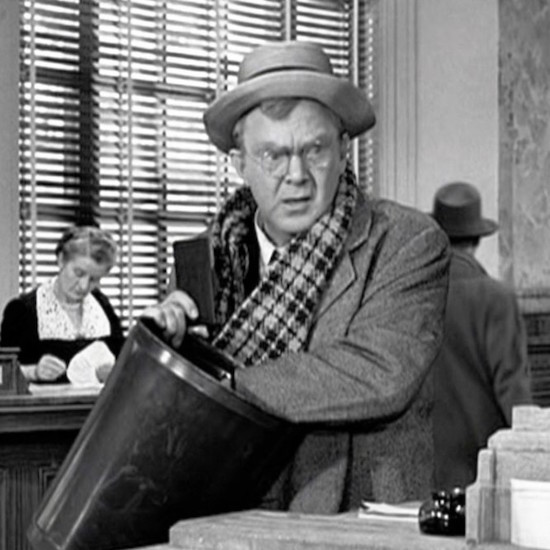
Thomas Mitchell as Uncle Billy, searching the bank’s trash cans for the lost Savings & Loan deposit. Let’s boo Mr. Potter!
I posited the various reasons why money gets separated from its rightful owner.
Sometimes, you’re due a refund, but the refund sits so long that a company loses track of you. Several years ago, when I began working with a client, I had sorted through all of his bills and paperwork to figure out what we could discard, what should be filed, and what required action. Typically, that last category involves paying a bill, but in his case, we found that he was owed money. He and his late wife had opened a retail store credit card to purchase a service they’d later canceled. A prorated amount was returned to the credit card, but because they never used the card again, the balance just sat there, neither accruing interest nor being used, statement after statement.
Happily, in this case, one call to the credit card company (and many, many transfers between departments) later, and within a week, he had a check for the amount. Better yet, that credit card company doesn’t send statements in months when there’s no (positive or negative) balance, so it also meant that he had less paper clutter!
Other times, you and your money are parted because you’ve done a magic trick and disappeared. Think of times when you’ve put down money, such as a security deposit for an apartment or a local utility account. The landlord or company holds your money as security, or collateral, in case you skip out on your payments. In many cases, that money is held in an interest-bearing account.
In the best case scenario, when you terminate your lease and cancel your utilities, you get back your deposit plus a little bonus (of interest) for your troubles. The problem is that too often (and particularly when we are younger), we’re so focused on where we’re headed that we miss out on what we are owed. However, if you left no forwarding address (and remember, in the olden days, when we moved, our phone numbers did not move with us), landlords and utility companies had no way to reach out and return that money.
In theory, that money is/should always be turned it over to the state.
These are only the most common examples of money that may have been left behind when you jetted off to the next part of your life. And, of course, most of us know the frustration of someone else not being clear about what or where valuable funds may be.
There are a variety of situations where your money might go unclaimed. Consider this a mental checklist to jog your memory of money that may have disappeared or been forgotten.
Financial Accounts
- Abandoned bank accounts
- Abandoned credit union accounts
It’s not uncommon to calculate how many outstanding payments will need to clear and leave only a bit more than that amount in a bank or credit union account you plan to close. The payments clear, and then the forgotten accounts often lay dormant, occasionally collecting interest.
Most bank and credit union accounts require some sort of activity — even just the deposit of $1, once per year — to be considered active. Banks won’t put in too terribly much effort before turning money over to the state.
Employment-Related Funds
It’s one thing to quit a job and leave behind forgotten leftovers in the break room fridge, but so many people manage to ghost their own money.
- Un-cashed checks or failed direct deposits — I’ve had clients who had been so overwhelmed and overworked that when they switched jobs, they forgot to cash their final paychecks. (Yes, even though most people are regularly paid via direct deposit, final checks are often issue with old-fashioned paper checks.)
I have also seen people fail to notice or remember — in the chaos of moving — that a final check was never actually direct-deposited; or perhaps that payment was issued, but the direct deposit failed to go through because the old bank account was already closed. I’ve seen all of these! And other payments may go un-deposited. Un-cashed checks might include:
-
- paychecks
- employment bonuses
- refunds of expenses submitted to your employer
- sales commissions
- vendor checks
Poor Milton. They kept moving his desk, and the Payroll Department could never find him.
Investment Instruments
It’s common for people to have chaotic investments. I try to get clients to list all of their accounts, but often have to play detective.
When you’re fresh out of college, you may have a few savings bonds (far from their maturity dates) and nothing else to speak of. However, after a variety of jobs (particularly if you started working before the era of 401(k)s and Roth IRAs), you may have picked up (and then failed to roll over) a smattering of retirement accounts.
If you came into adulthood before mutual funds were really a thing, your investment portfolio may include a random collection of individual stocks, some of which are in DRIPs (dividend re-investment plans) and others where you randomly get checks for $1.53 or $4.52…which you try to remember to deposit and then find smushed in the pocket of your winter coat on the first cold day of the season.
Consider the following investment instruments you may have forgotten that you even had after a lifetime of cross-country moves:
- 401(k)s
- Stocks
- Mutual fund holdings
- Bonds
- Other securities that were never transferred or claimed
- Dividend checks
- Fractional share cash-out checks
- Savings bonds — If you’ve lost your savings bonds, be sure to read the latter part of Lost & Found: Recover Unclaimed Money, Property, and Savings Bonds.
- Israeli bonds — Note, if you do not have your original paper bonds, be prepared to jump through some hoops!
People change addresses, firms merge or dissolve and then change names, stocks split or get sold off — whether they lost track of you or you lost track of them, it’s all worth tracking down.
Insurance Policies
Have you ever seen Gerber Life Insurance — yes, like the Gerber baby food. It’s whole life insurance advertised to parents to give their children life-long guaranteed coverage. Debating the pros and cons of getting life insurance for children is beyond the scope of this post; however, paying attention to organizing the documentation/paperwork for such policies is key.
After having been a professional organizer now for almost a quarter of a century, I have worked with many clients who, when they clear out their elderly parents’ homes, find random references or partial documents for those kinds of baby life insurance policies. In every case, the cash value of those policies have long-since stopped increasing in value.
Sometimes, they’ve been able to cash out directly but often the policies have been sold and resold to other insurers who have lost track of the policy-holders and turned the money over to the applicable state governments. (Are you noticing a trend? Even companies with everything organized by 21st-century computers don’t want to keep up with the nickels and dimes of seemingly abandoned accounts.)
Insurance-related money may be owed to you in the form of:
- Matured insurance policies
- Terminated insurance policies
- Life insurance payouts
- Annuities
- Unclaimed insurance refunds — If the beneficiaries of insurance policies fail to claim death benefits, or policy-holders never cash refund checks (either because they never receive them or because they pile the mail on top of the microwave and it gets lost), that money goes unclaimed.
Legal Balances
If you won a million-dollar judgment, Paper Doll suspects you’d probably notice if you forgot to accept payment, but there are a variety of funds (usually far less than seven figures) that are legally yours but may be forgotten. When you go spelunking for unclaimed property, you may find you are due money for:
- Trust distributions
- Inheritance-related funds — This is a good reminder that your heirs can’t claim assets that they don’t know exist, so make sure you provide detailed records for your loved ones. For more on that, check out two classic Paper Doll posts: Reference Files Master Class (Part 2) — Financial and Legal Papers and How to Create, Organize, and Safeguard 5 Essential Legal and Estate Documents
- Unclaimed court deposits
- Escrow funds from real estate deals
- Proceeds from legal settlements or judgments — These may include class-action payouts, money returned to you for bond or bail, garnished wages meant to cover unpaid child support payments.
A client’s ex-husband once owed her a significant amount of back child support; she couldn’t collect because when the ex had arranged to be paid “under the table” so as not to have his wages garnished. However, when he won a significant judgment in an unrelated lawsuit, my client was able to receive what was due to her and her children because she had made the effort to keep the state agency overseeing child support enforcement updated whenever she moved.
- Royalties owed for minerals, oil, gas, or other assets you own. (Your Grandma once owned land in Oklahoma or Texas? Think Dallas, but with more paperwork and fewer shoulder pads.)
- Royalties owed for creative works, like published books or music, recorded performances, etc.
Have you ever heard of Sixto “Sugar Man” Rodriguez? He was a Mexican-American musician in the late 1960s and 1970s, whose songs focused on the societal difficulties facing those living in poverty. When his albums sold poorly in the United States, he ended his music career. Unbeknownst to Rodriquez, his music was so popular and influential in South Africa that it was said he sold more records there than Elvis Presley. But for decades, he wasn’t aware of, or paid royalties for, his talents — as told in 2012’s Oscar-winning documentary Searching for Sugar Man, fans even mistakenly thought he was no longer alive!
If you’re due royalties make sure you are findable!
FIND GENERAL UNCLAIMED PROPERTY OR FUNDS
As I explained in the original post three years ago, there’s not one central database for all unclaimed property. Generally, unless the money you’re seeking is in a special category (see further below), you should start your search in the unclaimed property office for each state in which you have lived.
Begin with Unclaimed.org, the website of the National Association of Unclaimed Property Administrators. (For detailed instructions for your search, see my original post.)

To search for multiple states simultaneously head directly to MissingMoney.com.

MissingMoney.com allows you to just type a first and last name, and all possibilities for that name, across all state databases, will come up.
FIND MISSING RETIREMENT AND EMPLOYMENT BENEFITS
Do you vaguely recall having some funds trickling into a pension or 401(k), but you’ve had several jobs, homes, and kids since then? Is it all fuzzy?
If you’ve kept meticulous records, you may have files about your old retirement accounts; if you’ve kept mediocre records, you may have an old address book with the names of former colleagues whom you could find on Facebook or LinkedIn, and ask if they remember what retirement benefits you were supposed to have. However, there are more official methods for tracking down your hard-earned benefits.
Retirement Savings Lost and Found Database
Did you know that the US Department of Labor’s Retirement Savings Lost and Found Database can help you find your lost or missing retirement funds? Run by the Employee Benefits Security Administration (EBSA), the database should be your first stop if you or a loved one has lost track of an old pension or 401(k). Per the website:
EBSA is helping America’s workers and beneficiaries search for retirement plans that may still owe them benefits by establishing a public Retirement Savings Lost and Found Database through the SECURE 2.0 Act of 2022.
This database serves as a centralized location to find lost or forgotten benefits and get information on how to obtain those funds. Learn about the tools and resources available for you to recover your hard-earned benefits.
Visit lostandfound.dol.gov — but note that to access the database, you’ll need a valid ID-Proofed Login.gov account, first.
Once in, you’ll be able to search for any retirement plans that were a) linked to your Social Security number and b) sponsored by private-sector employers and unions. The database includes:
- Defined-benefit pension plans — any kind of benefit plan that guarantees either a lump-sum payment when you retire or a lifetime monthly payment, like an annuity
- Defined-contribution plans — accounts that employees fund during the years that they work, such as 401(k)s, and which continue to grow while they work and after they retire.
The Retirement Savings Lost and Found Database doesn’t include Social Security benefits, personal investments like individual retirement accounts (IRAs) or retirement plans sponsored or overseen by religious organizations or government entities. So, if you’re a senator or a nun (or, y’know, a court clerk or church secretary), this database isn’t for you.
Pension Benefit Guaranty Corporation

Have you ever worked for a private-sector company or organization whose retirement plan went kaput?
The Pension Benefit Guaranty Corporation (PBGC) Database, is responsible for holding any unclaimed benefits for current or employees where the retirement plan ended and not everyone got their payout.
Search the database to find your benefit plan; just enter your name and the last four digits of your Social Security number. Once you verify that PBGC is holding your benefits, follow the instructions for submitting documentation to claim them. (Once again, a plug for getting your Very Important Papers organized).
Other Retirement Benefits Solutions

The National Registry of Unclaimed Retirement Benefits (NRURB) operates a free database to assist former employees, employers, and plan managers to find one another and ease the problem of distributing retirement benefits that have been forgotten (by the accountholder) or abandoned (by the plan administrator). They use Department of Labor data and information from employers to help identify lost and/or unpaid benefits.
Speaking of abandoned plans, the Department of Labor’s EBSA also operates an Abandoned Plan Search database to help you find a plan abandoned by its administrator. (Maybe those administrators need to hire some professional organizers?)

If you’re still having trouble securing your company-sponsored retirement benefits, you may want to contact the non-profit Pension Rights Center. They operate the U.S. Administration for Community Living’s Pension Counseling and Information Program, and if your company or pension plan operates in one of the thirty states they serve, you may be able to access their free legal services.
Find Unpaid Wages through WOW
Did you know that if an employer breaks labor laws, the Department of Labor’s Workers Owed Wages program is empowered to try to recover your back wages?
If you think you may be owed back wages from your employer, search the WoW database. Don’t dilly-dally, though, as they only hold unpaid back wages for three years.
Find the database at https://www.dol.gov/agencies/whd/wow.
FIND UNCLAIMED LIFE INSURANCE POLICIES
Unclaimed insurance payments are typically turned over to the state. However, there are some situations where money may be owed related to federal insurance policies.

- VA Life Insurance Unclaimed Funds — The U.S. Department of Veterans Affairs (VA) has a database for searching unclaimed insurance funds. The VA holds onto money it owes to current or former policy holders or beneficiaries of those policies whom they’ve been unable to locate.
When my father, a WWII veteran, died in 2018, I had access to the paperwork related to a life insurance policy he was given upon leaving the Army at the end of the war. Contrary to expectations when dealing with government agencies, I was able to resolve all of my questions with one call. However, had I not had access to any of the paperwork, the link above would have been my first stop.
Note: the database doesn’t include funds from Servicemembers’ Group Life Insurance (SGLI) or Veterans’ Group Life Insurance (VGLI) policies from 1965 to the present day.
- FHA-Insurance Refunds – Homeowners who previously had an FHA-insured mortgage may be eligible for refunds issued by the U.S. Department of Housing and Urban Development (HUD).
Click on the link above to access the HUD database. Scroll down and provide your name, FHA case number, city, and state.
FIND UNCLAIMED MONEY FROM BANKING & INVESTMENTS
Did your bank fail? What about your credit union? Were you scammed by someone like Bernie Madoff?
- If you had money in an FDIC-insured bank that failed, you can search for your unclaimed funds at https://closedbanks.fdic.gov/funds/.
- If your money was in a failed credit union liquidated by the National Credit Union Administration, the NCUA.gov site’s Unclaimed Deposits database can connect you to your funds.
- Were you an investor parted from your money as a result of a bad-faith investment manager? The Securities and Exchange Commission (SEC) lists “enforcement cases” where individuals or companies money to their investors. You can check the status of distributions to harmed investors at SEC Claims Funds.
THINK OUTSIDE THE MONEY BOX
All of the categories described above cover unclaimed funds that someone else is holding. However, you may have money, or something just as good as money, hiding in your drawers and glove compartments and under the piles of papers on your desk:
- Unused loyalty points, rewards, and frequent flyer miles — These represent quasi-lost money, things with value but only if you use them. Bear in mind that some unredeemed points, rewards, and miles have expiration dates or may be considered abandoned if you don’t use them (or the apps/accounts) for a long while.
- Unredeemed gift certificates, store credits, refunds, or vouchers from retailers service-based companies. Depending on the state in which you live, they may be treated as unclaimed property if they go unused too long. Remember that year Aunt Gertrude told you that she schlepped out in a snow storm to get you that gift card for for Bed, Bath, and Beyond, and a Toys ‘R Us gift card for your tiny human? Uh-oh. Too late now. Stores close or restructure, and value goes poof!
- Contents of safe-deposit boxes — When people move or pass away, families may forget about the contents of old safe deposit boxes, and it’s very hard to reunite tangible property with original owners or beneficiaries.
In short: unclaimed property is often “anything owed to you that you forgot existed.” Take time to search for whatever may be owed to you or loved ones who can no longer search for themselves.
Remember, unclaimed property comes in many forms, from many possible sources.
As always, when you keep good (and organized) records (with account numbers and names of institutions, and your own addresses over the years), the search and claim processes will be easier. When searching databases, consider that your identity (or that of a deceased loved one) may not have been quite so organized — check name variations: with and without maiden names, nicknames, initials vs. middle names, etc.)
Good luck finding unexpected funds!
Organize Your Life for More Reading Opportunities

If you love reading, summertime means finding a good beach read. Thanksgiving and the December holidays may mean finding books to read for when you finally escape the hubbub. And the darkest part of winter gives you a great excuse to snuggle up with a good book.
However, whether you’re a reader or just want to be one, chances are that you’ve found yourself too busy doing too many things (and probably things you like less than reading) such that you make it to the end of the year with more books on your TBR (To Be Read) pile than your already-read list. And you aren’t be alone.
The American Time Use Survey (ATUS), put out by the US Bureau of Labor Statistics, measures the amount of time people spend doing various activities, such as paid work, childcare, volunteering, and socializing. An analysis published this summer in iScience recently found a downward trend in reading for pleasure over the past 20 years.
In fact, per the New York Times:
Researchers from University College London and the University of Florida examined national data from 2003 to 2023 and found that the share of people who reported reading for pleasure on a given day fell to 16 percent in 2023 from a peak of 28 percent in 2004 — a drop of about 40 percent. It declined around 3 percent each year over those two decades.
I don’t think it’s because people don’t want to read; prior research found that during early stages of the COVID-19 pandemic, people spent significantly more money on recreational reading material than they had in 2019. Indeed, consumer spending on recreational reading went up almost 23% in 2020 and another 1.8 percent in 2021. When people have the time, they do read.
To borrow from an old phrase, the spirit (to read) is willing, but the flesh (of our eyeballs? of our tushies?) is weak.
People are busy — with work, parental obligations, sandwich-generation obligations to kids and parents, volunteering, and with anxiety over [Paper Doll waves her arms around, frantically] everything going on in the world. Studies, particularly from the pandemic era bear this out, as people living in households without children and people 75 and over read (for pleasure) significantly more than those in the middle categories.
So, as you make up your wish lists for Santa, I’m hoping this post will give you confidence that if you asks for books, you’ll have read them by this time next year.
HAVE BOOKS, WILL TRAVEL (OR SIT)
It’s easier to be inspired to do something specific than something vague. Start by figuring out your options.
Be a Book Collector
Walk around and gather up every unread book in your home. Use a laundry basket, if you have to, and drag everything to a central location. You may have enough for a bedside table, a bookshelf or an entire library, but once you’ve got these all together, divide them into three piles:
- books you’re excited to read now — They may be in your favorite genre, by an author you adore, or just books that if you had the time, you’d grab a hot cocoa and a blanket banish everyone while you read them.
- books you’re somewhat enthusiastic about, but daunted by — Maybe this is because the book is thick, the writing is complex — hello, 19th-century Russians — or you just don’t have the focus right now, but with some situational support, you could/would embrace the books.
- books you have no desire to read — These might be books that once appealed to you, or that were lent or given to you with great glee on the part of the person who loved it and felt it necessary to press it into the hands of everyone (no matter their tastes). You have this random internet stranger’s permission to move the book along (to a friend who is a voracious reader with varied tastes, to used book stores, or to Little Free Libraries).
You may have to rearrange your bookshelves a little, or create a reading shelf out of a deep windowsill or mantle or the back or far side of your desk (with the help of some sturdy bookends). This is where you will keep your To Be Read books. Put the most desirable books front and center so you’ll be more inclined to read them! (The more daunting books can go on a lower shelf for once you’ve tackled the ones with more sparkle.
No books at home? Visit your public library (in person, or digitally) to pick two books that get you excited. (If one fails to spark, you’ve got a backup.)
CREATE A READING ENVIRONMENT
Earlier this month in David Kadavy’s Love Mondays newsletter, in a piece entitled “Why I bought a $600 Lamp,” notes that while, “Lots of people with a scrolling habit would rather have a reading habit,” it’s hard to really break that habit of grabbing your phone to scroll (when you’re bored, when you’re anxious, when you are procrastinating doing something that will take you toward your goals).
Longtime readers have heard me say many times that developing an organized system for being productive, whether at home or in your workspace, requires eliminating friction; as Kadavy says, “you need to remove the resistance.”
Kadavy writes:
Invest in reading. Buy all the things that make reading comfortable, easy, even luxurious. I bought a $600 lamp, which was more than enough to get me to say, “Well, I spent all that money on this reading lamp…”
I’m not going to encourage you spend $600 on a reading lamp; I’d rather buy more books. But what could you more reasonably buy, make, rearrange, or otherwise revise in your environment to make reading more inviting?
What’s your resistance to reading, and how can you get rid of it?
Don’t assume that the space you’ve assigned yourself for reading, by default, is a good reading space. For example, I have a bonus room that the blueprints for my apartment designate as “the library.” There’s one overhead light, a door to the balcony, and a window. However, the door is mostly glass, so during cold months, it’s chilly, and during much of the rest of the year, it’s too hot and sunny. I never read in there.
Conversely, the outer “wall” of my kitchen cabinet that faces my carpeted dining room-turned-office has ideal lighting, and I often enjoy sitting on the floor with my back to that end of the kitchen. I’m similarly comfortable reading when sitting criss-cross-applesauce at my desk chair, turned 90° from my desk and computer.
What would make your reading environment more inviting?
- Seating — First, where are you comfortable sitting to read? Some people can dive into a book anywhere, while others need a squishy sofa or chair. Conduct an experiment, and every day for a week, pop into a different seating option in your home. You might be surprised to find reading comes naturally in an unexpected location, like the bottom of your steps or in your guest bedroom.
- Ambiance — Can you read in the middle of a coffeehouse or university library? Are you able to delve into a story while your kids are running circles around you? Or do you need to control the environment so that you can concentrate? There’s no right or wrong, but the more easily you can fall into your book, the more time you’ll spend reading rather than adjusting the variables.
- Lighting — I’m an overhead-lighting girlie. My mother and my sister can’t stand light from overhead, and prefer lamps. I have clients who prefer soft lighting, and have known a few who prefer to read in the dark with the adult equivalent of a night light.
Have you ever seen these LED neck lights? For under twenty dollars, you can get six levels of brightness and three different colors of light from a rechargeable, bendable light that fits around your neck!

For readers with sensitive eyes, having a reading light that comes from your direction toward the book, is key, and more comfortable than the more traditional overhead approach of the descendants of clip-on Itty-Bitty Book Lights.

- Bookmarks — It may seem small, but an appealing bookmark might be exactly what you need to bring you back to your book. Sure, you can dog-ear a (non-library) book or use a CVS receipt to mark your page, but a bookmark that reflects your passion, whether it’s kittens or Doctor Who, fine art or a silly catch phrase, is likely to level up your reading experience, and motivate you to get back to your book.
- Beverages — Depending on your personal style, you may prefer to read in a snack-free environment or devour sweet or salty goodies while reading. Paper Doll does not judge. However, if you’re developing a cozy reading habitat, consider investing in a corded or cordless coffee (or tea) warmer.

DEVELOP A READING HABIT BY SYNCING TIME AND SPACE
In her recent piece, The 10-10-10 Plan for Reading 50 Books a Year, Laura Vanderkam suggested finding forty minutes per day to read, six days a week, to achieve 240 minutes (four hours) of reading per week, or possibly about an average-sized book each week.
Of course, finding forty minutes in your day — when you’ve got in-person meetings and Zooms and carpool leaves very little buffer space in your calendar — might seem impossible. Beyond the larger issue of time management, Vanderkam’s 10-10-20 approach says that in lieu of finding 40 consecutive minutes, get the same effect with smaller doses of reading time.
She suggests finding two ten-minute blocks you can comfortably commit to and put them on your schedule, and then add a 20-minute reading slot before bed.
If you feel that you truly don’t have forty minutes of potential reading time in your day, whether all at once or in chunks, I challenge you to set an alarm on your phone to remind you to put your phone down or on airplane mode for a fixed amount of time (say, a 25-minute Pomodoro), and set another alarm to let you know when your self-commitment is complete. Chances are good that you merely replaced doom scrolling with reading.
Scheduling the time is one thing; sticking to it is another. If you do all of your reading on an e-reader, or in an app on your phone, you’ve only got one thing to keep at hand. However, if you (like Paper Doll) prefer the heft of a traditional book, there are definitely ways to use those books to tempt you.
And if you’re never without a book, at least you never have that excuse for not being able to read.
- Keep a book in the kitchen and read while you wait for the coffee and your breakfast to be ready. (If the book is good, you’ll likely to continue to read while eating.
- Place a book on your vanity to read while you dry your hair. (Obviously, there are hygiene concerns with leaving a book in the bathroom, but having a book in one hand while drying your hair with the other not only evenly builds up the muscles in your arms, but it gives you something to do while you can’t listen to anything.)
- Tuck a book in your purse or work bag to read:
- on your commute (if you’re taking public transportation)
- in the driveway or parking lot (if you arrive at your appointment early, or — and here’s a nifty idea, to read when you return to your car before driving home or to your next location!)
- when someone (your doctor, the friend meeting you for lunch, etc.) is inevitably late
- Keep a book in the trunk of your car — Imagine you get a flat or some other vehicular annoyance and you won’t merely be waiting ten minutes, but perhaps an hour. A book you can dip in and out of — perhaps a collection of short stories or a memoir that doesn’t require that you recall details from chapter to chapter — is perfect.
- Stash a book under the crib, next to the changing table, or anywhere in your child’s room so whether you’re called to rock an infant or keep a toddler company until they nod off, you don’t have to count tiles on the ceiling. While we tend to sleep in the dark, it seems a lot of kids nod off in a soft glow, so you may find that you can read either a traditional book or a phone/e-reader.
- Keep a small stack of books for professional reading in your workspace. — Most of the above ideas are best used for fiction or light reading, but if you’re trying to keep up with reading in your professional life, you’re most likely to pay attention when you’re in your workspace. Put three books within reach of your desk. Use reading time as a transition: read for ten or fifteen minutes before you leave for lunch, or spend your last 15 minutes of the workday (or fifteen minutes after your work is done) to get ahead on reading professional journals or books. Read with tape flags or a highlighter nearby to capture important concepts.
- Load audiobooks and ebooks onto your phone so you can listen when you can’t look. (It’s hard to read print while folding laundry or walking on the treadmill.) I’m not going to get in the middle of the debate over whether listening counts as reading. But I will suggest you check your public library for access to audiobooks (and ebooks); even if you prefer reading text, if you’re stuck for a while without the book you want to read, catching up with a few audio (or virtual) chapters will keep your committed to your reading plan.
Yes, that’s a lot of different places to stash books. You don’t necessarily have to keep moving your books from place to place; you can keep a few different books at the ready in various places.
If you only read fiction, it may be difficult (or impossible) to read multiple books simultaneously, especially if they’re in the same genre. However, reading a novel before bed and a non-fiction book in small bites throughout the day may keep your brain sharp.
I generally read one fiction book and two non-fiction books concurrently, with each assigned a different “home.” It’s less like trying to keep the plots and characters of Grey’s Anatomy, Chicago Med, Doc, and Brilliant Minds all straight in your head, and more like keeping up with both The Diplomat and The Great British Bake-Off.
MOTIVATE YOURSELF TO READ MORE
Zig Before You Zag — You Don’t Have to Tackle Reading Head-On
One of my friends is an eager reader, but due to work has strayed from the habit. However, he really enjoys Shakespeare, and goes to monthly communal Shakespeare readings where participants take turns reading sections of the plays. While that counts as reading, it wasn’t helping him tackle his backlog.
Last year, I got him Shakespeare: The Man Who Pays the Rent, a memoir of sorts by Dame Judi Dench, where she regales the interviewer with tales of her decades of performing Shakespeare on stage.

The idea was that independently reading something easy and fun, but in the same neighborhood as his monthly group readings, made the leap easier.
If you plan to start reading books by a particular author (or on a non-fiction topic), try short stories or essays to whet your appetite. Be creative. If you want to carve out time to read a biography of the Founding Fathers, pay closer attention to who’s who and what they do in Hamilton, or musical grandpa, 1776!
If you haven’t read books with long chapters since college and feel wobbly, try picking books with short chapters. Ask your friendly librarian for some recommendations, or pick titles from 50 Books With Short Chapters at Keeping Up with the Penguins.
The key is that if you want to read, but aren’t feeling up to the task, it’s OK to find a back door. With classics, read a character description on Wikipedia. With modern books, read professional reviews, which are far less likely to reveal spoilers than reader reviews.
Give Yourself a Challenge
Just as with any habit you want to establish, sometimes you need to give yourself a push. I participate in the Goodreads Reading Challenge annually, setting a goal for how many books I’ll read each year. If I hit my goal, I increase it for the next year; if I fail, I set the same goal again. (I’ve been stuck at 39 books for a few year’s running.) I’m often reading three books concurrently, so my reading achievements lag for a while and then jump forward.
 Because I not only log, but review, each book after I complete it, it forces me to really think about what I’ve read. This makes it more likely that I will remember the book (for my own purposes and to recommend to friends), but it also makes the challenge more real to me.
Other reading challenges encourage not just volume of books read, but types. If you’re looking for a challenge that’s more, well, challenging to the diversity of your reading endeavors, check out The Candid Cover’s 2025 Reading Challenges: The Ultimate List.
The More (Readers), the Merrier
Join the Club
Joining a book club is one way to inspire you to invest more of your time in reading. In small groups, you may feel obligated to speak up and put your take on a book (perhaps one you didn’t like) on display; if you’re an introvert, you may find the whole idea distasteful. However, there are a variety of book club options that don’t require you to meet in person; these existed before 2020, but since the pandemic, online book clubs have proliferated.
Whether you prefer time travel or romantasy, classics or graphic novels, business books or psychology, there’s a group somewhere that’s reading and discussing what you like to read. Just use your favorite search engine (or AI, cough, if you must) to point you in the direction of a group — in person or virtual — up for discussing your preferred author or genre. Or try the suggestions in these articles:
The 15 Best Online Book Clubs to Join (Reedsy)
These Are the Best Online Book Clubs to Read More (Good Housekeeping)
What are the Best Free Online Book Clubs for Adults in 2025? (BookBrowse)
Read Along
Of course, not all book discussions are book clubs. You may want to look for something billed as a “read along.”
My favorite (classic) novelist is Jane Austen. I’ve read all of her novels (multiple times), but this year, I’ve participated in the Austen Connection’s Jane Austen Read Along in honor of 2025 being the 250th anniversary of Austen’s birth.
Janet Lewis Saidi (going by the non-de-plume Plain Jane), author of the recently released Jane Austen: The Original Romance Novelist, is our fearless leader.

We do “close reading” of a handful of chapters each week; we’re rounding out the year having just hit the middle of our final book, Persuasion. Plain Jane’s weekly essays are a lively mix of her personal wisdom, erudite academic resources, and pop culture references, and subject matter experts share wisdom on related topics and diverse perspectives.
In the comments section each week, we heartily discuss and debate everything from geography to the in-joke of “shrubberies,” from why every man seems to be Charles or Williams or Thomas to (and I have to admit I think I started the whole kerfuffle) which of Austen’s heroes and cads are the most, um, bed-able. (My take? In the novels, it’s Mr. Knightley from Emma. In the adaptations, it’s Colin Firth’s Mr. Darcy in 1995’s Pride and Prejudice.)
A read-along provides the benefits of an in-person book club, but doesn’t obligate you to pipe up. You can just, quite literally, read along, reading the book, the leader’s thoughts, and the comments. But you may find delight in eventually sharing your thoughts.
Shhhh, We’re Reading
Some people want company when they are reading, but don’t want to have to actually interact with anyone, or at least not interact about the book. Have you heard of the Silent Book Club, sometimes (not-so) jokingly called Introvert Happy Hour?
If grabbing ten minutes for yourself here-and-there makes you feel unproductive because you really crave serious reading time but the people in your life don’t respect your need for isolated reading time, Silent Book Club might be a better bet. From the site:
Silent Book Club is a global community of readers with 2,000 chapters in 60+ countries. There’s no assigned reading — it’s bring your own book.
More than a million members gather in person, online, and in destinations around the world to read together and swap stories. All readers are welcome!
Celebrating it’s tenth year, Silent Book Club gives you the opportunity to show up, socialize or not (with friends or strangers) for a bit, and then read for a solid block of time. I found three different groups within a dozen miles of my home!
Read more in the blog post, Highlights from 10 Years of Silent Book Club.
Over the last 18 years, Paper Doll has covered a variety of reading-related posts, including:
- 12 Ways to Organize Your Life to Read More — Part 1 (When, Where, What, With Whom)
- 12 Ways to Organize Your Life to Read More — Part 2 (Reading Lists, Challenges & Ice Cream Samples)
- Blending Libraries: How To Organize Books with Your Sweetheart
- A Professional Organizer’s Take on National Library Card Sign-up Month
- Organizing Your Reading Space for More Reading Time
- 12 Tips for Organizing Your Reading Time
- Ask Paper Doll: How And Where Can I Donate Lots of Books?
- Paper Doll To the Rescue: How To Save Wet Books & Documents
When was the last time you got lost (and found yourself) in a good book?
When Your European Hotel Room Feels Like an Escape Room — Conquer Confusing Showers, A/C, and Light Switches

You may have noticed that Paper Doll has been on an extended hiatus. Some of it was because I was traveling in Portugal and Spain for several weeks. But be assured, even when I am away from Paper Doll HQ, I am always noticing organizing challenges in my surroundings and seeking solutions.
Are you thinking, didn’t Paper Doll recently share a travel-related post? And that’s true, back in August I did write How to Stay Organized When Travel Goes Off the Rails (or Runway) with advice for dealing with travel kerfuffles, explaining how to organize your travel information, deal with technology failures while traveling, and assert your travel rights. It was a great companion to posts like:
- Paper Doll Organizes Your Space, Money, and Well-Being While Traveling
- Paper Doll’s 5 Essential Lists For Planning an International Vacation
- Paper Doll on the Smead Podcast: Essential Lists For Organized Travel
Drawing on my Portugal and Spain trip, this post narrows the focus to organizing yourself to deal with the smaller, mosquito-bite-level annoyances of hotel travel.
WE CAN’T CONTROL EVERYTHING
Sometimes, there are issues we can’t control. For example, when we arrived in Santiago de Campostela, I seemed to be cursed. We stayed at the oldest hotel in Spain, the Parador de Santiago de Compostela, a 500+ year-old building that was originally a hospital for the those on the Camino de Campostela, a pilgrimage across northern Spain to the Cathedral of St. James.
Though the building itself dated from the time of Ferdinand and Isabella, we’d been assured that it was up-to-date, and in fact, the bathrooms had been remodeled as recently as last year. This remodel did not prevent me (and my college friend and girls’ trip traveling buddy, whom we’ll call Dr. V) from having a Lucy-and-Ethel experience.
Upon our arrival, I went to wash my hands. I barely touched the knob with my ring finger to turn on the water and the entire knob housing fell off into my hand!
Our suitcases were then brought up to the room, so a hotel staffer was nearby; I flagged him down for help, and he sent the engineer, who looked at metal and plastic doodad in my hand, made a face that I inferred meant I was a troublemaker, and communicated to Dr. V in Spanish that he was off to find an essential tool. Within minutes, some spring or other was replaced, and we were back in business.
But wait, there’s more!
Before dinner, my ankles were a little swollen, and because we had both a separate shower (with side-by-side overhead shower heads, which seemed to assume that two people would be showering simultaneously, but in parallel!) and (way across the bathroom) one of those freestanding bathtubs that looked a bit like a gravy boat.
Every since having watched the “Never Bathe on a Saturday” episode of The Dick Van Dyke Show as a child, I’ve always been very cautious in my interactions with hotel bathtubs. So I can assure you, what came next was also not my fault.
(It’s worth watching the entire episode for great belly laughs, but starting from here shows you how Laura Petrie went wrong.)
I turned on the water in the tub, very gently, to ensure that if water was sent to the handheld shower wand, it would not start snaking around and get me soaked.
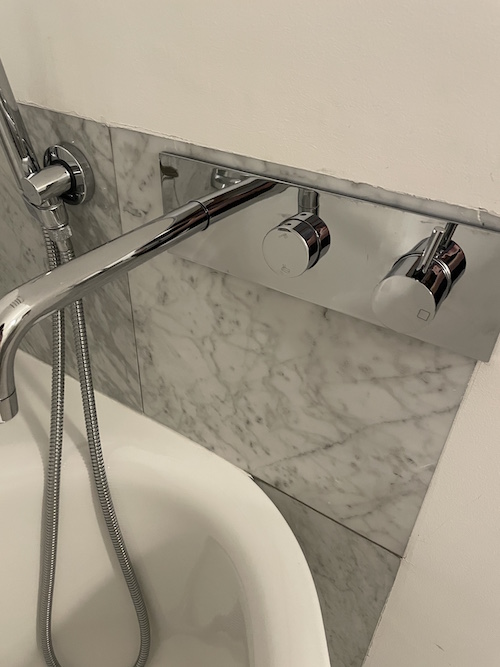 The joke was on me, however, because although the water did come out of the faucet, a river of water also came out from the (right) knob!
Was I on Candid Camera! (Does that reference dates me?)
While the water from the faucet poured into the tub, the water pouring from the knob gushed over the edge onto the floor, flooding the bathroom. By the time Dr V responded to my shouts, I was in chaos.
I handed her the trash can to collect the water and ran to the room phone to call the front desk. But dialing zero did nothing and I couldn’t get the QR code on the front of the phone to pull up the hotel’s information. I ran back to the bathroom and found that Dr. V was trying (and failing) to wedge the trash can between the wall and the bathtub, so it wasn’t collecting any of the gushing water.
I lifted the can up so that water was pouring directly into the can, and balanced it on the edge of the tub; meanwhile, Dr. V figured out how to call the front desk and spoke in fluent Spanish to explain our predicament. As we waited, I posted in our tour group’s What’sApp group; a more experienced traveler suggested we look for a switch or button near the ceiling for turning off the water.

(Not our shut-off valves, but this is what you should seek in a similar situation.)
Just as I spotted two silver fixtures near the ceiling (and well beyond my reach), the same engineer who’d fixed the sink arrived, looking at us as though we were stupid to not know how to turn off a bathtub faucet. He stormed into the bathroom, attempted to turn the knob from which the water was gushing, and (according to Dr. V) began swearing quietly in Spanish.
The engineer had to turn off the water to the entire bathroom (using the magic shut-off valve fixtures), so we couldn’t use the sinks or the facilities; we just went down early to dinner and used the restrooms there. Happily, by the time we had finished dining several hours later, the front desk was able to tell us that the problem had been fixed, and we returned to a dry bathroom with all the towels replaced. (I did not venture another attempt at the tub.)
TOTO, I DON’T THINK WE’RE IN KANSAS ANYMORE
Traveling exposes us to a wide variety of new foods and cultures, and that’s almost always a good thing. But sometimes, you may find that your travels bring you in contact with mystifying differences.
Three main confounding aspects were showers, air conditioners, and electric lights.
These Are Not the Bathrooms You’re Looking For
If you have never traveled abroad, you might not be aware that European bathrooms are often quite different from ours. For example, most bathrooms include bidets.
In many places, such as Italy and the UK, you’ll generally find that there are no electrical plugs in the bathrooms so as to ensure that visitors do not drop their hair dryers in the sink and electrocute themselves.
But there are other bathroom-y things that confuse North Americans, enough that PBS travel guide extraordinaire Rick Steves’ site has a guide, Europe’s Hotel Bathrooms: What to Expect, covering situations far more complicated than I have faced.
In one least-fancy (though still charming) hotel bathroom in Italy in 2018, the shower was so small that Dr. V could not fully stand up in it (and she’s only 5’8″) and when I raised my arms to wash my hair, at least one elbow hit a wall or escaped the confines of the shower curtain. And in many European bathrooms, non-tub showers have only half doors, so unless you stand immediately under the shower head (or handheld shower) and make very few movements, you will soak your bathroom floor. (Allegedly that this makes things easier to clean, but it’s a source of much moaning by Americans abroad.)
In yet another 500ish-year-old building in Porto, Portugal (this time a former monastery adjacent to a former palace), we had an otherwise modern room until you pulled back the curtains to find stone walls.

However, I’m sure the 16th-century monks did not have to deal with the window built into the wall shared between the bathtub and the bedroom, complete with Venetian blinds on the bedroom side, allowing someone in the bedroom to view a person using the bathroom, and vice versa. (This is apparently a global design trend?)

Organize Yourself for Hotel Showers Abroad
The aforementioned design styles require more acceptance than organizational skill (and I doubt there’s a way around organizing the water not to flood beyond a shower’s half-door). However, figuring out how the showers actually work can require diligent effort.
At home, I pull the handle toward me to turn the water on, turn it left or right to adjust the temperature, and pull up on a doodad on the tub faucet to route the water from shower to tub. In other countries, and particularly as you go from hotel to hotel, the possibilities for “grabbing a quick shower” can seem endless. I advise the following:
- When you arrive at the hotel, test the shower. Unlike in US hotels, due to the “half wall,” you will probably not be able to lean/reach in and turn on the water without getting yourself wet, so don’t do this right before you head to a fancy soirée.
- Figure out which knobs do what. This may or may not be difficult. For example, instead of pulling a knob fully toward you, you may find there’s a metal “lollipop” stick extended from the knob, allowing you to tilt the knob toward you to turn on the water. While extended at that angle from the wall, you may be able to turn it right or left to change the temperature. (Or, sigh, you may not.)
- There may also be flat buttons on the knobs.

- You may need to wear your glasses when examining the shower to look for tiny, sometimes microscopic, writing and/or symbols. (Consider using the magnifying feature on your phone.)
- Look for red marking or C for hot or a blue marking or F for cold. However, know that the C may be Italian or Spanish for caldo/caliente but could also mean calor/central for controls. Or, there may be no markings, or ones that are meaningless to you.
- If experimentation fails you, look for the name of the manufacturer and Google “[the name of the manufacturer] + shower + manual.”
- If you are in the UK and unable to achieve hot water, check for a switch outside the bathroom door. Really.
Few of our bathrooms in Portugal and Spain (or on our trips to Italy and the UK) had tub showers. Instead, one knob determined whether the water came out of an overhead “rainforest” shower head or from a slender handheld shower wand that looked more like a microphone.
In less fancy hotels, the handheld wand is your only option. It sits in a holder along a narrow vertical pipe, with a knob to loosen or tighten, allowing you to raise or lower the wand without having to hold it. The advantage is that you can use both hands to lather up; the disadvantage is that at least half the time, the hold will loosen and the wand will slide lower and lower.
On the rare instances that we had a tub, switching between tub or shower (or allowing both) also involved turning a dial affixed to the inside side-wall of the tub. Seriously, you don’t want to face these options first thing in the morning, without coffee or daylight.
One morning, I could not get the water to turn on at all. Eventually, I had to call on Dr. V to help, and we stood — and this is not hyperbole — for five minutes, working as scientists and discussing the variables, turning the top knob to the left and then the right, turning it to the left while pulling on it, turning the top knob and the bottom one simultaneously. Finally, blasted with scalding water but momentarily excited to have any at all, I eventually cried, “But I don’t know what I did!”
When I finished, I noted that the top knob’s lollipop stick was flat with the wall and pointed to the 3 o’clock position; the bottom was also flush with the wall (once turned off) and pointed to the 7 o’clock position, and gently pulling it toward me would turn the water on without changing the temperature.
I conveyed this to Dr. V, but the next morning, I was awakened by her shouting that she could not get the water on, and I sleepily croaked, “Top flat 3 o’clock, bottom toward you and 7 o’clock.” I encourage you to figure out the showers as early as possible in a hotel stay and then write the instructions with a Sharpie on a sticky note and post it near the shower.
I acknowledge that if you live in Europe, I may sound like the proverbial ugly American, but each morning in a new hotel, our group would meet for breakfast and discuss whether we had figured out the various amenities, with the shower (almost) always being the most difficult.
Take Sides — Advice for Peace in Hotel Bathrooms
When traveling with others, assigning sides, particularly of bathrooms but also sides of the closet, the in-room safe, the mini-fridge, and the top surface of the hotel room desk will prevent confusion and loss of items.
In nicer hotels, we found that bathrooms have two sinks, making it easier to organize our toiletries without getting in one another’s way. Where bathrooms are smaller and there’s only one sink and limited counter space (even with some storage below the sink), dividing the bathroom into “yours” and “mine” may seem like something out of a sitcom, but you’ll thank me later.
If you’re traveling to multiple locations, your side of everything is always on the left or right; if your traveling companion tends not to pay attention to boundaries, separating your own towels (even moving them to the closet until you intend to use them) can help keep the peace. Let’s just say you don’t want to end up like Steve Martin in Planes, Trains, and Automobiles.
Keep Your Cool with Hotel Air Conditioning
Air conditioning is not quite as big of a thing in Europe as here, but the hotels in which we stayed promised the availability of A/C through early October. In many hotels, it was as simple as conquering the language barrier (or the pictogram barrier) and figuring out what functions did what.
When you arrive in your hotel room, try to adjust the temperature to what you’d most like it to be when you are sleeping. Almost anyone can muddle through a too-warm or too-cold room for the few minutes you’re in the room during the day, but a trip can be ruined by sleepless nights.
- Make sure you know whether you are turning on the heat (often indicated by a flame or a red thermometer) or the A/C (indicated by a snowflake).
- Adjust the language and change settings to Fahrenheit unless you want to calculate the difference yourself. Officially, the formula is F=(C×9/5)+32, but you’ll get close enough if you double the Celsius temperature and add 32.
- Use the arrows to raise or lower the temperature, usually by half degrees.
- Look for an icon of a running man. In six of the seven hotels at which we stayed during our trip, there was an icon of a running man in the upper right corner of the thermostat display. While traveling, nobody could tell us what it meant. We hadn’t bothered to Google it, but during a post-trip dinner with organizing colleague Ramona Creel, she felt compelled to research it, and found: “The running man icon on a hotel thermostat, often mistakenly thought of as a “running man,” is the “man walking” or “walking man” icon, which indicates that the thermostat is in manual mode. This mode means the temperature is set manually and will not change based on a schedule, unlike other programmed settings.”
- Recognize that in some hotels, the air conditioning units do not turn on if the sensors indicate that the hotel room windows are ajar. (Yes, European hotel room windows open!)
- Know that if you have not turned on the electric power to the room (see the next section), the A/C won’t turn on.
- Sometimes, you will be given a helpful sign. However, you may find that the sign and the thermostat do not match. Note below that three of the five icons in the bottom center of the sign, below, do not appear on the actual thermostat. This, we later learned, was because our hotel in Bielsa, Spain, in the chilly Pyrenees Mountains, did not actually have the A/C turned on. (Possibly in September. Possibly ever.)

If you have difficulties, address the problem with the front desk. In Bilbao, Spain, we failed to check our A/C until the evening, when we found that we could not adjust the temperature more than 3 degrees.
About 11 p.m., I had a complicated conversation with a woman at the front desk in my halting Spanish, followed by a more extensive one with her colleague, in English. He insisted that the default temperature could be lowered by nine degrees; I insisted that it could not. Eventually, he accompanied me to the room, where he pressed the down arrow and pointed victoriously to the screen with whatever the Spanish version of “Ta-Da!” might be, only to realize that it had only lowered three degrees.
Deflated, he said there were no engineers on duty overnight, and we would have to wait until the next day to have the A/C repaired. (And then they forgot to communicate this to the staff. Another piece of organizational travel advice? Double-check everything the night shift promises before you depart for a morning’s travels.)
The next evening, the lovely and charming Eduardo, who spoke no English but seemed to enjoy my Spotify selections while he worked, employed a ladder and drill, took apart the ceiling of our hotel room, and after the better part of an hour with his torso and head invisible to us, replaced a mysterious cylindrical doodad.

As women of a certain age know, sleeping temperature matters.
Traveling is NOT as Easy As Flipping a Light Switch
Having traveled abroad before, Dr. V and I have learned some tricks. For example, we knew that in many hotels, there is no power in your room upon your arrival. You must insert your room key, vertically, to turn on a sensor and allow electricity to flow to the room.

When you check in, make sure that you and your traveling companion each have your own key. Otherwise, if the first person to leave the room departs while you are in the shower and takes her key out of the slot, you will be plunged into darkness. Often, the power does not cut off until ten seconds after the removal, decreasing the likelihood of the departing person recognizing the cause-and-effect.
You, plunged into darkness in a slippery shower will, however, recognize the cause-and-effect.
Also, you may find that in some hotels, in lieu of using your actual hotel room key card, a grocery store loyalty card may work just as well. In four of the five hotels in which we stayed that used key cards and not old-fashioned keys, the cards from prior hotels served our needs.
As with showers and air conditioners, the light switches (which are more rocker panels than switches) in some hotels can be mystifying. Our fabulous tour director for the trip warned us as we arrived at one hotel that although he’s stayed there multiple times, he had, on more than one occasion, had to call the front desk and have someone come up and turn the lights off so that he could go to bed. He was not joking.
In one hotel, Dr. V and I had to sleep with the bathroom light on; elsewhere, one of us had to cope with bright overhead light in the room being on while the other took her (pre-dawn) morning shower because we could only get ALL the lights on. And once, we had to have someone from housekeeping re-program the lights in our room because none of the bathroom lights would come on.
When you arrive in your room, note the following:
- Many hotel rooms have a master switch (whether or not there’s a key card sensor) that turns on the power to all of the other switches (and the A/C). Turn it on, and then you should be able to turn on (and off) the other lights at will. However, anticipate that the cleaning staff will turn this off, and you’ll be starting from scratch when you return to the room each evening.
- There are often duplicate light switches for overhead lights — one by the entry and one in the bedroom area.
- There are sometimes semi-master light switches near the bed that will operate overhead lights, along with the lights that work the bedside lamps. Sometimes, only your companions switch will work the overhead lights…or your bedside light.
- If you have a lamp that you can’t turn off from any switch (even the switch that turned it on), look for an outlet. You may just be able to unplug it.
- Once you figure out what the lights are for, seriously consider labeling a sticky note with what the light does. It may save you from stubbed toes, sleepless nights, and the embarrassment of having to ask Housekeeping for the equivalent of night-night service.
ONE LAST BIT OF TRAVEL ADVICE
Aside from the aforementioned bidet, using your hotel bathroom’s facilities probably won’t be difficult. But public restrooms are a different story altogether.

In Italy and Spain, depending on the quality of the bathroom (bus station vs. fancy restaurant), you may find yourself in a stall without a toilet seat. (Ladies, practice your hovering skills.)
More often, you may find yourself without toilet paper. Once, a bus station bathroom was the only public facility open on a Sunday afternoon. No toilet paper. While awaiting (dreading?) my turn, I shouted to the “the husbands” as we collectively referenced the men on the trip. One hubby pulled a long strip of TP off and handed it to us to parcel out. A moment later, a different husband had jiggled the machinery and pried loose a giant roll of toilet paper, the diameter of a large pizza, complete with the inner metal and plastic fittings, and handed it off to the women.
Paper Doll‘s advice:
- Never pass up an opportunity to use the bathroom.
- Don’t go to the bathroom by yourself. You never know when you’ll need assistance, especially if you’re traveling where you don’t speak the local language.
- Always carry tissues, toilet paper, napkins, or something that approximates their function in your purse, pack, or jacket.
Thank me later.
Organize and Lower Your Medical Bills: Spot Errors, Negotiate Costs, and Save Money

Last week, after I shared How to Track, Lower, or Cancel Your Recurring Subscription-Based Bills, a number of readers and clients were curious about the bill negotiation services listed, and quite a few wished there were a similar service for other types of expenses. In particular, I kept hearing that people wanted help negotiating (and fixing) bloated medical bills.
Estimations vary widely, but according to the latest medical billing statistics, upward of 80% of (non-pharmaceutical) medical bills contain errors that end up resulting in extra costs. This is problematic for everyone: you get bills you can’t afford, the providers don’t always get paid what they are due, and it all leads to widespread mistrust of the healthcare industry, per Medical Billing Errors Statistics: Impact on Patient Trust – A Complete Analysis.
WHY ARE THERE SO MANY ERRORS IN MEDICAL BILLING?
- Complexity — The US healthcare system has a hugely complex set of billing procedures. The more complex any system, the more you introduce the possibility of mistakes. Errors could be made by healthcare providers in billing or by insurance companies in the process of reimbursing medical costs.
- Failure to verify insurance — Although every doctor’s office and medical facility asks you for your insurance card, photocopies it, and queries whether your insurance has changed, that doesn’t mean that the person whose job it is to do the typey-typey will actually enter the information correctly. I’ve often seen clients have their old insurance companies/plans billed even after they’ve changed policies or gone on Medicare.
- Data entry errors and poor medical coding — Did you know that 52% of denied claims are due to coding mistakes? And almost 70% of billing errors are related to coding mistakes!
When you go to the doctor or to a hospital, various staff members are responsible for documenting what happened (what lab tests were run, what medications were given, what procedures were performed, etc.).
Next, someone has to enter the codes for each of those tests, medications, or procedures by selecting the proper code (from thousands) and then typing that code.
Bad handwriting, mistyping, or miscommunication on the part of the healthcare worker(s), and mis-coding are all possibilities for introducing mistakes. In terms of miscoding, it can be an issue of typing the wrong code, outright, or unbundling (where they mistakenly bill for multiple coded procedures or services that should be covered by one comprehensive, collective code).
- Poor training, disorganized billing procedures, and delayed filing — Healthcare provider offices generally do a great job at providing healthcare, but often struggle with hiring and maintaining a back office that handles billing and insurance issues.
One of my clients owned a (let’s call it) healthcare-adjacent office; a staffer involved in billing was unsure of some insurance procedures and had somehow failed to submit insurance billing for an entire subsection of patients for more than a year before the behavior was uncovered. How would you feel about getting a healthcare bill 18 months after services were rendered? How likely is it your insurance company would pay it?
- Red tape — Every year, changes in the software (and now, introduction of artificial intelligence) in medical records software means new opportunities for someone, somewhere, to make a boo-boo.
It’s not just the billing department’s fault!
On top of the creation of such errors, the perpetuation of them is, sadly, laid at the feet of healthcare consumers (i.e., patients).
Yes, it’s the job of the various levels of administration in the healthcare community to stop making these errors, but in the end, it’s our responsibility to know what our insurance policies cover, review our bills when they arrive, compare the bills with our insurance coverage, research whatever seems like an overage, and question excess charges.
Yes, I heard you groan.
None of this means you’re stuck with massive bills. You have options for verifying the charges, lowering costs, and even getting help reducing and paying for correct bills.
According to a 2023 University of Southern California study, 25% of individuals “who reached out for any reason had their bill corrected,” and a significant number were able to acquire a payment plan or lowered rates. 74% of those who sought help for a billing error reported the mistake was corrected, and of those who sought help with an unaffordable bill, 76% received some kind of financial relief. Among those attempting some kind of price negotiation, 62% got a lower bill.
So, it’s worth trying to solve the problem, but it all starts with organizing yourself to set the record straight!
HOW TO DIY ASSESS AND NEGOTIATE YOUR MEDICAL BILLS
When a medical bill arrives, don’t be too quick to pay it. Instead, follow this path:
- Know how your insurance plan works. If don’t have a handle on it, read Paper Doll Explains Your Health Insurance Explanation of Benefits.
- What’s your deductible (and have you reached it yet)?
- Have you reached your out-of-pocket maximum for the year?
- Examine your bill — Yes, you have to open your mail. I know it can seem scary, but just like you must see the doctor rather than just hoping an illness or injury will go away, you have to investigate your bills.
- Are the dates of service accurate? Are you being charged for services on dates you weren’t even there?
If you’re in the ER on a Friday night and the hospitalist (the doctor who oversees your case while you’re there) writes orders to admit you, but there’s no room available until Saturday at Noon, you might get billed for an ER visit on Friday night as well as a hospital room for Friday, Saturday, and however many more days you’re hospitalized, even though you never had a room on Friday. That can be a multi-thousand-dollar mistake!
-
- If it says why you were treated or seen, does the description of services, procedures, or tests seem right?
- Is there something weird on the bill? People have been charged ridiculous amounts for “mucous recovery systems.” That’s a box of tissues.
- Are there outsized charges for toiletry items or “administering” over-the-counter medications? An overzealous keystroke could turn a 1 into a 10 or a 10 into 100 count, dramatically increasing costs.

Physician Photo by Online Marketing on Unsplash
- Request an itemized bill — If you’re dealing with a hospital, the initial bill they send you is a big, fat summary that gives you no indication of what they’re saying they provided. Immediately call to request an itemized bill; if they give you guff, send a request via Certified Mail. Once you get the itemized summary, scrutinize it like it’s your job.
- Review it in detail, line-by-line. Can you square the referenced services with your experiences? If you were unconscious or otherwise unaware of every type of treatment you received, you should still be able to note anything egregious. Are they saying they amputated a limb that you still have? That they removed an appendix that’s still inside you (or that you had removed several years previous to this claim)? I recently read about a woman who fought a hospital charge for a circumcision — for her infant daughter!
- Do you see any duplicate charges?
- Were you charged for something that should have been included? Most insurance plans don’t let surgeons charge for follow-up office visits within 90 days of a major surgery or 10 days of minor surgeries.
- Check to see if the coding is accurate — In addition to incorrect codes due to human error, fraudulent charges may come from “upcoding” where a procedure or treatment is coded as something more complex than what you received. Coding includes:
- Current Procedural Terminology (CPT) codes for procedures (developed by the American Medical Association)
- ICD-10-CM for diagnoses
- HCPCS Level II for supplies, drugs, and services not covered by CPT codes (developed by the Centers for Medicare & Medicaid Services.
- Cross-reference your bill and your Explanation of Benefits (EOB), whether on paper or in your insurance plan dashboard.
- Has your medical provider already (and properly) billed your insurance company? If your bill seems Daddy-Shark-sized, it may be that the provider sent you a bill without having already processed the claim through your insurance.
- Check to make sure the healthcare provider filed the claim with the right insurance company.
- Look at your EOB to see if your insurance plan has rejected the claim. If so, you’ll likely see remark codes, letters or numbers next to why the claim was not paid. Somewhere in the EOB will be footnotes corresponding remark codes, clues to potential errors in the coding. I once helped a client figure out that her doctor’s office filed a claim stating that she’d had two flu shots, 30 days apart. She’d actually had one flu shot and then, the next month, the first of two Shingles vaccinations.
- The remark codes may also tell you that the reason your claim was not paid is valid. For example, most insurance companies only cover an A1C blood test for people with diabetes every 90 or 120 days; while your provider’s office should know this and not perform tests more often, it’s ultimately your responsibility to make sure you know what your insurance plan will cover and call your provider’s attention to conflicts before you accept service.
- Research the average cost (in your state) of whatever medical procedure you had done. Both the Healthcare Cost and Utilization Project and the Healthcare Bluebook have databases spelling out these costs. You can also use FairHealthConsumer.org to find the fair market price of medical procedures.
- Make a list of the issues in bullet-point form so that you are clear on what you want to explain and challenge. Take note of the claim number(s) so that the healthcare provider billing office and/or insurance company knows which claims you’re discussing.
- Call your healthcare provider’s billing office.
- Be polite. It’s the old, “You get more flies with honey than you do with vinegar” routine, although nobody ever wants flies. But you do want fewer pesky charges.
- Stick to the point. They can’t help you if they aren’t clear on the problem.
- Detail what looks wrong, using your list to guide you. Let them know you think there are (or may be) administrative or medial errors in the billing and specify your evidence.
- Ask for clarification — in writing, if necessary.
- Don’t agree to pay if you still don’t understand a charge, or think they’re still mistaken.
- Dispute bills you think are still wrong with your provider and/or insurer. Consider seeking outside assistance (as described below).
- Consider getting help from your favorite AI to draft a letter to the medical provider, hospital, or insurance company once you know what kind of solution you’re seeking. While I’m not not the biggest fan of artificial intelligence, this is an easy win. Rather than guessing at how to draft a letter that strikes the right tone, feed all of your information into the AI, prompt it with the end-result you’re seeking, and let Chat GPT or Claude take a stab at it.
- Negotiate payment options, if necessary — If the bill is correct, you still have alternatives if you can’t afford to pay it now and in full. Many providers, particularly hospitals, will work with you to arrange payment plans, lump sum discounts, or even financial hardship assistance (also called charity care or uncompensated care).
SEEK ASSISTANCE NEGOTIATING YOUR MEDICAL BILLS
DIY is great, because you reap all of the cost savings.
DIY is also awful, because you have to spend your precious time on the phone with medical billing department phone trees, weary employees, and insurance providers. If you’re still recovering from whatever caused you to need medical care, or if you have a chronic condition, this may use up all of your time, energy, and spoons.
And, of course, if you are recovered and back to work, you’re probably trying to maximize your time to catch up on everything you missed while being waylaid by illness or injury.
How do you decide it’s time to bring in outside help?
- If you’re feeling so overwhelmed by the process that you procrastinate on even picking up the phone, that’s a good indication that progress won’t be made without support. The longer you go without addressing bills that seem wrong, the less likely you’ll be to recoup mistaken or excessive charges.
- If your bill is enormous or your insurance issues are complex, and you’ve got no idea where to start, get help.
- If you suspect that the crazy-huge bill isn’t merely because they forgot to bill your insurance company but because there are errors or overcharges for which you don’t feel confident about your investigative skills, call in the experts.
- If you’ve already attempted to negotiate wackadoodle charges or resolve disputes and all you’ve got to show for it is an empty bottle of Tylenol for your headache, sore throat, and cauliflower ear from battling billing departments by phone.
How to Find Experts to Help with Negotiating Medical Bills
If you’re overwhelmed by the DIY process, seek a professional. As a Certified Professional Organizer®, I have done the legwork with clients to help them handle the DIY portion of the medical billing nightmare. I’ve sorted and collated paperwork, helped clients draft letters requesting itemized billing, and sat by their side on speakerphone, helping interpret medical billing language and supporting them while they ask questions.
However, this isn’t my area of expertise; while I’ve racked up many hours in solving my own and my clients’ medical billing headaches, it’s always best to call upon an specialist. Similarly, just as many of my NAPO colleagues who specialize in financial organizing may be able to offer support, so too may our fellow specialists in the American Association of Daily Money Managers (AADMM).
But your best bet, particularly if you’ve got frustrating, complicated, or huge medical billing issues, is to work with an expert.
Medical Billing Specialists
In general, seek someone using the professional title of medical billing advocate or medical bill negotiator.
This kind of specialist can review your bills for both obvious errors (like billing an elderly man for removal of an ovary or billing you for medication you never received and which would never be used to treat whatever you had) and mystifying coding errors, as well as instances of overcharging.
Then, with your authorization, they can negotiate with healthcare providers and insurance companies on your behalf to reduce costs.
Medical billing advocates and negotiators specialize in reviewing medical bills, cross-referencing them with insurance, and identifying errors (and instances of fraud). Their services also include negotiating with healthcare and insurance providers to correct the errors, obtain discounted rates, and sometimes get more beneficial payment arrangements.
To find a medical billing advocate to analyze and potentially negotiate your errant healthcare bills, start with the professional directories in this field:
- National Association of Healthcare Advocacy (NAHAC)
- Alliance of Professional Health Advocates (APHA)
- UMBRA Health Advocacy
- Greater National Advocates
If the sticky wicket of the billing problem is your insurance company, an associated organization is the Alliance of Claims Assistance Professionals and Advocates (ACAP), whose members provide medical claims assistance and patient advocacy for a fee.
Note: some advocates and specialists will work on a contingency basis, taking a cut of whatever they save you; others will charge a flat fee. Before engaging the services of a professional, make sure you understand their billing methods.
Related Specialists
Additionally, the Patient Advocate Foundation (PAF) connects healthcare consumers and their families with case managers who can help with both health and expense-related support, including access to care, assisting with applications for health insurance and related government programs, appealing insurance denials, getting support for co-pays and insurance premiums, applying for free or low-cost healthcare programs, and obtaining billing discounts or setting up payment plans.
Other professionals may also be able to provide support. For example, patient advocates (whether independent, associated with healthcare systems, or provided by your employers’ Employee Assistance Program (EAP)) may be able to walk you through the wonkiest parts of the billing and insurance and help you resolve questions and problems.
If you suspect fraud or are dealing with a particularly complex legal dispute, you may need to hire an attorney specializing in the legal side of resolving medical billing claims. And, if you do believe you’re dealing with an instance of fraudulent medical billing, you might want to contact the offices of your state’s attorney general or insurance commissioner.
ENGAGE A BIG MEDICAL BILL NEGOTIATION COMPANY
Between the time I started researching this post and publication, a number of the larger billing negotiation companies, designed to take advantages of scale to negotiate billing on a patient’s behalf, like CoPatient, have ceased operations. Still, you do have options.
Medical Cost Advocate

Medical Cost Advocate (MCA) — In addition to medical bills, MCA also negotiates dental bills and health insurance claims. They also provide on-call advocacy for employer groups, and concierge healthcare advocacy services for families and executives needing more ongoing insurance and billing assistance than they have time to address.
Once you create a personally-identifying account profile (a step you can skip on future visits), use your login ID to share billing information, check the status of any bill negotiation, and review a final report of any achieved savings.
Start with some data entry. Confirm information about the patient (whether that’s you or your dependent), like date of birth, mailing address, phone number, etc. Include your insurance provider’s information (if you have coverage) to cross reference who has responsibility for which costs.
Next, either upload the bill or enter the billing information in their system so MCA has information about the medical provider, the procedure or services to be assessed and negotiated, the amount already paid and/or still due, and the status, such as whether you have submitted the bill to your insurance carrier.
You’ll also enter payment authorization for MCA’s negotiation services, approve the terms and conditions, and authorize a credit or debit charge (equal to the percentage of the savings they negotiate).
MCA charges 35% of the total savings achieved on negotiated medical bills, and takes nothing if not successful. When everything is complete, you’ll get emailed a savings report.
Note that Medical Cost Advocates won’t take on billing negotiations for costs under $600, so this is better used for big bills related to a hospitalization or root canal, not your doctor’s office co-pay.
MCA claims that their services typically save their clients anywhere from 20% to 50%. While there’s no guarantee your bill will be lowered, bill submission process is easy enough to make it worth your (small) effort.
Goodbill
Goodbill offers similar medical bill negotiation services but specializes in hospital billing.
Goodbill’s user interface is intuitive. You start with a simple screen that asks you basic questions about your experience and the billing.

After you authorize Goodbill to access your hospital bill and medical records, they combine team expertise with Goodbill’s AI software to review and analyze your bill and medical records with the goal of identifying bogus, unnecessary, or inflated charges, bad coding, or related mistakes.
If Goodbill finds discrepancies between what they should have billed and what they did bill, they’ll sent you a draft of a formal negotiation letter, enumerating the mistakes and the possible savings. If you approve, Goodbill will forward the letter to the hospital and follow-up with negotiations as necessary until the problem is resolved.
Goodbill charges a fee only if they’re able to negotiate a discount. Goodbill takes 20% of the savings they find you, with a cap of $1,000.
If you’re unable/unwilling to follow the DIY approach to negotiated your costs in the first place, there’s no monetary risk to you to turn the problem over to either company.
DollarFor
Although DollarFor previously offered medical bill negotiation services, they have suspended this offering. However, they have a robust library of DIY negotiation tips and resources, including a hardship letter template, a sample negotiation script, and settlement letter template, worth your exploration.
MEDICAL BILLING IMPACT ON CREDIT HISTORY
Finally, know that medical debt no longer has the same impact on your credit score as before. As of April 2023, the major credit reporting agencies (Equifax, Experian, and TransUnion) have made the following changes:
-
Debts smaller than $500 aren’t listed on credit reports and no longer impact credit scores.
-
Consumers have a one-year grace period before medical bills in collection appear on credit reports, providing ample time review, negotiate, and resolve disputes over medical billing and insurance errors.
-
Repaid older debts should be removed from your credit report. Unpaid medical debt older than one year and greater than $500 will still show up on your credit reports for up to seven years, potentially damaging credit scores. However, if you (or your insurer) repay medical debt already in collections, the credit bureaus will remove the debt from your reports.



Follow Me