Archive for ‘Tech’ Category
Paper Doll’s Guide to Managing Passwords for the 21st Century
Last week, in Not Your Mama’s Passwords: Passphrases, Passkeys, and the Future of Logging In, we saw how much has changed since we all made our first online passwords. Now, creating a strong password requires more characters, more variety, and more possibilities for making them secure, memorable, and useful. We also looked at passkeys, those secure digital handshakes that are even more powerful than passwords, and we got a greater understanding of what goes into multi-factor authentication.
So now we’ve got these big, strong, hunky passwords, passphrases, and passkeys, what do we do with them once they’re created? Organize them, of course!
HOW SHOULD YOU ORGANIZE YOUR PASSWORDS?
Having something and not being able to find it is just as bad as never having had it in the first place.
Have you ever lost or forgotten a password you really needed?
So, let’s start with a different question: how shouldn’t you organize your passwords?
- Don’t count on your memory! — When a password is first created, everyone thinks they’ll remember it, but time and disuse (as well as stress) can make the memory of a password foggy. One too many half-remembered attempts can lock you out altogether.
- Don’t re-use the same password for everything in order to lessen the likelihood that you’ll forget. — As we saw last week, a re-used password is an invitation to ne’er-do-wells.
- Don’t leave passwords on sticky notes around your desk for others to see (or for tiny humans or furry friends to accidentally carry off) — The security of where you keep your passwords can be just as important as the security around their creation.
The main ways to organize your passwords are either analog or digital.
ANALOG PASSWORD MANAGEMENT
You can use a password notebook or even an address book to log your passwords as you create them, alphabetically by the website’s name or URL.
A simple, nondescript option can hide in plain sight. For example, this faux leather, hardcover Clever Fox Password Spiral Book with alphabetical tabs, measures 4.7″ x 5.7″ and comes in more than a dozen colors. There’s a pocket for loose notes and an elastic band to keep it from accidentally opening to view.
Each entry block has spaces for the website/URL, user name, password, and a hints or clues.
Importantly, the cover (once the label is removed) does not betray the contents and the average onlooker would likely mistake it for a journal. This one costs about $15 at Amazon.
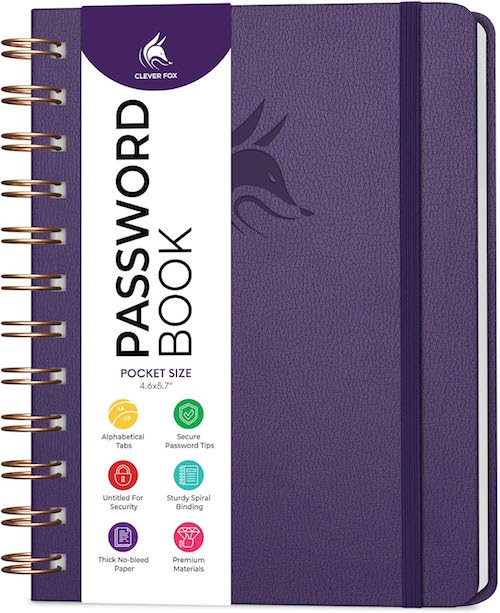
There are a variety of similar options. What you really don’t want is a novelty version with a cute phrase or design that lets on that it contains passwords.
Even if you normally only used a password notebook at home, the minute you need or want your passwords to be as portable as your phone (such as when you’re traveling), if your notebook can’t go incognito, the information within will be at risk.
Advantages of an Analog Password Notebook
The main advantage of a notebook for storing and organizing your login credentials is that you already know how to use one.
Every time you create a new password, you just reach for your password notebook and write it down. You don’t need any technical skills, just diligence.
Disadvantages of an Analog Password Notebook
And there’s the first drawback. It requires diligence. How often have you been prompted to make a new password while in a hurry? You think you’ll remember it and do nothing, or you write it on the nearest piece of paper. Either way, you’ve got trouble.
There are other drawbacks of a tangible, analog password notebook:
- It has no backup — If you lose your password notebook, spill coffee on it, drop it down a subway grate, leave it on the hood of your car as you drive away, or otherwise destroy it, you’re stuck clicking “forgot my password” for the next several months (or years) until you recreate every password for every site you visit. Worse, if you’re traveling, not being able to log into your accounts to access reservations or financial sites could put a serious crimp in your plans.
- It’s not secure — If you do lose your password book (or if it’s stolen), someone has access to your entire financial and personal life. It’s not that big deal if someone logs into your Netflix account, watches to their heart’s content, and messes up your algorithm. But if someone can log into your bank, investment, and shopping accounts (especially the ones in which you have a credit card on file), you’ll be in a world of hurt.
- It’s not really searchable — Yes, you can use the alphabetical tabs, in general, so Apple and Amazon will stay in the A’s, but you don’t live your life in alphabetical order. You don’t encounter websites in alphabetical order, either, so whatever you add later will be out of order, making it harder to find what you seek.
- It runs out of space — Password notebooks have limited pages, so when you run out, you’ll need a second (and then a third) notebook. The additional cost of one notebook every several years isn’t a huge barrier, but not knowing whether the right password is in the first book or the second (and so on) is inconvenient, and again, having to take two notebooks any time you travel from home or office doubles your chances of loss.
- It’s hard to keep organized when you need to update passwords — You should update passwords every so often; some sites require it. The problem? If you use a pen, you need to cross out the prior password and squish the new password into the space. If you’ve run out of space in that entry, you could cross everything out and write the login credentials in a different entry box, but now you’re not only going to be out of alphabetical order, but if you don’t do a good enough job crossing out the old information, you may someday stop at the first entry and think it’s valid. (If you use pencil instead of pen, you may struggle with legibility, and eventually, with erasing a hole through the paper!)
You could create a spreadsheet with all of this information to make it digital, adding lines and then using the sorting function to keep the websites/apps in alphabetical order. However, printing the document (which may get unwieldy the more passwords you add) yields the same problems regarding security.
I won’t tell you that an analog password notebook is never a good choice. Some seniors and many people averse to technology will find it easier to commit to using an analog tool.
While it’s better than no system at all, an analog password notebook lacks the nuance and robust resources of a digital version.
DIGITAL PASSWORD MANAGEMENT
A digital password manager is simply a piece of software; on your mobile device, it works as an app. On your computer, it’s a free-standing program that generally integrates with your web browser. Its job is to sit and wait until you need to create or access login credentials.
Advantages of Digital Password Managers
There are more advantages to digital password managers than most people realize. A modern, sophisticated password manager can:
- Remember thousands of passwords so that you don’t need to do it.
- Generate strong, unique passwords automatically — Most can generate options based on the requirements of the site for which you’re creating a password and your preferences.
So, if BlahBlah.com requires 16 characters, capital and lowercase letters, a number, a special symbol, and a dash of fairy dust, but you also prefer passwords that don’t include capital “I” or lowercase “l” because they look the same to you (just in case you ever need to actually read the password), you can make an adjustment.
If you tell it to generate a password with all of the site requirements, but you want it to look more like a passphrase, not only can a digital password manager do so, but if one of the words reminds you of a horrible ex-boyfriend, you can “regenerate” the password with a click of an on-screen button. Next!
But digital password managers can do so much more, like:
- Store more than just passwords, including passkeys, Wi-Fi credentials, credit cards, secure notes, software license keys, recovery codes, and passport/ID information.
- Warn you of weak, re-used, or compromised passwords (as we discussed last week).
- Prevent the reuse of passwords across multiple websites and apps during the creation/generation stage.
- Auto-fill usernames, passwords, passkeys, and payment information so you can minimize the time you spend typing and optimize your productivity.
- Sync securely across all of your digital devices, including computers, phones, and tablets.
- Provide safe sharing capabilities with spouses, family members, co-workers, or trusted advisors.
- Save time by reducing password re-sets due to lost or misread passwords.
In summary, digital password manager can organize your digital life by helping you create, maintain, and access your login credentials (and more) in one secure, searchable system across all of your devices.
Disadvantages of Digital Password Managers
I’m not going to tell you that digital password management is perfect. As with any system, there are some demerits and hiccups, and each person has to weigh the costs and benefits. The imperfections of digital password managers can include:
- Learning curves — If you’re constantly online, this is barely a blip; you’ll either intuit or learn whatever you need to in order to start using it immediately. However, for folks who find computers and mobile devices a source of frustration, the concept of digital management, if not any one password manager’s functions, may cause more annoyance than it helps.
- Temporary inconvenience — While creating/entering new passwords is easy, importing all of your passwords from a different digital password manager or from analog lists may not be instantaneous.
- Single point of failure — Digital password managers depend on a master password, known only to you. There’s no clickable “forgot my password” for the key to your keys, and though there are recovery methods, you actually have to put them in place for them to be available. Without your master password or recovery methods arranged, it’ll be difficult or impossible to access your vault.
- Browser auto-fill isn’t always 100% successful — Every once in a while, particularly on mobile, you may encounter a situation where you have to manually copy-and-paste (or view-and-type) your username and password from the digital password manager into the website login section.
- Cost — While most digital password managers have free tiers, you will likely have to pay for all the bells and whistles.
- Subscription fatigue — Most software-as-a-service entities have moved from one-time payments to subscription models. If you’re the type of person who wants to pay once and never again, this may be a mindset hurdle.
- Trust — You’re giving the keys to the kingdom to a piece of software. When you’re trusting a third party with all of your highly sensitive information, it’s vital that you choose a reputable company whose security is undeniable.
While any/all of these can be drawbacks, they are almost certainly outweighed by the advantages of digital password management.
THE MOST POPULAR DIGITAL PASSWORD MANAGERS
You have a variety of choices when it comes to digital password management.
Built-In Password Managers
Let’s start with the digital password managers you already have.
Apple Passwords (Part of iCloud Keychain)
Apple’s Passwords is built in to all Apple devices, interacting with iOS apps, Mac apps, and the Safari browser. I’m a fan, especially because it’s free and works like a charm, but I’m the first to admit it’s not feature-full in the way many third party apps are.
Contrary to popular belief, Passwords can work in Chrome and on Windows computers, but it’s not turnkey. You have to download the official Apple extension to sync your passwords and autofill logins.
- On a Windows PC, download the iCloud for Windows app from the Microsoft Store, turn on “Passwords,” and install the iCloud Passwords Chrome Extension.
- On a Mac, install the same iCloud Passwords Chrome Extension from the Chrome Web Store.
- On an iPhone/iPad, go Settings > Passwords > Password Options and turn on AutoFill Passwords to select Chrome as a trusted autofill provider.
You’ll still need an Apple ID to authenticate yourself with a verification code when you set it up.
Google Password Manager
Google Password Manager is built in to the Chrome browser on all desktop and mobile platforms and every Android app.
One problem I’ve noticed is that it’s not uncommon to have more than one Google identity, and that can cause frustration. If you created a Google account in 1999 and built a life for yourself as ILikePuppies1959@gmail.com, but created ProfessionalLeader@gmail.com in 2010, you may have different accounts linked to each Google identity.
You may use Chrome and want to log in to Website A, only to find that Google Password Manager’s login for Website A is associated with your other Google account. On the plus side, Google won’t make you log out; just click on your little avatar and log in as the appropriate profile.
Third-Party Digital Password Managers
One benefit of a third-party digital password over a built-in one is easier cross-platform compatibility without dealing with QR codes or fiddly Apple vs. Android/PC fussing.
But the truth is, every digital password manager, including the ones from Apple and Google, have trade-offs: personal aesthetic preference, user user convenience, cost, styles and methods of security protections, backup/synchronization and preferred features.
Bitwarden

Bitwarden has a very generous free plan, making it a budget-friendly option. The Personal Premium plan is $19.80/year and includes premium features like an integrated authenticator, secure password and file attachment sharing, emergency access for trusted contacts, security reports, and the ability to share vault items with one other user. Families get up to six premium accounts, unlimited sharing, unlimited collections, and a shared vault for $47.88/year.
Bitwarden is open source, so anything you do decide to pay goes toward further development and not lining the pockets of evil billionaires.
Some users feel the interface isn’t as polished as some of its competitors, and that the family and sharing tools aren’t always intuitive. Additionally, there are complaints that if you update a password, it may create a new entry instead of modifying a pre-existing one, leaving both the correct and outdated passwords in place.)
1Password
1Password has a 14-day free trial, after which it’s $36/year for individuals and about $60/year for families, with additional team, business, and enterprise-level plans.
1Password is beloved for it’s easy-to-use interface, family and shared-vault features, and a security dashboard that alerts you to weak and reused, and monitors the dark web for compromised passwords. It autofills logins across mobile apps and browsers with biometric unlock via fingerprint, face, or iris.
One standout feature is Quick Access, which can be used to search for anything you’ve saved in 1Password, including medical records and software license keys. Quick Access automatically identifies the app or website you have open and suggests relevant items from your vaults, providing a fast and convenient way to sign in to your accounts.
Unfortunately, there’s no free version and it’s slightly more expensive than its (un-discounted) competitors. (Also, while the software is user-friendly, the website a bit intimidating.)
Proton Pass

Proton Pass has a strong privacy focus and is part of the Proton ecosystem. Like Bitwarden, it’s open source.
On top of the basic password generator, the feature-rich free plan works in the browser, on mobile, and in desktop apps, and includes unlimited logins, notes and credit cards, unlimited devices, 10 hide-my-email aliases, passkey support, alerts for weak and reused passwords, and an easy password import function.
Pass Plus, at $2.99/month or $35.88/year, also includes unlimited hide-my-email aliases, a built-in 2FA authenticator, secure vault and link sharing, dark web monitoring, file attachments, emergency access for trusted contacts, a custom domain and additional inboxes for aliases, and command-line interface. Pass Family is $59.88/year includes everything in Pass Plus for up to 6 accounts, plus an admin panel for your family. There’s also Proton Unlimited, which gives you Proton Pass, Proton Mail, Proton Calendar, Proton VPN, and Proton Drive, all for $119.88/year.
Keeper

Keeper is one of the more expensive options at $42.99/year for a personal plan with unlimited storage, sync, and devices, unlimited identity and payment storage, fingerprint and FaceID login, web app and browser storage, and 24/7 support.
A family plan is $91.99/year for up to five users, providing the same features as a personal plan, plus shared passwords for WiFi and streaming services, unlimited shared folders, records and permissions, 10GB of secure file storage, and emergency access for estate planning. (Note: family members cannot access each other’s vaults.) In addition, there are also student plans at 50% off, and personal and family military plans with separate pricing options.
Keeper has a strong security reputation and rich business features, but a regular plan does not include dark web monitoring or secure storage, which require add-ons at extra cost.
For casual users, Keeper can be a little feature-heavy.
Dashlane

Dashlane has a very polished interface and is beginner-friendly, but it no longer offers a free plan (though there is a 14-day free trial). The usual Premium price is about $65/year, though a current 40% discount brings it to $39.12/year.
In addition to unlimited devices, dark web monitoring, and the usual password generation and monitoring tools, the Premium plan includes passwordless instant login (without typing), securely shared access, a built-in virtual private network (VPN) for when you’re on public Wi-Fi, and live AI-powered scam protection.
The Friends & Family plan covers 10 users and has a family dashboard.
NordPass

NordPass, from the makers of NordVPN, starts with a free lifetime plan with essential features like password generation, autosave, autofill, biometric/MFA access, password import capability, secure storage, and 24/7 support, but if you want access on multiple devices, a password health dashboard, a data breach scanner, file attachments, and the NordPass authenticator, you’ll have to upgrade to Premium (usually $35.88/year, but currently $19.08/year for the first 12 months, a 46% savings).
The “Family” Plan (good for friends and family) has all of the same features as premium for up to six users for $35.88/year (usually $71.88). Both the Premium and Family plans have a 30-day money back guarantee and both 1- and 2-year plans.
Other well-known options like Roboform and Aura may be worthy of your consideration, too. This post was a survey of options, not recommendations.
Fancy Words: Zero Knowledge Architecture and Encryption
Digital password manager marketers talk about these two features.
Zero knowledge architecture means that your data is encrypted and decrypted exclusively on your local device, ensuring only you can access it. But guess what? All six of these third-party password managers has it, as should every leading password manager. But because these companies can’t access your information, it’s vital that you always know and remember (and never re-use) your master password!
Oh, and encryption? They all tout having AES-256 encryption, except for NordPass, which uses XChaCha20 (yes, I’m serious) encryption, which is a newer, highly regarded encryption algorithm.
Essential Digital Password Manager Features
- Intuitive user interface — Because if you don’t get it, you won’t use it.
- Strong encryption — Duh!
- Multi-factor (including biometric) authentication for your vault/master login
- Strong password generation according to your specifications
- Passkey support
- Cross platform support — If it doesn’t sync across all of your devices, something is going to fall through the cracks.
- Browser extension for auto-fill, so the minute a login screen pops up, your browser should detect the need for credentials and fill them in, awaiting only your approval by click.
- Easy search and organization tools
- Mobile app
- Secure backup and recovery options
- Import/Export Tools — Because the last thing you need is for your passwords to be spread across multiple digital password managers
Bonus Features
- Security alerts and/or a password health dashboard for compromised or reused passwords
- Secure sharing capabilities to let family members (or team members at work)
- Emergency access login for trusted contacts
- Secure notes
- Document storage with high (or no) limits
- Dark web monitoring
- VPN included in subscription
- 24/7 Customer Support
And of course, consider the costs — look for a free trial (or better yet, a free tier) to make sure you find it intuitive. Whatever you pick, don’t just think in terms of a monthly cost, but also the annual cost and total cost over a “lifetime” of use.
A digital password manager means that you no longer have hundreds of login credentials and related information on sticky notes and in notebooks, un-synced browsers, and spreadsheets. And definitely not in your memory.
Instead, everything can live in one organized, searchable, encrypted repository.
Keep Your Digital Password Managers Organized and Maintained
As discussed last week, dealing with the backlog of weak, compromised, and reused passwords will take a while. Once all your strong passwords are migrated into your new system, block time to periodically check (and update) compromised passwords and delete outdated, unnecessary ones.
MORE RESOURCES
For more on helping you select a digital password manager, try these resources.
Cyb3R_Sm@rT!: Use a Password Manager to Create and “Remember” Strong Passwords (CISA.gov)
Trusting the Tech: Using Password Managers and Passkeys to Help You Stay Secure Online (National Cyber Security Centre, UK)
The Best Password Managers of 2026 (Security.org)
The Best Password Managers for 2026 (PC Magazine)
Best Password Managers for Android 2026 (ZDNet)
The Best Password Managers (Wirecutter)
Just don’t let analysis paralysis keep you from getting started. Any reputable password manager that you use consistently will improve your security more than whatever you were doing before.
In the first post in this series, we focused on creating better passwords and passphrases, because what made a good login credential in 1997 (or even 2017) just doesn’t work today.
Today, we looked at password management systems for these new and improved security credentials.
Next time, we’ll examine how we prove who we are online with the new digital identity platforms increasingly used by federal governments.
Not Your Mama’s Passwords: Passphrases, Passkeys, and the Future of Logging In
Those of us of a certain age remember the first time we had to create a password, and for many years, lots of people used the same password for everything. As we edged from the 20th century into the 21st, we got “smart” about using smart passwords so they’d be harder to crack.
This short video from comedian Michael McIntyre may reflect your early password experiences.
Have you found that it’s become even more frustrating in recent years?
You don’t just need a password. There are passwords, passkeys, two-factor authentication, multi-factor authentication, facial and thumbprint recognition, and so much more. You may think you know everything there is to know about passwords; but even if you do, are you actually doing what you know you ought? And are there people in your life (like teens, grandparents, or technophobes) who could use a little support?
Today, we’re going to look at all the things you need to know and the various actions to consider taking to make sure your vital data is organized, safe, and protected.
Let’s start with the classic, the good old password.
HOW TO MAKE A GOOD PASSWORD
Do you know what makes up a solid password?
A Good Password is Strong
A good password is a strong password, one with serious muscle, one that’s hard to break or crack. The experts say that a strong password should have the following characteristics
- Sufficient Length — A strong password should be 16 characters. (I remember fondly when they asked for eight; then 12 characters were recommended. Sigh.) The shorter your password, the chance of a hacker figuring it out increases exponentially.
- Complex Makeup — Generally, it’s recommended that a strong password should be a mix of both uppercase and lowercase letters, numbers, and symbols that you can type from the keyboard. (Don’t use emoji.)
- Randomization — It’s a lot harder to guess 1dK5d8P91e65nNwf82et than PaperDoll123456.
- Uniqueness — Never reuse passwords across different accounts. Yeah, I know. We are all guilty of it, but the easier it is for a bad guy to hack one of your passwords, the easier it is to get into your others. If you must re-use passwords, aim to only do so on with sites that have no real impact on your life.
The problem with this recipe for strong passwords is that we are human. We’re lazy. We don’t want to keep creating new passwords. And complex, random passwords are hard to remember. But do you know what’s harder? Dealing with a hacked bank, investment, or Amazon account.
Instead of creating a random block of letters, numbers, and characters, you can keep the randomization but make the password a little easier to remember.
Create a Passphrase Instead of a Password
Instead of one block of letters or numbers, develop a sequence of unrelated words.
For example, WinterWonderland, while possessing 16 characters, would not be a great passphrase because the words are thematically related. GrotesqueBroccoli, while reflecting my feelings about a particular vegetable, aren’t commonly used together. Even better would be something even longer, more bizarre, and unrelated, like YuckySweaterRodentNoise.
One advantage of a passphrase is that if you’re hand-copying it (from a password notebook, or typing on a computer but retrieving it from an app on your phone), it’s much easier to see and parse a string of words than il7-0oO-nmn-MWN, especially if you’ve got eyes that were in their prime in the 1980s.
Think about the characters you choose.
The above example prompts a tip that the experts never mention. Because various letters and numbers, like a capital “I” (as in “I am”) and a lowercase “l” (as in “login”) are indistinguishable from one another in some fonts, as can be the number 1 and an exclamation point.
Capital “O” (as in “order”) and “0” (zero) can be confused for one another, and some lowercase letters, like “r,” “n,” and “m,” and uppercase letters like “M,” “N,” and “W” can also be hard to differentiate.
Avoid predictable password information.
First, don’t use common dictionary words like “password” or keyboard sequences like qwertyiop. Duh!
Similarly, don’t use your personal information. Your password shouldn’t have your birthdate, phone numbers associated with you, names of your pets or the street on which you live.
If you need to be able to remember a password and won’t be safeguarding it in a digital password manager, an alternative method might be to pick information that’s personal to someone unassociated with you. Everyone knows I’m a fan of Jane Austen, so someone trying to hack me would find it easy to pick obvious things like Pemberley or Rosings, but if you have a favorite book or movie character that wouldn’t be easy for someone on the internet (or an evil ex) to suss out, consider stealing their fictional personal information.
Consider combining the above tips with a foreign language.
While I am only fluent in English, I have studied Italian, French, and Spanish, and know a smattering of Yiddish. Picking words from another language to come up with a lengthy but easy-to-read/remember passphrase might help you more easily read and remember it to safeguard access to your data.
Let a digital password manager do the heavy lifting for you.
Often, you can designate the features you want, so that if it needs (or you want) the number of characters to be even more than 16, or you prefer a readable passphrase over one with garbled numbers and letters, it will accomplish that for you.
Hacker Reality Check
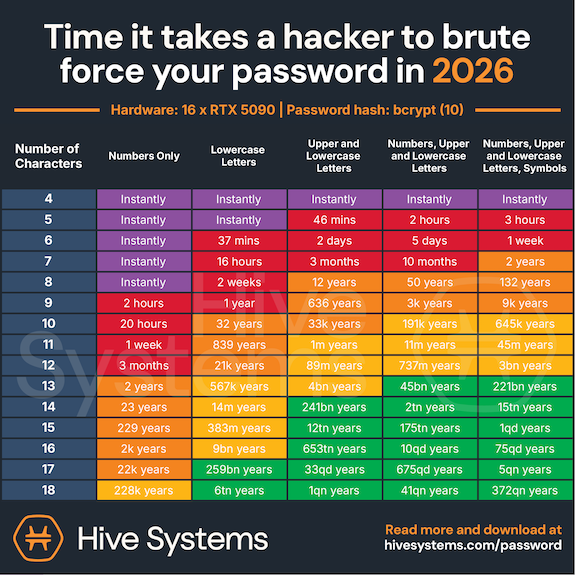
The longer and more complex your passwords, the harder it will be to crack them. Hive Systems annually creates a table of the characteristics that increase your chances at organizing and preserving your dat privacy. Here’s their most recent table.
Courtesy of Hive Systems
This table confirms what we know: “Fluffy” and “123cookie” just aren’t going to cut it.
HOW TO FIX THE PROBLEMATIC PASSWORDS YOU ALREADY HAVE
If you have a digital password manager, it may prompt you with warnings regarding some of your passwords because they are:
- Weak — Such passwords are likely not long, complex, or random enough to be effective.
- Compromised — This status indicates that passwords have shown up on the dark web in a hack, likely one of a large corporation, like a retailer or insurance system (like the Change Healthcare cyberattack in 2024).
- Reused — An internal scan of passwords shows your app that you’ve used the same password repeatedly.
While working with a client recently, we saw that her iPhone’s Passwords app listed 610 passwords with a scary exclamation point on a red background indicating that 236 passwords had a security concern. Of those, about 122 were shouting “COMPROMISED PASSWORD” in red letters, with another 100 or so listed as “reused password.”
(Again, it’s not a huge problem to reuse passwords solely for sites you’re merely using to gain access to articles; but if such a site allows comments on articles, would you want to risk a hacker making you look like a fool or scammer by commenting with your identity?)
Closing your eyes to this problem isn’t a solution. In this case, the only way out is through.
Schedule a date with yourself — perhaps weekly, to deal with the backlog, and then perhaps quarterly for maintenance — to address your password hygiene. Treat it the same way you do (or should do) to periodically update your operating system and apps, clean your desktop, pare down your inbox, etc.
Again, consider letting a digital password manager create replacements for you. It will be faster and easier than trying to come up up with something unique for any/many of your passwords.
WHAT IS A PASSKEY AND WHY IS EVERY SITE ASKING ME FOR ONE?
Have you noticed in the last year or so that every time you log into a web site, it asks you if you want to set up a passkey? Are you ever prone to thinking, “I just logged in with my password. Isn’t that already a passkey? What’s the difference?”
A password is your super-secret word or phrase that you create and then memorize (or write down, somewhere). It’s like the secret password that might have gotten you into a speakeasy in the 1920s.
(Trust me, this is worth watching for a laugh, especially if this whole topic stresses you out.)
But there’s the problem. You, a flawed (but adorable, I’m sure) human, must come up with the secret password and then protect it. This makes it vulnerable — to memory loss, password loss, phishing, hacking, and data breaches.
A passkey is different. It’s an un-phishable digital credential that’s tied directly to your device. Instead of typing a word, phrase, or string of gobbledygook, you unlock your account through a handshake between your device and the website, usually through some kind of biometric scan on your device (like FaceID on your phone, or thumbprint/TouchID on your device or keyboard), or a device/screen PIN. If you’re already logged into your computer or phone, you may be all set!
Passkeys differ from passwords in several ways.
Passkeys Are More Secure than Passwords
With a password, you’re sharing a secret with the server for whatever site you’r trying to log into. The thing is, secrets like these get revealed or betrayed all the time, either on our side, by our faulty memories or poor record-keeping, or on the server’s side, by getting hacked. Either way, access to your account is either lost or exposed.
Passkeys, however, use what’s called public-key cryptography. That’s a fancy way of saying that rather than having one key (your password) that fits in a lock on the other side, it’s more like in an old movie, where they’d go into a bank vault and the customer and the banker would each have a key for the safe deposit box.
Your private key is always securely locked inside the security chip of your device, while only the public key, which is totally useless-to-hackers, is maintained by the website.
Passkeys are More Resistant to Phishing Attempts
Have you ever been tricked (or almost tricked) into typing your password into a fake website, one made to look like the one you really want? Passkeys link your login effort to only a legitimate app or website, so if you try to log in to a faked website, your device will say, “No way, José!” and refuse to authenticate.
No handshake. Do not pass GO, and the phishers will not get $200 dollars.
Passkeys Are More Convenient than Passwords
Aren’t you tired of having to REMEMBER passwords?
Aren’t you tired of typing passwords?
Well, with a passkey, you don’t have to. If you’re already logged in to your device, access feels like magic. If not, logging in is limited to a simple scan of your beautiful face or a tap of your finger or thumb. It’s quick, and your face or thumbprint can’t make a typo, so your success rate will be higher.
Passkeys Are Unique
We’ve already established that people reuse their passwords, which means that if you reuse the same password on ten shopping sites and a hacker gets your password once, they can probably guess it on a lot of other major sites.
Conversely, each passkey gets generated uniquely for whatever individual account at which it’s being set up.
Passkeys Are Loss-Proof
If you lose your phone, get a new computer, or your toddler puts your iPad in the dishwasher, you’re not out of luck.
Passkeys are synced across cloud services, like your Google Password Manager or your iCloud Passwords app, so access can be restored by setting up a passkey to the new device.
Passkeys (Usually) Eliminate the Need for Multi-Factor Authentication
I don’t know about you, but I’m so tired of having to check my email and/or my phone for a email or text code that I then have to type in. With a passkey, two-factor authentication is built-in, so you’re all set.
Passkeys Bypass Password Fatigue
Have you ever just given up and done something else because you can’t bear to type in another password? (If you have a digital password manager and your passwords are organized and frequently pruned, probably not, but if you’re go the analog route 100% of the time or you’ve let your password management go rogue, this may sound familiar.)
So, the next time a website asks, “Would you like to set up a passkey?” you can feel confident in saying, “Why yes, thank you. I would very much like to set up a passkey! How nice of you to ask.”
A NOTE ABOUT AUTHENTICATION AND DIGITAL IDENTITY PLATFORMS
In addition to passwords and passkeys, you may have found websites asking you to use additional forms of identity authentication.
Authentication
Do you cringe when you hear people talking about two-factor authentication? You know it has something to do with security, but maybe you’re having trouble wrapping your head around it? Just like you don’t need to know how to rebuild a carburetor to be a good driver, you only need to know a little to make this aspect of security feel accessible.
For example, you’re almost certainly used to providing a security code, usually a series of numbers, that gets sent as a text or email.
This process is an example of two-factor authentication or multi-factor authentication. We’re not going to get too deeply into the weeds on this, but very basically:
- Two-Factor Authentication (2FA) requires exactly two authentication steps, like using login credentials (a user name and password combo) plus that security code texted to you.
- Multi-Factor Authentication (MFA) requires two or more authentication steps.
So, 2FA is a type of MFA, but not all MFA is 2FA.
In order to classify a method as Two-Factor Authentication or Multi-Factor Authentication, the “factors” have to come from different categories. For example:
- Knowledge — In order to log in, you have to provide something that you know, like a password, passphrase, code, or PIN, which means you have to keep your password information organized.
- Possession — This step involves something that you have, like your mobile device, your computer, or a hardware security key. (Again, not to get too geeky, but that’s a physical device used for MFA or password-less logins. If you actually want to know more about hardware security keys, you can read PC Magazine’s The Best Hardware Security Keys for 2026.) The key proves your identity using advanced cryptography when you:
- insert it into a USB port in your computer
- tap it wirelessly via near-field communication (NFC) against your phone or tablet
- connect via Bluetooth (for devices that don’t have USB ports or aren’t NFC-capable)
- Inherence — This fancy word means something that you are, or that is inherent to you and nobody else. This is where FaceID or a fingerprint scan on your phone or your keyboard come in handy, because only you have your face or your fingerprints. Well, mostly. Per Apple, identical twins can sometimes unlock one another’s FaceID!
Digital Identity Platforms
As technology gets more advanced, the bad guys avail themselves of more technology. This means that modern authentication needs to get more advanced, too. Just as the Michael McIntyre video of the top of the post made the point about our old-timey passwords requiring us to add capital letters, then numbers, then symbols, so too are we facing more complex requirements beyond simple passwords and multi-factor authentication.
Because of this, there’s a whole honking sub-category of authentication through digital identity platforms.
In two weeks, we will look at two very special kinds of login credentials we need to set up in the United States to help ease our access to federal government websites in order to pay our taxes, check our benefits, and travel. We’ll also look at a companion platform in Canada. But first…
COMING ATTRACTIONS
While long passwords are good, long blog posts on complex (and sometimes scary) technology topics are not. So, this week’s post is shorter than usual. (Really! It it’s 20% shorter!)
Next week, we’ll explore how to organize your passwords to make them accessible (to you) so you need never worry about forgetting them or making your kids crazy trying to figure them out.
We’ll cover:
- Analog methods for tracking your passwords
- The built-in digital password managers you already own
- The most popular third-party digital password managers and what makes each stand out
- The advantages and disadvantages of digital password managers
- The key features every digital password manager should have — and some bonus features you might not know about
We’ll also explore how to safely share your passwords with family members and trusted advisors.
And the week after that, we’ll end July with the aforementioned look at those digital identity platforms, which I’ve come to think of as “the password for your passwords.”
Until next time, please feel free to share any unique tricks or strategies you have for creating passwords, and any thoughts you have about this strange world of passwords, passphrases, and passkeys.
How do you feel about your password security?
Paper Doll Organizes Your Shower Thoughts and Keeps You On-Task
A client recently asked me if I’m always productive.
Of course, the answer is no. Professional organizers may have superpowers when it comes to pattern recognition or creative use of space, but we aren’t magical beings or robots. Most of us have developed systems to make it easier to get tasks done on time and prevent things from falling through the cracks.
For example, I’m not a morning person. You’ll find a lot of people praising the 5 o’clock miracle of early rising to get a jump on the day. That’s not me. I’m more likely to say, “Wait, there’s a five o’clock in the morning, too?!”
I can accomplish a wide variety of tasks while the world sleeps, from midnight until the wee hours, but from 5 a.m. until much closer to lunchtime, the world better not make any serious demands of my critical thinking.
I want to sleep until the very last possible moment before I get out of bed on days when I have client sessions or Zoom meetings, which means that I limit everything I have to do in the morning before an appointment to the bare minimum: grooming and eating.
That means that the day before, I’ve made sure that there’s enough gas in my tank, and that there’s an umbrella by the door if it looks like rain (and another in the car, in case it didn’t look like rain before I left the house). My clothes are laundered and my email replies already await others when they arrive in their offices. The next day’s locations are already entered into my maps app for easy navigation the minute I get in the car.
This kind of lifestyle also means that the night before, I have selected (and laid out) my outfit for the next day, right down to the shoes. I have packed my work bag and literally the only thing I need to do (once I am fed, groomed, and dressed) is to put my phone in my purse, pick up my bag, purse, and keys (which are neatly awaiting me), and walk out the door.
LOST TIME AND SHOWER THOUGHTS
But this doesn’t mean I never get tripped up.
My biggest stumbling block is “lost time.” No, not in the sense that I’ve been abducted by aliens, though that would be a better explanation. And unlike my clients with ADHD, I’m not sucked into hyperfocusing and forgetting to make transitions from one tasks to another; nor do I let myself get distracted by unexpected things. (When the phone rings in the morning, if caller ID doesn’t show that it’s the client to whom I’m heading, I let it go to voicemail.)
In general, I’m pretty systematic such that I’m always doing what I have to do by when I have to do it. But “empty,” unplanned time? Time not scheduled for writing, client sessions, research, or personal tasks? That’s when things may go off the rails for a few minutes. And yes, it’s only a few minutes, but when you hate mornings and schedule your time so that every moment has an assignment, even a few misspent moments can be a problem.
The truth is that I daydream. Some people call them shower thoughts. Other people, night thoughts.
(Once you get to the bit about the bear, it gets a little scatalogical, so you might want to stop there.)
Sometimes, these are random, as Kumail Nanjiani describes in the video. On occasion, they can be what’s called L’esprit de l’escalier, the French term meaning “staircase wit,” when you realize too late the perfect comeback you should have made in some recent conversation. Often, I’m rewriting scenes from a TV show in my head so that storylines end up the way I wish they had.
And more often than I have ever previously admitted in public, I’m having imaginary conversations with the Founding Fathers, gently explaining where they went wrong, lacking either anticipatory imagination or clarity of expression — or explaining to Jane Austen why Elinor Dashwood deserved so much better than Edward Ferrars (with apologies to both Hugh Grant and Dan Stevens, who did much to elevate that emo rich boy with no aspirations or direction).
I like to think of these little mental forays as a testament to my own creativity, but given my tightly timed mornings, I do need to explore ways to stick to my schedule without hiccups.
SPINBRUSH SMART CLEAN™
Sometimes, I start rewriting a Grey’s Anatomy scene in my head while brushing my teeth, but if I get lost in thought, it wouldn’t be very healthy for me to brush my teeth for ten minutes straight. This isn’t a particularly worrying occurrence, but while tumbling through some daytime night thoughts (as it were) about this blog, a product in my local Ollie’s Bargain Outlet caught my eye.
Intrigued, I picked up a Spinbrush Smart Clean™, a battery-operated toothbrush that keeps time at the forefront of one’s mind.
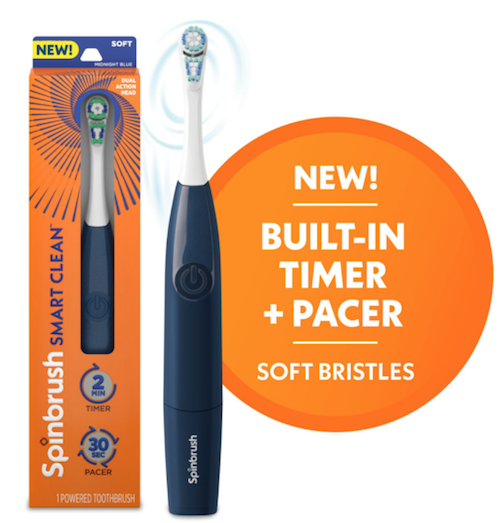
This isn’t a commercial. I’m not a dentist, and even if I represented four out of five Paper Dolls, I’d have no way to evaluate the claims made, which are that it:
- Removes more plaque in hard-to-reach areas than a manual brush
- Reduces surface stains by 50% after one week when used with regular toothpaste
- The soft, triple-sided bristles clean deeper between teeth; split-head design moderates the amount of pressure applied, so it’s gentle on teeth and gums.
What I can corroborate is that the Spinbrush Smart Clean™ has what they call a 30-second pacer that gently pulses after each of four blocks of time, ostensibly to assure that you adequately brush each quadrant of your mouth rather than brushing your front teeth and then falling into a daydream.
Then, it turns off automatically after two minutes, which is just (gently) jarring enough to shake you out of a reverie and reminded you to move on to the next essential ablutions.
(If you’d like to try it out, the Spinbrush Smart Clean™ is $12.90 at Amazon or about $2.99 if you manage to find it at Ollie’s.)
If this toothbrush seems vaguely reminiscent of something else, it may be because I wrote Organize Your Health: Parental Wisdom, Innovation, and the New Time Timer® Wash in which I evaluated how helpful (particularly during the pandemic) the Time Timer® Wash, a touchless, water-resistant visual timer, might be for children and adults to visualize the passage of time and spend enough of it washing their hands.
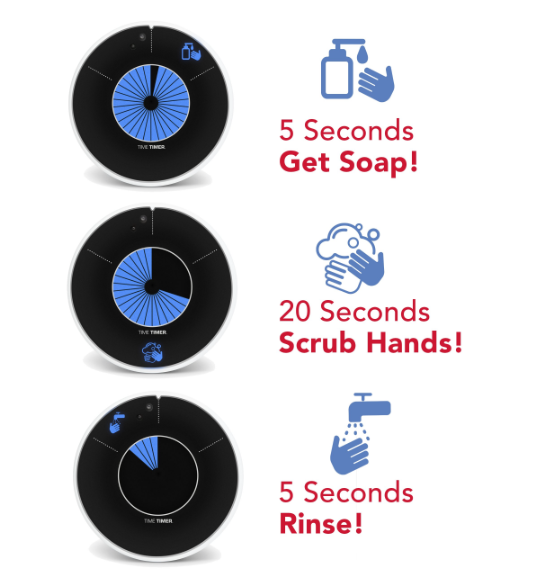
And lookie there, the perfect opportunity for a transition!
TIME TIMER ELEMENT
Time Timer is always innovating, and recently shared the pre-launch of their newest product.
The Time Timer Element is a compact, water-resistant visual timer that’s designed — like many of the Time Timer products — to assist children and adults build time awareness and improve their self-management skills.
It other words, it’s ideal for anyone who has a tendency to daydream or have so many shower thoughts that they get distracted and forget to stop dawdling, get out of the shower, and continue on with their day.
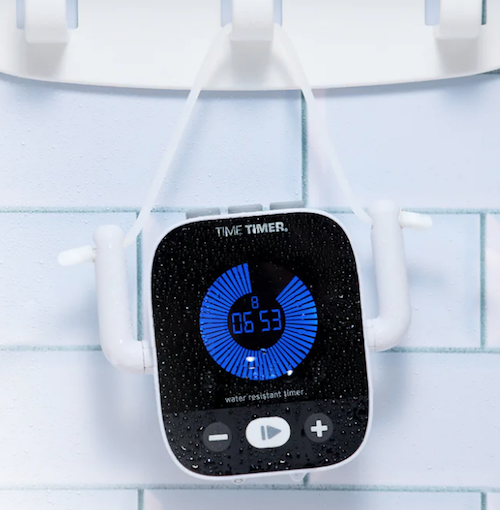
The Time Timer Element seeks to help users stay on track with their daily routines in a place where there’s unlikely to be other stimuli (clocks, TVs with commercial breaks, other human activity) to call attention to the passage of time. And, in particular, it’s made to work in the shower or near the sink!
As a personal note, once I’m putting on my makeup or doing my hair, I’m pretty attentive. But some of you ladies know what I mean — there’s a very narrow window from the time you take your hair down from the towel for you to use product and apply heat, and if you miss that window, well, you may not look like a clown for the rest of the day, but you definitely won’t look like you.
Dawdling can be an image-killer, so a timer for making sure your grooming activities stay on-task is a win-win for productivity and your personal brand.
The Time Timer Element has a variety of features to that make it an interesting option.
The Time Timer Element Is IPX6 Water-Resistant
Are you wondering what the heck IPX6 water resistance is? Well, so was I.
“IP” refers to “Ingress Protection” — It turns out that the International Electrotechnical Commission (IEC) has developed ingress protection (IP) ratings to grade the resistance of an enclosure (like a plastic or metal case) “against the intrusion of dust or liquids.”
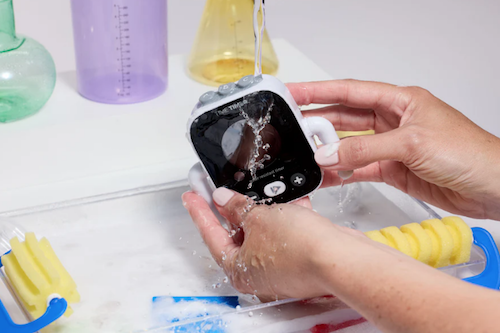
IP6 means means a device (like this timer) is “protected against powerful, high-pressure water jets from any direction for at least 3 minutes.” Picture heavy rain, spray from a hose, or — you guessed it — water coming from a shower nozzle. IP6 indicates a high water resistance, but not so high that you could submerge it in water. (That would be an IPX7 or IPX8 rating.)
The “X” just means it is not tested for dust. So if your bathroom is dusty, well, you’re on your own.
The point is that the Time Time Element is specifically designed to work in wet environments like showers and bathrooms in general. Don’t turn it into a float for your rubber ducky, but otherwise, it should be fine.
The Time Timer Element Has Customizable Presets
The Time Timer Element comes with three customizable pre-set timer buttons on the top of the timer for increments of:
- 2 minutes
- 8 minutes
- 25 minutes
Additionally, you can program a countdown on the Element for any duration up to 99:59. (If you need more than an hour and forty minutes for grooming, I don’t know what to tell you.)
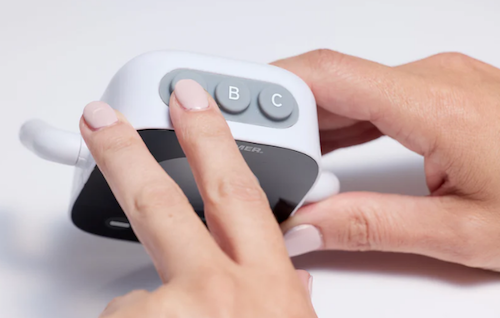
So, if you’re deep conditioning your hair with a hot oil treatment, the two- or eight-minute timers might be just perfect. If you want to take a bath but are fearful of drifting off and missing your transition to making dinner or watching your favorite show, the 25-minute timer might be apt.
And, for those who are familiar with the now-viral Gen Z references to an “everything shower” — where you accomplish it all from exfoliation to hair masks to lymphatic drainage — setting timers for both the activities and the transition time might make the whole process seem less daunting.
The Time Timer Element Has a Flexible Design for Varying Display Styles
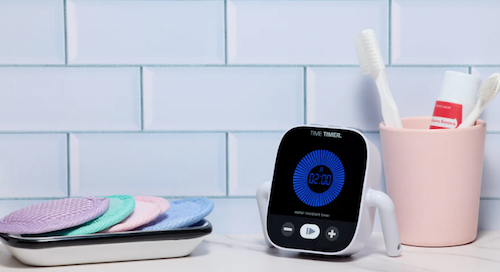
As with all of the digital Time Timer products, like the Wash and the Twist, on the “face” there’s a digital countdown in the center (for those who can easily envision time numerically/digitally) and a visual, colored disk that decreases as the time time remaining decreases for those who need to better “feel” the passage of time.
Below the timer face, there are buttons for increasing, decreasing, or pausing/playing the timer. As previously shown, on the “head” of the Element, there are the three pre-set buttons.
As you examine the whole timer, you may find that the Element looks a bit like a cute little dude.
It includes:
- adjustable arms (bending upward, to hold the removable cord in place, if you’re hanging it, or bending downward, as if it were monkey-walking on its hands)
- a removable cord
- suction cups to display the Element at various angles on the wall of a shower or other vertical surface
Thus, the Element can hang from the shower head, sit on the corner of the bathroom counter, or climb the wall.
Other Uses for the Time Timer Element
Additionally, the bathroom is not the only place the Element can be of use for helping you keep track of the time. Time Timer notes that “you can use the Element indoors or outdoors, wherever water is part of the routine” and suggests its other applicability in:
- In the kitchen when cooking — Although there are a variety of Time Timer products that can be used in the kitchen, particularly the Time Timer Twist, the water resistance of the Element makes it particularly apt for when you’re doing “splashy” activities near the sink.
- Throughout the house while you’re cleaning — Some household cleaning tasks require waiting a certain amount of time (like while the Scrubbing Bubbles are hard at work); do you really want to use your expensive cell phone near a bucket or sink full of soapy water?
- Outdoors, while playing or gardening — Do you want to teach your kids that they can stay in the pool for just 20 more minutes? Or keep yourself from straining your knees or back too long while you’re tending to your flowers or veggies? Whether it’s splashing from the pool or the hose, the water-resistant Element can keep everyone on-task.
- At school or work in a lab — Splashes don’t just occur at home. Whether you’re in Home Ec (though they probably call that something else these days?) or a chemistry lab, keeping yourself on-task with a water-resistant timer can be a boon to safety as well as productivity.
The Time Timer Element is selling for $38.95 at the Time Timer shop. not yet for sale, so there is no pricing information. Sign up for pre-sale notifications at the website and they’ll let you know when it’s ready for Prime Time.
For more on timers and other ways to prompt yourself to stay on task, revisit other Paper Doll posts, including:
- How to Use Timers for Improved Productivity and Focus — Part 1
- How to Use Timers for Improved Productivity and Focus — Part 2: Picking a Good Timer
- How to Use Timers for Improved Productivity and Focus — Part 3: Tangible Timers — This post does a SUPER-deep dive into Time Timer products, in particular!
- How to Use Timers for Improved Productivity and Focus — Part 4: Digital Timers
- How to Use Timers for Improved Productivity — Part 5: Hybrid Timers and Bonus Material
- Do (Not) Be Alarmed: Paper Doll’s Wake-Up Advice for Productivity
CAPTURE THOSE VITAL SHOWER THOUGHTS
Sometimes, people can’t make it out of the shower for fear they’ll lose a great idea and stand there, dripping, reciting the idea to themselves. If that’s your issue, you might enjoy a delightful product that’s been around for a long time but seems to operate under the radar.
Aqua Notes is a waterproof notepad that affixes to the shower wall with suction cups. Each 5.25″ x 3.5″ pad with 40 sheets of waterproof paper and an Aqua Pencil with its own suction cup pencil holder.
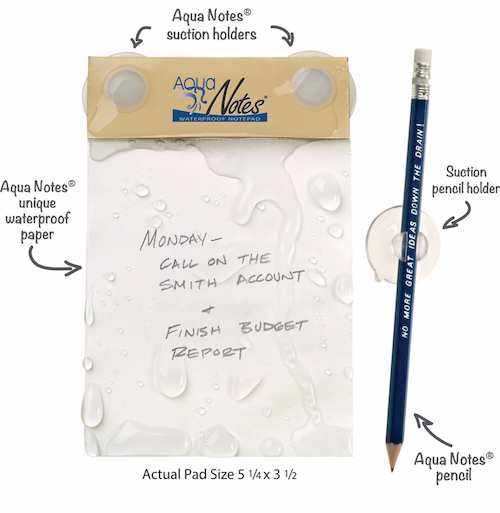
Purchase them directly from the Aqua Notes web site for $15 or from Amazon for $11.95. (A 5-pack of refill notebooks is $50; they also have Twistable colored pencils with suction cups for kids, shower artists, or anyone who needs to be able to write color-coded shower notes.)
Good luck getting out of the shower and getting on with a productive day! But if your brain is still still full of thoughts that are holding you back or slowing you down, know that you are not alone. Case in point, Lorelei Gilmore.
Affiliate Disclosure: Some of the links above are affiliate links, and I may get a small remuneration (at no additional cost to you) if you make a purchase after clicking through to the resulting pages. The opinions, as always, are my own. (Seriously, who else would claim them?)
Don’t Get Locked Out: How to Set up a Recovery Contact for Apple and Google
Our relationship to technology gets ever more complicated with each passing year.
People are glued to their phones. Some folks fall in love with their AI chatbots. We get so frustrated when we can’t live with our technology, but we know from experience we also can’t live without it.
So what do we do when we get locked out?
Previously, we’ve talked about what to do if you are no longer walking the planet. As I explained in these posts from the Paper Doll vault, there are preparations you can make in case you aren’t around to access your Apple, Google, or social media accounts:
- Paper Doll Explains Digital Social Legacy Account Management — This post walked through the main concepts of managing your social media legacy, how to inventory your social media digital assets, and the steps to take to secure legacy access to social media accounts, like Facebook, Twitter/X, Instagram, TikTok, and LinkedIn.
- How to Create Your Apple & Google Legacy Contacts — This post delved into the specific steps necessary for setting up legacy contacts for Apple and Google to ensure that your loved ones can secure your digital assets (photos, email, etc.) once you’ve shuffled off this mortal coil.
But what do you do if you’re alive but your access to your digital stuff is not?
Maybe Grandpa forgot his password (or all of his passwords).
Maybe you have been hacked. After all, the first thing the bad guys do is change your password so you can’t see all the other nefarious things they’re doing (and often fill your your Outlook or Gmail inbox with junk to obscure the clues that would point to the hack). When things go awry, you can use all your passwords, passkeys, and 2-factor authentication skills, but sometimes, you need a human solution.
You need someone to vouch for you. This is where the concept of a recovery contact comes in.
Today’s post will review how to set up and use a recovery contact to regain access to your digital resources. But first, let’s get clear on what a recovery contact really is.
WHAT IS A RECOVERY CONTACT?
It may seem that a recovery contact would be the same as a legacy contact.
You might think that you could set up just one or the other and use them for the same purpose. After all, the purpose of a legacy contact is to designate an individual to give official access to your accounts after your death. Why not just pretend that you’re “only mostly dead” to get back into your account?
As explained in earlier posts, a legacy contact doesn’t just randomly give someone your login credentials, like leaving a key under the digital mat. Rather, it sets up a secure process for giving a trusted contact access to the data stored in your accounts after you die to that everyone can achieve financial and structural closure.
A recovery contact, however, works differently. Rather than giving someone the ability to get into your accounts and control them, a recovery contact is the individual whom, when you get locked out of your account, gets to stand up for you that you are really who you say you are and deserve access to your own account. (There’s not a lot of literal standing up. Usually, they receive a code and give it to you. So it’s more like they’re meeting you on your front step to hand you your spare key.)
What’s the Difference Between a Legacy Contact and a Recovery Contact?
Again, they can seem similar, but are used for different purposes.
Key Traits of a Legacy Contact
An Apple Legacy Contact, or what Google calls an Inactive Account Manager, is designed to be used after your demise, upon your appointed contact providing proper documentation (like a death certificate).
The key traits of a legacy contact are that it:
- provides (limited) access to your data after you’re gone — an Apple Legacy Contact can access anything in your iCloud account, while a Google Inactive Account Manager has more curtailed access
- does not allow logins or account control
- may be time-limited
- involves a separate set-up process (for a separate Apple ID, for example) for access by the legacy contact
Key Traits of a Recovery Contact
An Apple or Google Recovery Contact is designed for short-term account access assistance. You get the access; they don’t!
The key traits of a recovery contact are that it:
- helps you regain access while you’re alive and kicking (and probably kicking yourself for forgetting or losing your password or somehow bringing this problem on yourself)
- does not give ongoing access to your account
- does not grant access to actually seeing your data
- only works when you initiate the account recovery process
The bottom line is that your recovery contact helps you get back into your (digital) life, while a legacy contact helps your loved ones wind it down.
Situations Where You Might Need a Recovery Contact
It might seem like it’s obvious — you need a recovery contact when you’ve been locked out, but why might that happen?
- You’re locked out of your account because of suspicious activity (by someone else) or your own failed login attempts attempts (like too many misremembered or mistyped passwords).
- You forgot your password and you’ve lost your device.
- You forgot your password and you can’t access your email.
- You forgot your Apple ID.
- Two-factor authentication is sending codes to a device you no longer have.
- Your phone has been stolen and you no longer have the device with Google’s associated passkey.
- You got really angry at the person to whom you were talking while walking across a bridge and in a fit of pique, you threw your phone into the lake, river, or ocean. (Does anyone really do this? It keeps happening in movies!)
- You upgraded devices and now your new device doesn’t know the things your old device kept sacred.
- You’re ill or injured, and it’s making it hard for you to manage your own tech or you’re having trouble communicating with caregivers helping you.
- Your device access is limited during travel emergencies.
- Your phone got “factory reset” while you were trying to make things work again.
I had a client who had to wipe his phone (that is, restore it to factory settings) such that the phone no longer recognized who he was. He had two-factor authentication set up, so Apple looked for a second device to which to send the code.
Normally, if you’ve got an iPad or a Mac connected to the same Apple ID, your two-factor authentication should work. My client, however, had mostly Windows products, and was getting more and more stressed out. However, because we’d set up his child’s iPad (mostly for toddler videos) with my client’s Apple ID, he was able to get up and running again.
However, we used the opportunity to set his wife (who has her own Apple ID) as his Apple Recovery Contact so that he never had to worry about this again.
From a tech organizing perspective, recovery contacts are especially helpful for people managing multiple devices, juggling shared/family tech, or dealing with caregiver situations.
HOW TO CHOOSE YOUR RECOVERY CONTACT
Choosing a recovery contact is much like choosing a legacy contact, but you’re looking for different characteristics and skill sets.
When I talked about setting up a legacy contact, I focused on the attributes of a good digital executor:
- Whom do you trust to carry out your wishes, or anticipate your preferences if you leave no instructions?
- With whom will you still be in close contact by the time a digital social legacy has to be managed?
- To whom are you comfortable giving access to private conversations?
- Which of your friends is likely to stay current enough with technology to be able to handle your digital legacy?
However, for your recovery contact, you want to look for different features in your peeps.
A good recovery contact is reliable, responsive, calm, and appropriately nosy (but only when invited to be).
A Good Recovery Contact Won’t Ghost You
You recovery contact needs to be reachable in real time.
- Do they check email and/or text messages frequently?
- Are they unlikely to miss time-sensitive notifications?
- Will they dependably check (and not ignore) a message because it looks like it might be automated?
If someone has 37,000 unread emails or the number bubble above their text app icon looks more like a phone number, this isn’t a good recovery contact for you.
A Smart Recovery Contact Will Verify It’s Really You
You recovery contact shouldn’t have a knee-jerk reaction to share your information.
- They’ll pause to consider and confirm that it’s really you who triggered the recovery process and not a Russian baddie in a hacker farm.
- They’re comfortable calling or video-chatting with you to confirm it’s really you who’s stuck before taking any required steps.
- They won’t blindly follow instructions just because Apple (or Google) said so.
Your ideal recovery contact will have at least mild skepticism rather than unquestioning compliance. (Good characteristics for a fellow citizen, as well as a recovery contact, eh?!)
An Ideal Recovery Contact Will Stay Calm Under Mild Stress
We all know folks who freak out when a football game runs long and their show doesn’t start on time. That’s not who you want. Pick someone who:
- Won’t start spiraling when they see the words “account recovery” or “security alert.”
- Can follow step-by-step instructions without melting down.
- Knows when to ask for help instead of guessing and clicking, willy-nilly.
The Best Recovery Contact Has Mental Bandwidth and Time to Deal to Help
Speed matters during account recovery, especially if someone has hacked you. Select a recovery contact who:
- Is routinely available during work hours (or during the hours you’re likely to need help). — If your bestie works 12-hour shifts, she may not be the best option.
- Is in a profession where interruptions won’t be dangerous or impossible. — Brain surgeons can’t just step out to handle your iPhone kerfuffle.
- Can likely respond within hours (or even minutes) and not days.
While we should respect everyone’s work style, your work-from-home friend is probably a better option than your pal who is an airline pilot. Your retired sibling makes a better recovery contact than your friend with a three-week-old baby.
Other Considerations for a Recovery Contact
- Pick a person who respects your boundaries — They should understand that they aren’t being given access to your account, and you can trust that they won’t waste time snooping around or attempting a recovery when you haven’t actually asked for one. So, nobody named Gladys Kravitz.

- Identify someone who is comfortable with basic technology — Your contact doesn’t need to be a web developer, but they need to know how to handle links, codes, and authentication steps. In other words, not someone who needs daily assistance to check their texts, avoid clicking on spam links, or keep themselves from getting locked out of their phones.
- Pick someone who is stable and likely to be in your life for five or ten years — So, not your hinge date from last weekend. Not your friend who flakes on half the meet-ups you plan. Not the boyfriend you’re considering breaking up with. (And not just because you’re afraid he’ll log into your account. But because you have no idea when the two of you might go “no contact” and you’ll have to decide whether to break that status or just give up on the last 20 years of your digital real estate.)
Finally, ask if they’re OK with being your recovery contact so they won’t be startled by a sudden, “Apple [or Google] is contacting you” message. Surprises are for gifts and birthdays, not account security. Capisce?
A legacy contact needs discretion and emotional steadiness. A recovery contact needs availability, clarity, and a cool head when you’re locked out, pacing the floor, and cursing Steve Jobs.
A legacy contact needs discretion and emotional steadiness. A recovery contact needs availability, clarity, and a cool head when you're locked out, pacing the floor, and cursing Steve Jobs. Share on XYour recovery contact may be, but need not be, your spouse, adult child, or next of kin. Pick the person who dependably answers your calls and texts. In the words of Grey’s Anatomy, select the one to whom you could honestly say, “You’re my person.”
If you found your way here because someone asked you to be a recovery contact
Maybe you’re wondering if it’s safe to be someone’s account recovery contact. Yes, because you’re not granting access to anything of your own.
If you agree to the position, they’re no pay, no reward (except undying gratitude), and you won’t be gaining access to their goodies. Rather, the only superpower you’ll get is the ability to furnish them with a recovery code upon their request.
Obviously, you should only give that code directly to the person who trusted you to do so (like by phone or video call); if someone claiming to be the police, a hotel concierge, or a hospital worker requests the code, that’s a scam. Duh. (But you knew that, right?)
HOW TO SET UP YOUR APPLE RECOVERY CONTACT
To set up your Apple Recovery Contact, you’re going to need the following:
- All of your devices set to at least iOS 15, iPadOS 15, watchOS 8, or macOS Monterey or later. Apple may prompt you to update any devices, or remove devices you aren’t using. (I have an iPad from 2013; Apple let me know I had to update the iOS, which I can’t, or remove it from the recoverable device options.)
- Two-factor authentication to already be enabled
- A trusted person (aged 13 or older) who already has an Apple ID
Follow these steps:
1) Go to Settings.
2) Tap your name (Apple ID) at the top.
3) Select Sign-In & Security. (Depending on your iOS version, it might say Password & Security.)
4) Tap Account Recovery. (Depending on your iOS version, it might say Recovery Contacts, as mine does, below).

5) Tap Add Recovery Contact. — At this point, you’ll likely be asked to and authenticate, so be prepared to use Face ID or Touch ID, as applicable.
6) Choose a trusted person from among your contacts.
7) Apple will then send them an invitation to accept.
How to Delete Your Apple Recovery Contact
If you ever need or want to change your Apple Recovery Account, follow the same steps as above, but after once you get to Account Recovery, tap the person’s name and then tap Remove. Your contact will see a message that you’re no longer their account recovery contact.
For more on the Apple Recovery Contact process, check out these Apple pages:
Set up an account recovery contact — This page explains much of what I’ve written above but with additional details.
How to use account recovery when you can’t reset your Apple Account password — This page explains how to request an account recovery when everything has gone kaflooie. (Yes, that is the technical term. Thanks for asking.) You can either do this from your device or on the web at https://iforgot.apple.com in your browser.
Help a friend or family member as their account recovery contact — This explains how to be a good Apple Recovery Contact, including what such an individual does, how they can assist with recovery, and how to remove themselves as a recovery contact.
HOW TO ADD A GOOGLE RECOVERY CONTACT
You may have found Google account recovery to be problematic in the past. Happily, in October 2025, Google upgraded their systems to allow for improved Google Recovery Contact.
Functionally, a Google Account Recover Contact works much the same as an Apple Recovery Contact. (Note if you have Android devices (e.g., phones, tablets), be sure to set up a Google Account Recovery Phone for Android access protection.)
To set up your Google Trusted Account, you’re going to need:
- Access to your Google account (duh!)
- A trusted person with a reachable phone or email. (Google doesn’t specify that the trusted person must be a specific age, but Google’s minimum account-holder age is 13 in the United States; it varies by country. If your contact is old enough to have a Google account, you’re good.)
Follow these steps:
1) Go to your Google Account — If you’re on the web, that’s myaccount.google.com)
2) Click Security.
3) Find the “How you sign in to Google” section.
4) Click Recovery contacts. You may have to scroll down below the listed options (like 2-step verification, password, recovery phone, recovery email, etc.) to find this option in a “more sign-in options” bubble.
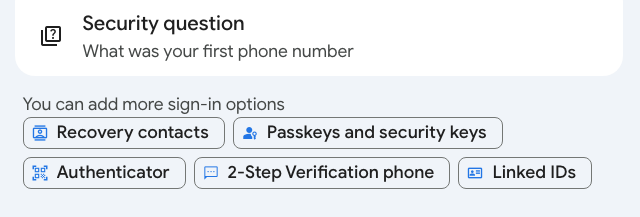
5) Click Add recovery contact.
Note: If you’re prompted to sign in, do so. If you’re setting this up in a browser, Google will likely show you a number code, direct you to open the Google app on your phone, and ask you to confirm the right number from multiple choices. If it doesn’t work the first time, hit “resend” to get the code again. (You have my permission to sigh.)
6) Enter the email address of your trusted contact. Assuming you already have that person among your contacts, their name, face, and email address will pop up, assuring you that you’ve selected the right person. Tap their name/face/email to accept your selection.
7) Click Continue.
8) Click Send Request when Google asks, “Send a recovery contact request? Your request will be sent via email, and [trusted contact’s name] will be able to see your name, email address, and profile photo.”
You’ll now see a list of your open request(s) for Google Recovery Account(s), with the person’s name, email, and photo (if they’ve created a photo for the account), so you’ll know you did it right.
Your contact will receive an email to accept the request, and they’ll have seven days in which to confirm their willingness. After 7 days, the request expires. Once they accept the request, you have to wait seven more days before you can actually use them as a Google Recovery Contact, so don’t go spelunking around your settings and accidentally blitz your access. Step away from the keyboard for a week and stop experimenting!
How to Delete your Google Recovery Account
Maybe you’ve broken up with your Google Recovery Account trusted contact, or perhaps you just know their lives have gotten too busy with babies or work. Just use the same steps as above to navigate to your Google Account’s Security & Sign-in page, then tap Recovery contacts, and find the trash can icon next to the account you want to delete. Tap the trash can and hit Confirm.
To Use your Google Account Recovery
If you encounter difficulties logging into your Google account, go to g.co/recover and enter your Gmail address. Try to answer the identifying questions the best you can and follow the suggestions for regaining access.
If you do need to recover your account, you’ll either 1) select your Google Recovery Contact from the list of recovery options, or 2) follow a pop-up prompt to reach out to them and select Get Number to get a short code.
Google will then send your Google Recovery Contact an email with three different numbers from which to choose, and you’ll have 15 minutes to tell them the number you got so they can select it, too. (This is why you may need to call or text to be clear on what’s going on.)
For more information, read Google’s Add, Manage & Use Recovery Contacts page.
Of course, protecting against from losing access to your essential accounts is always better than having to try to recover access after the fact. This is your reminder that the best ways to organize access to your tech life are to:
- use strong passwords
- don’t repeat passwords across accounts
- change/revise your passwords with frequency
- make use of passkeys, which are device specific and don’t require you to remember anything
- record your passwords somewhere safe, preferably a digital password manager
- use two-factor authentication
- don’t share your passwords with anyone (but if you must grant access, check your digital password manager for ways to share and/or rescind access with greater control)
- keep your devices updated to the latest operating systems and software versions
- set up your account recovery options before you need them
Have you set up recovery contacts? (Did you ever get around to setting up legacy contacts?) What else do you do to keep from getting locked out of your essential accounts? Please share in the comments.
How to Track, Lower, or Cancel Your Recurring Subscription-Based Bills
Subscriptions aren’t just for magazines anymore. Financially speaking, a subscription is anything for which you have an ongoing expense for a non-essential service. And I bet you have a bunch of them.
According to a recent study by CNET, American adults spend an average of $90 per month on subscriptions. Additionally, another study found almost one-half (48%) of those surveyed registered for at least one free trial and then forgot or neglected to cancel.

Photo by Markus Winkler on Unsplash
WHAT IS A SUBSCRIPTION MANAGER?
A subscription manager is an app or platform that centralizes information to help users gain better control over their finances and make more informed spending decisions. Most track, organize, and manage recurring payments for subscriptions by:
- scanning bank and credit card information to identify subscriptions
- listing all subscriptions in one place
- tracking expense increases over time to help analyze spending patterns and identify opportunities to reduce costs
- organizing and sorting by subscription name, cost, billing cycle, or due date
- identifying redundancies (like a standalone subscription for a streaming service as well as one acquired through an Amazon Prime 7-day trial)
- setting up payment reminders before renewals or payment due dates (to help avoid late fees or unintended renewals of free trials or forgotten subscriptions)
Additionally, some subscription management tools and apps can negotiate costs or assist in canceling subscriptions, making it easier to terminate services you no longer need.
CONSIDERATIONS FOR CHOOSING A SUBSCRIPTION TRACKER
Price
Look for free options, or free tiers (or trials) on platforms that offer multiple levels. You can always upgrade if a premium tier offers a feature you find beneficial once you’ve mastered the free plan. Too often, we sign up for paid software-as-a-service plans and don’t them; a tracker will reverse that habit, so don’t go to all the effort to get rid of your other recurring payments only to end up with one for a tracker you don’t need!
Remember: platforms with services to negotiate a discount or rebate for a forgotten/unused subscription will take a portion — like a finder’s fee — of what they’ve saved you for the coming year. There’s no such thing as a free lunch; in return for picking up your lunch tab (that is, negotiating the refund after cancelation or price reduction) the app gets your pickle or a handful of your fries!
Security
In order to track your expenses to find recurring costs, these platforms must access your bank accounts and credit cards. Thus, protect your online safety by verifying that whatever platform you choose uses:
- bank-level security
- end-to-end encryption
- two-factor authentication
Once you find a service that passes those tests, dig into their boilerplate security and privacy language to make sure the app doesn’t sell or share any of your personal information.
Features and Functions
A subscription tracker will analyze the data in your bank and credit card statements to identify recurring charges and create reminders about them.
More advanced trackers should be able to cancel subscriptions with minimal input from you, negotiate lower bills on your behalf, and if part of a larger financial dashboard suite, help you quickly and easily create a budget.
Ease of Use
The point of a subscription expense tracker is to make your life easier. You want an app that’s intuitive so you’ll be able to add, delete, or change information or navigate your way around without much study. If an app is has so many bells and whistles that you have to consult Google or Chat GPT for instructions so managing the software becomes a second job, you won’t use it.
Read reviews to make sure it will be relatively easy to:
- set up and sync the app with the information in bank and credit card accounts
- identify recurring payments and set reminders to pay them
- navigate the app
- negotiate billing with relatively little input on your part
- cancel accounts with minimal effort
DO I REALLY NEED AN APP TO TRACK, LOWER OR CANCEL SUBSCRIPTION COSTS?
Short answer? No, you don’t.
I call SiriusXM every year to lower my costs, and help clients do the same. I can’t fathom why anyone would actually spend the exorbitant full price, but the “negotiated” lower cost feels reasonable.
How to DIY Your Subscription Management
Canceling a subscription-based service (unless it’s a gym membership) is also fairly straightforward, but not fun.
If you’re organized, patient, and diligent, especially if you don’t have a lot of subscriptions, you can handle the process yourself:
1) Create a spreadsheet with columns for the subscribed service or license, how you pay for it, when it renews (monthly, quarterly, annually), and the cost.
2) Pull up the past year of bank and credit card statements.
Why a year? Although many subscription-based transactions are monthly, some are paid quarterly or annually. Streaming services generally charge monthly, but I have a marketing-based service for my business that, until last year, charged me quarterly. And once a year, I pay Apple for ongoing Applecare and an online service to protect this blog from the thousands of attempted comment spams. These subscriptions are easy to forget!
3) List your recurring expenses, starting with your most recent statement.
Run your fingers down the transactions, and each time you spot a new one, log the key elements.
4) Work your way through a statement until you’ve captured every recurring expense until you’ve reviewed a year’s worth of statements and aren’t finding previously un-logged subscriptions. You will find more than you realized.
5) Repeat the process with every bank account and credit card statement.
6) Group the recurring expenses in an appropriate category. For example:
- Entertainment — streaming video and audio, paid podcasts, Patreon memberships
- Utilities — telephone, cable, internet, security systems
- Fitness — gym, online workout classes, premium apps for devices like Fitbit or Peleton
- Health — supplement subscriptions, concierge medical services
- Food — meal prep services, food delivery services
- Professional expenses at the paid tier — Zoom Pro, Evernote, AI tools, Microsoft 365
7) Evaluate each item by category.
- Are there duplicates, like an ad-supported Hulu subscription offered through your cable company as well as a paid bundle for Disney+ and Hulu?
- Do you have unnecessary subscriptions, like a membership to a gym where you no longer live?
- Do you have subscriptions that you never use? Are the apps are no longer appealing? Does something make them difficult to use? Do you just need someone to guide you until you master it and take advantage of what it has to offer?

8) Contact each vendor to negotiate costs or cancel services you don’t want to accept as-is.
Whew. There are several disadvantages to this process.
- It takes time. If you call, you may have to navigate a complex phone tree, repeatedly hearing how important your call is, and sit on hold for eons.
- They may give you a hard sell or push you to upgrade, convincing you that your cable and internet costs will decrease if you add cell service through them, but then you’d have to port your number from your original cell company, which you may like, lose your legacy status, and have to deal with those annoyances, and may find your rates going up a year hence. Be strong!
Recently, I worked with a client with cognitive decline; they sign up for services the don’t need; we call, they authorize me to speak on their behalf, and usually, we accomplish our goals fairly easily.
However, one company that keeps calling and tricking her has a habit of asking invasive and unnecessary questions, over and over, about why we wants to cancel and attempts to scare us into what will happen without this expensive auto part protection on the 11-year-old car that’s almost never used.
Having more moxy than Chandler Bing, I just keep insisting that we does not want the service anymore, and by law we have the right to cancel. (Occasionally, I have to invoke the possibility of calling the Attorney General of the state in which they’re headquartered.)
- It involves talking to other people. If you’re an introvert (or a young millennial or GenZ), the idea of having to talk to someone on the phone may nauseate you.
- It’s frustrating to talk to a bot (or an online agent typing from a bot-like script).
- You’ll still have to monitor your bill to make sure that your charges are reduced or stopped.
- You’ll have to schedule reminders to prompt you to cancel free trials before you get charged.
Can you pause subscriptions instead of canceling them?
Maybe you’d rather temporarily stop paying for a subscription while you can’t use the service. For example, when my car was stolen [Organize to Prevent (or Recover From) a Car Theft], I didn’t want to pay for Sirius XM for the two months my Kia was being repaired. I paused my subscription, but they sent me a notice after four weeks that they were going to start charging again, and I had to call to re-pause it.
There are a few reasons you might want to pause instead of cancel:
Maintain your viewing or listening history — Got a busy few months at work and won’t be able to watch your favorite shows? Maybe you’ll be traveling in the Australian Outback and won’t have cell signal to listen to streaming music and podcasts? When you’re ready again, you want your apps to show you what episodes you left off at and what’s on your to-be-watched lists.
Avoid the re-subscription process — If you can pause your subscription, returning to the service will be much easier and you won’t lose any of your preferences settings.
Eliminate guilt over paying for services you don’t use — Whether it’s a gym membership you can’t use while healing from a knee replacement or a streaming service you won’t watch while traveling or working, this can be a pause that refreshes.
Use a pause to “churn” streaming television services. When you’ve watched everything you want to see on Netflix, pause your subscription for six months and binge all the streaming Star Trek Paramount+ has to offer. (Strange New Worlds is fabulous!)
- Hulu lets you pause for up to 12 weeks.
- Amazon Prime Video lets you pause indefinitely during the cancellation process. Note: you must pause all of your Prime benefits.
- Netflix has no official pause feature, but canceling your subscription provides a 10-month grace period for your account and viewing history.
- Disney+ is rolling out the ability to pause subscriptions
- Sling TV, Fubo, and YouTube TV all have pause features.
Be creative! Call any service you’re paying for but underusing, and ask whether you can pause instead of cancel. You never know which companies will be eager to keep you on with hopes and expectations you’ll return.
Call any service you're paying for but underusing, and ask whether you can pause instead of cancel. You never know which companies will be eager to keep you on with hopes and expectations you'll return. Share on X
Pause Photo by Kelly Sikkema on Unsplash
Does this DIY approach give you a headache?
Reduce pain points by dealign with the subscriptions on one credit card at a time, or make one call a week. Or change all recurring expenses so that they go to just one credit card on which you otherwise never charge anything, making it easier to manually track expenses going forward.
But you’ll still have to call and negotiate on your own.
YOUR SUBSCRIPTION MANAGEMENT OPTIONS
If you just want someone to cancel your subscriptions but your mom isn’t willing to do it for you, try:
Billshark
Billshark — will cancel or negotiate internet, wireless, streaming TV and satellite radio, and audiobook subscriptions. They even handle Dollar Shave Club and StitchFix! It costs $9 per canceled subscription, and 40% of your total negotiated savings, capped at two years (so check the value of what you’re canceling against the costs of using the service as a personal expense hitman).
Billshark doesn’t track expenses; rather, you upload a bill and they negotiate on your behalf; for cancellations, they try to negotiate credits or refunds. They claim a 90% success rate and take no fee if they don’t succeed in saving you money. They also track your savings’ expirations and automatically restart negotiations to keep you at the best rate.
Billshark may uncover better rates if you change plans, but seeks your authorization to make changes, and will never lower your service level, though sometimes, they can “expand services (higher speed, more channels, etc…).”
If you want it all — an entire financial suite for tracking your recurring expenses (and more) but also want help negotiating or cancelling services, try:
Rocket Money
Rocket Money (iOS, Android, web browser) — Previously called TrueBill, RocketMoney is one of the biggest names in this realm. Rocket Money’s basic plan is free; the Premium tiers are $6-$12/month with a 7-day free trial.
The basic level links bank and credit cards to the app, identifies recurring payments, and sends alerts if your checking balance goes below, or your credit card spending exceeds, a pre-arranged amount.
Rocket Money Premium include negotiating bills, canceling unwanted subscriptions, and tracking net worth and credit scores (VantageScore 3.0 credit score and Experian credit report), as well providing auto savings, customizable savings categories, and unlimited budgets.
Rocket Money retains 35% to 60% of the savings earned on bills it negotiates.
In terms of security, Rocket Money uses an encrypted token to access transaction data and uses Plaid API (so login credentials aren’t stored in the Rocket Money system). It hosts its servers at Amazon Web Services and provides bank-level 256-bit encryption.
Hiatus
Hiatus (iOS, Android, web browsers) — The basic Hiatus plan is free, while Hiatus Premium costs $9.99/month or $35.99/year. Unlike many of the other apps, Hiatus does not take a percentage of the saving you get from its bill negotiation services.
Hiatus is designed primarily as an app for budgeting, letting you set limits on spending for streaming services and displaying spending over the prior week/month/year. However, its free tier includes a subscription tool for tracking streaming services; you can manually input anything not pre-set in the app.
To use the subscription cancelation and/or bill negotiation service, upgrade to the Premium.
Hiatus protects user financial data with 256-bit SSL encryption.
One Main My Money (Formerly Trim)
One Main My Money (web browser) — is free, but it isn’t a traditional app. Instead, you access your account via the web and communicate with agents via SMS text messages or Facebook Messenger.
OneMain My Money links to all of your credit and bank accounts and then locates and cancels unwanted subscriptions (including phone, internet, cable, streaming services, and gym memberships) and will negotiate bills with a service fee equivalent to 33% of any savings recouped.
For a separate fee,OneMain My Money will identify less expensive auto insurance rates and negotiate bills. There’s also a Simple Savings high-yield savings account with a 4% annualized bonus on the first $2,000 you save.
OneMain My Money employs 256-bit SSL encryption and two-factor authentication.
OneMain My Money has an intriguing approach, but I advise against using Facebook Messenger to communicate about your finances!
This the least informative but most adorable of all the subscription tracker videos.
Albert
Albert (iOS, Android, web browser) — In addition to budgeting and investing services, Albert has bill negotiation and cancelation services. It automatically scan bills found in checking or credit card accounts for extra savings, or you can submit a bill for the expert negotiators to process. Albert costs $14.99/month after a 30-day free trial for a Basic plan, $19.99 for a Standard plan including data protection, credit score monitoring and more; a $39.99/month Albert Genius plan is required for subscription negotiation and canceling.
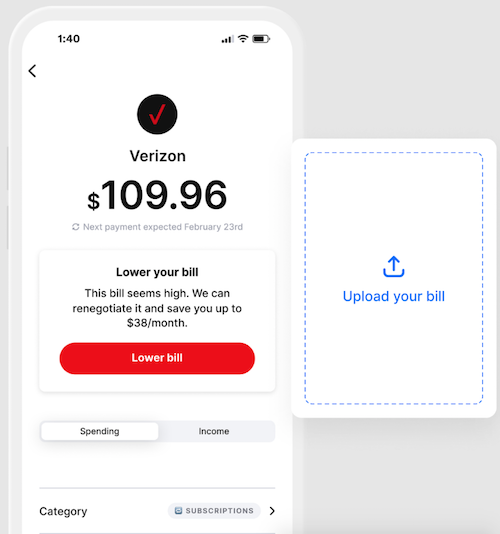 If you really want a subscription tracker to keep you focused on how much you’re being charged, for what, and when, but don’t need help with canceling or negotiating, subscriptions there are a variety of options:
Pocketguard
Pocketguard (iOS and Android) — PocketGuard has a free 7-day trial and a free version that’s kind of hard to find (see video below); for unlimited categories and bank connections, rollover budgeting, subscription tracking, and customized financial goals, upgrade to PocketGuard Plus for $12.99/month or $74.99/year.
Pocketguard is primarily a budgeting app, picking up where the late, lamented Mint left off. It links to your various accounts to track income, ongoing expenses, and savings goals and provide guidance on suggested daily spending limits in the “Leftover” section. It tracks expenses and categorizes them (though you can customize the categories). Pocketguard also alerts you to approaching billing due dates and potential fraud situations.
Pocketguard partners with Billshark to negotiate lower bills and takes an undefined cut of the savings.
PocketGuard uses bank-level encryption, and limits access through both PINs and biometric methods like FaceID and TouchID. Users can automatically connect and import data from their accounts to Pocketguard using Plaid or Finicity. At the Plus tier, add cash accounts manually and track them, and get a debt payoff plan.
The guidance page for how you log and mark Pocketguard’s bills makes it seem possibly more laborious than my DIY model. Your mileage may vary. For more, financial coach Brittany Flammer has a great updated review.
Track My Subs
Track My Subs (web browsers) — This Australian app lets you track up to ten subscriptions on the free plan; paid plans range from $10/month for unlimited subscriptions to $30/month for enterprise-level plans for multiple users.
Track My Subs is marketed for small business use, but the website can can be used by individual consumers, making it an interesting option for solopreneurs. There’s no mobile app; instead, it’s browser-based, and you do the labor: enter your subscriptions, periodic costs, and due dates. It supports multiple foreign currencies, and your own bills can be converted to a “home” currency.
Categorize subscriptions however you like, and use the color-code calendar view to track payment dates and the generated graphs of subscription expenses to analyze your costs. You’ll have to do your own negotiations and canceling. One of my favorite tech guys, Steve Dotto of Dottotech, explains why he likes Track My Subs:
Pocketsmith
Pocketsmith (web browsers; mobile apps are not fully-functional) — Not to be confused with Pocketguard, Pocketsmith has a free level with six months of projections for two accounts and twelve budgets, and you must manually import expenses. For $9.99/month, on the Foundation level, you can automatically import transactions, and have unlimited accounts and budgets. There’s also Flourish ($16.99) and Fortune ($26.66) levels for finding and organizing transactions, as well as budgeting, projecting, cash-flow forecasting, and reporting. If you miss Mint, this finance-management option is robust and has bank-level security with 2-factor authentication.
Quicken Simplifi
Quicken Simplifi (iOS and Android) — There’s no free tier or trial, but you can request a refund within first 30 days of your $5.99/month for a month-to-month subscription or $2.99/month for an annual subscription (billed annually at $35.88).
Simplifi is a budgeting app that can track subscription spending; it also offers automatic budgeting, shares spending insights, and tracks goals. Customizable reports track income, savings, and spending, income and your personalized spending plan adjusts in real-time. There’s also an investments dashboard, refund tracker, and credit monitoring function.
Simplifi syncs with bank, credit card, and investment accounts, loans, and financial data from bank servers transmitted using 256-bit encryption.
Monarch Money
Monarch Money (iOS, Android, web browsers — Identifies and tracks recurring bills and subscriptions, and alerts users to upcoming payments. Monarch Money is designed as a comprehensive financial planning tool, with a focus on budgeting, investment and net worth tracking, and long-term financial goals. There’s a 7-day free trial, after which it costs $14.99 per month or $99.99 per year. (There’s a 50% discount for the first year with code MONARCHVIP.)
Other apps and financial dashboards for tracking subscriptions include:
Subtrack (iOS and Mac only) — This privacy-focused app lets you quickly add subscriptions from a pre-existing list of 300+ options or create your own and manage them by tag. Customize themes and icons, get detailed spending insights, drag-and-drop information, and sync with iCloud.
Origin (iOS, Android, MacOS, and web browsers) — This is a full financial dashboard with elements for investing, net worth tracking, forecasting, and estate planning. After a free trial, the monthly plan is $12.99; an annual plan is $99.
Subscriptions (iOS, MacOS) — Focused solely on subscriptions, this app organizes subscriptions using categories, due dates, tags, and payment accounts, and offers comprehensive analytics with summarizing charts. It supports more than160 currencies with daily updated exchange rates, and has a widget for reminders of upcoming payments. It’s $1.99/year, $7.99 for a lifetime license, or $14.99 for a lifetime Family license.
Subby (Android-only; don’t confuse with similarly-named Apple App Store app) —The basic level (with ads) is free; an ad-free tier is $2.99. A customizable interface makes it easy to manually enter an unlimited number of subscriptions, record which account they’re associated with, and get notifications about upcoming payment dates.
Credit Card Subscription Management
Finally, you may find that your credit cards have subscription managers embedded in their mobile apps. For example, Capital One’s app has a full suite of subscription management tools through which you can track or block expenses, and even cancel subscriptions.
How do you manage your subscriptions?


Follow Me