Not Your Mama’s Passwords: Passphrases, Passkeys, and the Future of Logging In
Those of us of a certain age remember the first time we had to create a password, and for many years, lots of people used the same password for everything. As we edged from the 20th century into the 21st, we got “smart” about using smart passwords so they’d be harder to crack.
This short video from comedian Michael McIntyre may reflect your early password experiences.
Have you found that it’s become even more frustrating in recent years?
You don’t just need a password. There are passwords, passkeys, two-factor authentication, multi-factor authentication, facial and thumbprint recognition, and so much more. You may think you know everything there is to know about passwords; but even if you do, are you actually doing what you know you ought? And are there people in your life (like teens, grandparents, or technophobes) who could use a little support?
Today, we’re going to look at all the things you need to know and the various actions to consider taking to make sure your vital data is organized, safe, and protected.
Let’s start with the classic, the good old password.
HOW TO MAKE A GOOD PASSWORD
Do you know what makes up a solid password?
A Good Password is Strong
A good password is a strong password, one with serious muscle, one that’s hard to break or crack. The experts say that a strong password should have the following characteristics
- Sufficient Length — A strong password should be 16 characters. (I remember fondly when they asked for eight; then 12 characters were recommended. Sigh.) The shorter your password, the chance of a hacker figuring it out increases exponentially.
- Complex Makeup — Generally, it’s recommended that a strong password should be a mix of both uppercase and lowercase letters, numbers, and symbols that you can type from the keyboard. (Don’t use emoji.)
- Randomization — It’s a lot harder to guess 1dK5d8P91e65nNwf82et than PaperDoll123456.
- Uniqueness — Never reuse passwords across different accounts. Yeah, I know. We are all guilty of it, but the easier it is for a bad guy to hack one of your passwords, the easier it is to get into your others. If you must re-use passwords, aim to only do so on with sites that have no real impact on your life.
The problem with this recipe for strong passwords is that we are human. We’re lazy. We don’t want to keep creating new passwords. And complex, random passwords are hard to remember. But do you know what’s harder? Dealing with a hacked bank, investment, or Amazon account.
Instead of creating a random block of letters, numbers, and characters, you can keep the randomization but make the password a little easier to remember.
Create a Passphrase Instead of a Password
Instead of one block of letters or numbers, develop a sequence of unrelated words.
For example, WinterWonderland, while possessing 16 characters, would not be a great passphrase because the words are thematically related. GrotesqueBroccoli, while reflecting my feelings about a particular vegetable, aren’t commonly used together. Even better would be something even longer, more bizarre, and unrelated, like YuckySweaterRodentNoise.
One advantage of a passphrase is that if you’re hand-copying it (from a password notebook, or typing on a computer but retrieving it from an app on your phone), it’s much easier to see and parse a string of words than il7-0oO-nmn-MWN, especially if you’ve got eyes that were in their prime in the 1980s.
Think about the characters you choose.
The above example prompts a tip that the experts never mention. Because various letters and numbers, like a capital “I” (as in “I am”) and a lowercase “l” (as in “login”) are indistinguishable from one another in some fonts, as can be the number 1 and an exclamation point.
Capital “O” (as in “order”) and “0” (zero) can be confused for one another, and some lowercase letters, like “r,” “n,” and “m,” and uppercase letters like “M,” “N,” and “W” can also be hard to differentiate.
Avoid predictable password information.
First, don’t use common dictionary words like “password” or keyboard sequences like qwertyiop. Duh!
Similarly, don’t use your personal information. Your password shouldn’t have your birthdate, phone numbers associated with you, names of your pets or the street on which you live.
If you need to be able to remember a password and won’t be safeguarding it in a digital password manager, an alternative method might be to pick information that’s personal to someone unassociated with you. Everyone knows I’m a fan of Jane Austen, so someone trying to hack me would find it easy to pick obvious things like Pemberley or Rosings, but if you have a favorite book or movie character that wouldn’t be easy for someone on the internet (or an evil ex) to suss out, consider stealing their fictional personal information.
Consider combining the above tips with a foreign language.
While I am only fluent in English, I have studied Italian, French, and Spanish, and know a smattering of Yiddish. Picking words from another language to come up with a lengthy but easy-to-read/remember passphrase might help you more easily read and remember it to safeguard access to your data.
Let a digital password manager do the heavy lifting for you.
Often, you can designate the features you want, so that if it needs (or you want) the number of characters to be even more than 16, or you prefer a readable passphrase over one with garbled numbers and letters, it will accomplish that for you.
Hacker Reality Check
The longer and more complex your passwords, the harder it will be to crack them. Hive Systems annually creates a table of the characteristics that increase your chances at organizing and preserving your dat privacy. Here’s their most recent table.
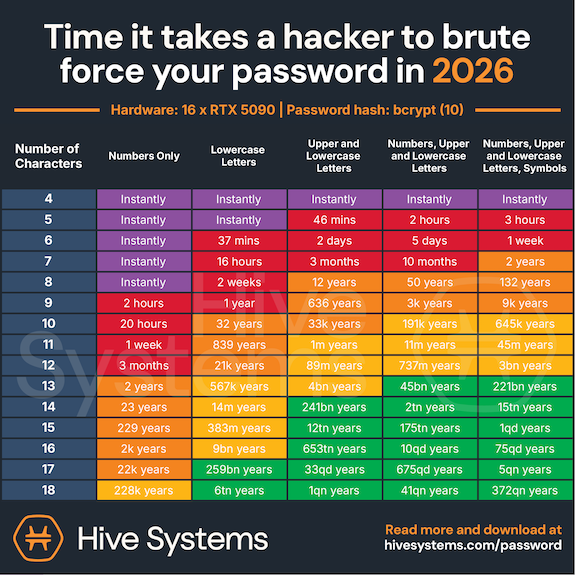
Courtesy of Hive Systems
This table confirms what we know: “Fluffy” and “123cookie” just aren’t going to cut it.
HOW TO FIX THE PROBLEMATIC PASSWORDS YOU ALREADY HAVE
If you have a digital password manager, it may prompt you with warnings regarding some of your passwords because they are:
- Weak — Such passwords are likely not long, complex, or random enough to be effective.
- Compromised — This status indicates that passwords have shown up on the dark web in a hack, likely one of a large corporation, like a retailer or insurance system (like the Change Healthcare cyberattack in 2024).
- Reused — An internal scan of passwords shows your app that you’ve used the same password repeatedly.
While working with a client recently, we saw that her iPhone’s Passwords app listed 610 passwords with a scary exclamation point on a red background indicating that 236 passwords had a security concern. Of those, about 122 were shouting “COMPROMISED PASSWORD” in red letters, with another 100 or so listed as “reused password.”
(Again, it’s not a huge problem to reuse passwords solely for sites you’re merely using to gain access to articles; but if such a site allows comments on articles, would you want to risk a hacker making you look like a fool or scammer by commenting with your identity?)
Closing your eyes to this problem isn’t a solution. In this case, the only way out is through.
Schedule a date with yourself — perhaps weekly, to deal with the backlog, and then perhaps quarterly for maintenance — to address your password hygiene. Treat it the same way you do (or should do) to periodically update your operating system and apps, clean your desktop, pare down your inbox, etc.
Again, consider letting a digital password manager create replacements for you. It will be faster and easier than trying to come up up with something unique for any/many of your passwords.
WHAT IS A PASSKEY AND WHY IS EVERY SITE ASKING ME FOR ONE?
Have you noticed in the last year or so that every time you log into a web site, it asks you if you want to set up a passkey? Are you ever prone to thinking, “I just logged in with my password. Isn’t that already a passkey? What’s the difference?”
A password is your super-secret word or phrase that you create and then memorize (or write down, somewhere). It’s like the secret password that might have gotten you into a speakeasy in the 1920s.
(Trust me, this is worth watching for a laugh, especially if this whole topic stresses you out.)
But there’s the problem. You, a flawed (but adorable, I’m sure) human, must come up with the secret password and then protect it. This makes it vulnerable — to memory loss, password loss, phishing, hacking, and data breaches.
A passkey is different. It’s an un-phishable digital credential that’s tied directly to your device. Instead of typing a word, phrase, or string of gobbledygook, you unlock your account through a handshake between your device and the website, usually through some kind of biometric scan on your device (like FaceID on your phone, or thumbprint/TouchID on your device or keyboard), or a device/screen PIN. If you’re already logged into your computer or phone, you may be all set!
Passkeys differ from passwords in several ways.
Passkeys Are More Secure than Passwords
With a password, you’re sharing a secret with the server for whatever site you’r trying to log into. The thing is, secrets like these get revealed or betrayed all the time, either on our side, by our faulty memories or poor record-keeping, or on the server’s side, by getting hacked. Either way, access to your account is either lost or exposed.
Passkeys, however, use what’s called public-key cryptography. That’s a fancy way of saying that rather than having one key (your password) that fits in a lock on the other side, it’s more like in an old movie, where they’d go into a bank vault and the customer and the banker would each have a key for the safe deposit box.
Your private key is always securely locked inside the security chip of your device, while only the public key, which is totally useless-to-hackers, is maintained by the website.
Passkeys are More Resistant to Phishing Attempts
Have you ever been tricked (or almost tricked) into typing your password into a fake website, one made to look like the one you really want? Passkeys link your login effort to only a legitimate app or website, so if you try to log in to a faked website, your device will say, “No way, José!” and refuse to authenticate.
No handshake. Do not pass GO, and the phishers will not get $200 dollars.
Passkeys Are More Convenient than Passwords
Aren’t you tired of having to REMEMBER passwords?
Aren’t you tired of typing passwords?
Well, with a passkey, you don’t have to. If you’re already logged in to your device, access feels like magic. If not, logging in is limited to a simple scan of your beautiful face or a tap of your finger or thumb. It’s quick, and your face or thumbprint can’t make a typo, so your success rate will be higher.
Passkeys Are Unique
We’ve already established that people reuse their passwords, which means that if you reuse the same password on ten shopping sites and a hacker gets your password once, they can probably guess it on a lot of other major sites.
Conversely, each passkey gets generated uniquely for whatever individual account at which it’s being set up.
Passkeys Are Loss-Proof
If you lose your phone, get a new computer, or your toddler puts your iPad in the dishwasher, you’re not out of luck.
Passkeys are synced across cloud services, like your Google Password Manager or your iCloud Passwords app, so access can be restored by setting up a passkey to the new device.
Passkeys (Usually) Eliminate the Need for Multi-Factor Authentication
I don’t know about you, but I’m so tired of having to check my email and/or my phone for a email or text code that I then have to type in. With a passkey, two-factor authentication is built-in, so you’re all set.
Passkeys Bypass Password Fatigue
Have you ever just given up and done something else because you can’t bear to type in another password? (If you have a digital password manager and your passwords are organized and frequently pruned, probably not, but if you’re go the analog route 100% of the time or you’ve let your password management go rogue, this may sound familiar.)
So, the next time a website asks, “Would you like to set up a passkey?” you can feel confident in saying, “Why yes, thank you. I would very much like to set up a passkey! How nice of you to ask.”
A NOTE ABOUT AUTHENTICATION AND DIGITAL IDENTITY PLATFORMS
In addition to passwords and passkeys, you may have found websites asking you to use additional forms of identity authentication.
Authentication
Do you cringe when you hear people talking about two-factor authentication? You know it has something to do with security, but maybe you’re having trouble wrapping your head around it? Just like you don’t need to know how to rebuild a carburetor to be a good driver, you only need to know a little to make this aspect of security feel accessible.
For example, you’re almost certainly used to providing a security code, usually a series of numbers, that gets sent as a text or email.
This process is an example of two-factor authentication or multi-factor authentication. We’re not going to get too deeply into the weeds on this, but very basically:
- Two-Factor Authentication (2FA) requires exactly two authentication steps, like using login credentials (a user name and password combo) plus that security code texted to you.
- Multi-Factor Authentication (MFA) requires two or more authentication steps.
So, 2FA is a type of MFA, but not all MFA is 2FA.
In order to classify a method as Two-Factor Authentication or Multi-Factor Authentication, the “factors” have to come from different categories. For example:
- Knowledge — In order to log in, you have to provide something that you know, like a password, passphrase, code, or PIN, which means you have to keep your password information organized.
- Possession — This step involves something that you have, like your mobile device, your computer, or a hardware security key. (Again, not to get too geeky, but that’s a physical device used for MFA or password-less logins. If you actually want to know more about hardware security keys, you can read PC Magazine’s The Best Hardware Security Keys for 2026.) The key proves your identity using advanced cryptography when you:
- insert it into a USB port in your computer
- tap it wirelessly via near-field communication (NFC) against your phone or tablet
- connect via Bluetooth (for devices that don’t have USB ports or aren’t NFC-capable)
- Inherence — This fancy word means something that you are, or that is inherent to you and nobody else. This is where FaceID or a fingerprint scan on your phone or your keyboard come in handy, because only you have your face or your fingerprints. Well, mostly. Per Apple, identical twins can sometimes unlock one another’s FaceID!
Digital Identity Platforms
As technology gets more advanced, the bad guys avail themselves of more technology. This means that modern authentication needs to get more advanced, too. Just as the Michael McIntyre video of the top of the post made the point about our old-timey passwords requiring us to add capital letters, then numbers, then symbols, so too are we facing more complex requirements beyond simple passwords and multi-factor authentication.
Because of this, there’s a whole honking sub-category of authentication through digital identity platforms.
In two weeks, we will look at two very special kinds of login credentials we need to set up in the United States to help ease our access to federal government websites in order to pay our taxes, check our benefits, and travel. We’ll also look at a companion platform in Canada. But first…
COMING ATTRACTIONS
While long passwords are good, long blog posts on complex (and sometimes scary) technology topics are not. So, this week’s post is shorter than usual. (Really! It it’s 20% shorter!)
Next week, we’ll explore how to organize your passwords to make them accessible (to you) so you need never worry about forgetting them or making your kids crazy trying to figure them out.
We’ll cover:
- Analog methods for tracking your passwords
- The built-in digital password managers you already own
- The most popular third-party digital password managers and what makes each stand out
- The advantages and disadvantages of digital password managers
- The key features every digital password manager should have — and some bonus features you might not know about
We’ll also explore how to safely share your passwords with family members and trusted advisors.
And the week after that, we’ll end July with the aforementioned look at those digital identity platforms, which I’ve come to think of as “the password for your passwords.”
Until next time, please feel free to share any unique tricks or strategies you have for creating passwords, and any thoughts you have about this strange world of passwords, passphrases, and passkeys.
How do you feel about your password security?
Thanks for explaining what a passkey is! I’ve noticed some sites lately wanting me to use one, but I didn’t really understand how it differed from all the other login methods. Now I do, and I’m glad to know it’s even more secure than passwords. I won’t be hesitant to set one up now!
I use Roboform, and I love that I can use it across all my devices, but it doesn’t always work well. For instance, if I change a password on my laptop, it asks me if I want to update my password manager (yes, of course I do) but if I change it on my phone or tablet, it doesn’t, which means I’ll have to change it again before I log in next time.
Janet, I was getting tired of being asked by so many sites, so I finally sat down to figure out what they were. I’m usually avoidant if I’m not sure what’s going on, and I was delighted by how easily they’re created and how easy they are to use!
Sneak preview, but Roboform is one of the items on next week’s list. I’m an organizer and not a cyber security expert, so I’m not going to recommend any digital password managers, per se, but I am going to give people the benefit of the research so they can narrow their choices.
As far as the mobile aspect not syncing nicely with the desktop version, this isn’t the first time (or the first password manager) I’ve heard this about. This is one of the reasons why I recommend people use the Notes section of their password managers, to clue themselves in regarding when and why they made changes, to help them when there’s information in conflict.
Thanks for reading!
Always important to revisit. Thanks for sharing, Julie. I have several clients who need this information. I’m going to share this post in my private Facebook Group. Many retirees feel that if they don’t have a job, they don’t need to take extra steps to protect their passwords. That is why they are targeted by hackers.
A good password manager placed on all their devices and shared with family members is a wonderful way to keep everyone who is important in the know. And it is useful in case of emergencies.
I’ve written about password management a handful of times in the past, and I’m sometimes amazed by how much has changed. It’s not just that we need more effort to create strong passwords, but the tech has changed so much that so many newer, different levels of MFA are needed. The first time I blogged about passwords was in 2008, and SO much has evolved.
You’ve hit upon a key point — older people are either more likely to assume that it’s unlikely anyone will care about their passwords or they’re terrified, but either way, their password hygiene usually needs an upgrade.
Next week’s post is pretty straightforward — a focus on what people need to know when looking for a new password manager. But the final post in the series may be eye-opening, even to our colleagues, because so much of it is new.
Thanks for reading!
This subject ignites my anxiety.
My most recent approach has been to avoid anything optional that requires a password. I thought 2FA was a great idea, but then I heard that SMS authentication is going away because it isn’t secure.
And then my Mom couldn’t get Global Entry because they couldn’t register a thumbprint from her elderly hand. So that made me think I shouldn’t go for that, because it will eventually top working.
And my face doesn’t get recognized when I have my glasses on.
UGH!!! It’s all too much. I remember a day when I had one, 4-digit passcode for my ATM and that was it.
Sigh…
Thanks for the information on the passkey. I have been wondering about that. Question: if someone gets control of my device, will they then be able to automatically log into everything?
Thanks for doing the research on this!
I was thinking of you when I wrote this, Seana, and have added EXTRA funny things to this week’s and next week’s posts to try to dissipate the stress. I particularly hoped the Marx Brothers would make this easier to swallo.
You’re right that SMS authentication is being reduced; it’s not so much that it’s NOT secure, as it’s less secure. I think we’ll see more authenticator apps (which I’ll talk about next week) and private security keys, as well as passkey expansion. And keep your eye on the third post in the series, because that adds a whole new layer to everything!
I suspect that thumbprints and fingerprints will be replaced by eye scans, like in a James Bond movie, before long. And while my iPhone’s FaceID recognizes me even when I’m wearing a mask (that started during COVID), I notice that I always have to tip my head forward because the angle of my face matters.
As for your passkey question, if someone gets their hands on your computer or phone, the question of their access depends on whether you’ve got your device locked down. Remember, the bad guy would have to be able to GET INTO your phone (have your face or thumb or security code) to unlock it in order to then be able to log in via passkeys anywhere.
Thanks for reading!
I have one client who when frustrated gets very creative and often off color with his passwords. I know he often substitutes 3 or e but after laughing I don’t remember his other tricks.
I am often worried about how others who end up taking care of our estate will get into all of our devices and accounts.
I laughed a lot on the first video on setting up passwords because it was so like me.
Ooooh, naughty passwords are definitely going to be more memorable than generic ones!
Your concern for how to provide access to your loved ones for estate management is something I’ll cover in the second post in the series.
And I’m glad you liked the McIntyre video, and hope you watched the Marx Brothers one, as it always makes me giggle!
Thanks for reading!
Getting entry to websites can be seamless or incredibly frustrating. In general, I’m good with my password system. However, after reading your piece, I’m sure there are improvements I could make.
I appreciate the explanation about passkeys. I wasn’t sure what it was all about other than the annoyance factor. Something more to remember and log. Yet, after diving into what you wrote, I’m understanding them better and feeling slightly less irritated.
I’m so glad I helped clarify the passkey issue. I often write posts that I would need to read — I feel so much more at home with passkey and multi-factor authentication discussion than I did before I started working on this series.
The problem is that we all learned the “rules” of passwords in the last century, and it keeps changing faster and faster. We need to keep up with those changes, because the bad guys sure do!
Thanks for reading!
LOL, I see I’m not the only reader who didn’t understand passkeys yet. I knew I could count on you to explain it, Julie! Next time I’ll say, “Why yes, thank you. I would very much like to set up a passkey! How nice of you to ask.” 🙂
You laugh, but that’s what I say aloud, pretty much, every time I’m asked. It makes me giggle and makes the experience a little less like, “Gah, again?!”
Thanks for sharing that you weren’t 100% up on the passkey experience; we’re all just surfing along, trying to stay upright, y’know? And thank you for reading!