Work Smarter, Hurt Less: Ergonomic Tips for Healthier Hands, Smarter Breaks, and Better Productivity
Repetitive stress injuries. Carpal tunnel. Cubital tunnel. Tech neck. Tendinitis. Mouse elbow. (It’s a real thing!) Over the last few weeks, we’ve covered a variety of issues related to workspace injuries and organizing preventative ergonomic solutions — all in hopes of better, and healthier, productivity.
- The Productivity-Boosting Power of Ergonomics — Organizing Your Workspace and Systems for Success
- Paper Doll Introduces Ergonomic Helpers that Organize Your Posture
- The 20-20-20 Rule — Protect Your Eyes and Boost Your Productivity
Talking about ergonomic wellness is not super-fun, though better than having workplace injuries, but hopefully these blog posts have been better than listening to a health and safety lecture on The Office.
We’ve looked at workspace arrangement, posture helpers, and breaks for our eyes. In today’s post, we’re going to wrap up with some final solutions and thoughts on how to stay healthy while working.
LEND A YOURSELF A HAND FOR ERGONOMIC WELLNESS
While our necks, backs, and heads take brunt of the abuse we heap on our bodies, our arms and hands can be ill-treated. How often do you find yourself gripping your mouse (or your phone) too tightly, only to feel your hands aching later in the day?
KEYBOARD YOGA
Last week, we looked at a variety desktop apps to help us remember to take doctor-recommended breaks to soothe our eyes, ensure that we blink, and reduce dry eyes, eye strain, and fatigue. Unfortunately, orthopedic hand specialists aren’t as enthusiastic as eye doctors in getting the word out about taking care of our hands, wrists, and arms to prevent repetitive stress injuries.
Keyboard Yoga to the rescue!
Keyboard Yoga is a project created by ZSA Technology Labs, Inc., a Taiwanese manufacturer of built-to-order ergonomic “split” keyboards. However, Keyboard Yoga is not commercial in nature, and unless you clicked through a few pages, you’d never know the connection to the manufacturer.
The screen for Keyboard Yoga is reminiscent of the earliest video games; it appears fairly low-tech. There’s a purple-ish outer space theme, with several planets of indeterminate type bobbing up and down in the atmosphere. Two parallel but unequal blobs in the center of the screen grow and shrink and you move through the Keyboard Yoga experience.
When you click the button to begin, you are prompted to put on headphones and select a British-accented male or female voice for narration.
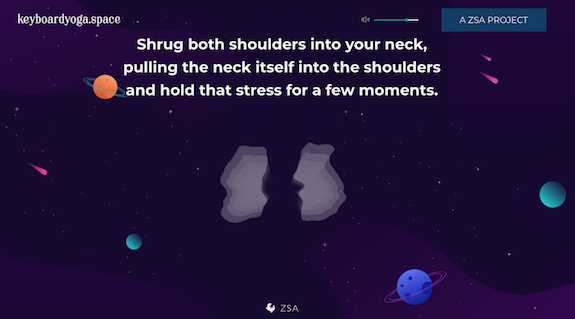
Ethereal music and ocean sounds play in the background as you are guided through a series of gentle hand and wrist exercises. In addition to providing soothing breaks from gripping the mouse or power-typing, the calming, meditative narration leads you to relax various parts of your body and take a mental break from the stresses of the workday.
(As I’ve been researching this series on ergonomic health, I’ve found using Keyboard Yoga to be a great way to revive my aching wrists and a flagging spirit.)
The narrator explains that if you stop typing at any point during the experience, the narration will cease but the music will continue. (I wouldn’t have minded an actual pause button, but otherwise, it’s nice to know that the relaxing background music will continue if you get called away mid-yoga “pose.”)
The “yoga” itself involves both physical actions and reflection on your body’s relationship to the keyboard, mouse, and screen. Much like an actual yoga class, you are called to notice tension in your palms and wrists, the angles at which you hold and move your fingers and hands, the placement of your elbows, the curve of your spine, the placement of your shoulders, your breathing, and so on.
As the “yoga” continues, the narration guides the user through progressive relaxing and tensing of muscles through fist-making with one hand while randomly typing with the other. It continues through neck and head circles, and then a variety of breathing exercises. The entire process takes less than ten minutes, though I cannot be certain of the exact length, because it’s so relaxing that one occasionally forgets to keep typing, causing the narration to pause.
PERKINS KEYBOARD YOGA
I was so charmed by ZSA’s Keyboard Yoga, I went in search more information about “keyboard yoga.” This was initially difficult to Google because Lenovo manufactures an ergonomic-friendly computer model called Yoga.
However, I was intrigued when I found that the Perkins School for the Blind had an entire (and very instructive) page on keyboard yoga, which it defined as becoming aware of your body in relationship to the items on the desk in front of you. While the material is designed for people with low vision, the page includes information on ergonomic finger curvature and placement, posture, body position, foot positioning, and wrist and elbow placement.
The Perkins Keyboard page also includes a fun set of typing exercises for practicing typing that will, for some of you, harken back to typing class in high school.
ACTUAL YOGA
Yoga instructors can provide you with helpful yoga moves and poses to incorporate into your regular yoga practice. The popular Yoga with Adrienne host, Adriene Mishler, has a video entitled Yoga For Hands, Fingers, Wrists | 11-Minute Yoga Quickie.
This gentle video is designed to reduce inflammation, increase range of motion in wrists, and improve flexibility in the small muscles of the hands, fingers, and forearms.
The SaraBeth Yoga channel also has an easy 5-minute Desk Yoga for Wrist Health video for soothing forearms, wrists, and fingers.
AUTO MOUSE
Do you struggle with repetitive stress injuries? Could you use some pain-free mousing?
Auto Mouse from Sphere 10 Software is a Windows-based background utility for your computer, designed to alleviate the strain associated with overuse of a computer mouse. It changes the way you operate your mouse by shifting the hand/arm workload in an ergonomically positive way, from your mousing hand to your keyboard hand(s).
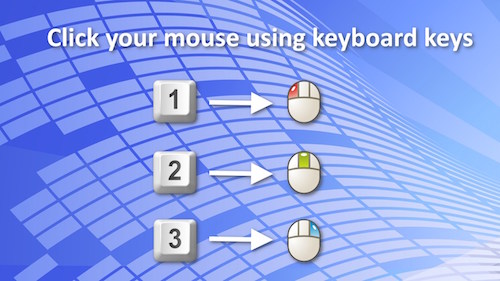
Auto Mouse can be configured to your specifications, so depending on your setting selections, you can select to map mouse functions to your keyboard, like:
- “click the mouse” (that is, approximate the clicking of the mouse) by using keyboard combinations
- automatically click the mouse by ceasing to move the mouse
- choose to sometimes activate the on-screen mouse using an activation key
- flip the right and left mouse button actions to make mousing easier for left-handed users
- show an expanding on-screen ring when a click is issued to gauge progress
- allow keyboard arrows to move the on-screen mouse
- make a mouse-click noise to simulate an actual mouse click
- control the duration between the when the mouse stops moving and auto-click is issued
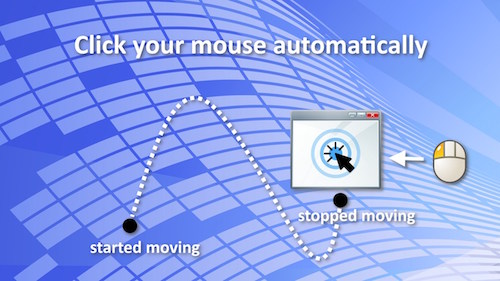
Auto Mouse also removes the need to tap a laptop touchpad. Instead, you can press a key in order to to click your mouse button but without hijacking that key when you need to actually type.
You can download Auto Mouse directly from the Microsoft App Store. Auto Mouse is free.
Other “Handy” Ways to Maintain Hand/Wrist/Arm Wellness Ergonomically
Learn keyboard commands
Almost every computer program has keyboard commands, combinations of keystrokes that avoid you having to lift your hands from the keyboard and move your mouse. You certainly already know some, like Command-X for Cut or Control V to paste in Windows. But you’d be amazed at how many keystrokes you didn’t know there were!
CheatSheet for Mac from SourceForge is a free utility that displays the keyboard shortcuts available in the active app whenever you hold down a “modifier key,” generally the ⌘ key. Rather than memorizing oodles of key combinations, just view a nifty overlay of commands — for that app — by category.
The best Windows alternative to CheatSheet seems to be CheatKeys; you hold down the CTRL key (or a global hotkey of your choice) and it provides a list of all active short-cuts for whatever app you’re in. Unfortunately, CheatKeys is not free; there’s a 14-day free trial, and during the current promotional period, a one-time license (for use on up to two devices) is currently $12.99 (down from the standard price of $19.99).
The point is that the less mousing you do, the fewer repetitive stress injuries you’re likely to get.
Choose an alternate keyboard or mouse
Ergonomic keyboards come in three main types:
- Split Keyboards — The keyboard is separated into two somewhat equal halves, so you can align your hands directly with your shoulders. This is as much to prevent you from hunching over your keyboard as to soothe your hands.
- Contoured/Concave Keyboards —The keys sit in a bowl-shaped well to match the natural resting lengths of your fingers. (If this description calls to mind Madge and the old Palmolive “Your soaking in it!” commercial, I’m sorry.)
- Wave/Curved Keyboards — With this type, there’s one single, continuous keyboard but the keyboard’s shape tends to be sloped or wavelike/undulating to keep the wrists from bending.
For more information, see Wired’s The Best Ergonomic Keyboards for Your Tired Hands.
Ergonomic mice also come in multiple styles, including a vertical mouse or a trackball mouse, and while both are easier on the hands, you do still use your wrist. With a trackpad mouse (whether on your laptop or as a free-standing combination trackpad mouse), like the Apple Magic Trackpad, you’re not moving your wrist; instead, you control the cursor with your thumb. Experiment to see what works best for you.
PC Magazine recently covered The Best Ergonomic Mice for 2026.
Ask for a referral
If you experience discomfort or pain in your hands, wrists, or arms, ask your healthcare provider for a referral to hand therapy (also called occupational therapy) treatment.
Zzzappy
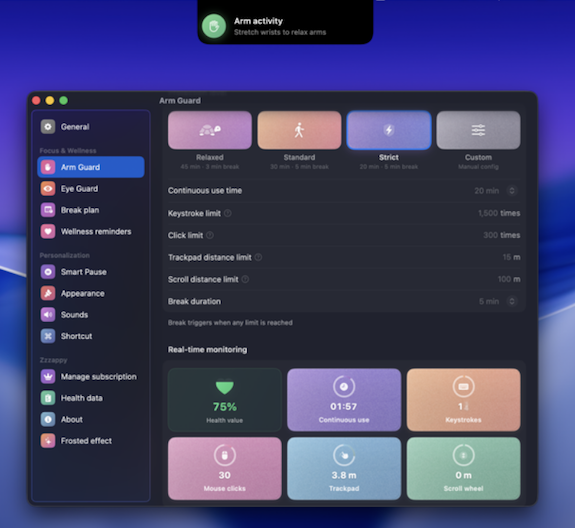
100 Plans’ Zzzappy is a bit of combo plate, as it monitors both your eyeball/screen time and your “arm input load” in order to scientifically schedule breaks to protect your vision and prevent repetitive strain injuries (RSIs).
Arm Fatigue Detection
Zzzappy’s Arm Fatigue Detection provides real-time monitoring on five types of ergonomic inputs to prevent RSIs, tendinitis, and computer elbow/mouse elbow:
- keystrokes
- mouse clicks
- trackpad travel
- scroll distance
- continuous use duration
Using these metrics, Zzzappy calculates a composite fatigue score, and if any of the metrics hit a no-no threshold, Zzzappy triggers a break (so you can stretch, do some keyboard yoga, and generally stop giving yourself booboos)!
Eye Guard
Zzzappy’s Eye Guard also promotes the 20-20-20 Rule we discussed last week. It has a variety of features, including:
- built-in light, deep, and customizable pre-sets for taking eye-soothing breaks
- flexible time-of-day schedules
- gentle pre-break alerts so that you won’t be startled out of flow when it’s time to take a break
- snooze settings, in case you need a little more time
Zzzappy also has multiple display styles for blink and posture nudges while you’re working.
Smart Pause
We all know that no matter how important eye, hand, and body health is, sometimes we just shouldn’t be disturbed. Zzzappy’s Smart Pause will automatically pause when it detects that you’re on video calls or in meetings, watching video playback, participating in an event on your calendar, and during “fullscreen” gaming. You can also define your own “deep focus” app list so that if you’re using an app that always requires your full attention, Zzzappy knows to play it cool.
If you’re away from your Mac for five or more minutes, Zzzappy recognizes that that’s already a break, and considers it among your metrics.
Immersive Breaks
Because Zzzappy provides eyeball breaks as well as hand/arm in breaks, it keeps you from continuing to stare. Instead, it overlays your choice of blur, grain, frosted glass or ambient glow effects. You can add customized motivational messages (carrot or stick style, depending on what motivates you) or an animation to show you the progress through any given break.
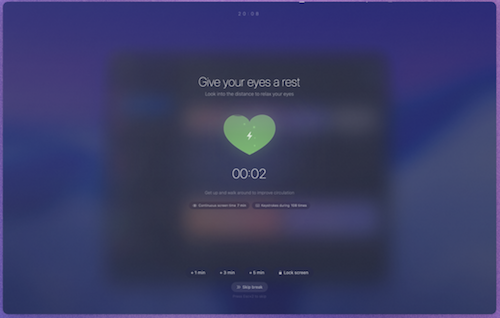
And if you’re using a multiple-screen setup, Zzzappy can sync the overlay across all screens.
With one tap, you can force a lock screen so you’ll really want to step away from the screen.
Health Dashboard
For users who are motivated by data, the health dashboard provides a bevy of goodies:
- Visual charts illustrating screen time, input load, and break patterns.
- Tracking statistics to show:
- completion rates
- streaks
- personal records over time
- Smart insights to use AI analysis of performance data and give users personalized advice.
All of Zzzappy’s data is kept locally on the Mac, with nothing uploaded to the cloud.
Zzzappy Pricing
You can try Zzzappy for free for three days. After that, it’s a one-time purchase of $9.90.
IMPROVE YOUR ERGONOMICS WITH MOVEMENT REMINDERS
Ten minutes before each hour, my Fitbit buzzes to remind me to get up and walk at least 250 steps. Do I do it? Not always.
As I noted in the second post in this series, posture reminders don’t work as well as the posture correcting apps that show you what you’re doing wrong and how you should sit instead. Similarly, reminders to get up and move (or do anything good for your body) are only as good as your willingness to take action when prompted.
It’s not that reminders aren’t useful; they are. But just like buying an organizing book or an exercise video won’t declutter your home or strengthen your abs, just downloading a reminder app won’t get you across the finish line. Pair apps and reminders with cues for why you want to take these self-care measures, whether it’s to be strong and mighty when you reach retirement and are no longer shackled to your computer, or to stay fit to keep up with your children or grandchildren. Know your why.
RMinder
RMinder is a free Chrome extension (so it works on all platforms). Periodically, Rminder pops up on your screen to remind you to do the essential ergonomic and other tasks to maintain your health. RMinder nudges you to:
- Correct your posture — This is only a reminder, not a real-time evaluation or instruction as to what to do
- Blink — Here’s a good time to practice the 20-20-20 Rule!
- Hydrate (with water, not the sugary, caffeinated so-called beverages that keep us from screaming into the void)
- Stretch
These are the things we often forget to do while working, browsing, or gaming. As failing to do them can adversely affect our health, the prompts from this free extension are like an angel on our shoulder (or a mom peering over your shoulder), reminding you to do some self-care.
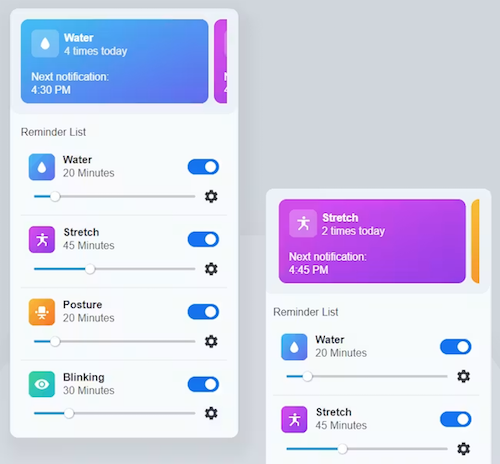
Rminder lets you customize the interval between notifications and the actual text of the notification, in case you want to be mean, funny, or extra-caring to yourself.
You can also chose to turn off notifications (when you need some intense focus time). Note: some users complain about the audio alert that’s simultaneous with the pop up.
STRETCHLY
Stretchly is a free, open-source app that reminds you to take a break when you’re on your computer. Stretchly is available to download for Mac, Windows, and Linux operating systems (though Mac users will want to read the instructions for installation using Homebrew).
By default, Stretchly prompts users to take a 20-second “mini break” every 10 minutes and a 5-minute “long break” after 30 minutes to reduce fatigue, improve productivity, and prevent RSIs. However, you can customize the intervals for either type of break.
In addition to reminding you to take a break, Stretchly will fill your screen with suggested wellness activities.
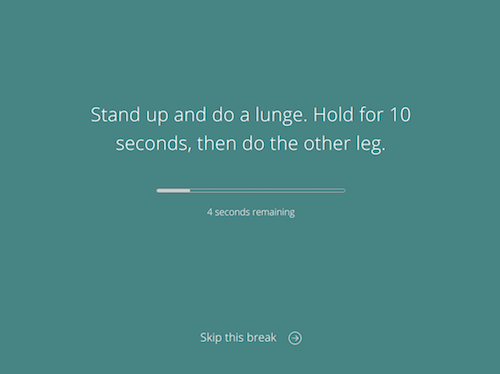
Stretchly notifies you 10 seconds prior to a mini break and 30 seconds before a long break to give you a gentle nudge to pause your work. When Stretchly starts a break, you have the option to postpone a mini break for 2 minutes or a long break for 5 minutes; just click on the link at the bottom of window or use the Ctrl/Cmd + X keyboard shortcut. (There’s an optional “Strict Mode” that prevents you from postponing or skipping breaks.)
Stretchly monitors your computer’s idle time; if you haven’t typed or clicked for at least five minutes, the app will pause breaks until your activity starts again, because (duh!) if you’re not at your computer, you don’t need a break from your computer! It will also pause breaks if your computer is set to Do Not Disturb.
MOTION MINUTE
EU-based desktop app Motion Minute reminds you to take regular, healthy breaks while working at your desk, boosting wellness, and productivity.
Motion Minute works on both Windows and Mac operating systems. It uses animated models to guide you through exercises to reduce tension and stiffness, enhance blood circulation, and improve posture and focus.
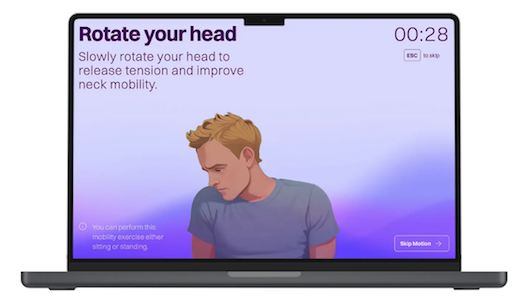
There’s a free 7-day trial, after which there one-time payment, lifetime licenses, each offering two times more exercises than in the trial. The Starter is €7.95 for one license while the Friends level is €9.90 for two licenses. Each version gets one year of free updates.
BE KIND TO YOUR BODY
If the movie Jerry McGuire is to be believed, the human head weighs eight pounds. (If Google is to be believed, it’s closer to 10 or 11.)
When you’re working at your desk, staring at a screen all day and then curved like a question mark with a death grip on your phone once the workday is over, you’re balancing that beachball head on a much smaller pedestal — your neck.
As we’ve reviewed over four weeks, your neck and shoulders and back — really, all of you except your hair — is dealt a low blow by the way you treat it all day!
Let’s close out this series with resources to help you be kind to your body so that no matter whether you are working or playing, trying to be productive or recovering from that effort, you will be healthy and safe:
- DeskFit: 20 Essential Desk Exercises You Can Do Without Leaving Your Office or Home Workspace (NASA) — This robust PDF from NASA has clear exercise graphics and instructions, helpful whether you want to be an astronaut or just look like one.
- Desk Exercises to Stay Fit At Work (UPMC Healthbeat)
- Desk Stretches Video Collection (Mayo Clinic)
- Office Ergonomics – Stretching – At the Workstation (Canadian Center for Occupational Health and Safety)
- Six Ergonomic Desk Exercises for Office Workers to Relieve Musculoskeletal Issues (Fellowes)
- Stretches to Do at Work Every Day (Healthline)
Thank you for sticking with this series, and I hope you’ve found some new strategies for organizing your workspaces, your systems, and your body for better health.
Four weeks on ergonomics and I learned something new in every post. Keyboard Yoga alone was worth the series. Thank you for putting this together so thoroughly.
Awww, Cathy, thank you! I really liked the Keyboard Yoga, too. And I’m so pleased you enjoyed this series and found it useful.
Thank you for reading!
Wow, great resource, Julie. I never heard about Keyboard Yoga. That would be fun. I do know some yoga moves, but they don’t work for the long term. I’m going to check out the apps for taking a break on my Windows computer. This would help me a lot. Thanks.
I find that investing in a more comfortable keyboard works best for me. I didn’t like to press too hard because it aggravated my tendonitis in my forearms, so I went to a nearby computer store, and they had 20+ keyboards I could try. Some keyboards that helped me were those with palm support and spring-loaded keys, so I didn’t have to press hard. That little bit of less pressure makes a huge difference.
I tried a variety of mice as well. I seem to be OK with the standard mouse, but my husband needed to purchase a more ergonomic one. The more often we type, the more likely we are to need to update products.
Sabrina, I have to say that other than the Posture Pals, the stuffed animals you hug between yourself and the desk, my favorite discovery for these past posts was the Keyboard Yoga. I’ve been doing it most days, and my fingers are much less click-y!
I keep waiting for us to have more workable non-keyboard inputs like in Star Trek. I don’t mind typing, though I miss the olden days of the early Mac keyboards. The modern ones are too quiet and don’t have that satisfying “push.” I’m not sure whether the modern, flat ones are more ergonomic or just less expensive to produce.
Thank you for reading!
More great resources, Julie! You are amazing! Who knew there was keyboard yoga? I didn’t. But it makes a lot of sense.
My husband uses a trackball instead of a mouse. He loves it. I’m totally spastic when I try using it. But I suppose it’s what you’re used to. He feels similarly about my Apple mouse and finds it hard to use. And I love it.
One of my easy tricks (no timer needed) for getting up from my desk to move is staying hydrated. Because what goes in must exit. It works.
Well, Linda, I certainly didn’t know there was keyboard yoga until I found Keyboard Yoga! And then learned there were yoga practice elements especially for all of the hand-crampingly hard work we do at our desks. This has been fun and fascinating to research.
I’ve tried trackball mice and trackpads, and am not very good with them; the Apple Magic Mouse (and its predecessor, the Mighty Mouse, with the teeny trackball on top) are better than the kind for PCs, but I admit to not having had the vertical mouse experience.
Lol, yes, the more you hydrate, the more you have to move. Good point!
Thanks for reading!
Wow, what an incredible series, Julie. You really covered so much – more than I thought there was to think about!
There is so much value in moving out of the “static” position, whether it is your head, your hands, your shoulders, your lower back, or whatever. I once attended a seminar where the speaker talked about the importance of getting your head out of vertical alignment. Apparently, this type of movement is important for your balance. I was so convinced that I started having the kids I teach on Sundays do a yoga pose each time before we start the lesson just to get them moving their heads around.
I carry tension in my neck and shoulders, and I believe that my head might actually be 8lbs. It feels heavy, for sure. Most days I do morning stretches that include stretching the trapezius muscles. I haven’t heard of most of these terrific tools, but I can see how they would help. In fact, I’m just rolling my head around right now as I type this. It feels really good!!
Seana, can you believe I originally planned this as just one post?
That’s fascinating that you have your students get moving into yoga poses. Does that help their attention and recall, as well?
All my tension is carried in my neck and shoulders, and I’m sure my big, old head is not easy to keep upright, filled as it is with all of these TV clips and theme songs. 😉
Thank you for reading!