The 20-20-20 Rule — Protect Your Eyes and Boost Your Productivity
You may have many workspaces. You may have an office or workstation owned by your company. Perhaps you have a home office (even if that’s your kitchen table). Students have desks in their dorms and carrels in the stacks of the library.
But you have only one body, and organizing it for wellness means more than just organizing the space around you for productivity. Over the last few weeks, we’ve been delving deeply into key ergonomic issues:
- The Productivity-Boosting Power of Ergonomics — Organizing Your Workspace and Systems for Success looked at the basics of an ergonomic layout and how to arrange yourself within it, from screen height to your chair selection, from your keyboard and mouse placement to your lighting.
- Paper Doll Introduces Ergonomic Helpers that Organize Your Posture was chock-full of tech tools, from AI and webcam software that monitors your posture and provides sci-fi looking feedback in real time, to gentler versions that create on-screen animated animal versions of you, cartoonishly alerting you to unhealthy neck and head positioning, to an adorable Dreams line of stuffed animals designed to let you hug them into your own good posture. I’m still in love with the hedgehog.

Posture, however, is only one important element of your ergonomic wellness, so today we’re going to look at resources and methods for preventing eye strain and repetitive stress injuries and maintaining your overall health. A healthy body is essential for your long-term productivity and happiness.
GOOD EYE HEALTH
Prolonged screen use can cause digital eye strain and dry eyes. The more eye strain or discomfort you have, the harder it will be to read or edit what’s on your screen. Whether you notice it or not, it will also increase fatigue, decrease mood, and reduce productivity. Nobody wants that!
In fact, there’s such a thing as Computer Vision Syndrome (CVS), which can affect 50-90% of individuals who spend parts of their workdays in front of screens. Symptoms of CVS (the syndrome, not the drugstore with the super-long receipts) include blurred vision, dry eyes, headaches, fatigue, and neck pain. It is also known as digital eye strain, because staring at your children or your dog or the ocean does not lead to the same kind of malady.
Computer Vision Syndrome can be caused by many of the ergonomic mistakes we’ve covered over the past few weeks, including a combination of:
- sitting at the wrong distance from your screen
- bad sitting/screen-reading posture
- bad lighting
- glare from your screen
- uncorrected vision problems and the need for different vision correction
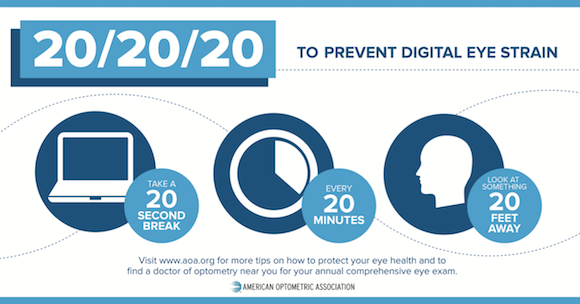
Many of the ergonomic corrections we’ve already covered can reverse CVS. In addition, the American Optometric Association recommends the 20-20-20 Rule to maximize digital eye health. (As does Paper Doll.)
 Of course, just as we discussed about posture last week, knowing the importance of maintaining good eye health is easier than actual enacting the right behaviors and systems.
Often, a reminder prompt isn’t enough; sometimes, we need someone or something to hijack our attention to ensure that we take a visual break.
Let’s look at some digital tools for helping you organize your way to better eye health.
DESKTOP APPS TO PRESERVE EYE WELLNESS
LOOKAWAY
LookAway is software that places your computer in rest mode at periodic intervals to prompt you to rest your eyes. When your rest break is over, it plays a gentle chime to lead you back to focus mode.
(Currently, LookAway is Mac-only, but the site references adding Windows compatibility soon.)
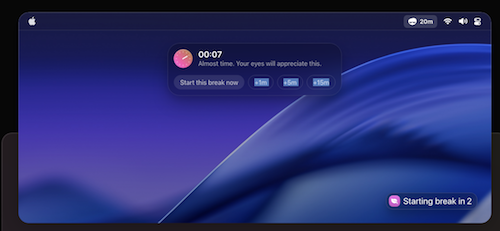
LookAway’s live status menu bar icon give you immediate access to settings where you can adjust your preferences, making it easy to check timers, or take an unscheduled break.
There’s also a floating countdown that follows your cursor, keeping you aware of any impending break.
Customize Your Breaks, Reminders, and Notifications
Once you install LookAway, set it up with your preferred customizations! You can adjust the intervals between your breaks, the durations, and give yourself a break from breaks (as it were) when you need to prioritize your focus.
- Balanced Mode gives you twenty minutes of screen time, followed by a 20-second break, with longer breaks disabled.
- Deep Focus Mode gives you fewer breaks, so you have 45 minutes of screen time, followed by 30-second breaks between sessions. Then, every three breaks, you get a full five-minute break. It’s similar to a Pomodoro, where you get 5-minute breaks after every 25-minute session, and then a longer break after four sessions. Your eyeballs (and the rest of you) get to maintain focus without sacrificing those baby blues (or browns, or…you get it).
- Eye Care Mode has much more frequent screen time breaks. It reminds you to pause after every 15 minutes, but just for 15 seconds, and after four work sessions, you get a three-minute break.
- Wellness Mode is designed not only for eye care, but for soothing your entire self, including aligning your posture. Work a full 25-minute Pomodoro, take a 45-second eyeball break, and every two breaks, take five minutes away for a full vision/body/mind re-set.
Use pre-break notifications to give yourself a gentle prompting to wrap up your current task. If you struggle with transitions, this eases you into the break without making you feel interrupted or like you’ve lost control of the flow of your work.
For overall wellness:
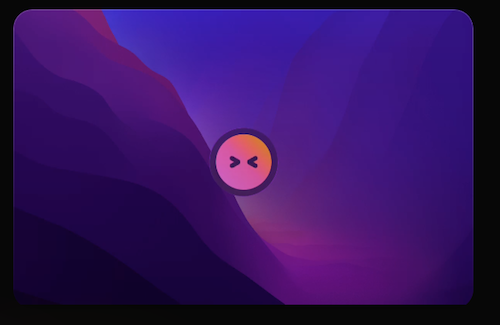
- turn on blink reminders to prevent dry eyes
- enable posture reminders to prompt you to maintain a healthy sitting position all day long
LookAway Blink Reminder
Set office hours to control the days and/or times you want these break reminders.
Create your own automations and integrations
You needn’t be a programmer to get more out of LookAway. You can trigger your own automations to set a process in motion for starting or ending breaks. For example, use AppleScript and Shortcuts and just click “add shortcut” or “add script” under the “Start of Break” or “End of Break” settings to:
- dim the screen when a break starts to subtly “force” you to really-and-truly take that eyeball break, and return it to full brightness when it’s time to work, sort of like how they flicker the lights during the intermission at a Broadway show.
- lock the screen entirely to not-so-subtly force yourself to actually take that longer break. If you can’t see the screen, you are more likely to get some fresh air or take a bio break.
- pause your music/podcast (so you can pick up where you left off when you get back to work)
- activate Do Not Disturb when your break ends so that you can get back into focus mode for deep work.
- change your Slack status to “away” (or “online”) with a customized message to teammates, like, “Dude, I’m just gone for three minutes to make my eyeballs work. Roll your eyes and come back in a little while!”
LookAway Mirror
What good is a screen break from your computer if you just grab your phone or your tablet?
The LookAway app has mobile sync via LookAway Mirror, so your breaks on your Mac sync up with any paired devices. The LookAway Mirror app will block all of the websites and any non-essential apps to dissuade you from even turning to a screen device (except, y’know, the microwave).
Breaks Sync with LookAway does need the internet to work, though devices need not be on the same network. You can pair up to 3 devices to a Mac, and pair up to 5 Macs to an iPhone or iPad. (Keep running the LookAway Mirror app in the background; don’t use Force Quit, or the break sync will stop.)
Sometimes, being idle is smart!
LookAway’s Intelligent Idle-Time Detection recognizes when you’ve left your desk and will automatically pause or reset the timer. Why? Because if you’re not staring at the screen, you don’t need to be reminded to stop staring at the screen!
I think this is brilliant, as it keeps you from conditioning yourself to ignore the notifications.
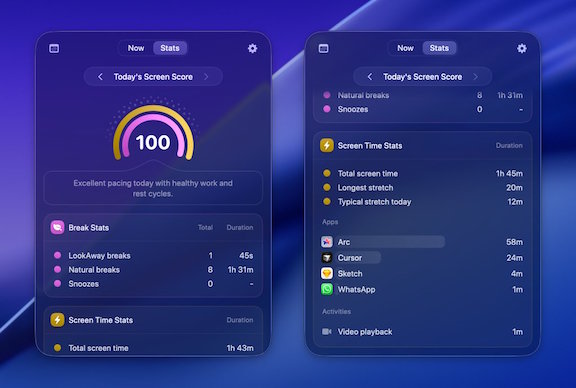
Know Your Stats
Some people really need or want statistics to help motivate them to make progress. If that’s your jam, LookAway will show you your behavior patterns without you having to juggle spreadsheets.
Eyeballing (no pun intended) your stats will tell you whether your work sessions drag on too long to be healthy, whether there are certain programs or sites that sabotage your schedule, or if you keeping procrastinating on taking breaks (or skip them altogether) way more often than you intend. Conversely, your stats might show that your break sessions are improving your habits and your health. (Yay!)
Look at stats like:
- Total daily screen time (because if you’re glued to the screen for work, you may want to explore your options — or ask your company for an ophthalmology stipend!)
- Number of breaks, so you can see if and how often you truly stepped back from your screen
- The longest session you worked without actually taking a break
- Median session lengths so you can spot your typical work rhythm, analyze whether it’s good for you, and consider how to schedule your day for better eye health and wellness.
- Your time spent using the app when you are in active screen sessions, as well as website usage (categorized by domain names) in browsers supported by LookAway.
- Your Screen Score, which delivers a summary of whether your screen habits that day were healthy (or not).
Smart Detection
There are times when you need to be highly engaged with what’s on your screen. LookAway can use the camera and microphone to detect when you don’t want to be interrupted (or embarrassed when others can see your screen) — if you’re in a Zoom or other video call, screen sharing, recording, watching a video or presentation, gaming in fullscreen — and automatically pauses reminders.
You can customize a list of apps that require deep focus, so the app will pause reminders, ensuring you can work distraction-free. Focus when you need to, but be prompted for breaks otherwise.
The Cost of Look(ing) Away
LookAway has three types of personal licenses. A Single license is $19 for one “seat” (device) while a Personal License is $29/two seats; each includes one year of free updates. For a second year, updates are 50% off. Personal licenses renewals are $10 for the first seat and $5 for each additional seat. (You can keep using Look Away without the updates, or pay for a renewal.)
There’s a Team License at multiples of $29/seat for 5 or more seats, which includes priority support, and soon, team stats. Team license renewals are $15 per seat. You may also buy a Believer License with 5 seats and get lifetime updates for $99.
INTERMISSION (formerly BREAKS FOR EYES)
Intermission, created by Alex Greene, works much like the intermission at a theater. Instead of the orchestra stopping, the curtain coming down, and the lights coming up, this kind of intermission brings a curtain down on your screen and forces a break in your work. (Or, your binge-watching Love Island on your laptop. Paper Doll won’t judge. Much.)
Intermission is currently available for MacOS and iOS only.
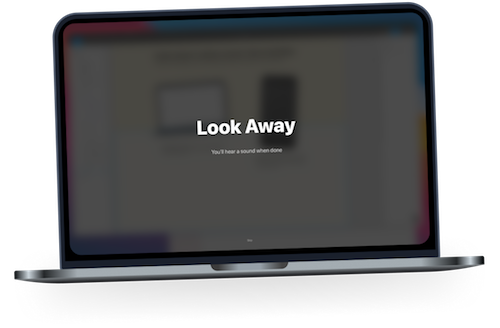
Intermission completely blocks your screen for 20 seconds every 20 minutes. (You can click “Skip” if your attention is truly required.) When your intermission time is up, you’ll hear an audio alert and get a “Well done!” on your screen. (If you prefer a more subtle alert, you can set Intermission to give you a small, visual break prompt.)
While Intermission doesn’t force you to look away from your screen, a blank screen saying, “Look Away” is pretty boring, so you’ll be more likely to look around the room, look out your window, or even get up and do what you’d do at the theater — stretch, get a snack, or take a bio break.
Intermission also doesn’t bother with gamification, streaks, or stats. It just tells you to rest your eyes.
Customized Intermissions
Intermission lets you customize the program to fit your preferences.
- Rules — Adjust the duration of your intermissions as well as how often you take these breaks. For example, you can set it to take a 30-second intermission every half hour.
- Sounds — Pick the chime that plays at the end of the intermission. (Again, just like when you’re at the theater.
- Messages — To improve accountability, change the message that gets displayed from “Look Away” to something that will inspire you to take a more active break.
You can make other adjustments to fit your needs.
- Snooze — Click on the eyeball icon in your menu bar and the drop-down lets you snooze intermissions for 30 minutes, 1 hour, 2 hours, 4 hours or an entire day, so if you’re watching a movie on your laptop, in a Zoom, or attending an all-day online conference, you can postpone your breaks without guilt. (But do take breaks!)
- Heads-Up — To prevent startling you, the “Heads-Up” notification alerting you to an upcoming break can be set for 5 or 20 seconds prior to the start of an intermission break, or you can skip it or delay advanced notifications, if you prefer.
The Cost of Intermission
Intermission has a 7-day free trial, after which you’ll be prompted for a one-time payment of $7.99 for a lifetime license.
BLINK EYE
BlinkEye from Noman Dhoni offers full-screen popups with a 20-second countdown to prompt users to look away.
Blink Eye is available for Windows, Mac, and Linux operating systems. (Note: You can’t download the MacOS version from the MacApp store yet, but there are Installation instructions at the site for using Homebrew.)
Laying out the Benefits of Blinking Your Eyes
While all apps based on the 20-20-20 Rule general have the same purposes, Blink Eye spells out both its health and productivity goals:
- Reduce eye strain — By taking regular periodic breaks, you prevent the eye strain and visual fatigue that comes from prolonged staring at your screen.
- Prevent dry eyes — When you stare, you fail to blink. When you don’t blink, your eyes get try, which causes irritation and harm.
- Promotes long-term eye health — Stopping to not only take a break from your screen, but then focusing on objects in the distance (remember: 20 feet away!) forces you to relax your eye muscles
- Improve mental focus — Fatigued eyes mean a fatigued brain. When you take short short breaks for your yes, it gives you a mental break too, improving your focus and productivity when you get back to work.
Not So Minimalist
Blink Eye is not quite as minimalist as it bills itself, as there are a variety of customizable bells and whistles.
- Customizable reminder timers — Not everyone needs a Pomodoro. Sometimes, you have to be reminded to not only stop for your eyes, but to stop for lunch or pick up the kids.
- Customizable reminder texts — Only you know whether you need a carrot or stick; set a reminder that tells you to “Take care of those pretty eyes” or “Stop being a corporate drone!”
- Customizable reminder screen savers and themes— Blink Eye has a full of screen options from which to choose.
- Customizable sounds — Because, duh, if you want to control what the app says to you, you probably also want the alerts and notifications to sound a certain way.
- Customizable dashboard — However you want Blink Eye to work, there’s probably a setting or settings and preferences.
Blink Eye has a Pomodoro timer to incorporate productivity break-taking, and for users who want to incorporate time tracking, Blink Eye offers daily, weekly, and lifetime usage statistics.
In addition, Blink Eye is working on multilingual support, and audio mute during reminders for when you need to maintain focus right up until the eye-break time, and a workday setup to customize the specific points in your workday when reminders should appear.
You Needn’t Blink at the Cost of Blink Eye
Blink Eye has multiple payment levels and two payment options; all features are included at every level. Choose one-time payments for an annual per-device license (with no automatic renewals or recurring billing) including free updates all year, or a lifetime per-device license:
- one device license at $9.99/year or $28.99/forever
- two device licenses at $16.99/year or $49.99/forever
- or five device licenses 39.99/year or $109.99/forever
Blink Eye is open-source software, meaning it’s community-driven. The cost of the license goes toward not only premium features for you but funding further development (and supporting the developers).
CARE U EYES
CareUEyes for Windows operates a little differently. While it does have a break timer to prompt you to relocate your eyeballs, it does so much more.
CareUEyes bills itself as “Eye Protection Software for PC” and operates on Windows (11/10/8/7/XP) and MacOS (12+) operating systems.
Blue Light Filtering
CareUEyes protects your eyes by reducing harmful blue light, adjusting your computer’s screen color temperature. (If caution against blue light sounds familiar, I wrote about how blue light can negatively affect your sleep in Do (Not) Be Alarmed: Paper Doll’s Wake-Up Advice for Productivity.)
The program includes eight pre-set modes with varying color temperatures, so you can begin using the program without having to adjust anything. (That said, the color temperatures are fully customizable with a wide temperature range, so you can pick what you need for your lighting and screen content situation.) Your screen can automatically adjust color temperatures based on sunrise and sunset in your time zone.
No matter how you adjust your screen color temperature, it won’t change the color of your screenshots, so your work can be seamless.
Optimize Your Screen Brightness
In addition to getting the heck away from blue light, your vision health can be soothed by adjusting your screen brightness to the situation for maximum comfort. Because screens that are too bright or too dim can lead to eye strain, CareUEyes promises precise brightness control with 1% accuracy (with is finer control than the default Windows settings, though on par with those of Macs) and extended brightness ranges beyond most monitors’ typical default limits. It also claims:
- Comfortable brightness adjustment without washing out colors or adding flicker
- Automatically rightness adjustment based on the time of day to match your environment
- Multi-monitor support , so you can adjust each of your displays independently of one another or sync the brightness controls across all screens.
CareUEyes also has keyboard shortcuts so you can quickly adjust the brightness using custom hotkeys instead of heading to the settings.
Take a Break with CareUEyes
As with the other software and apps we’ve explored, there is the 20-20-20 Rule-adherent timer set-up, with a variety of options:
- Customize break reminders — Pick your own personalized break intervals, in case you need them more often than every 20 minutes, or if you need a touch more focus time.
- Structured break cycles — Just as we talk about with Pomodoros, we need longer or shorter breaks after different types of sessions. CareUEyes will automatically alternate breaks of longer and shorter durations.
- Enforced breaks — Lock your screen temporarily so that you can’t cheat yourself out of recess for your eyes.
- Smart pause detection — As described with LookAway, there’s no sense in getting timed when you’re not even in front of your screen. CareUEyes automatically pauses the timer when you step away from the computer.
Focus on the Magic
CareUEyes also has a few unexpectedly intriguing features:
Focus Read lets you highlight active reading areas on the screen to help you improve your concentrate, while Focus Blur blurs background windows to lessen any visual distractions. This is not only helpful for all of our eyes, but one imagines it would be a boon people with ADHD, and frankly, all of us with too many sensory distractions.
MagicX lets you enable a magic window in which you can either darken or grayscale any window to reduce distractions and make content easier to read. The dark mode inverts your window colors; greyscale mode makes your window look more like the e-ink on a Kindle.
CareUCost?
CareUEyes has three licensing options:
- $2.90/month for a monthly (auto-renewing) license for one computer. All updates are free, and you can switch which computer you wish to use it on.
- $19.90/year for an annual (auto-renewing) license for one computer. All updates are free, and you can switch which computer you wish to use it on.
- $39.90/lifetime license for up to three computers with lifetime updates. You can switch which computers you use it on at any time, and unlike the monthly and yearly licenses, you upgrade from standard support to priority support.
CareUEyes has the most robust “eye health” approach of all the apps I’ve reviewed. The very Windows-y, boxy-format isn’t to my Mac-loving tastes, but with an inexpensive one-month trial, it’s an inexpensive way to see if it’s for you.
You’ve been reading this post for a while, so it might be a good time to take a break, rest your eyes, look at something 20 feet away, and plan to come back for next week’s final installment in this series on organizing your life for better ergonomic health. We’ll look at apps, ergonomic tools, and some fun (!) exercises to keep you healthy and productive.
One last thought about vision health. When was the last time you had a complete eye exam? If you can’t remember, put it on your to-do list for this week. Your future self will thank you.


This post is so timely for me, Julie. I have been having dry-eye issues to the point that it was giving my headaches. I went for an eye exam, got a new prescription for my glasses, took my glasses (regular and sun) to have the lenses updated and am paying close attention to the time I spend in front of my screens. I had no idea that my computer and phone screens had such a profound effect on my eyes. Thank you for all the valuable resources.
Diane, I’m not sure any of us realize how much our computer use is impacting us. Until I started researching this series, I had a vague idea that poor posture and blue light had drawbacks, but the specific medical damage we do to ourselves (much of which was too icky to add to these posts) is profound.
At no point in history prior to the computer age (so, definitely not before the late 80s, and for some industries and individuals, the 90s and beyond) were people spent staring at anything so close for so long. (Remember how parents used to fuss at their children for sitting too closely to the television? I doubt any kids were sitting as near to their TVs as we all sit to our computer screens.)
I hope your headaches and dry-eye issues are resolved, but please remember to take those essential 20-20-20 breaks! Thanks for reading!
I’ve heard the suggestion to look up and away before, but never in this 20-20-20 format. Very simple and helpful!
I definitely feel the strain in my eyes when I’m looking at screens, or even trying to read paper text. I describe it as my eyes feeling “itchy,” and I know I need to stop and look far away. The first time I remember feeling this was actually at the virtual NAPO conference. I wondered what was going on with my eyes LOL!
I had no idea there were all these tools to help people care for their eyes, but it makes sense since it seems like so many people look at a screen all day now. For so many, they can’t just walk away, so having choices for how to look away is great. You’d have to time these breaks around meetings, I imagine. Maybe some day it will be normal to break a Teams call because it is time for your “eye break!”
I wish I’d know about 20-20-20 back in the 80s when I was in college, sitting in front of my teeeeeny Mac screen; it might have changed the trajectory of my eyesight. Then again, nobody bothered to tell students anything about ergonomic seating, posture (beyond the typical parental “sit up straight” admonition), or anything else I’ve been covering in this series. But it’s serious!
As for fitting these breaks around tasks, I was happy to see that almost all of the apps I reviewed had options for pausing function for things like meetings, and for scheduling or snoozing when necessary. I’m still deciding which app I will use, but I’m definitely going to start using posture and eye health apps on a regular basis to reverse any harm I may have done. No more itchy, blurry, unblinking eyes for us!
Thanks for reading!
Hey Julie- We were both writing about taking breaks this week. Although your wonderful post is much more specific as it relates to giving our eyes the breaks they need.
Like Seana, I hadn’t heard about the 20-20-20 rule either. Since most of my work involves a computer screen (virtual organizing sessions, writing, leading workshops, marketing, emailing, etc.), I’m on my devices a lot. I am aware of the importance of taking non-tech breaks and am pretty good at them. For example, I can’t sit for too long without getting up, moving around, and getting some fresh air.
However, I haven’t specifically incorporated the type of preventative eye-strain breaks that you featured here. I love that there are so many options to help with this. I’m not sure I’d like them, because I prefer to sense when I need a break on my own. I use buzzers and timers, which are effective for me. But I can see how the options you suggested could be valuable.
As always, I appreciate the amount of research you do and how you explain the options and intricacies for the various choices.