The Productivity-Boosting Power of Ergonomics — Organizing Your Workspace and Systems for Success
How are you feeling right now?
Any stiff muscles? Sore neck? Eye strain? Do you actually look forward to sitting at your desk for a day of work? When your work day is over, are you energized, or do you find yourself trying to twist, pretzel-style, to pop everything back into place?
The truth is, if your workspace setup isn’t organized in a healthy way, to serve not only your productivity but your physical health, you’re likely to get cranky, which will, in turn, adversely impact your productivity. There’s a direct correlation between the ergonomic set-up in a workspace and your physical health, satisfaction with our work, and psychological well-being.
Well, unless we’re millionaire Carter Pewterschmidt. He’s got his own thing going on.
If you aren’t a rich dude singing happily to your aches and owies, you might need some ergonomic improvements.
WHAT IS ERGONOMICS?
Ergonomics isn’t merely theory; it’s an applied science. It focuses on designing workspaces, developing systems, and arranging items in an environment to augment any actual (or potential) physical, mental, and/or environmental limitations of users of the space.
Instead of forcing people (students in the classroom, office workers at desks, people on the line in factories, etc.), to strain themselves for the good of the work, ergonomics aims to improve the experience, maximizing safety in anticipation of:
-
Reducing injuries — Creating a new workspace set-up can reduce the physical overexertion and strain that causes chronic medical conditions like repetitive stress injuries (like carpal tunnel syndrome) and back pain.
- Improving comfort and maximizing well-being — Good ergonomic design in your workspace will minimize unnecessary stress on your body (particularly your neck, back, and eyes), reduce fatigue, and improve daily health, and will likely increase your overall satisfaction with the work you have to accomplish.
-
Increasing productivity — Your boss (if you have one other than yourself) may not care about your ergonomics, but everyone cares about the bottom line. Productivity means more (and better) output, and if you are distracted by fatigue, headaches, blurred vision, or back, neck, or wrist pain, you’re not going to be doing your best work.
Ergonomic problems eventually become productivity problems. Conversely, if you can complete more work, faster, with fewer errors, less discomfort or strain, and fewer obstacles, it’s a win-win for you and anyone depending on you, whether that’s your boss, your clients, your readers, or the tiny humans you have to pick up and carry when their bodies suddenly turn into toddler-shaped noodles.
The key idea is that the best ergonomic workspace isn’t one that forces your body to adapt to your tools (computer, desk, accessories) but one that adapts your tools to your (unique) body.
If you’re sitting at your desk right now, stop and take a reality check:
- Are you leaning in toward your screen because you’re overdue for an eyeglass prescription upgrade?
- Are your shoulders up by your ears?
- Are your elbows properly at a 90° angle from your upper arms as you type or are your forearms angled upward from your elbows to your hands because you’re typing on a table or desk that wasn’t designed for computer use?
- Are you sitting on the bed or the couch and trying to keep your laptop balanced on your lap without straining to look downward at the keyboard?
- Are your feet flat on the floor or are your ankles crossed? (If you’re fun-sized like me, are you balancing your feet on the base or the casters of your chair, or are perhaps even en pointe, ballet-style, to keep your legs from dangling?)
- Are you sitting criss-cross-applesauce, or with one foot dangling and the other under your bottom?
- Does anything hurt right now? Your neck? Shoulders? Back? Hips?

Photo by Kindel Media at Pexels
THE ESSENTIALS OF AN ERGONOMIC WORKSPACE
Technology changes how we approach ergonomics. Twenty-five years ago, when I started working with organizing and productivity clients, many had recently switched from desks designed for typewriter use or writing by hand; computer keyboards ended up being too high, causing wrist, neck, and shoulder strain.
Next, people modified their desks or bought desks with keyboard trays, which often positioned keyboards far too low, forcing users to choose between sitting at a comfortable height for reading a screen or a comfortable height for typing, but not both. Then came laptops, with a host of new issues, not to mention tablets and Bluetooth keyboards completely separate from computers — or even desks.
As technology changes, our approach to ergonomics must evolve. Forewarned is forearmed. (And if we had four arms, would we have more or less muscle strain?)
Let’s start with a “Heads, Shoulders, Knees, and Toes” approach, top-to-bottom, to work through how to arrange your workspace.
Set the Monitor at the Optimal Height and Distance
Consider the following basics for your monitor set-up:
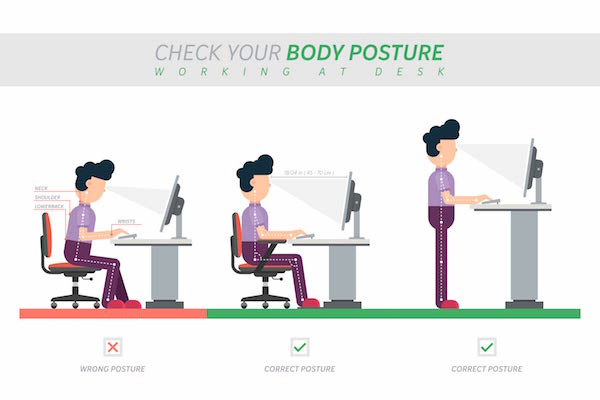
- The top third of your screen should sit roughly at or slightly below eye level in order to prevent neck strain.
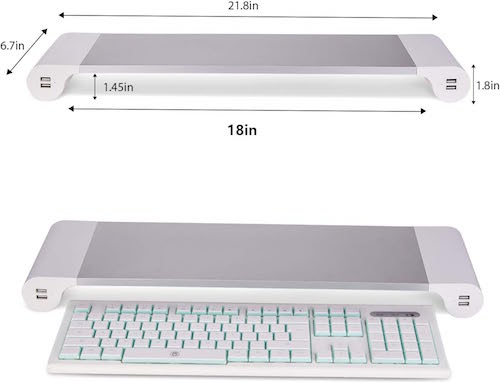
- If the top of your screen is too low, invest in a monitor riser. This one, with 4 USB charging ports, is the one I use.
-
- If you’re on a low-budget, try stacking a few reams of copy paper or thick books.
- If it’s too high, your chair isn’t positioned high enough relative to your monitor. Get a cushion.
- The center of the screen should be directly in front of you.
- The monitor should be about an arm’s length away from your face.
- If you’ve positioned the monitor much closer to you, you’re probably trying to compensate for a vision issue. Make an appointment to get your vision checked and ask your eye doctor for a prescription for glasses to use at the computer.
A common error, which is bad for your eyes, neck, and shoulders, is lowering tilting and lowering your head toward the screen instead of raising the screen so your eyes can easily scan everything you need to read.
Ergonomics Vectors by Vecteezy
Don’t Get Bent Out of Shape
Your goal is to sit so that your:
- elbows are close to your body, and bent at (or slightly great than) 90° when you’re typing.
- eorearms are parallel to the floor, not angled upward or downward
- wrists neutral, not bent upward — If your screen had eyes, it should not be able to see your palms!
Keep the Keyboard and Mouse Close To You
- Your mouse (if you use one) should be close at hand. — Mouse users reach for the mouse hundreds to thousands of times during the day — you shouldn’t have to stretch for it.
- The keyboard shouldn’t be pushed too far away from you. Again, don’t stretch for it unless you’re pulling it out from under the monitor riser to start a work sprint.
- Make sure chair armrests aren’t preventing proper arm positioning.
Get a Grown-up Desk Chair and Support Your Lower Back
You may have done your math homework sprawled on your stomach on the living room carpet, but your body will not thank you for trying the same position today.
I get that most people can’t afford an Eames, or even a Herman Miller, desk chair. (Including Paper Doll. Trust me, I’m not spending thousands on a desk chair, either.)
That’s fine — supportive doesn’t have to mean expensive.
But there are some essential characteristics of a chair that’s ergonomically beneficial for you so that you can maintain what’s called a “neutral” posture.
CUergo, the Cornell University (my alma mater, in case I haven’t mentioned it in the last 15 minutes) Ergonomics Web, has an helpful checklist of questions on its page, How To Choose an Ergonomic Chair.
It covers issues related to the seat pan (where your tushy goes), height adjustability, lumbar support (of which, more later), hip room, comfort over time, chair recline capabilities and support, the importance of a 5-pedestal base, gliding and swiveling capabilities, and the ever-consequential debate over arm rests.
Just remember that your back needs to be supported by the chair, not just your muscles. (Yes, we should all work to have a strong core to support our backs, but I’m not here to gym-shame anyone.) If your desk chair is failing you in terms of lumbar support, consider some less expensive alternatives:
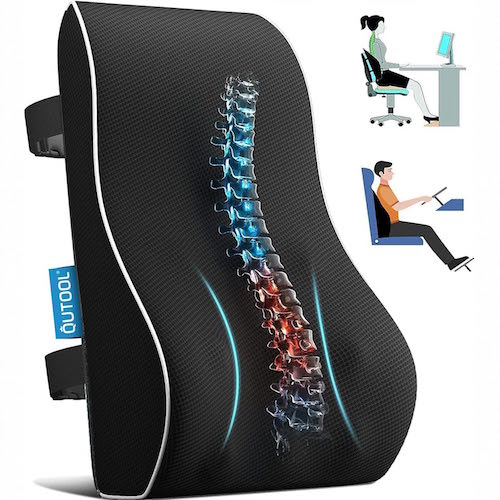
- Consider a lumbar pillow — These are designed to support your lower back by promoting a natural spine curvature, relieving pressure while you’re sitting.
- Try placing a rolled towel or bolster behind your lower back.
- If possible, adjust your chair depth so you can sit back fully instead of hunching forward.
Feet, Do Your Stuff!
When seated at your desk, your feet should be placed flat on the floor. If the only way you can sit so you can see your monitor and keep your neck, shoulders, and arms in the proper position to work means that your feet are dangling, use an adjustable or foam foot rest.
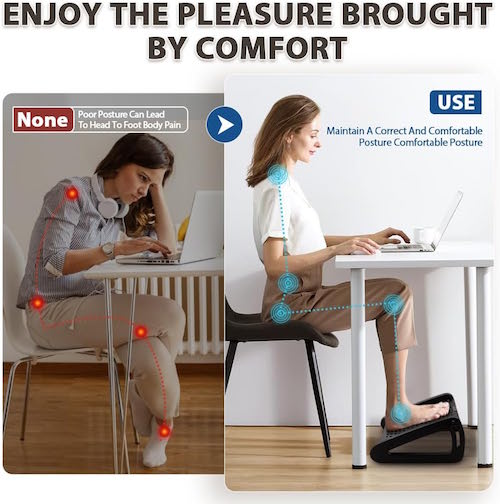
You can buy one, but you can also use a cardboard box, a folded or rolled blanket, or a rolled beach towel.
What’s wrong with dangling, you may ask? After all, little kids look adorable when their feet dangle from a chair due to their diminutive size. First, they’re likely only sitting that way for a few minutes at a time; kids wiggle around. You, however, are at your desk most of an eight-hour day! If your feet dangle:
- it increases the pressure under the thighs
- it causes your upward posture to deteriorate
- it can lead to lower-back discomfort
Note: a traditional desk chair isn’t your only option. Healthy Computing has a nifty article on the concept of active sitting, whereby you can improve your health by engaging specific muscles while using alternative seating, like a balance ball chair, kneeling chair, or even squatting. The benefits of active sitting (or dynamic sitting) include improved posture, increased core strength, reduced muscle tension, and increased blood circulation.
(Fair warning, if you try a balance ball chair for the first time, don’t do it on a Zoom call. Seriously.)
What About Standing Desks?
In 2018, I wrote one of my most popular posts, Paper Doll on The Truth(s) About Standing Desks. In that post, I looked at the benefits and potential drawbacks of using a standing desk, and offered up some neato-keen standing desk options and alternatives at all price levels. While an eight-year-old post isn’t ideal for shopping ideas, you may find the post intriguing for the ergonomic aspects.
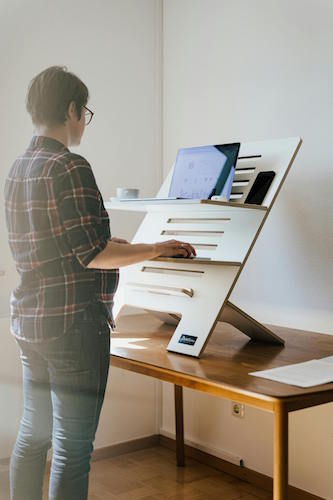
Photo by Standsome Worklifestyle at Pexels.com
The long and the short of it? Sitting all day is very bad for you. But standing all day isn’t necessarily that much better. You’ll likely shift your hips, lean, and slump. A neutral posture isn’t going to magically appear just by using a standing desk. Furniture doesn’t override habits. It’s being sedentary, rather than the height at which you are sedentary, that does the evil deeds.
That said, you might wish to peruse a more recent Healthline article, 6 Benefits of a Standing Desk, for some surprising benefits of standing desks, including new research that finds that use of standing desks may reduce blood pressure, blood sugar, and improve mood, in addition to the general benefits of avoiding sedentary work habits.
Light Up Your (Work) Life
Your desk arrangement and how you sit at it are important, but don’t forget about good lighting. Poor lighting can lead to eye strain, fatigue, headaches, and squinting, and squinting leads to wrinkles. You heard it here first, folks — ergonomic lighting works like the Fountain of Youth. (OK, don’t quote me on that.)
Note: Paper Doll is not a lighting expert, and the kinds and brightness-levels of lighting you may want to use (overhead lighting, natural lighting, task lighting) are beyond the scope of this post. However, consider these tips to start your ergonomic glow-up (no pun — wait, in retrospect, pun intended.)
- Position your monitor/screens to be perpendicular to windows — If the light is directly behind you, it will bounce off the monitor. If sunlight is coming from windows directly in front of you, you’ll need shades. (And sunscreen. Remember the wrinkles!)
- Reduce glare — If light from a lamp is reflecting off of your screen, you’re going to unintentionally squint or move your body to avoid the glare. Instead, move the monitor!
- Add task lighting for “fine detail” non-computing work like handwritten paperwork, reading documents or books, or doing handiwork. (If you’re time traveling from Jane Austen’s era and will be doing needlework, bring those candles closer so as not to strain your vision. If you squint and get wrinkles, you may find yourself unmarried at 27 and a burden on your family.)
- Adjust your computer to compensate for lighting issues — Check the Accessibility settings on your computer to increase contrast, and increase the font size on your screen, if necessary. (You can simultaneously click Command and the + sign on a Mac to quickly increase the font size; do it multiple times to keep increasing the font until it’s ridiculously large. Click Command and the minus (-) sign an equal number of times to revert to the original size. I’m not aware of an equivalent on Windows computers, but Start > Settings > Accessibility > Text size will work.)
WITH ERGONOMICS, HABITS ARE MORE IMPORTANT THAN FURNITURE
I’ve heard ergonomics specialists say that, “The best posture is the next posture.” This means that it’s not healthy to stay in one position too long, and obviously no one posture is tenable (or healthy) for eight hours straight. You need a mix of sitting, standing, stretching, bending, or walking — regular or Monty Python silly walks, as you prefer.
Alan Hedge, Cornell’s Professor Emeritus of Ergonomics, conducted research and developed a process whereby in each half-hour at work, you should:
- sit for 20 minutes
- stand for 8 minutes
- and move around for at least 2 minutes
His research found that employing a “20-8-2” work pattern improved task performance over time without decreasing attention span or short term memory while also increasing total energy expenditure and decreasing sedentary time. Get moving!
Of course, the best way to remember to change your positions frequently is to not leave it up to your brain, which is already overloaded.
Remember to Take Breaks
Set a reminder alarm on your computer or phone to change positions, move your eyeballs, roll your shoulders, drink water (and then walk to refill your water), take a bio break, shake your sillies out…Shake, Shake, Shake Senora!
Don’t wait until you’re already feeling discomfort to take micro-breaks during your work day. Revisit my post, Take a Break — How Breaks Improve Health and Productivity, which covers everything from micro-breaks for your body and your brain to the 20-20-20 Rule to prevent computer vision syndrome. Here’s a cheat sheet:
- every 20 minutes, look away from your screen and toward/at something
- 20 feet away
- for at least 20 seconds
Whether you’re looking at a poster of a kitten or Pedro Pascal, that’s nobody’s business but your own.
Alternate Tasks Throughout the Day
You may think you do the same thing all day, but knowledge workers (programmers, writers, coaches, etc.) have a lot of differing tasks. Think: writing, research, making phone calls, doing Zooms, filing, planning, etc.
Adopt different postures whenever you don’t absolutely have to be seated at your desk. For example:
- I naturally pace when I talk on the phone, getting in steps while not having to even think about it.
- Arrange your office with your archival files across the office, prompting you to stand to do your filing. Find your groove and file along while listening to your favorite Spotify playlist.
- Rehearse for your next presentation or speaking engagement while standing or even doing sun salutations.
Use a Zone Defense to Avoid Unnecessary or Awkward Reaching
Borrow from industrial ergonomics and create specific zones for your “stuff” to ensure that you are stretching healthily (and not too often). The fewer unnecessary reaches, twists, and stretches, the better your habits will be.
Your primary zone, or what I usually refer to as your “primary real estate” is what you use constantly during the course of your work day. That’s your keyboard, mouse (if you use one), water bottle, and phone. Put them so that you can reach them without inviting repetitive stress injuries.
This is where your want to make sure you are limiting your rehearsal to be a famous contortionist. For example:
- Put your printer behind your chair on or the side of your L-shaped desk if you want to access it quickly and often. But if you want to incorporate more (of the right kind of) movement in your work day, put the printer where you have to get up and walk to it. Do not put it just far away enough from your chair that you have to twist yourself unnaturally and risk falling off your chair to reach it.
- Got annoying charging cables strewn under your desk so that you’re always having to fiddle with them to keep your mojo going? Reposition them so you you’re not squishing yourself (and risking bumping your head) every time you need to power up your phone.
Your secondary zone is what you use only occasionally in the course of the day, and with intentionality. If you use a paper planner, it’s OK if that’s a bit of a stretch to the back half of your desk, or reference files, because you’re rolling, leaning, or stretching only on occasion.
Your storage zone reflects much-less-often used items in your work space. If you’re not reaching for them with frequency, get them out of your workspace to make acquisition accessible but intentional. Don’t clutter up your workspace with archival files or the bulk of your office supplies.
Give your tech a designated home. A well-organized workspace minimizes awkward movements. It serves you; you shouldn’t have to serve it.
Speaking of Headsets
This is very much a do-as-I-say, not-as-I-do ergonomic recommendation, but cradling the phone between your shoulder and your ear is not only very “last century,” but it’s terrible ergonomics. So is leaning across your desk to shout into a speakerphone (or cell phone speaker).
Get yourself a hands-free headset or earbuds, whether fancy or corded. (Just don’t get up while wearing corded ones plugged into your computer, or they’ll be yanked painfully out of your ears. Don’t ask me how I know.)
Listen to Your Body
There’s an important ergonomic habit that we all fail to develop: listening to what our bodies tell us. My feet hurt because I may spend hours in faux-ballet mode, ankles crosses, balanced on my toes because I’m not tall enough to rest my feet flat on the floor. (Professional organizer, heal thyself! I’m buying a foot rest as soon as I hit “submit” on this post.)
Too often, we treat discomfort as a signal to endure. Those of us who get migraines laugh knowingly at TikToks referencing how we tend to ignore “auras” and the start of pain when we could (and should) go take our medication. We rub our strained eyes when we know we should be taking a break — and not touching our eyes! For goodness’ sake, people cross their legs to get one more set of emails written instead of taking a bio break. Go to the bathroom!
Aches, pains, and bodily discomfort — it’s all feedback, just like a client survey or performance review. Pay attention to discomfort, find the cause, and take appropriate action early. Organize your space and your habits for wellness.
Aches, pains, and bodily discomfort — it's all feedback, just like a client survey or a performance review. Pay attention to discomfort, find the cause, and take appropriate action early. Organize your space and your habits for… Share on XWRAPPING UP WITHOUT TWISTING YOURSELF IN KNOTS
If you work at a desk all day, you might feel like you’re auditioning for a role as a famous movie character, but not one likely to share the stage with Pedro Pascal. There’s:
- Quasimodo and his hunched posture
- Gollum and his thousand-yard stare
- Igor and his one-shoulder slump
A little ergonomic insight, however, can make all the difference.
While today’s post offers steps to improve the ergonomic design of your workspace, I know hard it can be to develop habits that stick. So, next week’s post offers up a bevy of quirky apps and tools to support your new ergonomic plan.
We’ll look at ways to gamify ergonomic improvements for your posture, soothe eye health, reduce the strain of mouse overuse, and even relax with keyboard yoga. In the meantime, feel free to share your ergonomic concerns and/or wins in the comments.



I hate it when my feet dangle (which is almost any time I sit down) so I’ve had a footrest under my desk for almost as long as I can remember.
My desk set-up is my laptop on a monitor stand, with an external keyboard in front of it. It doesn’t sound very ergonomic, but I never get sore arms, which I did when I used a desktop computer with a keyboard drawer and padded wrist rest. Keeping my fingers crossed that doesn’t change!
I know what you mean. My sister’s couch gives me the option of perching on the edge so that my legs form a right angle at the knee and my feet are flat on the floor OR I can sit all the way back and my legs half-dangle, half-just-out. Why don’t they make furniture for us?!
Sitting at my desk while writing the post, I realized that if I had my feet on a foot rest, it would force me to put my spine against the back of the chair; while writing, I was leaning forward, bosom-to-desk, back angled with shoulders closest to screen (NOT a neutral position) and my feet in that faux-pointe way. I guess I wrote the post as much for myself as for readers!
For laptop people, I think a monitor stand for the computer and an external keyboard makes the most sense. I generally find that a laptop’s screen just feels too small for me. (I suspect I need a screen that’s much bigger than my head for my eyes to feel at ease.)
I hope you keep feeling at ease with your current desk set-up! But do stick around for next week’s post, as it offers some quirky solutions and aids.
This is such an important topic and you gave us so much to consider. Thank you.
A bunch of years ago, Steve redesigned and built my office to be not only beautiful (in my favorite colors- ahem purple and blue violet), but also to be ergonomically designed. Everything from the keyboard to desk height to lighting and position of where things are placed was thought about.
The design is only one part. Getting up and moving after sitting for a while is the other. I am well aware that I need to move often, although it’s more organic. I don’t set an alarm. One simple trick is to drink a lot of liquid. What goes in must come out. So that gets me up and moving more frequently, plus all that liquid keeps my brain and body hydrated. A win-win.
Being the shorty that I am, having a footstool (currently covered in purple velvet) makes all the difference.
I love being at my desk because it’s well-designed both visually and ergonomically. As one of my t-shirts says, “Happy Camper.”
As I said to Janet, I think I wrote this post as much for myself as for anyone reading it!
I remember your office redesign, but OF COURSE Steve made sure it was ergonomic. And good for you for hydrating, but I’m telling you (as I did in the post), LOTS of people do not abide by your come in/goes out rule often enough. But I’m glad your system works for you, my friend. You are, indeed, a happy camper!
One of my favorite things about my job is that I do not have to sit (or stand) at a desk all day. I definitely find myself with poor posture when at my computer, and I appreciate this advice.
The challenge of the dangling feet is a thing with me in many seating situations. Chairs are either too high, and my feet dangle, or too low, and the surface of the desk or table is at my chin. I have a bad habit of sitting on my foot to make myself taller. As I age, I find that my leg falls asleep more quickly, rendering this a less-than-desirable solution. Hard habit to break, though.
Why am I not surprised that Linda has a purple, velvet footstool? How perfect!! Now I’m feeling a bit left out of the fun. I think they should sell furniture for small people. Most of it seems made for giants.
If it’s any consolation, Seana, when we we are at our computers (like when we’re drafting blogs), we are all slumping or leaning or otherwise exhibiting poor posture. I wrote the bit about sitting criss-cross-applesauce OR sitting with one foot under your butt for people like you in mind.
I hardly find anyone who sits according to proper ergonomic design — hence the importance of this post. We’re all putting our spines out of alignment!
My mom, who used to be a little over 5’9″ has gotten smaller as she’s approached 90, and she finally sees what I’ve been complaining about all these years. We need to start a protest and get furniture made for those of us who are fully-grown but snack-sized!
Thanks for reading!