Archive for ‘Paper Organizing’ Category
Don’t Get Locked Out: How to Set up a Recovery Contact for Apple and Google
Our relationship to technology gets ever more complicated with each passing year.
People are glued to their phones. Some folks fall in love with their AI chatbots. We get so frustrated when we can’t live with our technology, but we know from experience we also can’t live without it.
So what do we do when we get locked out?
Previously, we’ve talked about what to do if you are no longer walking the planet. As I explained in these posts from the Paper Doll vault, there are preparations you can make in case you aren’t around to access your Apple, Google, or social media accounts:
- Paper Doll Explains Digital Social Legacy Account Management — This post walked through the main concepts of managing your social media legacy, how to inventory your social media digital assets, and the steps to take to secure legacy access to social media accounts, like Facebook, Twitter/X, Instagram, TikTok, and LinkedIn.
- How to Create Your Apple & Google Legacy Contacts — This post delved into the specific steps necessary for setting up legacy contacts for Apple and Google to ensure that your loved ones can secure your digital assets (photos, email, etc.) once you’ve shuffled off this mortal coil.
But what do you do if you’re alive but your access to your digital stuff is not?
Maybe Grandpa forgot his password (or all of his passwords).
Maybe you have been hacked. After all, the first thing the bad guys do is change your password so you can’t see all the other nefarious things they’re doing (and often fill your your Outlook or Gmail inbox with junk to obscure the clues that would point to the hack). When things go awry, you can use all your passwords, passkeys, and 2-factor authentication skills, but sometimes, you need a human solution.
You need someone to vouch for you. This is where the concept of a recovery contact comes in.
Today’s post will review how to set up and use a recovery contact to regain access to your digital resources. But first, let’s get clear on what a recovery contact really is.
WHAT IS A RECOVERY CONTACT?
It may seem that a recovery contact would be the same as a legacy contact.
You might think that you could set up just one or the other and use them for the same purpose. After all, the purpose of a legacy contact is to designate an individual to give official access to your accounts after your death. Why not just pretend that you’re “only mostly dead” to get back into your account?
As explained in earlier posts, a legacy contact doesn’t just randomly give someone your login credentials, like leaving a key under the digital mat. Rather, it sets up a secure process for giving a trusted contact access to the data stored in your accounts after you die to that everyone can achieve financial and structural closure.
A recovery contact, however, works differently. Rather than giving someone the ability to get into your accounts and control them, a recovery contact is the individual whom, when you get locked out of your account, gets to stand up for you that you are really who you say you are and deserve access to your own account. (There’s not a lot of literal standing up. Usually, they receive a code and give it to you. So it’s more like they’re meeting you on your front step to hand you your spare key.)
What’s the Difference Between a Legacy Contact and a Recovery Contact?
Again, they can seem similar, but are used for different purposes.
Key Traits of a Legacy Contact
An Apple Legacy Contact, or what Google calls an Inactive Account Manager, is designed to be used after your demise, upon your appointed contact providing proper documentation (like a death certificate).
The key traits of a legacy contact are that it:
- provides (limited) access to your data after you’re gone — an Apple Legacy Contact can access anything in your iCloud account, while a Google Inactive Account Manager has more curtailed access
- does not allow logins or account control
- may be time-limited
- involves a separate set-up process (for a separate Apple ID, for example) for access by the legacy contact
Key Traits of a Recovery Contact
An Apple or Google Recovery Contact is designed for short-term account access assistance. You get the access; they don’t!
The key traits of a recovery contact are that it:
- helps you regain access while you’re alive and kicking (and probably kicking yourself for forgetting or losing your password or somehow bringing this problem on yourself)
- does not give ongoing access to your account
- does not grant access to actually seeing your data
- only works when you initiate the account recovery process
The bottom line is that your recovery contact helps you get back into your (digital) life, while a legacy contact helps your loved ones wind it down.
Situations Where You Might Need a Recovery Contact
It might seem like it’s obvious — you need a recovery contact when you’ve been locked out, but why might that happen?
- You’re locked out of your account because of suspicious activity (by someone else) or your own failed login attempts attempts (like too many misremembered or mistyped passwords).
- You forgot your password and you’ve lost your device.
- You forgot your password and you can’t access your email.
- You forgot your Apple ID.
- Two-factor authentication is sending codes to a device you no longer have.
- Your phone has been stolen and you no longer have the device with Google’s associated passkey.
- You got really angry at the person to whom you were talking while walking across a bridge and in a fit of pique, you threw your phone into the lake, river, or ocean. (Does anyone really do this? It keeps happening in movies!)
- You upgraded devices and now your new device doesn’t know the things your old device kept sacred.
- You’re ill or injured, and it’s making it hard for you to manage your own tech or you’re having trouble communicating with caregivers helping you.
- Your device access is limited during travel emergencies.
- Your phone got “factory reset” while you were trying to make things work again.
I had a client who had to wipe his phone (that is, restore it to factory settings) such that the phone no longer recognized who he was. He had two-factor authentication set up, so Apple looked for a second device to which to send the code.
Normally, if you’ve got an iPad or a Mac connected to the same Apple ID, your two-factor authentication should work. My client, however, had mostly Windows products, and was getting more and more stressed out. However, because we’d set up his child’s iPad (mostly for toddler videos) with my client’s Apple ID, he was able to get up and running again.
However, we used the opportunity to set his wife (who has her own Apple ID) as his Apple Recovery Contact so that he never had to worry about this again.
From a tech organizing perspective, recovery contacts are especially helpful for people managing multiple devices, juggling shared/family tech, or dealing with caregiver situations.
HOW TO CHOOSE YOUR RECOVERY CONTACT
Choosing a recovery contact is much like choosing a legacy contact, but you’re looking for different characteristics and skill sets.
When I talked about setting up a legacy contact, I focused on the attributes of a good digital executor:
- Whom do you trust to carry out your wishes, or anticipate your preferences if you leave no instructions?
- With whom will you still be in close contact by the time a digital social legacy has to be managed?
- To whom are you comfortable giving access to private conversations?
- Which of your friends is likely to stay current enough with technology to be able to handle your digital legacy?
However, for your recovery contact, you want to look for different features in your peeps.
A good recovery contact is reliable, responsive, calm, and appropriately nosy (but only when invited to be).
A Good Recovery Contact Won’t Ghost You
You recovery contact needs to be reachable in real time.
- Do they check email and/or text messages frequently?
- Are they unlikely to miss time-sensitive notifications?
- Will they dependably check (and not ignore) a message because it looks like it might be automated?
If someone has 37,000 unread emails or the number bubble above their text app icon looks more like a phone number, this isn’t a good recovery contact for you.
A Smart Recovery Contact Will Verify It’s Really You
You recovery contact shouldn’t have a knee-jerk reaction to share your information.
- They’ll pause to consider and confirm that it’s really you who triggered the recovery process and not a Russian baddie in a hacker farm.
- They’re comfortable calling or video-chatting with you to confirm it’s really you who’s stuck before taking any required steps.
- They won’t blindly follow instructions just because Apple (or Google) said so.
Your ideal recovery contact will have at least mild skepticism rather than unquestioning compliance. (Good characteristics for a fellow citizen, as well as a recovery contact, eh?!)
An Ideal Recovery Contact Will Stay Calm Under Mild Stress
We all know folks who freak out when a football game runs long and their show doesn’t start on time. That’s not who you want. Pick someone who:
- Won’t start spiraling when they see the words “account recovery” or “security alert.”
- Can follow step-by-step instructions without melting down.
- Knows when to ask for help instead of guessing and clicking, willy-nilly.
The Best Recovery Contact Has Mental Bandwidth and Time to Deal to Help
Speed matters during account recovery, especially if someone has hacked you. Select a recovery contact who:
- Is routinely available during work hours (or during the hours you’re likely to need help). — If your bestie works 12-hour shifts, she may not be the best option.
- Is in a profession where interruptions won’t be dangerous or impossible. — Brain surgeons can’t just step out to handle your iPhone kerfuffle.
- Can likely respond within hours (or even minutes) and not days.
While we should respect everyone’s work style, your work-from-home friend is probably a better option than your pal who is an airline pilot. Your retired sibling makes a better recovery contact than your friend with a three-week-old baby.
Other Considerations for a Recovery Contact
- Pick a person who respects your boundaries — They should understand that they aren’t being given access to your account, and you can trust that they won’t waste time snooping around or attempting a recovery when you haven’t actually asked for one. So, nobody named Gladys Kravitz.

- Identify someone who is comfortable with basic technology — Your contact doesn’t need to be a web developer, but they need to know how to handle links, codes, and authentication steps. In other words, not someone who needs daily assistance to check their texts, avoid clicking on spam links, or keep themselves from getting locked out of their phones.
- Pick someone who is stable and likely to be in your life for five or ten years — So, not your hinge date from last weekend. Not your friend who flakes on half the meet-ups you plan. Not the boyfriend you’re considering breaking up with. (And not just because you’re afraid he’ll log into your account. But because you have no idea when the two of you might go “no contact” and you’ll have to decide whether to break that status or just give up on the last 20 years of your digital real estate.)
Finally, ask if they’re OK with being your recovery contact so they won’t be startled by a sudden, “Apple [or Google] is contacting you” message. Surprises are for gifts and birthdays, not account security. Capisce?
A legacy contact needs discretion and emotional steadiness. A recovery contact needs availability, clarity, and a cool head when you’re locked out, pacing the floor, and cursing Steve Jobs.
A legacy contact needs discretion and emotional steadiness. A recovery contact needs availability, clarity, and a cool head when you're locked out, pacing the floor, and cursing Steve Jobs. Share on XYour recovery contact may be, but need not be, your spouse, adult child, or next of kin. Pick the person who dependably answers your calls and texts. In the words of Grey’s Anatomy, select the one to whom you could honestly say, “You’re my person.”
If you found your way here because someone asked you to be a recovery contact
Maybe you’re wondering if it’s safe to be someone’s account recovery contact. Yes, because you’re not granting access to anything of your own.
If you agree to the position, they’re no pay, no reward (except undying gratitude), and you won’t be gaining access to their goodies. Rather, the only superpower you’ll get is the ability to furnish them with a recovery code upon their request.
Obviously, you should only give that code directly to the person who trusted you to do so (like by phone or video call); if someone claiming to be the police, a hotel concierge, or a hospital worker requests the code, that’s a scam. Duh. (But you knew that, right?)
HOW TO SET UP YOUR APPLE RECOVERY CONTACT
To set up your Apple Recovery Contact, you’re going to need the following:
- All of your devices set to at least iOS 15, iPadOS 15, watchOS 8, or macOS Monterey or later. Apple may prompt you to update any devices, or remove devices you aren’t using. (I have an iPad from 2013; Apple let me know I had to update the iOS, which I can’t, or remove it from the recoverable device options.)
- Two-factor authentication to already be enabled
- A trusted person (aged 13 or older) who already has an Apple ID
Follow these steps:
1) Go to Settings.
2) Tap your name (Apple ID) at the top.
3) Select Sign-In & Security. (Depending on your iOS version, it might say Password & Security.)
4) Tap Account Recovery. (Depending on your iOS version, it might say Recovery Contacts, as mine does, below).

5) Tap Add Recovery Contact. — At this point, you’ll likely be asked to and authenticate, so be prepared to use Face ID or Touch ID, as applicable.
6) Choose a trusted person from among your contacts.
7) Apple will then send them an invitation to accept.
How to Delete Your Apple Recovery Contact
If you ever need or want to change your Apple Recovery Account, follow the same steps as above, but after once you get to Account Recovery, tap the person’s name and then tap Remove. Your contact will see a message that you’re no longer their account recovery contact.
For more on the Apple Recovery Contact process, check out these Apple pages:
Set up an account recovery contact — This page explains much of what I’ve written above but with additional details.
How to use account recovery when you can’t reset your Apple Account password — This page explains how to request an account recovery when everything has gone kaflooie. (Yes, that is the technical term. Thanks for asking.) You can either do this from your device or on the web at https://iforgot.apple.com in your browser.
Help a friend or family member as their account recovery contact — This explains how to be a good Apple Recovery Contact, including what such an individual does, how they can assist with recovery, and how to remove themselves as a recovery contact.
HOW TO ADD A GOOGLE RECOVERY CONTACT
You may have found Google account recovery to be problematic in the past. Happily, in October 2025, Google upgraded their systems to allow for improved Google Recovery Contact.
Functionally, a Google Account Recover Contact works much the same as an Apple Recovery Contact. (Note if you have Android devices (e.g., phones, tablets), be sure to set up a Google Account Recovery Phone for Android access protection.)
To set up your Google Trusted Account, you’re going to need:
- Access to your Google account (duh!)
- A trusted person with a reachable phone or email. (Google doesn’t specify that the trusted person must be a specific age, but Google’s minimum account-holder age is 13 in the United States; it varies by country. If your contact is old enough to have a Google account, you’re good.)
Follow these steps:
1) Go to your Google Account — If you’re on the web, that’s myaccount.google.com)
2) Click Security.
3) Find the “How you sign in to Google” section.
4) Click Recovery contacts. You may have to scroll down below the listed options (like 2-step verification, password, recovery phone, recovery email, etc.) to find this option in a “more sign-in options” bubble.
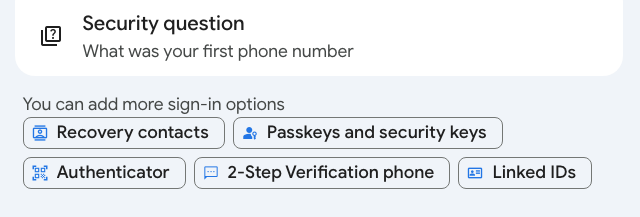
5) Click Add recovery contact.
Note: If you’re prompted to sign in, do so. If you’re setting this up in a browser, Google will likely show you a number code, direct you to open the Google app on your phone, and ask you to confirm the right number from multiple choices. If it doesn’t work the first time, hit “resend” to get the code again. (You have my permission to sigh.)
6) Enter the email address of your trusted contact. Assuming you already have that person among your contacts, their name, face, and email address will pop up, assuring you that you’ve selected the right person. Tap their name/face/email to accept your selection.
7) Click Continue.
8) Click Send Request when Google asks, “Send a recovery contact request? Your request will be sent via email, and [trusted contact’s name] will be able to see your name, email address, and profile photo.”
You’ll now see a list of your open request(s) for Google Recovery Account(s), with the person’s name, email, and photo (if they’ve created a photo for the account), so you’ll know you did it right.
Your contact will receive an email to accept the request, and they’ll have seven days in which to confirm their willingness. After 7 days, the request expires. Once they accept the request, you have to wait seven more days before you can actually use them as a Google Recovery Contact, so don’t go spelunking around your settings and accidentally blitz your access. Step away from the keyboard for a week and stop experimenting!
How to Delete your Google Recovery Account
Maybe you’ve broken up with your Google Recovery Account trusted contact, or perhaps you just know their lives have gotten too busy with babies or work. Just use the same steps as above to navigate to your Google Account’s Security & Sign-in page, then tap Recovery contacts, and find the trash can icon next to the account you want to delete. Tap the trash can and hit Confirm.
To Use your Google Account Recovery
If you encounter difficulties logging into your Google account, go to g.co/recover and enter your Gmail address. Try to answer the identifying questions the best you can and follow the suggestions for regaining access.
If you do need to recover your account, you’ll either 1) select your Google Recovery Contact from the list of recovery options, or 2) follow a pop-up prompt to reach out to them and select Get Number to get a short code.
Google will then send your Google Recovery Contact an email with three different numbers from which to choose, and you’ll have 15 minutes to tell them the number you got so they can select it, too. (This is why you may need to call or text to be clear on what’s going on.)
For more information, read Google’s Add, Manage & Use Recovery Contacts page.
Of course, protecting against from losing access to your essential accounts is always better than having to try to recover access after the fact. This is your reminder that the best ways to organize access to your tech life are to:
- use strong passwords
- don’t repeat passwords across accounts
- change/revise your passwords with frequency
- make use of passkeys, which are device specific and don’t require you to remember anything
- record your passwords somewhere safe, preferably a digital password manager
- use two-factor authentication
- don’t share your passwords with anyone (but if you must grant access, check your digital password manager for ways to share and/or rescind access with greater control)
- keep your devices updated to the latest operating systems and software versions
- set up your account recovery options before you need them
Have you set up recovery contacts? (Did you ever get around to setting up legacy contacts?) What else do you do to keep from getting locked out of your essential accounts? Please share in the comments.
26 Ways to Celebrate GO Month to Get More Organized and Productive
Happy New Year! Happy GO Month!
Each January is Get Organized & Be Productive (GO) Month. Back in 2005, NAPO (then called the National Association of Professional Organizers) proclaimed the first Get Organized Month, as a national public awareness campaign about organizing and our profession.
A decade later, the month was expanded to incorporate productivity, just two years before we officially became the National Association of Productivity & Organizing Professionals. Our purpose remains the same. All of us — professional organizers, productivity specialists, declutterers, coaches, etc. — celebrate how we improve the lives of our clients by creating environments and developing skills to support productivity, health, and well-being.
Practitioners like Paper Doll are here to help you create systems and skills, improve your homes, workspaces, and attitudes, and live your best, most productive life.
For more great organizing and productivity tips during GO Month, you can also follow NAPO’s Social Media Accounts:
Today’s post offers some 26 ice cream samples of organizing and productivity tactics to make 2026 a little easier.
ORGANIZE YOUR PAPER IN 2026
1) Create a Tax Prep Folder
April 15th will be here before you know it. From now through February, you’ll receive tax documents (1099s, 1098s, W2s) in the mail. You may also get emails reminding you to log in to brokerage and other accounts to download your important tax documents.
Don’t wait until the last minute to gather these items. It’s not just good organizing advice, but helpful financial advice, too, because the sooner you get your important tax documents together, the faster you (or your accountant) can get you your refund, or at worst, let you prepare for the size of your tax bite.
Your tax prep folder doesn’t have to be fancy; a plain tabbed folder kept at the front of your financial files section should suffice. However, if you’re dealing with a lot of documents, you might prefer a dedicated accordion-style folder like the Smead All-in-One Income Tax Organizer.

Organize now so you won’t lose deductions, pay more taxes, or get in trouble with the IRS!
2) Roll Out the Red Carpet for Your VIPs
Make 2026 the year that you get your affairs in order. Estate documents and other essential paperwork must be created, obviously, but also reviewed and updated on a periodic basis.
As I’ve said before, this aspect of organizing may be boring (if you aren’t a professional organizer), but boring is good! If your VIPs are boring, it means that you and your family won’t ever experience any ugly surprises during difficult times, like when someone is in the hospital, when there’s been a death in the family, or even when dealing with the aftermath of a natural disaster.
Start by reading these from-the-vault posts to figure out your next steps.
- How to Replace and Organize 7 Essential Government Documents
- How to Create, Organize, and Safeguard 5 Essential Legal and Estate Documents
- The Professor and Mary Ann: 8 Other Essential Documents You Need To Create
- Paper Doll’s Ultimate Guide to Organizing Yourself to Get a REAL ID
- Paper Doll’s Ultimate Guide to Getting a Document Notarized
- Paper Doll’s Ultimate Guide to Legally Changing Your Name
- A New VIP: A Form You Didn’t Know You Needed
Then list documents you already have (and their locations) and identify what you need to create, and then plan meetings with your family and a trusted advisor to set things in motion.
3) Declutter and Preserve Your Family Photos and Memorabilia
Two years ago, a beloved client passed away, and I’ve been working with his son to go through more than a century of photos, from passed-down black-and-white picures of ancestors on both sides of the family to lighthearted snapshots and travelogues from the gentleman’s young military years. We review prints and slides, as well as delicate (and crumbling) correspondence.
Do you have print photos that would be lost in case of a fire or flood because you don’t have the negatives (or store them with the photos)? Would digital photos on your phone be lost if your phone got smushed or stolen? You need backup!
I’m not suggesting you do this every day in January, but make a plan. What if you spent an hour every Sunday morning sorting through photos? Could you invite a family member or friend to help you consider what to keep and what categories to use?
Contact a NAPO member who specializes in organizing photos, or visit The Photo Managers to find experts who can help you safeguard your photo history.
While I’m on the subject, I absolutely have to recommend, yet again, my colleague Hazel Thornton‘s What’s a Photo Without the Story? How to Create Your Family Legacy.

For more ideas, consider:
- How to Collect, Organize, and Preserve Family Memories and History (Part 1) — The Questions
- How to Collect, Organize, and Preserve Family Memories and History (Part 2) — The Methods
- How to Collect, Organize, and Preserve Family Memories and History (Part 3) — AI & More
4) Know What’s In Your Wallet
Have you looked at what’s in your wallet lately? Would you notice if one of your credit cards went missing? It’s a new year — did you put your new health insurance card in there?
- Pull everything out of your wallet.
- Discard or put away anything that doesn’t belong in there. (Receipts for taxable events, like medical expenses? Keep. The name of a book your friend recommended? Log it in your Notes app or put it on hold at the public library before you forget.)
- Take an inventory of everything in your wallet. Depending on your patience, you have two options:
- Lay two columns of cards (side by side), face-down, on a copy machine. Press “copy” and then flip each card in place to the rear-side, and copy that, two. Repeat the process until everything in your wallet has been secured. Alternatively, you can scan these to your computer and save it all as a multi-page PDF. If you ever lose your wallet, you’ll be happy to have the account numbers, expiration dates, security codes, and contact numbers for your licenses, insurance cards, and credit and debit cards.
- Use your phone to take photos of the front and back of the cards and upload the pictures.
Whichever method you choose, password-protect digital versions of this document in storage or on your phone, and keep the paper copies in your fireproof safe or lockable file drawer.
5) Clean Off Your Desk
Next Monday, January 12, 2026 is National Clean Off Your Desk Day. Celebrate it by making a clean sweep of everything piled up on your desk, de-germify it, and think carefully about what belongs on it.
Read last year’s Paper Doll Celebrates National Clean Off Your Desk Day for step-by-step for making your desk a space for productivity instead of mystery crumbs and mountains of papers.
Then refresh your space with ideas from Organize Your Desktop with Your Perfect Desk Pad: 2025 Update and Paper Doll Explores the Best of Desktop File Boxes.

ORGANIZE YOUR DIGITAL SPACES IN 2026
Digital clutter may not take up physical space, but it wears down our batteries, both in our devices and our personal batteries because of the overwhelm of excess.
6) Declutter Your Phone Apps
The Pareto Principle says that 80% of our success comes from 20% of our efforts. It holds true in many ways; 80% of the time, we wear the same 20% of our wardrobe, kids play with the same 20% of their toys; we use the same 20% of our apps.
It’s why letting things go from the 80% we hardly ever use makes us feel less cluttered and more productive, even though we anticipate we’ll feel anxious about having let them go — that’s why they’re cluttering up our digital spaces in the first place!
- Flip through your home screens and take inventory — What apps did you download and never even try because they required creating a login? What apps did you give up on because they were buggy? Let go of low-hanging fruit.
- Clean up by deleting apps you used the least often (or never). To see the last time you used an app on iOS (for iPhone or iPad), follow this path: Settings>General > iPhone (or iPad) Storage. There are a few different ways to check app usage on Android devices.
- Addicted to your phone? Check your Digital Wellbeing feature on Android or ScreenTime on iOS. Uninstall whatever is obviously distracting you with overuse.
- Move distracting apps that you can’t (or can’t bear to) uninstall to your last home screen page to create more friction and make it less likely you’ll happen upon them when looking for your bank app.
- Fill your first home screen with apps you need and want to use because of the benefits they bring to your well-being.
- Organize the remainder of your apps by dragging-and-dropping them into folders labeled for shopping, dining, social media, productivity apps, etc. Keep them — just make them less convenient.
The point isn’t to get rid of your digital life. Just eliminate what distracts you from what’s important.
7) Clear Out Your Voicemail Inbox
In the olden days, people called you and either you were home and answered, or not home, and never knew you had a call. (If you’re GenZ and reading this: yes, really.) At work, if you weren’t at your desk during working hours, a receptionist took a message. After hours, either the “answering service” took your urgent call, or people waited until you got in on the next business day.
In the 1980s, we got answering machines and our messages lived where our landline phones did.
In the 1990s, we had voicemail, and at the turn of the century, people started calling less and texting more. Now, too many of our messages are spam, and voicemail fills up.
Have you ever called someone — or worse, returned a call — only to hear “This voicemail box is full and is not accepting messages. Please try again later.”
What if your message is important? Do you text? What do you do if it’s a business? On the flip side, if your child’s school, your doctor’s office, or a client needs to reach you, do you want them to suffer this frustration?
Clear up your voicemail box with the following steps:
- On landlines, dial in, listen, and start deleting messages.
- On cell phones, iPhones and most Android phones show transcribed messages. Known contacts should appear by name, making it easy to figure out whether a message is still needed even before you read it. Unknown numbers may be spammers (swipe left!), but may be people you’ve never entered into your contacts. Review those messages, and anything that doesn’t make the cut, delete!
- Save numbers for contacts you may need in the future. — Add a last name and any context necessary. I have a contact saved as First name: MaryBeth, Last name: “Hit my car in the parking lot.”
Until recently, the only “Terri” in my contacts was my hair stylist, but when I was in Portugal and Spain in September, I added my tour-mate to my regular iPhone contacts. Just before my last haircut appointment, I voice-texted, “I’m here, but looking for parking. I’ll see you in a minute.” When I got to her space, she said she hadn’t received my message. A moment later, my tour-mate Terri texted, “You’re here to see me?” with a series of laughing emojis. Doh!
Last names (and context) are important!
- Be ruthless in getting rid of old voicemails. What should make the grade? Messages that you save for:
- work purposes — but confer with your boss or your IT department regarding rules in this regard
- legal purposes (such as when someone is stalking or harassing you, or offering a set of deal points for a contract.
- sentimental purposes — but be judicious. Can you picture yourself sitting in an airport, listening to a loved one’s message over and over?
- Download messages you want to keep permanently. On iPhones, tap the voicemail you wish to save and you’ll see the share icon in the upper right corner; share the resulting MP3 to your photos or notes app, Evernote, social media or wherever else, just as you’d share an article or a picture.
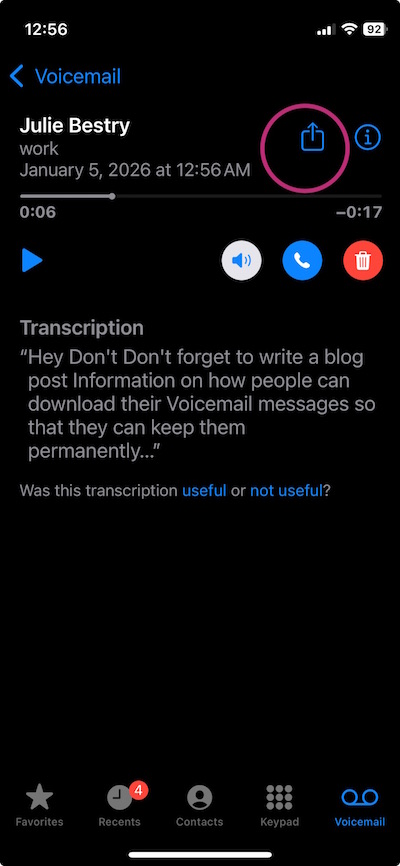
On Android phones, tap on the message to see a list of options. Click one of the save or archive options you prefer and select the storage location. For more voicemail-saving techniques, read Smith AI’s How to Download and Save Important Voicemails.
8) Clear out your email inbox
For years, people have laughed at me, saying that search worked so well and email providers granted so much storage space that it was no longer necessary to clear inboxes. Still, I blithely went on advising my clients to regularly clear their inboxes, and to create a hierarchy based on categories matching their analog filing systems.
Recently, I’ve felt vindicated as Gmail and other email providers have been adding storage limits, and people recognize that search (even AI-assisted search) sometimes takes longer than going to a particular sub-folder with a helpful title.
Email is a headache! According to an analysis by the McKinsey Global Institute, on average, 28% of work time is spent reading or replying to emails. And the average worker — and yes, you’re all above average — checks email 11 times per hour. 84% of us keep email open in the background while working, making it oh-so-easy to “check” our email.
The problem is that we CHECK IT over and over again looking for that dopamine hit, but we often look at emails without doing anything with them, like opening the fridge in hopes that someone has magically made something delicious and put it in there. 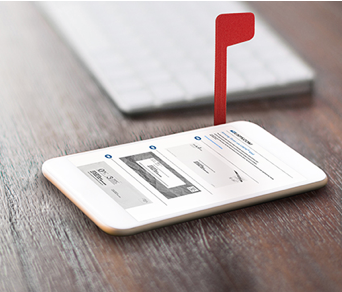
You may think that Inbox Zero is the cure, plowing away at email but getting further behind in important work. James Clear has said, “The most invisible form of wasted time is doing a good job on an unimportant task.” Email clutters our lives like that.
There’s no permanent state of inbox zero (unless you stop sending outbound emails and block all inbound senders), any more than finishing all of the laundry today will create laundry basket zero unless your family plans on becoming very tidy nudists.
There's no permanent state of inbox zero, any more than finishing all of the laundry today will create laundry basket zero unless your family plans on becoming very tidy nudists. Share on XProcessing email isn’t your job, it’s just one method of communication and information acquisition, and it’s not always the right one. Instead:
- Unsubscribe from whatever you never read. (It’s like buying vegetables that you know you should eat but they disappear into the back of the fridge and eventually get slimy.) Take five minutes a day to declutter your future inbox.
- Set up a simple hierarchy of subfolders with names of major projects, client names, or whatever works for you. Having a place for emails to safely, dependably live will encourage you to manually or automatically route necessary ones of your inbox. As with voicemail, don’t feel like you should save everything.
- Learn how to use your email platform’s filters or rules function to automatically sort mailing lists to one sub-folder, anything you’re always CCed on even though you know it’s nothing to do with you to another, and so on.
- If you’re overwhelmed by your huge backlog, move everything from more than a month ago to a folder you call “Archived” and start with a minty-fresh inbox. You can always go into the “Archived” folder and sort if you’re feeling enthusiastic, but at least you’re dealing with something more manageable.
9) Know What You Don’t Know About Your Tech
In Digital Disaster Prep: How to Organize Your Tech Info Before You Need It earlier this year, I walked readers through all sorts of information you need to know before something goes wrong with your tech. Do you know where to find your:
- IP Address
- Network and router information
- ISP contact information
- Device Identifiers
- Operating system license keys
- Software and game activation codes
Your household probably added some hardware and software goodies this holiday season. This is the perfect time for you to read the post and start logging all of your essential tech information.
ORGANIZE YOUR TIME IN 2026
10) Track Your Time to Figure Out Where Your Time Is Going
To improve your productivity, the first thing you must do is get a handle on how you’re spending your time.
Read my How to Use Time Tracking to Improve Your Productivity from last January to understand the benefits of time tracking, including mindfulness and focus, prioritization, data-driven decision making, stress reduction, and accountability. The post also prepares you to face challenges and overcome the obstacles, and offers strategies and resources for tracking your use of time.
Track for just one day, or participate in a weeklong time tracking project such as Laura Vanderkam’s annual event. Register for her 2026 Time Tracking Challenge from January 12-19, 2026. I do it every year!
11) Get a Better Sense of the Passage of Time
For some people, knowing what time really “feels” like takes some effort.

First, put real, analog clocks wherever you tend to get lost in time. Is that your desk (even though you wear a watch and your computer has a clock)? Is that the bathroom, because you lose awareness of time while doing your hair or soaking in the tub? Is it your car, which has a perfectly serviceable clock but the time is always wrong because you never learned how to change it for Daylight Saving Time?
Next, read about all the ways timers can help you get a better sense of your time.
- How to Use Timers for Improved Productivity and Focus — Part 1
- How to Use Timers for Improved Productivity and Focus — Part 2: Picking a Good Timer
- How to Use Timers for Improved Productivity and Focus — Part 3: Tangible Timers
- How to Use Timers for Improved Productivity and Focus — Part 4: Digital Timers
- How to Use Timers for Improved Productivity — Part 5: Hybrid Timers and Bonus Material
12) Time Travel in Your Planner
If you use a paper planner, hopefully you already have one for 2026; if not, that’s step #1. But even if you are 100% digital, this advice goes for you, too.
It’s tempting to just fill in your January pages and figure you’ll adjust as you go along. But even if you’ve had the same meeting every Tuesday for the past 5 years, somehow, some way, you’ll double-book if it’s not in your planner or calendar.
Spread out at your desk or your kitchen table, grab a cup of cocoa or something to soothe you into the new year, and do the following:
- Page through each week of last year’s planner and copy everything that recurs by date (like birthdays and anniversaries).
- Add events that happened in 2025 and are already scheduled to happen again, but not on the same dates (like conferences, work retreats, medical tests and appointments, etc.).
- Use last year’s schedule activities to prompt you to make a list of anything you might need to schedule or add to your long-range tasks, like meeting with your accountant, scheduling annual medical tests/exams.
13) Eliminate What Doesn’t Excite You
I’m a big believer in the concept that whatever isn’t a “Hell, yeah!” is a “Heck, no!” at least in terms of what you can control. (Unlike Marie Kondo, who encourages people to get rid of tangible items that don’t bring joy, I know that you can’t just toss your old tax returns.
Similarly, you can’t strike everything that isn’t joyous off of your calendar. You still have get a dental cleaning at least twice a year, whether you like it or not.
But why not make 2026 the year you step back from volunteer positions that take your time and energy, but don’t give you delight?
How about taking that book club (for which you never like the selected books) off your schedule? You can always agree to meet the people one-on-one without the obligation to read the newest oversized dystopian novel.
Set yourself, and your calendar, free.
14) Pick a Problem-Solving Day
Theming your days can make you more productive because you don’t have to keep switching tasks. Marketing Mondays or Financial Fridays let you schedule a block of similarly-themed tasks so you can focus and get into “flow.”
I encourage clients to pick one day of the week for problem-solving. Block a few hours on a specific day for sitting on the phone and asking, repeatedly, for someone to escalate your call. This is the day you set aside for time to get help on whatever is making your computer do THAT THING.
Knowing that you have a slot firmly in place will allow you to worry less about getting problematic or frustrating things accomplished, and because there’s one place in your schedule for solving problems, you will be able to focus when that day arrives.
ORGANIZE YOUR FINANCES IN 2026
15) Stop Singing “I Owe, I Owe, It’s Off To Work I Go”
Debt creates mental clutter. Knowing is always better than not knowing, so make 2026 the year that you know what you owe and figure out what’s going on with your money and where it’s going.
- Make a list of every credit card, loan, and any other kind of debt you have. Note the creditor, the amount, and the interest rate.
- Next, make a list of every fixed expense you have.
Seeing it all in black and white (and red) may be sobering, but it’s the first step toward figuring what you can do about it.
Maybe you can refinance a car loan or mortgage to lower your monthly costs?
Perhaps you can call your credit card companies and request a reduction in your interest rates. (Nerd Wallet has a great article on How to Get a Lower APR on Your Credit Card.)
Maybe you can cut expenses for things you’re not even using.
16) Go Spelunking for Lost Money
Start with your couch cushions. Whether your loose change is in a jar in the laundry room or at the bottom of your purse, it’s (literally) weighing you down wasting your financial potential. Put on some music and start rolling coins (or bribe your kids to do it) and take the money to the bank. Alternatively, dump it all in a canister and take it to a Coinstar machine or any credit union that accepts and counts coins for free.

To recoup other “lost” money, follow steps in these Paper Doll posts:
- Show Me the Money — A 2025 Guide to Finding Forgotten Funds & Unclaimed Property
- Lost & Found: Recover Unclaimed Money, Property, and Savings Bonds
- How to Track, Lower, or Cancel Your Recurring Subscription-Based Bills
- Organize and Lower Your Medical Bills: Spot Errors, Negotiate Costs, and Save Money
17) Re-Shop Your Auto Insurance
When was the last time you actually shopped for car insurance? If you’ve kept the same insurance for years, you’re almost assuredly overpaying. As with the cable company, this is one of those instances where newer customers are rewarded with the best deals, and loyal customers are not rewarded for loyalty.
It doesn’t cost anything to shop around. Even if you find a better rate, you may be able to return to your agent and say, “Hey, the guys across the street quoted me quite a bit less. Can you match it?”
Note: if you use online pricing comparisons, you’ll be bombarded with emails, so consider creating a new Gmail account just for these replies.
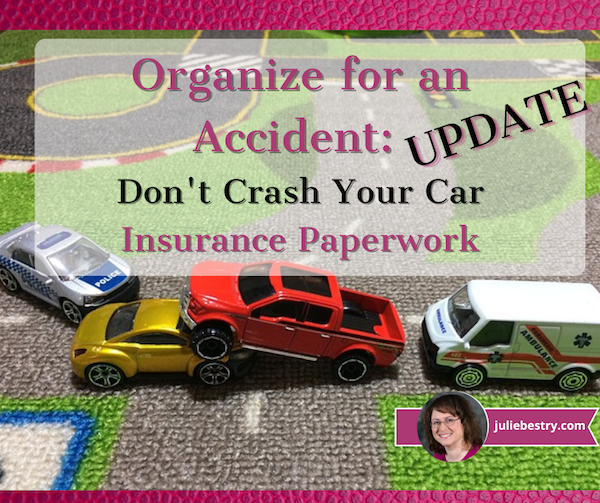
Before you make any calls, though, familiarize yourself with the basics of car insurance with Organize for an Accident: Don’t Crash Your Car Insurance Paperwork [UPDATED]
RECITE THESE ORGANIZING AND PRODUCTIVITY MOTTOS
When you’re having a hard time tackling the clutter or focusing on the work, pick one of these mantras to help point you in the right direction.
18) Don’t put things down; put them away.
19) Declutter first, then contain it. (Don’t acquire clutter to contain your clutter!)
20) Everything should have a home, but not everything has to live with you.
21) Someday is not a day on the calendar.
22) Break every task into its smallest possible step. If you can’t get started, the first step is probably not small enough.
23) Cut yourself slack. Give yourself grace.
24) Progress, not perfection.
25) Albert Einstein said, “Organized people are just too lazy to go looking for what they want.” Be lazy!
2025 Wrapped: Do An Annual Review To Design Your Best Life

The unexamined life is not worth living.
~ Socrates
WRAPPING UP PAPER DOLL’S 2025
There’s no getting away from your annual review.
It all started with an email from Spotify Wrapped. Spotify was one of the first online platforms to sum up a user’s habits and achievements for the past year, and people seem to love sharing this bit of self-knowledge. Mine tells me that my top artist was The Floating Men, a group I first saw in concert in 1993, in what we used to quaintly call record stores. I need no app rewind to know this music is the soundtrack to my life, but as a whole, it’s left to me to interpret that I haven’t listened to much new music lately (unless it’s in the background of a TikTok).

Spotify tells me my top artists and songs, how many minutes I listened, and even my listening age, which they peg at 47, not because I’m almost a dozen years more youthful than my actual age, but because I listened most to songs from the 1990s. (While Spotify didn’t bother to mention it, I’m able to see that I’m geographically diverse, with my most listened to music from the Southeastern United States, Canada, the UK, Sweden, and the Pacific Northwest.)
A few days ago, Goodreads sent me my 2025 Year in Review statistics. Breathlessly, it reported that I’d finished 37 books and 9620 pages this year (though it’s already out of date after a holiday week spending reading) and that I’m a top 10% reviewer. (I doubt that’s a qualitative description. Given the length of my blog posts, I think we can just assume it means I write really long book reviews.)

It also lets me know I’m just a handful of pages short of hitting my 2025 Goodreads Challenge goal, so I’d better finish this blog post and get back to reading!
Duolingo started emailing around Thanksgiving, and I don’t love that my year in review is only actually 11 months of data. It’s true that I faithfully studied Italian and Spanish every day of 2025. Thankfully, Duolingo’s year in review kindly avoids mentioning that I quit learning chess after two weeks because — and this is embarrassing for a professional organizer to admit — my sense of spatial orientation and ability to recall which way some pieces move was woeful.
 It also ignores the fact that although I tried to learn Portuguese as well as Spanish in advance of my September travels, I somehow failed to learn that when you say thank you (obrigado or obrigada), the gendered form of the word depends on your gender, not the recipient of your gratitude. No wonder I got some funny looks at the airport when I was just trying to be polite!
Even Jimmy John’s is telling me how many (and which) sandwiches I consumed in 2025!

Entertaining and accurate as they may be, how helpful are these backward glances?
Sure, they let me easily click to brag a bit about my accomplishments, but what goes unmentioned (and without fancy graphics) is at least as important; we need to know where we fall down if we hope to get back up!
After five years of averaging close to 11,000 steps by day, I fell significantly short in 2025. Fitbit tells me when I hit my goals, but stares off into the distance and politely ignores that I’ve been slacking off a bit this year.
WordPress, my blogging platform, doesn’t make an annual review easy, and I am avoiding (and wouldn’t believe) ChatGPT in this regard. So, I had to manually count and scroll. Counting this post, I only wrote 30 completely new (non-refreshed) posts this year, versus 40+ in most years of the past half decade. Some of that was intentional, as I’d decided not to publish on holiday Mondays or while traveling, but it ignores that I also took off the entire month of October after I returned from Europe, polishing older posts but not writing new ones. It’s up to me to figure out what that means in terms of motivation and productivity.
And that’s what an annual review is all about.
THE EXAMINED LIFE: BEYOND THE STATS
What if we look beyond the numbers? Professionally, I can (and do) count how many new clients I worked with this past year, and how many “graduated.” But numbers don’t paint the full picture. When we look at the qualitative vs. the quantitative, we see trends.
When I began blogging in 2017, I was focused almost entirely on paper. Since then, I have expanded my reach each year, covering topics from financial organizing to productivity, motivation to time management. Although I work with residential as well as business clients, I tend to leave blogging about residential organizing to my excellent colleagues.
Each month, Janet Barclay curates the Productivity & Organizing Blog Carnival. I’ve been delighted to reach Megastar Blogger status, having had 50+ of my posts in monthly carnivals, and I’m working my way toward Ultimate Star status, but with only 12 months in the year, it’ll take a while to hit 100 posts.

In December, Janet curates the Best of 2025, where each participant explains why, among the posts they’ve written, they consider that one to be their best, and the definitions vary widely.
“Best” posts in the December 2025 Productivity & Organizing Blog Carnival covered a wide spectrum of topics: useful concepts about ADHD and kitchen gadget clutter, joyfully embracing change and organizing with spreadsheets, intuition vs. pro/con lists and knowing when to slow down.

Most years, I consider my “best” post based on the quality of writing or how much humor I could pack into one post. However, pressed to describe my best of 2025, I picked a post from late summer, Organize and Lower Your Medical Bills: Spot Errors, Negotiate Costs, and Save Money. Why? Because the impact current events are having on people’s finances and health means this kind of advice is useful and important. While I can count the number of views or comments on a post, I can’t quantify the value of that post vs. others.
Beyond my official “best” post, however, I tried to come up with a Paper Doll 2025 Top 10 List but only got as far as these eight:
- Paper Doll on the Power of a DONE List
- Paper Doll’s Ultimate Guide to Memento Mori and Appreciating Your Time
- Global Day of Unplugging 2025: Phones and Apps to Reduce Phone Use and Improve Your Life
- Digital Disaster Prep: How to Organize Your Tech Info Before You Need It
- How to Track, Lower, or Cancel Your Recurring Subscription-Based Bills
- Paper Doll Celebrates National Clean Off Your Desk Day
- Paper Doll’s Ultimate Guide to Organizing Yourself to Get a REAL ID
- How to Use Time Tracking to Improve Your Productivity
Why only eight? Not because I didn’t love any of the other posts, but because some were silly, some were time-specific, and mostly, because just as every mother loves her children, my posts are my babies, and when you have twins or triplets or quintuplets, you can’t easily pick among them. Thus, my Paper Doll 2025 Year in Review “best” list is eight posts — plus two series. So sue me!
- How to Use Timers for Improved Productivity and Focus — Part 1
- How to Use Timers for Improved Productivity and Focus — Part 2: Picking a Good Timer
- How to Use Timers for Improved Productivity and Focus — Part 3: Tangible Timers
- How to Use Timers for Improved Productivity and Focus — Part 4: Digital Timers
- How to Use Timers for Improved Productivity — Part 5: Hybrid Timers and Bonus Material
and
- Take Note: Paper Doll’s Guide to Organized Note-Taking (Part 1)
- Take Note: Paper Doll’s Guide to Organized Note-Taking in Lectures & Presentations (Part 2)
- Take Note: Paper Doll’s Guide to Organized Note-Taking for Learning and Creative Projects (Part 3)
EXAMINING YOUR OWN LIFE
When Socrates spoke of the lack of value of an unexamined life, he wasn’t thinking about Spotify Wrapped or “Best of” lists, of course. He knew that looking at where you’ve been is merely the first step in deciding how you will live going forward.
Find the Treasure
Over the past several years, blogging about reviewing the past year and planning for the next one, I’ve come up with a list of questions I think offer a path to living the examined life. However, once you hit December, it’s hard to recall powerful happenings closer to the beginning of the year, so you may need some assistance in your re-examination.
Start by looking at your calendar. That’s where you put the things you intended to do, so it’s a great starting framework. Most of the events on your calendar actually happened, or you would probably have crossed them off or moved them.
Many of the successes and achievements in life are unplanned, however, so try to find the mini-recaps you did all through the year, even without realizing that’s what they were.
Scroll through emails and texts you sent, and flip through the pages of your diary or journal, if you have one. Rereading messages you shared may offer insight into what mattered (and how you dealt with it) during the year.
Pull up the photo library on your phone and navigate to January 2025. Scroll forward and I bet you’ll be surprised by achievements and delights that seasoned your year.
The key is to remember more of the past year than just cold, hard statistics.
For example, after a quiet December, my initial instinct was to think that my personal year was fairly flat. However, reviewing my personal calendar and photos immediately reminded me that in addition to my big trip to Portugal and Spain, I also:
- saw Hamilton with my friend Chris,
- flew to visit Paper Mommy,
- attended my 40th high school reunion,
- road-tripped to Massachusetts for my friend Phil’s vow renewal,
- and after 15+ years of not having seen The Floating Men perform, I went to three shows!

(Perhaps we’ll need to examine how developing a gratitude practice may be the key to remembering more of the highlights of each year.)
See the Whole Picture
When I looked back at my professional year, I’d only focused on clients and blogging, but my calendar showed me the podcasts I’d appeared on and the speaking engagements I’d done. And when I went back through the emails in my “Success Folder,” I was able to read testimonials for the real change that organizing and productivity coaching made in my clients’ lives. (Don’t have a “Success Folder” of your own? Don’t worry, I’ll have an upcoming blog post on that!)
It’s too easy to erase the good stuff from our brains and focus on the negative. When I started my annual review, my first thoughts were about how two different people hit-and-ran my car 48 hours apart and my disappointment with myself for not doing more and varied marketing this year. But those are just snapshots, not the whole picture.
In a discussion about public reputation, a beloved boss once told me that, “One ‘Aw, <bleep>’ wipes out ten ‘Atta boys’ — but your reputation in your own mind is just as likely to bury the gold under that <bleep>ing manure.
So, answer these in your head, aloud by yourself, or with a yearly review buddy, or try journaling your responses. Give yourself the opportunity to find the truth of your past year.
The Good
- What challenges made me feel smart, empowered, or proud of myself this year?
- What did I create?
- What positive relationships did I begin or nurture?
- Who brought delight to my life?
- Who stepped up or stepped forward for me?
- What was my biggest personal highlight or moment I’d like to relive?
- What was my biggest professional moment I’d want to appear in my bio?
- What’s a good habit I developed this year?
The Neutral
- What did I learn about myself and/or my work this year?
- What did I learn how to do this year?
- What did neglect or avoid doing out of fear or self-doubt?
- What did I take on that didn’t suit my goals or my abilities?
- What was I wrong about?
The Ugly
- What challenges made me feel weaker or less-than?
- Whom did I dread having to see or speak with this year?
- Who let me down?
- Whom did I let down?
- What did I do this year that embarrassed me (professionally or personally) or made me cringe?
- When did I hide my light under a bushel?
- What am I faking knowing how how do? — Instead of pretending you know how to do something but are choosing a different path, ask for help. Make decision about what to do from a position of strength rather than weakness.
- What’s a bad habit I regret taking up or continuing?
- Where did I spend my time wastefully or unproductively? (It’s social media. For all of us.)
- Where did I spend my money wastefully or unwisely?
WHAT SHOULD YOU DO WITH YOUR ANNUAL REVIEW?
Use What You Learn
If all you did was answer these questions as if they were a series of college essays, it might be instructive, but it wouldn’t be powerful. Instead, use your answers as guideposts for what’s to come (or what you wish will come).
For example, when there are people or activities that make you feel smart, bold, and fierce, look for ways to add more of that in the year to come. Did human connection make you realize you know more than you thought you did? How can you find opportunities to spend more time with people who challenge you (in all the right ways)?
When you see an obstacle, look for a phrase or quote to help stiffen your backbone. For example, in the years when I had too many answers to the question, “When did I hide my light under a bushel,” I stuck a sticky-note on my mirror quoting Nelson Mandela:
“Your playing small does not serve the world. Who are you not to be great?
It’s OK if you were wrong about things, ideas, or people, but how will you secure your chances at figuring out the truth and making better decisions going forward?
Let your answers about last year guide how you approach next year.
Try Year Compass
Obviously, you don’t have to go with my questions. One of the best platforms to review your year is Year Compass. It’s free, available in 63 languages, and you can download it as a printable booklet and fill in by hand on paper or type in a fillable, printable PDF.
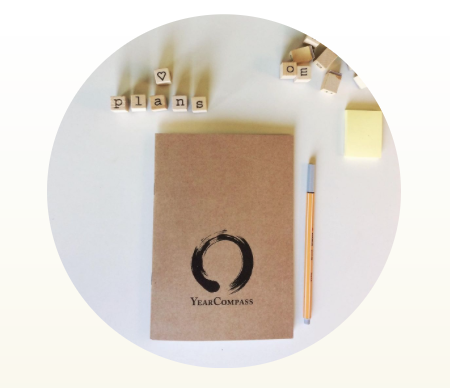
The first half of Year Compass involves paging through your calendar, as I’ve suggested, and answering just six essay-style questions:
- What are you most proud of?
- Who are the three people who influenced you the most?
- Who are the three people you influenced the most?
- What were you not able to accomplish?
- What is the best thing you have discovered about yourself?
- What are you most grateful for?
But that’s merely the beginning.
Year Compass nudges you through a discovery of the best moments of your past year so you can analyze your biggest accomplishments and challenges. It also creates space for forgiveness and compassion (towards yourself and others) and for recapping your year in ways that I’ve never seen on any other annual review platform. Year Compass also takes the insights from the first half part of the process to help you design your dreams and actions for the coming year.

“My Secret Plan to Rule the World” Photo by Ann H on Pexels
Value Your Values
Socrates was obviously wise; in addition to his recognition of the importance of examining one’s life, he said, “Not life, but good life, is to be chiefly valued.” Only you can decide what defines a “good” life for you, your family, and your inner circle, but centering your future behavior on activities that reflect those values is a pretty good way to organize how your approach.
I encourage clients to take time to spell out exactly what their values are. However, it’s not always easy to define — and prioritize — our values. If you could use a little support in identifying the values that matter most to you, consider these resources:
- Core Values List (50) — Put together by James Clear, the author of Atomic Habits
- The Ultimate List of Core Values (Over 230) — Created by CEOSage coach Scott Jeffrey.
- Dare To Lead List of Values (118) — Shared by Brené Brown, the author of Daring Greatly, as well as Daring to Lead, Rising Strong, and The Gifts of Imperfection
- Ultimate Core Values List: 50 Common Values and Why They Are Important in Our Lives — Collated by Nir Eyal, the author of Indistractible: How to Control Your Attention and Choose Your Life
No matter how many quizzes I take or versions of these lists I peruse, my values always come out the same. Can you guess? Paper Doll‘s top three values are knowledge, usefulness, and humor.
Please feel free to share your own key values in the comments, below.
HOW TO WRAP UP LAST YEAR FOR THE BEST SHOT AT THE NEW YEAR
This time of year is about endings and beginnings. If you like to start a year with a clean slate, you may want to read Use the Zeigarnik Effect to Finish Off Your Unfinished Tasks, the final post I wrote in 2025 to help you close those last open loops.
Longtime readers may have noticed that I did not talk in-depth about resolutions, goals, and annual themes. In 2025, I started the year with those concepts, so I will just direct you to How to Use Cathedral Thinking and Intentional Words to Organize Your Year for inspiration to create an intentional life in 2026.
But I will tell you that I’ve very excited about my theme word for the coming year: WHIMSY. Most of us found 2025 to be a pretty “heavy” year, and a little lightness and charm is exactly what I want, and what I hope to continue bringing to you wonderful readers next year.
Until we meet again, I hope you all have a very happy, healthy, organized, and productive New Year!
Meet Your Organizing Elves: The Pros Who Help Get Your Life in Order

Recently, at the end of a session, my client joked that I was her own Santa’s elf. We laughed, but her description is not that far from the truth.
YOU AND SANTA BOTH NEED ORGANIZATIONAL SUPPORT
Santa’s elves (and Mrs. Claus and the reindeer, of course) help keep Santa from becoming overwhelmed. After all, Santa is basically running a multi-national corporation.
Certainly, he has to control the means of production for his factory. Can you imagine how much paperwork (and how many computer files) it takes to source, order, acquire, and unpack the resources before the toyshop starts making the toys?
But our friend Kris Kringle also manages a customer base of upward of two billion children (the current number of the world’s newborns through fourteen-year-olds), not even counting all the people for whom the magic of the holidays involves believing in Santa. I’m sure, at some point in the late 20th-century, Santa had to learn how to manage a computer database and CRM system to keep straight not only who was on the nice vs. naughty lists, but track them as their behavior meandered from one to the other and back again.
Due to non-compete clauses, nobody’s ever ascertained whether Santa has only one sleigh or a huge fleet with one for each of the 24 time zones to which he delivers. Nonetheless, keeping up with the vehicle maintenance and registration requirements in 195 nations must be quite the task!
Time management is a huge headache, too. Not only do those requests for toys and bikes and little red wagons (and all the modern digital doodads) need to be filled, wrapped, and packed onto the sleigh, but timing all of these deliveries in one night, with no respite for bad weather or reindeer infighting, has to be wearying.
It’s a good thing Santa has his elves.
My clients often feel the same oppressive weights upon them, even if they don’t necessarily have the same international fame as the guy in the big red suit. Whether you need to deal with organizing and productivity pitfalls at home or at work, in your computer or your kitchen, your closet or your warehouse, there are professionals who can give you support.
Perhaps between preparing for Thanksgiving and the winter holidays, entertaining company, trying to make headway on languishing projects with end-of-year deadlines, and figuring out how to make space for everything coming in (to your home, to your schedule, and to your life), you have realized that you could use a little elf-like magic as you go into next year.
Today’s post is a chance for you to get to know all of the organizational (and organizing-adjacent) experts who can help you reduce overwhelm, coach your decision-making, and bring subject-matter expertise to help you overcome obstacles (whether tangible, temporal, or cognitive) so you can be your best self.
(Heh. Maybe that should be my holiday marketing campaign: I’ll be my best elf so you can be your best self.)
PROFESSIONAL ORGANIZERS AND PRODUCTIVITY SPECIALISTS
We professional organizers and productivity gurus didn’t all start out and orderly elves. Paper Doll was a television executive. Many, many of my colleagues were teachers. Some were attorneys, social workers, hoteliers, accountants, designers, and so many other types of professionals.
Sometimes, we felt like we were on the Island of Misfit Toys, but almost as if by holiday magic, we all found where we truly belong. And yes, we know that not all elves are always so lucky to find their fit right away.
NAPO
Longtime readers of Paper Doll are already familiar with the concept of professional organizers, but many people are surprised by the variety of services we provide.
If you think a professional organizer is just about moving the stuff around, I’ve got a surprise for you. As I tell my clients, “Housekeeping is about the stuff; professional organizing is about the person who owns (and uses, and maintains) the stuff.”
Housekeeping is about the stuff; professional organizing is about the person who owns (and uses, and maintains) the stuff. Share on XAmong the professionals in the National Association of Productivity and Organizing Professionals (NAPO), there are plenty of generalists. In just the past few weeks, I’ve:
- helped a client pare down a collection of family photos and slides ranging from the late 1800s to the 1970s
- organized holiday charitable requests, identified the client’s philanthropic priorities, and oversaw the donation process
- supported a client with cognitive decline to maintain daily productivity
- decluttered and downsized: cleaning supplies in kitchen cabinets, books and décor from bookshelves, a wardrobe that largely no longer served a client’s physique or style, and more
- assisted clients in accessing funds by searching for unclaimed property, organizing supporting documentation for class action suits, and submitting claims for health insurance
- reworked a client’s overly-ambitious December schedule so that she actually had time to enjoy the holidays.
Although I do specialize in paper and information management and productivity coaching, my in-person clients seek my help for solving all manner of organizing-related mysteries and kerfuffles in their lives, and it’s the same for my colleagues.
Some professional organizers specialize in particular types of clients:
- people with chronic disorganization or hoarding disorders
- individuals with brain-based conditions ranging from ADHD and autism to traumatic brain injuries to dementia
- people with physical disabilities
- seniors
- new parents
- children
- older students
- solopreneurs and small business professionals
Others in our field focus on particular types of spaces for downsizing, clutter control, and organizing in:
- kitchens
- closets
- living spaces (main and guest bedrooms, living rooms, bathrooms)
- home offices
- playrooms
- basements
- attics
- storage units
- work spaces (like professional kitchens, law offices, physicians offices, science labs, theaters, etc.)
We also specialist in particularly kinds of services that cross the “who” and “where” categories, like:
- time management coaching
- paper management
- digital organizing
- organizing and managing photographs and memorabilia
- financial organizing, including bill-paying, budgeting assistance, and bookkeeping
- estate management
- medical history management
- household management
- eco-organizing
- home inventorying
- home staging
- yard/garage/estate sale management
- packing and unpacking for moves
- space planning and design
This doesn’t even begin to take into account the services some professional organizers provide to businesses, including: business automation, corporate operations, event planning, records management, technology training, and more.
Basically, are overwhelmed by it, exhausted by it, stymied by it? Do you “just” need someone to come in and do it (or teach you how to do it — or how to do it better)? If it takes less time and you can focus on what’s important to you — then organizing and productivity specialists can help.
To find a professional organizer, visit the NAPO directory directly, or navigate from NAPO’s front page to the Find a Pro menu at the top. Search geographically or within a radius from your zip code, pick the business and/or residential specialties in which you need assistance, and review the list of my colleagues provided.
And don’t forget, much of the work we do with and for our clients can be done virtually, so you can pick that option from the specialty drop-down if you’re open to getting help from afar.
NAPO members represent thousands of separate professionals, coming together to gain continuing education and support one another so that we can support our clients.
Certification, Certificates, and Skills
When the NAPO directory provides you with names to peruse, you may see some additional notes.

Certified Professional Organizers (CPOs) are those of us who have attained credentials reflecting specific standards. That originally included 1500 hours (now 1000 hours) of paid client-centric work prior to sitting for a comprehensive exam (among other requirements), adhering to the BCPO Code of Ethics for Certified Professional Organizers, and obtaining continuing education in a variety of subjects during a three-year certification period.
For more about certification, you can check out the “What is a Certified Professional Organizer” tab here on my website, including my article, In Checkbooks And Underwear Drawers: What Certified Professional Organizers Offer Our Clients.
Specialist Certificates — In addition to the deep and wide subject matter expertise needed for certification, NAPO members may also hold certificates in specialized subjects, including:
- Brain-based conditions
- Household management
- Life transitions

- Move management and home staging
- Residential Organizing
- Team productivity
- Work productivity
Institute for Challenging Disorganization
Founded in 1990 by my colleague Judith Kolberg and originally called the National Study Group on Chronic Disorganization, the Institute for Challenging Disorganization (ICD) has as its mission to provide organizing professionals and the public with education and helpful strategies, and conduct research, regarding chronic disorganization.
Membership in NAPO and subscribership in ICD often overlap, and professionals in our field may obtain a variety of ICD specialist certificates related to chronic disorganization, hoarding disorders, and other related conditions.
Other Organizing and Productivity Associations
There are helpful organizing elves everywhere!
Outside of the United States, there’s an ever-growing universe of organizing and productivity professionals.
For our colleagues to the north, Professional Organizers in Canada (POC) has a similar search engine to NAPO’s. At their Find An Organizer page, you can specify services areas and specialties as well as languages spoken. (You didn’t think Santa’s elves spoke only English, right?)
NAPO, ICD, and POC do not stand alone. We have colleagues around the world as part of the International Federation of Professional Organizing Associations, including:
- Associaçāo Nacional de Profissionais de Organizaçāo e Produtividade (ANPOP, in Brazil)
- Association of Professional Organizers of Spain (AOPE)
- Association of Professional Declutterers and Organisers (APDO, in the UK)
- L’Associazione Professional Organizers Italia (APOI, the site at which Paper Doll supplements her Duolingo Italian practice by trying to discern meaning)
- Chinese Association of Life Organizers (CALO)
- Finnish Association of Professional organizers (FAPO)
- Federation Francophone des Professionnels de l’Organisation (FFPO, in France)
- Hong Kong Association of Professional Organizers (HAPO)
- Heart Home and Space Organizer (HHS, in Taiwan)
- Japanese Association of Life Organizers (JALO, not to be confused with Ja-Lo AKA: Jennifer Lopez)
- Korean Association of Professional Organizers (KAPO)
- National Association of Black Professional Organizers (NABPO, headquartered in Atlanta)
- Nederlandse Beroepsvereniging van Professional Organizers (NBPO, in the Netherlands)
- Swedish Association of Professional Organizers (SBPO)
Several times a month, I am asked by friends, former classmates, clients, and random acquaintances to provide referrals and recommendations for professional organizers to help people’s loved ones, whether across the continent or across the world. It’s heartening to know that I have colleagues in so many places, ready to help those who are seeking a little more space or serenity.
OTHER ORGANIZING-RELATED PROFESSIONAL ELVES
In addition to ICD and POC, and the National Association of Black Professional Organizers (NABPO) referenced above, NAPO has other affiliate organizations.
Daily Money Managers
Santa has to deal with financial transactions in 180 different worldwide currencies. Your finances may not be so complex, but whatever your needs, whether to help Grandma keep up with her retirement investments or to just make sure the bills get paid on time, the American Association of Daily Money Managers (AADMM) has financial organizing professionals to assist you.
Daily Money Managers (DMM) offer a wide variety of personal financial services to individuals and families, and manages financial tasks including bill-paying and oversight, budgeting, and record keeping. Some serve as fiduciaries for clients who are incapacitated.
Aging/Geriatric Care Professionals
Santa and Mrs. C. aren’t exactly spring chickens, and like all of us, may someday need support.
The professionals in Aging Life Care Association (ALCA) specialize in aging and disability issues while ensuring client “safety, continuity, and dignity.” As experts in health and human services, they can assist and advocate for families caring for older adult relatives or individuals with disabilities. They can partner with professional organizers and senior move managers whenever clients and their families are going through major life transitions — whether they’re downsizing so family members can age in place or to help them relocate to other living situations.
Photo Organizers
Many NAPO professional organizers are comfortable helping their clients organize their photos or find solutions for digitizing them. But The Photo Managers (formerly the Association of Personal Photo Organizers) use their passion for photo collections and personal storytelling to assist clients with culling, organizing, and digitizing photos, as well converting older media to newer formats and sharing pictures.
OTHER MONEY ELVES
Every year, I learn about new types of professionals who can help me help my clients overcome the obstacles that clutter their daily lives. These include:
Claims Assistance Professionals
As I discussed in Organize and Lower Your Medical Bills: Spot Errors, Negotiate Costs, and Save Money, there are a variety of medical billing specialists, medical cost advocates, and patient advocates. In addition, if you’re drowning in medical claim paperwork that makes no sense, or you’re getting the runaround from the insurance company, you may want to reach out to a claims assistance professionals through The Alliance of Claims Assistance Professionals.
Financial Advisors
Knowing what to do with your money can be confusing, and it’s scary to wonder whether the advice you’re being given is good for you, or just good for an advisor taking a percentage of what you earn.
Before considering hiring a financial advisor, talk to the elves in your life: your family members, friends, and colleagues who seem to handle their dollars with sense. I am neither a fiduciary nor a money maven, but I do recommend that if you’re seeking help with building your financial future, you should find a fee-only financial planner. That’s someone you pay a flat fee, rather than a percentage, to provide you with advice.
The National Association of Personal Financial Advisors (NAPFA) is a great first start. You can also find Certified Financial Planners via the location search at PlannerSearch.org.
Appraisers
A professional organizer can help you divide the wheat from the chaff when you’re figuring out what to donate and what to keep; we’ll hold your hands when we tell you that your collection of mini Beanie Babies you got at McDonalds will not fund your retirement. We may help you research the provenance and potential value of what you own. But no organizing professional is going to tell you for certain whether that piece of furniture or jewelry or coin collection is worth. For that, you need an appraiser.
An art appraiser is not a stamp appraiser; fields of specialty range from wine to textiles, furniture to musical instruments, coins to fine art to books. Start with an accredited appraisal association like:
to find the experts that can help you understand the value of your property and make wise decisions regarding what to do with what you own.
Certified Divorce Financial Analyst
Paper Doll hopes you never have to deal with a divorce (unless it’s something that will make your life better). However, I’ve worked with enough clients going through the divorce process to know that attorneys don’t have the bandwidth to deal with some of the intricacies of the financial situation.
Certified Divorce Financial Analysts are professionals who can help you figure out the complex financial aspects of your divorce. This may help you secure an equitable share of marital assets in order to plan your financial future.
If you or someone you know needs support in this area, start with the Institute for Divorce Financial Analysts.
OTHER HOUSE ELVES
When you hear house elves, you probably think of Harry Potter. As a GenXer who grew up near Canada, I start daydreaming about house hippos.
But I digress.
In addition to the residential professional organizer services covered by NAPO and her sister organizations, there is some crossover into home relocation specialties.
Senior Move Managers
The National Association of Senior and Specialty Move Managers is made up of relocation specialists. They’re focused on strategies for helping older adults (and their families) with the relocation process, including downsizing, as well as packing and unpacking, and assisting with logistics.
Home Stagers
In the olden days, when you wanted to sell your house, you hired a real estate agent. They told you to clean the house and pop a sheet of cookies in the oven to make things smell nice. Over the last few decades, however, home staging — literally staging your home to make it possible for prospective buyers to imagine themselves living there — has become a big deal.
Staging can involve removing objects that are overly personal or reflect particular belief systems, subtracting or adding furniture or décor to create a particular aesthetic, and generally working to show a house off in the best light.
As with senior move managers, you will likely find some crossover between NAPO/IFPOA professionals, but to find a home stager in your area, start with the Real Estate Staging Association and the America Society of Home Stagers and Redesigners.
Obviously, your organization and productivity needs are complicated, and by talking about elves, I am not entirely making light of anyone’s struggles.
Sometimes you just need a handy-person to help you lift and carry things to the attic or out to the curb; however, most of the time, a professional organizer or productivity specialist is the ideal person to guide you through the myriad decisions to make to move your life in the direction you want.
And when the real obstacles are not the things, but ourselves, and special services are needed, their are ADHD coaches, life coaches — even decision-making coaches — and mental health professionals!
Today’s post is a reminder that whatever is causing clutter in your space, your schedule, your finances, or your mind, you’re not alone. Reaching out to experts is a gift you can give a loved one — or yourself.
I suspect Santa would approve.
Paper Doll Organizes Snoop-Proof Ways To Hide, Label, and Wrap Holiday Gifts

With only a week until Hanukkah and 2-1/2 weeks until Christmas, we’re in the home stretch of the holiday season.
It’s possible you’re the kind of person who bought all your presents over the summer, wrapped and labeled them, and stored them in your secret hiding place months ago. (It’s also possible now you’re wondering why you can’t recall where that secret hiding place might be.)
Or maybe you haven’t even started buying gifts yet.
Either way, how are you going to keep the gifts a surprise until unwrapping time? How are you going to keep the kids (and the grownups who act like kids) from finding the gifts, poking at them, shaking them, and generally behaving like the gang on Friends.
ORGANIZE YOUR HOLIDAY GIFT HIDING PLACES
Very often, I find that the best place to keep gifts, wrapped or otherwise, from the prying eyes of tiny humans and others with insatiable curiosity is in an old suitcase. People may in cabinets and closets, but nobody looks in those cheerless valises in the basement, the ones that are faux leather and lack wheels and haven’t been used in 40+ years.
Yes, as a professional organizer, I encourage people to donate or recycle things that they don’t use, but quietly repurposing that blue vinyl-and-cardboard suitcase circa 1978 counts as recycling!
Develop a Variety of Hiding Places for Gifts
Obviously, if you’ll be traveling for the holidays and using all of the suitcases at your disposal, you may need a bevy of secret-stash solutions:
- Hidden in plain sight — Would your kids (or your spouse) actually show any interest in prying up the lid of a Bankers Box labeled “2015 Tax Receipts,” “college textbooks,” or something similarly boring? Probably not. (Piling other stuff on top of those couldn’t hurt.) If you’re the only one in your house who cooks, a small wrapped gift or two hidden in the back of a kitchen cabinet, inside a rarely-used fondue pot, may be just what you need to stymie the sneaky searchers.
- In a decoy household container — A similar idea, depending on the size of the gifts you want to hide, is using a decoy box may be just the ticket. Check your own storage spaces or ask your friends if they have boxes that were used for vacuums, TVs, or other medium-to-large appliances. A box labeled “seasonal décor” may suffice, unless someone else in your home is really eager to start decorating without your assistance.
- Masquerading as kitchen equipment — The people who are most likely to sneak around and try to find their gifts are probably not looking in the Crock-Pot. A bread maker or ice cream machine may serve similarly. If you’ve got small-to-medium-sized gifts and unused, lidded pots and pans, this may work. Just don’t put a gift inside kitchen equipment and then gift that kitchen item as a gift and then let your wacky boss throw a hissy fit and turn the Secret Santa into a Yankee Gift Swap. (If you know, you know.)
- At your friends’ and neighbors’ houses — One solution is just to trade storage. Take your wrapped gifts in boxes or lidded tubs to your cousin’s, co-worker’s, or BFF’s place, and return with hers. You can even tell your family not to bother snooping because you’ve made this trade. (Note: if your kids and their kids are friends, one may spy on the other’s behalf.)
- In trunk of your car — Obviously, this works in only two situations, when you normally have an incredibly tidy trunk (with ample room to store a gift-filled box labeled “work project”) or if you normally have a predictably packed and untidy trunk (in which case you’ll need to hollow it out and hide gifts underneath the faux facade of mess. (Do not mark any boxes as “donations” or someone may unhelpfully deliver all your holiday gifts to charity!)
- Cardboarded up — Store all your wrapped, labeled gifts in the million Amazon and Chewy boxes you already have laying around your house. You can just stack them in the corner until you’re ready to put them under the tree or at people’s place settings, and then open the big cardboard boxes.
 Photo courtesy of Kimberley Purcell
- Up in the attic — The upside is that children and pets generally can’t get up to the attic on their own. The downside? It’s probably not that easy for you to get up there, either. Also, it’s probably dusty, there may be “critters,” and there’s almost certainly temperature and humidity variations throughout the year. Keep that in mind if you’re storing any gifts that are sensitive to those kinds of changes, and store the gifts in a tightly lidded tub.
- Inside old purses and backpacks — This is a riff on the old suitcase approach, but may be easier to access. If a shelf of your closet has all of your handbags, messenger bags, no longer used diaper bags, computer cases, or backpacks, load them up with wrapped gifts, as long as they’ll fit without scuffing the wrapping or stretching the container too much.
- In guest room — This is a good option assuming a) you won’t have guests between now and gift-giving time or b) the storage space in your guest room is ample enough to hide the kids’ things, at least, in drawers or closets, or under the bed.
- In the guest bathroom — Sandwich wrapped flat gifts between guest towels; there’s almost no reason those box-shakers will be thinking to peek between the layers of towels. Consider it a fabric lasagna of secrecy.
- Laundry hamper — Let’s face it; nobody is enthusiastic about doing laundry. Your kids aren’t about to suddenly volunteer to take the laundry to your room to the washer/dryer, even to please Santa. Note: the humidity in a laundry room may be unfriendly to your wrapping paper, so try keep gifts well protected in the hamper or basket, perhaps covered by an old blanked or comforter.
- Inside board game boxes — Do you have board games that nobody has played since the Eisenhower administration? You have two options. You could just jettison the contents and replace it all with someone’s (or a bunch of someone’s) small gifts. Or, you could turn some of the gifts into surprises, if your family is more loosey-goosey with the gift exchange present exchange: put a LEGO mini-fig in with the Monopoly tokens or a gift card in your old game of Life, and then suggest a game.
- Hiding inside trash bags — Big, black trash bags or leaf bags, especially if you have an attic, or garage, or basement with a variety of things already obscured by bags, may be the ticket. The problem? If there’s anyone who ever visits your house trying to be “helpful,” they may assume it’s trash and toss it out. You may want to warn your spouse, in-laws, or houseguests.
- Inside other holiday decorations — If you’ve got a hollow ceramic tree, a Santa cookie jar in which nobody expects to find actual cookies, or a Nutcracker the size of a Buick, gifts can wait within.
- Up, up, and away, or down among the dust bunnies — Let’s face it, you may not need to be creative at all. If everyone in your household is staring at screens all the time, just hiding gifts in a nondescript box at the top of any closet may work just fine. Similarly, if you’ve got a dust ruffle hiding the area underneath your bed (or the guest bedroom bed), and you don’t have pets or tiny humans at the crawling age, sliding things under the bed will work.
- At the office, with a caveat — If you have a home office that’s off-limits to the rest of the household, or if you have decent private storage at your place of work, you’ve got additional hiding places for your gifts. However, if the gifts aren’t at home, they may not be covered by your homeowner’s insurance, so think twice before stashing something pricey that could get stolen or damaged if it’s at your workplace.
Wherever you hide the gifts, make a plan for when you’re going to pull them out of their hiding places, especially if it involves climbing up, wiggling down, or matching schedules with someone else.
Make a Treasure Map for Hidden Holiday Gifts
The key to hiding your gifts without making you crazy or ruining the holidays? Make a list of each person’s gift, what it is, and where you’ve hidden it.
Whether it’s hand-written or digital, hide it from prying eyes. On the computer or in the cloud, give it an innocuous name, as long as it’s one that you will remember. With a paper copy, keep it in your wallet, or tidy it away among the holiday bills — anywhere your average household member won’t think to look.
In professional organizing, we often point out that if you have so many things, or so much clutter, that you can’t find what you own, it’s as if you don’t even after it. This is just as true for gifts you’ve stashed so safely that you’ve hidden them from yourself.
Try Some Sneaky Gift Labeling Tricks
If your storage is at a premium and you have to keep wrapped gifts out and on display — and this trick works once you’re ready to put the gifts under the tree — fake the name tags. Instead of Grandma, Dad, Aunt Jen, etc., use celebrity names but don’t match the names to the personality of the recipient. So, Dad gets Taylor Swift’s present, Uncle Joe’s gift says Dolly Parton, and the baby gets a gift labeled for Keanu Reeves.
Of course, you could pick any category group. Choose board games, and label different gifts as Scrabble, Monopoly, and Cards Against Humanity. Label your gifts with the names of different countries, cities, rides at Disney World, movie superheroes, or whatever suits your fancy.
If your family isn’t inclined toward whimsy, you can just number the gifts. The key is that you really should know whose gift is whose before the unwrapping begins.
As with gift hiding spots, make yourself a cheat sheet matching real names to “gift” names.
GET WRAPPING SAVVY
Paper Doll is terrible at wrapping any gifts that don’t come in perfectly rectangular shapes. All the way back in NAPO2014: It’s a Wrap! Organizing Your Wrapping Supplies with Wrap It!, I told a story of my wrapping failures (and shared this adorable photo of a now thirty-something) opening a stuff lion I’d wrapped so badly that only a two-year-old could look at it with any affection.

Many years ago, I offered up some alternatives for people with wrapping skill deficits. This was early enough in my blogging years that the formatting of the posts lacks some panache, but I stand by the efficacy of the solutions:
It’s a Wrap! Wrapping Paper Alternatives, Furoshiki & Frogs (2008)
Paper Doll Wraps Up the Holidays and Makes It All Stick (Part 1) (2011)
Paper Doll Wraps Up Some Alternatives to Wrapping Paper (Part 2) (2011)
Still, I’m obviously not the only person who has trouble wrapping presents when there’s no perfect box, as there are videos all over YouTube and social media, offering up guidelines for ensuring that enough wrapping paper (or a reasonable facsimile) prevents your gift from being naked. For example, That Practical Mom has a short video with great gift-wrapping tricks:
The coolest trick, to my mind, is turning gifts diagonally when you don’t have quite enough wrapping paper.
By the way, if you care, Popular Mechanics has a feature on the math behind the diagonal wrapping hack.
WRAPPING & PACKING & SHIPPING, OH MY!
Finally, while I’m my logistical skills as a professional organizer are pretty top-notch, I’m definitely not an expert at wrapping and packing gifts. I generally buy gifts online and have them sent directly to recipients and then just warn them the day that the shipper says they’re arriving so they don’t spoil the surprise by opening them to early. Otherwise, I usually put presents in gift bags topped by an excessive amount of tissue paper and call it a day.
Luckily, Quill developed and Visualistan has shared this infographic to walk you through each of these holiday headaches. Isn’t this better than getting wrapped up in cellophane and ending up with a million mismatched and weirdly cut bits of wrapping paper? (That’s always so disorganized!)
 You can also find more infographics at Visualistan.
THINK BEYOND TANGIBLE GIFTS
Of course, the best gifts don’t necessarily need to be wrapped or shipped.
Over the years, I’ve written many holiday posts focused on giving gifts of experiences. It’s a lot easier to wrap, label, and hide gift cards and certificates for experiences than big, awkward, stuff-lions!
- adventures — like the NASCAR Racing Experience or an afternoon in an escape room)
- entertainment (tickets to sporting events, museum exhibits, concerts, theater events, six months of Netflix or Hulu, or a year of Amazon Prime)
- practicality — think gift certificates for car washes or an auto club membership like AAA
- consumables — consider homemade yummies or one-time or subscription-based foods. Alternatively, give the opportunity to look forward to meals out with gift certificates to restaurants or coffee houses.
- organization and productivity — whether it’s a gift for a loved one, or a gift for yourself, opt for some delight and peace of mind with a session, or package of sessions, with a professional organizer (like Paper Doll), either in person or virtually.
For a more in-depth look at gifts of experience, you may want to review Paper Doll on Clutter-Free Gifts and How to Make Gift Cards Make Sense, which also harkens back to older Paper Doll posts on experiential gifts.
It may feel early in December, but the days pass quickly. Whether you’ll be celebrating Hanukkah starting this Sunday night, December 14th, or have ten more days after that for your Christmas Eve festivities, whether you’re celebrating Festivus, or Yule, or the Solstice, I wish you joy (and organization) through the end of this year, and into 2026.
Follow Me