Archive for ‘Digital’ Category
How to Find, Organize, and Delete Your Online Accounts
The morning it was announced that Elon Musk was set to buy Twitter, the word “delete” started trending as account users angrily insisted they would delete their accounts if he took over. While it looks like that sale is on-hold indefinitely, being appalled at the leadership of an online platform is definitely not the only reason someone might want to close an online account.
Unfortunately, it’s neither easy nor convenient to close many kinds of accounts, so today we’re going to examine ways to organize that process.
But first, a history lesson.
BEFORE THE WEB WAS WORLDWIDE
Do you remember your first online account?
I’ve been online since before there was an internet, back in the mid-1980s when we were using USENET on heavy VT-100 terminal emulators with green writing on black screens.
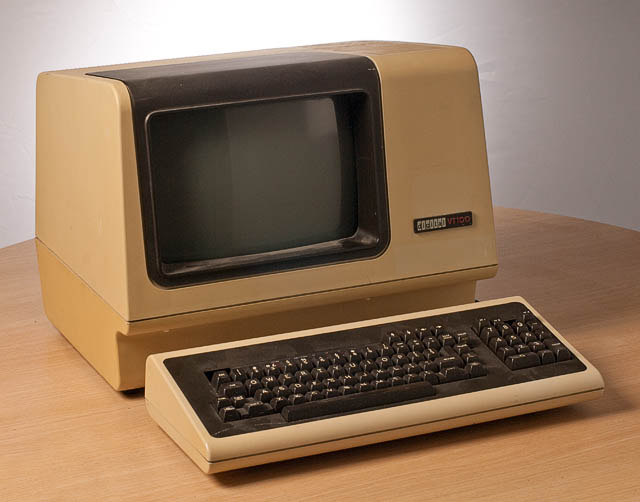
They were slow, cabled, and arranged in rows in grim computer rooms in various basements at my university. By the time I graduated, many students had their own computers, but there was still no internet, and Macintosh SEs were networked in those same dark basement rooms. (If you’re of a certain age, you can still hear those dot matrix printers, can’t you?)
In the 1990s, there came a sort of training wheels era of the internet: AOL and ubiquitous disks in the mail, Compuserv, Prodigy, Delphi, and GEnie (my preferred service provider). You’d warn everyone in your household to stay off the phone, dial-up your local provider number as your modem made that horrible series of screeches and bong-ba-bongs, and then you’d be connected to worldwide random strangers via text-only conversations in “rooms” on specific topics, at least until someone in the house picked up the phone and disconnected you.
HOW DID YOU LOSE TRACK OF SO MANY OLD ACCOUNTS?
None of this was the internet, per se. It was all just protoplasm for what was to come. At this point, you couldn’t bank, pay your bills, fill out a 1099 or sign a contract and return it online. And you definitely didn’t have to worry that someone would deliver a virus that took control of your computer and allows scam artists to demand hundreds of thousands of dollars in bitcoin (or any coin).
Back in the early days of the web, almost nobody except teenagers, new college grads, or an expanding breed of “computer guys” were online. People didn’t take passwords seriously, and while there were the same chain letters and hoaxes as in the real world, the internet didn’t seem like a dangerous place. Grandma (if she’d been at all interested in surfing, which she was not) had no fear of getting scammed.
This was either quaint or the Wild West, depending on your perspective.
People set up accounts, used them for weeks or months or years, and then abandoned them.
Eventually, we hit a new century. Mere months after I started Best Results Organizing in early 2002, someone introduced me to Ryze, a social network designed to connect entrepreneurs. it was less like LInkedIn and more content-rich. Through it, I met friends-of-the-blog Janet Barclay and Felicia Slattery, who were the first people I sought out when I landed at Twitter, six years later. It was at Ryze where I was given the opportunity to write proto-blog posts on organizing, which would become the inspiration for Paper Doll.
Depending on your age, MySpace either seems like something from ancient history or just a little bit ago. If your first online friend was Tom, you’re in the latter camp. Sigh.

Then there was Friendster, Live Journal, LinkedIn, Orkut, and in what future generations will surely consider having been the sign of an impending apocalypse, Facebook. Even that was 18 years ago. We were still three years away from the advent of iPhones, so nobody was trying to access these sites on their flip phones or Blackberries.
And that’s just social media. In the last two decades you’ve probably amassed hundreds, maybe even thousands of online accounts. There are also financial (banking and taxes and investment, oh, my!) accounts, utility accounts, university accounts, professional accounts.
If you want to read the online version of a newspaper or magazine, even one for which you pay to subscribe, you have to have an account.
Do you blog? You probably don’t have just one account to blog; you’ve got to have a WordPress.com account to have a WordPress.org set-up, and if you want to leave comments on other people’s blogs, you’ll want a Gravatar account (or something similar) to prove your identity. And then of course, you have a host account for the real estate on which your blog lives.
Do you shop? Do you read? Do you have insurance?
Have you ever left a review for a restaurant on Yelp or Tripadvisor? Do you fly or stay in hotels? You’ve got accounts!
WHAT’S WRONG WITH HAVING LOTS OF OLD ONLINE ACCOUNTS?
Over the past several decades, you’ve amassed lots and lots of accounts, and with them, passwords. And chances are fairly good that, at least in the beginning, you didn’t do a great job of making sure you used unique passwords.
It may seem like leaving old accounts in place does no harm. After all, it’s just cluttering up some company’s servers, not your computer, right? Wrong.
Deleting unused online accounts is an important strategy for protecting your online privacy and maintaining your security against any misuse of your data. Now, you might think that the bad guys are only interested in trying to hack your busy, important accounts, like Gmail or Amazon. But all those unpopular, semi-defunct, and mostly-dead platforms are prime targets for data breaches.
The bad guys figure (correctly) their hacks of unloved sites will be less noticeable. But then they have your private information that they can then use to pose as you to create new accounts or hack your other accounts.
If hackers know your username/password combination for Napster, they might try to get into your Spotify account and access your payment information. Millions or tens of millions of users of defunct platforms have this “abandoned” information left behind, just tempting online pirates.
So now what?
HOW TO GET RID OF OLD ONLINE ACCOUNTS
There are only three aspects of getting rid of your old accounts, but they can be persnickety.
1) Find your old and abandoned accounts.
This may not be easy, especially if you don’t use an online password manager or have a password book with all of your accounts. You may have created these accounts on computers you haven’t owned for years or decades, and you might have signed up with email addresses you haven’t checked since you could fit into those size 8 skinny jeans.
Treasure Map and Compass by Denise Jans on Unsplash
Here are some possible treasure maps to check for all your old, abandoned accounts:
- Look at the sites you’ve saved in your digital password manager, like LastPass, Dashlane, or OnePassword. Check spreadsheets or password notebooks you created, too. Highlight any old, unused accounts for deletion!
- Review saved logins on your computer. Yes, even though you’re probably not using the same device on which you originally set up accounts 10, 15, or 20 years ago, it’s possible that:
- your browser cache/history was copied over when you migrated computers,
- you received an email from one of these sites in recent years, asking you to read a privacy statement, and clicking on the button in the email took you to the site, and your password manager automatically logged you in, or
- you’ve had another reason to log in more recently than you recall.
If you use Safari, click the Safari menu and navigate to Preferences > Passwords; eyeball the site list for any accounts you’re ready to delete. On Chrome, click on the three dots in the upper right and navigate to Settings > Passwords. If you use Internet Explorer (seriously?), navigate from the top right menu to > Settings > View Advanced Settings > Manage passwords.
If you don’t keep your devices synced to the cloud, be sure to peek around at your phone and tablet browsers’ saved logins, too!
- Check your email. Did you ever create a folder or Gmail tag for “new accounts” or “passwords” or something similar? Go there, sort by sender (so you don’t have to see repeats) and take note of any accounts you definitely want to send to the great beyond.
- Check social media sites that authorize access for you. Twitter, Facebook, and Google let you authorize access to some sites; for example, you can log into Zoom via your Facebook account.
On Twitter, go to your settings and navigate to Account > Security and Account Access > Apps and Sessions > Connected Apps to see all accounts you’ve authorized.
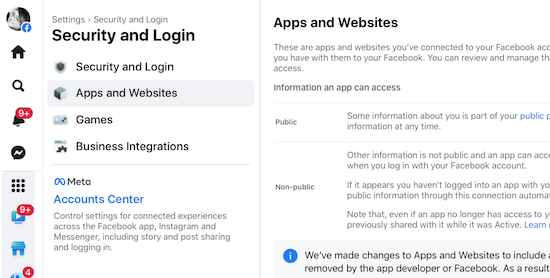
On Facebook, it gets tricky, because they’re always changing the locations of icons, but in general: Click on the icon with your face to get to your profile, and then navigate to Settings & Privacy (see the gear shift) > Settings > Security and Login > Apps and Websites. This will show a list of all the sites you’ve logged into via Facebook; the dates will indicate your last login and make it easier to identify sites to cancel.
On any Google page (like the search page, Gmail, or any of the apps), to get to the Permissions page, click the 3×3 grid icon near the top right corner and then navigate to Account (you’ll see your photo/avatar) > Security > Signing in with Google, and you’ll see any accounts you may want to delete.
Remember, even if you revoke access and don’t let Twitter, Facebook, or Google log into an account for you, that account still exists!
- Search the web for your name and any unique account/user names you’ve ever used. If every account name you’ve ever used is just Jane Smith, you might be out of luck. But if you’ve had a habit of using MotherOfDragons1985 or Hermione&Harry4eva, you may find links to your old account name on publicly accessible and indexed sites, like Reddit.
- Search for your username on privacy or security sites that specialize in showing when something has gone awry. For example, typing your email address into Haveibeenpwned.com (and no, that’s not a typo) or Avast’s Hackcheck will identify if your identity has ever been caught in a breach. If you used an old email address and a throwaway password 20 years ago and don’t use either anymore, you’re safe (and will know to delete that account). If you’ve been caught in a breach with active login credentials, get those changed!
2) Secure and export a copy of your data.
Not every platform or website will let you do this, but the big guys all have plans to help you retrieve-and-leave.
For example, Google Takeout backs up all of your Google-controlled accounts (including Gmail, YouTube comments and videos, calendar, photos, Google Drive items, etc.) into one massive but compressed file and lets you run away with it. (Note, you don’t have to delete your accounts to use Google Takeout, and you don’t have to “take out” all items; you can pick and choose bits of your data.) Takeout can be a little intimidating, so you might want to walk through this Livewire article, first.
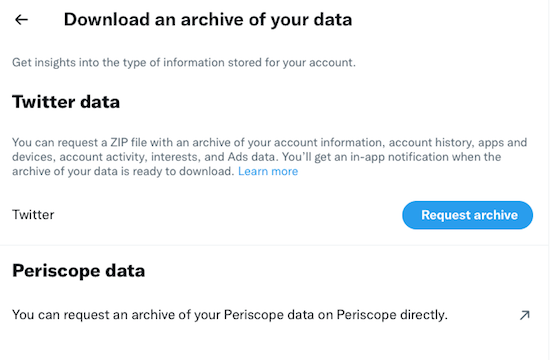
On Twitter, go to your settings, then navigate to Account > Download an Archive of Your Data > verify your password > secondarily verify your identify via a code sent to your email or phone. Once you ender the code, you’ll get this screen:
 Shockingly, Facebook is the easiest platform from which to export your data! Go to Facebook.com/settings and click “Download a copy of your Facebook data.” Then click “Download Archive.”
That’s all; depending how much data Facebook has collected about you, it may take quite a few minutes, but you’ll get an alert that will prompt you to (once again) click “Download Archive”, and a zip file will download to your computer. (You will be overwhelmed by just how much there is, but if you do delete your Facebook account, you may be glad you saved every contact, conversation, and stupid meme.)
Social media isn’t the only place you might want to export your data. Let’s say you use Mint to track all of your financial information to help you prepare your taxes. To retrieve your information, you can go to Trends, pick a custom range, and separately, under income and under expenses, export your data.
3) Delete your account.
Every account and website will have a different method for canceling your account. As you go through the process, make a list or spreadsheet of the accounts you’ve closed and the date you’ve done it. This will help you (or, in case of an unfortunate event, your loved ones) know where things stand with your accounts.
You can spend your time searching under each tab of a website to try to find out how to delete your account. Often, it’s useful to enter “How do I delete a [platform name] account?” in your favorite search engine. But this won’t necessarily help you if you’ve forgotten a site or account ever existed.
And the truth is, some sites are going to make it as hard as possible to delete your account. This isn’t negligence; it’s a purposeful deceptive design pattern.
TECH SOLUTIONS TO HELP YOU PURGE OLD ACCOUNTS
Online platforms make it super-easy to join a site or open an account, and pretty darned tough to escape.
If you’re feeling overwhelmed getting rid of accounts on your own, or even remembering what accounts to seek, there’s help.

AccountKiller — has been around since 2011, helping online netizens figure out how the heck to escape a website completely. They do this in two ways. First, anytime a straightforward way to delete an account is identified, it’s added to AccountKiller to provide step-by-step instructions to anyone who would like to use them.
Search AccountKiller for an account deletion guide (with links and instructions) via the search bar, or browse their 1300 available guides, broken down by “all,” “popular,” “whitelist,” or “blacklisted.”
Whitelisted platforms are those that make it relatively easy to close your account, sometimes just by clicking a “delete account” button; these sites are coded in white. Some platforms employ those dark patterns discussed in the video above, and you’ll probably have to call and run the gauntlet of phone trees and pushy phone reps in a process designed to make you give up before canceling; these platforms and sites appear in grey. Blacklisted sites make it difficult or impossible to delete your account, but AccountKiller may still be able to help you by providing an email address or direct contact number.
So, whether you want to cancel your Facebook, Amazon Music, Nextdoor, Shipt, or some random dating account, just use the search bar or click on the appropriate link. Up will pop a screen of instructions, which may include any of the following:
- the account information you might need to cancel — at a bare minimum, this should include the login credentials, but depending on the account you’re canceling, you may have to confirm other personal and financial information to prove your identity.
- the link(s) or navigational path to get to where you can cancel an account online; this might involve using settings on your account page, using a web form, emailing to request a cancelation, or conferring via web chat.
- a phone number you may have to call to cancel. (Again, this is designed for them to give you a hard sell or offer inducements to keep you from canceling, so be sure you know what you want the end result to be. Some sites, like SiriusXM will offer you huge discounts to stay; others might guilt-trip you.)
- the exact steps to follow (whether online or by phone) to cancel an account
- charges and phone numbers you may see on your credit card or bank account statement, because some of these companies can be sneaky!
- alternative names by which this particular account might be known.
If you can’t find instructions for canceling, you can click “Submit a Site” and their team will research an escape hatch.
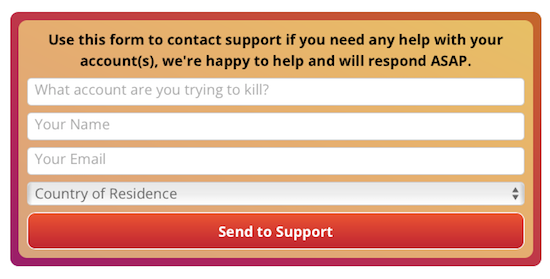
The AccountKiller team is made up of six diligent researchers and authors who just want to help people have better control over their digital privacy. There’s no charge to use AccountKiller; the site appears to be funded by pay-per-click advertising. The site is available in English, German, Dutch, and Spanish, though they ask that all request and site instruction submissions be sent in English.

Just Delete Account is a Just-the-Facts-Ma’am, multilingual account with one goal — finding you the instructions to cancel an account. The site uses a basic color scheme to help you see at a glance how annoying it’s going to be to cancel an account:
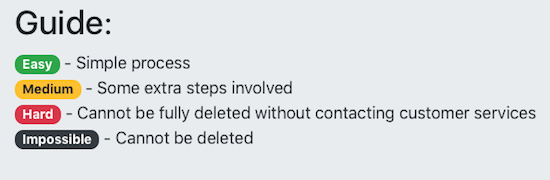
If you know the platform where you want to cancel an account, use the search bar. However, if you’re trying to remember all the possible accounts you’ve created, you can scroll down the main page for reminders. It’s just a massive grid of all types of online services with each cell of the grid in one of those four colors, above.
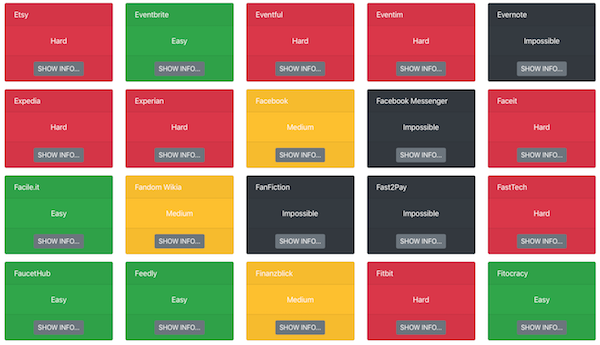
Note, sometimes when an account is marked “impossible,” it means that while you can’t delete an account, you can deactivate it. What’s the difference? All of your data still lives in the account unless you manually delete it before deactivating.
Other accounts are just persnickety. For Facebook messenger, if you logged in with your Facebook account, just delete that account; if you registered using your phone number, there’s no way to delete your account! FYI.
Alternatively, you can go to the All Services page and see a more bare bones list of all of your options. BoardGameGeek and Blue Apron make it easy; Blogger won’t ever let you cancel!
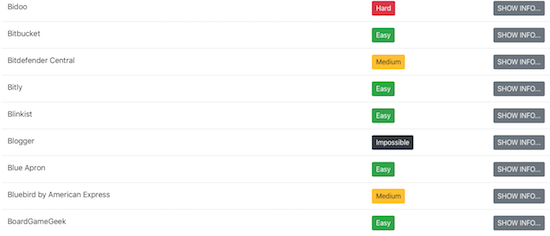
Note, neither AccountKiller nor Just Delete Account do anything of the account deletions for you, and they will not ask you for any personal information.
Have I convinced you to track down and delete your old, unused accounts?
Paper Doll’s Ultimate Stress-Free Backup Plan
Last Thursday, March 31, 2022, was World Backup Day.
When was the last time you backed up your computer?
THAT SYNCING FEELING
One of three things just happened when you read that question.
- You felt a bit smug and superior because you’ve got automatic backups set for all of your devices, you know how they work, and are confident that everything is working as it should.
- You felt a sinking feeling in your stomach and wanted to reach over and click to literally any other page because you’re pretty sure you’re not backed up anywhere.
- You felt confused. You know some things are “synced” and you are pretty sure some things are backed up, and you know you have copies of your important files, but every time you hear about backing up, you have a vague feeling that you don’t know what you don’t know. (Speaking of which, you may want to read Chron’s Explain the Difference Between Sync & Backup.)
I’m not going to guilt-trip you. I know that you know that you need to back up your data for safekeeping. You know that you need to back up your data, just as you know you need floss your teeth and change your car’s oil. But knowing is not doing, and it’s certainly not doing as often as it should be done.
You know that you need to back up your data, just as you know you need floss your teeth and change your car's oil. But knowing is not doing, and it's certainly not doing as often as it should be done. Share on XI get it. If you don’t already have a keen handle on your backup system, just reading this tweet is like sitting there and waiting for the hygienist to fuss at you for not flossing, or flossing properly, or often enough, or like having the mechanic make that face, the one where he knows that you know that he knows you should have brought your car in at least a thousand miles ago.
But stuff goes wrong. There are fires, floods, and tornadoes. There are hard drive crashes and burglaries. There are laptops that get left behind at airport security or in coffee shops. 29% (almost a third) of lost data is due to accidents. (Got a kid or a cat who delights in spilling liquids near your expensive gadgets? Have you ever tripped over the charging cord as you ran to rescue said kid or cat or whomever?)
The truth is, it does us no good to organize our resources (digital, paper, or otherwise) if our things aren’t protected. A solid back-up plan is like an excellent insurance policy.
No, you don’t like paying a monthly premium for health insurance or re-upping your insurance every six months on your car. But I bet if you were really sick and needed expensive medical care, or if you’d just had a car accident, and someone asked you, “Are you glad you bought insurance?” you wouldn’t wave your hand away and categorize it as having been an extravagance.
Backups are 21st-century insurance policies against loss of important information, loss of work (and thus loss of time), and loss of convenience (of having all of your preferences and file hierachies set the way you like them). Today, we’re going to look at some of the essential concepts of backing up so it doesn’t seem like such a frustrating, nebulous topic.
A FEW KEY CONCEPTS
No matter how you back up your computer, there are two concepts that will make all the difference between assured success and the creeping fear of failure:
Embrace the Autopilot

Your life is busy. Maybe you’ve got a career or even a business that you run, or you could be a full-time or part-time student. Perhaps you’ve got kids you’re raising or senior parents you’re helping care for, or possibly both. You’re trying to keep all the balls in the air, so it’s no surprise that computer backup is not first and foremost in your grey matter.
The key to digital security is backing up regularly and frequently. If you only backed up once a week, but create dozens of important documents, or write thousands of words in even a few documents, backing up only occasionally would put your stuff at risk.
Plus, if you use only manual, non-automated backups, then you’d be dependent upon prospective memory (in other words, you’d have to remember to remember) to back up. With everything else going on in your life, are you like to remember to back up?
Maybe you’re thinking, “That’s OK. I’ll set a reminder on my phone. I’ll schedule backups for every Monday at 11 a.m.!”
Great idea, in the abstract. However, although scheduling backups is well intentioned, let’s do a reality check. How often have you set a reminder to drink more water, or get up from the computer and walk, or do any other smart habit, only to find yourself swiping the task away from your screen when you’re engrossed in something else?
And what if your schedule calls you to be away from your computer when you’ve planned to back it up? What if you’re picking up a sick kid at the nurse’s office or in a meeting that has run long?
Using technology to automate the backup process means you can safely set it and (mostly) forget it.
Use the Belt-and-Suspenders Approach
Malware. Ransomeware. Hard drives crashes. Stolen computers. Third-party providers go out of business or eliminate services. There is no single, 100%-secure way to protect your research, spreadsheets, writing, photos or other data from every possible problem.
Usually, when we’re organizing homes or offices, redundancy can lead to clutter. However, when we’re talking about backup, redundancy is essential to secure your data and let you sleep at night.
So, I encourage you to develop a backup plan that involves using multiple strategies simultaneously.
FOUR METHODS OF BACKUP
There are four methods for (very generally) backing up your data.
“Flash” the Peace Sign
Most people wouldn’t start with mentioning this, but if you’re not backing up anything right now, you can give yourself some sense of peace by using a flash drive.
Just copy your most important stuff (like your thesis, your major project for work, the novel you’re writing, vital photos, etc.) onto a flash drive and make sure it travels with you wherever you go.

Why wouldn’t most people advise this method? It fails all of our requirements!
It’s not a system, isn’t automated, doesn’t ensure that you do it regularly and frequently, and on its own, it doesn’t protect against most dangers.
I mean, you could set an alarm on your phone to back up iterations of your most important documents and new photos at the end of each day…but you’ll probably ignore it. And, unless you ensure that your flash drive is almost never (except when backing up) near your computer, it’s less belt-and-suspenders and more like holding-your-pants-up-with-one-hand. It’s better than nothing, but just barely.
Do Some “Hard” Time
Backing up to a local external drive is the first real strategy I want you to consider, and one that is a lot easier than you probably fear. The process is shockingly simple, and I’ll admit that years ago, I’d put off doing automated local backup, too. And then I kicked myself for having put it off for so long once I saw how easy it was to set up. We’re talking minutes. Like during-a-long-commercial-break number of minutes.
Back up your computer to a hard drive using software designed to automate the process, like Apple’s built-in Time Machine.
Although Time Machine is free, you’ll want to purchase an external hard drive that’s bigger than the hard drive inside your computer. So, if your computer has a 1 TB hard drive, you might purchase a 2TB external hard drive.
If you weigh it against the value it provides, tangible data storage is cheap. It also takes up very little space. Previously, I used an Apple AirPort Time Capsule and backed up my computer over Wi-Fi, so the external hard drive didn’t even live in the same room as my computer. Now, I have a 2 TB Western Digital My Passport for Mac External Hard Drive that’s about the size of a deck of cards, and at 4.22″ x 2.95″, it’s smaller than an index card! It’s plugged into the back of my computer, sits right behind it out of the way, and I can completely ignore it except to dust it.


Once you have acquired an external hard drive, you connect it to your computer (usually with a USB, USB-C, or Thunderbolt cable) and then open the software. With Time Machine, you open Time Machine preferences, either from the menu bar or via System Preferences from the Apple Menu. You’ll be prompted to select a backup disk (the one you just acquired) and then Time Machine will automatically start backing up your computer. No muss, no fuss.
If you’ve got a PC running Windows, the process works in a similar way, but Microsoft doesn’t have an easy-peasy built-in software solution identical to Time Machine. (Windows has a bunch of independent, and sometimes confusingly conflicting, solutions.)
That means, on the one hand, you have more backup software choices. On the other hand, more backup choices makes it more likely you’ll put off acquiring and installing the software. To make it a little easier, I suggest you look at the following articles written by people on the Windows side of things, recommending free and paid solutions:
Best Windows Backup Software 2022 (PC World)
The Best Backup Software for Windows 2022 (Tech Advisor)
The Best Backup Software and Services for 2022 (PC Mag)
(Note, some of the above will include software that works with cloud solutions, as well as local hard drives.)
Backing up the data on your computer to a local external hard drive will prevent against computer failure but not against fire or a natural disaster. If your backup is right next to your computer, they’re subject to the same environmental ouchies.
Again, this is why we want to use a belt-and-suspenders approach. If you’re not planning on using a cloud solution (see more, below), then you’ll want to consider having two different external hard drives, and switching them off, perhaps keeping one off-site (at your office, a family member’s home, or in your safe deposit box) so that there’s something up-to-date and off-site at all times.
Send in the Clones

Of the “local” solutions, this is the one that’s the most advanced, but it also yields the most benefits. A clone of your computer literally copies your entire machine/computer, so all of the programs and the data get cloned, or copied, to an identical hard drive. SuperDuper for Mac and EaseUS for PCs are well-known options, or peruse Tech Radar’s Best Disk Cloning Software of 2022 for more ideas.
Cloning a disk makes an exact duplicate of the original source hard drive. It includes the data, but not just the data; it also includes every installed program, any partitions of the hard drive, and any hard drive configurations as well. So, while the other backup methods get you your data, cloning gives you an exact duplicate, more like Dolly the Sheep and less like the bearded, bizarro/evil versions of characters in sci-fi TV shows.

With a clone, your computer’s hard drive and the clone’s hard drive have all the same content in exactly the same disk layout, whereas cloud backup generally backs up data, but not software programs.
Finally, a cloned hard drive with an operating system is going to be bootable, meaning you can use it to start up any replacement computer as if it were the original. You don’t have have to perform a “recovery” as you would from your data on an external local backup or cloud backup.
Enjoy Serenity in the Clouds
A cloud solution is a sort of heavenly automation. With a cloud service, you install a small piece of software on your hard drive of your computer. Once you follow some on-screen instructions for setting up the app or software, the cloud service will make copies of all of your data — first a full backup of all of your data, then for all future efforts, and incremental backup of anything you’ve added or changed since the last automated backup — and then upload it to their servers.
The cloud backup world has been changeable, some might even say stormy, in recent years. Personally, I have been a happy, longtime user of Backblaze, pleased with the ease of use and price. But Crash Plan moved away from consumer-based backup to focus on small business and enterprise-level clients, while Mozy got purchased by Carbonite in 2018 and was shut down altogether. Carbonite remains popular, and IDrive seems to be getting a lot of love from cloud-service reviewers lately.
Some of my clients tell me that they are wary of the cloud. They tell me they don’t like the idea of trusting some company with their valuable data in a space they can’t literally touch. So, I ask them if their bank lets them go into the vault and hand-count their money on an average Tuesday. No?
But it’s the same thing. You’re trusting your bank to hold onto your valuable financial resources, even though you can’t literally touch the money at a moment’s notice. But while you can download all your data from the cloud to recover a lost file or crashed computer at 3 a.m., the bank will only let you get a limited amount of money from an ATM in the middle of the night. (OK, granted, it’s not a perfect metaphor. There’s no governmental FDIC-equivalent in the world of cloud computing, but there is bank-level encryption and security!)
Remember that you’re weighing the likelihood of a failure of a data security company against relying solely on your amateur backup skills and praying that your pet or tiny human isn’t going to knock your expensive hardware to the ground or flood it with milk.

Cloud Photo by icon0.com
By the way, the “cloud” is just a fancy way of saying that you’ve uploaded data via the internet and that it lives one someone else’s computer. And that computer is one of a bunch of computers networked together as a “server farm.”
Yes, clouds and farms are usually fairly separated by several miles of airspace, but nobody sat down to create a hierarchy of metaphors at the dawn of the computer revolution. So, the cloud may be on skyscrapers up in the clouds, or underground in nuclear fallout shelters. At one point a decade ago, Google was looking at putting server farms on off-coast ships!
Anyhooooo, cloud service, like local backup to an external hard drive, requires some minimal initial labor, after which you can “set it and forget it.” A monthly or annual feel will be charged to your credit card or deducted from your bank account (depending on how you set it up), but otherwise, that’s all you have to do to ensure that all of your settings and documents are preserved as insurance against any computer-ish calamity.
Putting Them Together
The system you decide on needs to let you sleep easily at night. My own belt-and-suspenders approach means that I use:
- Time Machine to automatically back up my entire hard drive to the external drive that sits on my desk. This means that if something happens to the computer, but not to my whole house, I’ve got all my backups right here beside me.
- Backblaze to automatically back up my entire hard drive to the cloud, so I need not fear one of Tennessee’s tornados from eliminating twenty years of my business records.
- A flash drive with anything that I might need on a moment’s notice. It goes with me when I travel. However, now that Wi-Fi is accessible in most places, and most printers have a Wi-Fi option to print from a phone or tablet, my flash drive method has largely been replaced by storing files in Dropbox.
Personally, I don’t use the bootable clone option, though my colleague Jeri Dansky swears by SuperDuper. What matters is that you pick and combine multiple options that allow you to automate and guarantee regular and frequent backup.
IF YOU’RE FEELING BACKED UP AGAINST THE WALL
You may still be feeling stressed about the prospect of technology. That’s understandable, but the solution is not to bury your head in the sand. Just as you can’t avoid health checkups for fear they will be uncomfortable or problematic, you must not avoid setting up a backup plan.

Computer Against Brick Wall Photo by Tomasz Gawłowski on Unsplash
Whether you talk to your tech-minded grand-kid or neighbor, a professional organizer who specializes in technology organizing, or an IT specialist, do start the ball rolling. Here are some of the questions you might want to ask and then have them walk you through the solutions:
- How do I install the software?
- How do I schedule backups?
- How frequently should I run them?
- If just one file is corrupted or accidentally deleted, how do I restore the backup copy?
- If I have sensitive files, do I need to encrypt them before backing them up? How?
- If my whole computer crashes, can I use the clone boot it up? How?
- In my cloud service account, how far back will my backed-up files be stored? Are there different price points for keeping versions backed up longer?
- Will the cloud service system store multiple versions of files (one from each backup), or only the most recent copy?
Once you get all your questions answered and have everything set up, remember to test your backup system.
Even if you combine multiple automated backup systems with local and cloud backup, wackadoodle things happen, and you do not want any surprises if or when you have to recover data.
Really commit to a periodic test-restore of a backed-up file to make sure that data is being saved correctly. Don’t just set a reminder you might swipe away, but put it on your calendar and think of it as an essential, if annoying, appointment — like getting your teeth cleaned or having your oil changed.
In the comments section, tell me what backup strategy you employ. And if you haven’t been backing up your computer, let me know what you plan to start using, going forward.
On the Road Again: Organize Your Mobile Office
Road Warrior Image by Mohamed Hassan from Pixabay
During the last two years, the watchword has been “work from home.” In this recent WFH era, we’ve eschewed office buildings and turned snuggly corners of our bedrooms and dining rooms into home offices. Many companies have closed their local operations altogether, finally trusting that there’s no need to micromanage their knowledge-worker staffs. More and more, companies are OK with letting people work where and how they operate best.
Of course, this isn’t the case with everyone. Some employers are rushing at breakneck speed to return the North American workplace experience to “normal,” despite the distinct rise in European and Asian COVID cases of the Omicron BA.2 subvariant. Count me as one of those who is curmudgeonly aghast at the state-by-state dropping of precautions, as I noted in the following reply to a friend, which got a lot of Twitter love.
I am so tired of people saying it’s over because they want it to be over. It’s not a relationship, it’s a virus.
— Julie Bestry, CPO® (@ProfOrganizer) March 23, 2022
Obviously, though, there are some people who can’t work from home. Your favorite restaurant can’t let the sous-chef work from his back deck. An OB-GYN is the perfect example of how you can’t phone in every kind of delivery!
And people who travel about for work, whose very career depends on them physically arriving at different locations, whether locally, regionally, nationally, or internationally, need to get on the road (or the tarmac), however ambivalent they might feel about the prospect. And, of course, they need to be organized.
HOW TO ORGANIZE YOUR MOBILE OFFICE
From smart phones to Zoom to cloud computing, modern technology has made road warriors a little less embattled, but keeping your mobile office from looking like an outtake from Game of Thrones battle requires some special equipment and finesse.
Over twenty years as a professional organizer, I have worked with a wide variety of clients who work, at least some of the time, from the road.
There have been numerous pharmaceutical sales representatives who needed to organize medical literature, promotional materials, medication samples, durable medical goods, and anatomical models and schlep them from medical offices and hospitals in their assigned local or regional areas. I’ve worked with a few mobile pharmacists serving as pharmacy supervisors, traveling each week to different outlets, and working both as members of their profession and in consultant/supervisory capacities on behalf of their companies.
I had one client who traveled her “territories” in various parts of the country for a restaurant chain, training franchisees and their staff on everything from computer systems to how to prepare and garnish certain delicious foodstuffs. And one client shared memorable tales of his experiences as a high-level insurance executive assigned to travel and review high profile claims.
What all of these hearty folks had in common is that they needed to have all of their necessary office supplies, documents, and resources available to them with the same ease of accessibility as when they were comfortably seated in actual offices. While each had unique needs, their were a wide number of commonalities.
In the Car
Let’s focus on documents. Back at a decidedly stationary office, you’d have filing cabinets, hanging file drawers in a desk, and a variety of other options with the distinct advantage that you never need worry about jostling.
Cars, however, jostle. They are buffeted by the wind on the highway and hit unanticipated bumps from potholes and running over detritus that has fallen off of other vehicles.
If your mobile office requires bringing lots of glossy literature, forms, or other pre-printed material, you’ll want to approximate a standard filing system as much as possible.
Personally, I’m a fan of sturdy file crates. These crates, fashioned after old-school milk crates but with file rails on all four sides (to accommodate letter-sized or legal-sized files) take a licking and keep on ticking when you’ve got a heavy load of hanging files filled with file folders and lots of paper.
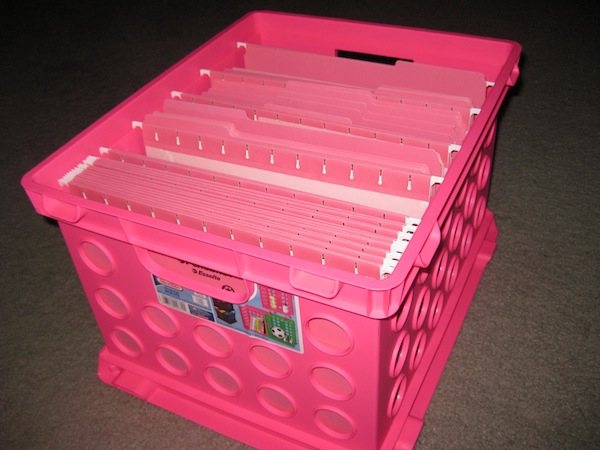
My favorite version is made by Sterilite and, like the very best versions of the TARDIS’s control room, has lots of “round things.” I own them in four different shades of pink/plum/mauve, plus blues and blacks. Another client swears by teal.
In most “big box” stores like Target or Walmart or office supply stores, you can usually fine single crates for $5-10. (Storex makes a very similar version, with weirder displays of “round things,” but usually only in packs of three or more for somewhat higher prices.)

A good alternative to file creates is to pick a few sturdy lidded totes equipped with hanging file rails. In this case, I’m not referencing portable file boxes (we’ll get to those), but larger file tubs requiring a two-handed grip. Bankers Box (yes, famous for their fold-into-place cardboard paper storage) has hearty one:

Office Depot and Staples have their own lines of dependable tubs. They key is that you want a heavy-duty file tote or tub with hanging rails, one that will withstand the test of time and changes in temperature and humidity. A warped tote is not a happy tote.
These crates or totes should generally stay in your trunk or the rear of your hatchback/SUV, removed rarely just for cleaning of the vehicle. In general, if you keep the contents organized and maintained, updating which folders (and which file contents) are stored within, they shouldn’t require much upkeep.
Aesthetics are less important than durability. However, if you’re eager to move your resources from your trunk to your a hotel room or event venue, there are other options, with functional and aesthetic appeal.
Last year, I guest-blogged for the great folks at meori, and wrote From Dad’s Study to the Modern Home Office, performing a deep dive into the essentials of a home office. One of my favorite products I got to know was meori’s Hanging Office Box.
It’s available in a few different colors, accommodates hanging files, and is collapsible.
Whichever you choose, use these kinds of file storage for stockpiling multiple copies of leave-behind resources: glossy one-sheets, brochures, catalogs, blank forms, and templates. To ensure that you’re always prepared for a surprise trip, restock your mobile file space weekly if you stay local, or upon each return from out of town.
On Client Calls
When you head into a client meeting while on the road, you’re not going to want to keep zipping back to your car for the documents you want to share or disburse. If you think of the trunk storage totes and crates as the big deep-freezer in your basement, these next options are more like your lunch box or picnic basket. You’ll use them for your laptop or tablet, essential files, and office supplies and related resources, like chargers. It’s the stuff you carry with you.
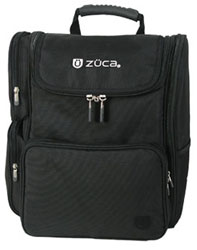
Recently, I shared with you my beloved ZÜCA Business Backpack.
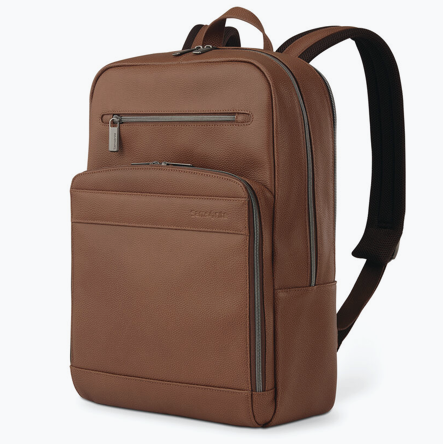
For an even more refined look, the Samsonite Business Slim Backpack (in Cognac or Black) is a sleek option.
A full analysis of business backpacks is probably better left for a post on travel, but I can tell you that there’s enough of a variety of business backpacks that you can be assured they’ve come a long way from the backpacks of the days of pep rallies and bus rides. To find a professional backpack to your liking, consider these expert round-ups:
Specialist Satchels: The 19 Best Men’s Backpacks for Work from The Coolist
19 Best Laptop Backpacks the Provide Both Fashion and Function from Marie Claire
The 10 Best Business Travel Backpacks from the blog The Broke Backpacker
The Best Laptop Backpacks for Work (and Life) from Wired
If you’re looking for something with a little more accent on fashion, primarily for hanging files, there are alternatives to the standard backpack or briefcase. Sadly, the long-beloved (by clients and professional organizers alike) leatherette file totes from Jamie Raquel exist no more, but Levenger’s LevTex Portable File Totes scratch a similar itch.

Available in Black, French Blue, Purple, Red, or Hickory, with a tan twill interior lining, the LevTex line runs $99.50 each (though I’m spotting it on sale for $69 at the time of publication of this post).
At a lower price point, Lakeside Collection has a similar faux leather Chic File Folder Organizer Tote in Red, Brown, and Black for just $39.99 via Amazon:

If image is less important to your line of work than durability, and you’ve got a lot of paperwork to share in meetings or at events, consider a portable file box with hinged lids, sturdy handles, and hanging file rails. Search for “portable hanging file box” and you’ll come up with a wide variety of brand-name and generic versions like this:

These are practical for bringing in just what you need for a specific client call: notes, blank contracts, and a subset of literature from the mobile file space in the trunk.
If you carry blueprints or other large-format documents, carry both a standard portable file box for business papers and an art portfolio case. If you will be leaving designs behind, use inexpensive red rope portfolios; invest in a durable leather or nylon case if you will be using it long-term.
When you’re on the road, is your need to schlep a more heavy-duty experience? Expanding rolling crates are suitable when your display materials include heavy catalogs and sample products. They offer a robust upgrade from portable file boxes and won’t break the bank — or your back.

For a more elegant or refined look, try a rolling catalog case or a leather litigation briefcase like you see lawyers (or, more likely, their paralegals) using on TV.
And while you’re gathering all the resources to show off to your clientele or supervisees, make sure you don’t lose sight of all the chargers, cables, gadgets, tools, and small personal items that keep you efficient.
One favorite line of professional organizers everywhere is the Grid-It! from Cocoon Innovations. I am constantly amazed at how much I can pack into a small space with just a Grid-It! board covered in elasticized bands, but Grid-It! never fails to secure possessions, prevent tangles, and ensure that nothing falls into a black hole.
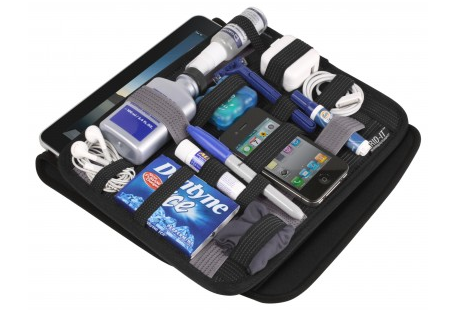
Cocoon also has an impressive array of slimline backpacks with Grid-It! stylings built in, for the road warrior who is living on the road, or in the air. Speaking of which…
On the Road…and On the Tarmac
Are you spending time in hotels, dropping in at co-working spaces, or hot-desking at divisions of your company as you jaunt around the country or around the world? When space is at a minimum but you want to feel like can keep your eye on all of your documents and resources, it can be helpful to adjust the vertical control. Look upward instead of outward!
For my clients who are always on the road, I suggest the Smead Cascading Wall Organizer. This snazzy revamp of the original can hang on the wall or anywhere from a nail, hook, or even a hotel hanger to reduce clutter in your workspace.
Made of durable, bright, and easy-to-clean polypropylene, the six colorful (yellow, orange, fuscia, green, blue, and purple) letter-size pockets can be removed to take to individual meetings. (Each folder holds up to 50 sheets.)
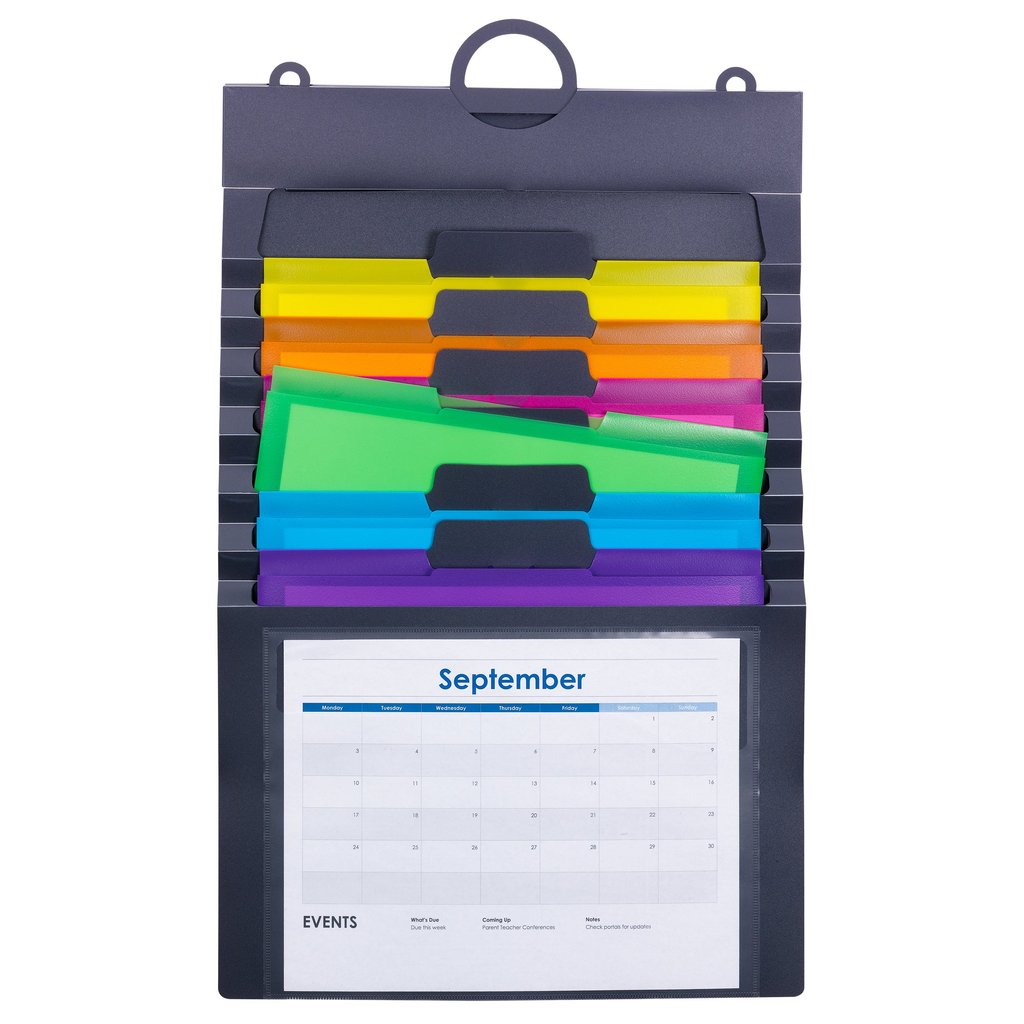
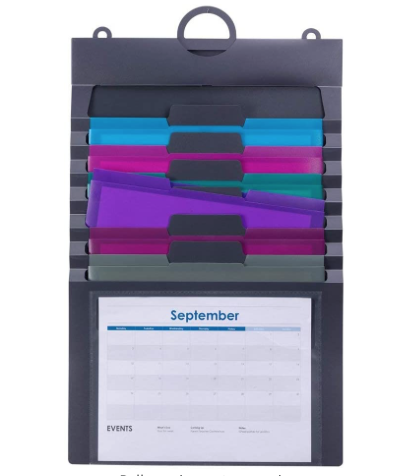
Use the clear front pocket to show the current month’s calendar, a project timeline or GANTT chart. (Fuzzy on that? Check out Checklists, Gantt Charts, and Kanban Boards – Organize Your Tasks from last year.) There’s a 3-part hanger (use one loop or all three), and an elastic cord closure for putting it all together and stowing it away.
The whole thing is PVC-free and acid-free, and measures 14 1/4″ wide by 24″ high (when fully expanded). Available directly from Smead for $19.03, or you can find it on Amazon for $29.88.
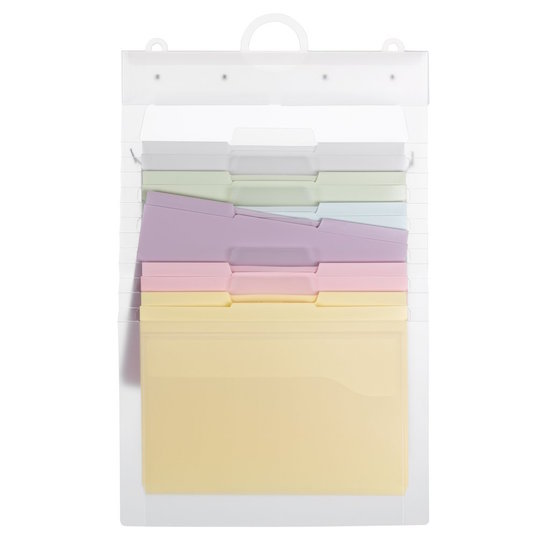
There are two variations on the theme. If the above brights are too vibrant for your super-stuffy colleagues, the clear version (with pastel pockets) of the Cascading Wall Organizer is also $19.03 at Smead or $11.10 at Amazon:
 Conversely, there’s one with sumptuous jewel tones for $10.94.
The Container Store has a similar product, the Multi-Color Cascading 6-Pocket Letter File Wall Organizer Tote, for $16.99.
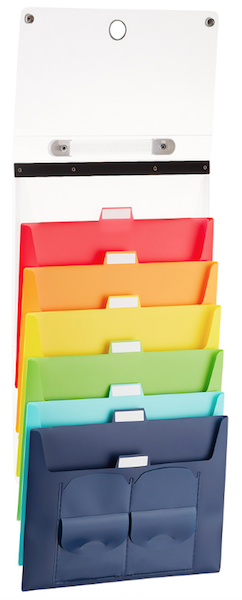
It measures 13 3/8″ wide by 10 1/2″ high, and when it’s not fully extended, it folds and collapses into a 1 1/2″ thick tote. Two snap closures open to reveal six cascading pockets (red, orange, yellow, green, teal, and dark blue) that hold letter-sized interior file folders (sold separately). You can label the tabbed pockets, and there’s both a handle for carrying the closed tote and a ring for hanging it for display.
At a similar price point of $25.29, the Pendaflex Hanging Organizer looks and works much like the others, with color-coded file pockets in an indestructible, poly carrying case.
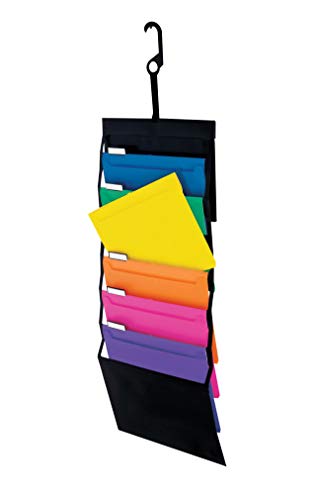
Expand it like an accordion file, collapse it to store in a briefcase, or hang it with the files neatly cascading from a hotel doorknob or coffeehouse chair when you set up a temporary workspace.
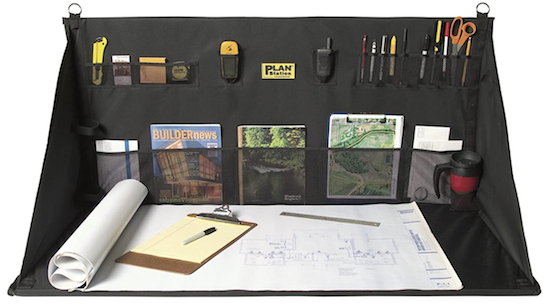
And sometimes, you just need a space of your own when you’re away from your own space. For such occasions, the Plan Station Pro is kind of interesting. It reminds me of the graduate student study carrels in college libraries, but set up on an ad hoc basis.
This nifty workstation measures 24″D x 48″W x 24″H and lets you create a sitting or standing desk wherever you land, whether that’s a hotel or a job site, for just $40. You carry it like a large portfolio, then hang or use the included dowels so it will free-stand to create a mini office.
Finally, even if you have to work in a public space, avoid the temptation to invest in a wheel-mounted desk. If you must work from your car, it is roomier and more comfy (though admittedly more awkward-looking to ouotsiders) to sit in the center of the rear seat and balance your laptop on your knees.
There’s also a narrower version, the Plan Station Mini Portable Work Station, measuring 24″D x 32″W x 24″H. It’s currently $26.47.
Be Tactical With Your Tech
As Paper Doll, I’m always going to focus on your tangible, paper resources, but that doesn’t mean we’ll forget about the tech and other essentials. Your digital resources may live in the cloud, but you still need to reach them from down here on earth (and, OK, sometimes when you’re up in the clouds, too).
Generate a packing list to use with your backpack or satchel so that every night before you get on the road, you can make sure you’ve packed what’s necessary. Consider the following
- Phone (or a note to remind you to pack it in the morning once it’s charged)
- Laptop or tablet
- Mobile hot spot (you can tether your phone’s internet access, but you may want to buy a more powerful mobile router to make sure your computer, tablet, and any other Wi-Fi-able device gets the connection it needs)
- Bluetooth keyboard
- Bluetooth mouse (if you, like me, never got the hang of a trackpad)
- Bluetooth or wired number keypad (if you crunch a lot of numbers when working)
- Chargers and charging cables
- Adapters (because, between USB and USB-C, not to mention Lighting connections, nothing attaches to anything else these days without some fiddling)
- Headphones or ear buds (so that you can dial in to conference calls or Zooms with minimal distraction for yourself or other attendees)
- Flash drives (because you can never count on your laptop communicating nicely with the presentation set-up at any conference venue or work location)
- A legal pad or notebook (because sometimes, the internet or WiFi isn’t your friend)
- Post-It® Notes — always have a stack in your favorite color. Combine a sticky note and a Sharpie for everything from leaving a note on the bathroom mirror for hotel housekeeping to capturing an idea when the data on your phone peters out
- Your favorite pen, a colorful Sharpie (or several), highlighters (for calling someone’s attention to something in the analog/paper world)
- Headrest hangers, so you can keep your jacket or suit neatly hanging and wrinkle-free
Making Time for Putting it All Back Together
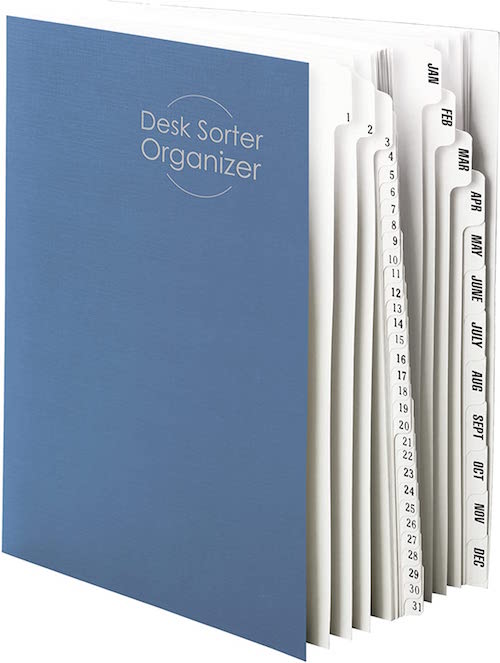
Block time every evening to review the list of people you will be seeing the next day. This is also a good time to check tomorrow’s slot in your tickler file. C’mon, you didn’t think I’d miss a chance to remind you about the value of tickler files, right? I’m always going to prompt you to tickle yourself organized, even when you’re on the road! (Especially when you’re on the road!)

Clarify the end goal of the meeting, so you know what you need to display or distribute. Verify that you have (or can acquire) enough copies of each. Make sure all essential items are in tomorrow’s tickler file slot.
After each appointment, before belting yourself into your car, ensure that any papers you acquired in the meeting are either filed for reference or added to your tickler file for prompt follow-up.
Laminate a checklist or create one in Evernote or your favorite digital system so that you can follow the same procedure every time you return from a client visit or sales trip.
Finally, taking a few moments to remove the pop cans, meal wrappers, and other schmutz of the day ensures that you will enter a fresh-smelling, chaos-free mobile office tomorrow.
Happy travels, and stay safe…and organized!
Paper Doll Shares Secrets from the Task Management & Time Blocking Summit 2022
What did you get done last week? Was it everything you wanted to accomplish? Did you use a paper calendar or a digital one? A task app or sticky notes? Do you have SMART goals? Am I freaking you out?
Longtime readers know that I seek out all types of continuing education, including each annual NAPO conference. After 2020’s conference was canceled, I was delighted to get to participate in a virtual version, as I told you about in Paper Doll Recaps the NAPO2021 Virtual Conference.
I’d also attended a productivity summit and the last two years of the Task Management and Time Blocking summits, and have spent the last several months preparing to attend the third, as I referenced in Struggling To Get Things Done? Paper Doll’s Advice & The Task Management & Time Blocking Virtual Summit 2022.
Readers, let me just tell you, last week from Thursday through Sunday, I was entirely geeked-out over all things related to task management, time blocking, scheduling, goal achievement.
And while we explored all manner of strategies, techniques, and tools for getting more done, there was definitely an undercurrent of something more valuable in this year’s conference. Over and over, there were presentations and videos that delved into examining the “why” of getting things done.

It would destroy your time management and mine if I shared every amazing detail, but even just the personal highlights are staggering. The summit was a combination of live presentations and panels as well as a series of about a dozen videos each day, and live (video) networking.
Out of the box, after the welcome, we began with a presentation from trainer and coach Jeff Whitmore about intentionality. Jeff talked about the reckoning we collectively saw, both with the onset of the pandemic and now, with the Great Resignation. We’re turning our backs on busy work, on “meetings that could have been emails,” and the experience of being buried in tasks for tasks’ sake, and turning to pondering what we really want — out of our careers, and more deeply, out of our lives.
In a theme that came up over and over during the conference, he talked about identifying the bigger picture of what you want in life and why, and focusing on tasks that drive those goals rather than letting all the competing sensory inputs of notifications and calls and emails determine what you do.
NOVELTY VS. THE FLATNESS OF TIME
The first morning continued with summit founder Francis Wade interviewing noted author, Laura Vanderkam, and her theme posited practical ways make life richer and more nuanced.
For me, Vanderkam’s interview was immediately reminiscent of what I talked about in Does Anybody Really Know What Time It Is? 5 Strategies to Cope With Pandemic Time Dilation in terms of the way our lives seem to sometimes be an endless slog from day to day. It’s Monday again. It’s time to cook dinner again. As I noted in the chat discussion, sometimes it seems like I look up, over and over, and I’m blowing my hair dry again.
Vanderkam’s research suggests that to get out of these ruts, we need more novelty, texture, and richness in our time and our tasks. To this, Francis quipped, “less skim milk, more milkshakes.” After a brief foray for praising Ben & Jerry’s Chunky Monkey, Vanderkam suggested one main tip for preventing the automating and routines that make for good task management from diluting the texture of our lives.
Vanderkam encouraged everyone to plan life in weeks, and to identify one “big adventure” (lasting perhaps half a weekend day) and one “little adventure” (lasting an hour) each week to introduce novelty. The purpose? As Vanderkam noted, “We don’t ask where did the time go when we remember where the time went.” Aha. Mindfulness!
As @LauraVanderkam noted, *We don't ask 'where did the time go?' when we remember where the time went.* Share on XVanderkam has been studying a wider array of methods for making a Chunky Monkey milkshake out of life. She conducted a nine-week research study with 150 people, having them track their time and studying their time satisfaction and time weariness before and after trying each of nine approaches, from the big and little adventures for making life more memorable to setting a fixed bedtime for yourself so you can “see how many hours the day really has in it.”
The results of Vanderkam’s research will be published in her forthcoming book, Tranquility by Tuesday: 9 Ways to Calm the Chaos and Make Time for What Matters.

GEEKING OUT WITH GTD
Another highlight of the summit was an Oxford-style debate on the proposition of whether the notion of organizing by contexts in David Allen’s seminal Getting Things Done is still valid. GTD methodology lets you conceptualize, and then act on, tasks depending on various features. And if this seems a little too “inside baseball” or geeky to you, I can only say that it was…and it was great. By ten minutes into the debate, I found myself shouting back at the screen (muted, of course) and adding lively comments to the chat.
Back in the early days of GTD, contexts were pretty much considered as where the next action could be done, or what equipment you’d need to perform it.
So, a context might have been “at the store,” or “on the phone” or “at my computer.” Thus, the question is, when all of your next actions — like buying pens on Amazon or having a phone conversation with a client or emailing or searching the web to get clarity on an issue — can be done with just one small piece of metal, glass, and plastic that fits in your pocket, do contexts still matter?

(with apologies to the guys for not catching a single one of them smiling!)
One team was Drs. Frank Buck and Joe Leondike; the other, Augusto Pinaud and Art Gelwicks. Always-unbiased Ray Sidney-Smith (host along with Augusto of my beloved Anything But Idle video podcast) served as the debate moderator. Sparks (politely) flew, but in the end, it came down to semantics and the notion of the evolution of David Allen’s philosophy. (And yes, we know the GTD debate panel was all guys, but I assure you, this was a matter of scheduling complexity. Women were invited to participate!)
My take? Yes, David Allen meant contexts to be more specific, but that was two decades ago. Now, tags (like you’d use in Evernote or Gmail) serve as your context. It’s not “computer” but “Amazon” or “LinkedIn,” the places you go (even if you’re only “going” with your fingertips) to perform a task that really matters.
Then again, I’m a proponent of the idea that whether you’re talking about Getting Things Done or KonMari, the Pomodoro Technique or even my own tickler files, hewing to the letter of any productivity or organizing law instead of empowering yourself to embrace the spirit of it is silly.
What matters is what works!
A NEW (TO ME) TIME BLOCKING METHODOLOGY
We tend to see the same systems and strategies repeated over and over: GTD, time blocking, the Eisenhower Matrix (urgent/important), the Pomodoro Technique, etc. But David Tedaldi of Morgen (one of the summit’s sponsors) introduced us to an approach that was brand new.
Tedaldi’s actual presentation was Tools for Time Management: Help or Hurdle? (which dovetailed nicely with my own presentation, on going “retro” to avoid the drawbacks of technology…of which, more later). As the founder of a company that developed a calendaring system for “professionals who manage multiple accounts, who want to schedule meetings faster, or need to keep track of tasks and appointments in a single, safe place,” he obviously believes in tech tools.
But he also acknowledged that using new tools fractures our time as we have to expend effort (and use our work time) to learn how to use these tools. But wasn’t what made the session memorable for me. Instead, that was Tedaldi talking about a new time management method that is simple, but with commitment, could be life-changing.
It’s called the 90-90-1 Method. (I initially misunderstood Tedaldi’s beautiful accent and thought it was the 1991 Method, and was imagining it had something to do with the Hubble telescope, C&C Music Factory’s “Gonna Make You Sweat” or Silence of the Lambs. Sadly, nope.)
Put forth by Robin Sharma in an 2014 post called You 2.0, the recommendation was to the point:
“For the next 90 days, devote the first 90 minutes of your work day to the one best opportunity in your life. Nothing else. Zero distractions. Just get that project done. Period.”
The 90-90-1 Method, per @RobinSharma: *For the next 90 days, devote the first 90 minutes of your work day to the one best opportunity in your life. Nothing else. Zero distractions. Just get that project done. Period.* Share on XWhat is your big, bold, audacious life goal? Want to write a book? Run a marathon? Show your child or spouse or friends that they are priorities in your life? Instead of making these things the sand that flows around the “big rocks” in your life, show up! For the next 90 days (which surely falls in line with the precepts of the popular book, The Twelve Week Year: Get More Done in 12 Weeks than Others Do in 12 Months), spend the first 90 minutes of your day focused on the ONE thing that you (claim) you care the most about.
Wow! (I know, right?)
PAPER DOLL TOOK A SPIN (OR THREE) ON THE DANCE FLOOR
Previously a panelist and moderator, I got to add presenter to my resume at this year’s event!

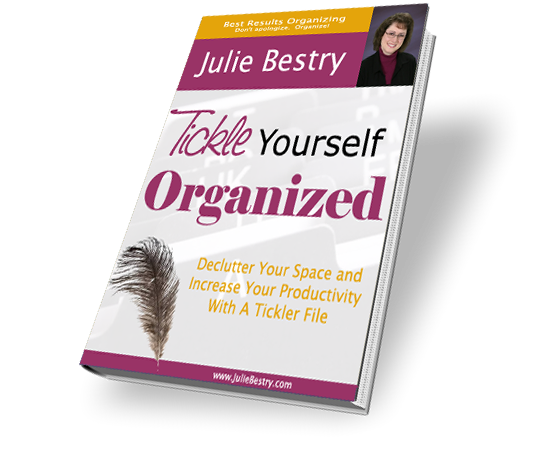
My video introduced attendees to the benefits and logistics of using a tickler file, based on my now-classic ebook, Tickle Yourself Organized.
But my real passion was asking people to consider the notion that as useful as digital calendars, automated scheduling software, and task management apps can be, technology isn’t always the best way to get a mental handle on what we need to do and prompt us to do it.
Think about time. Kids, people with ADHD and other neuro-diversities, and many other people have trouble conceptualizing the passage of time — how long is 15 minutes? What does an hour look like or feel like?
We used to be able to look at analog clocks and perceive, with the sweep of the minute and second hands, how we were getting closer to the top of the hour. With digital clocks, 10:01 or 11:47 just doesn’t feel tangible or real.

This is why Time Timer has proven so successful with students, non-traditional learners, and clients trying to be more productive. With them, you can see time. You can see the PASSAGE of time.
Research shows that something similar happens with handwriting notes vs. taking notes on a computer. When you’re trying to take notes in a class, if you’re typing, your instinct is to take a transcription of what the speaker is saying, word for word. The words come out of the speaker’s mouth, into your ears, and kind of bypass your brain & head to your fingers.
BUT, when you handwrite, your brain engages and picks out key phrases, identifies essential elements, and helps you translate the presentation into something you understand so that you could explain it to someone else. Going retro by hand-writing your notes gives you an advantage.
One of the 21st-century problems with task management and time blocking is that all of the technology makes our tasks feel too vague and intangible. For many of us, to get things done, we need our resources to be “grippy” or “sticky” or they cease to have a sense of urgency or importance; when we only see due dates or blocks of time TO do something, we lack essential nuance and context.
There’s no novelty or uniqueness in a one-line task in an app to trigger related memories or brainstorm tangential thoughts. When you enter a task in an app, it’s kind of like transcribing those lecture notes; it sort of bypasses your brain. (I think it’s one of the reasons that the more colorful, artistic Bullet Journal approaches became so popular.) Writing things down on paper, and manipulating the words and the paper, gets the brain engaged at a level you don’t see with digital apps.
By blending time management and time blocking skills with paper resources, we can have a hybrid system (analog and digital) that lifts the weight of worry off our shoulders. We can eliminate the fear that tasks will fall through the cracks, assure that we focus on starting work rather than just noting when it’s due, and replace a sense of overwhelm with one of empowerment. Enter the tickler file!
HAVE A LITTLE COMPASSION
I was also on a Q&A Panel moderated by Casey Moore, along with Olga C. Morrett of Mujer Cronopio. As counterpoint to reviewing my more tactical approach to organizing and time management, delightful Olga, a Venezuelan currently freezing her tushy off in Montreal, spoke expanded on her presentation, Compassion as the Key to Your Productivity.
Our lively panel closed out the summit on Saturday, and I think half of the time was spent with us riffing on points the other had made, not counting the unexpected tangent about Titanic, including the idea that plunging into your tasks without planning not only can put you at risk of drowning, but can endanger the mental health of those you love. And, of course, we all agreed that there was definitely room on that floating door for Rose and Jack.
But I really want to share two key concepts from Olga. First, she talked about how self-compassion is an antidote for perfectionism and noted that “The human experience is imperfect. We are entitled to fail. It’s part of the process.”
And, to show yourself compassion, start with looking at your calendar. What you put in your schedule shows how you distribute your resources: your investment of time, money, energy, and attention shows what you you really value. If you’re not investing in yourself but everyone else’s priorities, then you aren’t showing self-compassion.
ZZZZZZZZZZZZZZ
I also took my turn as a moderator on a panel entitled, Is Sleep On Your To-Do List? A Look at Time Management and Wellness. Sleep is necessary for us to be creative, strategic, productive, and neurologically healthy. Poor sleep wrecks productivity, but time management failures can destroy our ability to sleep.
I got to interview Dr. Emily Hokett, an academic sleep researcher and expert on achieving better sleep, and Casey Moore (see above, who was pinch-hitting for our colleague Lisa Mark, whose daughter had a baby the week before the summit–mazel tov!). We talked about how poor sleep effects everything from our stamina to our relationships, and covered a pillowcase full of tips about good sleep hygiene, blackout curtains, and the winning tip for me — getting enough sunlight so that your body can tell the difference between day and night.
THE KIDS ARE ALRIGHT!
Last year, we met four California high schoolers who came together to solve what they saw as serious problems in the time and task management app space. And they weren’t doing it for school credit or for money, but to help make people’s lives better!
Condution is an impressive open source app, and these young founders invite users and other coders to contribute. I tested the beta version last year, and it was as impressive as the guys themselves, and shockingly professional.
Only two of the four, Jack and Micah, made it to the summit. The other two were at SAT prep! Francis teasingly asked if they do normal teen things (oh, they do! Especially sports and music) and if they were on TikTok. (Nope). If you ever worry about the intentions and philosophy behind strides in the tech world, look no further than these young men. Here’s the video that started it all:
SO MUCH MORE
I’ve barely touched on the summit’s wise takeaways, which ensures there will be a lot to pepper in future posts. Eventually, we have to talk about task stacks from Trevor Lohrbeer, the founder of Day Optimizer. It simultaneously adds elements of gamification and diligence to the act of conquering your task list.
You can see a sneak preview of Danielle Hamlett‘s Willpower, Productivity, and Marshmallows, where she shared life-altering advice on how to amp up willpower.
And I don’t know where to begin with the insights shared by Amie Devero, but I’ll be pondering the Arrival Fallacy for a while, which is the false belief that once we “make it” — finish our tasks or attain our goal or reach our destination, we will reach some kind of everlasting happiness and be “done.” There is no inbox zero for all our life’s tasks.
At one point in the conference, Francis was hit with a bit of an epiphany about how all these sessions ostensibly about task and time management were about purpose and intention. When he extemporaneously said the following, I wrote is on a sticky note:
Task management is purpose conveyance.
ALL ACCESS PASS
If you’re bummed that you missed the summit, you can still get in on everything except the live networking. (I mean, I’m good, but I can’t help you time travel! Yet.)
Pick up a Premium, All-Access Pass (a $4700 value for $249) and you get a year of 24-7 access to all summit content, plus a digital copy of Francis’ book, Perfect Time-Based Productivity.
I leave you with four questions:
What big and little adventures will you add to your week to create novelty and make your life more milkshake and less skim milk?
What do you think of the 90-90-1 method?
Look at your calendar: are you showing yourself compassion?
Is your take management conveying your purpose?
A Professional Organizer’s Take on National Library Card Sign-up Month
September is National Library Card Sign-up Month, and I want to make the case that library cards are your passport to a better and more organized life.
WHY PAPER DOLL LOVES LIBRARIES
I love libraries. My first real job, from my sixteenth birthday until I left for college, was as a page at the Clearfield Branch of the Erie County (New York) Public Library. My job involved helping patrons find books (back when we had paper card catalogs and no computers) and checking books out (back when the system involved using an overhead camera to take a photo of someone’s paper library card and the “borrow” card for the book).
However, the bulk of my job involved shelving books and “reading” shelves. The latter involved starting at the beginning of a section (for example, non-fiction) and making sure each book belonged after the one before it and before the one after it, per the Library of Congress classification system. I often think that this was the ideal training to become a professional organizer.
Back then, local public libraries had relatively few types of holdings: books, maps, record albums, and a truly dinky collection of audio cassettes. Libraries have come a long way, baby!
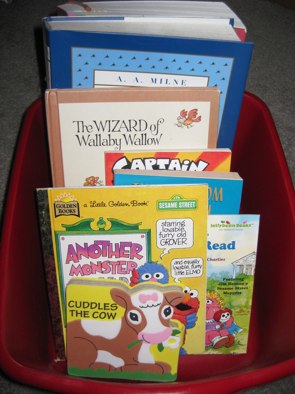
I marvel at systems I learned then, which I now use professionally, like organizing toddler books in dishpans, with book covers facing outward (record store-style) so that little hands can flip each book forward or backward without destroying a bookshelf. Because toddlers can’t read, they have no use for the spines of books, but a series of dishpans (filled with vertically arrayed, face-out books) allows tiny humans to recognize and access their favorite titles.
I have seen many beautiful libraries in cities all over the world, but my favorite is the A.D. White Library at my alma mater, Cornell University.

For most of history, libraries were closely guarded bastions of knowledge, and access was limited to those whose religious, academic, or financial positions allowed them to be considered worthy, but few libraries of significance were truly open to the public. In general, most libraries were subscription-based, where one paid for access, similar to how we use Netflix and Audible these days.
And even though public libraries had to close their doors to the public for much of the first year of the COVID pandemic, they did not turn their backs on their patrons. Most libraries offered curbside pickup; you could reserve your books online and then call (or, if your library was really fancy, use an app) to alert the staff of which pick-up parking space you were using, and diligent, masked librarians would verify your card, check you out over the phone, and deliver your “borrows” to your car’s trunk or hatchback. Most libraries also continued to offer programming for students, seniors, and other constituencies virtually.
To my mind, one of the greatest benefits of modern society is access to tax-supported public library systems. I consider my library card, my voter registration card, and my driver’s license as three keys to my sense of freedom (of intellect, of democracy, and the ability to work, play, and have an empowered life).
I consider my library card, my voter registration card, and my driver's license as three keys to my sense of freedom (of intellect, of democracy, and the ability to work, play, and have an empowered life). Share on XBut that’s me. You’re probably wondering why you should care about libraries, and more importantly, what this has to do with organzing.
WHAT CAN A LIBRARY CARD OFFER YOU?
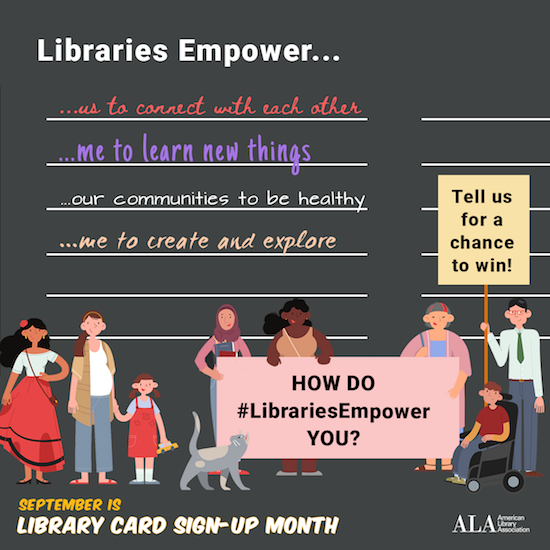
So, what magical powers does your library card bestow? Your library card, what bibliophiles and library peeps like to call “the smartest card in your wallet,” grants access to a vast array of offerings.
Items to borrow
Although some special collections and reference materials can only be read in-house, the majority of tangible items at libraries circulate. This means they can be borrowed and taken home for at least a week, and sometimes up to a month, including:
- Printed materials (and no, it’s not just books and magazines anymore, though libraries still have huge collections of those):
- print books (including large-print books for the visually impaired)
- audio books
- books on CD
- books in Braille
- magazines
- trade journals
- graphic novels/comic books
- sheet music
You can reserve materials that are currently out (or at another branch). In most cases, if your library is able to send you a digital notification of a reserved item’s availability, there will be no charge; for older libraries still using postcard systems, your reservation may be about the cost of a postage stamp.
Also, your library is likely to be a member of one or more systems through which you can request an interlibrary loan. That means that even if your library system doesn’t have a resource you want or need, you should be able to have them request it from a different system, possibly even across the country! (See? Libraries are cool!)
- Electronic entertainment and educational materials
- vinyl phonograph/record albums (though these are often in library system archives, the hipster appeal of vinyl has librarians bringing these out for display)
- CDs (whether music, language CDs, or books on CD)
- DVDs (including movies, courses, exercise, and how-to videos
- Digital materials — Your library likely gives you access to a variety of digital downloadable services through the web or a free app. So, whether you want to satisfy your insatiable desire for mystery audiobooks while you’re getting your 10,000 steps a day or suddenly need to borrow a stress-reduction video while you’re stuck in the airport when your flight is delayed, all you need is your library card number, digital device, and some decent WiFi. Not all libraries have the same services, though these seem to be the most widespread:
- OverDrive offers an absolutely massive collection of premium audiobooks, ebooks, and music that can be downloaded to your smartphone, Kindle, tablet, or computer via your browser or the Libby app.
- Hoopla has collections of thousands of ebooks, audiobooks, graphic novels/comic books, movies, television shows, and music. You can download content to your device or stream it, and it works with computers, tablets, and phones. (Personal note: I downloaded Frommer’s and Fodor’s guidebooks to Italy and the UK to use when traveling, and it was amazing to have thousand-page guidebooks at the ready with no extra schlepping.)
- Kanopy-affiliated library patrons can download or stream a wide variety of movies, including modern flicks, documentaries, foreign films, classic cinema, independent films, and educational videos.
- Less common library offerings include AcornTV (classic and modern UK television shows and movies), IndieFlix (part of the library-friendly RB Media offerings) for independent films, and other services.
As with print resources, you can usually put ebooks and audiobooks on hold if there isn’t an immediate availability. You might be wondering why, if it’s digital, there’s not endless access. That’s because libraries purchase licenses to electronic media, much the same way you purchase an individual ebook or audiobook. Buying a license for each copy of a digital work ensures (or at least tries to ensure) that authors and creators get their fair share.
- Digital educational platforms — While every library has different offerings, there are some particularly common and popular ones, including:
- LinkedIn Learning (formerly Lynda.com) normally requires a paid LinkedIn membership, but if you’ve got a library card at a system associated with LinkedIn Learning, you won’t have to pony up any money for the technology and creative courses offered for current and aspiring professionals. Learn a language, gain computer skills, or study project management or leadership development, all from your digital device.
- Infobase has collections of how-to and documentary programming, newsreels and archival films, speciality educational films in business and economics, social sciences, arts and humanities, STEM (science, technology, engineering, and math), and health and wellness. Infobase also has career skill resources for creating resumes, interviewing, and finding jobs.
- Language education — While my library system uses Transparent Language, your public library may offer Mango, Rosetta Stone, or any of a variety of other platforms to help you separate your Ciao from your Shalom.
- Academic and career preparation resources — My library system uses the Peterson’s prep materials for standardized tests and college and career searches. You may have access to other resources for the high schoolers and job searchers in your life.
- Database Access — Public libraries subscribe to an amazing array of financial, medical, legal, and other databases (including LexisNexis, PsychInfo, EBSCO — even the Chilton Auto Repair Database!) which are made available to patrons.
- Genealogical support — I don’t know much about genealogical research. (That’s why I wrote Paper Doll Interviews the Genealogy Organizers.) But libraries have everything from maps and directories to digital access to resources like Ancestry.com’s Library Edition and state archives.
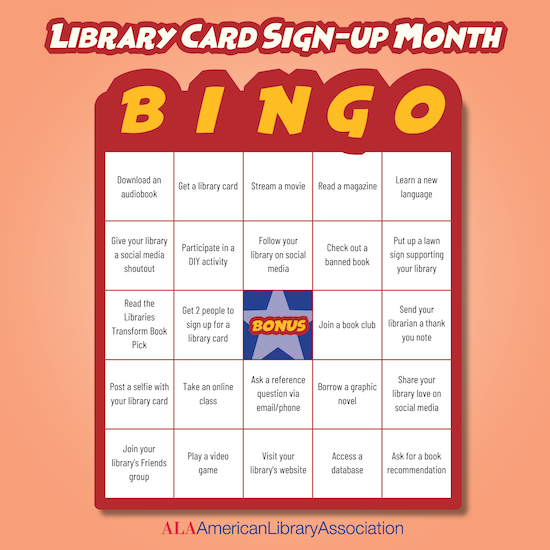
It doesn’t stop there, though. Just a sampling of some of the other things you may be able to borrow from your public library system, either for circulation or in-library use, include:
- Museum passes — Call ahead to see what museum passes your library maintains and ascertain whether you’ll need to make reservations to borrow them.
- Eclipse glasses — During the last solar eclipse on August 21, 2017, I was surprised to find that my library had arranged for loans of eclipses glasses. The next solar eclipse visible in North America will be April 8, 2024, so check with your library well before then to make sure you put a hold on yours!
- Board games
- Classic games, like chess, checkers and backgammon
- Computer and video games
- Video game controllers
- Headphones — Because it’s easy to forget your ear buds before an impromptu library trip and nobody wants to wear borrowed ear buds (ew), so go old-school with the over-the-ear kind.
- Tools — Over the last few decades, more and more public library systems have started a lending library of tools, ranging from socket wrench sets to power sanders, saws to stud finders, cordless drills to hedge trimmers. Take a peek at the visual tool catalog of what I can borrow from the downtown branch of my library.
Free (and almost free) library services
Computer Access — Almost all public libraries offer computer access for free; you’ll only pay for pages you choose to print.
Wi-Fi and Wired Internet Access — Not everyone has high speed internet access. In addition to there being a huge economic divide between those who can and cannot afford internet access, there are also infrastructure issues. Many rural areas of North America lack dependable internet and even cell service.
Because of these issues, during the pandemic students were often attending their remote classes in the parking lots of schools and libraries (which remained shuttered, but there were employees inside, keeping the WiFi going). Remote workers also had a tough time accessing essential tools. Libraries are an inexpensive alternative to setting up your workspace at the coffee house.
Tech Support — Many libraries offer free courses in basic computer and web skills. Also, some librarians are able to provide guidance on common computer issues.
Homework Help — Librarians won’t do your children’s homework, but they’re fonts of information regarding selection of the appropriate resources. Many public libraries also have homework assistance hot-lines and online homework help.
Tax Prep Assistance — Libraries don’t supply tax advice directly, but AARP and other community organizations provide volunteer, pro-bono tax preparation assistance at most branches. And even though many people file digitally now, tax forms are usually made available to patrons who want to noodle the math with paper and pencil.
Delivery — Not everyone is able to get to the library. Elderly, housebound or disabled patrons can often request to have library materials delivered to them. Contact your local library for available resources and review the offerings of the National Library Service for the Blind and Handicapped.
Children’s Entertainment — Public libraries have story hours, magic shows, movies, puppet shows, arts and craft activities, and other events to keep children engaged while giving parents some breathing space.
Quiet Spaces — OK, this isn’t a service, per se. But sometimes, you need a place to go to center yourself, read, or just disconnect. Libraries are safe, temperature-controlled, and, unless you’re sitting right next to the children’s area, fairly serene. Obviously, this is more difficult when we’re in pandemic mode, but libraries were known for their shhhh-iness long before quiet cars on rail transportation existed.
Low-cost Services
In addition to free services, libraries provide a number of services are supplied at at limited cost. These include:
- Printing
- Photocopying
- Faxing — Stop laughing. It’s shocking how often something like this crosses my Twitter feed:
Always fun to hunt down a fax machine in the middle of a pandemic because when you need a HELOC Payoff letter from @CitizensBank you first have to time travel to 1987.#thisiswhybanksarefailing
— Peter Shankman (shankman.eth) (@petershankman) October 21, 2020
- Scanning
- Notary Services — Call your library branch in advance to find out if and when the services of a notary public will be available. If a member of the library staff is a notary, you may not even be charged.
- Passport Services — New and renewal applications for passports can be confusing. Many libraries provide assistance with applications and photo services by appointment.
- Meeting rooms — Libraries maintain private rooms for not-for-profit endeavors, and the cost is usually limited to making sure the room bookings are serious. Rooms may be booked for:
- Book Clubs
- Game Groups for children and adults. (Pokémon card trading clubs having been going strong for decades!)
- Community Meetings
- Guest Lectures and Classes — Years ago, Paper Doll took courses in origami and in how to use the library’s electronic book borrowing systems to transfer books to Kindle and Nook. (I remain more proficient at the latter than the former. Folding cranes is hard!) I’ve also taught classes and workshops on organizing at public libraries, and chances are good that you can find one of my colleagues teaching similar workshops wherever you are.
Libraries around the country lend Santa suits and prom dresses, cake pans and artwork, knitting needles and selfie sticks:
18 Weird Things You Can Borrow from Your Public Library
200 Things You Can Check Out of a Library Besides Books
The downtown branch of my own public library has an entire floor set aside as a “maker space” with 3D printers, laser cutters, an HTC Vive virtual reality booth, a sewing lab, a soldering bench, Agile co-working spaces with white boards and projectors, a photography studio — and a state of the art recording studio!!!
This is not Marian the Librarian’s public library, and Chattanooga is not even a big city. It’s just one that values libraries. Check out (pun intended) what your own library system has to offer.
SO HOW DOES GETTING A LIBRARY CARD HELP YOU GET AND STAY ORGANIZED?
Maybe I have convinced you that libraries are the bees’ knees, but you still don’t get what it has to do with organizing?
Self-decluttering
From a professional organizer’s perspective, the best thing about libraries is the opportunity to allow yourself to trust that you need not maintain the entire world at your house.
Those four hundred issues of National Geographic making your guest room floor buckle, but which you never approach except to dust? The library has them, too, for whenever you want to learn about the mating habits of the elephants of the Serengeti, but you’ll never have to dust them. (The Nat Geos, I mean, not the elephants. Well, those too.)
Of course, I’m not saying to give up purchasing books and magazines, but understand that there’s an alternative to becoming an accidental collector of books you’ll never read (or never read again).
If you are overwhelmed by clutter in your space, but have a voracious hunger to read (or listen to music, or watch movies), check your public library’s collections first before running off to Amazon or your local indie bookseller. (But do support your local indie booksellers when you find things you want to own. This has been a hard time for them, OK? OK!)
Having a library means you can have access to any printed book, ebook, or audiobook, or tangible item (DVD, CD, graphic novel, magazine) without it permanently taking up residence in your home. Clutter often develops because we have too much stuff and no place to permanently store it, and we keep it forever because we don’t have the time or inclination to deal with it.
Library resources come with a built-in decluttering mechanism: due dates! Sure, you can renew things online, but in general, things need to be returned to the library. You don’t have to make the difficult decision as to whether it should stay or go because it’s not yours! It belongs to the library.
Or, if you prefer, think of it as yours, but stored (and dusted, repaired, and maintained) by the nice folks at the free (with your tax dollars) self-storage location called The Public Library!
And you don’t have to worry about digital items you borrow. Ebooks, audiobooks, movies, and music all “return themselves” automagically.
Just make sure you develop a system for keeping track of the tangible items you borrow. I recommend having one bookshelf or counter in your house where you keep all library items. If you have kids, help them get in the habit of returning items to that shelf or space when they’re not using them. (Oh, and let your kids help you get in the same habit. Kids love “catching” parents neglect an organizing task, and it helps reinforce the standards you’re trying to teach them.)
Money-saving
Rather than spending lots of money for books you’ll only read once, or perhaps not even finish, or for accessing any of a huge variety of tangible and digital resources, you can take advantage of the benefits of the public library.
Adore a book or piece of music beyond measure? Consider the library experience to be your free ice cream taste test; then purchase it with the knowledge that it’s something you love and will keep forever and share with others. But you don’t have to shell out money for entertainment and educational experiences you’re not sure are the right fit. And you don’t have to feel guilty, because you know the authors and creators will still be getting paid through the system of library licenses.
Still not sure about the benefits? How about saving and organizing those little green pieces of paper in your wallet? This simple form will automatically calculate the financial value of your library card in terms of annual savings. (Of course, the cognitive, emotional, and societal values are priceless.)
SO GET YOUR LIBRARY CARD
I always ask new clients a variety of questions to make sure they have life essentials: “Do you have a calendar? A file system? A will? A fire extinguisher?” On the advice of my friend, internet-famous librarian extraordinaire Jessamyn West, I also ask, “Do you have a library card?”
I’ve even been known to drag friends to sign up for a library card when I visit them in their new cities. (Shoutout: Hey, Chris, I’m looking at you!)

National Library Card Sign-Up Month is the perfect time to get a card for yourself or your kids.
1) Locate your public library.
2) Fill out an application, available at your branch or on most library web sites.
3) Show valid ID with your current address. If you’re new to town and don’t yet have a photo ID bearing your address, most libraries will accept two items showing your name and street address (but not PO box), such as current utility bills (e.g., telephone, gas, electric or cable), voter registration cards, or other mail with postmarks from the past 30 days.
4) Use your new library card often. Plan a weekly visit with your family and explore your library’s offerings. Develop a ritual for going to the library and your children will grow up appreciating all that libraries have to offer. Let your kids help you mark down due-dates for returning tangible items.
5) Set up a library shelf in your house where all the items you borrow from the public library “live” when they’re not being read or used. Having a set location where library items belong when not in use prevents them from going missing and assures you’ll be able to return them on time.
Happy National Library Card Sign-Up Month!
Follow Me