Archive for ‘Digital’ Category
Noteworthy Notebooks (Part 6): Get Smart (Notebooks)

I’m a Paper Doll, so all of the solutions I’ve referenced so far in this Noteworthy Notebook series have been paper notebooks — even if they bend the concept of “paper” slightly beyond tree-babies, and even if they have a digital component for those who want to transfer their creations to the cloud. But a number of readers have contacted me, asking about solutions that allow them to handwrite but not use an iPad and stylus, and wondered if I had something smart for them to try.
Well, of course I do! They just need to get smart. Smart notebooks, that is!
Too corny? Well, in the words of Maxwell Smart himself,

REMARKABLE 2
The reMarkable 2 (unsuprisingly an upgrade of the Remarkable 1) is marketed as more of a hybrid paper e-ink tablet than as a reusable notebook. They call it “the world’s most responsive digital paper.”
Personally, I wouldn’t think of it in the same class as a tablet, because unlike your iPad or Surface or whatever, you can’t browse the internet or add games or check your Instagram page. This is just for reading and writing, and in that way, I consider it a notebook.
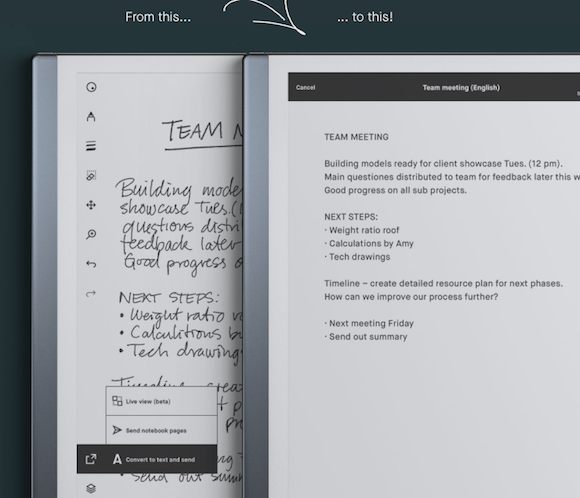
The reMarkable 2 measures 7.36″ (187 mm) wide by 9.69″ (246 mm) high and is .19″ (4.7 mm) thin. To be clear, that’s less than 1/5 of an inch. It has a 10.3″ (261.62 mm) monochrome “digital paper display.”

Digital paper display? What’s that? Instead of having actual dead-tree paper pages, the reMarkable 2 has 1872 x 1404 resolution (226 DPI) and, according to the company, writing on the screen yields the same kind of physical friction as paper (unlike the slippery sensation of a stylus on an iPad) so it “feels almost exactly like writing on notebook paper!”
I was dubious, but most reviews praise the writing experience and say it does look and feel surprisingly like real paper. The best I can imagine is that it looks and acts more like real paper than a tablet, because the screen isn’t shiny glass. I’m not sure it would feel like paper to me, per se, but (and you’ll hear it in the video, below), when you write on it, it sounds like when you’re writing on paper. Psychologically, that might be the tipping point for people who want the paper experience with the back-up-ability of digitization.
The big hype around the reMarkable 2 is that the rechargeable (Li-ion) battery lasts two weeks, based on an estimate of two hours of use per day. (The device charges with a USB-C charging cable, which you can also use to transfer files.) It has 8GB internal storage, and is programmed in Codex, a Linux-based (open-source) operating system for low-latency digital paper displays.
You can purchase a magnetic folio (like a sleeve) or book folio — what you and I would call a cover — and both the device and the markers will magnetically attach to the book folio. If you upgrade from the original marker, the Marker Plus has a second eraser-sensor in its top end. Just flip the marker upside-down like you would with a pencil, and it erases.
Oh, and in case you’re left-handed and wonder what lefty-pressure might do to the markings on the screen, that’s been considered. When setting up the reMarkable 2, you can configure left-handed mode, and even switch between left- and right-handed modes in the settings menu.
So what can you do with the reMarkable 2?
- Take notes by writing directly on the screen, even on PDFs, then save them to the cloud.
- Convert your handwritten notes to text with the tap of your marker (their name for the stylus thingie). It supports 33 languages, as well as cursive and block letters.
- Browse and edit any saved files and notes.
- Use the included document templates, including ruled, dot-grid, checklists, and sheet music!
- Organize your notes and access them on all of your other devices (phone, tablet, computer). See below:
- Drag and drop to transfer files.
- Sync notes and files between the reMarkable 2 and the app (available for MacOS, Windows 10, iOS, and Android) via WiFi.
- Read in bright sunlight (such as with a Kindle Paperwhite rather than on typical tablets) without eye-strain or glare.
- Comfortably use the marker to write as with a pen or pencil. The Marker 2 is tilt- and pressure-sensitive, just like a real pen, so you can make what you’re writing darker, and write at an angle that’s comfortable for you.
There’s also a Pocket-like Chrome extension that lets you send articles you find on the web to your reMarkable 2 for easy-on-your eyes reading, just like you can read text documents or PDFs. (Of course, if you prefer to use Safari, Firefox, or any non-Chrome browser for surfing the web, this may be a non-starter.) The reMarkable 2 has support for PDF and ePub ebooks.
Of course, the reMarkable 2 isn’t perfect. (But it sure is pretty!)
While the handwriting conversion is supported in lots of languages, the menu language is English-only.
For some, the lack of connection to the web would be a deal-breaker, like a sad iPad without all the features, but I think that for the right person (the easily-distracted-by-notifications, easily-tempted-by-social-media person), this provides the kind of deep work focus that many people can’t achieve without using specialty, web-blocking focus apps, like Freedom or Rescue Time.
reMarkable 2 costs $399, plus $49 for the baseline Marker or $99 for the Marker Plus. (The folio covers are also extra, ranging from $69 for the simple “polymer weave” sleeve to $99-$149 for the book folio, depending on whether you are willing to pop for an upgrade to leather.)
So, basically, you’re looking at $500, even $600 for the full experience. iPad air with a Bluetooth keyboard and the right apps, like Evernote or Dropbox (and turning off all your notifications) would be the standard way to go. But if you’re a tactile person, or just a terrible typist, this is an intriguing (if pricey) alternative. Take a gander:
MOLESKIN PEN+ ELLIPSE SMART WRITING SET
The thing about the digitally-fiddly notebooks we’ve looked at in the past posts is that they have required scanning. The advantage of smart notebooks is that whatever you write can be digitized, automatically.
Real-time digitization? Seems more like automagically!
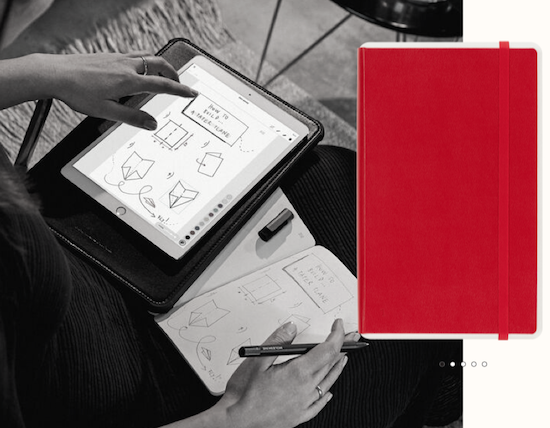
Moleskin, the folks who make all those pretty analog notebooks that every hipster and bullet journaler owns, updated their popular smart notebook to create the Moleskin Pen & Ellipse Smart Writing Set. (Isn’t that a mouthful?) It includes:
- A paper notebook, which comes in Scarlet Red or two versions of Black (named Black 1 and Black 2, and no, The Cat in the Hat is not involved). The sizes are Large (5″ x 8 1/4″) and Extra-Large (7 1/2″ x 9 3/4″). You can select among ruled or dot-grid paper, or pick plain (unruled) for the Black 1 notebook, only. The Black 2 is smaller, at 5.1″ x 8.26″, and only has dot-grid paper. (Sold separately for when you want a refill, the notebooks are $29.) The Moleskin Smart lay-flat notebook has a hard cover, rounded corners, an elastic closure, ivory-colored, acid-free 100 gsm paper, and an expandable back inner pocket.
- A digital smart pen, which when used with the Ncoded-technology paper, captures every pen-stroke, recognizes its location on the page, and digitizes it all. A nice upgrade from the prior version: if you aren’t near your device, the Moleskin smart pen can store your data in its internal memory until it can access the app the app again. (The pen is $129 if sold separately.)
- A USB recharging cable
- One pen-tip ink refill
- A manual (because a smart notebook like this is probably a little too smart for the user to guess at all of the functions)
Another key element is the iOS- and Android-compatible Moleskine Notes app, which digitizes and transfers both written words and sketched drawings from the page to any device’s screen in real time. Digitize text and edit or notate it (or create drawings), then organize with tags and share your content. You can save your notes in a PDF, image, vector, or text file format.
There’s even a multimedia function, so you can record audio to sync with your notes! If you’re not sure what you’ve written or drawn can stand on its own, or you want something “meta” to help you explain it, record your narration. (Pretend you’re Morgan Freeman narrating a documentary about penguins. Paper Doll won’t judge.) If you’re taking notes in class and just can’t get it all down fast enough, this has you covered.
If you like the idea of handwriting your notes but having them magically digitized, almost simultaneously, then you can purchase the Moleskin Pen+ Ellipse Smart Writing Set at the Moleskin site, or via Amazon, for $149. Check out the overview:
BOOGIE BOARD BLACKBOARD & CARBON COPY SMART NOTEBOOK SET
Are you familiar with the Boogie Board brand? I know, it sounds like something Gidget and Moondoggie would be tossing around like a volleyball, but the Boogie Board folks created the first reusable writing tablet using liquid crystal technology, and the line has expanded over 12 years to cover products for the home, office, and classroom, from pocket sized-devices to presentation boards.
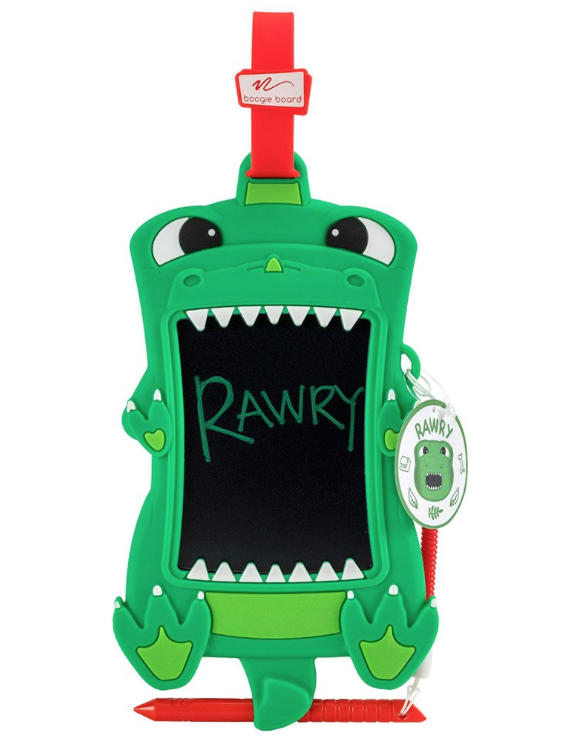
I have clients who swear by the creativity their kids put into their Boogie Boards. Personally, I’m partial to their Sketch Pals Doodle Boards, like Rawry the Dinosaur.
But I digress. And, I’ll have to digress a bit more. First, to talk about the next smart option, we need to back up a bit and talk about a not-quite-as-smart aspect of their product line.
I could do a whole blog series just on their line of reusable note-taking writing tablets, presentation boards, and smart notebooks for the office. And yes, if you’re looking for a more moderately priced product than the reMarkable 2 or the Moleskin Smart Writing Set, take a peek at the Blackboard line, including the Letter- (8 1/2″ x 11″) and Note-size (5 1/2″ x 7 1/4″) versions and the Coach’s Tactics Board. All three run under $45.
In a way, Boogie Board’s products are less like notebooks and more like papers on clipboards, but still fit this series because of the way they work.
The Blackboard Letter and Note templates come in four formats: dot-grid, blank, grid/graph, and blank. Just slide either a template (or any one of your own documents) in the back and then use the Boogie Board stylus to start tracing/drawing/writing on the semi-transparent writing tablet surface. Or, as with the Coach’s Tactic Board, you get templates for drawing out plays for soccer, baseball, football, and basketball. (Sadly, no hockey.) Scribble your plays.
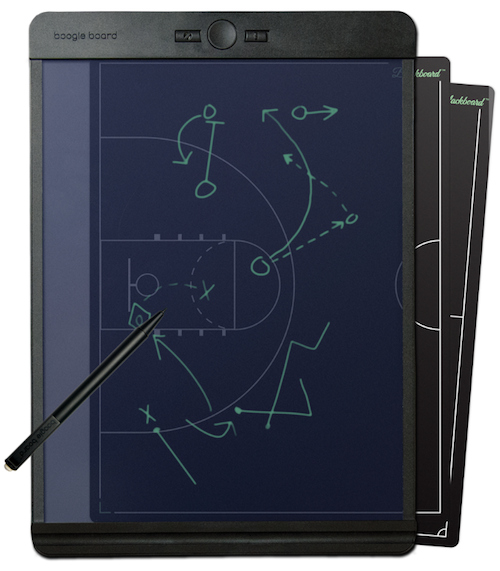
Yeah, it sounds weird. It IS weird. But weirdness can sometimes be the appeal that breaks through writer’s block or project paralysis. Take a peek:
The Blackboard tablets use Boogie Board’s QuickClear™ technology to erase. You can just push a button and erase everything like on an Etch-A-Sketch; no shaking required. Or, use the stylus’ eraser and the Exact-Erase™ technology to erase small, specific areas, or press the Erase-Lock button to access “freeze” features to keep you from accidentally erasing your notes before you’re ready. Whew.
Unlike the first two options in this post, there’s no automatic digitizing; instead, you save and organize notes via the Blackboard app (available for iOS and Android). However, in a nifty reverse of what you’d expect, you can upload digital images to the back of the Blackboard, like a map (of a town or an airport), an outline, a puzzle, a wireframe template for sketching out a website, etc.
You can buy the Blackboard notebooks directly from Boogie Board at the above links or via Amazon.
Ah, but you didn’t come to this post see the Etch-a-Sketchable Blackboard. You’re here for the fancypants Boogie Board Carbon Copy Smart Notebook!
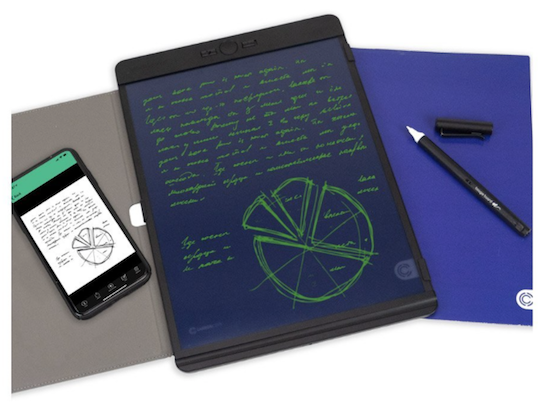
The Letter- and Note-sized Carbon Copy smart notebooks and pens combine to save everything you create and then stream it all wirelessly to the Blackboard app.
The smart notebook sets include::
- The Carbon Copy smart pen – It captures everything you write and instantly turns on when the cap is removed. (Put the cap back on, and everything turns off. Nice and tidy unless you’re the kind of person who always leaves the cap off the toothpaste.) The Carbon Copy smart pen has an LED status indicator, so you know it’s on, and it’s powered by a lithium polymer battery.
- A micro USB charging cord to charge the battery.
- A Blackboard reusable writing tablet (the ones described above in my non-smart digression) but with the blank Carbon Copy smart template installed – This template is what allows the pen to work with the writing tablet. The template is made with premium synthetic paper with code embedded in it to capture your writing.
- A Blackboard folio cover
OK, but how exactly does this work?
At the base of the Carbon Copy pen’s stylus tip, there’s a teeeeeny camera that captures every stroke written on the Blackboard notebook with the Carbon Copy template. The template has an embedded code that allows the camera to capture everything. Then the pen connects to the Blackboard app on your device via Bluetooth and uploads all your notes. Once your notes sync in the app, you can edit, save, and share as well as organize into easy-to-access folders. Still a little confusing? See it in action:
I’ll be honest, I’m not crazy about the color schemes or clipboard style of the Carbon Copy; I prefer a dark-on-light writing style, personally. Unless I’m writing on my purple legal pads, I prefer a white or beige background, but each to his or her own.
You can purchase the Boogie Board Carbon Copy Smart Notebook Set at the Boogie Board site, $229 for Letter-size, and $209 for Note-size, or for identical pricing on Amazon if you’re doing the Prime thing.
GET SMARTER
Paper Doll is definitely not an expert on the technology that goes into the smart notebook world, and just trying to get a handle on e-ink and Ncoding had my head spinning. So, if you’re jazzed about the idea of using a hybrid notebook that allows you to handwrite and create digital versions automatically, without the extra step of scanning, I encourage you to review the product recommendations in these recent blog posts:
The Best Smart Notebooks for 2021 from Digital Trends
Best Smart Notebooks You Should Buy in 2021 from iGeeksBlog
Once again, thank you for coming along for this deep dive into categories of notebooks. Believe it or not, there’s still a bit more to cover, so I hope I’ll see you back here next week. In the meantime, if you’ve missed anything along the way, you can catch up and start thinking about which notebook styles, and perhaps which specific notebooks, will help you organize your writing strategies. And please let me know in the comments what you think of these smart notebooks.
Noteworthy Notebooks (Part 1): Re-Surveying the Landscape
Noteworthy Notebooks (Part 2): The Big Names in Erasable Notebooks
Noteworthy Notebooks (Part 3): More Erasable & Reusable Notebooks
Noteworthy Notebooks (Part 4): Modular, Customizable, Disc-Based Notebooks
Noteworthy Notebooks (Part 5): Customize with Magnets, Hooks, and Apps
Paper Doll Organizes the Internet: 5 Tools for When the Web Is Broken

Photo of doggy using the web by Nataliya Vaitkevich from Pexels
Have you ever tried to access a web site but nothing happens? At least nothing good? You may fiddle around, clicking the site over and over. Sometimes, you manually retype the link even though you know what you clicked should work.
Instead of getting progressively more agitated, there are a few different things you can do to maximize your efforts and use your time efficiently.
MAKE SURE THE PROBLEM ISN’T AT YOUR END
Verify that you are connected to the internet. It may seem obvious, but sometimes you’ll be working along and then all of a sudden your router decides to have a brain freeze and sever your WiFi. Less often, your internet provider might have hiccup. It can last a few seconds or (too) many minutes.
I have two router networks, a main one, and a secondary one that I could (should?) probably delete. Sometimes, when my primary router goes down, my WiFi kicks over to the secondary one, which is iffy. It can be perfect or wonky, depending on how it feels that day (much like my hair). Usually, I won’t have any idea this has happened unless I check the WiFi drop-down from my Mac’s menu bar. (Yes, I have a lot of neighbors, and no, I don’t borrow their WiFi.)
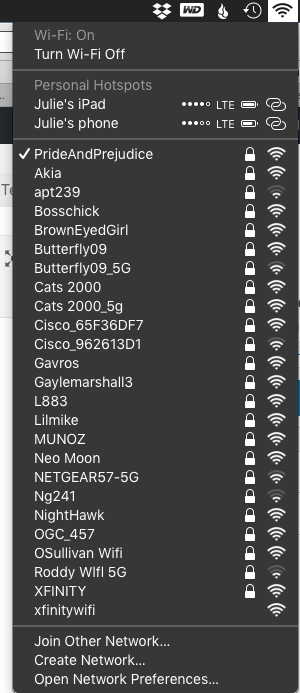
If your connection to the internet isn’t the problem, it’s time to check your tools.
Try a different browser or a different device. In general, any modern website should work on any browser. However, if your operating system is older, such that you can’t upgrade your browser, some sites may refuse to render properly, or even at all. If you’re using Safari and a site won’t show up, try using Chrome, Firefox, or some other browser, upgraded as much as possible, to see if the site works there.
If the site won’t open on your computer, your next step is to try to pull it up on a mobile device, like your phone or tablet. There, you get two options. First, you get to check to see if it’s a device-specific problem. You can also turn off WiFi on the phone and check to see if you can reach the site via your cellular data.
Sometimes, for no clear reason your computer or WiFi just doesn’t like a site anymore. There’s a solution!
Clear your cache and cookies for that site. Most people don’t want to clear their cache or cookies because then they’ll have to log back into sites for which they’ve been semi-permanently logged in for eons. But you can just clear your cache and cookies for specific sites.
Lifewire has an excellent article on how to clear cookies for one specific site for Chrome, Firefox, Safari, Internet Explorer, and Opera, the browsers you’re most likely using. For other browsers or platforms, enter “clear cookies for one site” along with the name of your platform/browser, like iOS/Safari, or Android/Chrome.
USE TWITTER INSTEAD OF GOOGLE
Check Twitter. Whatever else you think of Twitter’s role as a social network, it’s probably the fastest way to get a real-time update if something somewhere has gone awry. If you can’t connect to your bank or Disney+ or Instagram, try just typing the site into the search box. If it’s been down for more than a moment, you’ll likely see a crowdsourced timeline of complaints about the problem.
Of course, this is not the best solution when Twitter is the site that’s down, as happened this weekend.
USE A SITE STATUS SERVICE TO GET REAL-TIME REPORTS
The following sites are great for those times when you can’t tell if your WiFi is flaky or your favorite site has been hit with a DDOS attack. It’s also a quick way to check whether your own web site is down after you’ve done some updates and aren’t sure you’ve cleared your cache properly or done those other mysterious things your webmaster told you to do.
I should note that one thing all of these sites have in common is that they are not going to win any awards for aesthetics. Most were built anywhere from 10 to 20 years ago and have a decidedly early 21st-century design style. I’m not sure why nobody has created an attractive status reporting site that can still (sigh) sell advertising unobtrusively, but until that happens, these sites offer quick updates so you know whether to wait a minute or move on to some other task.
Also, these sites are free (advertising notwithstanding) and don’t require you to create an account.
Down For Everyone Or Just Me?
Down for Everyone Or Just Me? is the best known and most classic of the site status services. Visually, it is as simple as you could want. Just enter the URL of the site you’re trying to reach, Mad Libs-style, and Down For Everyone will tell you whether your site is up or down within five seconds. Easy-peasy.
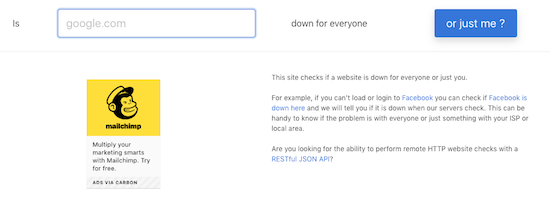
Below the search search section, there are two columns of plain-text site names grouped into categories: online grocery stores, travel Sites, e-commerce sites, financial companies, dating sites, etc. So, if you think that maybe you’ve somehow been mistyping Trader Joe’s URL and that perhaps you missed a silent 3, you can click on those popular links to speed a search instead of typing.
Down for Everyone Or Just Me is fast, and has an uncluttered interface. In recent years, they’ve added one small ad on the search page, but otherwise, there’s little to pester a user.
Also, for a nice shortcut, if you’re checking from your phone and haven’t previously bookmarked it, just type IsUp.me. (While it’s not grammatically correct, with only seven characters counting the dot, the site couldn’t be easier to locate.)
Down for Everyone isn’t ideal under all circumstances, though. It gives you a quick thumbs up or down, but you get no indication of whether other users have reported the same problem, or whether there’s a regional component. (Granted, these things may or may not interest you.) But it’s a quick-and-dirty status indicator if you just want to know whether to keep clicking or go make a sandwich.
Down Detector
Down Detector works much like Down for Everyone or Just Me, but has some attractive bonuses. First, you don’t have to type the entire URL into the search box; you can often just type the site name. (For example, type “Netflix” instead of “https://Netflix.com.”)
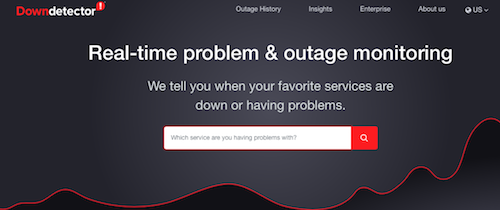
Under the search box, there are also three columns of popular services (social media sites, internet suppliers, banks, online games, etc.), with their names, logos, and a graph of their recent uptime performance. These boxes serve as shortcuts for getting real-time status reports on the most popular sites.
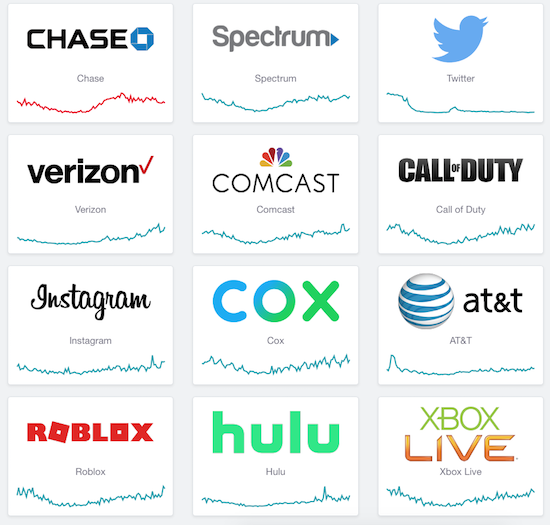
Type a URL or select a pre-existing box; the resulting page will give you a chart of recent outage reports,
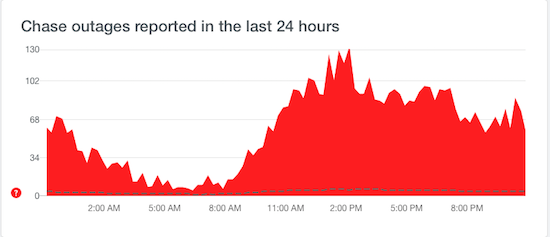
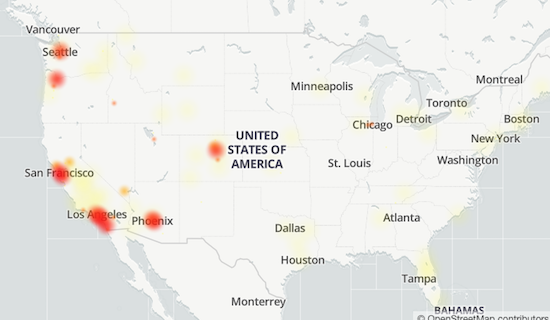
a chance to report an outage at your end, and a map of locations where there’s currently an outage.
Down Detector does have some small drawbacks. It’s advertising-supported, so the search page has ads both between the search box and the cheat sheet columns of services and on the right side, and the results pages are fairly cluttered with ads.
It’s also slightly inconvenient if you want to see a heat map of the current outages, as you have to click on a faux map on the results page to be taken to yet another results page just for the map.
Finally, both the general results page and the map page have Facebook-like comments made by others, some of which are expressed in unpleasant ways. As with most social media, it’s not always for the faint of heart.
Is It Down Right Now?
Is It Down Right Now?, like the others of its ilk, offers you the ability to check a specific site, or to view the status of popular services like Netflix, Facebook, YouTube, and many more.
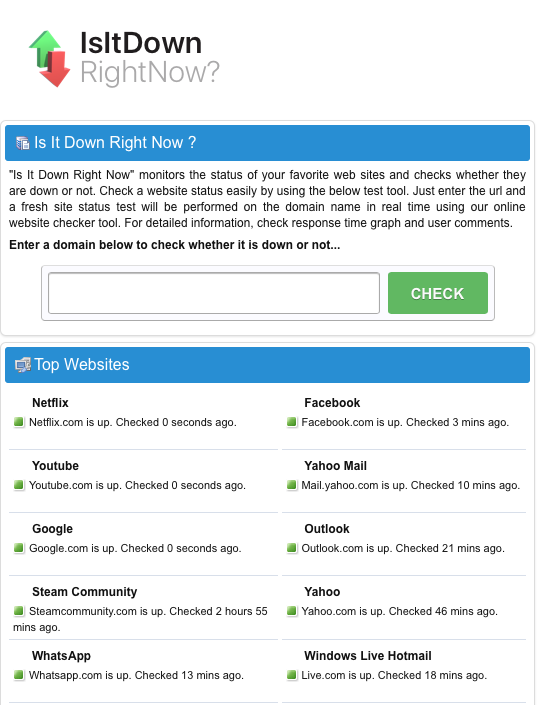
One advantage of Is It Down Right Now? is that there’s a javascript Website Status Checker bookmarklet, similar to the Evernote web clipper or Pinterest pin button you may already use. You just click and drag the icon to your browser’s toolbar, and you never even have to go to the website. Anytime you want to check the status of a site, just click on the bookmarklet on your toolbar, and you’re good to go.
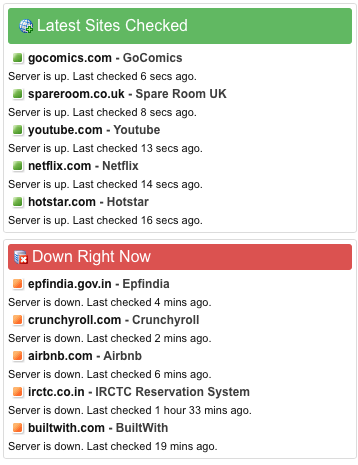
Is It Down Right Now? also shows a list of the most recently down and most recently checked sites.
On the results page, whether a site is up or down, you’ll get to see a screen shot of what it should like when it’s working, as well as a status report showing either that it’s up or how long it’s been down, and a multi-week chart of the status history.
The search page is streamlined (with just two columns) and has just two, fairly unobtrusive, ads. However, the results page is a bit of a hot mess, with ads and Facebook comments interspersed with essential status information.
While there’s a nifty troubleshooting section, explaining how to deal with potential browser and DNS problems reaching a site, it’s hidden away on the results page. (It’s also a bit out-of-date, referring to 3G when most of us are on the precipice of using 5G.)
Outage Report
Outage Report isn’t your typical status report site. You can’t search to see if any random website is up or down. Rather, the front page lists companies with recent reports of outages, along with squiggly little graphs representing the timing of the problems.
However, the site does have a list of international and U.S. companies it monitors. If you want to know if Outage Report tracks that site, just type part of the site’s name and you’ll get a real-time filter. (Type “time” and you’ll get FaceTime, New York Times, Showtime, TV Time, Time-Warner Cable, and Lifetime. By the time you add an S to the end, it’ll have filtered out all but the New York Times outage map.)
When you click on a site name, Outage Report not only tells you what’s going on at a site, but gives you a graphic representation of the history of the site being down and tells how many reports of problems have come in during a recent period. For those who like graphics to see what’s what, this site provides some goodies.
However, I’ve been a little disappointed by how ads have taken over the flow of the site. For example, on May 19, 2017, Twitter suffered a denial of service attack. Afterward, I was able to get this quick screen shot indicating anything I could possibly want to know about the DDOS attack and uptime history prior to the attack.
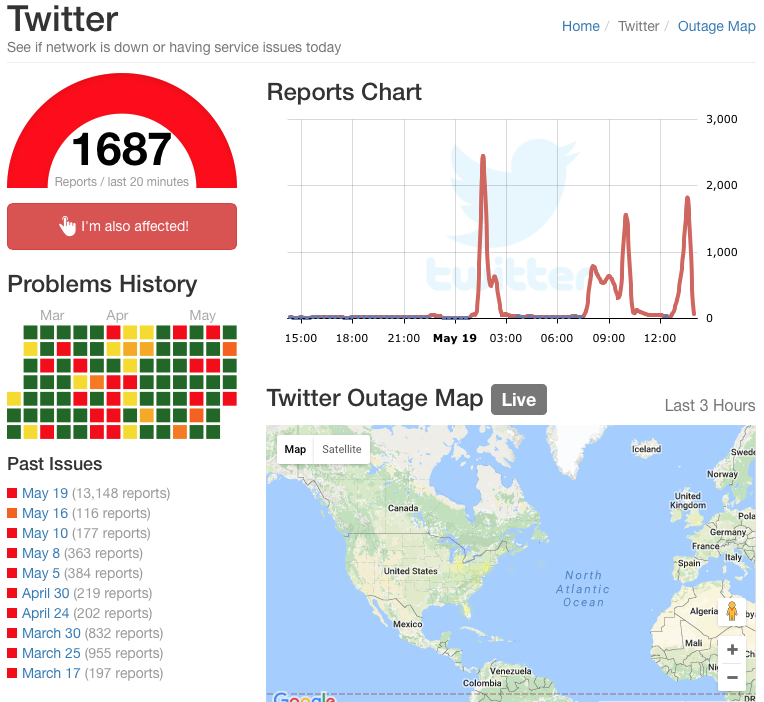
However, nowadays, Outage Report has interspersed ads such that there’s no tight, ad-free grouping of information and the long-term periodic reporting of issues has been eliminated.
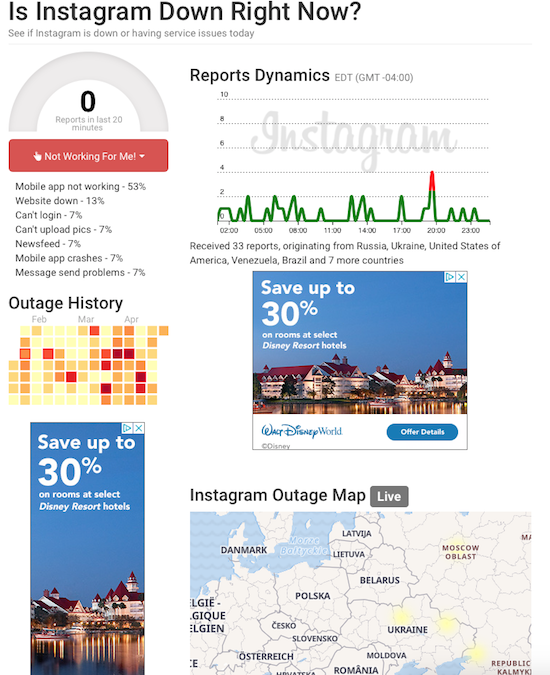
The results page is overwhelmed by ads, as well as on-site comments and ported-in tweets. However, the site does a great job of telling you where (in terms of countries or regions) particular outages exist, so if you work with clients abroad, you might find this a useful auxiliary tool.
Google Workspace Status Dashboard
If you live and work in the Google environment, you may be less concerned about a social media or banking site going down and more about whether you can get to your life-giving Google Doc, Sheet, Slide, calendar or Gmail. Last Monday morning, for example, millions of users were up in arms over Google Docs being inaccessible.

If you have a paper due for school or a presentation to give over Zoom, not being able to access your materials is pretty stressful, but at least being able to screenshot this should make it feel less like you’re claiming that the dog ate your homework.
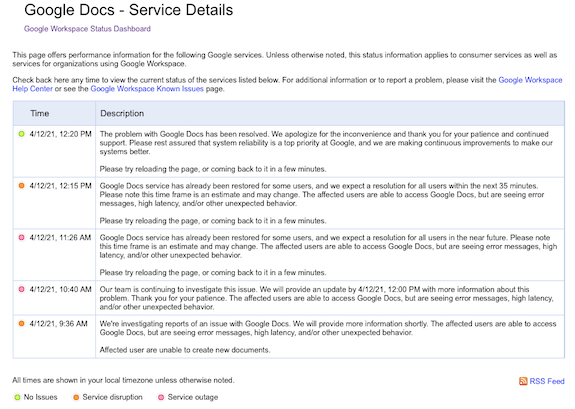
The Google Workspace Status Dashboard should be your first stop if you’re experiencing a kerfuffle with a Google product. The dashboard simultaneously reports the status of 18 regular Google products: Gmail, Calendar, Drive, Docs, Sheets, Slides, Sites, Groups, Hangouts, Chat, Meet, Vault, Currents (formerly Google+ for GSuite), Forms, Cloud Search, Keep, Tasks, and Voice, with a column for each of the past seven days and a status indicator for each day.
- Green indicates that there are no reported issues
- Orange indicates a service disruption
- Pink indicates an actual service outage (and no, I am not sure about the difference between a disruption and an outage)
Click on the dot and it opens a problem-specific page like the one above. At the bottom of the seven-day chart, you can select “older” to see more historical data.
In addition to the above products, the Google Workspace Status Dashboard also tracks the status of website management apps like Admin Console, Google Analytics, and App Maker, as well as Google Maps, Blogger, Google Sync for Mobile, and Classroom.
I encourage you to pick one of the solutions above, and the bookmark the URL on your computer and mobile devices. Next time you encounter difficulties getting to a site, verify that the problem is not on your end, check the status, and if you find that a site is down, move along to the next thing on your task list.
Flow and Faux (Accountability): Productivity, Focus, and Alex Trebek

Image by Engin Akyurt from Pixabay
Last week, in Count on Accountability: 5 Productivity Support Solutions, I presented five methods for getting accountability:
- accountability partners, like friends, colleagues, or people you can meet through apps like Supporti or Focusmate
- accountability groups, like mastermind groups, in-person study groups, virtual study groups like Hours, and professional groups
- professionals, including professional organizers, life coaches, and fitness trainers
- apps and gadgets, including StickK, Beeminder, the saucily-named (and partially redacted) Go F***ing Do It, and Pavlok
- events, whether DIYed, sponsored by a specific entity (like Deb Lee’s periodic Action Days), or “work gyms” like Caveday or Ultraworking
Across the various social networks, this post garnered quite a bit of conversation about what accountability methods worked for different people and for different activities.
Then, from Thursday through Saturday, I participated in the Task Management & Time Blocking Virtual Summit 2021, with so many of my all-star colleagues from NAPO and the productivity world, as well as big names and some surprising up-and-comers. (In an forthcoming post, you’ll be hearing about a group of talented young people surpassing all expectations in developing a task management solution. Spoilers!)
At the summit, during the online networking, a conversation among attendees sprung up regarding an accountability concern I hadn’t considered. While some mentioned that they were introverts, even the extroverts shared similar thoughts: they were intrigued by the accountability options I’d mentioned, but at least sometimes, they didn’t want to deal with other people!
WE’RE ZOOM-WEARY
I suspect the pandemic has simultaneously made us wary of other humans and weary of digital communication. After all, Zoom Fatigue (and Meet Fatigue, and Facetime Fatigue) is real:
Four Causes of Zoom Fatigue and Their Solutions (Stanford University)
Zoom Fatigue Isn’t Just a Buzzy Term: 4 Common Causes and Fixes (MindBodyGreen)
Four Reasons You’re Tired of Zoom Calls and What To Do About It (Washington Post)
Zoom Fatigue Cartoon (Marketoonist)
Zoom-weary lawyer via GIPHY
To all the common causes mentioned, I’ll add that our voices and our lungs are doing unrealized extra effort. When you’re in a conference room or office with someone, you have a sense of the room’s acoustics; you know when you’re being too loud or too quiet, and other people’s reactions will alert you to that fact. (Fear you’re too loud on your phone at your desk? Look around the room – if people are looking at you and then their eyes dart away, then shush! We don’t treat overheard conversations like radio, but like TV, and turn toward it.) On the phone, we also have a sense of how to modulate our voices properly.
But virtually? With people using computer microphones, ear buds, headsets, Bluetooth podcasting mics, and more, volume varies. We’re all self-conscious, uncertain about how we sound. When we get excited, we lift our voices (and may breathe heavier and more deeply) because the chasm between ourselves and the faces on the “black mirrors” in front of us make us feel like we’re shouting across miles.
“But Paper Doll,” you ask, “what does Zoom Fatigue have to do with productivity?”
ACCOUNTABILITY’S DISTRACTIBILITY PROBLEM
Right. Yes. Back at the virtual summit, what these people really liked about the idea of accountability events was feeling like they were working among others. But even though they wanted that feeling of being back in the office again, having some camaraderie, they were vocal about what they did NOT want:
- to feel observed while they were working
- to feel the need to be social (even though accountability events, work gyms, and even virtual co-working partnerships are supposed to limit the chitchat)
- to have to do their hair or makeup or put on semi-grownup clothes
- to feel judged
- to be distracted by the other people’s homes or offices, better hair, or virtual backgrounds (One woman said that if she ended up with a virtual accountability partner who was too attractive, she’d be too self-conscious to focus, recalling memories of 10th grade study hall.)
My response in these conversations developed over a few days. At first, I joked that maybe setting up children’s stuffed animals across the table, as if for a tea party, might approximate the body doubling phenomenon we discussed last week.
But then I realized that the problem with that solution (even once you get past the suspension of disbelief) is that there’s no apparent feeling of humanity. Body doubling and most actual accountability methods involve at least some minimal interaction, even if it’s just a virtual handshake preceding getting down to business.
But maybe it doesn’t always have to be the ability to SEE someone doing something. Maybe hearing somebody doing something might be enough to help us focus and concentrate?
SIDEBAR ON FLOW AND THE UNPRONOUNCEABLE MIHALY CSIKSZENTMIHALYI
You’ve probably heard about flow, a state of concentration or complete absorption with the activity at hand and the situation. You know – when you’re in the zone. The concept was popularized by Mihaly Csikszentmihalyi, in his book Flow: The Psychology of Optimal Experience.
The key idea of flow underpins everything we attempt in the productivity realm, from Cal Newport’s “deep work” to our Pomodoro Technique efforts. When we’re distracted by our own thoughts and worries, or the neighbor’s leaf blower, or an office-mate who chews his gum with his mouth open, it’s hard to get into flow. However, flow is what we need most. Hear about in the man’s own words:
If you had any trouble getting into flow with that talk, check out Fight Mediocrity’s animated book review of Flow and PositivePsychology.com’s deep dive into 8 Ways to Create Flow According to Mihaly Csikszentmihalyi.
Oh, and that unpronounceable name? If you can say this: “Me? Hi! Chick sent me. Hi!” then you can say his name. (You’re welcome.)
FAUX ACCOUNTABILITY FOR FLOW
So, if seeing other people in an unnatural co-working or accountability setting will be distracting, what about only hearing other people? And in particular, hearing them but having them not being able to hear you? And NOT having the kind of distractibility that comes from unintentional eavesdropping?

These summit discussions kept reminding me of my blog post, 11 Ways To Organize Your Focus With Ambient Noise. After six and a half years, this has proven to be one of my most popular posts. People really embraced the ideas of white (and brown, and pink) noise, and how soothing sounds enable you to get into flow.
Most of the neuroscience-approved solutions I provided were either nature sounds, like babbling brooks, rain, wind, etc., or similarly non-human sounds, like crackling fireplaces, showers, or washing machines. But a few of my suggestions had included background sounds that were not found in nature, but in the public realm, and in the past year, as people have missed going to coffee houses, bars, and yes, even the office, auditory “virtual happy places” have grown in popularity.
This is why I call it “faux” accountability. There’s none of that key accountability where you tell someone else what you need to work on and honor that externalized obligation to yourself; this is more like the general sense that when you’ve taken your work to a coffee shop, you’re counting on generating that flow state, getting yourself into the zone, and working. Out in the real world (of yore), you counted on a more implied sense of accountability.
You don’t tell the barista or the guy at the next table that you’re a serious person doing serious work writing a serious blog. But you buy your coffee to get the WiFi code, you sit at the table nearest the outlet so you can keep your laptop charged, and you get to work knowing that all those strangers (who really aren’t thinking about you at all, unless you’re hogging the outlet) are expecting you to GET. STUFF. DONE!
So, I posit, what if you could get that same feeling virtually?
Coffitivity
Coffitivity was the first browser-based site of its kind to hit the mainstream. Based on research by Ravi Mehta, Rui (Juliet) Zhu and Amar Cheema in Is Noise Always Bad? Exploring the Effects of Ambient Noise on Creative Cognition, and published in the Journal of Consumer Research, Coffitivity took the idea that “a moderate level of ambient noise is conducive to creative cognition” and ran with it. There are three free soundtracks in the cafe library:
- Morning Murmur – “a gentle hum gets the day going”
- Lunchtime Lounge – “busting chatter of the lunchtime rush”
- University Undertones – “the scholarly sounds of a campus cafe”
For $9/month, you can upgrade to premium level and access:
- Paris Paradise – “energizing ambiance from the City of Light”
- Brazil Bistro – “the musical chatter of a Brazilian coffeehouse”
- Texas Teahouse – “hefty sounds from a big state”

Coffitivity also has a friendly blog written with cognitive, financial, and social needs of freelancers, solopreneurs, and remote workers in mind.
Although Coffitivity is browser-based, there’s a MacOS desktop app if you want to run it when you’re offline.
HipsterSound
HipsterSound’s Cafe Vibes has three public audio tracks: the buzz of a busy Texas cafe, Les Charmants Cafés de Paris, and the gentle hum of a quiet restaurant. In addition, at the premium level, there’s the gentle chatter of a Danish restaurant, the bustling vibe of a Rio de Janiero restaurant, the animated buzz of a cafeteria, a lively library ambiance, and an advanced rain simulator.
In addition, you can toggle on/off a variety of other sounds, including a desk fan, a co-worker’s typing, nature sounds, and different venue noises (a jazz club, an open-air bistro) and listen to any combination of those sounds on their own OR combined with the cafe and restaurant audio tracks.
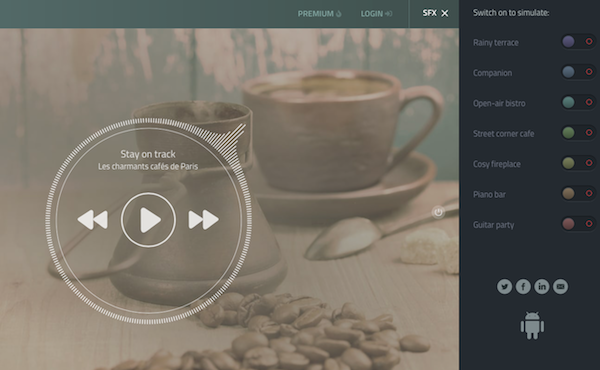
Because I didn’t pony up the $2/month (though you can pay less if you get a one-year subscription), I couldn’t listen in on the foreign language options. In general, though, none of the voices on these kinds of apps can be discerned enough to be distracting. After a year of lockdown, it might be a relief to do your work in Copenhagen or Rio!
Use HipsterSounds in your browser or via the Android app.
Cafe Restaurant, Calm Office and myNoise Development
Cafe Restaurant, from myNoise, which I included in my original post about ambient noise, looks much the same but has expanded its offerings. It still lets you use the sliders to adjust audio element styles that include the “levels” of Rumble, Restaurant, Chatter, two separate levels for Babble, Mess, Cafeteria, Cafe, Table, and Kitchen. You can now increase or decrease the speed of the soundtracks, and they’ve added both a meditation bell and a timer, useful for those who wish to implement the Pomodoro Technique.
One of the newer sibling ambient soundtracks that might be perfect for remote workers looking to simulate that soothing office hum is Calm Office.
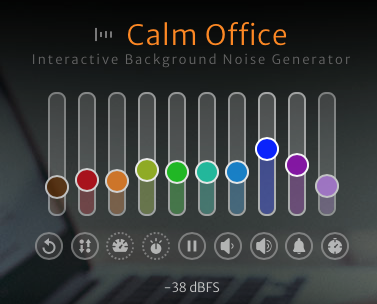
The adjustable sliders in this app include room tone, air conditioning (which, like in a real office, seems to lean toward the overpowering, (unintelligible) chatty colleagues, copy machine, printer and scanner, blended generic office noises, keyboard and mouse clicks, pen on paper, and a loudly ticking “office clock” noise.
myNoise has added a number of other related ambient environments you might want to add to your productivity arsenal:
- Catholic Church – adjustable levels are available for rain and thunder, two kinds of bells, an organ, two kinds of whispers, footsteps, random people noises, and the hushed voice of a priest. In college, I would sometimes do homework in the vestibule of a church while my friend attended Saturday evening Mass, and I can attest to the fact that (for this Jewish girl, at least), it made for a very calming background noise. I can imagine, however, that many other religious services might have a bit too much energetic verve to (sacrilegiously?) use as background noise.
- Mexico City – as part of a developing series of global cities, this option includes busy streets and traffic noises, the Mercado Coyoacan (market), mariachis, trompetistas, protests and police sirens, and birds. While it seems like it would be hard to get into flow with this atmosphere, to each one’s own.
- Night Commute – for those who miss the creative inspiration or flow state of their nightly drive or ride, this option does not offer up traffic noises, subway doors closing, or anything similar. Rather, it’s a mix of jazzy music that reminds me more of a movie montage of a commute than an actual commute.
The myNoise mixable soundtracks are available for the browser and in an iOS app; there’s an Android version, as well, but in the past seven years, myNoise has remained dissatisfied with ongoing Android problems and recommends Android users listen via mobile browsers.
Magical Tearoom
For something really simple, look no further than the Magical Tearoom. There are no pre-sets, no toggles, no sliders. There are no options at all. It’s just an eight-hour YouTube video with the cozy sounds of an old-fashioned tearoom, paired with a vaguely Eastern setting. The hot water periodically gets replenished, the tea leaves float, the steam rises, and other satisfied visitors burble unintelligibly, creating a calming, peaceful space for focusing on your work.
While one is left to assume that the “magic” comes from the sparkly bits flecked across the screen like so much pixie dust, I’ve found something else. In general, I need my white/pink/brown noise to be devoid of human sounds, so what’s magical to me here is that the atmosphere feels the most natural and the easiest to settle into. I’ve written much of this post “in” the Magical Tearoom.
I’d encourage you to check out the many other sound collections from this creator, Miracle Forest. Those tend to be shorter, about two hours in length (suitable for four Pomodoros, with breaks), and have themes, like a Hogwarts-inspired rainy Castle Reading Nook or Study Session at Night.
Sounds of Colleagues
Sounds of Colleagues is the result of a creative collaboration between Familjen STHLM, a Swedish advertising agency, and Red Pipe Studios, an audio branding agency. When Sweden locked down and offices closed, employees at both really missed their peeps, giving rise to this simple page.
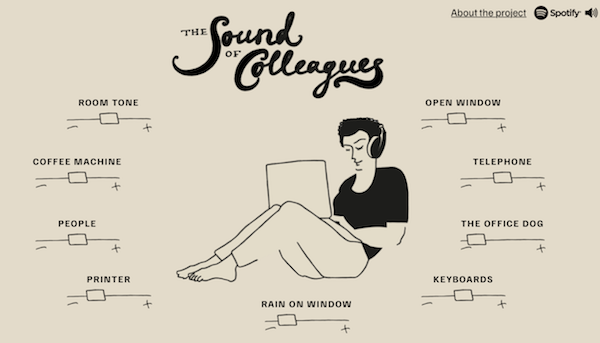
Use the sliders to raise or lower the levels of sounds of the general room tone, the coffee machine (likely nicer than what you had in your office), co-workers, printer, rain on the window, keyboards, sounds outside the open office window (including car horns and traffic). There’s also an alternatingly barky and whimpering office dog (and an occasional, whispered “good boy!”) and a ringing telephone. I urge you to turn the telephone sound down all the way, as the virtual phone is as annoyingly distracting as it is in real life.
If you miss your office, and maybe even the people in it, this is the most pleasantly realistic. For deep work, I suggest using the browser version works as I’ve described. However, if you prefer variety, on Spotify, you can listen to a playlist of short 2-5 minute tracks, with titles like “Corporate Office in the Middle of the City,” “90s Office With Landlines Ringing” (don’t – just don’t), and “Cocktails and Typewriters Anno 1960.” (There’s that Mad Men theme again!)
I Miss My Bar
Maybe you’re more of a Hemingway (“Write drunk. Edit sober.”) person, and you’d get more flow and accountability and less distraction in a bar than a coffee house or office?
Maybe you're more of a Hemingway ('Write drunk. Edit sober.') person, and you'd get more flow and accountability and less distraction in a bar than a coffee house or office? Share on XViral sensation I Miss My Bar has you covered. Maverick, a jazzy bar/restaurant in Monterrey, Mexico, had to close during the pandemic, but created this platform, leaving the following message:
We all miss our bar.
Hanging out with friends, deep conversations over Gin & Tonics, meeting great new people, the atmosphere.
Even though these things will never be replaced, at Maverick we’ve made this modern digital artifact to keep you company while this awful pandemic, which profoundly affects our industry throughout the world, finally passes and we can meet again safely.
Plug your device to a decent speaker set and use it as a background sound for your zoom parties, or just for your daily wind down cocktail at home.
As every hospitality professional in the world we, too, miss you as well. If you are feeling generous, try to find a way to support your favourite local bar staff today. You can support ours here.
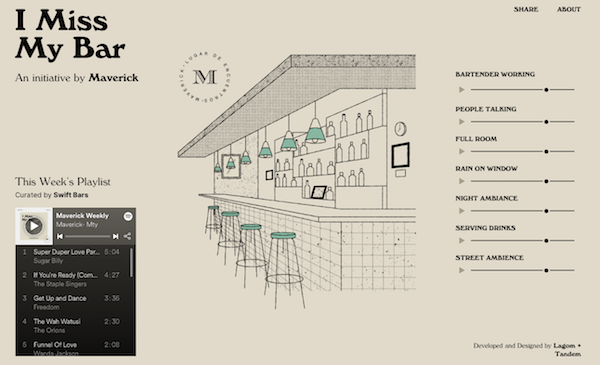
Get into your work groove while listening to the weekly music playlist; use the sliders to adjust the sounds of a bartender mixing drinks, a full-room crowd, rain on the window, night ambiance (in case you’re on the bar’s back deck), street noises, and drinks being served.
To get a sense of the Maverick bar’s actual ambience and menu, here’s a translated version of their website. I suspect, when the world tips back enough toward the old ways, Maverick will have a lot of real-world visitors.
AN ENCOURAGING WORD
If one of these “faux” accountability methods helps you achieve flow, hunker down, and do your best work, there’s still one aspect of the traditional accountability experience you might still feel like you’re missing: the “Atta Girl!” or “Atta Boy!” at the end of a work session. And for this, the late and much-loved Alex Trebek has provided for us all, via an homage page created by Rex Sorgatz.
Visit the Trebek Affirmation Page, click on any (or all) of the dollar values, and let the dulcet tones of the eternal host of Jeopardy! give you whatever positive external feedback you need.
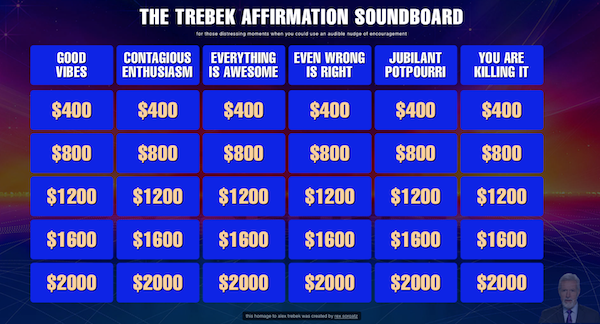
Finally, much of this post was inspired by the experience at this past week’s Task Management & Time Blocking Virtual Summit 2021, which I told you about in the Playing With Blocks: Success Strategies for Time Blocking Productivity. While the summit is over, you can still enjoy the educational experience at your own convenience if you purchase an All Access Pass.

Paper Doll Finds Your Lost Eyeglasses: Technology Beyond Checking the Top of Your Head

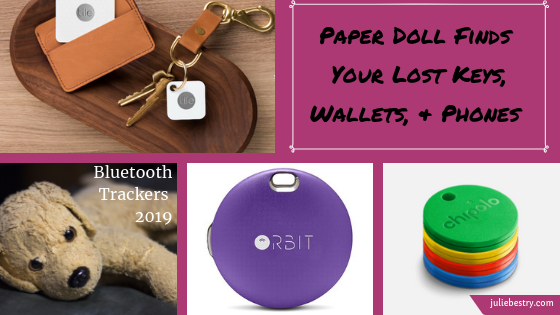
Last time, in Paper Doll Finds Your Lost Keys, Wallets, and Phones: Bluetooth Trackers 2019, we talked about the big names in Bluetooth trackers that can help you find your lost keys, wallets, purses, passports, luggage, phones, and any of a variety of items in your life. Certainly, it’s better to not to lose things in the first place. But how do you do that?
HOW TO NOT LOSE STUFF
As a professional organizer, I start by decluttering the backlog that hides things from clients. After that, the path to not losing things is pretty straightforward, in theory. Any good system has two parts: the location and the behavior:
- Designate a home for every item. Think about the first place you’d go to look for something, and then make that the home. There’s your location. Ice cream goes in the freezer. Toothpaste goes in the bathroom.
- Don’t put things down; put them away. Too often, people randomly put their wallets or keys or whatever down near them instead of the home they’ve assigned. Stop that! Your wallet goes in your purse or your pocket when you’re out and about. Don’t set it down on the cashier’s counter or the restaurant table. When you’re home, keep it in your purse or designate a tray on your bedroom dresser (or wherever works for you).
That’s it. But if that’s all there is to it, why do so many people continue to misplace things? Sure, sometimes it happens as we saw at the start of last week’s post, when someone’s toddler (or pet, or “helpful” spouse) moves something. But usually, it’s because we fail to put things away because we’re focusing on things we deem more important in the moment. We have to pay attention!
No, this isn’t a post on mindfulness. Yes, if you practice mindfulness, stop multitasking, and focus on one thing at a time, you’re much more likely to put things away instead of randomly down. But unless you’re a fairly magical television character able to suddenly remember things that happened in the blurry background while you were focusing on something else, your lack of mindfulness up until now isn’t going to help you find what you’ve mislaid.
So what will? That’s why we’re here. Last time, we saw how some of the big name general Bluetooth trackers can help us find a whole smattering of things we’ve lost. But those trackers, while not large, are still too big to attach to the one thing people are constantly losing (other than their minds, while searching for lost items). Eyeglasses!
ORBIT GLASSES
Last time, I pointed out that most of the various Orbit products, including Keys, Card, Wallet, and PowerBank all did double (or, with regard to the wallet and power bank, triple) duty. Not only do they help you track your lost items, but their buttons can be used as selfie remotes! Well, this special Orbit product doesn’t help you create a photo so you can look fabulous, but it does ensure that you can see how gorgeous you are in the mirror or in pictures.
Orbit Glasses work the same way most of the Bluetooth trackers we’ve already described. The company claims it’s the world’s smallest Bluetooth device. (Note: A number of trackers make similar claims – the smallest device, the loudest ring, the widest range. In general, claims about metrics are unimportant. However, when you want to hide a device somewhere on your eyeglass frame, size does matter.)
As with all Bluetooth tracking devices, you’re dealing with a device and an app. Start with the Orbit Glasses device, which is 1.2″ (28mm) long and 0.2″ (5mm) wide; it’s only a third of an ounce in weight, so it isn’t going weigh you down.
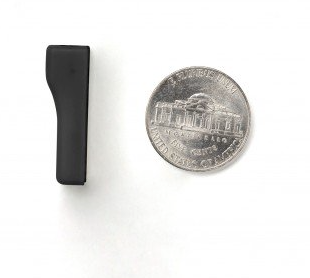
Unlike most use cases for trackers, your device won’t be dangling from a string. (That would be annoying, like turning your glasses into a charm bracelet!) Instead, attach the device directly to your glasses. Affix it with the device’s 3M-brand double-sided adhesive, allegedly the strongest adhesive 3M makes. (Who knows better than the company that created Post-its® and Scotch tape?) The instructions note that while the device can be removed and repositioned, it should otherwise stay firmly affixed.
In most cases, Orbit Glasses will fit on the inside of the arm, either by your temple or on the back-most part of the earpiece. The surface needs to be at least 4mm wide. The arms of my glasses are extremely narrow, perhaps 1.5mm, but if you have more typical eyeglasses or sunglasses, the Orbit should stay discrete.
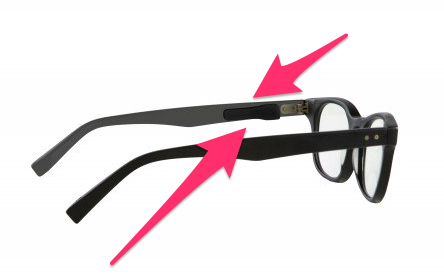
Next, download the Orbit app from the App Store or Google Play. As with all of the other Orbit trackers, if you misplace your glasses, whether on top of your head, in your car, or anywhere out in the world, you can use the app to make your glasses ring if they are within Bluetooth range; otherwise, check last known GPS location on the app’s map. The Orbit Net Crowdfinder community boosts your signal, so if an Orbit app user is anywhere near where you left your glasses, it will improve your chances of pinpointing where you need to go.
Orbit Glasses also has a nifty separation alarm, commonly known in the tech world as “geofencing.” That means that if you wander away from your glasses (or the cafeteria staff carries off your tray with the glasses still sitting on them), and the difference between you and your glasses exceeds Bluetooth range, it will proactively trigger an alert in your app.
Have a big house? You can turn on the SafeZone feature so the separation alarm won’t be triggered on your home WiFi. (However, if you tend to lose your glasses in your house, perhaps it’s better to suffer the indignity of a few alarms until you get used to using some mindfulness techniques?)
Orbit Glasses has a rechargeable battery with a one-month charge life, so there’s no need to make additional purchases or detach the Orbit from your specs. Just plug and charge, which should take two-to-three hours. Given that the charger goes where your face normally belongs (as indicated below), you can’t charge the device while wearing your glasses, so plan to charge it while you’re sleeping, wearing different glasses, or otherwise not needing the sharpest vision.
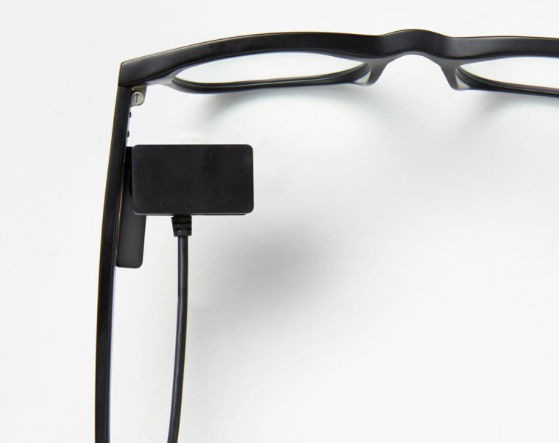
The Orbit Glasses device is a really teeny tracker, so it can’t be used in reverse to call your lost phone (as the other Orbit trackers can do). Paper Doll logic leads me to believe that if you have your glasses but not your phone, you can at least look for your phone, and if you have your phone (with the app), you can find your glasses. Of course, Orbit hopes you’ll buy multiple versions of their products, so if you have your glasses, you can use the button on any of those to find that pesky wandering phone!
Orbit Glasses will work with iPhone or Android. They come only in black, and are $39.99, whether directly from Orbit or Amazon. Orbit offers bulk discounts ranging from 25%-40% off for purchases of 4, 6, or 8 Orbit Glasses (or other Orbit products, in various combinations). Note: If you purchase from Orbit, remember to reset the drop-down from Australian to U.S. dollars.
FINDY
Orbit may be the bigger name in teeny eyeglass trackers, but they aren’t the only name. FoxSmart, a Swiss company which (incorrectly, and amusingly) claims it makes the only eyeglass tracker, sells FINDY.
At 28mm x 5mm, the same size as Orbit Glasses, FINDY claims to be the “smallest Bluetooth tracking device on the market.” Where have we heard that before? The website says:
“With our special adhesive FINDY is fitted on your eyewear frame. FINDY will not bother you in any way. In most cases FINDY is completely invisible to you or anyone else. FINDY disappears on the inner side of the temple or behind your ear. FINDY suits any frame material.”

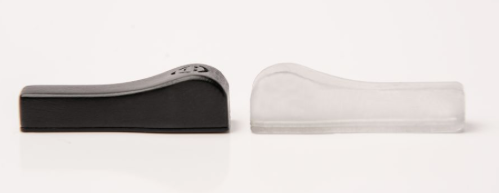
FINDY comes in two colors, black and a sort of frosted white/clear. As with the Orbit Glasses, this isn’t the product for you if the temples or arms of your glasses are wires or very thin plastic.
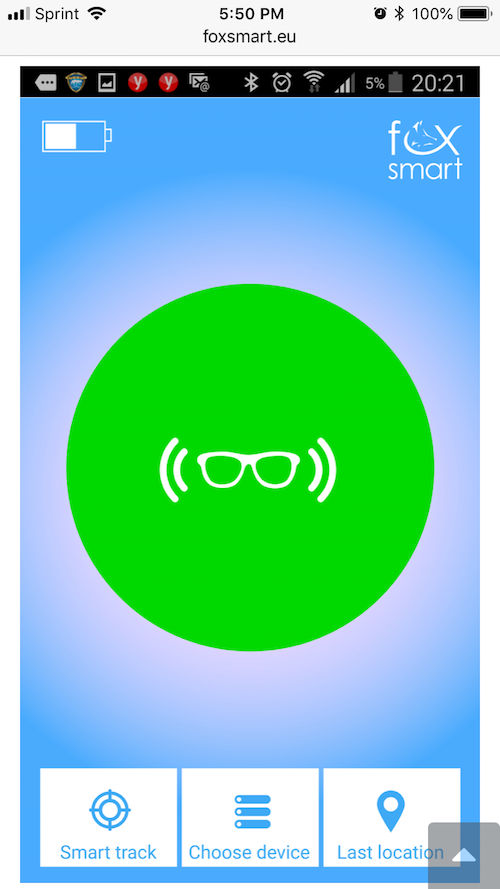
Once you have the tracker in place, download the FINDY app from Google Play or the App Store. FoxSmart has concentrated all essential features on one main screen. Simply press the “buzzer” button on the app to force the FINDY tracker to begin beeping. If you are within range (the measurement of which FoxSmart does not specify), you will hear the beeping.
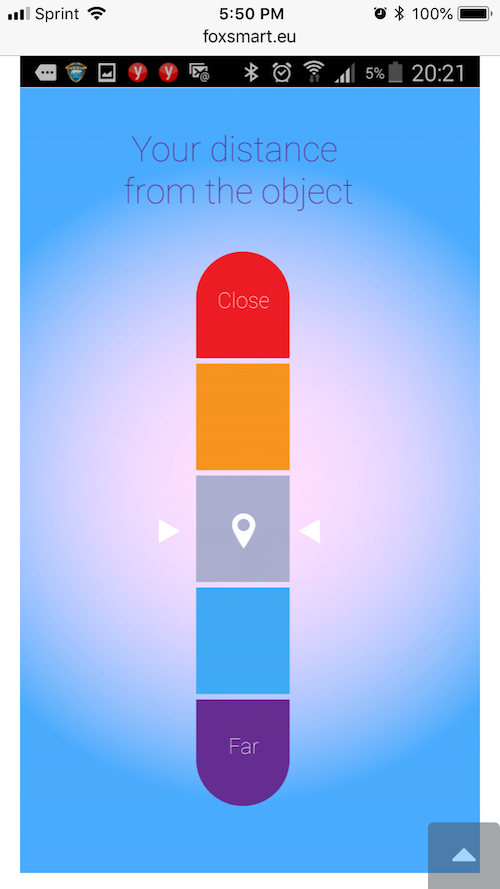
Here’s where it gets interesting, though, as FINDY has some unusual approaches. What if you don’t WANT your glasses to beep? Maybe you’re in a library, or your spouse or children are sleeping, or you don’t want anyone to know that you’ve lost your glasses once again. FINDY has you covered. Press the “smart track” button on the app and it will display a silent “signal receipt meter” to help you locate your eyeglasses without using the buzzer.
BUT WAIT, THERE’S MORE! The company recognizes that not everyone uses a smartphone. (Although they focus on use by seniors citizens, many people may lack smartphones and have no app access.) FINDY’s manufacturers have thought of that. The FINDY Smart Button (perhaps the European cousin of Staples’ Easy Button?), sold separately, is a one-touch button you can permanently attach to any smooth surface, like your fridge, filing cabinet, nightstand, etc. Just press the Smart Button and the buzzer function of FINDY will be activated.

The company says that one Smart Button will cover a three-to-four room apartment, through for a multi-story home or larger apartment, one Smart Button on each floor in a centralized location might be wise.
FINDY devices operate on a single, standard coin cell battery. When the battery level goes below 7%, the FINDY App prompts users to replace the battery.
FINDY sells for $39.95; the Smart Button is $34.95. Shipping is free to the 48 contiguous states and to Canada. (Sorry, Hawaii and Alaska!)
LEVEL SMART GLASSES
What if keeping track of your spectacles is only one of the many things you want? What if you also desire:
- fashion-forward, precision-calibrated eyewear?
- fitness trackers built into your glasses so you can track your step count, distance traveled, overall active minutes, and calories burned?
- wireless syncing of your fitness tracker without having to remember to put on a smart-watch or clip on a device?
Level Smart Glasses takes all of these needs into account. VSP Global, a 60-year-old eyeglass company, has joined forces with the University of Southern California’s Center for Body Computing to develop eyeglasses that are for more than just vision correction.
These $328+ Level Techology glasses combine new technology, fashionable frame design, and smartphone app communication to create true 21st-century eyewear. And yes, one thing the technology can accomplish is finding your glasses when you’ve put them down and can’t locate them. (Somewhere, Geordi LaForge is smiling!)
Think of it this way: If you don’t lose your glasses, you’re more likely to wear them. And if you’re wearing them, you’re more likely to get credit for your fitness behaviors since Level bakes fitness tracking right into the frames. So, the more you move, the more likely you are to get points for hitting your daily fitness goals and stretch goals – and here’s another advantage to Level Smart Glasses! Every time you accrue 50 points in the app, VSP will give a person in need both an eye exam and a pair of glasses, at no charge, through the Eyes of Hope charity.
So, if high-tech glasses that help you find them, track your fitness, and give charitably are what you’re looking for, find Level Smart Glasses near you or buy online. In many cases, you can use your vision insurance coverage to defray the cost.
AT-HOME SHORTCUTS
If you don’t have a tracker but can’t find your glasses at home, searching everywhere is counterproductive. There are still some low-tech and no-tech solutions.
If you’ve mislaid glasses for distance vision in your house, you probably wore them to watch TV. Go sit down as if you were watching television and feel around. If your distance vision is too wonky to find your glasses on your own, try taking a few snapshots on your cell phone and then carefully enlarge sections of the screen to see what would otherwise be blurry.
If you’re looking for your reading glasses, check the following locations where you tend to read:
- next to the computer
- next to/on top of the book or magazine you’ve been reading
- on your bedside table (reading at bedtime?)
- on the bathroom countertop (did you remove them to put on makeup or wash your face?)
- on the kitchen countertop (after reading a recipe)
When in doubt, there are always two more places to search
- Look down! Are they hooked to the neckline of your shirt?
- Look up! Are they on top of your head?
IN SUMMARY
Investing in multiple pairs of glasses to keep all around home ensures you can see what you’re doing, but at a cost. Wearing your glasses on lanyards will keep them close but may have a deleterious impact on how fashionable you seem (and will make hugging inconvenient). Using Bluetooth trackers invokes an additional cost but gives you peace of mind. Being more mindful is free, but requires some time and effort.
Cost, style, convenience – consider what you’re willing to sacrifice to stay organized and see clearly.
*Photo of doggie wearing glasses by Jamie Street on Unsplash
Paper Doll Finds Your Lost Keys, Wallets, and Phones: Bluetooth Trackers 2019
Good organizing skills can keep our lives from becoming a series of lost-and-found activities, but sometimes, though no fault of our own, things go missing. Last week, my friend Jennifer posted the following on her Facebook page:

Life with her 20-month old is an adventure! Eventually, she posted: “Update: I found them!!!!!!! In the dining room, under the runner on my table with a chair turned to the side… I’m officially blaming [toddler], but I could have easily done this too. ??♀️ I have been looking for 6 hours on and off! Going to Amazon to order the key Tile so I can find them for future mishaps!”
A few years ago, Paper Mommy lost her keys, too. She eventually found them in her potato storage bin, weeks later. Almost assuredly, she returned from the grocery store and as she was putting away a bag of potatoes, keys in hand, the keys got set in the potato bin. One night, changing her mind repeatedly about what she wanted to make for dinner, she eventually settled on something with potatoes got a side order of key-ring!
How often do you see social media posts by parents anguished when their child’s favorite stuffed animal has been left behind at an airport or theme park? If only more people had a solution like the friends of this lost, little panda.
Today, we’re going to look at some big-name solutions for finding your lost keys, phone, wallet, or whatever you tend to randomly put down (instead of putting away).
Bluetooth Trackers
If you don’t love playing hide-and-seek with your possessions, you may want to consider a Bluetooth tracking system, which comes in two parts: a tiny device and a digital app.
A Bluetooth tracking device is a small, usually plastic, doo-dad that you attach to things you don’t want to lose. The device “talks” to your phone or tablet via Bluetooth, a wireless technology for exchanging data over short distances using short-wavelength UHF radio waves. If you have a wireless mouse or ear buds, or a fitness tracker like Fitbit, you’re already using Bluetooth.
The tracker’s app on your phone can then locate and talk to your device with some GPS-esque precision, like how Find My iPhone helps you find your lost Apple products left at the coffeehouse, or trigger the device to set off a “find me” alarm there in your house (so you can find it under all the LEGO pieces your toddler has up-ended onto the floor).
TILE
Tile – Right at the end of Jennifer’s post, she noted, “I need one of those Tile things.” When I wrote about Seek (with Bluetooth) and Ye Shall Find back in 2014, Tile was already the first big name in Bluetooth trackers and it’s still the Big Kahuna. The product line has changed over the years, but the basics remain the same.
Physically, a Tile device is a small, fairly flat, rounded plastic square, about the size of a poker chip. Some Tiles have a small hole punched in one corner through which you can thread key chains and zipper-pulls (on purses, wallets, backpacks, or children’s jackets), or use their double-backed adhesive on the reverse of a Tile to stick it to virtually anything, from computers to toys. You can also just drop it in a pocket, your wallet’s change compartment, or the bottom of a purse. Allegedly, Tile is waterproof, but don’t go scuba diving, OK?
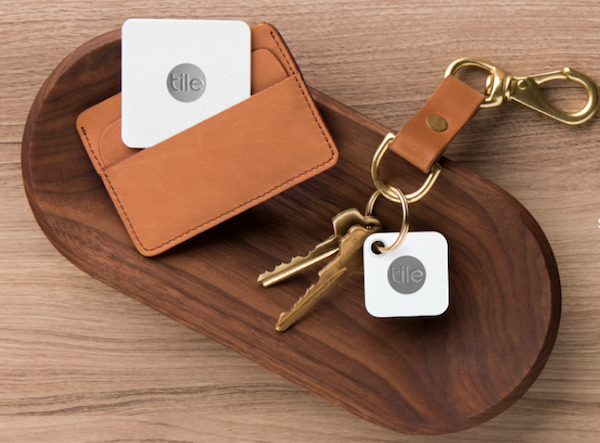
There are three products in the Tile line:
- Tile PRO – It’s louder, a bit heavier, and has the widest search range
- Tile MATE – It’s smaller, lighter, and has a moderate range
- Tile SLIM – It has the lowest price, narrowest range, and a non-replaceable battery; it’s best for items with a thinner profile, like stuck to a passport or tucked inside a wallet
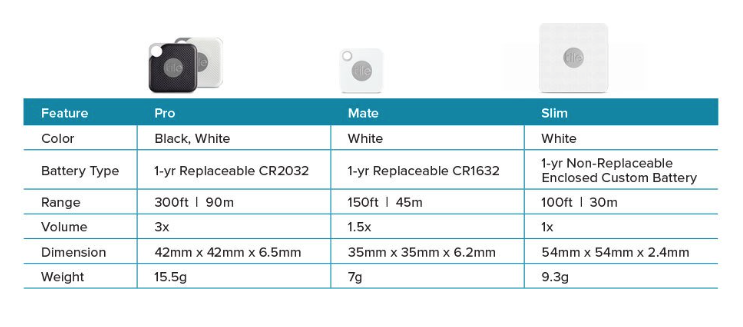
The old Tile was designed so that you never had to charge it or replace the battery. But because a new Tile was pricier than a new coin-style battery, the obsolescence of each Tile was its major drawback. Nowadays, two versions of Tile (Pro and Mate) have replaceable batteries; only the larger (but flatter) Slim needs to be fully replaced (or you can upgrade at a discount through the reTile program).
Compatibility has really expanded since the last time Paper Doll looked at Tile, when it was limited to a few iOS devices. Now, it works with all devices (iPhone, iPad, or Apple Watch) using iOS 11 or higher, as well as Android devices using 6.0 or above. If it has Bluetooth 4.0 or BLE, you’re good.
Once you have a Tile device, download the Tile app and hold the device close to your phone. If you’ve ever paired an exercise tracker or Bluetooth keyboard to your phone or tablet, you know the drill.
When you look for your keys, phone, or whatever your Tile is attached to, direct the app to make the Tile ring. Or, you can ask Siri, Alexa, or Google Assistant to find your items. Can’t hear anything and figure your item is too far away? Check the app for your item’s last known location.
The Tile user community is connected, so if you’re two towns away from where you left your wallet but another Tile user’s phone or device is near enough to your Tile (300 feet from a Pro, 150 feet from a Mate, or 100 feet from a Slim), you’ll still get an update from your long-lost Tile to your phone! (Of course, you and everyone else only support this Tile community if you’re keeping the app running 24/7 in the background, something that may not be so appealing.)
If you have something with a Tile attached but can’t find your phone? It works in reverse. Push the button on your Tile, and your phone will ring!
Stylewise, if basic black and bright white don’t do it for you, Tile’s partner company sells customized skins for Tile devices. Be true to your school with college logos (though, sadly, not my beloved Cornell), pick textures, colors, or patterns, or select designs from the worlds of art and photography.

For a more in-depth and more rigorously researched review, check out The Wirecutter (my go-to for tech reviews), which pegs the Tile Pro as the best Bluetooth tracker on the market.
Individually, direct from Tile, the Pro is $35, the Mate is $25, and the Slim is $30. You can also buy 2-, 4- and 8-packs of each type, a Pro Combo (one white, one black), and a Mate and Slim combo pack. Tile products, in various combinations, are sold on Amazon, generally discounted 5-20%.
Tile also offers a Premium plan ($2.99/month or $29.99/year), which offers smart alerts, free battery replacement, 30-day location histories, unlimited sharing, an extended warranty, and text-based customer service.
CHIPOLO
I first encountered the Chipolo tracker last Thanksgiving when I was wandering through a luggage store and spied this display. The features are very similar to Tile’s, and in fact, Chipolo beat Tile to the punch on the “Can’t find your phone? Reverse-the-charges” method of using your device to find your phone.
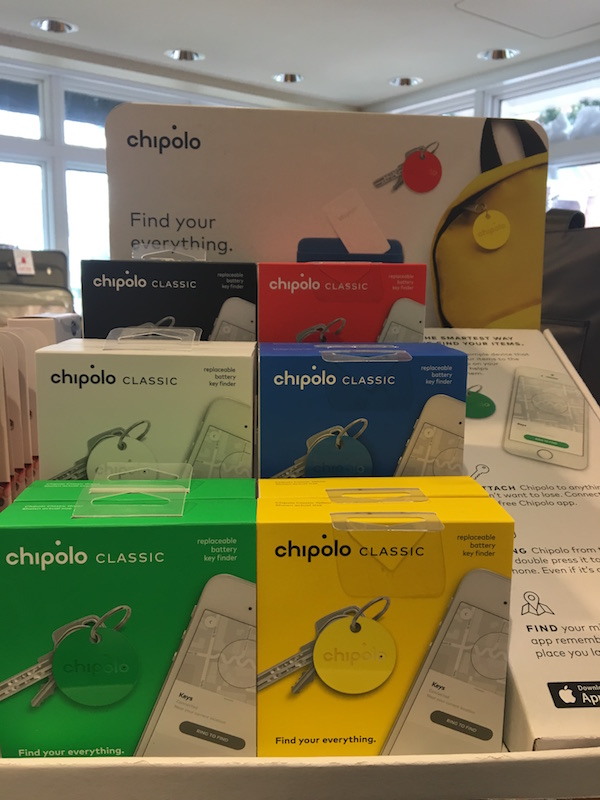
Tuck a Chipolo device into something you own (like the flat, rectangular Chipolo Card into your wallet) or use the hole in the Chipolo Classic and Plus discs, threaded through zipper pulls, onto key chains, or hooked to a collar on a pet or stuffed animal. Then download the app and pair the Bluetooth app to the device.
Use the Chipolo app to ring a Chipolo device attached to your possessions, or double-press a Chipolo device to make your phone ring, even if your phone is set to silent. If your item is too far away to make it ring, check the app for its last location. If it’s still not there, mark it as “lost” in the app, and the phones of any members of Chipolo community of users nearby the item will cause it to ping your app with the newest location.
If you share items (like car keys) with family members or roommates, you can set up one Chipolo in more than one person’s app account. When I was in grad school, we had key hooks set up with spare key sets; if a housemate’s car blocked us in while he was in class, we could easily grab keys, move the car, and get on with the day. Invariably, the one housemate who most often blocked us in would lose his keys in the house and take his spare set, leaving us trapped; Chipolo would have been great back then. (It would also have been great to not have 7 grad students living in one ancient house that resembled where the Addams Family lived, but that’s another blog post.)
Chipolo makes three devices:
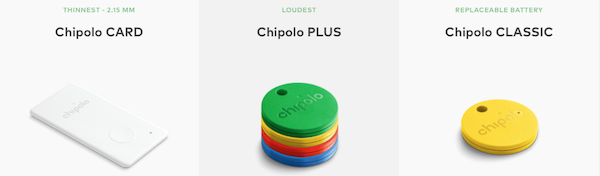
- Chipolo CARD – Thinnest (2.15mm), 1-year life (replaceable at a discount through the Chipolo Renewal Program), white only, perfect for inserting in your wallet
- Chipolo CLASSIC – 9-month battery life (replaceable), 6 bright colors
- Chipolo PLUS – Loudest (100 dB), 1-year life (replaceable at a discount through the Chipolo Renewal Program), 6 bright colors, water-resistant
The Classic and Plus come in green, yellow, red, blue, black, and white. The Chipolo devices are voice-controllable and work with Google Assistant and Amazon Alexa on smart speakers, and on mobile devices when the Google Assistant or Amazon Alexa app installed. Although Chipolo works on both Android and iOS, it is apparently not on speaking terms with Siri except through iOS12’s Shortcuts.
Chipolo’s Card is $35 and the Plus is $25, from Chipolo, Amazon, and luggage stores; the Classic is $30 (but $25 on Amazon). (Disclaimer: the dude in yellow pants from the video is sold separately.)
According to news from January’s Consumer Electronics Show (CES2019), the Plus will be replaced at the end of 2019 with the Chipolo DOT, a golf-ball-shaped device with a built-in LED light and a replaceable battery good for three years, which is expected to have an alarm twice as loud as the Plus.
ORBIT
Orbit is an entire family of Bluetooth trackers in six different formats. They all work via an app and Bluetooth like Tile and Chipolo, and there’s a worldwide (Matrix-y) Orbit Net to help signal boost your search. But most of the family of Orbit devices have two unusual functions: a separation alarm if the device and your phone get too far from one another, and a selfie remote! Yes, you can use your tracker to take selfies and group photos with your camera at a distance and your thumb on the Orbit device.
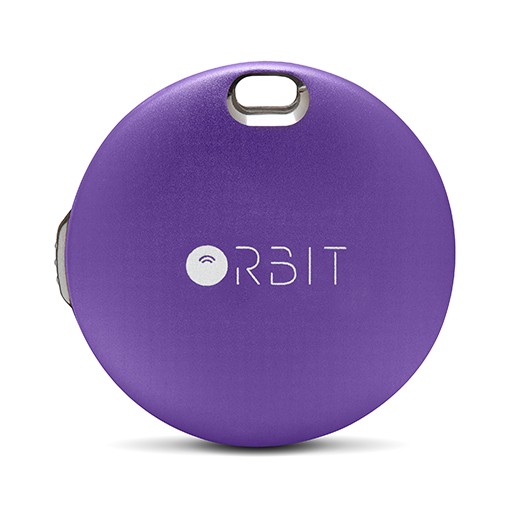
Orbit Keys are the most like other trackers – the device round but a little puffier, more like an Oreo than a poker chip. It has a premium waterproof aluminum casing and comes in 12 different colors (Black, Space Grey, Dark Storm, Silver, Gold, Rose Gold, Shocking Pink, Azure, Candy Red, Emerald Green, Violet, and Sunset Orange). Orbit Keys have replaceable batteries and a Bluetooth range of 100 feet. It retails at Orbit for $29.99, or about 10% less on Amazon. (Note: all prices on the Orbit site default to Australian dollars; use the drop-down to select U.S. prices.)
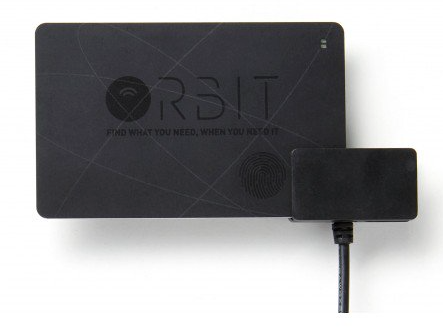
Orbit Card is as thin as a credit card, has a rechargeable battery (with three months between recharging), comes only in black, and costs $39.99 (and $35 at Amazon).
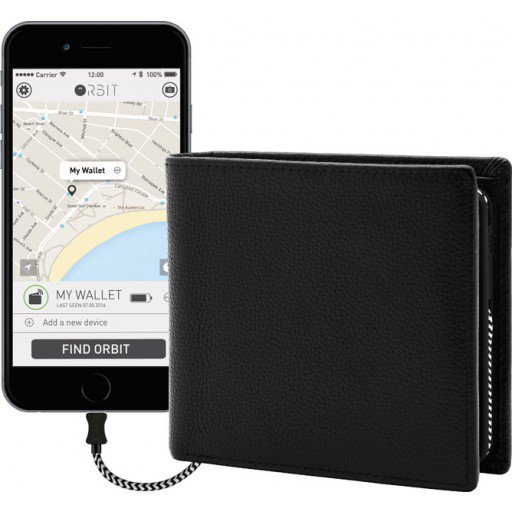
Orbit Wallet is an RFID-blocking, genuine leather wallet with a built-in Orbit tracker. It has a 2800 mAh rechargeable battery and micro-USB and iPhone adapters, and sells for $109 from most retailers. (Oddly, the version sold in the U.S. only comes in black, while the Australian version is Navy Blue.)
Orbit makes three additional products: a Stick-On tracker, similar in size and shape to Orbit Keys, but with an adhesive backing (in black or grey for $24.99) to attach anywhere, and replaceable battery. The Orbit PowerBank has a tracker built into an anodized aluminum power bank charging (in Black, Dark Storm, Silver, or Rose Gold) for $49.99 from most retailers, including Amazon.
The final Orbit product, and the only one that does not operate as a selfie remote, is a secret. Well, a secret until our next post, which covers more trackers, including one specialized lost-and-found type of product. See you next time – if you don’t get lost!

Follow Me