Archive for ‘Digital’ Category
Project Management Tools To Get It Done in 2019

With a new year approaching, you’re probably looking at all you want to accomplish, professionally and personally. While there may be a variety of tiny tasks, most things (particularly at work) involve projects, and for better or worse, this means project management.
If you’re anything like Paper Doll, memories of dreaded group projects in middle school make the words “project management” set your teeth on edge. So, to look at some of the tools that make project management less stressful, I’m pleased to share this rare guest post. The 6 Best Project Management Tools for Small Business by Grace Miller originally appeared at MyEmma.com, a company that specializes in productively building customer relationships through email communications.
While Grace focuses on the collaborative approach to project management in companies, most of these tools are appropriate for a wide variety of efforts: a group of friends planning a baby shower, a writer corralling her “street team” to launch a new book, a volunteer group working through the steps to develop outreach, far-flung family members planning a family reunion, and more. The keys are always figuring out who will be doing what, and when, where, and how they’ll accomplish it. Let’s see what Grace has to say.
~~~
If you’re involved in the management of a small business, then you know that project management is a task often shared by staff and company owners alike.
Regardless of job title, many small business employees end up handling some project management tasks as they work through their assigned duties.
That means having tools to streamline and organize project management processes, particularly if they’re shared across departments or staff levels, can be invaluable.
To help you increase productivity and boost revenue, we’ve curated some of the best project management tools for small businesses currently available.
The best project management tools for small businesses to increase productivity right now
Marketing and the strategy behind it are the lifeblood of your business, ensuring that revenue flow is healthy and consistent.
While many aspects of small business management can benefit from better project management tools, your marketing staff will definitely get a boost from tools that make their job easier.
In fact, many of our recommended tools can encourage better internal communication amongst staff and between separate departments to aid in developing targeted campaigns and stay on top of metrics and goals with greater accuracy.
Some of the largest start-ups in the world, like Dribble, Uber, CNET, and Kickstarter rely on these technical helpers to keep their staff on target, so using them puts you in good company.
In researching our list, we made sure our picks were heavy on features that are important to small businesses, such as:
- Functionality and ease of use
- Free or sensible pricing options
- Ability to integrate with other systems
- Ability to be accessed remotely
Without further ado, let’s start our tour with one of the most recognizable names on the list: Evernote.
1. Evernote
Image: Evernote
Evernote is a fantastic app that functions as a clearinghouse for ideas, documents, and workflows.
Not only can you grab and save ideas from online sites in clearly organized folders to prompt creativity and idea generation, but you can also design and store templates within the app to further streamline your process.
Best of all, their premium subscription offers team storage, where any member that has access can save and retrieve all aspects of a particular project.
Anything new that’s added to your team’s space is automatically shown front and center, in what they describe as a “virtual bulletin-board for your team.”
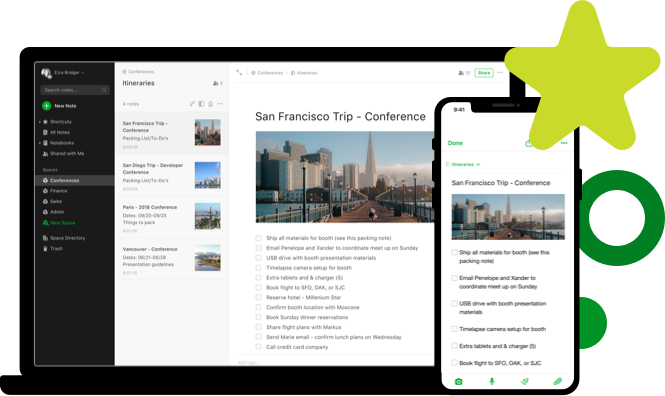
Image: Evernote
And companies like Swiss conglomerate Migros know the value of this simple, but incredibly useful, tool. As the largest supermarket and retailer in Switzerland, Migros needed a team to keep their marketing on trend with the food and restaurant industry.
Using Evernote’s apps that spanned web, desktop, and smartphone, the team was able to easily manage and coordinate interviews and data from German, French, and Italian-speaking sources.
Each team member could keep their own photos, sketches, audio recordings, and diagrams shareable with other members for fast access and accurate real-time data, making it easy for Migros’ marketing to stay fresh.
2. Basecamp
Image: Basecamp
Basecamp works hard to bring everything small businesses need into one neatly-designed package with tons of useful features.
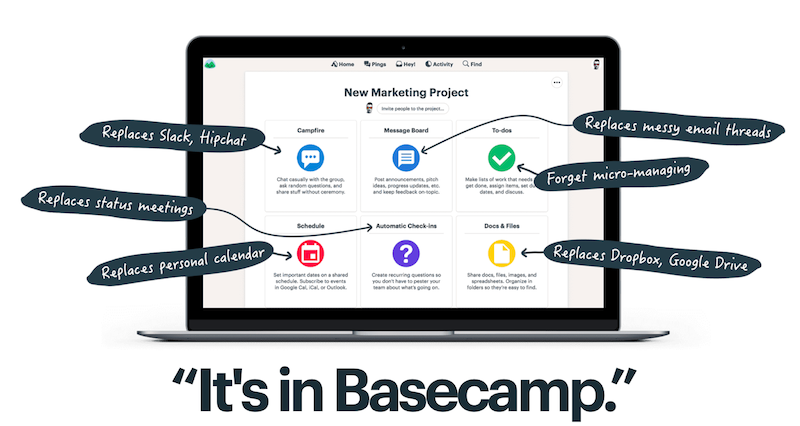
Image: Basecamp
You can store and retrieve documents with a simple drag-and-drop, manage schedules, conduct real-time group chats, and even invite clients to be a part of the process without dealing with learning-curve aggravation.
Plus, with features like check-in that allow you to ask your team members basic questions at a specific time each week, you can pare down meeting times.
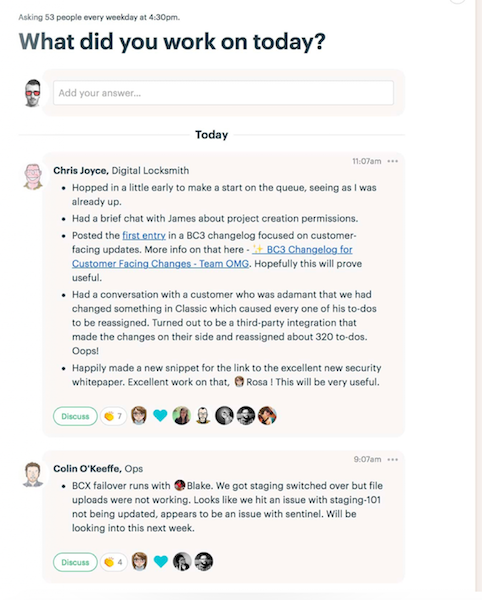
Image: Basecamp
Some businesses that use Basecamp to keep their teams in-the-know include Groupon and Harvest, but the software boasts thousands of devotees.
3. Trello
Image: Trello
Trello is a wonderful tool for marketing teams, as its visually-oriented “card” system lets team members track each part of a project as it flows through to completion.
Boards can be set up with trigger events in any way you need them. Here’s an example of this in action:
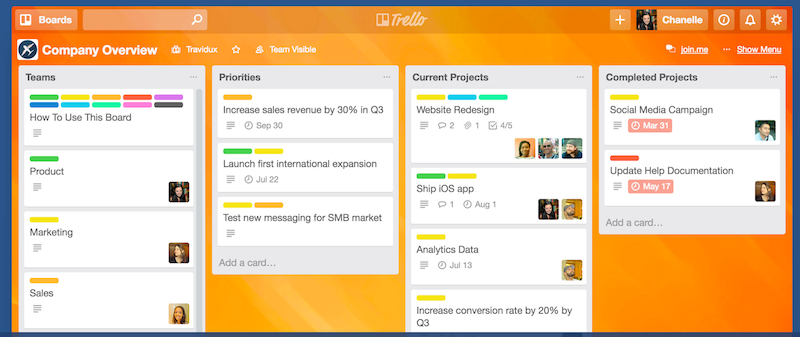
Image: Trello
You can see how easy it is for teams to set up individual project flows and for managers to get a quick overview of project statuses from any department.
Cards are moved using drag-and-drop, making keeping things up-to-date supremely easy, while multi-tiered pricing means you don’t pay for what you don’t need.
Best of all, Trello integrates seamlessly with Evernote, Slack, Jira, Google Drive, and other software. Companies that use Trello include National Geographic, Adobe, the British Red Cross, and others.
4. Slack
Image: Slack
Slack has wonderful workflow possibilities for every business, but marketers will love its user-friendly integrations.
Email marketing, in particular, gets a boost from the Slack workspace, as Slack seamlessly allows you to manage email campaigns directly from your Slack command center using minimal keyboard commands.
With integrations for most common marketing apps and tools, Slack can give marketing professionals real control and sharing options with their team, including performance metrics.
Besides fostering collaboration, Slack offers savvy marketing teams a great way to keep on top of changes in direction.
Conversations are automatically archived and indexed, so information is available when you need to reference it. Having a cohesive space for team collaboration and cooperation is a wonderful way to nip problems in the bud or share successes!
Image: Slack
Slack’s clean, easily-integrated format makes it a winner among the best project management tools for small business.
Companies that use Slack include NASA’s Jet Propulsion Labs, Zapier, Emma, Benefit Cosmetics, Autodesk, and more.
5. Flow
Image: Flow
Flow is project management software that offers a simple, beautiful user experience (UX), and powerful tracking and integration.
Kanban boards allow managers to track entire projects, team tasks, manage resources, collaborate with teams, and integrate with other purpose-driven software, like Slack.
Marketing teams will love the way Flow allows them to share project milestones for feedback, as in the example above. In this way, an entire campaign can be vetted, edited, and even changed on-the-fly for faster production.
Here’s an example of a marketing team’s roadmap for several goals as seen through the Flow workflow model:
Image: Flow
Companies that rely on Flow to help them stay on track include Shopify, Bumble, and TED.
6. Asana
Image: Asana
Asana gives project managers several ways to visualize their workflow, from Kanban-style boards to other bright visuals that keep marketers and other teams on track.
Image: Asana
The example, above, shows the status of several projects at-a-glance, showing which are on target, how close to completion each is, and assigning each a priority level.
Having these metrics at your fingertips allows for quick re-assignment when necessary to avoid missed deadlines.
Asana’s pricing is flexible, but at a minimum of $9.99 per user per month, it might be a bit steep for smaller businesses.
They do offer a free trial, however, so you can explore the product for 30 days to see if it’s worth the splurge for your business.
Asana is used by the New York Times, Deloitte, Red Bull, the United Way, among others.
Wrap up
Now that you’ve gotten a taste for what these elegant tools can do for your small business, all that remains is to choose the one that is the best fit for your staff and your business goals.
If you’re on a tight budget, check out the tools that have a free option like Slack, Evernote, and Trello. If you decide they’re on target for your needs, you can always upgrade on down the line if you need more features or if your business expands.
Most of our other recommendations have a free trial period that you can use to determine if the tool will provide all the functionality you require. Remember, you’ll be saving money by using a project management tool that helps organize tasks and streamline processes.
Any way you look at it, these project management powerhouses represent some of the best project management tools for small business on the market today.
Why not take a risk-free trial, capture some of that power, and take your small business to the next level of success?
About the Author
~~~
Paper Doll has some familiarity with all but one of these platforms. For example, I use Trello‘s simple card-and-board approach to plan my blog research and marketing, but also to follow up with prospective professional organizing clients. I also have me-only boards like “Be a Grownup” which reminds me to take care of personal and home-related tasks, as well as collaborative boards I share with clients, volunteer committee members, and friends. (Hey, baby showers don’t plan themselves!) I like that Trello has some great video tutorials as well as a cheat-sheet tutorial board.
Of the six tools Grace mentioned, the one I’m most familiar with is Evernote, and I’ve written about Evernote many times on these pages. As an Evernote Certified Consultant, I often find myself evangelizing for all the ways Evernote can be used for capturing and maintaining information, as well as for collaboration (though much more so at the premium and business levels vs. the free level). Features and pricing change over time (as with all software-as-a-service options), but it’s definitely a standard-bearer.
Although I’ve tried both Basecamp and Asana when I’ve been brought on-board to collaborate on other team’s special projects, I lack the familiarity you get from working day-in and day-out with a software tool. And while I am familiar with Slack as a concept, I have never used it. Flow is completely new to me, but I see it has a very Trello-like visual appeal.
Readers, do you use any of these project management tools, either in business or for your own projects? Do you have other tools you love? Please feel free to share your thoughts in the comments.
Disclaimer: The above post includes some affiliate links for which I may get some small payment if readers make a purchase via a link I’ve provided; this will have no impact on your costs but will help support the ongoing research and development of this blog.
Paper Doll’s NaNoWriMoMo(nday): 10 Tools to Organize Your Writing, Editing, and Proofreading
Writing is both an art and a science. Whether you’re tweeting or Facebooking, emailing or blogging, submitting reports at work or publishing the great American (or Canadian or Peruvian) novel, you need inspiration to come up with the big idea and a felicity of expression to say something in a compelling way. But writing is also a technical endeavor. Messy writing – poor grammar, confusing syntax, typographical errors, spelling shenanigans – all make it hard for anyone to be devoted to your brilliance. Today, we’re exploring tools to make it easier to write, edit, and proofread so that your work shows up in its party finery and not rumpled gym clothes.
EDITING AND PROOFREADING

Jumpcut – Have you ever been going along, writing and editing, and you cut something to copy it elsewhere, only to make some other tiny adjustment and realize you lost the hugely important text that you cut first? Yes, sometimes you can Control-Z your way out of that booboo, but often you cut something and only realize twenty minutes (and 30 edits) later that you really need that URL, that scientific notation, that turn of phrase, and your computer has overwritten what you cut or copied before with what you cut or copied just now.
Jumpcut is a free Mac application that will save your butt! It allows you to store (and easily retrieve) up to 99 items cut or copied to your clipboard. Once you download it, just double-click the resulting .tgz file to open it, and drag the application (with the little scissors icon) to your Applications folder. Then click to launch Jumpcut and a scissors icon will appear in your menu bar at the top of your screen.
From then on, whenever you cut or copy a piece of text, Jumpcut adds it to the stack of clipped items, which you can access from the menu bar by clicking on the scissors icon. If you prefer to avoid mouse/trackpad clicking and keep your hands on the keyboard, you can use a “hotkey” – the default is Control-Option-V, but you can change it however you like. A small grey box will pop up with the most recent cut/copied item displayed. Not what you want? Just arrow up or down to find the clipping you seek.
Jumpcut isn’t specific to any program – whether you’re in Word, Google, Twitter, WordPress, or whatever, anywhere on your computer, you can find what you’ve previously cut or copied. Even if your computer shuts down or the power goes out, your buffer of clipped items remains intact.
Jumpcut hasn’t been updated since 2009, and that hasn’t been a problem, but it’s unclear whether it will work with Mac’s High Sierra operating system.
Not a Mac person? Clipboard History, also free, offers a Windows alternative to Jumpcut. If you’re looking for more robust clipboard buffering for syncing across computers and mobile devices, the MakeUseOf website has a few blogs to get you started:
- 5 Best Mac Clipboard Manager Apps To Improve Your Workflow
- 6 Free Clipboard History Managers To Track What You Copy & Paste
- Sync Your Mac & iOS Clipboard with Command-C & Scribe

Grammarly is like having an angel on your shoulder, alerting you to spelling, grammar, and punctuation errors as soon as you make them. At its basic level, Grammarly comes as a free browser add-on and as desktop apps for Mac and Windows. For example, Grammarly for Safari (my preferred browser, but it also works with Chrome and Firefox) corrects for my sausage-finger exploits when I’m typing on WordPress, Facebook, LinkedIn, and pretty much anywhere else when I’m on the web. However, the Grammarly for Mac app syncs with any native Mac apps (like the WordPress app for writing this blog), and of course, Windows apps.
What’s nice about Grammarly is that it finds, illustrates, and then explains a wider array of grammatical and syntax errors than Word or similar program-specific spellcheckers and lets you accept a correction with the tap of your Enter key. It’s suitable for all styles of writing, from blogs and social media posts to longer documents.
If “exotic” words you use often tend to get flagged by your regular spellchecker, you can add to program-specific libraries, but if you want a cross-platform solution, Grammarly has you covered. I also like that Grammarly has a much better sense of when a word has been used in the wrong context, so it catches properly spelled words that, as homophones, make your sentences (and you) non-sensical.
Whenever Grammarly is running, you’ll see a tiny, green, fairly unobtrusive dot in the lower right corner of whichever field you’re writing; if it turns red, you’ll know you made an error even if the red-underlined mistake has scrolled upward or otherwise out of your immediate view. If you want to track how you’re improving with your writing, you can have it send you weekly reports summarizing the kinds of errors you tend to make.
Upgrade to a premium plan at $29.95/month (or $59.95/quarter, or annually for $139) and you get advanced checks for punctuation, grammar, context, and sentence structure, vocabulary improvement suggestions, and genre-specific writing style checks. There’s also a plagiarism detector, and Grammarly can help academic writers include citations in ALA, MLA, and Chicago Manual of Style formats.
Grammarly does have one huge drawback. Although there’s a free Microsoft Office add-on – it only integrates with the Windows version of Office, so if you’re a Mac person and use the desktop (non-cloud) version of Office, you’re out of luck.

Ernest Hemingway was famous for saying “Write drunk; edit sober.” As Paper Doll is a teetotaler, I can’t advise as to the drunk part, but Papa’s namesake app has some sharp features to let you edit, hangover or otherwise.
Hemingway Editor isn’t a spelling or grammar checker; rather, it’s more like a friendly editor (or high school English teacher) who lives inside your computer and uses a stash of colored highlighters to call attention to where you’ve ambled away from the ranch while writing. Hemingway highlights long, complex (or run-on) sentences and common errors. If you’ve started to ramble or sound a little too snooty, Hemingway knows.
Let’s say you want to write a letter of complaint to your insurance company or senator. You know that a direct, concise note will work best. Go to the web version, click on the box saying “write” (at the top right of the screen) and enter your text. If you’ve already written your letter, just copy and paste the text onto the screen, and you can format (adding bold, italics, multi-style headers, block quotes, bullets, numbered lists, and links) as you like. See it in action:
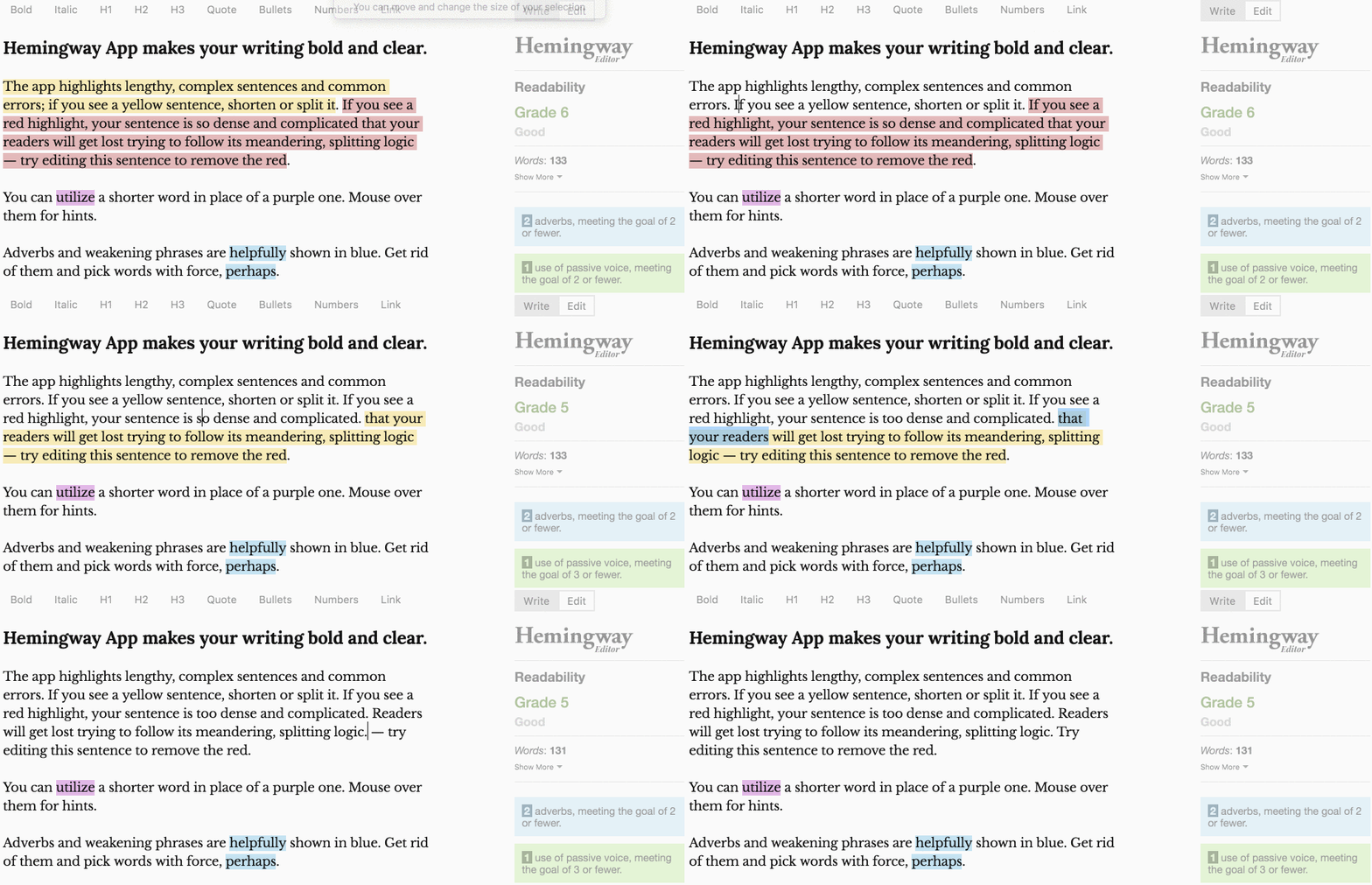
Then, hit the “edit” button (also at the top right) and the web software will color-code your sentences. Yellow means it’s a little long or meandering; red means it’s very hard to follow. Purple refers to unnecessarily complex words or phrases, and blue means you’ve used an adverb. (Hemingway notoriously had a grudge against adverbs; your mileage may vary.) Green means you’ve used the passive voice, weakening your writing. Once you know what’s wrong, you can edit to eliminate the highlighting and see what Hemingway thinks of your changes.
The software also tells you the grade level at which you are writing, and it counts your letters, characters, words, sentences, and paragraphs. If you like to tell readers how long it will take to read a post and don’t want to use a plug-in, it will calculate how long it will take for your audience to read what you’ve written.
The online version is free, and fine for short pieces of writing. For longer documents, consider the desktop version of Hemingway Editor, which lets you publish directly to WordPress and Medium, and has formatting for HTML and Markdown so you can export to any online platform. You can also export to Word, or send your changes directly to editors and colleagues, avoiding the evils of Word’s Track Changes function.

OneLook Dictionary isn’t your typical online dictionary. Sure, it’ll provide a definition of a word, but it can also find words and phrases that start or end with the word, are related to the word, or related to a general concept.
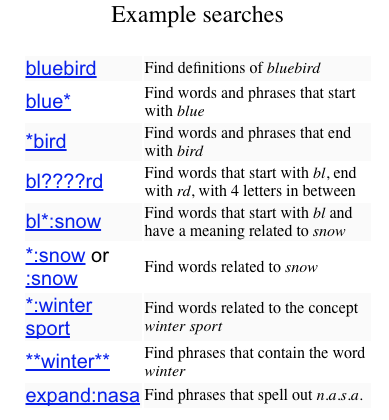
The sister site, OneLook Thesaurus and Reverse Dictionary, comes to your aid when your brain is full. Perhaps you know what you mean but can’t find the specific word you want. Or maybe you know that the word you want has something to do with “ontological” but that’s too stuffy for what you want to write. Describe a concept and it returns a list of words and phrases related to that concept. You can then filter by soundalike words, rhyming words, meter, primary vowel sound, and more.
TEXT EXPANSION
Do you ever feel like you’re writing the same thing all the time? Scientific terminology? Instructional material? Sample dialogue? For some things, you can create a template and copy and paste chunks of writing, but there’s a better way: text expansion.
Think of text expansion like Google’s auto-complete function. You only type part of a phrase, but Google knows what you really want to say and supplies it. With text expansion apps, you can create “snippets” or shortcut phrases to allow you to automatically type words, sentences, paragraphs, and even whole templates for letters and documents with just a few keystrokes. You can also use it to fix your most commonly made typos (“teh,” anyone?) or create multiple signature blocks. (I like that I can type *JAB on any document and fill in my name, Certified Professional Organizer credential, business name, URL, email, phone number, shoe size…you get the picture. Four characters and done!) Text expansion is also helpful when you need to share difficult-to-remember URLs or call up hard-to-parse HTML code.

TextExpander works on Mac, Windows, and iOS devices and is available on a subscription basis for $39.96 annually or $4.16 if billed monthly. Take advantage of the 30-day free trial to see how it works for you.
If you’re not a fan of subscription models, there are two popular alternatives.

PhraseExpress has multiple (standard, professional, and enterprise) versions for Mac ($24.95-$49.95) and Windows ($49.95-219) and apps for iOS (free) and Android (free). There’s also a less robust Windows-only freeware version of PhraseExpress.
Another non-subscription text expansion option is Breevy ($34.95).
But I’ll share a little secret with you. Although all of the above options are heartier, the Mac does have a built-in text expansion tool. Go to System Preferences and navigate to Keyboard (it might be under “Language and Text” depending on your MacOS). Find the Text tab, and you’ll see where you can enter “Replace” (the thing you’ll type) and “With” (the content you want to appear).
For example, if I type “FollowUpDraft” in an email, it will type a three-paragraph follow-up message for when I haven’t heard back from a reply I’ve written to a prospective organizing prospect. I have similar text snippets for replies to people wanting to ask questions about my profession or who want to shadow me. It saves me hours of writing each week, and I only have to revise a few words here and there.
I should note, most of what I know about text expansion I learned from the great Brooks Duncan of Documentsnap. Any failures of imagination to explain the concept, however, are all mine.
~~~
Whether you’ve been writing a novel for the NaNoWriMo challenge or have just been penning TPS reports for work, I hope these NaNoWriMoMo(nday) posts have been helpful. If you’ve missed any, you can catch up here:
Paper Doll’s How To Organize Yourself to Write for NaNoWriMo 2017
Paper Doll’s NaNoWriMoMoMo (Novel Writing Month Monday Motivation)…Even for Non-Writers
Paper Doll’s NANOWRIMOMo(nday): Organize Your Writing Platforms for Maximum Focus
Until next week, happy writing, and Happy Thanksgiving!
Paper Doll’s NANOWRIMOMo(nday): Organize Your Writing Platforms for Maximum Focus
[The following post was originally published in November 2017; content, features, links, and prices, have been updated to reflect available information as of July 2024.]
In ye olden days, serious writing required pen on paper or tapping on a typewriter, or some combination thereof. Then came computers with Wordperfect (and MacWrite, for my fellow 80s kids), and now, most people write using some of the standard software and app platforms most readily available to them: Microsoft Word, Apple Pages, or Google Docs. Each has its advantages as well as demerits, including bloated features that distract from the writing process or elements that don’t quite do what we wish they magically should.
If you’re writing a term paper or a letter of complaint, these big guns, which are likely already part of your regular writing routine, will suffice. But there are so many other platforms you may wish to consider to help you organize your resources, improve your writing focus, and be more productive.
Previously, we’ve looked at how to organize yourself to write for NaNoWriMo and other projects and how to get and maintain your motivation. As we continue our writing-themed Mondays in November, we are looking at options for selecting a writing platform to keep you organized and focused.
ROBUST WRITING PLATFORMS

Scrivener — For serious writers (from novelists and playwrights to journalists and academics), Scrivener seems to be the biggest poorly-kept secret out there. Everyone seems to know of it, though most seem to have some trepidation about getting started with it.
Scrivener is a heavy-duty professional writing tool created by writers for writers. At its most basic, it’s a ring-binder, a scrapbook, a corkboard, an outliner, and text editor all rolled into one. Use it to organize your thoughts on notecards in the virtual corkboard mode, view your research and writing in side by side windows, and use one of Scrivener’s templates to get the ideal format.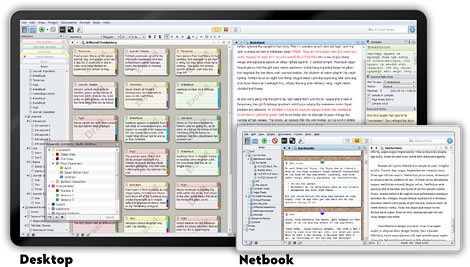
Create narrative or conceptual structure with easy drag-and-drop tools and write in a clean, distraction-free environment. Scrivener makes it possible to write a long presentation or a complete manuscript for a book in a way that a regular word processing application really can’t. Put all your research into it, and break it down into small, manageable chunks (almost like writing on index cards) so you don’t have to constantly scroll up and down 20 (or 200) pages of a document to locate what you need. Then weave everything together to form one unbroken manuscript.
To help you keep track of your goals, there’s a visual feature for seeing your progress toward particular word counts, whether by chapter or document. When you’ve written and edited to your satisfaction, Scrivener lets you format your work to various industry standards and export documents suitable for sharing or for publishing print books or ebooks.
Scrivener is available for Mac or Windows ($59.99), as a bundle of Mac and Windows ($95.98), and iOS ($23.99). To get a feel for what it can do for you, Scrivener’s creator, Literature and Latte, created a video:
Scrivener is complex to customize and comes with an incredibly detailed on-screen tutorial. But the biggest downside to Scrivener is that there’s so much available to you, so many features to accomplish so many different functions, that you’re likely to be overwhelmed. Happily, there’s a particular Scrivener expert I can recommend.
Joseph Michael, AKA @Scrivener Coach on Twitter, is the dude to know. Over the last few years, I’ve taken a few webinars he’s offered via other writers and bloggers I follow, and learned more with less frustration in a no-cost one-hour webinar than I did reading the already superb Scrivener for Dummies. (It’s a good book, but not everyone can translate text instruction into learning computer skills.)
I suggest that if you have or get Scrivener, that you follow Joseph Michael for his Scrivener Ninja Tips:
#Scrivener Ninja Tip: Create a link inside your Scrivener document with this drag and drop tip. #writing pic.twitter.com/37GpBUsvHs
— Joseph Michael (@ScrivenerCoach) November 6, 2017
If you’re really serious about learning all that the software has to offer, though, consider his Learn Scrivener Fast courses. I’m not a shill for him; I just know that no matter where I go on the web, when Scrivener comes up, Joseph Michael’s name is mentioned in short order, and I can honestly say that he ties with my tech-oriented organizing colleagues Deb Lee and Kim Oser for offering the most detailed, fluff-free, information-laden presentations on the planet.

IAwriter — This platform is designed to help eliminate all of the distractions of the menus, toolbars, and icons that may keep you from focusing on what you’re trying to say, rather than how it should look. Explaining their approach:
The cover letter for your dream job. The business proposal that will turn everything around. The love letter, telling them how much you care. Why is it so hard to get started? Few of us grow up without a fear of being judged for our writing. So we pause, we hesitate, we procrastinate, while others advance. In iA Writer, we stripped away everything that might stand between you and how you feel, so that you can write from the heart. This is how great writing gets started.
Features for creating this distraction-free environment include:
- Custom templates find you the form you need.
- Focus Mode dims everything except the current sentence, allowing you to maintain focus, much like how a typewriter’s limited view kept writers in the moment.
- Night Mode puts light text on a dark screen, which is easier on the eyes, especially when writing at night.
- Syntax highlights find weak verbs, unnecessary or repetitive words, erroneous conjunctions. etc.
- Content blocks allow embedding of photos, tables, and text.
- Document library lets you search, sort, and swap between documents all from your current window.
- File export enables exporting your IAwriter document to WordPress for your blog or website, Medium, or HTML, or to Word (.docx) or PDF.
- Multi-Markdown language lets you format and edit for a streamlined but powerful visual approach.
- Keeps track of which things you write and what you’ve copied and pasted from other sources to ensure you don’t accidentally plagiarize. (External sources are dimmed; what you write is in regular text.)
For the person who needs minimalism but doesn’t want to learn any coding and just wants to click a big B for bolded writing, iAWriter will have some tradeoffs. There are a number of video tutorials to help you learn Markdown, exporting and sharing skills, and setting preferences.
While IAwriter was created for a Mac environment, it is now available for all of your desktop, laptop, and mobile settings. After a free trial, you pay for each version of IAwriter as a separate software item, per platform. It’s $49.99 for Mac and iOS (iPhone/iPad), $29.99 for Windows, and Android $29.99 (or $9.99 for an annual Android subscription).
Also, it’s Stephen Fry’s favorite writing platform.

Ulysses — Are you a Mac or iOS person and who wants a clean, spare writing platform? Ulysses clears the decks. From a focus and productivity perspective, Ulysses is all about keeping your fingers on the keyboard and your eyes on the prize.
There’s a markdown-based text editor, so you don’t have to fiddle with fancy formatting or styles. Ulysses includes a built-in grammar- and style-check to help you avoid mistakes and set the fitting tone for your content. It works with more than 20 languages, offering suggestions for capitalization, punctuation, semantics, redundancy, style and more.
Once you’ve finished writing, you can transform your content into a variety of formats: PDFs, Word documents, blog posts, or ebooks — at a keystroke. (If you use it for blogs, you can create features images, tags, and excerpts directly from within Ulysses.)
If you have a specific character limit, set your goal and have Ulysses track your progress toward it. If you have various clients, or different types of projects (or project-owners), you can organize your creations in separate folders for easy access.
All your writing projects get store in Ulysses’ library, so they’ll sync and be available on all of your devices, no matter where you are when inspiration strikes.
Ulysses has been around since 2003, but is constantly being updated. As recently as June 2024, they added internal links between projects and navigation history tracking, and if you previously tried Ulysses, you review all the new features since I originally wrote about the platform in 2017.
Ulysses is designed with a basic, distraction-free interface — but you can explore hundreds of styles and themes in dark or light mode.
The organizational tools include a single library, which autosaves everything you create, hierarchical groupings, so you can keep track of sub-projects, and attachments (PDFs, images, keywords, etc.) which can be associated with a document without being inserted into the document, and filtered searches. You can also easily set word or character goals and share your progress via social media.
Syncing with iCloud and across iOS/MacOS devices is automatic, and you can add Dropbox folders to your text library. For exporting and sharing, you can export in multiple file formats (text, HTML, epub, PDF, and Word), or publish to WordPress, Ghost, Medium, or Micro.blog. There’s a Live Preview feature, so you can see how changes will look when published side-by-side with the changes as you are making them.
Ulysses uses subscription-based pricing, so after a fully-functional free trial, it’s $5.99/month or $39.99/year, or $10.99/six months for qualified students.
WRITING PLATFORMS THAT KICK YOUR INNER CRITIC IN THE TUSH

Ilys, a web-based option, was designed to help writers drop-kick writer’s block and push past self-doubt.
The conceit of Ilys is that it only lets you see one letter at a time, and won’t let you edit until you’ve written your pre-set number of words. There’s even a Ninja mode, where you can’t see any letters you’ve typed at all!
The idea is that Ilys creates a “state of complete absorption and effortless creativity [which] can lead to a profound sense of satisfaction and accomplishment. it can enhance your productivity boost your confidence and self-esteem, and help you express yourself with clarity and ease.”
Obviously, this is only suitable for decent touch-typists, but it’s a huge boon for writers who tend to self-edit every other word stymied by writer’s block. Here’s how it works in the creator’s own words:
Once you get into writing, you’ll have your bare-bones screen with just a few signposts to let you see where you are and where you can go within Ilys.
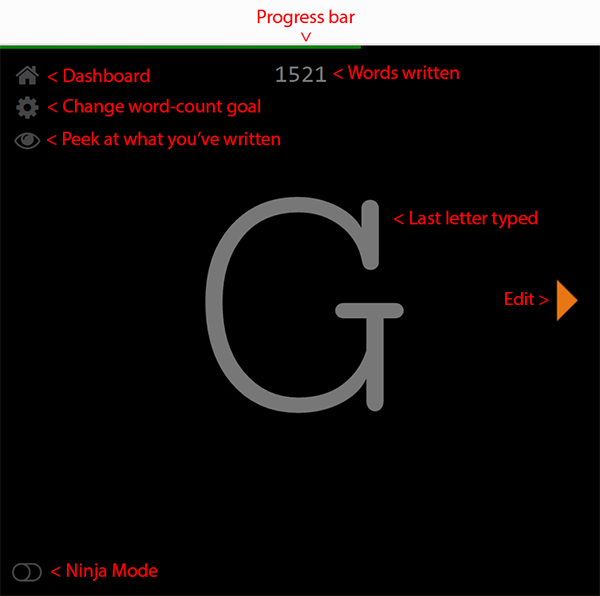
To start an Ilys writing session, enter how many words you want to write. Then just start writing, because there’s nothing else you can do. You can’t go back, delete, or edit anything until you have reached your word count goal. (There is an “eye” icon you can click to view what you’ve already written, in case you can’t remember the name you gave a character, or if you need to refer to a statistic you’ve typed.)
Ilys tracks your progress, identifying where you excel and where writing output dips. Because many writers profess that consistently writing a set number of words per day (irrespective of quality) is the key to success, Ilys is focused on providing a realm in which to keep on writing.
Everything is autosaved, just in case you accidentally delete something (or change your mind). Your data is stored, encrypted, online, until you’re ready to export your work to a word processing platform for more complex formatting.
Ilys offers a free 3000-word 500-word trial; after that, it’s $10.08 $11.11/month (or $99.99/year for 60% 25% off with an annual subscription).
Editor’s note: prices/trial information is no longer visible on the platform site, and it appears the site stopped providing information to non-registered users sometime between 2021 and mid-2024. However, you can use Ilys Classic — an even more bare-bones version, by going to the link and scrolling to the bottom to set your word goal. If you try to exit without having reached your goal, the page will show you what you’ve typed thus far and prompt you to return to the page. Once you have hit your goal, an arrow appears to take you to your viewable content.

The Most Dangerous Writing App, like Ilys, is web-based, and offers a similar, if potentially-paralyzing, approach to shutting down your inner critic. Instead of focusing on a word count, you set the time frame: 5, 10, 20, 30, 45 or 60 minutes, hit “Start” and commence writing.
While you write on the minimalist, unformatted screen, the web app counts your characters, words, and typing speed. If you stop typing for 5 seconds, everything you have written thus far disappears. Once you hit your writing time limit, you can copy and paste (no exporting!) your writing so you can edit and format elsewhere.
The whole concept is to free yourself from constraints and self-doubt by focusing all of your attention on your words. You can write in night mode or go full-screen to hide your desktop, but otherwise, this free web app is all about scaring you into letting the words flow!
To Paper Doll‘s mind, this approach is more suitable for Julia Cameron-inspired “morning pages” or following writing prompts than adhering to an outline for a long-form document. In fact, since I originally wrote this blog in 2017, The Most Dangerous Writing App has added a random prompt generator, so you might want to use the browser-based app to warm up before you get started on your serious writing for the day.

ZenPen is another free, web-based platform.
Actually, it’s barely a platform. It’s a bare-boned writing space with no distractions. None. Zip. When you first click on the link, you’ll see instructions to highlight all of the instruction text, hit delete, and start writing. When you do, all you’ll see on the page is:

See the very faint icons in the upper left corner? That will help you navigate. You can toggle to a full-screen mode, invert colors and go to dark mode, set a target word count, or save your text.
If you must format what you’re writing so that it makes sense to you, just click on any word or phrase you type and a tiny pop-up menu appears to bold, italicize, link, or create a visual marker for quoted material. Save and download what you create in plain text, Markdown or HTML for editing elsewhere.
Whether you choose a robust platform to complete your work of a lifetime or just select one of the web apps to free yourself to write without self-criticism, I hope you find a solution that works for you.
In our next NaNoWriMo Monday, we’ll be looking at wide variety of resources to help you organize your actual text and be more productive with your time. We’ll cover everything from proofreading and editing solutions to transcription options, all designed to help you write faster and create clearer communication, whether for your big novel or a workplace memo.
For related content, see:
- Organize Your Writing Time for NaNoWriMo 2022
- Organize Your Writing: NaNoWriMo 2021
- Paper Doll’s NaNoWriMoMo(nday): Writing Challenges, Dictation Tools, & Organized Writing Advice
- Paper Doll’s NaNoWriMoMo(nday): 10 Tools to Organize Your Writing, Editing, and Proofreading
- Paper Doll’s NaNoWriMoMoMo (Novel Writing Month Monday Motivation)…Even for Non-Writers
- Paper Doll’s How To Organize Yourself to Write for NaNoWriMo 2017
- Organizing Your Writing for NaNoWriMo and More
Paper Doll’s Manual Override – Part 3: Create & Organize A Digital Owner’s Manual Library
In our last two posts in this Manual Override series, Declutter and Organize Owner’s Manuals and Twelve Resources To Find An Owner’s Manual, we looked at how to get your paper manuals in order and access digital versions of them, whether yours are missing or you just prefer to go electronic for convenience or for environmental reasons.
Keeping all (or even most) of your owner’s manuals, installation instructions, and repair guides in digital form can also give you flexibility. Since we’re never very far from our computers and phones, we can access information about our possessions even when we’re nowhere near them.
Let’s say you and your siblings got your golf-loving grandfather a Bushnell Pro X-series Rangefinder to find the distance to a point on the green.
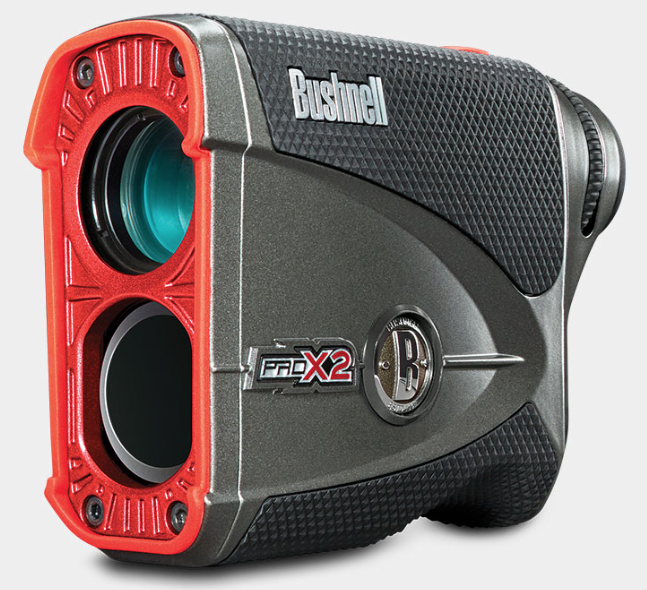
He’s hoping he’ll be using it soon for the first time, eager to show off his fancy-schmancy gadget to his buddies, but he can’t figure out the slope function. The manual is sitting on his kitchen table (much to Grandma’s chagrin) where he unboxed everything this morning. If he’s tech-savvy and has data on his phone, he might step into the clubhouse, Google the product, find the web page, navigate to the online manual, download it, and find what he needs in due time. Is Gramps techie? Well, if he is, be sure to share this three-part series with him. If not, read on.
With one call to you, you can access the manual, walk him through the instructions, and get him back out on the links. You’re now his favorite grandchild, and you can get back to work. But chances are this isn’t a one-time thing. What if you made sure that you had quick digital access to all of your manuals plus those for which your loved ones are likely to need tech support?
If your first thought was, “Great! That’ll save time!” but your second was, “Man, where am I going to keep all of these digital manuals?” then Paper Doll has you covered.
CREATE YOUR OWN DIGITAL MANUAL LIBRARY
Download a manual (in PDF form) as soon as you acquire a new appliance or gadget. Waiting until you need the manual to go spelunking the web will waste time at the very point you’re likely to be stressed and cranky. If you’re the main tech support for your kids, or your elderly parents or grandparents, download manuals sooner rather than later.
Some manuals will only require you to click on a “download” button, while others will display the manual as a web page. That’s fine if you want to bookmark the page and have all your devices’ browser bookmarks synced, but it’s a fairly unwieldy proposition. To download a manual from a web page as a PDF:
- Use File> Export to PDF or Print> Save as PDF (Mac)
- Use File> Print> Microsoft Print to PDF (Windows)
- Review this article for conversions to PDF (for iOS, Android, and Chrome OS)
Revise the file names for easy retrieval. Your operating system will likely default to naming the Rangefinder something like 201740_ProX2_GolfLRF_5LIM_EU_rev071217_web. I suspect Bushnell Rangefinder is going to be much easier to search the next time Gramps needs you.
Don’t print out entire manuals. Most people don’t read manuals from cover to cover. They fiddle around with what they know how to do, and when they run into obstacles, they seek out the section they need. So, if your instinct is to print pages for easier reading, at least save some of the trees. Chances are good that your problems involve very specific issues, like needing to know how to install a minuscule battery or set a timer, so printing out a 100-page manual is excessive. Print the page or two that you need and store that page with other print manuals, if you must.
Create a folder on your hard drive for storing manuals. If you already have a digital home maintenance folder on your hard drive, just create a sub-folder for the manuals. I encourage my clients to set download preferences so all downloads go directly to the desktop. It’s only messy for a moment, and it will be much easier to drag files, en masse, to the right folder than to try to move things from a Downloads folder.
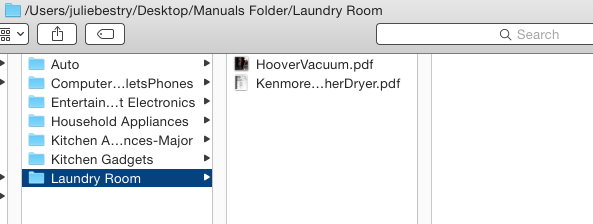
Make subfolders for the different categories of manuals. Remember from our first post in the series, how we talked about having separate folders for manuals for kitchen appliances or household appliances? It works the same way digitally.
BACK UP YOUR MANUALS
- Back up your hard drive. For maximum safety, use the belt-and-suspenders approach, backing up to both a local drive (an external drive in your home) and to a cloud-based backup service, like my sanity-preserving Backblaze. (You know you should be backing up, but if this is something you never quite get around to doing, check out the guest post I wrote for Write.Publish.Sell on the topic, 9 Ways To Keep Your Writing Safe.)
- Make a flash drive for your manuals. In the era of the cloud, flash drives may seem pretty Old School to some of you (while others are wondering if that’s the same thing is as a “thumb drive,” and yes, it is, and I’m proud of you for asking). While flash drives may be less than flashy, they have their advantages. If your computer isn’t working, having the manual solely on your hard drive doesn’t help much. Keeping a back-up on a flash drive lets you borrow a laptop, run to the public library, or otherwise find a quick alternative. Flash drives take up little space and are ideal for when you’re visiting The Land That Time Forgot (homes with no Wi-Fi or cell signal).
Move your manuals folder to the cloud. Chances are good that if you’re reading an article about organizing a digital owner’s manual library, you’re not too afraid of the cloud. You probably have one or more cloud solutions you use for storing documents, and you love how keeping something in the cloud means that it will sync content across your devices. A few major cloud solutions are:
- Dropbox – Dropbox is my favorite cloud storage solution. I have it installed on my computer, iPad, and phone, and it’s where I keep any documents or photos I might need if I’m going to be away from my desktop. A basic account is free for 2 GB of storage (ample for just starting out); $9.99/month for 2 terabytes for a Plus account; and $16.58/month for 3 terabytes of storage. (There are also business accounts, so check all pricing options.) I mostly like that it’s intuitive and couldn’t be easier to use. Dropbox acts just like any other space on your computer, so you just drag any downloaded PDF into the folder you create for your manuals. Access anything in Dropbox via the app on your mobile devices or in your preferred web browser.
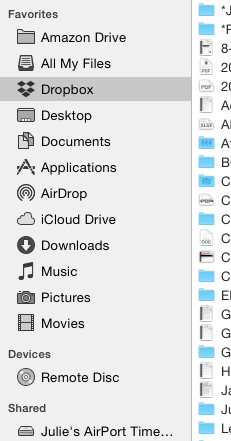
- Google Drive – If you already live and work in Gmail and Google Docs, Google Drive may be for you. A free account provides 15 GB of storage; the expanded Google One plans include $1.99/month for 100 GB, $2.99 for 200 GB, and $9.99/month gets you a terabyte. In case you heard that Google Drive went away, be assured that the service stayed put; it’s only the app that was discontinued in favor of a new version called Backup and Sync. (Google likes to confuse us.)
- OneDrive – If you use Microsoft 365, you probably already have (and use) OneDrive. Accounts range from free for 5GB of storage to $1.99/month for 50GB to a whopping 1 terabyte for $6.99/month. (There’s even a family plan for $9.99/month for up to 1 TB per person, per month, for up to six family members.) While Paper Doll finds OneDrive less intuitive than other options, Microsoft does offer a variety of support documents (hey, manuals!) for organizing your files.
- Evernote – Certainly Evernote is too robust to be considered a mere cloud storage service, whether you’re using a free,
Plus,Premium or Business subscription. I’ve spoken of the magic powers of Evernote on many occasions, since long before I became an Evernote Certified Consultant. But sure, drag and drop (or upload) a PDF from your desktop and you can access any manual from anywhere. (Read on for a special Evernote feature!)
INDEXING YOUR DIGITAL DOCUMENTS
Having digital manuals is only as good as your ability to find what you have. To that end (and to make it easier to know what manuals to toss when you recycle or donate an appliance), you need an index or inventory.
Basic Spreadsheet – If you have a small manual library, sorting your manuals by category or room and listing them in an Excel or Google spreadsheet is fairly easy. With Dropbox, for example, log into the web version, click “Share” for that document, and click “Create a link.” Enter the Dropbox URL for your PDF in the spreadsheet field that corresponds to that product’s manual.
Combined Manual Library and Inventory – Airtable is a secret weapon. If you could cross a spreadsheet with a robust database, add pretty pictures, and make it all easy, you’d be inventing Airtable. (And yes, writing a whole post about Airtable is definitely on Paper Doll‘s ToDo list.)
Using Airtable, you can build a sortable database in spreadsheet form, only instead of just putting in text, you can add photos, PDFs, links, and more, all with the click of a button. I created the following in under two minutes – adding labels, uploading some PDFs, and inputting starting information. I could have made it prettier, but the video above gives you a preview of those options.
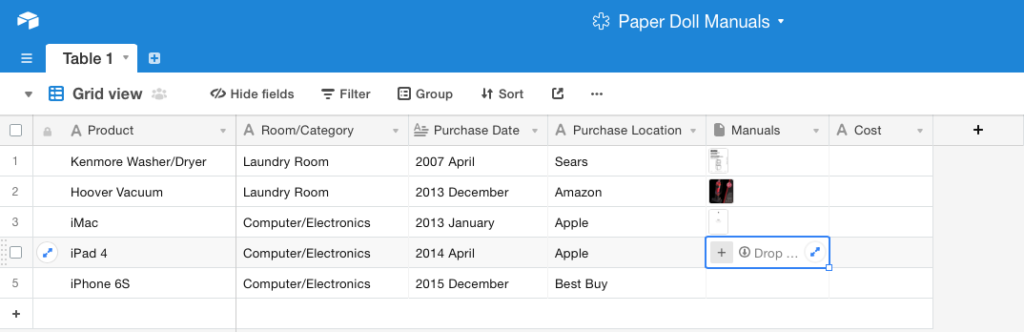 I created fields for the product, the room/category, each item’s date of purchase, the PDF manual (see the photo preview?), and the purchase price, all of which is overkill for a manual database, but helpful for creating a household inventory for insurance purposes. Add one column for serial numbers, another for photos of the item in your home, and one for a snapshot of the receipt.
See the outlined field in the Manuals column, above? To add a document, photo, or any attachment, just click the plus sign to reveal the following menu.
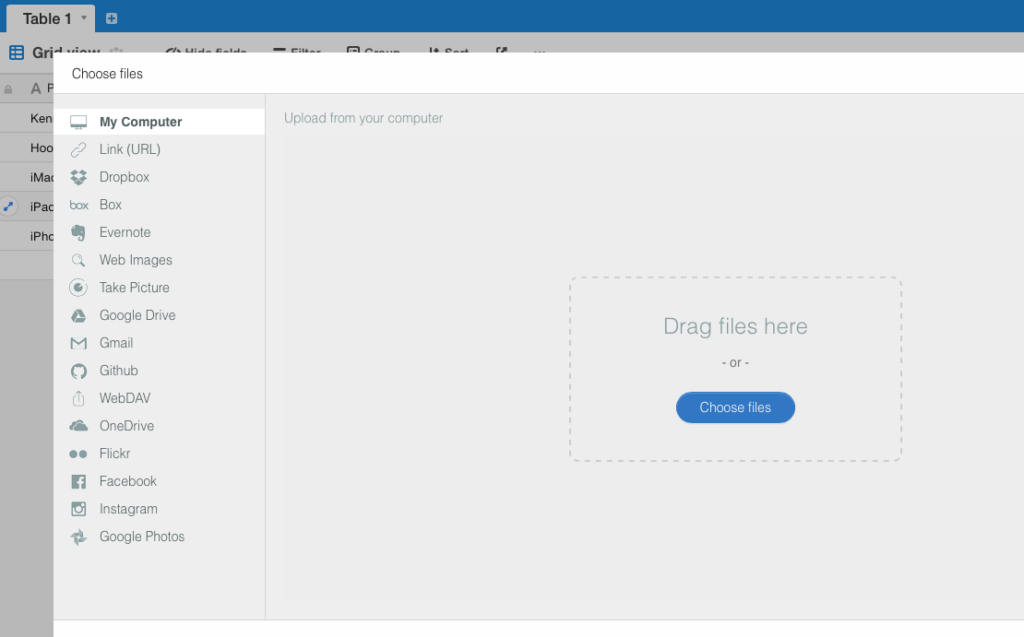 Drag any file from your desktop, or click the sidebar to navigate to a file on your computer, any URL, or a file in any of your cloud accounts, from Dropbox, Box, Evernote, Google Drive, OneDrive, or GitHub. You can also click to take a photo, upload a photo from Flickr, Facebook, Instagram, or Google Photos; you can even pull an email from your Gmail account.
Use Evernote to store your manuals in the cloud and create a table of contents. Store your scanned or downloaded PDF manuals in an Evernote notebook called “Manuals” (or whatever you prefer). Tag each note appropriately: #manual #laundryroom #washer (for example).
An Evernote Table of Contents is just a note that contains a list of links to other notes; basically, an index to make it easier to find and click through to related notes, all from one place.
- Select multiple notes while holding down Cmd+click (Mac) or Ctrl+click (Windows).
- Select Create Table of Contents Note from the resulting menu. This automatically generates a new note with a list of individual links for each of the selected notes. Done!
- Alternatively, manually create a table of contents by copying the note links for individual notes and pasting them into a new or existing note. Add links to an already-created table of contents this way, too.
I hope this Manual Override series has given you the guidance you need to keep your manuals streamlined, organized, and accessible. For understanding the manuals, though, you’re on your own!
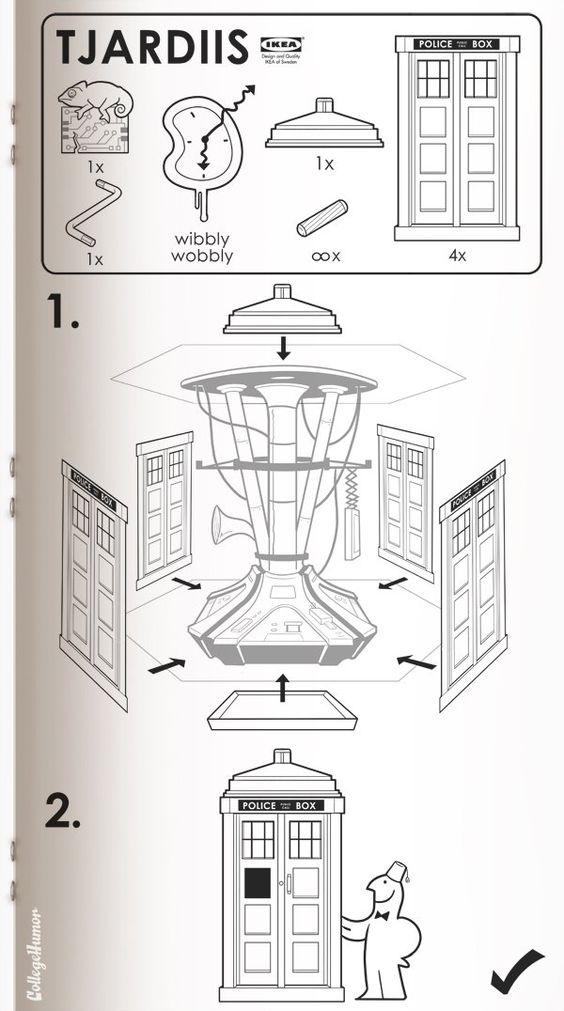 SciFi Ikea Manuals – CollegeHumor © 2011 Caldwell Tanner & Susanna Wolff
Paper Doll’s Manual Override – Part 2: Twelve Resources To Find An Owner’s Manual
 Got instruction manuals? Organize them! Have too many paper manuals? Can’t find the manuals you need at all? Go digital!
As I detailed in the first post of this series, Manual Override – Part 1: Declutter and Organize Your Owner’s Manuals, if you’re missing a manual, your best bet is always to start with the manufacturer of your product. However, if your item is old, or the company no longer exists, hope is not lost. Any of a variety of online manual databases can come to your rescue.
GENERAL MANUALS
Some of these databases link directly to manufacturers’ sites, while others depend on members of an online community for scanning and uploading household, electronic, and other device manuals. You may be wondering about copyright – after all, don’t most manuals have copyright notices on them? That’s true, but manufacturers generally make manuals available at no charge to their consumers. In many nations outside of North America, it’s even a legally protected consumer right to have access to such manuals. So, with the exception of automobile repair manuals (a for-profit industry), most manufacturers allow the free uploading, downloading, and sharing of manuals for personal use. The next time you need help with an appliance, gadget, or doodad, check out these databases.

ManualsOnline provides free access to more than 700,000 product manuals in more than two dozen categories (only some of which are displayed below).
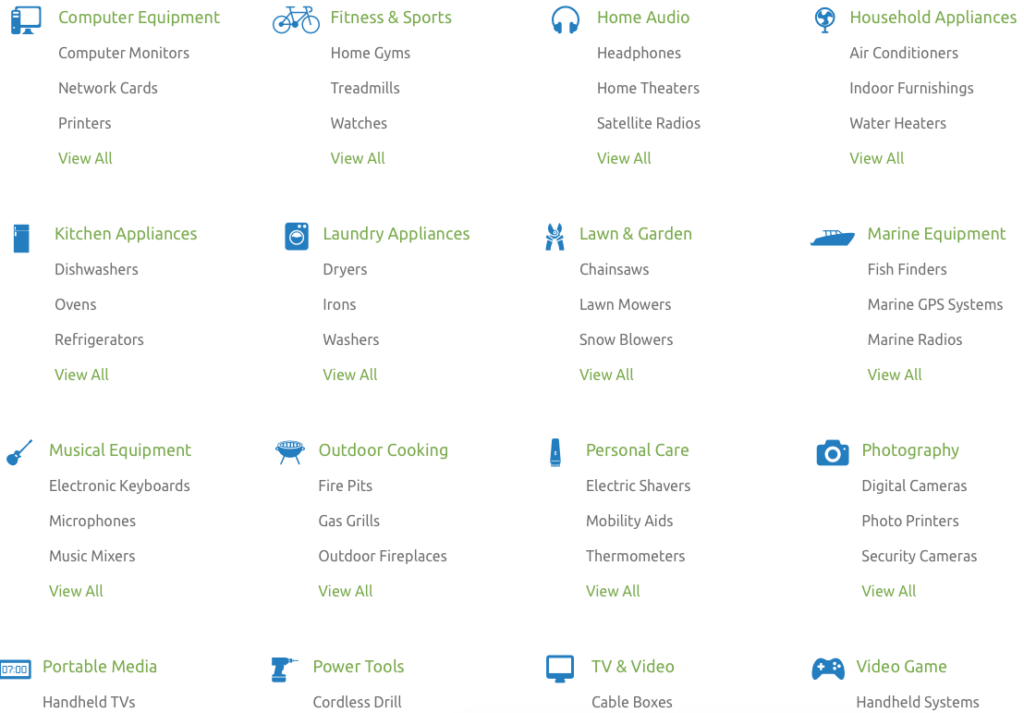
Click through individual categories or use the search box to find your specific product manual, and then print or open it as a PDF, and save to your hard drive or personal cloud. Seek troubleshooting and product support from the ManualsOnline community or browse previous answers to figure out why your thingamajig is doing that weird thing. It’s free to join and share your own expertise – you can sign in with your Facebook account or create your own login with your email address and a password. Share any manual directly from the site via email, Facebook, Twitter, or (yes, sigh) Google Plus, with one click.
ManualsOnline is ad-supported, so you will see sponsored listings to the right of, and below, your search areas.

ManualsLib.com has a collection of more than 2.7 million PDF-formatted manuals for 1.8 million products in 2000+ categories. Enter keywords in the search field to find your product, and the search results yield the manual name, description, size, and the number of pages. Opt to read the manual online, print one page or any/all of them, download it to your computer or save it to Dropbox or a similar cloud option. Share on social networks directly from a manual’s page, or add a comment for other readers to see.
ManualsLib is free to use, and there’s no registration required unless you want to bookmark a manual to your account. Just search, find, and download. And the site makes an interesting suggestion – in addition to accessing the installation, service, and owner’s manuals for the products you have, compare the manuals of similar products to help you decide which you want to purchase!
ManualsLib has targeted advertising, and rather than cluttering the web page, ads are embedded as a pre-cover page of each manual.
The Archive.Org’s Manual Library is yet another genius project from The Internet Archive, an international non-profit that seeks to digitize and provide “universal access to all knowledge.” If you’ve ever bookmarked a website only to find it no longer exists, you’ll appreciate how the Archive’s Wayback Machine has preserved more than 150 billion web pages. One of their lesser-known projects is the Manual Library, “a collection of manuals, instructions, walkthroughs and datasheets for a massive spectrum of items. Manuals covering electronic and mechanical products, instructions on mixing or blending items, and instruction sets for software and computer items are all included.”
Use the search box to find any of more than 90,000 manuals, or get lost for the better part of an afternoon in the sortable displays of 17,000+ hardware and software manuals, 500+ vending machine manuals, guides to making that John Deere tractor purr, and more. The true delight of the Archive.Org’s Manual Library, however, isn’t the useful manual options for what you own, but the quirky and unexpected manual collections, ranging from beekeeper supplies to Howitzer light tanks.


ManualsMania.com has a selection of more than 200,000 manuals. Start with a brand (from Acer to Krups, Apple to Sunbeam, and many in between) and then narrow your selection, or use the search box to enter keywords about your product.
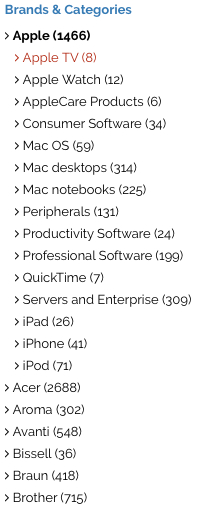 There are on-screen previews for most products to keep you from clicking through to a similar, but inexact, description match.
 Once you have the manual you want, click through and select the language option you prefer. For some products, you may find up to a dozen language versions, giving you the chance to practice your Czech while you learn about your new binkie’s features.
The database is free, requires no registration, and you can upload your own manuals to help further the pro-environmental cause of going digital. ManualsMania also has ads and a little less of a professional feel.

SafeManuals.com is a collaborative site. Access any of the PDF manuals in the database by typing keywords or model numbers into the search box. View any page of a given manual, or download the entire manual with a click. The file sizes are sometimes wonky – I was quoted 0 MB for a 196-page iPhone 6S manual, but the pages are all visible. You can also participate by uploading and sharing PDFs of any manuals you possess.
 Strangely, manual pages are watermarked with the site’s URL, and ads sometimes appear on the bottom of the online version of the manuals, but not on the downloaded PDFs.
SafeManuals is an Estonian company accessible in English, Chinese, Dutch, French, German, Italian, Portuguese, Russian, and Spanish. The ads are run through the AdChoices network, so you’re more likely to see ads for sites you’ve visited recently (due to your computer’s cookies) than related products.

Retrevo is a shopping and review portal with a searchable database of more than a million product manuals. You can search by product category, like for cameras, video recorders, computers and peripherals, mobile phones, televisions, and a huge variety of consumer electronics and appliances.
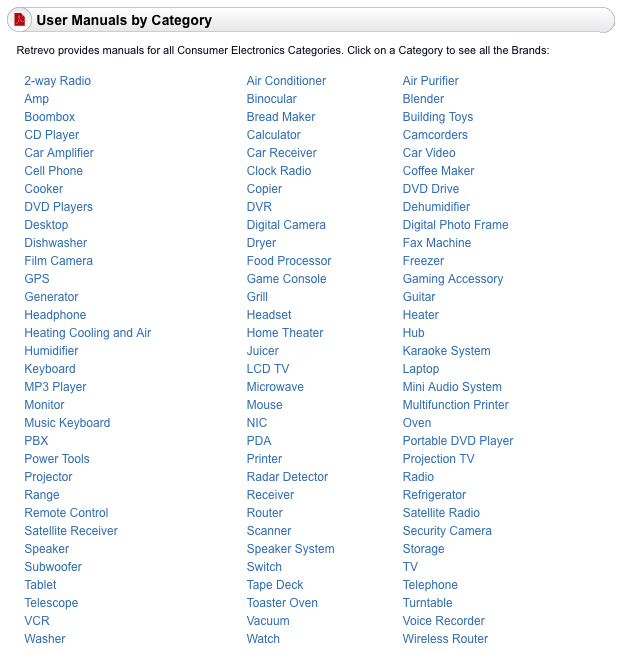
Although most major brands, including Sony, Panasonic, Canon, General Electric, Dell, LG, Maytag, KitchenAid, and Nikon are represented, there are some glaringly absent brands, like Apple. However, there are some equally fun surprises, like manuals for LEGO.
Once you locate the product you want, the download buttons for manuals are embedded in the product sales and review pages, which are full of ads, making the aesthetics of the site somewhat to be desired, and you have to enter a CAPTCHA to access the download. Still, it’s a good stop if you’ve exhausted other sites and are still seeking the right manual.

The UsersManualGuide.com has a real bare-bones approach to finding the manuals you need. There’s no membership, no forum, and no personalized home page. There’s no easy way to even find out more about who put the site together, but there’s a charm to the gruff simplicity. (The site is available in English, French, German, and Romanian, an unusual combination of options.)
The list of manufacturers ranges from AEG to Zanussi (with plenty from Panasonic, Motorola, Samsung, Kenwood, Sharp, Casio, Yamaha, Philips, and Sanyo). However, once you click through, you will need to know your model number to search directly. Otherwise, you get a Not-Ready-for-Prime-Time search box and there are no product photo previews to help you along.
UsersManualGuide.com has a bounty of on-screen ads, and the products available can be hit-or-miss. I couldn’t locate a manual for my ancient Sony Dream Machine (even knowing it was model ICF-C5W).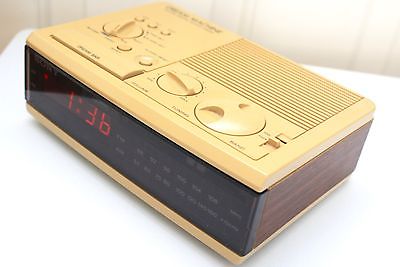
GAMING MANUALS

ReplacementDocs bills itself as “the original web archive of game manuals” but looks more like a circa-1996 web forum. If you’ve decided to dust off that Atari 5250 you haven’t used in eons, or you’ve found a mint condition Apple ][ game collection at a garage sale but can’t figure out the settings sans manual, this site has what you need. (Don’t worry, there’s plenty of Nintendo manuals of all varieties, plus Wii, XBox and more.) Staff editors hand-edit all uploaded submissions to ensure quality. There’s a teeny bit of advertising, but it doesn’t interfere with readability or search functions.

Vimm’s Lair’s Manual Project offers a collection of more than 400 NES and SNES game manuals, as well as guides for other games, all available for viewing online or downloading in .vml or PDF format.

The Video Game Archaeologist also has a large collection of classic and newer video game manuals, designed to be viewable in your browser (rather than downloaded).
CAR MANUALS
There are two types of automobile manuals. First, there are the owner’s manuals you find in your glove compartment when you buy a new car (or hope to find there when you purchase a used car). Manufacturers provide these for guidance so you will take good care of your car and be a satisfied owner.
The second type of automobile manual is more extensive and filled with in-depth maintenance and repair advice. The companies that produce these guides hire mechanical experts and technical writers to create robust, high-quality manuals, covering everything from standard maintenance to popular repairs to in-depth servicing. Understandably, such companies charge for those products. Consequently, you will not find these manuals available for free, online or elsewhere.
If you’re planning to do any kind of DIY car repair beyond replacing your windshield wipers, consult manuals from two of the best-known companies: Haynes and Chilton. You’ll find that these manuals, once available only in print, are now also available for purchase in digital form. (Bear that in mind when you get to our next post in this series, so you can keep track of all the major manuals for your household’s automobiles.)
But, back to the first type of manual. If you’ve spilled coffee on your owner’s manual, your toddler crushed wet Cheerios into the binding, or your new-to-you vehicle arrived without a manual, go to the ultimate car source.

Edmund’s.com, best known for helping consumers identify the right used or new car for their needs, has a nifty chart with links to each auto manufacturer’s site for downloading digital car manuals. Although the page hasn’t been updated in a few years, the links to individual automobile company sites yield the pages you’ll need to find the official manual for your car. In most cases, the digital versions of the manuals are free; acquiring a paper copy will generally cost $25-$45.

The Manuals.co Project is a collaborative site run by car enthusiasts seeking to overcome the challenges related to the “difficulty, stress and complications we encountered when looking for documentation relating to our vehicles.” The team seeks to collect and make available “workshop manuals” for a wide variety of cars. From Alfa Romeo to Vauxhall, they have an impressive variety of manuals, though none for my 20-year-old (let’s say vintage) Saturn SL1. Select the make and model of the car you’re seeking, then click to find the PDF for the year of your vehicle. View or download it for free. No registration is necessary, and you can also upload manuals you’ve scanned to help expand the database.
DEALING WITH THE CLUTTER OF MANUAL PDFs
The big question is, what do you do with all of these digital manuals you acquire? Sure, sometimes it’s good enough to look up a manual online, read how to reset your whatchamacallit, and move on. But if you’d prefer to have a neatly organized digital archive, Paper Doll has you covered. Watch this space for the final post in this Manual Override series to final post in this Manual Override series to learn how to create your own organized digital manual library with an easily searchable database.

Follow Me