Paper Doll
The Romance of Postal Mail (Part 2): Postcards From the Edge
The future of tangible mail is uncertain, and for the first time in a while, people actually seem to care. Suddenly, it seems like everyone has gotten nostalgic at once and is trying to make postal mail more appealing.
Don’t have a stamp? No problem. Hallmark has started selling cards with postage included in the cost, removing the stamp-buying obstacle from the process.
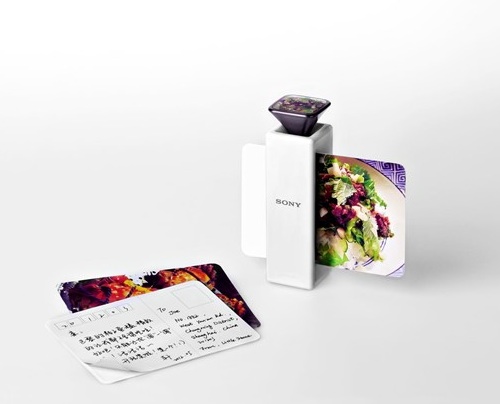
Standard paper isn’t interesting enough? A Sony-sponsored student design competition winner invented a combination camera/smell extractor/printer that allows you to capture the scents of foods and encrypt them into postcards to share travel experiences with loved ones. (“The food smells beautiful. Wish you were here!”)
Postal mail is feeling the love from the literary realm, as well.
The Letters of Note blog, which shares fascinating letters, postcards and telegrams sent back when paper correspondence was the norm, has earned such a loyal following that a book is forthcoming.
Last week, we reviewed various methods for easing the letter-writing process. Create your digital message here and it gets printed, stuffed and stamped (by someone else) and delivered there. Today, we look at shorter-form messages for keeping in touch with minimal effort: digital-to-paper postcards.
BoastCards provides a creative way to turn your photos (or BoastCards’ stock photos) into high-quality postcards. Either way, you have the ability to customize them with BoastCards’ partner Picnik’s extensive graphics tools to create nifty effects: adjust the colors, smooth wrinkles (!), add “makeup” to faces or on-card “graffiti” to enhance your message.
1) Create an account (though you can play around with making a card first and create your account once you’re ready to send your first postcard).
2) Manually input or import your contacts directly into the system. If you want, you can create one-click group lists (to easily send one postcard to all of your relatives, a different one to work colleagues and a third to friends).
3) Design your card. Right now, all cards are 4″ x 6″, but eventually other size options will be available. Upload any image in .jpg format, or select a photo from BoastCards’ Blueprint Gallery or Photo Gallery and use the internal editor to add your preferred digital effects.
Next, create your message and fill in the “Photo Origin” (i.e., from where you’ll say the postcard has been sent). About twenty different fonts are available and font sizes range from 14 to 52 point.
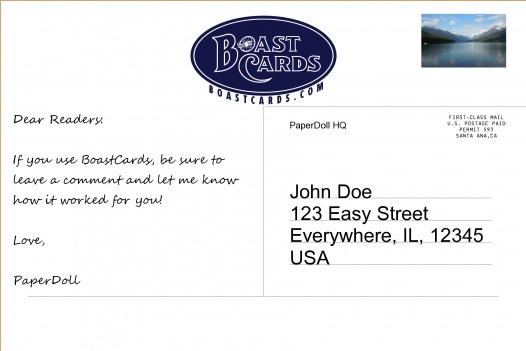
4) Pay with a credit card, Paypal or BoastBucks (pre-paid, discounted credits you can load onto your account and which never expire). The more BoastBucks you buy, the higher the discount. Create your card for free; $2 gets it sent anywhere in the world.
Currently, BoastCards works in your browser; iPhone and iPad apps are planned for later this year.

Postcards Anywhere is a digital-to-paper service that works in your browser or on your iPhone. Create an account or sign in via Twitter or Facebook. Upload a photo, add your personal text, assign the recipient’s address and send.
The result is a glossy 4″ x 6″ postcard delivered anywhere in the United States by the USPS — all for just $1! (Postcards Anywhere anticipates mailing internationally in the near future.) When it’s time to pay (via credit card, only; Paypal, Google Checkout and Amazon Payments are coming soon), you can purchase just one card, or buy discounted blocks of “stamps” (5, 10, 20 or 100), good for one year.
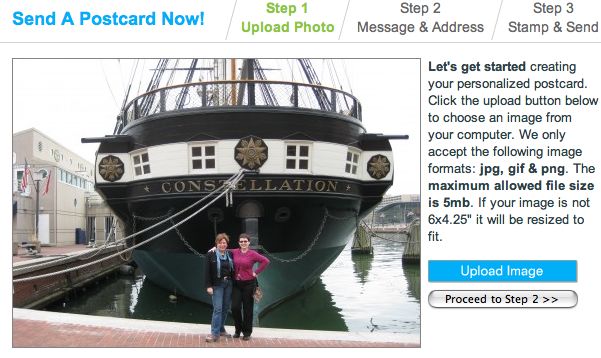
(My colleagues, Anna Sicalides and Sharon Lowenheim, at the Baltimore Harbor during the 2012 NAPO Conference.)
There’s no fancy photo editing. However, for those who crave more goodies, in addition to the tangible postcard your carrier delivers, Postcards Anywhere lets you create an online version of the card in Postcard+. There, postcards can be enhanced with audio, video, and Google Map-related location data, and recipients can post comments, share and even reprint the cards you send. And, because the Postcards+ element is digital, your recipients can reply as soon as they get the cards, letting you know how much they love them. (A little imprint on the reverse of the card alerts recipients to visit the Postcards+ web page.)
If you have their email address, but lack someone’s mailing address, Postcards Anywhere has a “Request an Address” feature. So, you can set up the whole card and request the address; once Postcards Anywhere gets a reply from your recipient, the system will automatically send the card…and send you the address for your records.
Postcards Anywhere has even added a way to make your voice heard in Washington, with a Little Black Book of addresses of VIPs to whom you might want to jot off a message.

Postagram takes all those funky Instagram photos you’ve created and gives them a place to live in the three-dimensional world. (It also works for Facebook photos or any other mobile photos hiding in your accounts.) Available on the web or via your iPhone or Android smart phone, Postagram lets you print and email photos as postcards, with 140-character personal messages.
Niftily, the photo can be popped out of the actual card, making it suitable for framing, sticking on your dashboard, or tucking into your pocket. Watch the video to see a happy (and apparently web-free) Grandpa get his card.
The total cost? 99 cents, including labor, printing and postage.

Paper Doll is really hoping the UK’s Cards in the Post branches out to North American users soon (as is planned), because it’s an absolute delight to use. It works on any device — desktop, laptop, tablet or smart phone.
Upload a photo from your computer, the web, your Instagram or Facebook accounts or Cards in the Post’s galleries. If you don’t like uploading, you can actually drag and drop any photo onto the card template! When you’re done, click “flip card” to display the reverse, write your message and address the card. It could not be easier. The postage stamp area even indicates the estimated arrival date. Agree to the Terms and Conditions, pay 2 (about $3.14) via your credit card or Paypal, and your postcard is on its way.

Touchnote, from Samsung, should have been simple to use. Ostensibly, the steps were easy enough: upload a photo from your computer or smart phone and add a caption or thought bubble (if you wish). Touchnote should save the photo and then provide a platform to write your message (in one of two basic fonts). Then, you’re supposed to add the recipient’s address and pay ($1.49 per card, unless you’ve pre-purchased discounted credits).
Unfortunately, while each step worked as expected, advancing to the next step presented repeated problems. At first, the server was busy; then I encountered unexpected error messages, and at each step, it was impossible to revert to the prior step. I was using the web version, so it’s possible Touchnote just doesn’t like old-fashioned users. If you’ve used Touchnote to good effect, please report it in the comments section.

Postcard on the Run is another iPhone/iPad/iPod Touch, Android and Windows smart-phone device, but sadly (for stupid-phone users like Paper Doll), there’s no web access.
Snap a new photo or use a photo that already exists on your phone or Facebook account and create a postcard-brief message. Enter the recipient’s address; if you only have a phone number, Postcard on the Run will send a text to your recipient to acquire the mailing address. Wish your card could be more personal? Postcard On The Run lets you sign your postcard with your finger and embed a little map to identify where you are.
Postcard on the Run is Sustainable Forestry Initiative-certified, meaning postcard stock comes from tree paper/fiber obtained through responsible, globally-certified distributors. The high gloss coatings and inks used on the cards are biodegradable.
Pay via credit card or Paypal; it’s 99 cents per card in the United States. International costs vary.
Cards is a little different from the other services — it’s Apple-only, and creates tangible, personalized 4″ x 6″, letterpress greeting cards using your own photos and message, printed on 100% cotton paper, imprinted in a debossed style.
Just shoot a photo (or use one from your photo collection), select from various design styles to customize your card, and add your message. If you select one of Cards’ travel-themed designs, the card will automatically display the name of your current location; if you choose a photo with GPS data, the card will be imprinted with the name of the place where the photo was taken.

Once you choose a mailing address from your Contacts, you can place your order immediately using your Apple ID password. To send your cards within the United States, $2.99 plus sales tax covers both the card and postage (with Cards’ own Apple-designed postage stamp); for elsewhere in the world, it’s $4.99 (including the VAT for the applicable country).
Any card you make is saved automatically, so you can resend any design to multiple recipients. Cards makes use of the USPS Intelligent Mail barcode service, so if you’ve sent the card to a recipient in the United States, you’ll get a notification on the day the card is set to be delivered.

Postino works on iPhone, Android, Windows and via Facebook. Snap a photo on your phone, or use a picture from your computer or your Facebook photo albums. Use your finger to draw a personalized message, picture or signature, and if you want, have your GPS location included.
The postcards are printed on super-high quality paper and can be mailed worldwide from locations in North America and Europe. Virtual stamps cost $1.99/card, though you can buy discounted packages of multiple “stamps.” However, Postino doesn’t have user accounts — your purchased packages of stamps are associated with your actual phone, so if you lose and replace or otherwise upgrade your current phone, you’ll have to contact Postino to keep your postage intact.
There are numerous other smart phone apps for sending postcards, and I’d love to hear about your favorites. Please share your digital-to-paper correspondence stories or wish-lists in the comments section.
The Romance of Postal Mail (Part 1): The Charm of Mail Call
In April, the Senate passed the 21st Century Postal Service Act of 2012, which places a moratorium on closing post offices, and delays the transition from six-day to five-day delivery until at least 2014. (The House hasn’t voted yet.) However, last week’s news of the United States Postal Service defaulting on a $5.5 billion retirement-fund payment is yet another sign of the financial decay of an American institution dating back to 1775.
There’s little doubt that the vast increase in electronic communication is at the heart of the USPS downturn. As an inveterate letter-writer and letter-lover, I believe real letters, thoughtfully-composed and artfully sent, delivered to our homes, even by not-so-speedy delivery, matter. Organized thoughts, committed to tangible form, raise spirits. Organizing the resources for sharing heartfelt messages worthy of savoring can only make the process easier to embrace.
We’ve previously reviewed various stamp-free options for sending tangible letters and telegrams via computer; over the next few posts, we’ll look at more ways of using technology (and ingenuity), to keep old-fashioned letter-writing alive in the 21st century.
Snail Mail My Email — Last summer, a month-long art installation embraced the slow pace of bygone days when people walked to the mailbox with anticipation, in hopes of a love letter or note from a far-off pen pal.
San Francisco artist and designer Ivan Cash created the project to “cultivate appreciation for the lost art of letter writing; that warm, fuzzy feeling you get when you open a letter and know that someone took the time to sit down and think of you.” During this project, 10,457 recipients in 70 nations on all seven continents received old-fashioned mail that started as bits and bytes. Users wrote emails which were transformed into handwritten letters, physically stamped and mailed by 234 volunteers.
Reminiscent of the slow-food movement, this project centered on using traditional mail for “being mindful and deliberate, and truly connecting with other people in more thoughtful and meaningful ways.” Although the project is over, you can read more about it in the upcoming book or on the Facebook page. For more on Snail Mail My Mail, visit the letter gallery and click on the letter map to see the range of distribution.
There are still a number of opportunities for you to organize a special and traditional mail call for the people in your life.
Postcardly helps you send a real postcard without ever leaving the comfort of your smart phone or computer. Why might that be helpful?
Perhaps you’d normally attach a photo to a tweet or email, but Great-Grandpa isn’t quite so comfortable around a mouse or track pad.
Maybe you’re nostalgic for the days of sending postcards from your vacation, but don’t have the time to change currencies or buy a stamp as you quickly travel from one mysterious destination to another.
And it might be that you’d love to share tangible snapshots of your honeymoon or new baby, but don’t have the energy to print cards or hand-address them.
Postcardly converts any email with an attached photo into a postcard and then sends your printed message and photo to your intended recipient(s) via the U.S. Postal Service.
1) Sign up for a free account — just provide your email address and create a password. (When you sign up, you get a free trial of three postcards; use FREETRIAL as the promotion code.)
2) Choose your Postcardly plan: Prepaid (a one-time $19.99 charge gets you 20 postcards to use within the first year), Monthly ($9.99/month, for 15 postcards every month and 99 cents for each additional postcard), or Monthly Lite ($4.99/month, for 5 postcards every month and 99 cents for each additional postcard). The free trial applies to all three plans. Each international postcard count as two (to cover the cost of extra postage).
On the down side, you have to provide your credit card information in order to complete your registration. However, Postcardly doesn’t charge your credit card until you’ve sent your fourth postcard, after completion of the free trial. Also, every Postcardly account works as a family plan, so you can add your spouse, kids, parents or siblings as authorized senders at no extra charge.
3) Set up your address book, with recipients’ names and mailing addresses.
4) Create a Postcardly email address (like PaperMommy@postcardly.com) and then send email from your computer or smart phone’s regular email program to the recipient’s @Postcardly.com address. Be sure to attach the photo!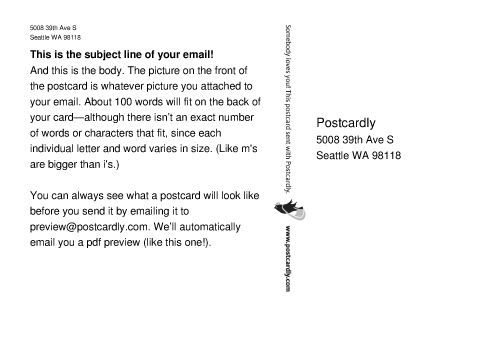
Postcardly mails the postcard from Seattle (sorry, no Bali postmarks), with your words on one side and the photo on the reverse. You can also send the same postcard to multiple recipients, just by using the regular CC: field.
To see your postcard, email it to preview@postcardly.com and you’ll receive a reply with a PDF attachment to preview. (Try the feature even if you haven’t signed up for Postcardly, to see how it looks.)
lettrs is sort of a combination post office, time machine and museum. Founder Drew Bartkiewicz was inspired by the carefully preserved letters received by his maternal grandmother, and the site declares itself as “A platform to organize the world’s letters. Designed by lovers of the written word, lettrs is the place that facilitates, inspires, and slows the world’s lasting communications.”
Sign up via Twitter, Facebook or a personalized login.
To send a digital or typed paper letter, click on the Writing Desk and start typing a message, choosing from among three design styles (printing on lined paper, calligraphy on linen or old typewriter font). Accept today’s date as the default, or select a date from the past or future. If you wish, tag the message as if it were a blog post, to enhance searchability, and select whether it’s OK for the recipient to post it to his or her Virtual Fridge (sort of like a Pinterest board). Add photos to your letter with the clickof a button and a quick upload.
If you choose to send it digitally, it’s free. Send it to an email address, Facebook friend, Twitter follower or as an open letter visible to all who visit the site.
If you’d prefer to send a paper letter, enter the mailing address. If you don’t know it, you can just provide the person’s email address, and lettrs will email to obtain the address for you!
Select your fanciness preference. Would you like your letter sent on high quality, 25% cotton paper (for $2), watermarked, textured royal linen paper (for $4) or a hand-made, scented, linen card with a waxed seal (for $8)? (Add $1/letter for international mail.) Send as if from your own address, or from your first name and last initial at lettrs’ old-timey PO Box 99 return address in Collinsville, CT.
For either digital or paper options, you can request delivery for a future date (though I wouldn’t wait years and years, given the unpredictability of e-commerce).
You can also upload a letter you’ve already written or received, or one that’s been in your family for generations (or since you went to summer camp), add details about the date, author, recipient and back-story, and share socially with other members of lettrs on your Virtual Fridge. Keep other letters private in your Shoebox.
lettrs spreads love by helping you send real mail, and enables you to curate and preserve the love of letter-writing (and letter-reading). For more about lettrs and the letters Foundation, which promotes “slow communication and letter-recovery initiatives at charities across the globe,” including the Wounded Warrior Project and the Special Olympics, watch the video.

LetterWise is not a pretty site, but it sets out to do something that’s pretty loving. Let’s say someone — Great-Grandpa, again — isn’t exactly web savvy. The great-grandchildren, on the other hand, aren’t going to sit down to write letters to him even though they’ll gladly text and tweet and Facebook all day long. Poor Great-Grandpa.
LetterWise had a charming solution. You “sponsor” recipients, creating mailboxes identifying them (Great-Grandpa) and where the letters will be sent (Retirement Cottage, 123 Long Ago Lane, Old Timeyville). As the sponsor, you can then invite any number of people — your spouse, kids, siblings, co-workers, etc. to become members of that mailbox at no extra charge.
Then, all of you can easily and electronically contribute messages to the mailbox, either using LetterWise’s online system or by replying to an email reminder. Once or twice each week (depending on the plan you pick), LetterWise aggregates the messages into one single printed letter, up to eight pages long, stuffs it into an envelope, stamps it and mails to the recipient.
You pay to sponsor a new mailbox at $9.95/month for one letter per week, or $14.95/month for two, but it’s free for someone to “join” a mailbox. Great-Grandpa gets to stay in the loop and may decide to write back via traditional mail to the great-grandchildren.
All mail is confidential, so although Johnny may tell Great-Grandpa that he’s planning to backpack through Europe after college, Johnny’s mom, even if she’s a member of the mailbox, will be none-the-wiser. (Meanwhile, if Great-Grandpa is anything like Paper Mommy‘s father, he’ll tell Johnny how he came from Europe, and feh, who needs to go back there and schlep around with a satchel on his back?!)
Of course, LetterWise isn’t just for seniors. Kids at summer camp or boarding schools, and adults in the military, foreign aid workers and others may have undependable or restricted access to electronic communication. Using LetterWise can ensure that all their loved ones, particularly those who are more likely to dash off an email than search out stationery, can keep them close at heart.

Epistly, which just launched this spring, is the essence of simplicity. Write a quick blurb in the box on the front page of the site (or send a message to mail@epistly.com, with the recipient’s address in the email), and Epistly will hand-write it and mail it for you!
Epistly has four pricing plans:
Pay As You Go has no monthly charge, but costs a whopping $9.99 per letter, and promises your item will be mailed within three business days.
Scribbler is $9.99/month, earns you two letters (or credits) per month, with each letter $7.95 thereafter, and mail is sent within two business days.
Author is $99/month, earns twenty letters (or credits) per month, with each letter thereafter priced at $4.95. Letters are mailed within one business day.
There’s also a customizable Poet plan if you envision sending 100+ letters each month.
Once your letter is sent, Epistly emails an alert, including a snapshot image of your letter. Log into your account at any time to see the status of a letter order.
Pricey? Paper Doll thinks so, but the About section of the blog explains that the founders see Epistly as a way for busy entrepreneurs to send hand-written, customized letters. (They’ve already got at least one celebrity fan.) Of course, it won’t be your handwriting, but it’s real handwriting (rather than the horrible computerized, faux handwriting of direct mail campaigns) nonetheless.
Next time, we’ll look other online services for sending letters and postcards, numerous smart phone apps for making tangible postcards a (tropical) breeze, and a few other ways to make snail mail spiffy and appealing.
I’m With the Band: Cool Organizing With Rubber Bands
IN THE (BOUNCY) BEGINNING
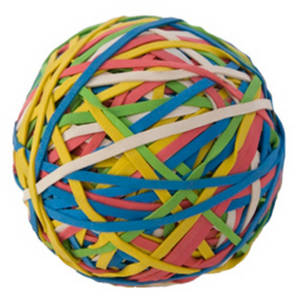
Ever since the invention of the rubber band in 1845, we’ve been able to bind papers, folders, supplies and books with stretchy goodness. Unfortunately, rubber bands eventually dried and cracked and snapped. Sometimes, as they lost their elasticity, they discolored and damaged the papers and other items they were meant to secure. Then an inventive American rubber band company, Alliance, came along. It was founded in 1917 by William Spencer — the guy who came up with banding newspapers to keep them from blowing across lawns.
Over the years, Alliance has been at the forefront of creating over 2000 innovative rubber bands, including oversized bands for folders and papers (as well as keeping garbage bags from falling into cans), X-Treme file bands for securing large piles of archival paperwork, and (believe it or not) aromatherapy rubber bands.
Got latex allergies? Fear germs? Alliance is also a great source for bright orange latex-free and cyan blue anti-microbial rubber bands for schools, offices and other workplaces.
Bands for office organizing have never been known for their cool factor, and awareness of traditional file-oriented rubber bands has always trended towards drab office-supply basics. There have been a few exceptions:

The Container Store has its line of File Bands. Seven inches long when flat, they’re made of UV- and ozone-resistant, latex-free Ethylene Propylene Diene Monomer (EPDM). Say that three times quickly and you’ll feel like someone snapped some rubber bands at your lips! They only come in green, and run $3.49 for a package of ten.
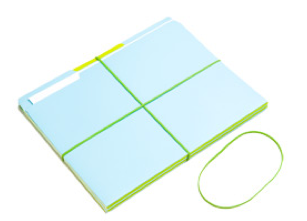
A little more upscale, the Museum of Useful Things has its own 7″ latex-free, extra-durable File Bands, also made of EPDM rubber, in black or neon green. ($5.50 for a box of 25.)
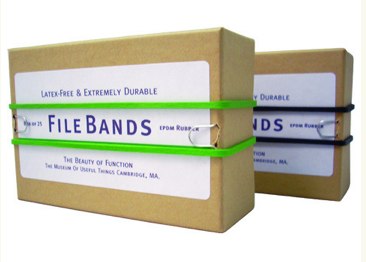
Today, we’ll be looking at a plethora of colorful, durable, shape-shifting, rubbery organizing options.
CRISS-CROSS APPLESAUCE
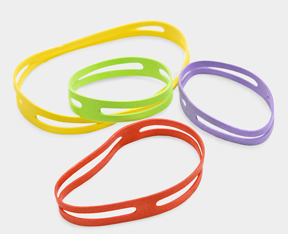
4-way rubber bands are also called H bands because of their appearance when not stretched.

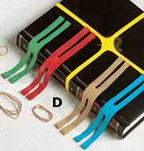
4-way bands can be found at a wide variety of office supply, library supply and specialty stores. They come in multiple colors, including blue, red, yellow, green and brown, and are most often found in 8″, 9″ and 10″ dimensions.
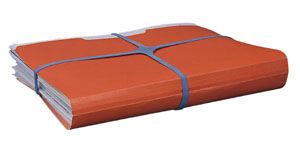

Particularly nice are the 4-way rubber bands from the Museum of Useful Things shop. They come only in red, packaged in generic-chic take-out lunch bag packages of ten, for $6.
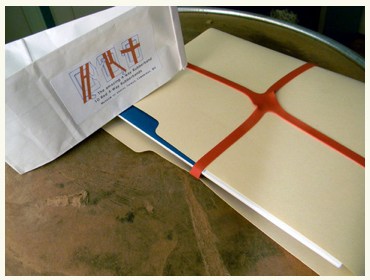
Although primarily a utilitarian tool, 4-way bands hit the big time after a 2004 Humble Masterpieces exhibit at the Metropolitan Museum of Art. Since then, the brightly-colored Rubber X-Bands (in two sizes, 3″ x 1/2″, 5 3/4″x 1/2″) have been bestsellers at the MoMA Store ($5) and are popular on Amazon ($6 for a box of 16).
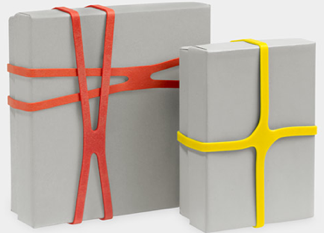
In addition to banding together files and paperwork, H bands are popular for securing game and puzzle boxes to prevent ancient cardboard containers from springing leaks.
Bundlebands go the traditional rubber band one better. The company explains that when regular rubber bands are cut from the ends of rubber tubing, the natural grain of the rubber runs across the band’s width. Because of this, when you stretch the band, you open the grain. As rubber dries and oxidizes, the lifespan of the band is shortened. Hence those startling SNAPs, causing your bundles to shift and your office-mate or cat to get thwacked.
Conversely, Bundlebands are cut with the grain running with, rather than against, the length of the band, so when you stretch it, the grain closes, forestalling drying and oxidation, and increasing the life of the band.
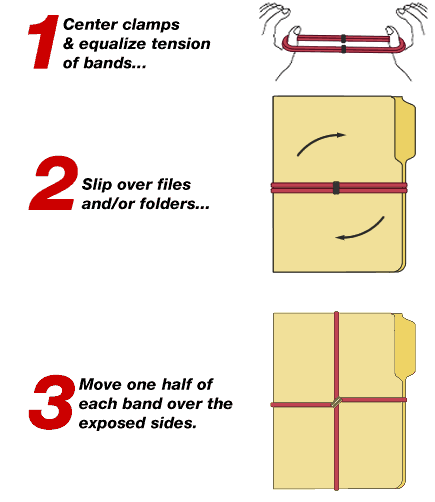
Bundlebands also have a small metal clamps to maintained equalized tension and prevent your bundles of files or packages from shifting.
Bundlebands come in four color-coordinated sizes: 8″ red, 9″ brown, 10″ blue and 11″ green. You can purchase bags of 10, 25, 50, or 100, directly from the company, or via selected specialty dealers, like FilingSupplies.com and Kleer-Fax.
If you’re curious to see how they work, Bundlebands will send you a sample.
CUTTING CORNERS

Remember our friends at Alliance? They developed the nifty Corner-to-Corner™ bands. Each is made from from one continuous piece of rubber, with no clips or hooks, and is stretchable from 8 1/2″ to 24″. The band can fasten over all four corners of whatever papers or items you’re securing. Packages of three bands run about $2-$5 at online office supply stores.
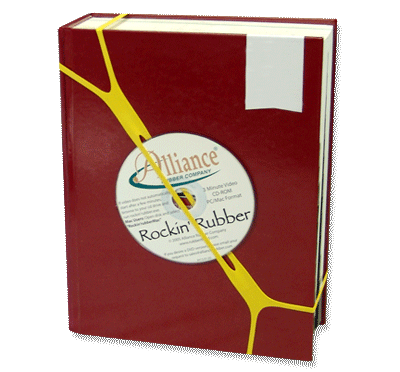
Meanwhile, the Museum of Useful Things carries Diamond Corner Bands
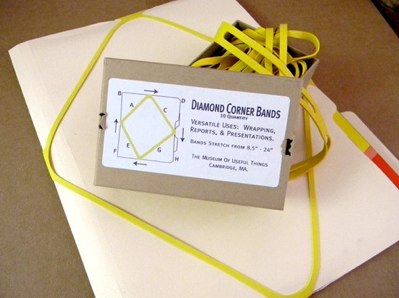
($6 for a box of ten) to put a slightly different twist on corralling all your papers or files without squishing them.
BEAUTY OF THE BANDS
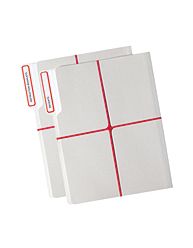
The Martha Stewart Home Office™ With Avery™ line has developed two types of bands. The first, the X-Band, in red, measures 3 1/2″ x 8 1/2″ and comes six to a package for about $4. It’s designed to gather stacks of papers or files for safekeeping, just like the other criss-cross bands, above.
But Martha and Avery step it up with their Fabric Elastic Bands. These wide fabric bands stretch to secure binders, scrapbooks, and albums, as well as papers and files, and keep items from springing free of their enclosures. They run about $4 for a pack of two, and come in grey and a turquoise-blue.
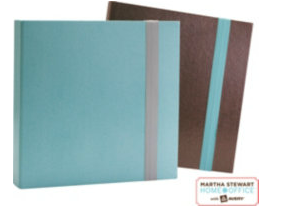
Check out the little video to see these products in action.

While Martha’s understated bands will do the job, the award for snazziest bands surely goes to russell + hazel for their extraordinarily pretty varieties of super-strong, heavy-duty, 10 1/2″ x 9/16″ russell+hazel Rubber Band sets. Secure binders or stacks of papers, tether notebooks to homework assignments, or create your own “gift garnish” with these designer bands.
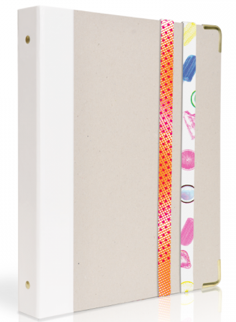
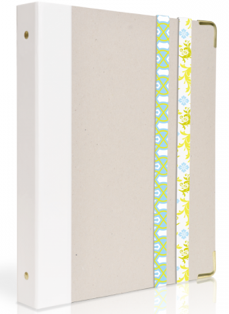
The patterns come in Pop Art, Black and White, Sugar, Sugar, Dots + Abstract, Aviation Nation, Bonnie + Clyde, and Geo + Bloom, left to right, below:

Originally $8 for a set of two, Paper Doll found that all sets are currently on sale for $4.
BUILD-IN BANDS

Innovative Czech stationer Papelote has designed spiral notebooks with built-in elastic bands. These 8 1/4″ x 11 3/4″ notebooks (available with blank, narrow-ruled, graph or dotted paper) are banded with looped elastics to keep notebook covers closed and hold pens, pencils, pen-style flashlights and other similar tubular tools.
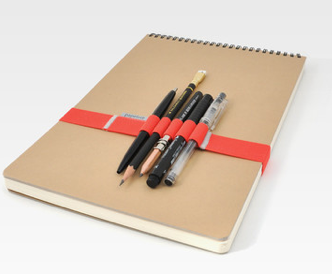
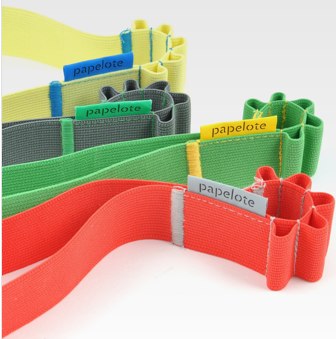
Papelot banded spiral notebooks can be purchased from specialty stores, including The Journal Shop, for $23.
BOUNCED MESSAGED
The freestanding Snap-It-Up Organizerfrom the Metropolitan Museum of Art has six thick, colorful bands with which you can hold and organize messages, pens, appointment cards, and other desk doohickeys.
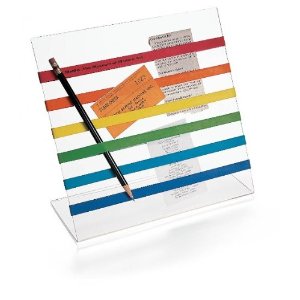
Although it’s no longer available from the MoMA, you can buy it for about $13 from Amazon, or make your own with a clear cookbook holder or plastic picture frame and a set of russell + hazel or Martha Stewart bands.
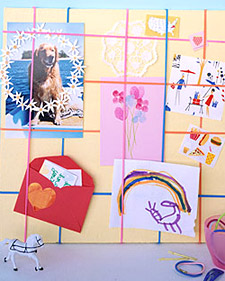
Speaking of Martha, you and your kids (or your inner child), might like to take a stab at this DIY Rubber Band Message Board from Martha Stewart Crafts.
And finally, to make sure you have some ideas on where to keep your rubber bands aside from giant balls or the boxes in which they came, check out organizing maven Jeri Dansky’s How To Hold Rubber Bands.
Digital Receipt Management Tools (Part 2): Itemize, MyThings, MyReceipts, Risiti & PlanetReceipt
Do you sometimes feel like you’ve received the world’s longest receipt? Thanks to advertising, savings summaries and survey links, our already-plentiful receipts have gone from short and functional to enormous. Two weeks ago, I provided seven steps for controlling receipt flutter clutter, and last week, we started talking about digital solutions for keeping essential data while reducing our interaction with paper receipts. We continue today by looking at a few more digital solutions.

Itemize is a free online service that gathers and organizes your receipts in one digital wallet. It’s designed for consumers as well as small business users to help track purchased items, prices, images (if available), and sales-related data.
During a quick sign-up, you create your personalized @itemize.com address. Then, the system guides you through the Receipt Wizard to sync your personal email with Itemize so it can process automatic updates. While the system works with many webmail domains (Yahoo, Windows Live Hotmail, Gmail, AOL, Mobile Me, Verizon, Comcast, Time Warner/Roadrunner, and Optimum Online), Itemize doesn’t support auto-importing any private level email domains, so, for example, emailed receipts sent to JulieBestry.com can’t be imported.
Auto-importing is only one method of getting your information into the system. You can forward your e-receipts to your @itemize.com address; you can also provide your @Itemize.com address as the default address for any online vendors, guaranteeing that Itemize can snag your essential receipt data.
Additionally, Itemize’s welcome letter notes that, “For old-fashioned stores that still issue old-fashioned receipts, Itemize will soon have an app that you can use to snap a photo of the receipt.” But for now, Itemize is most effective when you’re focusing on organizing digital receipts.
Whatever method you choose, Itemize will filter out the spam and organize all of your receipts, shipping notifications, and other vendor messages, keeping clutter out of your personal email box. (This is a plus for those who don’t want to be bothered with pesky notifications; for more control-oriented shoppers like Paper Doll, this would be a little disconcerting.) Itemize currently supports over 500 receipt formats, which Itemize says is more than any other service provides.
Itemize automatically categorizes your receipts under major category types, like Auto Parts, Clothing, Electronics, Office Supplies, Pet Supplies, etc. You can also tag entire receipts or individual items with relevant keywords. To get a big-picture view, run reports based on specific customized tags, as well as product categories, brands, and time periods.
Itemize’s Reporting tool creates detailed views of your purchases, exports to Excel, and lets you track and manage your expenses, create reimbursements requests for work, and plan and evaluate your budget.
Itemize has a Personal Receipts Gallery that displays photos of whatever you buy, so you have a more Pinterest-y look your purchases. There’s even a item reorder button so you can easily restock your supplies or buy another pair of those cute shoes without going spelunking for product details.
Itemize develops recommendations and offers based on specific past purchases. It suggest accessories (like Kindle cases or iPad doodads) and may suggest similar, related products and services, kind of like the iTunes Genius, which you’ll either find fabulously helpful or creepily Big Brotherish, depending on your tastes.
Itemize updates quickly — less than a minute had gone by between the time I forwarded a receipt and it appeared on my dashboard. However, it wasn’t able to easily parse all of my attached PDF receipts.

Risiti is probably the least-known of the services I reviewed, but it cuts to the chase with simple options for getting information into the system. Once you sign up:
1) Take a photo of any receipt with any smart phone.
2) Email it as an attachment to upload@risiti.com. For online merchants’ digital receipts, just forward to that same address. If you’ve got a web-page receipt, turn it into a PDF and forward it as an attachment.
That’s it. Risiti recognizes your sender address(es), manages your data through the “receipting” processing engine and displays it in your account.
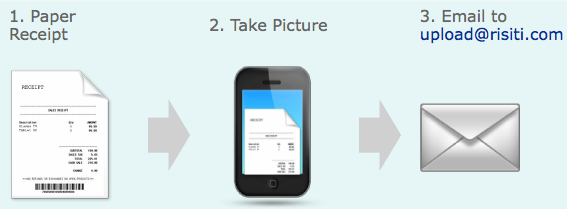
Simple, with no need for a special app, it’s also fairly speedy. I forwarded a Kohl’s receipt for an adorable polka dot dress, and it appeared on my dashboard within three minutes.
However, Risiti isn’t ideal for everyone. First, you have to sign up via an account verified by Google, Windows Live ID, Yahoo! or Facebook, so if you don’t use one of those services, you can’t play.
Second, there’s no fancy reporting system. The My Receipts page merely gives you a listing of receipts with basic information: date, merchant, tag, description, total and tax, which you can view by time period. There is, however, an export button for downloading your data to create more sophisticated reporting.
Finally, there’s really no help screen or FAQ; the support screen merely lets you send an email to request assistance. What little “how it works” information there is focuses solely on how to get receipts into the system, rather than how to work once you’ve got the financial data uploaded. After I traded emails with Risiti regarding a difficulty, I eventually found that one of my browsers was incompatible with the system. I’m sure, had I more actively pursued help, an additional email would have earned me Risiti’s assistance with troubleshooting, but a nice FAQ page with technical specs could have saved time and effort at both ends.

MyReceipts syncs with your online loyalty accounts, enabling you to store digital receipts from a wide variety of popular merchants. Start by signing up for an account online (via validation from your Google, Yahoo!, Facebook or AOL accounts or by manually entering your contact information). Alternatively, you can get a card at participating merchants, which range from major companies like Lowes and Home Depot, Whole Foods and (my beloved) Wegmans, Office Depot and Staples, to small and regional markets and stores.
Additionally, when you shop at participating merchants and agree, at the register, to accept a digital receipt, you’ll either receive a MyReceipts.com card (which you can use at any participating store) or just provide your phone number or email address to indicate you’re part of the MyReceipts program.
Receipts get into the system in one of four ways:
- Directly from any participating merchant, whether online or brick-and-mortar
- Directly from an online merchant when you’ve submitted your @MyReceipts.com email address as your default address
- Shared with you from another MyReceipts.com member — for example, if you need reimbursement for your half of a business-related taxi ride, or if someone wants to give you a gift receipt.
- Manually by typing in information from a printed receipt
Once your receipts are in the MyReceipts system, you can view or generate reports to see purchases by date or transaction type, and compare spending periods year-to-year or month-to-month. In addition to managing receipts, MyReceipts helps you maintain records regarding the products you’ve purchased and distributes coupons based on your purchasing history.
If you often shop at even a few of the participating brick-and-mortar stores, MyReceipts is a worthwhile option for eliminating the BPA-laden curlicue receipt papers that otherwise clutter your space. However, until the list of participating merchants is greatly expanded, MyReceipts will be more useful for grocery, office and home-related purchases than other retail and service categories.
Planet Receipt is an idealistic venture that partners DonateWiseNow‘s GreenSuite program with Greenwise Bankcard and various merchants and non-profits. The goals: to reduce receipt clutter and paper waste while streamlining charitable giving — all at the point-of-purchase.
On the consumer side, you link up to five of your credit cards to your eco-account. From then on, every purchase you make via those credit cards yield, instead of a paper receipt, a digital Green Receipt, which is logged into your account. There, you can view, sort, export, email, text or print (if you must!) your paperless receipts. Additionally, the program enables you to have merchants add small amounts, perhaps $1 or $3, to your purchase to go towards specific charitable donations.
Participating merchants no longer have to maintain signed credit card receipts, because there’s an electronic signature capture solution, and they’ll also have online access to their point-of-sale receipts to sort, retrieve, download, or e-mail. If they must print, they can do so on recycled paper.
Non-profits in the program benefit from consumer’s ease of access for making small, quick donations, and everyone benefits from the lessened environmental impact and reduced exposure to BPA.
Planet Receipt has a referral program whereby for every customer you refer who signs up with the program, Planet Receipt will plant a tree in your name. Referrals to merchants yield cash rewards based on the amount of associated revenue. Even referrals of non-profits can yield donations made in your name.
Planet Receipt has been operational for almost two years, but is still relatively unknown. For those looking to go the eco-friendly route, it’s worth exploring, but, like MyReceipts, is not yet expansive enough to be your only digital receipt solution.

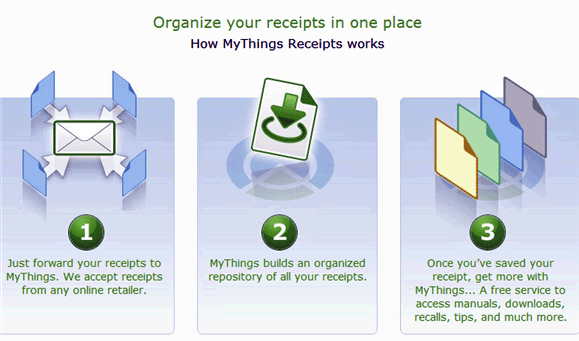
My Things was designed to help you track your purchases and organize receipts so that you can easily create a list of products you own — it’s more a collections manager than a receipt manager. Once you get all of your information entered and organized, you can access associated information, like free product user manuals, customer reviews, deals, warranty information and product support data.
Sign-up is simple — just provide your email address and create a password. To get receipts into the system, either forward them to receipts@mythings.com from your registered email address, or enter them manually. From there, MyThings builds a database, not only of your receipts, but of your possessions.
It could be user error, but I found the system to be slow and buggy, and it appears that MyThings has not upgraded its operations for a while. Although MyThings pops up frequently in online mentions of receipt managers, Paper Doll suggests you consider other alternatives digital solutions, including Shoeboxed, OneReceipt, Slice, and Lemon, covered in the previous post.
Whatever receipt options you use, whether you organize your paper receipts or snap photos at the point of purchase and upload them, whether you forward online receipts or have them sent directly from a merchant to your receipt management service, be sure to schedule time on your calendar for reviewing your purchases and your receipt management systems. Make sure they’re working well and delivering the kind of productivity you need.
Automation is wonderful, but your finances can’t be 100% set-it-and-forget-it.
Digital Receipt Management Tools (Part 1): OneReceipt, Shoeboxed and a Slice of Lemon
Last week, we reviewed the basics for dealing with receipt clutter flutter, including paring paper receipts down to just the essentials, then organizing and storing them. We also touched on how to manage simple digital receipts. Today, we’re going to expand on that digital focus to look at how we might maintain good financial records but have less reliance on the paper.
People want to avoid paper receipts for all sorts of reasons. Sorting receipts is tedious. They crumple and get messy. They come in odd sizes. Thermal paper receipts are laden with toxic BPA.
The following are some new tools for changing the way we interact with receipts.

Shoeboxed has been around since 2007. It’s best known as a service to which you can securely mail receipts to be scanned and collated into separate categories. Just gather your paper crumbles and insert them in Shoeboxed’s pre-paid envelopes. This not only gets receipts out of your home, but Shoeboxed magically turned the crumbles into sortable, analyzable data, which you can review without worry that your kids or kitties will destroy your deductibles documentation (or lick the BPA off of the paper).
Shoeboxed also has mobile apps to let you snap a photo and upload receipts when you’re on-the-go. Of course, you can also scan your own receipts and use the Receipt Uploader, or email receipts to your @Shoeboxed.com email address, although that seems somewhat less magical. Use that same email address as your default when registering with online merchants, and they can send receipts directly to your Shoeboxed mailbox. If your emailed vendor receipts come with discount codes or coupons for future purchases, Shoeboxed can manage those for you, too.
Shoeboxed uses high accuracy scanning, OCR, and human data verification to sort data and organize receipts into virtual shoeboxes, or categories, in your account. Result: no more hunting for receipts in shoeboxes of the cardboard variety. Shoeboxed also creates expense reports and can export receipt data to Quicken and TurboTax.
Shoeboxed has four pricing models, including a free DIY plan for those who have few receipts and are willing to scan for themselves.
OneReceipt, a digital service currently in beta, launched on Cyber Monday 2011. It combines your paper and electronic receipts, displaying them on a secure, personalized web page.
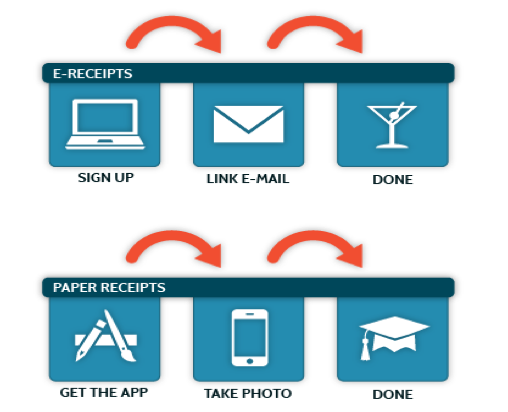
After a speedy sign-up, you get a personalized @OneReceipt.com address. Provide this address to vendors instead of your regular email address in order to protect your privacy and group your vendor notifications in one central area. (Personally, Paper Doll loves it when Amazon emails to tell me a package is on its way, but not everyone likes an inbox full of shipping data.) OneReceipt starts up by syncing with your Gmail, Google Apps or Yahoo! email to capture any electronic receipts that vendors have previously sent you.
Meanwhile, you can snap photos of your paper receipts and email them to your OneReceipt.com address for storage in the same account — use the iPhone app or just forward them from your inbox.
OneReceipt indexes all of your receipt information (for donations as well as purchases), and translates the data into a simple chart, with the date of purchase, order basics (company and order number), product, and financial information, including gross pricing, tax, discounts and net pricing. OneReceipt is allied with Expensify, so you can have detailed expense account information delivered directly to your inbox.
The service also offers tagging and categorizing to help you filter, sort, organize and retrieve whatever receipts you get. (When you’re emailing yourself, just type the tag in the email’s subject line.) However, there are only 15 categories, and it doesn’t appear you can add your own, and the tags are currently limited to Business and Personal.
OneReceipt generates a running total of your purchases, providing an effortless way to track your spending. Easily search through your purchases, narrowing by time frame or price.
OneReceipt also alerts you to deadlines for returning purchases so you don’t have to worry about posting a receipt (which you’ll surely ignore) on your fridge. The company takes a pretty lighthearted approach to itself in this regard.
If you use Google’s Chrome browser, you can also take advantage of an extension that lets OneReceipt play nicely with your Mint, American Express, CitiCards and Bank of America accounts, so that when you’re accessing those sites, you’ll be able to see more robust purchase data.
OneReceipt is free. Paper Doll expects it will eventually offer various levels of premium solutions.
[Edited to note: Effective August 24, 2016, OneReceipt is shutting down. An email from the company dated August 10, 2016 recommends migrating to its sister app, Slice.]

Slice, which turned one year-old in June, is less concerned with receipt clutter flutter than digital receipt disorganization, and focuses solely on organizing the receipts from your online purchases.
Sign up with one click using your Google, Yahoo! or Facebook accounts, or create an account with your name, email and password. From there, Slice asks you to select among Gmail, Yahoo!, Hotmail, AOL (seriously, Slice?) and iCloud — all web-based email accounts — to auto-import receipts; if you want to use other email providers, you have to create a Gmail account, link it to Slice and have it “fetch” from your regular email account. (Paper Doll is no programmer, but these extra steps seem a little clunky.)
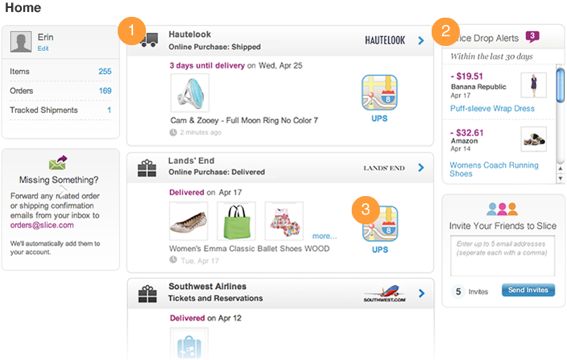
For new purchases, track your shipments on a map, so you can see how far those cute shoes must travel to make it to you. Manually track personal packages, share tracking information with friends to whom you’ve sent gifts, receive real-time updates and view the contents of packages along with shipping data. You also have access to your shipment history, in case you need to have a (not-so) friendly discussion with a vendor.
Slice also tracks your purchase history, letting you sort by order date, merchant, status (purchased, rented, canceled or returned) or item type, including:
Online purchases
General payments
Digital downloads
In-store purchases at brick-and-mortar stores, like Nordstrom, that offer opt-ins for emailed receipts
Subscriptions or rentals
Tickets or reservations
Shipments, such as for repaired or exchanged items
The Slice & Dice function helps you analyze your purchase information, by merchant or price, over any set period of time.
Niftily, Slice detects and notifies you of price drops from merchants that honor price adjustments. Once Slice notifies you, you’re on your own to contact the store, but it’s a nice reminder. (Still, a service that could detect a price drop, automatically contact the company, get you a refund and have it deposited in your account? That would rock!)
Slice is a free service and is still in beta, though out of the invitation-only stage. As it grows, it will have more supported merchants, and, one hopes, more ways to get information into the system. Currently, mobile apps are available for iPhone and Android, in addition to the regular online Slice program. And, although I had to dig through the FAQ to find out, you can send digital receipts for unsupported vendors to your Slice account by emailing orders@slice.com from an email address already linked to Slice.

Lemon launched in October 2011, starting out as an iPhone-only app for helping store, sort and simplify paper and digital receipts. It now accommodates Android and WindowsPhone users, too. Lemon now sees itself as a “digital wallet that organizes and stores your credit cards, receipts, tickets, coupons and more.”
If you’re terrified of the BPA in receipts, or just know you’ll lose the paper ten seconds after it’s handed to you, snap photos at the cashier’s counter right when you check out. Otherwise, gather up a day’s (or week’s) worth of receipts and snap away! If applicable, you can also tag the receipt for the appropriate category, like business or personal.
For paper receipts, upload them using Lemon’s smartphone app. You merely point your smart phone at any receipt, being careful to line up the edges with the on-screen guide, and take a photo. For receipts that are too long to get in a single shot (and what’s the deal with foot-long receipts when you’re just buying milk and Reese’s Peanut Butter cups, anyway?), Lemon’s app program guides you through a series of shots. In that way, it’s kind of like taking a panoramic photo of the Grand Canyon with an old Brownie Instamatic. Lemon will assemble all the different shots to make it all make sense; no Xacto knives or rubber cement required.
Forward email receipts to your personal @lemon.com account; if they arrived to you as web pages rather than email, just use the instructions in last week’s post to turn them into files you can attach to any email.
If you don’t actually have a receipt (perhaps you paid a crisp dollar for an icy beverage at the neighbor’s lemonade stand?) you can still manually input information regarding your purchases so you can track every penny you spend.
Lemon will also let you log in to the Spending section and edit any receipt where data has been misinterpreted. Of course, as with any system, Lemon can only keep track of what’s put in, so it’s important to develop a reliable plan for uploading everything that isn’t already automated. Schedule a weekly upload time for regular statements and receipts and attend to ad hoc items you acquire. Buy a concert ticket? Scan it. Get your new insurance card in the mail? Up it goes!
Whatever method you use to send receipts and documents to Lemon, the service extracts any useful data so you can find whatever information you need to contact vendors about tracking, returns or warranties, and it can generate expense and any other financial reports, as necessary. All the receipts are filed and organized in one central, searchable account, and Lemon offers a graphic display of how and where you’re spending your hard-earned money.
Lemon comes in two flavors, ad-supported but free, and ad-free Lemon Pro at $9.99/month (or $99/year). Both versions allow the scanning of unlimited numbers of receipts, as well as credit, debit and loyalty cards. Both employ bank-secure PIN and SSL encryption, allow offline access to your financial information even when you can’t connect to the internet, and pass along special offers from your preferred merchants.
However, Lemon Pro is extra tangy, sporting “superfast processing” of scanned data. Features include scanning and storing receipts with line-by-line item detailing, tracking shared expenses for up to five people, and exporting of data to Excel, Evernote, Expensify and Concur.
Lemon’s major benefit is the high security; even if your smart phone is stolen, the information is kept behind a pretty impenetrable password. This means the thief can’t see your data, but once you replace your phone, you’ll be able to access your entire account.
Paper Doll found such an embarrassment of riches in terms of high tech ways to organize your receipts, we’re going to continue this topic next time with explorations of more digital receipt management tools.


Follow Me