Paper Doll
Seven Steps to Conquering “Receipt Clutter Flutter”
Most homes and offices have them: fluffy piles of loose, crumpled papers on desktops and filing cabinets, in drawers, and spindled and somewhat mutilated on those desktop spires. Any brisk movement past the desk yields receipt clutter flutter.
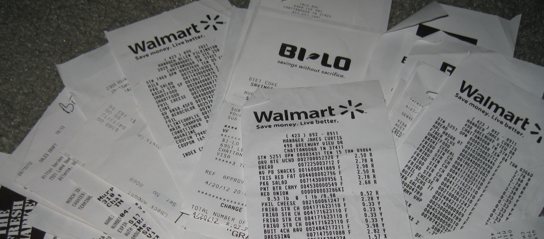
Most of this kind of backlog, as well as new incoming papers, can be handled with relative ease using a pretty Old School treatment of receipts at three points in time.
At the register:
–Check receipts for accuracy.
–Neatly place receipts (folded, if necessary) behind the cash in your wallet.
At your home (or office, if these are business receipts) each evening:
–Remove the receipts.
–Discard/shred the receipts that needn’t be kept (see below).
–Tuck away the receipts that you need to keep in an envelope or file folder with the current month labeled on the outside. Keep the envelope or folder in a top desk drawer or the front of a file riser — the goal is to make it immediately accessible but keep the receipts safely tucked away.
At your home or office on a monthly basis (scheduled on your calendar, if necessary):
–Check the receipts against your actual bank or credit card statements.
–Discard the receipts that are no longer necessary to keep after 30 days. (See below.)
–Archive the rest. Easy-peasy, eh? Sure, there’s a little more to it, like knowing what receipts need to be kept. I advise that you:
1) Keep cash receipts for things you might return, and for the duration of the return period only. A Double-Mocha Venti With Foam that you paid for with cash? Unless it’s somehow a business expense, toss the receipt. If you purchase toys or clothing for cash and the store’s return policy is a firm 30 days, discard your receipt after that period.
2) Keep all receipts for big ticket items (set your own benchmark — it could be $50 or $500, depending on your lifestyle), no matter how you paid, and credit card receipts for things you might return, until the return period has expired (and #5, below, has kicked in). Even if you set a relatively high benchmark for how BIG a big-ticket item might be, I suggest you save receipts for all automobile-related part purchases in a Car Maintenance file. This information will prove useful if a part is ever recalled, and a full repair history (usually printed on big auto repair receipts) creates value-added appeal if you choose to privately sell your car instead of trading it in.
If you’ve purchased really big big-ticket items, note that the IRS allows taxpayers to choose between deducting state income tax and sales tax; use the IRS sales tax calculator to see what works best for you. The default amount is usually your best bet, but if you bought a house, car, or other major purchase, you’ll want proof of that big ticket deduction.
3) Keep all receipts for tax-deductible expenses such as charitable donations and medical expenses in your Tax Prep folder until you’ve completed your tax return. You won’t know until the end of the year whether you’ve accumulated a high enough percentage of your adjusted gross income to deduct medical expenses, so err on the side of caution. However, most pharmacies will print a summary of all prescription purchases, so you can shred most prescription receipts. Just hang on to the ones you get from when you’re on vacation or using a drugstore other than your usual one. Be sure to check with a tax professional regarding any state- and municipal-tax reasons to maintain other receipts. For example, states like Louisiana and Minnesota allow residents to deduct K-12 educational expenses.
4) Keep receipts for all items for which you are due reimbursement until you get paid. Most often, this will include purchases submitted on your expense reports at work or on invoices to your clients, if you’re self-employed. Less regularly, you’ll submit receipts to your insurance company for repairs done to your home or auto, or for medical procedures where the doctor’s office won’t file on your behalf. Occasionally, you’ll even have to submit the receipts to someone else’s insurance company if the other party was at fault. If you have to turn in the original, keep a scanned copy for your records.
5) Keep credit card receipts, deposit slips and ATM withdrawal tickets until your credit card or bank statements have arrived. Reconcile the receipts against the statements, and if the receipts don’t fit any of the above-mentioned categories, it’s generally safe to shred them. These five basic Old School tips work great when you’ve received your receipts on paper, such as when you’re in a grocery store, clothing shop or restaurant. In the short term, you’re dealing with deadlines that last about a month — waiting for return policies to expire and bank or credit card statements to appear.
For other paper receipts, you’re dealing with tax or reimbursement issues, and your paper file system should accommodate you. But what if you’re dealing with Receipts 2.0? What if you get an electronic receipt from a taxi driver, as I did when I attended this year’s NAPO Conference?
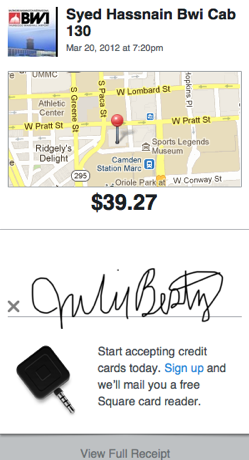
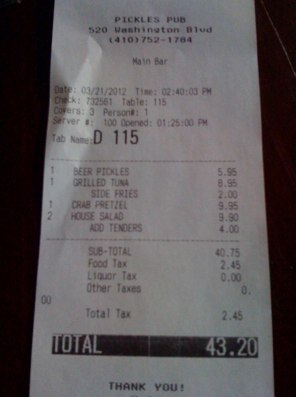
What if you make an online purchase and the only receipt you get comes via email or as a page in your browser? Or what if you split a meal with colleagues where one puts the bill on her card and you all pay her in cash, as I did with my pal Krista Colvin, at that same NAPO conference? (Krista was kind enough to snap a photo of the receipt with her phone and email it to me.)
Increasingly often, purchases are made in ways that were atypical, or even impossible, just a few years ago. At a recent visit to a shoe store, I found that credit card sales were “rung up” on an iPad; service people and mobile vendors have embraced using Square, PayPal Here, and similar devices, allowing more and more small and micro-businesses to accept electronic payments and provide electronic receipts. What then?
6) For receipts you get via email, create a special sub-folder in your email system. For example, in Outlook or Entourage, select “New” and then “Folder” from under the File menu. In Apple’s Mail program, go to “Mailbox” in the menu bar at the top of the screen and select the “New Mailbox” option. In Gmail, select “Create New Labels”. Label the folder “Receipts” — if you want to get fancy, you can then create sub-folders for each year (to make it easy when separating receipts that arrive late in December vs. early January) and even sub-sub folders for categories like books, clothing, transportation, services, and so on. If you like fine detail or need it to help you prepare your business taxes, you can get granular; otherwise, just a big Receipts folder can suffice. Whenever you get a receipt by email, just drag or move it to your Receipts folder.
7) For online receipts that yield no email but just a browser screen, you have a few options. You can:
- Email the web page to yourself
Some browsers have an option to email a whole page. In Safari, select “Mail Contents of This Page” from the File menu and a copy of the page will be sent to you like any other email. In Internet Explorer, select “Send Page By Email” from the File menu. If you use Firefox, add an extension like Email The Web.
- Save the web page to your hard drive
Every browser has an option to save the contents of a page. Mac users can generally create a PDF just by selecting the Print option from the File menu and then printing “to” PDF instead of to a printer, yielding a PDF that can be saved in a Receipts folder anywhere on the hard drive. The easier it is to navigate to the folder, the more you’ll be inspired to use this option. For reference, recent versions Mac OS X even have a pre-created Web Receipts sub-folder in the Documents folder, but of course, you can move it anywhere, including your desktop. If you’re on a PC and are not able to create a PDF, you can still save the contents of a web page receipt. Each browser behaves a little differently, but look under your File menu for something that looks like “Save Page As” or “Save As” — your browser will then ask if you want the resulting page to be saved as HTML (i.e., as a web page) or as text.
- Take a screen capture of the receipt.
No matter what browser you use, you can always take a picture of whatever’s on your screen. On a Mac, select Command ()-Shift-4 — it will yield a little bullseye. Place it at the upper left corner of what you want to capture, click, and drag to the lower left until you’ve highlighted what you want. When you let go, a snapshot of that section, in .png format, will be sitting on your desktop. If you want a screen capture of the whole screen, use Command ()-Shift-3. It’s not quite as easy on a Windows-based PC because there’s an additional step to get the screen capture off of the clipboard. To grab a shot of the whole screen, use the Print Screen key; for just a selection, use Alt-Control-Print Screen, highlight the item and then copy and paste it into Microsoft Paint or a similar program. Remember to save it. (Windows 7/Vista users can employ the built-in Snipping Tool.)
Whichever options you choose, be sure to select a useful title that identifies whatever elements will be essential when accessing the receipt later on. You’ll already be able to sort and search by the date the receipt was created, so think in terms of a name that quickly identifies the store and product or purpose (e.g., Kohls-PinkSweater or Amazon-iPad3). Finally, you may be wondering, what if you’re trying to go paperless (or paper-light) and wish all your crinkled paper receipts could magically be made digital? Or, what if you want to avoid the whole process of dealing with tangible receipts in the first place?
Next time, we’re going to look at an abundance of digital resources, including those shown below, for combating receipt clutter and streamlining your financial information. Be sure to subscribe to the RSS feed (above right, under my photo) or follow me on Twitter or Facebook, so you don’t miss one nifty tip.





The Paper That Organized The Argument That Organized A Nation
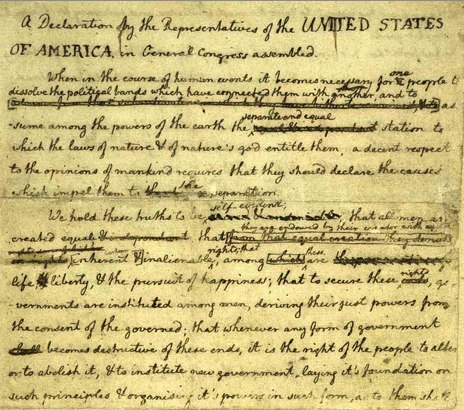
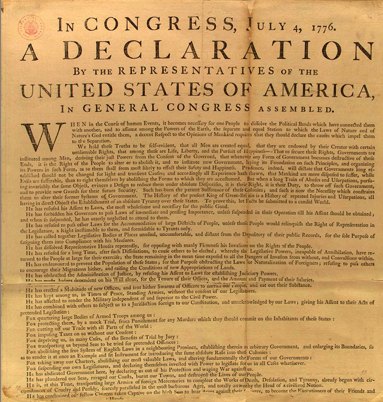
IN CONGRESS, JULY 4, 1776
The unanimous Declaration of the thirteen united States of America
When in the Course of human events it becomes necessary for one people to dissolve the political bands which have connected them with another and to assume among the powers of the earth, the separate and equal station to which the Laws of Nature and of Nature’s God entitle them, a decent respect to the opinions of mankind requires that they should declare the causes which impel them to the separation.
We hold these truths to be self-evident, that all men are created equal, that they are endowed by their Creator with certain unalienable Rights, that among these are Life, Liberty and the pursuit of Happiness. — That to secure these rights, Governments are instituted among Men, deriving their just powers from the consent of the governed, — That whenever any Form of Government becomes destructive of these ends, it is the Right of the People to alter or to abolish it, and to institute new Government, laying its foundation on such principles and organizing its powers in such form, as to them shall seem most likely to effect their Safety and Happiness. Prudence, indeed, will dictate that Governments long established should not be changed for light and transient causes; and accordingly all experience hath shewn that mankind are more disposed to suffer, while evils are sufferable than to right themselves by abolishing the forms to which they are accustomed. But when a long train of abuses and usurpations, pursuing invariably the same Object evinces a design to reduce them under absolute Despotism, it is their right, it is their duty, to throw off such Government, and to provide new Guards for their future security. — Such has been the patient sufferance of these Colonies; and such is now the necessity which constrains them to alter their former Systems of Government. The history of the present King of Great Britain is a history of repeated injuries and usurpations, all having in direct object the establishment of an absolute Tyranny over these States. To prove this, let Facts be submitted to a candid world.
He has refused his Assent to Laws, the most wholesome and necessary for the public good.
He has forbidden his Governors to pass Laws of immediate and pressing importance, unless suspended in their operation till his Assent should be obtained; and when so suspended, he has utterly neglected to attend to them.
He has refused to pass other Laws for the accommodation of large districts of people, unless those people would relinquish the right of Representation in the Legislature, a right inestimable to them and formidable to tyrants only.
He has called together legislative bodies at places unusual, uncomfortable, and distant from the depository of their Public Records, for the sole purpose of fatiguing them into compliance with his measures.
He has dissolved Representative Houses repeatedly, for opposing with manly firmness his invasions on the rights of the people.
He has refused for a long time, after such dissolutions, to cause others to be elected, whereby the Legislative Powers, incapable of Annihilation, have returned to the People at large for their exercise; the State remaining in the mean time exposed to all the dangers of invasion from without, and convulsions within.
He has endeavoured to prevent the population of these States; for that purpose obstructing the Laws for Naturalization of Foreigners; refusing to pass others to encourage their migrations hither, and raising the conditions of new Appropriations of Lands.
He has obstructed the Administration of Justice by refusing his Assent to Laws for establishing Judiciary Powers.
He has made Judges dependent on his Will alone for the tenure of their offices, and the amount and payment of their salaries.
He has erected a multitude of New Offices, and sent hither swarms of Officers to harass our people and eat out their substance.
He has kept among us, in times of peace, Standing Armies without the Consent of our legislatures.
He has affected to render the Military independent of and superior to the Civil Power.
He has combined with others to subject us to a jurisdiction foreign to our constitution, and unacknowledged by our laws; giving his Assent to their Acts of pretended Legislation:
For quartering large bodies of armed troops among us:
For protecting them, by a mock Trial from punishment for any Murders which they should commit on the Inhabitants of these States:
For cutting off our Trade with all parts of the world:
For imposing Taxes on us without our Consent:
For depriving us in many cases, of the benefit of Trial by Jury:
For transporting us beyond Seas to be tried for pretended offences:
For abolishing the free System of English Laws in a neighbouring Province, establishing therein an Arbitrary government, and enlarging its Boundaries so as to render it at once an example and fit instrument for introducing the same absolute rule into these Colonies
For taking away our Charters, abolishing our most valuable Laws and altering fundamentally the Forms of our Governments:
For suspending our own Legislatures, and declaring themselves invested with power to legislate for us in all cases whatsoever.
He has abdicated Government here, by declaring us out of his Protection and waging War against us.
He has plundered our seas, ravaged our coasts, burnt our towns, and destroyed the lives of our people.
He is at this time transporting large Armies of foreign Mercenaries to compleat the works of death, desolation, and tyranny, already begun with circumstances of Cruelty & Perfidy scarcely paralleled in the most barbarous ages, and totally unworthy the Head of a civilized nation.
He has constrained our fellow Citizens taken Captive on the high Seas to bear Arms against their Country, to become the executioners of their friends and Brethren, or to fall themselves by their Hands.
He has excited domestic insurrections amongst us, and has endeavoured to bring on the inhabitants of our frontiers, the merciless Indian Savages whose known rule of warfare, is an undistinguished destruction of all ages, sexes and conditions.
In every stage of these Oppressions We have Petitioned for Redress in the most humble terms: Our repeated Petitions have been answered only by repeated injury. A Prince, whose character is thus marked by every act which may define a Tyrant, is unfit to be the ruler of a free people.
Nor have We been wanting in attentions to our British brethren. We have warned them from time to time of attempts by their legislature to extend an unwarrantable jurisdiction over us. We have reminded them of the circumstances of our emigration and settlement here. We have appealed to their native justice and magnanimity, and we have conjured them by the ties of our common kindred to disavow these usurpations, which would inevitably interrupt our connections and correspondence. They too have been deaf to the voice of justice and of consanguinity. We must, therefore, acquiesce in the necessity, which denounces our Separation, and hold them, as we hold the rest of mankind, Enemies in War, in Peace Friends.
We, therefore, the Representatives of the united States of America, in General Congress, Assembled, appealing to the Supreme Judge of the world for the rectitude of our intentions, do, in the Name, and by Authority of the good People of these Colonies, solemnly publish and declare, That these united Colonies are, and of Right ought to be Free and Independent States, that they are Absolved from all Allegiance to the British Crown, and that all political connection between them and the State of Great Britain, is and ought to be totally dissolved; and that as Free and Independent States, they have full Power to levy War, conclude Peace, contract Alliances, establish Commerce, and to do all other Acts and Things which Independent States may of right do. — And for the support of this Declaration, with a firm reliance on the protection of Divine Providence, we mutually pledge to each other our Lives, our Fortunes, and our sacred Honor.
— John Hancock
New Hampshire:
Josiah Bartlett, William Whipple, Matthew Thornton
Massachusetts:
John Hancock, Samuel Adams, John Adams, Robert Treat Paine, Elbridge Gerry
Rhode Island:
Stephen Hopkins, William Ellery
Connecticut:
Roger Sherman, Samuel Huntington, William Williams, Oliver Wolcott
New York:
William Floyd, Philip Livingston, Francis Lewis, Lewis Morris
New Jersey:
Richard Stockton, John Witherspoon, Francis Hopkinson, John Hart, Abraham Clark
Pennsylvania:
Robert Morris, Benjamin Rush, Benjamin Franklin, John Morton, George Clymer, James Smith, George Taylor, James Wilson, George Ross
Delaware:
Caesar Rodney, George Read, Thomas McKean
Maryland:
Samuel Chase, William Paca, Thomas Stone, Charles Carroll of Carrollton
Virginia:
George Wythe, Richard Henry Lee, Thomas Jefferson, Benjamin Harrison, Thomas Nelson, Jr., Francis Lightfoot Lee, Carter Braxton
North Carolina:
William Hooper, Joseph Hewes, John Penn
South Carolina:
Edward Rutledge, Thomas Heyward, Jr., Thomas Lynch, Jr., Arthur Middleton
Georgia:
Button Gwinnett, Lyman Hall, George Walton
A Healthy Piece of Mail: Health Insurance Rebates
It’s very rare that a Paper Doll blog post is so intricately tied to the news. After all, the subject of organizing is generally more timeless than timely. At a period where so many people are struggling to organize their finances, especially in light of rising health costs, I’m hopeful that this today’s post, accurate at the time of writing, will prove informative and useful.
Whatever the Supreme Court announces this week regarding the decision on the “mandate” element of the Affordable Care Act, you may still be in the running to receive an important piece of mail sometime in the next five weeks: a rebate check from your insurance company.

The multi-part, controversial Act includes a variety of provisions, from guaranteeing access to insurance for persons with pre-existing conditions to covering more preventative care, from helping states crack down on unreasonable insurance premium hikes to allowing young people to stay on their parents’ health insurance for longer periods of time.
In addition, the Act holds health insurance companies accountable to consumers. As part of that, it guarantees that Americans will be reimbursed if and when health insurance companies don’t meet “a fair standard of value.”
A FAIR STANDARD OF VALUE
All health insurance companies are now required to spend, on average, at least 80% of subscriber premiums on actual medical care (i.e., payment to physicians, hospitals and other care providers or reimbursement to enrollees for such care, as applicable), instead of on overhead (like marketing, advertising, CEO bonuses, fancy office parties, etc.) and corporate profits.
As a result, health insurers have to submit data regarding the proportion of premium revenues they’ve spent on “clinical services and quality improvement.” This is called the Medical Loss Ratio (MLR). The insurance industry calls it that because it’s the percentage of the premium considered “lost” to insurance companies. From the industry’s philosophical perspective, there’s no benefit from the actual provision of health care. (It’s much like if a private university referred to the money spent actually educating undergraduates as an educational loss ratio.)
The National Association of Insurance Commissioners (NAIC) was responsible for standardizing definitions and methodologies for figuring out which services constitute clinical services and quality improvement, but the Department of Health and Human Services got final say on some questionable definitions. For example, the NAIC wanted to count insurance agent commissions as health benefits rather than overhead.
ARE YOU ELIGIBLE?
The amounts of these rebates will vary by state, insurer and how a subscriber’s insurance has been acquired. For individual plans purchased directly from an insurance company, such as what Paper Doll acquires as a self-employed individual, and for “small group” plans (companies with fewer than 50 employees), insurance companies can only spend up to 20% of insurance premiums on administrative expenses.
For “large group” policies, employees of larger companies (anywhere from those with 50 employees to those of Walmart, America’s largest employer) can spend no more than 15% of premiums on non-health care expenses.
Also, six states have special circumstances. In Georgia, Iowa, Kentucky, Nevada, New Hampshire, and North Carolina, insurance companies were allowed to meet a slightly smaller medical loss ratio to keep the insurance markets there from “destabilizing.” States had to demonstrate that requiring insurers in an individual market meet the 80% MLR would result in fewer choices for consumers.
Hawaiians won’t be getting a rebate, as all health insurers in that state met the medical loss ratio requirements in 2011.
Those who are insured via public programs, like seniors covered by Medicare and individuals covered by Medicaid, will not receive rebates, as those programs already apportion well more than 80% of funds to actual medical care. (Indeed, unlike big insurance companies, for Medicare Parts A and B, only a thrifty 3% of premiums are spent on administrative costs.)
Also, Medicare supplemental policies (like Medigap) have different standards applied (65% for individual policies, 75% for group policies). These programs are also not expected to owe rebates to their customers.
And, assuming the Affordable Care Act is not reversed in its entirety, all of us who pay taxes should be pleased to note that, as of 2014, insurance companies participating in Medicare Advantage plans will have to spend 85% of funds on actual healthcare costs or will have to refund the federal government any “wasted” tax dollars. Plans that miss the 85% limit three years in a row won’t be allowed to accept new enrollees; if they miss it for five years, they won’t be allowed to operate at all.
REALITY CHECK
The Kaiser Family Foundation, a non-profit health policy analysis and health journalism group, analyzed the 2011 data collected by the National Association of Insurance Commissioners. The Kaiser study projects that approximately one-third of consumers who purchase their own insurance will get rebates, as will about 28% of insured small businesses employees and about one-in-five employees covered by large group policies.
If you purchase your own insurance and don’t get a rebate, it’s not exactly bad news. Just like an IRS refund means you’ve been giving a tax-free loan to the government all year, a rebate means you’re getting money back because your insurance company spent too much of your premium (as defined by federal regulations) on things that won’t improve your health.
HOW PAYMENTS WILL BE MADE
If you paid for your own insurance, you will be reimbursed:
–by a refund check delivered by August 1, 2012; or
–by a lump-sum reimbursement to whatever credit card or debit card account was used to pay the premium; or
–via a reduction in whatever next monthly premium payment is due after August 1.
Whether or not you are actually owed a rebate, your insurer is required to alert you to the fact, in writing, by August 1, 2012, so watch your mailbox.
You may be wondering what happens if your employer deducts funds from each paycheck to pay for your portion of your premiums. Generally, health insurance companies will rebate the money to employers. However, since employers usually cover 70-80% or more of employees’ (or employees’ families’) full premiums, employers will be expected to refund amounts based only on the percentage of the whole premium that each employee paid.
So, if your insurance is a perk for which you pay nothing, you’ll get nothing back. If you kick in some portion of the premium for yourself, or you’re covered for free but pay extra for your dependents to be covered, your employer should return a portion of the rebate based on what was deducted from your checks in 2011.
HOW MUCH WILL YOU GET?
Last week, the Department of Health and Human Services announced the final amounts that health insurers will have to refund. $1.1 billion in rebates will be apportioned to 12.8 million Americans. Although the average American family will receive about $151, the word average may be deceptive. For example, according to Healthcare.gov, it’s estimated that per-family subscribers in Mississippi ($651), Alabama ($582), Maryland ($496), and Delaware ($461) will see the highest rebates. Obviously, to meet an average of $151, that means some rebates will be very tiny.
If you can’t wait until August 1 to know your share, you can try to estimate your little windfall by using the following sites.
Consumers Union (the people behind Consumer Reports Magazine) created a map which lists the insurance companies expected to owe rebates (based on companies’ prior self-reports). Consumers Union also put together a Health Insurance Refund List to show state by state lists of major insurance companies’ total rebate amounts for individual, small and large group markets. Still, unless you know how many insured persons or families make up each group, it’s difficult to estimate how much you’ll receive.
For a better guess, refer to the federal government’s Estimate of Total Rebates in All Markets for Consumers and Families, by State list — scroll down to the charts for Appendix I, II and III.
NO TIME MACHINE
Unfortunately, even if your insurance company’s executives have been having beach parties in Fiji on your nickel since the days of Duran Duran, the rebate is not that retroactive. The rebates issued during July 2012 are solely for overages on insurance premiums that you paid in 2011.
In theory, the Supreme Court’s decision on the mandate portion of the Affordable Care Act, alone, should not impact whether insurers will still be limited to spending an average of 80% of premiums on health care, but it remains to be seen what other changes to the Act, in whole or in part, may be in store. As of this writing, it’s expected that that the Supreme Court’s decision will be announced this Thursday, June 28, 2012. Until then, at least, Paper Doll will be keeping an eye on the mailbox.
Paper Doll Organizing Carnival — Paper’s Imperfect Past, Present and Future
Once again, we’re pausing to look at some of the quirky and delightful, thought-provoking and useful things that have popped up while we’ve been focusing elsewhere.
LESS PAPER VS. PAPERLESS

The title of I Heart Tech‘s Paperless for Lawyers — A 12 Step Plan only incidentally creates a parallel between a smattering of advice and the well-known steps of a recovery program. After all, it’s not like the blogger, Adriana Linares, starts by asking the reader to admit he or she is powerless over paper.
Nonetheless, Paper Doll knows how addictive paper can be. It’s tangible and immediate, and whether loose or bound, paper is comforting. While it can, conceivably, burn or be tossed away, there’s a safety in its permanence that many of us, even those who embrace technology, prefer to the idea of going paperless.
While I Heart Tech’s advice is designed for attorneys and legal practices, many of the general concepts are applicable to all of us. If we want to reduce paper (and let’s face it — we DO want to reduce it; we just don’t want to wipe it out entirely), we need to start with a plan (#1) for reaching our goals. Moreover, getting a scanner (#4), converting more paper to digital formats (#6), keeping digital documents from being printed by “printing to PDF” (#8) and replacing traditional faxing with e-faxing (#7) are all smart tactics.
However, as a professional organizer, I’m dubious that some of these tips are practical, even for attorneys. I imagine that her hyperbolic advice (#3) to squirrel away printing supplies and force staffers who use them to be visibly accountable each time they need something, would destroy more, in terms of the value of productivity, than it would gain in the value of printing supply costs. I’m even more skeptical of scanning all incoming physical mail (#10), which I believe would be just as unproductive for a 100-person law firm as a three-person family.
If you’re thinking of going digital with your files, remember that your time is valuable, and focus on scanning documents which you have a reasonable likelihood of referencing later on. A widely-noted statistic in professional organizing is that upwards of 80% of documents filed are never looked at again; do you really want to spend your precious hours scanning every darn thing? It’s a simple fact that sometimes, having a paper element to your filing system is just more efficient.
Finally, while I empathize with Linares’ frustration over documents that are printed solely so that they can be signed and then scanned and emailed, the subject of electronic signatures (#11) is likely to make the average user somewhat queasy. What does it mean when something that is inarguably your signature doesn’t require you to create it? Be assured, we’ll be talking more about electronic signatures in an upcoming post.
TAB, AND TAB ALIKE
Right after last week’s post on tabs went to press, two other free-standing tab options, one practical and one mainly aesthetic, came to my attention.

On the practical side, paper powerhouse Smead has Add-A-Tab, manila card stock filing tabs with adhesive strips on the front, enabling users to affix them to the back edges of tab-less folders, binder dividers and file pockets.
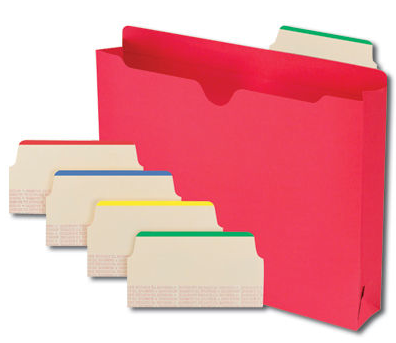
The neutral/beige Add-A-Tabs come in 32-packs with four assorted color-coding top stripes (in red, blue, yellow and green), and are made of 10% recycled content and 10% post-consumer material.

On the pretty side of things, mere moments after I’d put last week’s post to bed, K & Company’s Paper SMASH Tabs presented themselves. These colorful, decorative tabs, printed on thick card stock, come 16 to a package and are themed to the SMASH line of scrapbooking products.
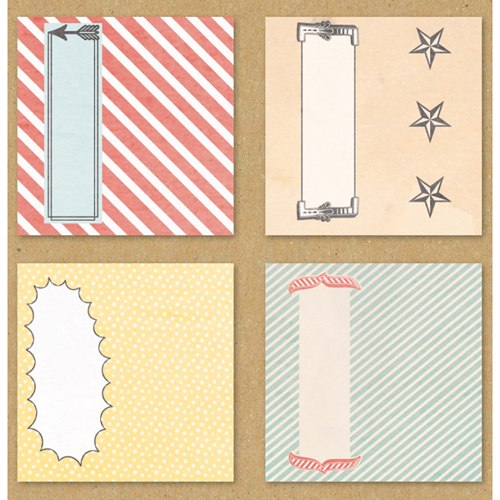
Although Paper Doll is not a scrapbooker, I have it on authority from numerous sources that these are popular doohickeys, equally suited for use with Smash and other scrapbooking products, journals and various creative endeavors.
DUDE, THAT’S AN AWESOME PIN!
Speaking of after-deadline finds, many weeks after I shared a bulletin board full of guy-themed alternatives to Pinterest, including Gentlemint, Manteresting and DartItUp, a new contender pinned itself to my sleeve.

Dudepins, with the motto “Man up, Sign up, Pin up,” is in beta, currently accessible by invitation only, after which one may sign up via Twitter, Facebook or email. Pinned topics (like alcohol, implements of destruction, cars, and sports) may tend more towards guy-ish stereotypes than the classier Gentlemint, but there’s no doubt there’s an ample bacon- and scotch-loving audience for such pins. And then there this:

It’s not yet clear how much effort has gone into the branding of these male-themed pinboard sites, but I think it’s safe to say that Dudepins is leaning a bit more towards attracting a younger, more casual dude than Gentlemint seeks.
Instead of the mints, workbenches and dartboards of its pinboard brethren, Dudepins’ users create montages (oooh, classy) to categorize and store pins, which are added either via the “Pin up” button (an installed browser bookmarklet), uploading from one’s hard drive or navigating to a site from Dudepins.
Generally, newcomer Dudepins is a masculine copycat of Pinterest with less interest in distancing itself from the mother ship than the other guy-boards. I found the main difference only by watching the instructional video; the voice-over accent made it clear to my native Buffalonian ears: Dudepins is Canadian! And longtime readers know that my adoration of North-of-the-Borderisms extend even beyond my Professional Organizers in Canada colleagues and the world’s best candy bar…so give Dudepins a look-see.


THE GENIZAH PROJECT
Finally, I was intrigued by an article in Washington Jewish Week about an art installation (through this Saturday) at Washington, DC’s Artomatic. Artist Rachel Farbiarz sent out a call that, to some, might have the poignancy of Emma Lazarus’ poem at the base of the Statue of Liberty, “…Give me your tired, your poor, your huddled masses yearning to breath free…” Farbiarz’s request:
I am offering a means of disposing the scraps that you have carried throughout life and no longer want to carry. They can go if there is a place for them: I’ll be your place and we will put them to rest as art.
Send me your: holiday greetings, letters from old boyfriends, birth announcements, thank you cards, notes passed in grade school. Send me your: letters not sent, save-the-date reminders, old calendars and daily planners. Send me your: lists of things-to-do not-done, ancient valentines, finger-paintings from long-grown toddlers, postcards from around the world. Send me those papers that have followed you everywhere. Send me those things that were once disposable, but through the passage of time have become not-so.
Farbiarz created The Genizah Project. For those unfamiliar, a Genizah was historically a repository for damaged Jewish holy books and documents set to be ritually buried in a cemetery. The Genizah provided a way for communities to dispose of sacred materials in a way that honored them and showed respect.
However, in certain communities, no ritual burial ever took place. Indeed, in the case of the Cairo Genizah, for over 1000 years, a community collected not only crumbling Torahs and prayer books, but a vast stockpile of both personal papers and public documents.
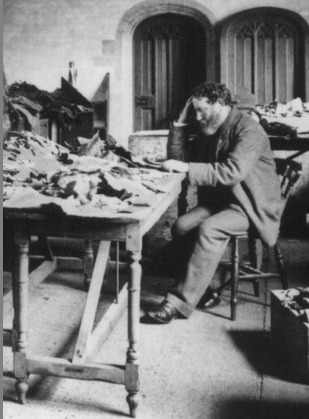
To reflect an understanding of the role of such paper collections, Farbiarz recently ran a workshop at Washington’s landmark Sixth & I Historic Synogogue. As the Washington Jewish Times described it:
…the workshop was part support group, with participants carefully admitting that they are “savers,” “collectors” and “pack rats.” Farbiarz encouraged them to consider the fallacy that if something has been saved it is somehow important, even sacred.
We all face the issue of attachments to papers every day. We save papers for a myriad reasons. We hold on to papers because we are overwhelmed by the bulk, and don’t know where to start. We hold on because of genuine sentiment, and the affection and warm feelings bought on by old love letters and driving directions to kindergarten orientations.
And we hold on to papers out of fear. Certainly there’s fear that we will be in trouble, legally or financially, if we dispose of important documents, receipts or statements, but at least that fear can be easily overcome with confident assertions from experts.
But there’s another kind of fear that keeps us attached, creating junk drawers and filing cabinets and cedar chests that turn into our own personal Genizahs. This is the fear that we will be forgotten. As the Washington Jewish Times story alludes, mankind has always created or saved some things that serve as landmarks for future travelers to find, as a way to say, “I was here.”
The difference is that just as our homes, our possessions and our waistlines are vastly increased vs. that of prior generations’, the collected paper ephemera and memorabilia of our lives have exponentially increased. There’s less room — in our lives, on our planet — and increasingly more difficulty persuading someone not to treat an expired car registration with the same sacred reverence as a marriage certificate.
Every day, we try to help clients find a way to balance being comfortable with letting go of what isn’t serving their needs (for space, for serenity, for a clear writing surface) with retaining enough tangible proof of their existence to feel just a little bit eternal. For clients, as much as for me when I debate tossing my college ID or love letters that outlasted an eleventh grade romance, it’s always a bit of a struggle.
Farbiaz plans to repeat the The Genizah Project installation in other cities. Her plea for submissions to the DC exhibit ended with:
At Artomatic’s end, the piece will be disassembled and your papers put to rest in a manner befitting their dignity. You will not receive your papers in return.
Oh, if only all we needed in order to be comfortable with letting go of our excess papers were to agree on a manner befitting their dignity.
Paper Doll Talks Tabs (Part 2) — Sorted, Separated and Stylized!
POST-IT
For Post-it, it was a natural progression from squared-off and pinpoint tape flags (the kind that say “Sign Here”) to creating a full line of labeling tabs.
Post-it Durable Flat Filing Tabs are ideal for organizing individual papers within file folders, as well as marking sections in books or loosely collected but unbound documents. The flat filing tabs come in two styles — white but striped at the top to aid in color-coding, and full-color tabs.
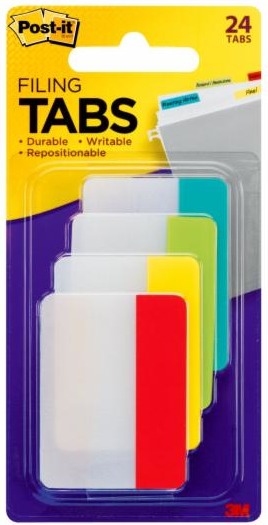
In both styles, the portion below the labeled tab is clear, so that when you’re reviewing paperwork, there’s no need to move the tab to read what’s underneath. The flat tabs come in 1″ solid-color and striped for easy sorting, 2″ solid-color and striped for traditional filing, and 3″ solid-color tabs for more detailed filing and sorting jobs.
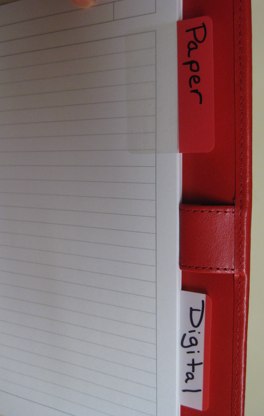
The flat tabs are re-positionable and made of extra-thick, heavy-duty material to stand up to repeated use. Both the solid-color tabs and striped tabs come in Red, Yellow, Light Green and Blue Green assortments.
Post-it Durable Angled Filing Tabs are specifically for vertical filing and come in 2″ solid-color and striped formats, in the same color schemes as the flat tabs.


These angled tabs are suitable for use with hanging folders or with individual pieces of paper when you’re not using file folders, such as with accordion files (as illustrated above). These tabs are also re-positionable and sturdy, and lean just slightly back from the user to make them easier to read.
[To speed the filing process, Post-it also makes Pre-Printed Tabs, with solid-color blocks labeled with the months of the year, days of the week, letters and numbers.]
Post-it Note-Taking Tabs combine the “Hey, here’s what you’re looking for!” quick efficiency of tabs with a solution for keeping notes associated with documents. With the flat and angled tabs, both the tab itself and the clear “body” portion are made of a slick writing surface. The Post-it Note-Taking Tabs just go one step further.

The extra-thick and sturdy Note-Taking tabs measure 3 3/8″ x 2 3/4″, offering up a nice-sized piece of real estate for the user to make notations regarding the page being marked. Make notes of mnemonics in your text book, substitutions for recipes in cookbooks, or specific language for arguing your point in a contract dispute, all the while keeping the original pristine.
You can position tabs anywhere — top, bottom, left or right — just flip the tab and orient yourself before writing. Affix your tab adjacent to the applicable section, and then leave yourself notes about the written material. Students can even use highlighter on the writing surface of the tab’s body, instead of directly on the page, so they’ll be able to sell the books back at the end of the semester.

The Note-Taking tabs come ten per pack in a variety of single-color (pink, aqua or yellow) and assorted color packages.
AVERY
Avery sometimes takes a back seat to Post-it in terms of “celebrity sticky” status, but Avery’s innovations really deserves some attention.
The Avery Small NoteTabs are perfect for traditional filing, and are much like the Post-it flat tabs, specifically designed for color-coding files, organizing documents, marking references in books and journals, and creating divided sections in notebooks. The tabs bear up under heavy use, allow you to write or highlight anywhere on the tab (or see-through writing areas), and are re-positionable without removing any ink from the printed page.
However, Avery’s tabs come in a slightly wider array of styles. The basic Small NoteTabs are 2 x 1 1/2″ notes and come in Primary (Red, Yellow, Cool Green and Cool Blue, with clear writing areas), Cool (Cool Blue and Cool Green with matching-color writing areas), Pastels (Blue and Yellow, with clear writing areas), all in packages of 40, and Taupe (white tabs with Taupe writing surfaces, as well as all-Taupe) in packages of 10.
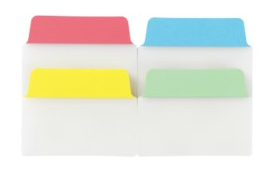
Beyond the traditional form, Avery expands the tab definition with sets of 2″ x 1 1/2″ Rounded NoteTabs in various assorted colors,
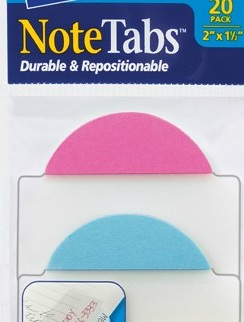
including two sets of Neon (Yellow/Clear and Magenta/Clear or Blue/Clear and Magenta/Clear), and Citrus (Lemon/Clear, Green/Clear) in packs of 10.
For those needing a more expansive writing area, Avery makes 3″ Square NoteTabs (with 1/2″ tab surfaces), which work exactly like the Post-it Note-Taking tabs. However, unlike the slick tab surface of Post-it’s tabs, Avery’s have a paper tabbed surface, although the body is still a slick poly-style.

Some of the combinations seem standard, with a clear writing surface and a colorful tab in pastels or neons. However, the Cool Green and Taupe varieties have colored writing surfaces. Although writing surfaces purport to be see-through, one imagines that it might be hard to read the printed page, depending on the colors of the papers to which the tabs are affixed. Cool green on a dark page might be iffy.

In addition to these standard tabs, Avery has partnered with Martha Stewart, Doyenne of Domesticity, to create a special line of notes available only at Staples. The tabs come in two styles, the straight-top Classic and the curvier Flourish
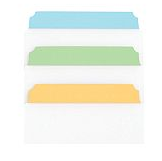
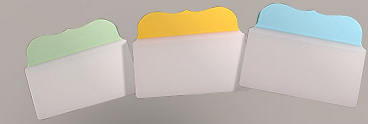
and in three sizes (1″ x 1 1/2″, 2″ x 1 1/2″ and 3″ x 1 1/2″) in assorted packs of 24 or 40. The color assortments include Custom Blue, Custom Green, Dark Yellow, and Pastel Pink tabs, with clear extended writing surfaces.
Avery has two other intriguing products. The 3″ x 7 1/2″ Perforated Tabs, are positionable vertically or horizontally on the page, and can be adjusted to the size(s) you prefer (like when you’re reading narrower or shorter books). Much like adjustable-sized paper towels, you can tear off as little or as much as you like, and even reposition the detached, non-tabbed portions to affix notes on other sections of the reading material.
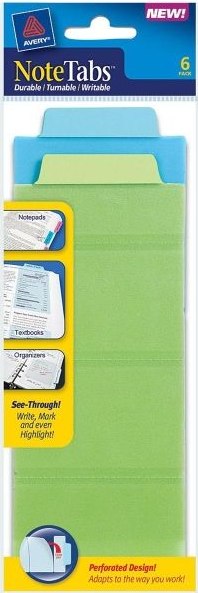
Finally, Avery PocketTabs bring together two disparate needs — the ability to mark your place and the opportunity to hold onto small resources.
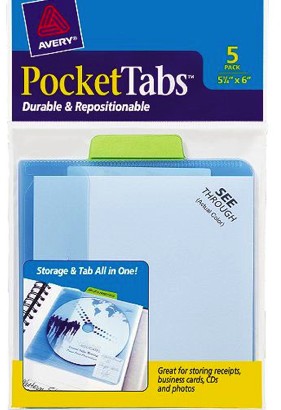
The sturdy adhesive-backed tabs are re-positionable without lifting ink or damaging the underlying paper. The poly translucent pockets hold receipts, business cards, digital media, ID cards, and more, with a secure closure. The PocketTabs come in two sizes, square-ish 5 1/8″ x 6″ and half-page 5 1/8″ x 8 5/16″, in assorted Pastels, Neons and Taupes.
SEE JANE WORK
The big guys, Post-it and Avery, aren’t the only ones who know how to stick around and show off. See Jane Work carries a spiffy line of Sticky Tab Dividers from Semikolon in wide array of truly gorgeous colors. Create tabbed sections in journals, binders, cookbooks, and more, and keep your loose papers fashionably sorted.
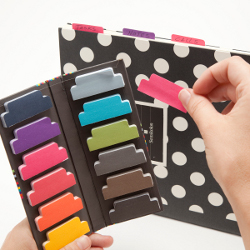
Each set comes with approximately fifty 2″ x 3/4″ tabs in each of twelve colors, for 600 tabs per set. They’re designed for labeling — not note-taking — but what they lack in size, they make up for in dazzling color and the ability to snappily customize and accessorize.
No matter your tabbing style, there’s something to suit your needs, whether you’re a student, a professional, or a family filer. Happy tabbing, and don’t forget to enter the Filertek Contest!

Follow Me