Archive for ‘Tech’ Category
From Glitter to Macaroni (Part 2): Storing and Displaying Children’s Art

(DRAWING) THE CART BEFORE THE HORSE
Last week, in From Glitter to Macaroni (Part 1): Downsizing and Organizing Children’s Art, we looked at the key elements of digging out from under so that you’re house doesn’t have three-inch thick wallpaper layers of kiddie art.
To recap the key concepts:
- Children live in the moment, enjoying the process of creating art for its own sake. They enjoy applause and appreciation, but by the next day, they’re usually ready to move on, so you should be, too.
- Ask questions to show you’re curious about junior’s artistic choices and thinking.
- Have a plan for collecting the art and host at least a weekly review where you figure out what to purge and what to maintain, at least for the near-term.
- To help you cull the excess, focus on keeping masterpieces (original artwork) and let go of reproductions (coloring book pages, paint-by-numbers, etc.).
- Record the name of the little artist and the date.
If you regularly purge, you’ll feel more confident that whatever you store or semi-permanently display is the best of the best!
HOW TO STORE CHILDREN’S ART
As last week’s post explained, kids create so much art, and so quickly, that thinking you’ll put it all on the fridge or kitchen counter is a recipe for clutter. You need a plan for storage of any art projects that you hope to maintain (both short-term and long-term) without displaying. There’s just no room to show it all off!
Unfortunately, this is the one category of paper that doesn’t lend itself to the filing solutions we usually discuss, like vertical filing folders and three-ring binders with sheet protectors, such as we’d illustrated in Reference Files Master Class (Part 1) — The Essentials of Paper Filing. Those solutions work for pieces that are 8 1/2″ x 11″ emblazoned with only crayon or pencil, but thick paints, glitter, and glue often prevents paper from maintaining structural integrity and laying flat.
Flat Files
In the professional art world, instead of vertical filing cabinets, art pieces and blueprints may be rolled for shipping or travel, but are generally stored in flat files, cabinets with short but deep metal drawers. The problem? Flat files tend to be expensive and ill-suited for children’s art created by anyone but Richie Rich.
For example, this small, 5-drawer Safco Products 4969LG flat file is $710!
At 32″ deep x 46.25″ wide x 16.25″ high, (after a proper culling of lumpy finger-paintings and nature studies made from small sticks and cotton ball clouds) you could probably store all of the elementary school art. But for $710 you could buy a Disney World four-park, four-day ticket and still have $300 left over for concessions, T-shirts, sun-block, and decades of memories!
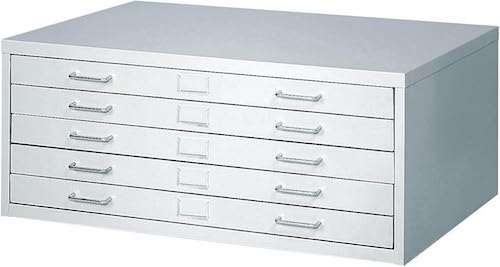
While yes, the above flat file it will let you store pieces of up to 40-inches in depth, your child’s Kraft-paper, full-sized self-portrait could also just be rolled up to fit in the tube of a used-up roll of wrapping paper!
There are more affordable flat files with more storage space (covering less horizontal real estate), like this pretty Bisley 10 Drawer Steel Under-Desk Multidrawer Storage Cabinet, available in ten colors, including black, charcoal, light grey, a truly sickly green, navy, orange, red, steel blue, white, and as seen here, fuchsia.
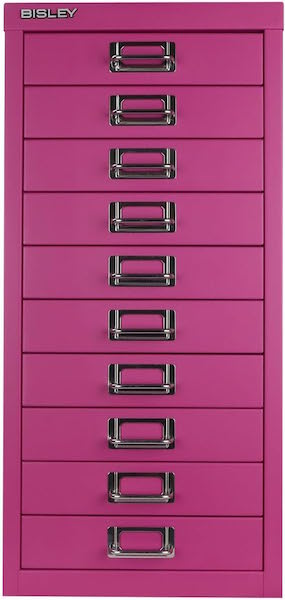
At 15″ deep x 11″ wide x 24″ high, it’s a smaller profile solution that works if your prolific artists create relatively narrow (dimensionally-speaking) works. It’s “only” $260, and can be used for storing art and school supplies, too. But eleven inches of width and 15 inches of depth is decidedly small for the often-expansive creativity of a Mini Mary Cassatt or Tiny (tinier?) Toulouse Lautrec.
Given that, I encourage you to seek less expensive, more portable art storage solutions.
Clean Pizza Boxes
As I mentioned last week, a (clean, new) pizza box is the right size to handle the weekly collection of art creation. As your kids get older and you do seasonal and end-of-school reviews, these can be repurposed for winnowed longer-held collections.
Sure, you can tip your favorite pizzeria cashier to save you a few extra boxes when you pick your next pie, but do you want to be beholden to maintaining a friendly relationship with Mario to keep you in pizza boxes until your kids hit middle school (and stop creating art)? And when he goes off to college, are you prepared to start fresh with his replacement?
Assuming not, consider buying a stack of white, Kraft, or themed pizza boxes directly from Amazon or a restaurant supply store like Webstaurant Store. (I recommend white or Kraft boxes so that you can label accurately (“Jamie’s Artworks—1st Grade” or “Chris’ Creativity — 2024”) without cartoonish distractions.

These boxes often come in packs of 50 for about $30-$45, so split a batch with the other parents in your carpool or PTA.
Just be sure to get boxes that are at least 12″ square, as most children’s art won’t fit in the 10″ x 10″ boxes. You can also select options that come in 14″ or 16″ (or even larger) sizes, so explore box style you want to see the different sizes available.
Try one box for each child for gathering a week’s worth of art for curation meetings, storing it on a shelf in the kitchen pantry or mudroom, and another more permanent box for each child into which you put the weekly “best-of” selections.
Art Portfolios Bags
Hard-sided art portfolios cases are a popular resource for professional artists to store work or carry their best pieces. However, children’s art tends to be larger and “lumpier,” so portfolio cases aren’t the best option. Instead, opt for large format portfolios and portfolio bags.
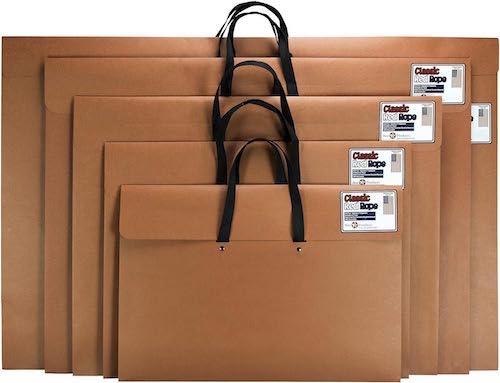
The standard is something like the Classic Red Rope, Paper Artist Portfolio with Soft Woven Handle. All versions come with a 2-inch expandable gusset, and comes in multiple sizes (14″ x 20″, 17″ x 22″, 20″ x 26″, 23″ x 31″, and 24″ x 36″), with prices ranging from $16-$24.
These are lightweight and constructed with heavy-duty recycled paper, ideal for inexpensive paper art storage. Find them on Amazon at the link above or in your local art supply stores. Stand these up along the back wall of a child’s closet or slide them behind a child’s bookcase or dresser to keep art tucked out of the way. You might also consider using using these in combination with pizza boxes, with the pizza boxes for weekly collection and the portfolios for longer-term storage.
For more visually stimulating storage options, you’ll find lots of zippered plastic/nylon portfolio bags, like this SUNEE 19″ x 25″ Art Portfolio Bag. The nylon strap and edging are sewn into the mesh cloth for extra durability, and it’s semi-transparent so you can immediately realize, “Ah, it’s Katie’s art collection.”
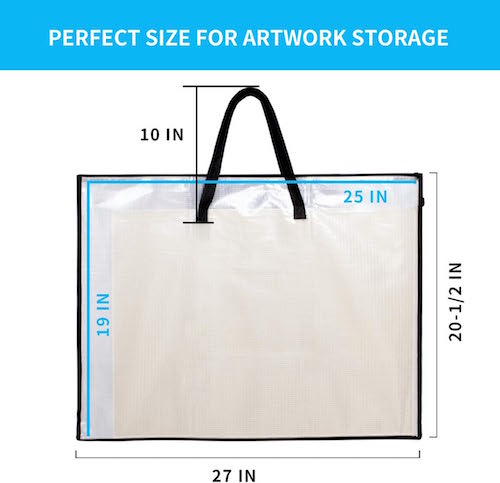
Use one portfolio for each child, labeled with the name on the outside. Don’t try to combine different children’s art in the same storage, especially when they are small.
Aim to keep relatively equivalent numbers of art pieces (per week, per semester, etc.) for each child. If your kid makes it to middle school or high school and is still creating massive numbers of pieces — prolific creation is a rarity after 6th grade — then you have an actual artist on your hands and have my permission to treat this as an interest/hobby (much like sports or musical performance). But when your kids look back in adolescence to what you’ve retained from their tiny tot years, spare yourself family strife and aim for balance.
Capturing Memories
The location doesn’t matter as long as you have adequate space to keep these collections accessible (and file them away regularly). Remember, legal-sized filing cabinets will give you more length, but chance are good that what you need most is more width. If you fold children’s art to make it fit, the paint and glue will crack and flake; glitter will come loose.
You can also choose clear plastic bins to store the art that you decide to keep, memory box-style.
Whatever storage method you use, clearly label each box, bin, portfolio, or folder with the child’s name and the date range. As I noted last week, you may think that you’ll never forget when your Tiny Titian or Mini Matisse created each piece of art, but I guarantee you that 30 years from now, you won’t be able to tell which kid did which.
WHERE TO DISPLAY CHILDREN’S ART
Minimize the backlog, then consider which tangible pieces on display.
Identify a location for a rotating display.
Rotate the art regularly to keep it fresh. Display this week’s award winners and replace them frequently. (Remember, kids live in the moment, so don’t make VIP displays about a moment six months ago!)
Art galleries have both permanent exhibits and rotating ones that allow fresh, inspiring work to grab the attention of visitors. Permanent exhibits (like the collection of family photos on the wall next to the staircase) are lovely, but it’s the rotating exhibits that will catch the eye. The question becomes, where shall it all go?
The American standard is to display art on the fridge. This worked well when everyone had a big white (or avocado green) refrigerator that happily accepted a plethora of magnets. Nowadays, more and more of our boxy chill chests have non-magnetic fronts and are designed to be pieces of art themselves.
Before you run to the 1960s-Classic-Fridges-Are-Us Emporium for your next art wall installation, recognize that there are alternatives to hanging art where your lunch lives.
Invest in a large cork bulletin board.
Pick a bulletin board like you might see in a typical classroom, such as this one from Quartet.
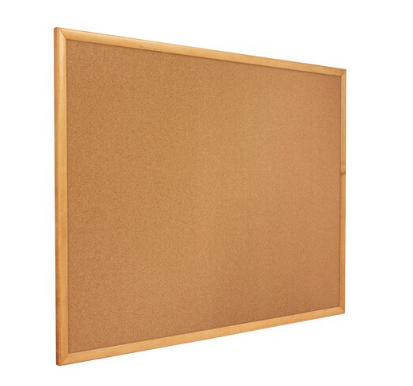
Find full-sized, framed cork boards on Amazon or at office or school supply stores. Alternatively, buy individual cork tiles — array them in a uniform grouping or artistically around a child’s room or playroom — to affix to your walls.
Display the art as-is, right on the cork, or cover the entire board with dollar-store wrapping paper or kraft or butcher paper. Your kids can even draw on or decorate the paper, first, creating a meta-message of art-on-art, or add drawings and designs around the posted art.
Perhaps, use just one cork tile in a high traffic area of the home to showcase the Masterpiece of the Week!
The board does not have to be cork, per se. Customizable felt boards and panels, like these from Felt Right, can make a child’s bedroom or playroom wall bold and exciting as a background display option.
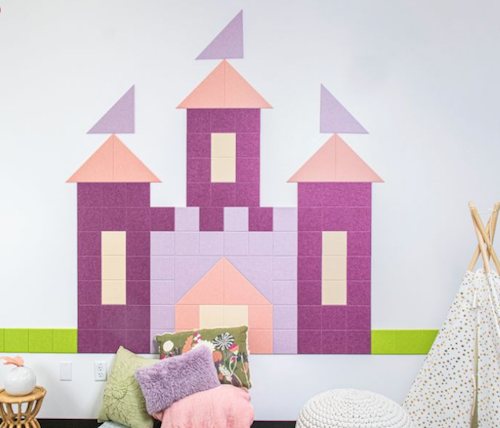
Princess Castle from Felt Right
Wallpaper an unfinished space, like a basement or work area.
Art can be a fun way to decorate your child’s room as well as any other casual area, like a guest room, mud/utility room, playroom or basement, whether you use a cork board or not.
The walls of a basement laundry room are likely to be gunmetal grey and depressing. Charming and colorful children’s art can brighten the area (and the mood of laundry day) immensely. Easily and safely attach artwork to walls with removable 3M’s Command-brand traditional or re-positionable Poster Strips.
Match your child’s magnetic personality!
Chalkboard paint allows children to create masterpieces directly on the wall, but magnetic paint is actually a storage solution for existing art.
Try a brush-on paint like Rustoleum’s Magnetic Primer or Magnetize It! Magnetic Paint & Primer so your wall surface will hold magnets for displaying artwork, schoolwork, and more. Alternatively, use a sprayable magnetic paint primer, like Krylon’s. Find them at Amazon or home supply stores, and then paint your wood, metal, masonry, drywall, or plaster walls.

After the primer dries, cover with a colorful latex paint — use a solid color, stripes, or a pattern designed by your little artist. Magnetic primer generally goes on as grey or black, so apply multiple coats of the latex to get proper coverage. Then attach the artwork with decorative magnets. (Hey, that’s another art project your kids might like!)
Hang a retractable clothesline or cable.
Position a clothesline high enough that it’s beyond children’s ability (or consideration) to climb to reach. Attach paper artwork with clothespins. Paint wooden clothespins or use full-sized or miniature plastic ones in bright colors or funky patterns for a more kid-friendly atmosphere.
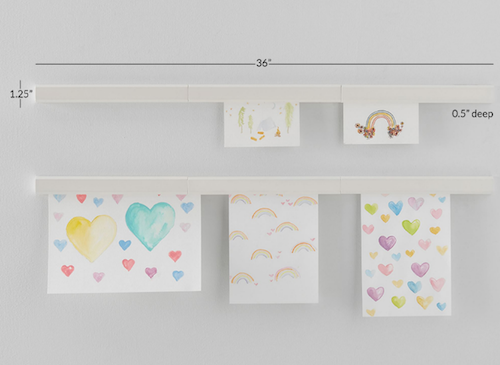
If you want something with a less DIY look, you can purchase an art display rod (with 48 clips) for $29.97, like this one from Willow and Eva on Amazon.

For a little higher-end approach, Pottery Barn has a nifty Rainbow Dot Art Cable for $59 and a Magnetic Art Gallery Display for $79.
Try a Frame Job!
In the olden days, we created our own frames with Popsicle sticks, but times have changed. One modern classic are the L’il Davinci Art Frames from Dynamic Frames.
The L’il Davinci Art Frames are, yes, frames, but each also holds numerous other pieces of art (up to 50 pieces), so you can easily switch out what you wish to display at any given time.
They come in four sizes (8 1/2″ x 11″, 9″ x 12″x 12″ x 18″ and 18″ x 24″) and four frame styles (black, white, cherry, and natural), and you can hang the frames/cabinets in portrait or landscape orientation.

The front-loading frames are a snap to open; push the art under the corners of the frame; the art hiding behind what’s on display is held under a spring-loaded backplate. Prices start at $37.50 for one, but they offer discounts on bundles. Shop directly from Dynamic Frames or pick them up on Amazon.
TRY SOMETHING OFF THE WALL
The spectacular art your little geniuses create need not displayed in the traditional way. You can create magnets, mugs, T-shirts, greeting cards, calendars and other gifts to share with your little ones’ fans.
Consider a variety of companies that allows you to upload children’s artwork and turn it into something tangible:
Book ’em.
(“Framed?” “Book ’em?” Children’s art demands criminally cute puns!)
How about art books? We GenXers were satisfied using a three-hole punch and “sewing” art together into book form with yarn. However, you can use a photo book publishing site like Shutterfly to digitize your children’s artwork into high quality photo books. There are even book creation options designed specifically for children’s art.
Do you picture yourself lending Medici-level patronage to your children’s art collections? Consider one of these higher-end services:
Artimus Art — Artimus Art’s concierge service has you send the actual art to them (rather than you having to take photos); they photograph the art, design, print, and bind the book, and ship it (and, if you want, the original art pieces) back to you. (They also have a DIY option.)
Artkive offers professionally photographed and edited books, as well as framed photo mosaics. You send your child’s art, they create a professional masterpiece as if your tot were Banksy. (Their ads are funnier.)
However, if you fall somewhat in between yarn-bound construction paper and fancy-pants book publishing, try one of these DIY options, where you upload photos of the artwork and design the book yourself:
CREATE A DIGITAL ART ARCHIVE FOR STORAGE AND DISPLAY
Not all art is “forever” art. Whatever is sticky, gooey, and glittery needs to go sooner rather than later. That macaroni art will attract bugs.
Not all art is *forever* art. The stuff that is sticky, gooey, and glittery needs to go sooner rather than later. The macaroni art will attract bugs. Share on XBut whether you intend to keep a particular piece of art on display until your grandchildren’s significant others can admire it or merely until the glitter-and-glue-stick era is over, a digital art archive is an easy solution that isn’t fraught with keep-or-toss guilt.
Even better, you can start easily with skills you (and your kids) already have:
- Scan or snap: Digitally capture each piece of art. This method allows you to keep a record without physical clutter. The meta data ensures that you’ve got the date the photo was taken (so, it’ll at least be noted close to the creation date). Later, you can use your favorite photo app, whether Apple’s Photos or Google Photos or whatever to add notes regarding the artist and what it is (you think) they’ve created.
- For their best work, take a photo of the art with the artist, as if it were a magazine profile. Tots these days are used to selfies and immediate photographic gratification. (Oh, how I remember my father standing us up for posed photos until our faces ached from trying to hold a smile, and we rarely saw those 35 millimeter shots in the same year, let alone season, in which they were taken.) Satisfy your little one with seeing their own toothy (or toothless) grins and their art work, and they can shuffle through the photo app whenever they like.
- Take a photo of the artist with the ALLLLLL the art. Is your junior Frieda Kahlo filling the house with so many pieces each week such that the idea of doing the “Artist Poses With His Work” route and snapping photos all day, every day, exhausts you? Just have your little creator post with the entire week’s collection! If possible, hang the art and place your tiny human slightly off center in a gap between paintings. If there’s just too much, position your child on the floor and arrange the art around them; then stand on a bed or a ladder (with a spotter to safeguard you) and shoot from above to get the artist surrounded by the art. Easy peasy!
- Post the art to social media. Create an Instagram or similar account and just post the weekly shots. Keep it completely private so you just have chronological family “album” online, or open it to friends and relatives. Though fewer than a decade ago, there are a whole slew of photo-sharing web sites to try if you don’t want to support mainstream social media and the evil billionaire overloads who profit from them.
- Use a journaling app (for children or adults) to create a chronological record that only family can access.
- Digital Display: Digital photo frame have gone seriously high tech. Years ago, you plugged a flash drive in; now, you can email directly to the frame to showcase scanned or photographed art collection. Not only can you display the art to a photo frame in your home (so your kids can see their own creations lovingly displayed) but you can make sure grandparents and other loved ones see the art without glitter filling their mailboxes.
- Art Apps: Technology endlessly evolves. Try out apps apps like Artkive or Keepy to organize and store digital versions of your child’s artwork.
“Take a picture; it’ll last longer.”
That may have been childhood snark when someone was caught staring, but now, a digital photo is the ideal option for preserving children’s works of art. Plus, getting a shot of your little one holding the masterpiece provides a stellar historical record of the artist during his or her Blue Period.

Baby Paper Doll’s Blue Period
Suppress your instinct to use filters, color-correct green hair, or fix the spelling mistakes, the very things that make children’s art a delight.
And, of course, always maintain digital backups, whether in the cloud or on flash drives or external hard drives. Memory is cheap, but memories are priceless!
Organize to Help the Seniors in Your Life With Technology
This post was originally published on May 27, 2024, and has been updated as of September 8, 2025 to reflect additional information and resources, including revised links.

We love technology. However, it does not always love us.
Technology is not always (or even often) intuitive, which makes it hard to organize the technology and the content provided by the technology. This is especially true for our parents and grandparents (or ourselves, if we happen to be seniors).
Whether the seniors in your life embrace technology or eschew it, the digital realm has a lot to offer them.
Health and Safety Technology
- Wearable fitness trackers like Fitbit, Garmin, and Apple Watch (and associated apps) for tracking:
- nutrition and calories burned
- steps taken and stairs climbed
- health metrics like heart rate, blood pressure and glucose levels
- Reminder alerts and alarms for taking medicine and testing blood pressure and blood glucose.
- Phone-based magnifiers for helping read medicine bottle labels and prescription instructions.
- Phone-based cameras for supporting memory (noting parking locations, remembering hotel names and room numbers, etc.).
- Videoconferencing for telehealth allows seniors to stay connected with their physicians for regular visits and making inquiries without having to venture out to drive in inclement weather or seek rides when an in-person appointment isn’t necessary.
- Fall detection and emergency hotline hardware and software, or medical alert systems, allow seniors to get help if they suffer falls or medical emergencies in their homes, even if they are not positioned near their phones or are unconscious.
Paper Mommy and I call these the “I’ve fallen and I can’t get up” buttons after the famed grating commercials.
They range from wearables like bracelets and pendants to wall-based systems, and are connected through phone lines to base stations, so if someone suffers an emergency, they can “call” through that base station, like an intercom. If the user does not respond to the service’s inbound call, emergency services are dispatched. Common systems include Life Alert, Medical Guardian, and ADT Medical Alert.
Smart Home Technology
As with health technology, a variety of smart home technologies can make life easier and more convenient for all users, but especially seniors. These include:
- smart lighting and blinds
- smart plugs and timers that turn appliances off and on
- digital monitoring systems for temperature control, CO2 detection, humidity, and air quality
- smart thermostats
- robot vacuums
- GPS-based trackers to locate lost items
- digital doorbell cameras to help monitor who is at the front door (delivery workers, visitors, bad guys, ding-dong-ditchers, etc.)
Digital monitoring and home management can make it easier for seniors with low mobility or low vision to be able to care for their homes and personal comfort with minimal effort.
For more on smart home tech for seniors, the New York Times’ Wirecutter site has a great piece on the 14 Best Smart Home Devices to Help Aging in Place.
Entertainment and Social Connection Technology
There is no age limit on enjoying books, TV, movies, or music, but the same technology that brings a wider variety of options into our homes, but these technologies are not always intuitive. It’s not that Spotify or Netflix is easier to use when you’re 25 than when you’re 85, but those who have always lived with technology are quicker to note and understand user interface changes and make quicker guesses as to where missing options may be hiding.
Retirees who no longer interact with others in the workplace or at as many social gatherings as previously can benefit from all the modern offerings, including:
- Smart TVs with cable or satellite programming
- Streaming entertainment from mainstream services like Amazon Prime, Netflix, Apple+ TV, Hulu, as well as niche programming services like AcornTV or BroadwayHD
- Music streaming services like Spotify, Apple Music, Amazon Music, or Pandora
- Podcasting apps
- Book and audiobook services and apps like Audible, Libby, and others that allow you to purchase entertainment or borrow from your public library.
When Tech Go Wrong
We’ve all dealt with the frustration of tech going wonky. The difference is that the younger we are, the more likely we are to recognize a problem that we’ve seen before and recall how to solve it. We’re also more likely to visit the service’s FAQ pages or Google the problem. Seniors, however, may be both less likely to have experienced (or recall experiencing) similar problems and less adept at digital search and the right prompts to solve the problem easily.
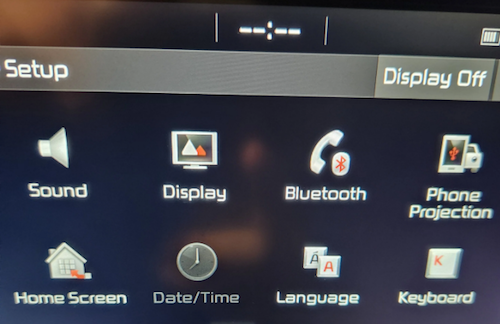
When I got in the car to run errands this weekend, in place of the digital clock on my car’s navigation screen, it just said “–:–“ so I immediately went to the on-screen settings icon. However, on the resulting screen, the date/time icon was greyed out. I vaguely recalled this having happened once before, so I wasn’t immediately worried that my car was “broken” or that there was an expensive onboard computer problem.
First, I checked social media reports of widespread problems. That’s still my go-to for “is it happening right now” technology issues unless it’s an internet-based issue, in which case I follow the steps I described in Paper Doll Organizes the Internet: 5 Tools for When the Web Is Broken.
Then I Googled “Kia date/time setting greyed out and not working” on my phone. I got varying reports of it being a satellite issue that would self-correct; others suggested pulling one of two different fuses and/or resetting the onboard programming.
I can just shout, “Hey, Siri, what time is it?” so this wasn’t an emergency. Thus, so I didn’t get flustered, and figured if the problem continued I would check it out later in the weekend. An hour later, after a trip to Walmart (where the cashierless payment technology had everyone frustrated), I returned to my car to find the clock working again.
Now, take a moment to imagine your Great-Grandpa dealing with this clock kerfuffle, getting progressively more annoyed that the auto manual’s index and table of contents yielded no immediate solutions. Would he head to the search engines or YouTube? Would he become agitated?
We all love technology and we all hate when tech doesn’t work as it’s supposed to. The only difference is that the younger we are, and the more privileged (financially, socially, and educationally) we are, the more exposure we’ve likely had to potential solutions. The best thing we can do to make technology easier for our elders is to help them when we can, and connect them to others who can help them when we are not able to do so.
HOW TO HELP THE SENIORS IN YOUR LIFE WITH TECHNOLOGY
Let’s get the giggles out of the way, first.
Don’t laugh at them
When possible, do laugh with them.
This should be obvious. But it’s also hard. While serving as Paper Mommy‘s tech support over the phone, I kept trying to point out the lock icon so that she could recognize secure websites.
Because we couldn’t see one another’s screens, I was trying to give her landmarks, and I could tell she was looking in the right location in the URL bar at the top of the screen, but she kept not seeing the lock icon. Finally, Paper Mommy, frustrated, insisted “It’s not there! The only thing there is something that looks like a little purse.”

By Santeri Viinamäki, CC BY-SA 4.0
Um. OK. I had to laugh. While yes, to anyone thinking in terms of technology, that secure URL icon is a padlock. But if you’re in your 70s or 80s and haven’t been technology-focused for your entire adulthood, yep, it’s a purse. A green handbag.
Start with, and explain, the basics
Use proper lingo when you can, but if your person just can’t get a handle on remembering the term “scroll bar,” try saying, “Do you remember the vertical bar that makes the screen move up and down, like an elevator?” Use vivid, memorable language, and be prepared to backtrack. Often.
Let them make mistakes
Many seniors are afraid that they will “break” the computer or gadget by clicking on the wrong link. Assuming you’ve covered the basics of avoiding phishing and other scams (see below), assure them that changing settings isn’t going to void the warranty or damage the software or the hardware.
Do not condescend
If this senior is your senior (parent or grandparent), remember how many times they needed to help you learn how to use a spoon or spell your name.
Be patient
Go slowly and be as patient as you can be. (And if you can’t be patient with your mom even though you are known for being patient with clients or colleagues, recognize that you and your favorite senior will have different perspectives, and find them an alternate IT help desk, once that doesn’t look like you.)
Explain online dangers and prepare them for what they should NEVER do
Technology doesn’t need to be scary, but it often is, and especially so for seniors. Teach the seniors in your life about phishing scams, how to identify the true source of emails (by hovering over the sender name and looking at the actual domain name of the address), how to look for secure sites (and the “purse”), and how companies, banks, and the government will never call or email and ask for passwords or other information (or ask you to make urgent payments via purchases of gift cards!).
For more on this, refer to my post from March, Slam the Scam! Organize to Protect Against Scams.
Teach them where to look for resources and how to ask search engines for help
My mom once called me because every bit of text on her Facebook screen had turned German. I knew immediately that this was because Facebook had a word cloud of language names in the lower right-hand corner of the screen.
If you were holding an iPad (as she was) on the right side, it would be easy to press your thumb on one of the languages and change your settings. (Facebook has since moved this element off the main screen.)
I’d once accidentally turned my Facebook default language to French, and had to Google the solution, and my Google-fu is pretty strong. However, to the uninitiated senior, it can be tempting to ask a question as you might ask someone sitting next to you on the couch: “Why is my Facebook in German?”
However, to yield a more helpful answer (at least until our AI overloads take complete control), a better query might include, “revert Facebook default language from German to English.”
Search engine language is not intuitive, but we can all — including seniors — learn better queries to find help more quickly.
Customize accessibility settings
When the seniors in your life get new devices, sit down with them to customize the accessibility and assistive settings:
Sometimes, just making text larger, increasing display brightness, or addressing basic accessibility issues will make the entire navigation process easier for them. However, there’s a ever widening range of accessibility tools that can making digital devices easier — or even a joy — for any user, not just seniors.
For addressing visual or hearing impairments, magnification/zoom settings, larger text, screen readers, high contrast mode, live captioning, voice assistants, and LED flashing (for notifications for the hearing impaired) all support smoother use. For those with mobility or dexterity obstacles, you can customize accessibility shortcuts, create “sticky” keys (so key combinations aren’t required), and assistive touch on-screen menus.
You can also activate device settings for “simplified views” or “easy mode” to reduce visual clutter and make navigation more intuitive.
There are also user-friendly apps like Be My Eyes to connect individuals with vision impairment with volunteers who can read labels or identify street or in-home objects.
Google’s Lookout app offers a similar assisted vision option.
BUILD ON INITIAL GUIDANCE WITH MORE COMPLEX TECH SUPPORT
Use Screen-Sharing Technology Options
If you’re helping a senior long-distance, it can be maddening for both of you. They may feel rushed, and you might be knocking your head against the wall because they can’t “see” what you know or believe to be right there!
At minimum, seek solutions that grant you remote screen viewing so you can see what they’re doing at their end and provide tactical directions. Be aware that there’s often a delay between what they’ve done and what you see, so just as when you’re working on the phone, try to discourage them from jumping multiple steps ahead.
In addition, there are remote access software programs and apps that allow you to manipulate someone else’s device from wherever you are. This is how the help desks at Apple and other big software and hardware companies guide you through IT troubles. Unfortunately, it’s also how scammers get access to your loved one’s computers, so it’s important that they understand not to provide this access to anyone they don’t know unless they are seeking the help of an authorized, respected technology expert and NOT someone who randomly calls and claims that “There is a problem with your Microsoft computer.” (There isn’t.)
I used to help Paper Mommy and my virtual clients with LogMeIn (which is no longer consumer-oriented) However, there are still free and affordable options for providing remote tech support to your beloved seniors, including:
- Zoom will let you request or offer remote access (as part of your account). It works on computers as well as iOS and Android devices.
- Microsoft Teams has a similar function for sharing content, as well as giving and receiving control.
- TeamViewer used to be free, but (as with most remote access programs, has moved to a subscription model for all users). Still, $24.90/year for a single user remote license should give you piece of mind that you can help your senior for less than fifty cents a week.
- Chrome Remote Desktop — This option is free and low-cost. You may find that you need to help your senior set up Chrome Remote Access first to make the process work.
All of the above options will work whether you and your senior have the same platform (Apple or Windows) or are mismatched. Other options require you to be using the same platform.
- Apple Mac users have a few options. If you’re both using Apple computers, you can make use of the free Apple Remote Login, but as with the Chrome option above, you’ll need to set it up in advance.
- Alternatively, without any advanced prep, (and again, if you’re both using Macs), you can use “Screen Share” from within the Messages app:
-
-
- Open the Messages app on your Mac.
- Select a conversation with your senior relative or friend. (If you haven’t ever texted with them, start a new conversation.)
- Click the “i” button in the upper right-hand corner of the window. A set of options will drop-down.
- Click “Share.”
- Ask your senior to share their screen. (Alternatively, they can also go to this same menu and invite you to view their screen.) They’ll get a pop-up requesting permission to share their screen with you. They need their “Control My Screen” option selected and should click “Accept.” From this point, you can control their Mac and show them what to do, step-step, or fix problems yourself.
-
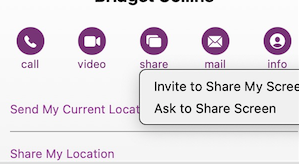
Finally, I find it helpful to initiate a Facetime (Mac-to-Mac) call before starting the process, but you can also speak on the phone while troubleshooting.
- Windows users have similar built-in options, including Quick Assist and Windows Remote Desktop Connection.
Write Down Instructions, Step-By-Step
Don’t expect seniors to remember intricate processes they’ve only seen once or twice, or to intuit the workings after minimal practice.
When one of my clients (senior or otherwise) is learning new processes on the computer or another device, I teach the step and then write it down on a numbered list. Once we’re all done, I create a title with “if,” such as “If you want to listen to your new voicemails…” or “If you want to download an app from the App Store…”
Make a notebook of these lessons so your senior can flip through the pages, or even create an index in the front. (And yes, you can type these lessons and store them in Notes, Dropbox, or Evernote if that’s something your senior is comfortable navigating.) If you are at a distance, encourage them to take notes for themselves, if possible, and repeat back to you what they’ve written.
HOW TO OUTSOURCE TECH SUPPORT FOR SENIORS
Do you and your senior end up fighting when you try to help with tech? Sometimes, the best way to help is to arrange alternate help. (This is why, when adult children and their seniors spar over downsizing, bringing a professional organizer in is the best option.)
Outsource To Your Teenager(s)
Assign your teens to help their grandparents (or neighbors or friends who are grandparent-ish age).

Too few young people have the opportunity to learn from older generations, and this kind of bonding can be good for both. Seniors will feel younger when engaging with teen family members or neighbors, and the teens can connect with grown-ups with different perspectives on career, family, life, and history. (And shockingly, they’ll be more patient with Grandma than they are with you.)
AARP’s Senior Planet

Senior Planet is a free technology service sponsored by AARP, but you don’t have to be an AARP member to use it. (That said, at $16/year for anyone over 50, AARP’s discounts and educational resources definitely make it valuable.)
Senior Planet offers in-person virtual sessions, in-person classes in major cities, and online classes, like “How to Choose a New Computer.” There’s a hotline for those who need immediate assistance for simple questions. It’s available weekdays from 9 a.m. to 8 p.m. Eastern, during which Senior Planet’s “technology trainers” (employees and volunteers) can answer questions about email, texting, app notifications, video conferencing, and other tech conundrums.
Anyone needing personalized tech help can call the hotline at 888-713-3495 or fill out a form to schedule a help session.
Cyber Seniors

Cyber Seniors is a volunteer-based, non-profit organization and is available at no cost to users. Most volunteers are in their late teens and twenties and have training to serve as “digital mentors” to seniors. Think of it as digital natives guiding digital immigrants through the cyber world.
Cyber Seniors provides both one-on-one individualized support and as well as group education.
For individual needs, fill out a request form with general information(contact email, birthdate) and situation (device type, etc.), and then select an appointment date and time for a volunteer to contact you by phone. Once the mentor calls, you explain what you’re trying to do (e.g., attach a photo to an email, set up a Facetime call, change the settings in a program). Users can request a specific mentor by name or work with anyone on the CyberSeniors team, so if Grandma meshes well with a certain person, request a repeat session.
Cyber Seniors offers weekday group webinars over Zoom on tech and cybersecurity (and other) topics, and recorded prior webinars are also accessible.
GoGo Quincy

GoGoQuincy, promising “tech support for non-techies” started as a service to help seniors with but has expanded to assist anyone, no matter the age, with technology difficulties. For up to one call per month, the service is free; after that, there’s a $5/month fee plus $11 per call, so if there’s any chance you or your senior might be making more than two calls a month, the unlimited plan (for $19/month) is the way to go. (Reviewers note that experts didn’t try to upsell memberships or get callers to sign up for the paid service. Still, I’d encourage exhausting free options first.)
GoGo Quincy has a telephone hotline if you need immediate technology assistance; otherwise, schedule a session through the GoGo Quincy website.
[Editor’s note:
Hire a Technology Specialist
Your best bet for a loved one (or yourself) maybe to hire a professional technology consultant. I have senior clients who are active in their non-tech lives but for various reasons need support with their web sites, social media, or ever-more-complex devices, and having a paid consultant, either on retainer or paid per call, gives them confidence that they’re getting professional level services.
Online, you can find a variety of in-person and virtual technology coaches, like Tech Coaches or Candoo Tech.
Additionally, there are professional organizers, working both locally and virtually, who can assist with making technology more accessible. My technology-minded colleagues in the National Association of Productivity and Organizing Professionals (NAPO) can be found by going to NAPO’s website and conducting a search, as follows:
- Go to NAPO.net.
- Select “Professional Directory” from the FIND A PRO drop-down menu at the top of the screen.
- On the resulting search page (which defaults to a radius search, though you can switch to search by geographic location name), type in the requested information and select Digital Organizing from the residential organizing drop-down. The screen will refresh, giving you professionals guide you in organizing your technology.
Consider Artificial Intelligence
It’s not always ready for prime time, but there are AI options for getting tech support when humans aren’t available. One option is HelpMee.ai, which promises patient, voice-enabled conversations and screen sharing to guide seniors step-by-step through computer problems.
HelpMee.ai has multiple price points, from a free trial for 30 minutes of support, to two different levels of monthly support ($12/month for 4 hour, $20/month for 10 hours of support).
With all of these options, seniors can enjoy the benefits of technology while minimizing the frustrations. Don’t give up on helping your seniors with tech, and don’t let them give up, either!
If you have your own favorite tips and services for helping seniors with technology, please share in the comments.
Do (Not) Be Alarmed: Paper Doll’s Wake-Up Advice for Productivity
September’s approach means many things: a new school year, a new television season, Europeans coming back from their August-long vacations.
But in September, when I see kids lined up for the school bus, I remember when I went to kindergarten and Paper Mommy bought me a giant, orange, retro, two-bell alarm clock.
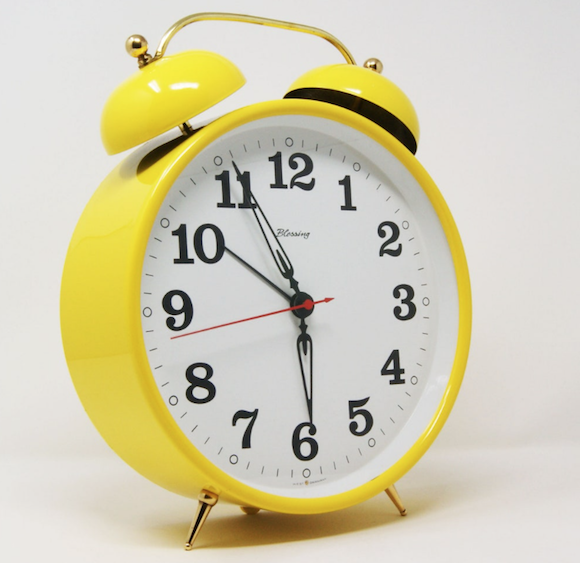
(I realize this is yellow and not orange, but we don’t have a photo of my childhood alarm clock. This is a very close reproduction.)
You could see the clock from any vantage point in my room, and the ring was sonorous. There was no way I’d ever oversleep and miss the school bus with that loud din. (Initially, as with all school-related things that year, I was excited. But it takes about three days of being awakened by something that loud for the delight to wear off.)
If you think about it, time management and productivity begins with waking up in time to set your plans in motion, so I thought we’d take a foray into idea of waking up on time.
A SHORT HISTORY OF ALARM CLOCKS
The alarm clock — even the very concept of waking up at a specific time — is fairly new.
Throughout history, people were generally awakened by natural occurrences: the sun rising (and warmth on one’s face or light in one’s eyes), the crowing of roosters, the crying of babies, or the call of nature. City dwellers might have been awakened by church bells or street noise, but farmers far from villages were dependent upon their own natural body clocks and the people and animals around them.
These not-very-specific waking hours were not a problem for most people until the Industrial Revolution in the 19th century. Before that, unless you were within proximity of a clock tower or your family had the wealth to own a clock at home, it was enough to speak generally of meeting someone at dawn’s first light or midday or supper time. However, with the advent of trains (and the ability to catch them) and factory work, it became essential to know the specific time of day. That included waking up on time.
Before the invention of alarm clocks (and into the twentieth century), city dwellers in the UK hired “knocker uppers,” people who would literally knock on one’s windows and doors with everything from broom handles to batons (as in police sticks, not beauty pageant contestant’s silver poles with streamers) to pea shooters! Believe it or not, some people continued “knocker upper” subscriptions long past the invention of alarm clocks; in fact, the last knocker upper service in the UK didn’t cease until the 1970s, long after the rise of household electricity and clock radios.
If you didn’t mind having a giant water wheel handy, you could have been awakened on time (to the sound of a powerful chime and a puppet show) with the assistance of the Water-Driven Spherical Bird’s-Eye-View Map of the Heaven, invented by Chinese monk Xi Ping in the year 725.
Although the first mechanical alarm clock was invented in 1787 by American Levi Hutchins but his design was never patented. Sixty years later, Antoine Redier in France patented the first adjustable alarm clock wherein each hour on the clock’s dial/face had a hole; if you wanted to get up at 7, you put a pin next to the hole next to the number seven. Want to get up on the half hour (or any time except on the hour)? You were out of luck.
It wasn’t until 1876 (which may seem a long time ago to you GenZ and Millennial readers, but that was only eleven years before one of my grandfathers was born) that an American patented a more workable alarm clock and began mass-producing them.
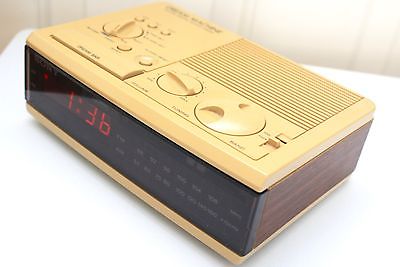
For more on the history of alarm clocks, from the World War II era shortage (due to the use of all spare metal for wartime production) to the development of clock radios, snooze alarms, and my beloved college-era SONY Dream Machine (in production from 1960s until the early 2010s),
you can read Atlas Obscura’s lovely piece on the 2000-Year History of Alarm Clocks and All That’s Interesting’s How Did People Wake Up Before Alarm Clocks?
HAS PAPER DOLL FALLEN INTO A TIME WARP?
Are you fearing that Paper Doll has had an alarm clock dropped on her head?
You may be wondering why I’m talking about alarm clocks. After all, hasn’t everyone replaced alarm clocks with their smart phones? Yes, pretty much, most have.
But Paper Doll has a secret for you. Quite a bit of research finds that you might be healthier and happier using an actual alarm clock rather than your phone. And a happier, healthier you has a better chance of being productive and getting things done.
YOUR PHONE AS AN ALARM CLOCK, YAY OR NAY?
Sure, there are good reasons to use your phone as your alarm clock:
- You and your phone are already inseparable. You’re much more likely to trust it than a hotel’s front desk wake-up call or even your spouse’s promise to wake you up.
- It takes no effort to set your phone’s clock to the right time. Your cell phone provider already links your phone’s clock to the atomic clock of wherever you’re located by its connection to low-orbit GPS satellites; it (usually) even readjusts automatically when you change time zones. (If you’re not connected to cell towers, your phone’s internal clock takes over until the next time in connects to the network.)
- You can set your phone to wake you up with your favorite song or sound. Whether you’d like to wake up shaking your groove thing to Lizzo’s About Damn Time or prefer to pretend that you’re standing in for Bill Murray in your own version of Groundhog Day, there’s audio for you.
- There are lots of different alarm clock apps for iOS or Android to help you either ease into your day or be shocked out of your sleepy stupor, depending on which you prefer.
However, the ubiquity of phones in our lives is part of the reason they can be harmful in the bedroom:
Light at night is bad for us.
Harvard researchers found that increasing the amount of nighttime light study participants received increased their blood glucose levels similar to those found in people who are pre-diabetic. The nighttime light also decreased participants’ levels of leptin, the hormone that makes you feel satiated after a meal, so you stop grazing between dinner and bedtime and throughout the next day. So, too much light at night can impact your health, overall, and your waistline.
While any light at night can wreck our sleep, this is especially true of blue light. And yup, the screens on our digital devices (like our phones) tend to make use of blue wavelengths. This is a double-edged coin.
The blue light wavelengths are great during the day, as they amp up our moods, our reaction time, and our ability to stay focused and attentive. Yay, blue!
But those same wavelengths of blue light at night tinker with our circadian rhythms, making it harder to fall asleep. All that unnatural light tricks our bodies into thinking it’s still daytime, and so we don’t feel that pleasantly fuzzy sleepiness that makes it easy to drop off without worry or care. Boo, blue!
In fact, while all night light suppresses the production of melatonin, a hormone that controls our circadian rhythms, blue light is the most potent. So, not to scare you, but as cozy at it is to have your phone under your pillow or at your bedside, it’s not worth that blue light messing with your sleep and putting you at risk for obesity, hypertension, or diabetes.
Scrolling, and especially doom scrolling, spells doom for our sleep quality.
Watching any screens in the hour or two before bed is bad for us because of that blue light. But the content on our phones can be just as precarious.
Doom scrolling is the compunction to engage in negative information. When doom scrolling through Twitter or your favorite news feeds, keeping up with what’s going on in the world, you’re probably finding a preponderance of bad news, things that will stress you out and make you angry or frustrated.
It’s not your fault. Our brains are wired to experience a negativity bias, wherein (controlling for the emotional power of a piece of information), we’re more likely to see something negative as having a deeper impact on our lives than something positive. A study at the University of Sussex found that doom scrolling is more likely to make us feel anxiety, stress, fear, depression, and sense of isolation. (And yes, this got worse during COVID.)
Let’s not forget dopamine. Dopamine works when you’re scrolling through social media the same way it works when you’re pulling the arm (or pushing the button) on a slot machine. Dopamine is a hormone that works like a drug, urging you to seek further gratification, which may be a TikTok video that makes you laugh or a tweet confirming your negativity bias that a particular politician is leading to the ruination of all that is good and holy.
Of course, it doesn’t have to be social media. Video games, movies, videos, and TV shows are all (generally) energizing, and the last thing we should be engaging in before sleepy-bye time is whiz-bam-pow!
All of this is bad for your before-bed brain in the same way that letting a toddler get all “sugared up” and run around in the hour before bed will make it harder to get them to sleep. That’s why we focus on good sleep hygiene for tiny humans, giving them baths and stories and snuggle time, in hopes of relaxing them off to dreamland. Grownups need that help to power down, too.
And for those of you who are partnered, a phone-free bedroom mean an increase in the likelihood of intimacy, whether that’s relating emotionally or canoodling.
Scrolling is just as bad in the morning as at night.
Everything we need to avoid at night so that we can wind down and get to sleep is still going to be there when we wake up. But does it have to be there the very minute we wake up?
Whether it’s an email your boss sent off at 2 a.m., a tragic news story from the other side of the world, or whatever is “trending,” your phone can be a royal messenger of frustration.
Give yourself some time in the morning to ease into your day, whether that’s with your significant other, children, or pet. Even just having some quiet time between waking and breakfast can help you create the right mood for the day.
So, I challenge you to banish your phone from the bedroom.
REPLACE YOUR PHONE WITH AN ALARM CLOCK
So, if you’re not going to let the not-so-dulcet tones of your phone wake you up and start your heart racing, what should you use? Unless you have the funds (and the trust) to hire a knocker upper, an old school two-bell alarm clock or travel might be just the ticket. (Or, the noise might set your teeth on edge.)
Of course, it doesn’t have to be old school. There are some nifty modern alarm clocks that might be better suited to your particular needs, from glowing sunrise-simulation clocks that gently wake you with the kind of light that’s healthy for starting your day to clocks that shake, rattle, and roll you to your feet.
Here is just a sample of what you might consider, especially if you tend to hit the snooze button until the last possible moment.

Clocky — is an EXTRA LOUD alarm clock on wheels. What Roomba is for vacuuming the living room, Clocky is for getting you to actually wake up and start your day. When the alarm goes off, you get one chance to snooze, but after that, Clocky rolls and runs away, and you have to chase after it!
An MIT student who had trouble getting herself up and out of bed, Gauri Nanda combined her engineering skills with a desire to improve the aesthetics of alarm clocks to make them delightful instead of solely alarming.
Clocky comes in several colors (black, white, light blue, peach, blue, silver, and gold). It sells for $39.99 on the web site and on between $20 and $40 on Amazon, depending on the style.

Little Hippo’s Mella Sleep Alarm — This kid-oriented charmer is a sleep trainer, alarm clock, sleep sounds machine, night light, nap timer, and digital nanny (helping convince your tiny humans to stay in bed until it’s time to actually wake themselves and the rest of the house).
Mella is white with accent features in Arctic Blue, Blush Pink, Bright Purple, Tropical Teal, and Kickstarter Green. You can buy Mella from the website or on Amazon for $49.99.
Pavlok’s Shock Clock 2 — This wrist-band waker-upper seeks to retrain your brain to make waking up about engaging your mind immediately. Pavlok’s Shock Clock 2 is very high-tech, able to track your sleep patterns using advanced motion detection via a 9-axis accelerometer. (No, don’t ask me what that is.)
To take advantage of your sleep rhythms, you can set the alarm so that it will only wake you between 0 and 20 minutes before your pre-programmed time to ensure it wakes you during the lightest stage of your sleep cycle.
The clock wakes you and gives you assignments to get your brain and body moving; if you’re a heavy, heavy, “I-hate-you-go-away” sleeper, it might make you do jumping jacks; Fitbit-style, it knows if you’re jumping (and no, unlike with Fitbit, you can’t put the Shock Clock 2 wristband on your dog…and I doubt your dog can do jumping jacks). The alarm won’t turn off until you’ve responded to its order to jump with “How high?” (OK, I made up that part.)
The Shock Clock 2 might assign you other kinds of activities, like going on a treasure hunt around your house to scan QR codes placed in various locations. If you seriously want to train yourself out of snoozing, this is definitely an intense way to go about it.
The Shock Clock 2 comes in red, blue, pink, and black, and costs $149 at the Pavlok store.
Ruggie Alarm Clock — This doesn’t even look like an alarm clock; rather, it looks more like a cozy bathroom rug for keeping your tootsies warm when you get out of the shower. But Ruggie is sneaky.
You can’t just hit the snooze. You have to get out of bed, and STAY out of bed for at least three seconds, with both feet on the pressure-sensitive mat. Plus, Ruggie has a library of morning greetings so your can personalize the start of your day with affirmations, empowering messages, and giggles.
Ruggie is a little too popular; it’s out of stock right now, but check back with the company, because this could be a fun way to entice yourself (or your not-so-self-starting kids) to get out of bed.
FURTHER RESOURCES
If you have any heavy sleepers in your house with special wake-up needs, consider perusing:
The Best Alarm Clocks for Sleepyheads (ADDitude Magazine)
When Alarm Clocks Fly: The Tools to Get You Out of Bed — The Best Alarm Clocks for Children and Teens with ADHD (ADDitude Magazine)
19 Best Alarm Clocks of 2022 (NYMagazine’s The Strategist)
Just remember to bear in mind what I said about light disturbing your sleep, and check reviews for mechanical clocks to make sure nobody is complaining about ticking noises.
Do you wake up on your own, or do you need an alarm? Is an alarm (on your phone or alarm clock) not quite enough? What’s your ideal way to wake up in the morning?
Have I convinced you to keep your smart phone out of the bedroom?
Please share in the comments and let us know how you wake up.
Paper Doll Picks: Organizing and Productivity Podcasts
FINDING THE RIGHT EXPERTS
I’m often the most tech-savvy person my clients know. One lovely client in her eighties often greets me at the door and just hands me her iPhone. “There’s a devil in it,” she half-jokes, and she’s happy to relinquish it to me for what is usually an easy fix.
Conversely, my college friends, mostly guys, laugh at the idea of me being technological. On the phone, I once fretted over having possibly failed to install memory in my computer because it didn’t “click.” After an hour of various difficulties culminating in the uncertainty over installing the memory, I groused, “Shouldn’t it click? Y’know, like how after I put on my lipstick, I close my compact and it makes a satisfying click?!” They’re still teasing me about that apparently “non-techy” description.
There’s an old expression: In the land of the blind, the one-eyed man is king. Leaving aside the able-ist nature of the expression, I feel comfortable using this to explain that while some people feel that “a little knowledge is a dangerous thing,” I think that the more you know, the more you realize that you don’t know, and the more inspired you are to seek out experts.
As such, I’m starting a new feature, Paper Doll Picks, where I will occasionally provide links to bloggers, authors, and other experts to whom you can turn when you need a little extra help.
As a Certified Professional Organizer, I’m an organizing and productivity expert. As an Evernote Certified Expert (formerly Evernote Certified Consultant), I know more than your average user. And, as a former television executive and lifelong TV viewer, I can spot when an infinitesimally small clue (a cough, a camera shot resting an extra second on a wine glass, or a character’s lingering glance) means something and will be able to connect it with things that happen seven seasons later.
But in the kitchen, I’m a perpetual newbie and need to turn to Paper Mommy. (For a variety of life skills — cooking, addressing an invitation to an ambassador and spouse, medical stuff of all stripes, I turn to her. We call it Opening the Mommy Encyclopedia.)
Nobody is expected to know and be able to do everything. Sometimes, that other old rubric is important: it’s not what you know, but whom you know!
Today, I want to introduce (or re-introduce you) to some excellent podcasts and podcasters.
THE APPEAL OF PODCASTS
If you don’t listen to podcasts, stick with me here. I admit, I don’t listen as often as many people seem to do. But when you’re walking or working out, when you’re stuck in a doctor’s office waiting room or waiting for a much-delayed flight (as Paper Mommy is doing, just as I’m writing this), podcasts have distinct advantages.
They’re as informative as blog posts and articles, but you can take it in while doing other tasks. Every try reading a blog post in the bath? You can’t read an article while driving, and if your commute is by train, subway, or car, audio is far less marred by bumps. (You won’t get carsick listening to an organizing podcast, but watching text bounce up and down may not be good for your equilibrium.)
Another nifty advantage to podcasts is that you can control the speed at which you listen to (or watch) podcasts! I listen to almost everything on 1.25x speed because I’m an impatient person. When a speaker talks at “normal” speed, I feel like I’m being held captive by Dory in Finding Nemo when she’s speaking Whale. Sooooooooo slowwwwwwww!
Conversely, when I’m trying to listen to podcasts in Italian, the language I’ve been diligently studying for 4 years, the organic speed of language just zips right past me, and I only get a handful of words. By the time I realize I understood anything, they’re onto the next topic. Listening at .75x helps me make out the words without going into Dory mode.
ORGANIZING AND PRODUCTIVITY PODCASTS
These are a few of my favorite podcasts in the realm of organizing and productivity.
NAPO Stand Out Podcast
The NAPO Stand Out Podcast — This official podcast of the National Association of Productivity and Organizing Professionals began in 2018 with an interview of its first guest, my stellar and stylish colleague Geralin Thomas of Metropolitan Organizing. Now, it’s just a few shows away from its 100th episode.
The NAPO Stand Out podcast offers up compelling interviews with NAPO members and subject matter experts (like author Gretchen Rubin, friend-of-the-blog Allison Task, whom I interviewed in Paper Doll Interviews Life Coach, Author, and Kid-Schlepper Allison Task, and Indistractable author Nir Eyal).
For the first few years, the show was hosted by Sarah Karakaian of Nestrs. (You might know Sarah and her husband, a home improvement, design, staging, and short-term rental management team from HGTV, their Thanks for Visiting AirB&B podcast, or Instagram.)
Now, the podcast is hosted by Canadian professional organizer and TV personality Clare Kumar, an all-around cool chick with a laugh that can draw in even the grinchiest of grinches. Clare specializes in helping Highly Sensitive Persons (HSPs) optimize their professional performance, and she has her own podcast, Happy Space with Clare Kumar, all about helping HSPs find their own happy spaces.
The NAPO Stand Out podcast invites organizers, productivity experts, and anyone interested in these fields to listen in as guests share their successes, challenges, best practices, proven strategies, industry developments, and fabulous anecdotes.
Take a peek at the most recent episode, Discover Your Organizing Style, where Clare interviews Cass Aarssen about how her own struggles with clutter led her to create the Clutterbug Organizing Styles.
Watch and listen to past episodes through the archives at Apple Podcasts, Spotify, YouTube, Stitcher, and elsewhere.
Smead’s Keeping Your Organized Podcast

Smead’s Keeping You Organized — It still breaks my heart a bit that this magnificent video and audio podcast, hosted by John Hunt, is no longer being produced. It was an amazing podcast designed to provide all manner of practical and philosophical organizing and productivity information to viewers.
John is a delightful interviewer — you can see him being interviewed for an early episode of the NAPO Stand Out podcast, here — and all sorts of North American professional organizers got to share their expertise.
Happily, all 278 episodes of the show are still available, including the eight times I was the guest. You can listen or watch those here, or at the episode page:
041: Secrets to Organizing a Small Business
108: Fears that Keep You from Getting Organized
153: Paper vs. Digital Organizing Part 1
154: Paper vs. Digital Organizing Part 2
203: How to Get Organized When You Have an Extended or Chronic Illness – Part 1
204: How to Get Organized When You Have an Extended or Chronic Illness – Part 2
263: Essential Lists for Organized Travel – Part 1
264: Essential Lists for Organized Travel – Part 2
Sadly, all of my appearances were from before I had a decent video podcast background or lighting, so you may want to listen rather than watch (or risk being distracted by weird shadows and my often–weird hair).
The Productivity Lovers Podcast
The Productivity Lovers Podcast is hosted by two of my friends and colleagues, Certified Professional Organizers Cris Sgrott of Organizing Maniacs and Deb Lee of D. Allison Lee.
Both are organizers and productivity specialists; Cris is also a coach and speaker who specializes in senior move management and helping people with chronic disorganization and ADHD. Deb is a digital productivity coach and possesses one of the greatest analytical minds of anyone I know. (Deb’s my go-to for solving online platform kerfuffles, but also for making sense out of things that seem incomprehensible.)
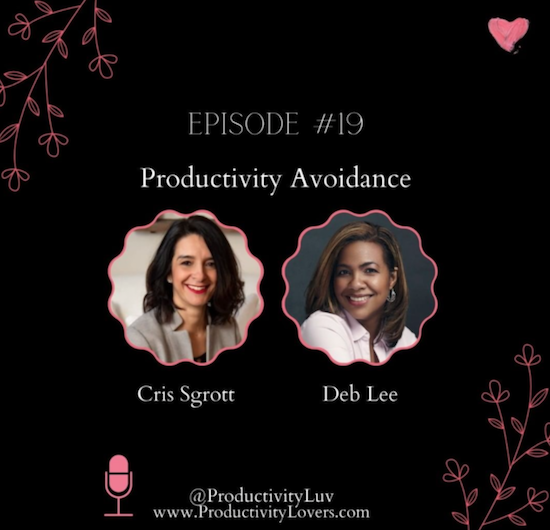
Launched one year into the pandemic, Cris and Deb’s podcast was a balm for any lonely organizer’s (and organizing client’s) soul. Listening along when I get my 10,000 daily Fitbit steps in or watching the video version as if I were Zooming with them, I often find myself talking back to these ladies, forgetting that I’m not really part of the conversation — because they are that warm, friendly, funny, and honest.
At least once an episode, I laugh at how they make one another laugh, with much of the humor coming from their mismatched productivity styles. Deb is all-digital; Cris is hybrid but leans into her love of paper planners. Cris calls herself a Hot Potato Productivity person, while Deb is super-focused.
Cris and Deb cover all sorts of productivity issues, from paper planners to Inbox Zero, the Pomodoro Technique to how organizing is portrayed in the media. Every episode is a lighthearted conversation between two friends, but the audience is never forgotten, as they invite our responses on their Facebook, Instagram, Twitter, and YouTube pages.
Come for the conversation, stay for the detailed show notes and discussion points. Pick from the audio versions via your favorite podcast app or on the episode page; watch for the video version on YouTube a week or two later. Here’s a recent episode, to give you a taste.
Organize Your Stuff

Organize Your Stuff — My colleague, buddy, and fellow mastermind group member, Maria White of Enuff With the Stuff hosts this podcast, which invites people from all points along the organizing spectrum to help them see possibilities.
While Maria has been on hiatus for a bit, there are 37 episodes covering topics ranging from “Do You Trello?” (yes, dear readers, I do!) and “Organized Adulting” to “Finally Accomplish Goals Using the 48 Week Achievement Guide” (with our fellow masterminder, Karen Sprinkle) to “Drastic Downsizing for Tiny Living” (for folks eager to learn more about living in a tiny house). Maria accents self-compassion and realistic approaches as she interviews industry experts and provides her insights and tips on organizing.
Organize Your Stuff is audio-only, so feel free to take it with you wherever you go, whether via Apple Podcasts, Spotify, Google Podcasts, or on the Organize Your Stuff episode page. Take a tiny taste of the show as we pull episode #14, Tickle Yourself Organized, out of the vault. As you may have guessed, she interviewed me, your own beloved Paper Doll!
Anything But Idle (and the Super-Friends)
Anything But Idle is hosted by Ray Sidney-Smith and Augusto Pinaud, and it would be one of my favorite podcasts even if these guys didn’t delight me by inviting me on the show on occasion.
Ray is the Ryan Seacrest of productivity podcasters; he’s everywhere! In addition to Anything But Idle, he currently hosts or has previously hosted oodles of productivity-adjacent podcasts, including:
- The ProductivityCast with Augusto and regular contributors Francis Wade (about whom I’ve written several times, including at Paper Doll Shares Secrets from the Task Management and Time Blocking Summit), and Art Gelwicks. The show explores personal productivity and includes interviews with experts, reviews of both the scientific literature and mainstream media takes on productivity, and looks at technology’s role in, and effects upon, achieving what you set out to do.
- Getting More Done with Evernote, where Ray talks about product updates, interviews Evernote experts (including staff of the big green elephant company), and answers submitted listener questions. The show has been on hiatus since last year, but Ray is re-launching soon, and I’m going to be a guest. Whoohoo!
- Productivity Book Group — This is a quarterly book club and podcast rolled into one, and the archives include episodes dating back to 2013. You could create an entire productivity-themed reading list from the archives of this show, read the books, and then listen to the associated episodes to augment your understanding. The show isn’t limited to professional productivity; one recent episode focused on Clea Shearer and Joanna Teplin’s The Home Edit.
- ProdPod — Dating back to 2011, this might be the one that started Ray’s podcasting empire. In under two minutes, each podcast explores a productivity-related topic, like minimalism, procrastination, burnout, or indecision.
While I am a Certified Evernote Expert, Ray lives and breathes Evernote, and is one of two people (fellow organizer Stacey Harmon is the other) to whom I turn when an Evernote issue makes my hair hurt.
But back to Anything But Idle!
Ray partners with Augusto Pinaud, a bilingual productivity and technology sweetie pie of the highest order. His company, Productivity Voice, is the umbrella over Augusto’s coaching services, books, and podcasting work. In addition to co-hosting Anything But Idle and the ProductivityCast with Ray, Augusto has hosted Connecting Invisible Dots, a limited-run podcast focused on looking at the big issues, like personal definitions of time, achieving focus, and understanding priorities.
Wow, and all those shows don’t even include all of the podcasts represented by Anything But Idle’s regular guests. (Sometimes I think I may be the only guest they’ve ever had who doesn’t have a podcast!)
Anything But Idle bills itself as the “Productivity News Podcast.” Every week, Ray and Augusto introduce productivity and technology stories in the news and discuss their relevance. Guests are given the opportunity to read (and think about) the articles and editorials in advance, so listeners are treated to a lively, informed discussion. This opens up the floodgates for really wide-reaching, unexpected, extemporaneous chat; as a guest, I’ve felt supported, and as a viewer or listener, I always feel entertained and better informed.
Each week also includes a round-robin opportunity for each person to present a technology or productivity resource. There’s always at least one thing (and usually many) to make you go “hmmmmm.”
You can watch the podcast live or catch up on past video versions of the episodes at the show’s YouTube page; the show is live at 6 p.m. EST most Monday nights. (Click “Set a Reminder” on the show page to make sure you don’t forget.) If you prefer audio versions, you can peruse the Anything But Idle episodes archive, or subscribe and listen on your favorite podcast app at Apple Podcasts, Google Podcasts, Android, Spotify, or Stitcher.

The most recent episode is up in all locations, but you might find it fun to watch their 100th episode. I was a guest, and a REALLY fun time was had by all.
Frank Buck: Productivity for Total Control & Peace of Mind

Frank Buck: Productivity for Total Control & Peace of Mind — Dr. Frank Buck is a longtime educator and educational administrator, as well as a fellow Evernote Certified Expert. (He’s also another familiar face on Ray and Augusto’s podcasts!) Frank is the author of several books, including the most recent, Get Organized Digitally! The Educator’s Guide to Time Management.

Frank’s podcast is full of warmth and patience, and you can see how his expertise as an educator informs everything he discusses on his podcast, now starting its fifth year.
Whether you’re a novice in technology who bemoans the devil in your iPhone, or a more advanced user of technology and productivity methods, Frank will make you feel at ease. From email to notetaking, task management to creative procrastination, digital tools to financial oversight, Frank’s short podcasts are charming and wise. (I’m going to be a guest on one of his upcoming shows and we had such a great conversation planning it that I imagine his biggest podcasting challenge will be getting me to shut up!)
Listen to Dr. Frank Buck’s most recent podcast episode (below) and all shows at the episode page, on Spotify, or at any of your favorite podcast platforms.
A Plethora of Podcasts
The podcasts above are just some of my favorites for listening to and watching, and for sharing with my clients. Others I’ve shared in the past include:
Penny Zenker, Positive Productivity Podcast — Penny focuses on leadership and productivity, and has had an amazing array of guests over the past several years. You can see my two episodes with Penny here:
- Boosting Productivity With Paper Planners Part I (Transcript)
- Boosting Productivity With Paper Planners Part II (Transcript)
The Productivityist — Mike Vardy needs no introduction; he’s been featured on the pages of the Paper Doll blog many times. With 421 shows completed, Mike is a veteran podcast host (and a popular guest), and he never talks down to his audience. You could grab one of those episodes and find compelling interviews and insightful commentary. You might want to start off with episode 418, where Mike interviews minimalism expert Joshua Becker on “Things That Matter.”
The Productivity Show by Asian Efficiency — Thanh Pham and (longtime friend-of-the-blog) Brooks Duncan host this popular podcast. I often find the episode titles to be provocative and fun, like “Are You a Jerk If You Use Calendly?” (to schedule appointments) or “Are GTD Contexts Useless? Is Productivity Hurting Young People?”
And if my own favorites aren’t enough, you might want to check out Feedspot’s list of the 35 Best Organizing and Decluttering Podcasts to Listen to in 2022, and their 60 Best Productivity Podcasts to Listen to in 2022.
Are you a podcast person? Do you have a favorite among the shows listed above? What organizing and productivity podcasts do you never miss? Please share in the comments!
If you do listen to podcasts, please remember to like, subscribe, and share, just like you comment on and share blogs (like this one!) on your social media feeds. Showing the love helps podcasters and bloggers grow their audiences, help more people, and (in the case of those with sponsors or advertisers), afford to keep going.
Also, why don’t I have a podcast?
Paper Doll Shares Secrets from the Task Management & Time Blocking Summit 2022
What did you get done last week? Was it everything you wanted to accomplish? Did you use a paper calendar or a digital one? A task app or sticky notes? Do you have SMART goals? Am I freaking you out?
Longtime readers know that I seek out all types of continuing education, including each annual NAPO conference. After 2020’s conference was canceled, I was delighted to get to participate in a virtual version, as I told you about in Paper Doll Recaps the NAPO2021 Virtual Conference.
I’d also attended a productivity summit and the last two years of the Task Management and Time Blocking summits, and have spent the last several months preparing to attend the third, as I referenced in Struggling To Get Things Done? Paper Doll’s Advice & The Task Management & Time Blocking Virtual Summit 2022.
Readers, let me just tell you, last week from Thursday through Sunday, I was entirely geeked-out over all things related to task management, time blocking, scheduling, goal achievement.
And while we explored all manner of strategies, techniques, and tools for getting more done, there was definitely an undercurrent of something more valuable in this year’s conference. Over and over, there were presentations and videos that delved into examining the “why” of getting things done.
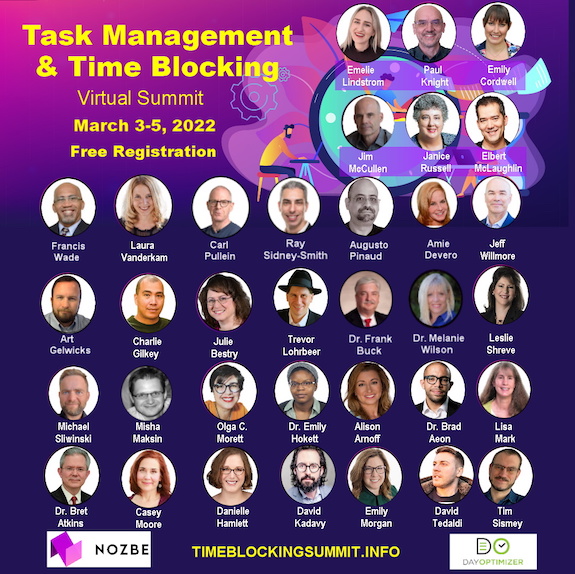
It would destroy your time management and mine if I shared every amazing detail, but even just the personal highlights are staggering. The summit was a combination of live presentations and panels as well as a series of about a dozen videos each day, and live (video) networking.
Out of the box, after the welcome, we began with a presentation from trainer and coach Jeff Whitmore about intentionality. Jeff talked about the reckoning we collectively saw, both with the onset of the pandemic and now, with the Great Resignation. We’re turning our backs on busy work, on “meetings that could have been emails,” and the experience of being buried in tasks for tasks’ sake, and turning to pondering what we really want — out of our careers, and more deeply, out of our lives.
In a theme that came up over and over during the conference, he talked about identifying the bigger picture of what you want in life and why, and focusing on tasks that drive those goals rather than letting all the competing sensory inputs of notifications and calls and emails determine what you do.
NOVELTY VS. THE FLATNESS OF TIME
The first morning continued with summit founder Francis Wade interviewing noted author, Laura Vanderkam, and her theme posited practical ways make life richer and more nuanced.
For me, Vanderkam’s interview was immediately reminiscent of what I talked about in Does Anybody Really Know What Time It Is? 5 Strategies to Cope With Pandemic Time Dilation in terms of the way our lives seem to sometimes be an endless slog from day to day. It’s Monday again. It’s time to cook dinner again. As I noted in the chat discussion, sometimes it seems like I look up, over and over, and I’m blowing my hair dry again.
Vanderkam’s research suggests that to get out of these ruts, we need more novelty, texture, and richness in our time and our tasks. To this, Francis quipped, “less skim milk, more milkshakes.” After a brief foray for praising Ben & Jerry’s Chunky Monkey, Vanderkam suggested one main tip for preventing the automating and routines that make for good task management from diluting the texture of our lives.
Vanderkam encouraged everyone to plan life in weeks, and to identify one “big adventure” (lasting perhaps half a weekend day) and one “little adventure” (lasting an hour) each week to introduce novelty. The purpose? As Vanderkam noted, “We don’t ask where did the time go when we remember where the time went.” Aha. Mindfulness!
As @LauraVanderkam noted, *We don't ask 'where did the time go?' when we remember where the time went.* Share on XVanderkam has been studying a wider array of methods for making a Chunky Monkey milkshake out of life. She conducted a nine-week research study with 150 people, having them track their time and studying their time satisfaction and time weariness before and after trying each of nine approaches, from the big and little adventures for making life more memorable to setting a fixed bedtime for yourself so you can “see how many hours the day really has in it.”
The results of Vanderkam’s research will be published in her forthcoming book, Tranquility by Tuesday: 9 Ways to Calm the Chaos and Make Time for What Matters.

GEEKING OUT WITH GTD
Another highlight of the summit was an Oxford-style debate on the proposition of whether the notion of organizing by contexts in David Allen’s seminal Getting Things Done is still valid. GTD methodology lets you conceptualize, and then act on, tasks depending on various features. And if this seems a little too “inside baseball” or geeky to you, I can only say that it was…and it was great. By ten minutes into the debate, I found myself shouting back at the screen (muted, of course) and adding lively comments to the chat.
Back in the early days of GTD, contexts were pretty much considered as where the next action could be done, or what equipment you’d need to perform it.
So, a context might have been “at the store,” or “on the phone” or “at my computer.” Thus, the question is, when all of your next actions — like buying pens on Amazon or having a phone conversation with a client or emailing or searching the web to get clarity on an issue — can be done with just one small piece of metal, glass, and plastic that fits in your pocket, do contexts still matter?

(with apologies to the guys for not catching a single one of them smiling!)
One team was Drs. Frank Buck and Joe Leondike; the other, Augusto Pinaud and Art Gelwicks. Always-unbiased Ray Sidney-Smith (host along with Augusto of my beloved Anything But Idle video podcast) served as the debate moderator. Sparks (politely) flew, but in the end, it came down to semantics and the notion of the evolution of David Allen’s philosophy. (And yes, we know the GTD debate panel was all guys, but I assure you, this was a matter of scheduling complexity. Women were invited to participate!)
My take? Yes, David Allen meant contexts to be more specific, but that was two decades ago. Now, tags (like you’d use in Evernote or Gmail) serve as your context. It’s not “computer” but “Amazon” or “LinkedIn,” the places you go (even if you’re only “going” with your fingertips) to perform a task that really matters.
Then again, I’m a proponent of the idea that whether you’re talking about Getting Things Done or KonMari, the Pomodoro Technique or even my own tickler files, hewing to the letter of any productivity or organizing law instead of empowering yourself to embrace the spirit of it is silly.
What matters is what works!
A NEW (TO ME) TIME BLOCKING METHODOLOGY
We tend to see the same systems and strategies repeated over and over: GTD, time blocking, the Eisenhower Matrix (urgent/important), the Pomodoro Technique, etc. But David Tedaldi of Morgen (one of the summit’s sponsors) introduced us to an approach that was brand new.
Tedaldi’s actual presentation was Tools for Time Management: Help or Hurdle? (which dovetailed nicely with my own presentation, on going “retro” to avoid the drawbacks of technology…of which, more later). As the founder of a company that developed a calendaring system for “professionals who manage multiple accounts, who want to schedule meetings faster, or need to keep track of tasks and appointments in a single, safe place,” he obviously believes in tech tools.
But he also acknowledged that using new tools fractures our time as we have to expend effort (and use our work time) to learn how to use these tools. But wasn’t what made the session memorable for me. Instead, that was Tedaldi talking about a new time management method that is simple, but with commitment, could be life-changing.
It’s called the 90-90-1 Method. (I initially misunderstood Tedaldi’s beautiful accent and thought it was the 1991 Method, and was imagining it had something to do with the Hubble telescope, C&C Music Factory’s “Gonna Make You Sweat” or Silence of the Lambs. Sadly, nope.)
Put forth by Robin Sharma in an 2014 post called You 2.0, the recommendation was to the point:
“For the next 90 days, devote the first 90 minutes of your work day to the one best opportunity in your life. Nothing else. Zero distractions. Just get that project done. Period.”
The 90-90-1 Method, per @RobinSharma: *For the next 90 days, devote the first 90 minutes of your work day to the one best opportunity in your life. Nothing else. Zero distractions. Just get that project done. Period.* Share on XWhat is your big, bold, audacious life goal? Want to write a book? Run a marathon? Show your child or spouse or friends that they are priorities in your life? Instead of making these things the sand that flows around the “big rocks” in your life, show up! For the next 90 days (which surely falls in line with the precepts of the popular book, The Twelve Week Year: Get More Done in 12 Weeks than Others Do in 12 Months), spend the first 90 minutes of your day focused on the ONE thing that you (claim) you care the most about.
Wow! (I know, right?)
PAPER DOLL TOOK A SPIN (OR THREE) ON THE DANCE FLOOR
Previously a panelist and moderator, I got to add presenter to my resume at this year’s event!
My video introduced attendees to the benefits and logistics of using a tickler file, based on my now-classic ebook, Tickle Yourself Organized.
But my real passion was asking people to consider the notion that as useful as digital calendars, automated scheduling software, and task management apps can be, technology isn’t always the best way to get a mental handle on what we need to do and prompt us to do it.
Think about time. Kids, people with ADHD and other neuro-diversities, and many other people have trouble conceptualizing the passage of time — how long is 15 minutes? What does an hour look like or feel like?
We used to be able to look at analog clocks and perceive, with the sweep of the minute and second hands, how we were getting closer to the top of the hour. With digital clocks, 10:01 or 11:47 just doesn’t feel tangible or real.
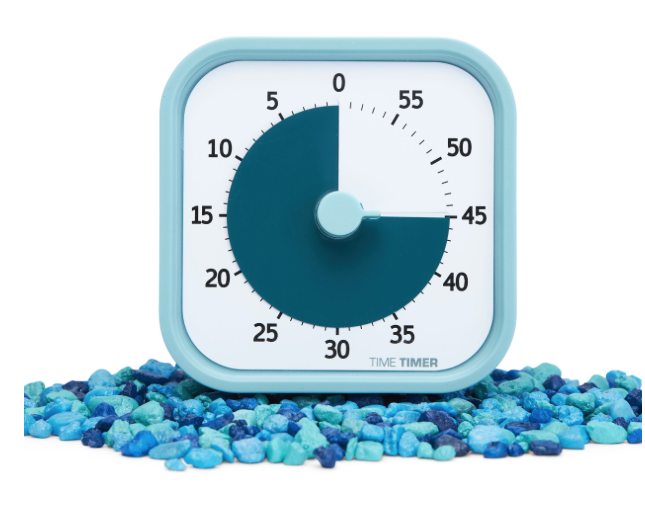
This is why Time Timer has proven so successful with students, non-traditional learners, and clients trying to be more productive. With them, you can see time. You can see the PASSAGE of time.
Research shows that something similar happens with handwriting notes vs. taking notes on a computer. When you’re trying to take notes in a class, if you’re typing, your instinct is to take a transcription of what the speaker is saying, word for word. The words come out of the speaker’s mouth, into your ears, and kind of bypass your brain & head to your fingers.
BUT, when you handwrite, your brain engages and picks out key phrases, identifies essential elements, and helps you translate the presentation into something you understand so that you could explain it to someone else. Going retro by hand-writing your notes gives you an advantage.
One of the 21st-century problems with task management and time blocking is that all of the technology makes our tasks feel too vague and intangible. For many of us, to get things done, we need our resources to be “grippy” or “sticky” or they cease to have a sense of urgency or importance; when we only see due dates or blocks of time TO do something, we lack essential nuance and context.
There’s no novelty or uniqueness in a one-line task in an app to trigger related memories or brainstorm tangential thoughts. When you enter a task in an app, it’s kind of like transcribing those lecture notes; it sort of bypasses your brain. (I think it’s one of the reasons that the more colorful, artistic Bullet Journal approaches became so popular.) Writing things down on paper, and manipulating the words and the paper, gets the brain engaged at a level you don’t see with digital apps.
By blending time management and time blocking skills with paper resources, we can have a hybrid system (analog and digital) that lifts the weight of worry off our shoulders. We can eliminate the fear that tasks will fall through the cracks, assure that we focus on starting work rather than just noting when it’s due, and replace a sense of overwhelm with one of empowerment. Enter the tickler file!
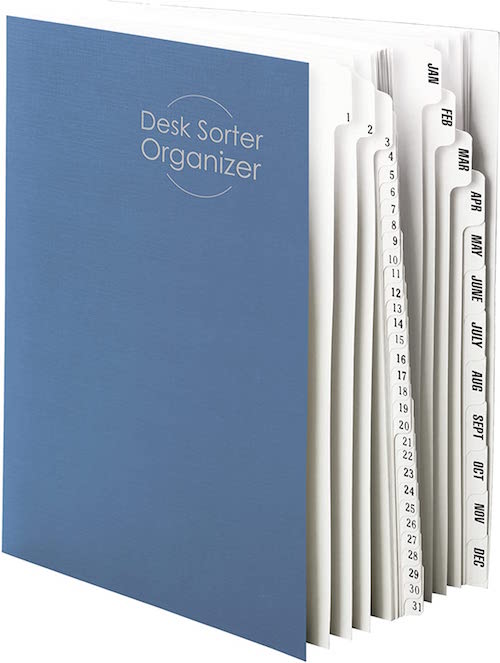
HAVE A LITTLE COMPASSION
I was also on a Q&A Panel moderated by Casey Moore, along with Olga C. Morrett of Mujer Cronopio. As counterpoint to reviewing my more tactical approach to organizing and time management, delightful Olga, a Venezuelan currently freezing her tushy off in Montreal, spoke expanded on her presentation, Compassion as the Key to Your Productivity.
Our lively panel closed out the summit on Saturday, and I think half of the time was spent with us riffing on points the other had made, not counting the unexpected tangent about Titanic, including the idea that plunging into your tasks without planning not only can put you at risk of drowning, but can endanger the mental health of those you love. And, of course, we all agreed that there was definitely room on that floating door for Rose and Jack.
But I really want to share two key concepts from Olga. First, she talked about how self-compassion is an antidote for perfectionism and noted that “The human experience is imperfect. We are entitled to fail. It’s part of the process.”
And, to show yourself compassion, start with looking at your calendar. What you put in your schedule shows how you distribute your resources: your investment of time, money, energy, and attention shows what you you really value. If you’re not investing in yourself but everyone else’s priorities, then you aren’t showing self-compassion.
ZZZZZZZZZZZZZZ
I also took my turn as a moderator on a panel entitled, Is Sleep On Your To-Do List? A Look at Time Management and Wellness. Sleep is necessary for us to be creative, strategic, productive, and neurologically healthy. Poor sleep wrecks productivity, but time management failures can destroy our ability to sleep.
I got to interview Dr. Emily Hokett, an academic sleep researcher and expert on achieving better sleep, and Casey Moore (see above, who was pinch-hitting for our colleague Lisa Mark, whose daughter had a baby the week before the summit–mazel tov!). We talked about how poor sleep effects everything from our stamina to our relationships, and covered a pillowcase full of tips about good sleep hygiene, blackout curtains, and the winning tip for me — getting enough sunlight so that your body can tell the difference between day and night.
THE KIDS ARE ALRIGHT!
Last year, we met four California high schoolers who came together to solve what they saw as serious problems in the time and task management app space. And they weren’t doing it for school credit or for money, but to help make people’s lives better!
Condution is an impressive open source app, and these young founders invite users and other coders to contribute. I tested the beta version last year, and it was as impressive as the guys themselves, and shockingly professional.
Only two of the four, Jack and Micah, made it to the summit. The other two were at SAT prep! Francis teasingly asked if they do normal teen things (oh, they do! Especially sports and music) and if they were on TikTok. (Nope). If you ever worry about the intentions and philosophy behind strides in the tech world, look no further than these young men. Here’s the video that started it all:
SO MUCH MORE
I’ve barely touched on the summit’s wise takeaways, which ensures there will be a lot to pepper in future posts. Eventually, we have to talk about task stacks from Trevor Lohrbeer, the founder of Day Optimizer. It simultaneously adds elements of gamification and diligence to the act of conquering your task list.
You can see a sneak preview of Danielle Hamlett‘s Willpower, Productivity, and Marshmallows, where she shared life-altering advice on how to amp up willpower.
And I don’t know where to begin with the insights shared by Amie Devero, but I’ll be pondering the Arrival Fallacy for a while, which is the false belief that once we “make it” — finish our tasks or attain our goal or reach our destination, we will reach some kind of everlasting happiness and be “done.” There is no inbox zero for all our life’s tasks.
At one point in the conference, Francis was hit with a bit of an epiphany about how all these sessions ostensibly about task and time management were about purpose and intention. When he extemporaneously said the following, I wrote is on a sticky note:
Task management is purpose conveyance.
ALL ACCESS PASS
If you’re bummed that you missed the summit, you can still get in on everything except the live networking. (I mean, I’m good, but I can’t help you time travel! Yet.)

Pick up a Premium, All-Access Pass (a $4700 value for $249) and you get a year of 24-7 access to all summit content, plus a digital copy of Francis’ book, Perfect Time-Based Productivity.
I leave you with four questions:
What big and little adventures will you add to your week to create novelty and make your life more milkshake and less skim milk?
What do you think of the 90-90-1 method?
Look at your calendar: are you showing yourself compassion?
Is your take management conveying your purpose?
Follow Me