Archive for ‘Paper Organizing’ Category
Paper Doll Recaps the NAPO2021 Virtual Conference

Each year, professional organizers and productivity specialists look forward to the National Association of Productivity and Organizing Professionals‘ Annual Conference with glee. We come from around the world for a handful of days to learn and laugh, dine and delight. So, you can imagine that like everyone else in March 2020, we were disappointed (though, due to circumstances, also relieved) when last year’s conference in Orlando was canceled.
The 2021 conference had been set to be in Long Beach, California, but as the COVID pandemic stretched on, it soon became obvious that those plans, too, would be cancelled, and efforts began in earnest to develop a virtual conference.
We all wondered whether a “real” conference would be possible, virtually. While Zoom and various other virtual platforms have grown in popularity, children have attended school online, and businesses have conducted work without conference rooms (or, sigh, birthday cake in break rooms), how could a virtual rendition of our conference deliver?
Very well, it seems, is the answer. Paper Doll thanks you in advance for indulging me in this post, which, like every year, I use to regale you with the true low-down on NAPO Conference. Whether you normally tune in here for organizing tips and are merely curious, or you are an organizing professional who missed this year’s experience, I hope you’ll enjoy coming along on this somewhat atypical conference recap.
ORGANIZING THE PLATFORMS
How would the virtual experience compare to our real-world experiences, we wondered?
Well, obviously there were no airports or hotels*…and sadly, no grand, dining experiences. There were also no committee meetings, as it was wisely realized that while at home, many of us would already be tempted by distractions of families, households, clients, and anyone else whom we’d be able to avoid if we were, in actuality, several time zones away. Rather than trying to juggle committee meetings on top of everything else, NAPO wisely limited the event types and interspersed them with online networking time so that we could get more of the facsimile of what we’d most miss.
* I should note, strictly speaking, that some professional organizers did choose to get hotel rooms. Away from the madding crowds, or at least their tiny humans, a number of wise professionals took the advice they’d have given their own clients, and carved out time and space just to focus on the conference. And a few hardy adventurers rented hotel rooms to socialize with already-vaccinated colleagues from their NAPO chapters and “attend” parts of conference together.
We also, sadly, had no Expo at which to sample the wares of various organizing, productivity, and technology companies. Over the past few years, our NAPO Expo has gotten smaller, as it’s hard for companies (especially the nifty, but tiny, startups) to shlep across the country for the bit of time we can carve out from education and networking to look at products. Hopefully, the same kind of wisdom that devised our brilliant virtual conference will find a way to satisfy our hunger for Expo displays of intriguing new products.
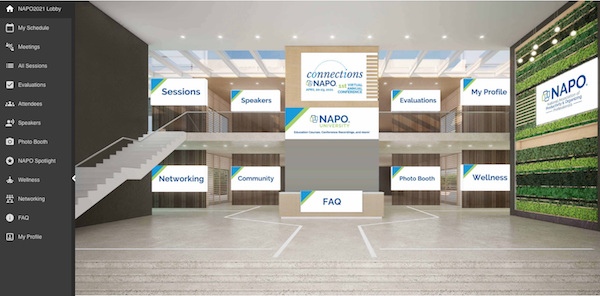
Wondering how it all worked? Well, we had more than one platform. We used a company called Hubb, which gave us this virtual lobby. We could click on the rooms in the video game-style layout below (or use the left-side menu) to access information about the individual sessions, the speakers, and the other attendees. Instead of a hotel help desk (wo)manned by our association management team, there was a detailed FAQ document with ways to reach out, virtually, to the team.
In lieu of inviting one another for walks in the fresh air or taking a few (way too) early yoga classes, NAPO found members willing to create “wellness” videos: a desk break, guided meditations, and yes, even a few yoga video sessions.
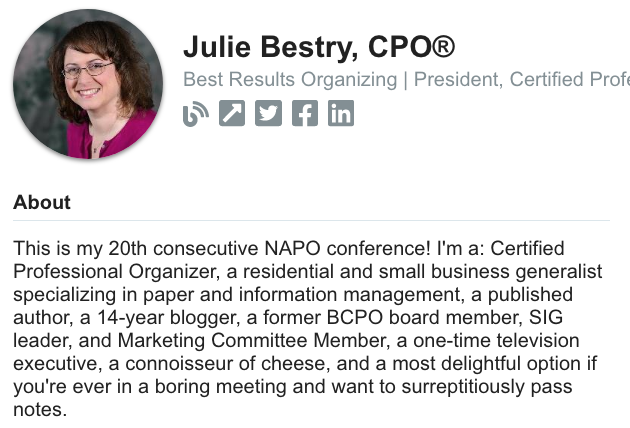
There was a photo booth, though we could only take selfies to display in a gallery. (Let’s hope someone figures out technology that let’s us squish our heads more closely together!) Instead of personalized badges with our stream of ribbons telling whether we hold leadership positions, to which chapters we belong, and what our “extracurriculars” might be, we had a profile section for listing all our nitty-gritty details. Some left it blank, others included their entire resumes. And some of us, relishing the opportunity to mix business with pleasure, got a little silly.
To “attend” a particular session, there were a few steps. Instead of walking to the session room, you had to add a session from the master list to your personalized schedule ahead of time. (General sessions to which all members are invited already appeared on everyone’s individualized calendars.)
If you wanted to attend a concurrent educational session, you’d click on it in your calendar. The ensuing page would include details about the session, an embedded pre-recorded video, and a chat box. At first, I think we were all slightly dismayed to learn that all the sessions were pre-recorded, but it actually turned out to be a boon for the educational experience.
In a live conference session, both the speaker and the attendees can feed off one another’s energy, but anyone who has lived on Zoom in the past year knows that’s not how virtual works. However, simultaneous with the video, the attendees could interact with the speaker and with one another via chat, leading to lively riffs on the content and (especially during technology sessions) a deeper understanding of the material.
No platform is perfect, of course. You could pop out the chat box to have it run parallel to the tab with the video, but if you wanted to enlarge the video, you had to make it full-screen, eclipsing the chat screen (unless you had two monitors or wanted to use a second device). Still, we were all impressed by the ways in which this recorded+live interaction amplified the learning experience.
To attend general sessions, the experience was mostly the same, although the videos were a combination of live and pre-recorded. However, for interactive sessions, our personalized calendar event pages sent us to Zoom sessions. (In 2021, there is no avoiding Zoom!)
Finally, for networking, our personalized calendar links would take us to our second platform (or third, if you count Zoom), Remo. Luckily, I’d used Remo last month for the Time Blocking and Task Management Virtual Summit, so I feel like I had a bit of a head start.
Basically, Remo’s platform is like the overhead view of a wedding seating chart, with “tables” designated for two, four, or six people, and with some events, there are added couches for a karaoke lounge kind of feel. Depending on the activity, tables were either themed or just numbered.
From the overhead view, you could spot a person’s profile photo, think, “Oh, I want to chat with her!” and double-click on that table to be taken there. Once “at” the table, you were added to a Zoom-like video chat. The shot below shows the stragglers as we shut down the conference.
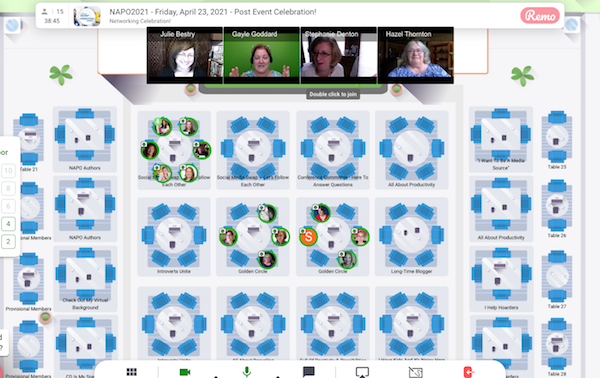
One small click on an icon on the lower left and all of the video squares enlarged to fill the screen. Another click on someone’s photo let you send them a message. And a small “elevator button” panel on the left let you go to higher level “floors,” identical, but less sparsely crowded, during the high-traffic times when it was almost impossible to find a “seat” in the room.
(As a few of us learned, the upper floors were also a great place to hide out for a moment, get a breather, and fix our hair while looking in the camera before rejoining the crowded tables.)
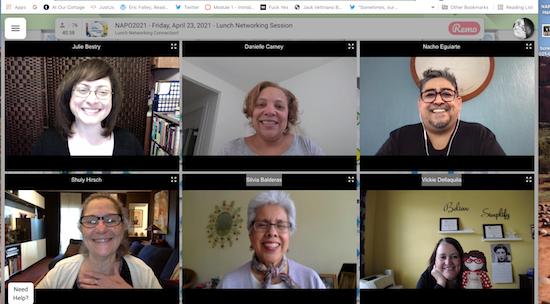
Because networking is informal, it had that lovely cocktail party-esque flow of old friends and new. Conversation ranged from how to use the platform to our thoughts on the sessions we’d just attended, and at one late afternoon session, to our reaction to breaking national news. Just as with a live-and-in-person conference, virtual networking gave novices a chance to meet and chat with veterans on a level playing field.
And although this was my 20th consecutive NAPO conference, I got to completely fan-girl when Stephanie Culp, one of NAPO’s original founders (way back in 1985, the year I started college) sat down at a two-top table with me. Hers was the first organizing book I’d ever purchased, a decade before I ever became a professional organizer!

I’ll admit, I felt pretty special that although we’d never actually met, she’d chosen to chat with me..until I found out the system just plopped her down at my table when she entered Remo. But hey, she decided to stay and chat for half an hour, so I’m going to take that as a career win!
EDUCATION
One of the main purposes of the NAPO conference is education, to help us serve our clients and to start, build, and grow our own businesses. To that end, at the beginner, intermediate, and advanced levels, NAPO conference presented programming in five educational tracks during each of the six concurrent sessions over three days of our conference. (Yes, I know, I usually promise you that there’ll be no math in these posts. Sorry.)
Organizing & Productivity Track
These kinds of sessions are the bread-and-butter classes, where we learn techniques and strategies in a variety of specialized organizing and productivity fields.
Moving On Up: Grow and Add Value with Moving Services presented by Gayle Goddard, CPO® and Ann Zanon, CPO®
Right Sizing for Tiny Living – Connecting To What Matters Most presented by Tricia Sinon Murray
Focus Your Profits on Photo Organizing presented by Jill Yesko, CPO®, CPPO
Grow Your Business: Expand Into Estate Clearing presented by Candi Ruppert, CPO®
Student Organizing – The What, Why and Is It For You? presented by Amanda Lecaude
Beyond Organizing, Office Design and Space Planning presented by June Carter, CPO®
Mind & Behavior Track
As I often say, professional organizing is not about the stuff, it’s about the person who owns the stuff. To that end, we are always offered classes that consider the psychological, neurological, and emotional challenges our clients face.
Managing Difficult Clients (and Situations) with Clear Boundaries presented by Lauren Mang
This is Scary: Embracing Discomfort to Help You and Your Clients Succeed presented by Sara Skillen, CPO®
Organizing the Invisible: Women, ADHD, and Emotional Labor presented by Regina Lark, CPO®
The Hierarchy of Healing Your Home presented by Dorena Kohrs
Connecting the Dots: Organizing Clients with ADHD by Working with Executive Functions presented by Erin Morper
Although I had not intended to follow a particular track, three of the six sessions I attended were in this Mind & Behavior track, and I was deeply impressed. I can see how much of what I learned will be fodder for discussion with my clients.
Sara Skillen shared some profound wisdom about embracing fear as we push past our comfort zone, and her comment that “Learning to tolerate discomfort lessens its power over you” has been echoing in my head for days.
Sara Skillen shared some profound wisdom about embracing fear as we push past our comfort zone. Her comment that 'Learning to tolerate discomfort lessens its power over you' has been echoing in my head for days. Share on XSara’s presentation was guided by her book, Organizing and Big Scary Goals: Working With Discomfort and Doubt to Create Real Life Order.

I’ve been following the concepts of emotional labor and mental load since long before the seminal 
Technology Pro Track
In the 21st century, we have both the analog (all our stuff in our homes and schedules, cars and bags) and the digital. This track covered the technological solutions for our residential clients, our business clients, and our own lives and businesses.
G-Suite Boot Camp: Running Your Business Using Free Google Tools presented by Angie & Eric Hyche
Powerful Automation: It’s as Simple as IFTTT and Quick as a Zap presented by Jamie Steele
Mastering Shared Trello Boards for Effective Team Organizing and Client Productivity presented by Katherine Lawrence, CPO®
How Google Analytics Can Guide Better Connections with Clients and Prospects presented by Michelle Tresemer
Business Productivity Apps – Asana, Slack and Acuity Scheduling presented by Jennifer Stewart
Get Digitally Organized to Run Your Business More Efficiently presented by Stasia Steele
I have to give two thumbs up to Angie and Eric Hyche for their presentation on Google Workspace (formerly G-Suite), as Eric solved a long-standing Google Sheets problem for me via the interactive chat. (Long story, but if you want to add multiple rows in Google Sheets as easily as you can in Excel, right-click (or Control-click on a Mac) to get a contextual menu with an “add multiple rows” option. After ten+ years of grousing, I got that problem solved with one question!)
Business Operations
Obviously, we professional organizers run businesses. But just in case you’re new to reading about what we do, you should know that a LOT of our clients are business clients. Sure, depending on our practices, we may organize closets or kitchens or craft rooms (oh, my!), but we also coach our clients on time management and productivity, and help those with businesses (whether of the kitchen table or corporate variety) how to organize their operations.
Yikes! I’m 60(ish). Diversify and Continue Doing Work You Love!, a panel of Susan Kousek, CPO®, Hazel Thornton, Janet Schiesl, CPO®, and Ellen Faye, CPO®
Grow Your Company (and Revenue) by Building an Awesome Team presented by Liz Jenkins
What the Heck is EOS? presented by Sara B. Stern
Design Your ‘New Normal’ Business Model. Get the Tools to Build It. presented by Alan Brown
Leveling up: How a CRM is a Game Changer presented by Amy Payne, CPO® and Carrie Downey
Channel your inner MARY FREAKIN POPPINS! Selling Digital Products is the Key!!! presented by Lis Suppo
Marketing Connections
As hard as it is for us to believe, some people don’t even know that our industry exists! And obviously, as professionals, part of our job is to let people know that we’re out here. That means we need to gain marketing skills, whether that involves writing, speaking, public relations, social media, digital marketing via websites, and a wide variety of communication skills.
How to Make Social Media Videos Without a Camera presented by Victoria Cook
LIGHTS, CAMERA, ACTION: Media Training Secrets to Make You Shine! presented by
Monica Ricci
Capture Hearts with Your Website: Best Practices for Engaging and Winning Clients presented by Lisa Linard
Growing Your Business Through Podcasting and Social Media presented by Laurie Palau
What’s Your Story? Using Brand-Driven Storytelling to Grow a Best-in-Class Business presented by Leslie Josel
Breaking Into Blogging presented by Seana Turner
OTHER PROGRAMMING
In addition to our concurrent educational programming, there were other sessions. Some were specialized, like the session for those who were either new to NAPO or NAPO conferences in general and the welcome session for all of the fantastic international attendees.
For our opening session, in place of our usual motivational keynote speaker, we got to see a fabulous and professionally-produced magazine-format video where our colleagues described lesser-known areas of our profession. For example, while our industry usually discusses productivity in terms of the workplace, a number of organizers spoke about productivity in the home sphere (for everything from time management to filing taxes to tackling photography). I’ve long argued that productivity is essential to all areas of our lives, so this was really meaningful.
In another segment, we saw how the tiny home movement is allowing senior citizens to age in place while still getting the support of their family members. And the highlight of this NAPO2021 opening presentation was a long, comedic story by Houston organizer Neitra Rose with a punchline, “And the DOG forgives you!” that will be repeated by NAPO members for years to come! (Wanna know the story? You’ll have to ask Neitra!)
A highlight of this NAPO2021 opening presentation was a comedic story by Houston organizer Neitra Rose with a punchline, 'And the DOG forgives you!' (Wanna know the story? Ask @olstyles!) Share on XAt our annual meeting, which is usually a luncheon, we watched the swearing in of new board members, got to hear from NAPO’s Executive Director, Jennifer Pastore Monroy, and get a low-down on the state of NAPO’s finances from our treasurer, Sharon Lowenheim, CPO®. We were most excited to learn of the winners of this year’s awards:
- The Service to NAPO Award, given to a NAPO volunteer whose dedication and commitment to NAPO went to a rock star volunteer, Wendy Buglio, ,CPO®.
- The President’s Award is, as one might guess, given at the NAPO President’s discretion, to recognize a NAPO member who has made a significant contribution benefiting the NAPO membership. This year, it went to went to friend-of-the-blog, coach/speaker/author Kathy Vines. (Not only is Kathy a fabulous professional, but she was my roommate at NAPO2019, and is a grace personified!)
- Chapter of the Year 2021 went to NAPO-Houston (and I’m excited to say that my buddy Karen Baker, who actually missed the start of conference BECAUSE SHE WAS SAVING PUPPIES, is NAPO-Houston’s incoming president).
- The Founders’ Award, in the spirit of NAPO’s founders (including the aforementioned Stephanie Culp) is given for outstanding innovation, inspiration, and creativity both within, and outside of, the field of professional organizing and productivity consulting. This year, it went to Gayle Goddard!
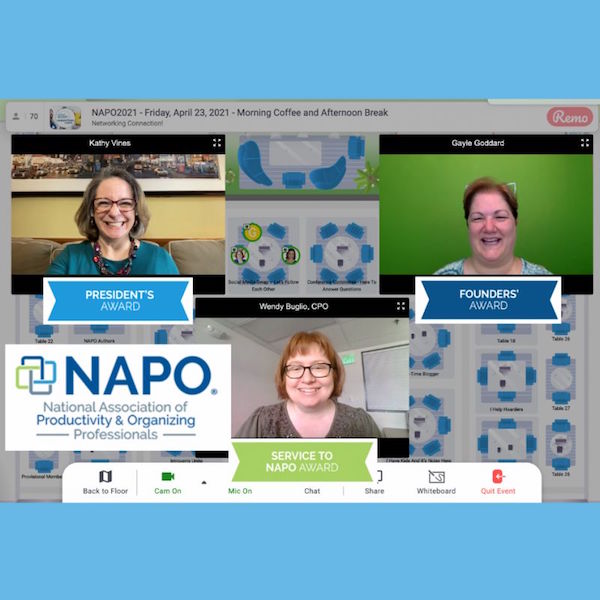
(Photo stolen from Kathy Vines’ LinkedIn page. Shhh, don’t tell her.)
Finally, I should mention NAPO’s interactive session entitled Incorporating an Anti-racist Mindset and Practices to Build Your 21st Century Business. Tanisha Lyons-Porter and Janine Sarna-Jones, CPO®, led a compelling discussion with a panel of colleagues, including Kathy Vines, Miriam Ortiz Y Pino, Tiffany Blassingame (one of the founding members of the National Association of Black Professional Organizers), and Cindy Levitt.
The session began with a presentation on the concepts of DEI (Diversity/Equity/Inclusion), unconscious bias, and allyship by executive and coach, Barbara Polk, and ended with Zoom breakout sessions for a collaborative discussion on tangible ways for professional organizers and productivity specialists to be allies in our lives and in our businesses.
I appreciate the indulgence of readers who are not involved in the organizing and productivity industry who have read thus far, and I thank all the volunteers, planners, speakers, and absolute geniuses in NAPO who helped make this conference not only “just as good” as an in-person conference, but in some ways better.
While a main purpose in attending is learning material that will serve our clients, of equally valid importance is the uplift and inspiration it gives each of us to stretch and grow. After the year+ we’ve all had, we really needed NAPO2021!
Next year, we are set (knock-wood) to be in-person again, in Baltimore, Maryland. Until then, this is your faithful conference recapper, signing off from another NAPO Annual Conference.
Paper Doll Organizes the Internet: 5 Tools for When the Web Is Broken

Photo of doggy using the web by Nataliya Vaitkevich from Pexels
Have you ever tried to access a web site but nothing happens? At least nothing good? You may fiddle around, clicking the site over and over. Sometimes, you manually retype the link even though you know what you clicked should work.
Instead of getting progressively more agitated, there are a few different things you can do to maximize your efforts and use your time efficiently.
MAKE SURE THE PROBLEM ISN’T AT YOUR END
Verify that you are connected to the internet. It may seem obvious, but sometimes you’ll be working along and then all of a sudden your router decides to have a brain freeze and sever your WiFi. Less often, your internet provider might have hiccup. It can last a few seconds or (too) many minutes.
I have two router networks, a main one, and a secondary one that I could (should?) probably delete. Sometimes, when my primary router goes down, my WiFi kicks over to the secondary one, which is iffy. It can be perfect or wonky, depending on how it feels that day (much like my hair). Usually, I won’t have any idea this has happened unless I check the WiFi drop-down from my Mac’s menu bar. (Yes, I have a lot of neighbors, and no, I don’t borrow their WiFi.)

If your connection to the internet isn’t the problem, it’s time to check your tools.
Try a different browser or a different device. In general, any modern website should work on any browser. However, if your operating system is older, such that you can’t upgrade your browser, some sites may refuse to render properly, or even at all. If you’re using Safari and a site won’t show up, try using Chrome, Firefox, or some other browser, upgraded as much as possible, to see if the site works there.
If the site won’t open on your computer, your next step is to try to pull it up on a mobile device, like your phone or tablet. There, you get two options. First, you get to check to see if it’s a device-specific problem. You can also turn off WiFi on the phone and check to see if you can reach the site via your cellular data.
Sometimes, for no clear reason your computer or WiFi just doesn’t like a site anymore. There’s a solution!
Clear your cache and cookies for that site. Most people don’t want to clear their cache or cookies because then they’ll have to log back into sites for which they’ve been semi-permanently logged in for eons. But you can just clear your cache and cookies for specific sites.
Lifewire has an excellent article on how to clear cookies for one specific site for Chrome, Firefox, Safari, Internet Explorer, and Opera, the browsers you’re most likely using. For other browsers or platforms, enter “clear cookies for one site” along with the name of your platform/browser, like iOS/Safari, or Android/Chrome.
USE TWITTER INSTEAD OF GOOGLE
Check Twitter. Whatever else you think of Twitter’s role as a social network, it’s probably the fastest way to get a real-time update if something somewhere has gone awry. If you can’t connect to your bank or Disney+ or Instagram, try just typing the site into the search box. If it’s been down for more than a moment, you’ll likely see a crowdsourced timeline of complaints about the problem.
Of course, this is not the best solution when Twitter is the site that’s down, as happened this weekend.
USE A SITE STATUS SERVICE TO GET REAL-TIME REPORTS
The following sites are great for those times when you can’t tell if your WiFi is flaky or your favorite site has been hit with a DDOS attack. It’s also a quick way to check whether your own web site is down after you’ve done some updates and aren’t sure you’ve cleared your cache properly or done those other mysterious things your webmaster told you to do.
I should note that one thing all of these sites have in common is that they are not going to win any awards for aesthetics. Most were built anywhere from 10 to 20 years ago and have a decidedly early 21st-century design style. I’m not sure why nobody has created an attractive status reporting site that can still (sigh) sell advertising unobtrusively, but until that happens, these sites offer quick updates so you know whether to wait a minute or move on to some other task.
Also, these sites are free (advertising notwithstanding) and don’t require you to create an account.
Down For Everyone Or Just Me?
Down for Everyone Or Just Me? is the best known and most classic of the site status services. Visually, it is as simple as you could want. Just enter the URL of the site you’re trying to reach, Mad Libs-style, and Down For Everyone will tell you whether your site is up or down within five seconds. Easy-peasy.
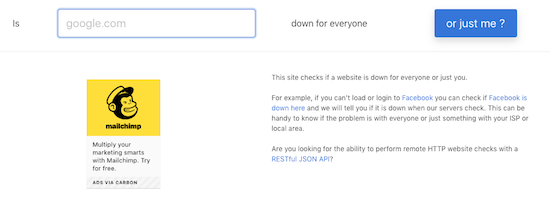
Below the search search section, there are two columns of plain-text site names grouped into categories: online grocery stores, travel Sites, e-commerce sites, financial companies, dating sites, etc. So, if you think that maybe you’ve somehow been mistyping Trader Joe’s URL and that perhaps you missed a silent 3, you can click on those popular links to speed a search instead of typing.
Down for Everyone Or Just Me is fast, and has an uncluttered interface. In recent years, they’ve added one small ad on the search page, but otherwise, there’s little to pester a user.
Also, for a nice shortcut, if you’re checking from your phone and haven’t previously bookmarked it, just type IsUp.me. (While it’s not grammatically correct, with only seven characters counting the dot, the site couldn’t be easier to locate.)
Down for Everyone isn’t ideal under all circumstances, though. It gives you a quick thumbs up or down, but you get no indication of whether other users have reported the same problem, or whether there’s a regional component. (Granted, these things may or may not interest you.) But it’s a quick-and-dirty status indicator if you just want to know whether to keep clicking or go make a sandwich.
Down Detector
Down Detector works much like Down for Everyone or Just Me, but has some attractive bonuses. First, you don’t have to type the entire URL into the search box; you can often just type the site name. (For example, type “Netflix” instead of “https://Netflix.com.”)
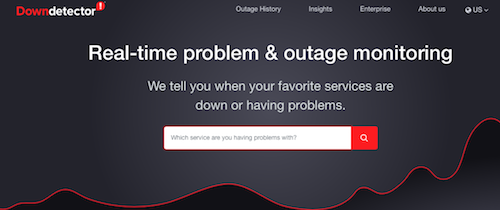
Under the search box, there are also three columns of popular services (social media sites, internet suppliers, banks, online games, etc.), with their names, logos, and a graph of their recent uptime performance. These boxes serve as shortcuts for getting real-time status reports on the most popular sites.

Type a URL or select a pre-existing box; the resulting page will give you a chart of recent outage reports,
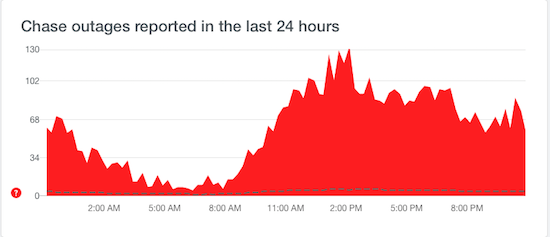
a chance to report an outage at your end, and a map of locations where there’s currently an outage.
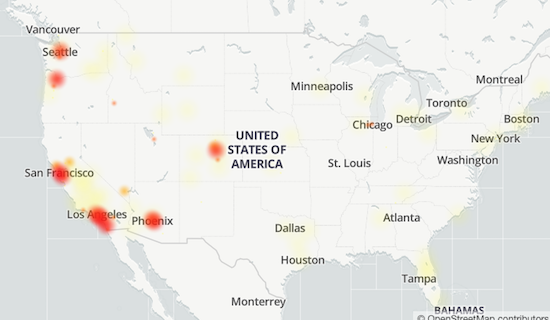
Down Detector does have some small drawbacks. It’s advertising-supported, so the search page has ads both between the search box and the cheat sheet columns of services and on the right side, and the results pages are fairly cluttered with ads.
It’s also slightly inconvenient if you want to see a heat map of the current outages, as you have to click on a faux map on the results page to be taken to yet another results page just for the map.
Finally, both the general results page and the map page have Facebook-like comments made by others, some of which are expressed in unpleasant ways. As with most social media, it’s not always for the faint of heart.
Is It Down Right Now?
Is It Down Right Now?, like the others of its ilk, offers you the ability to check a specific site, or to view the status of popular services like Netflix, Facebook, YouTube, and many more.
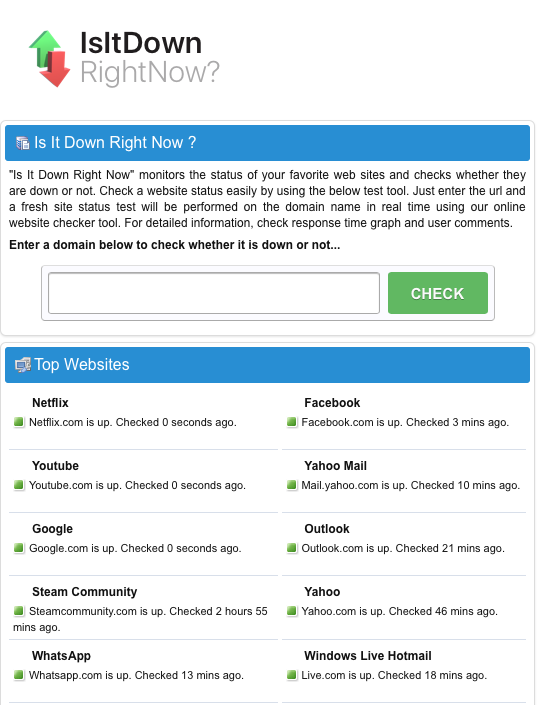
One advantage of Is It Down Right Now? is that there’s a javascript Website Status Checker bookmarklet, similar to the Evernote web clipper or Pinterest pin button you may already use. You just click and drag the icon to your browser’s toolbar, and you never even have to go to the website. Anytime you want to check the status of a site, just click on the bookmarklet on your toolbar, and you’re good to go.
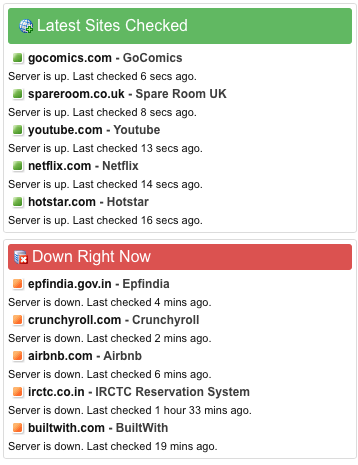
Is It Down Right Now? also shows a list of the most recently down and most recently checked sites.
On the results page, whether a site is up or down, you’ll get to see a screen shot of what it should like when it’s working, as well as a status report showing either that it’s up or how long it’s been down, and a multi-week chart of the status history.
The search page is streamlined (with just two columns) and has just two, fairly unobtrusive, ads. However, the results page is a bit of a hot mess, with ads and Facebook comments interspersed with essential status information.
While there’s a nifty troubleshooting section, explaining how to deal with potential browser and DNS problems reaching a site, it’s hidden away on the results page. (It’s also a bit out-of-date, referring to 3G when most of us are on the precipice of using 5G.)
Outage Report
Outage Report isn’t your typical status report site. You can’t search to see if any random website is up or down. Rather, the front page lists companies with recent reports of outages, along with squiggly little graphs representing the timing of the problems.
However, the site does have a list of international and U.S. companies it monitors. If you want to know if Outage Report tracks that site, just type part of the site’s name and you’ll get a real-time filter. (Type “time” and you’ll get FaceTime, New York Times, Showtime, TV Time, Time-Warner Cable, and Lifetime. By the time you add an S to the end, it’ll have filtered out all but the New York Times outage map.)
When you click on a site name, Outage Report not only tells you what’s going on at a site, but gives you a graphic representation of the history of the site being down and tells how many reports of problems have come in during a recent period. For those who like graphics to see what’s what, this site provides some goodies.
However, I’ve been a little disappointed by how ads have taken over the flow of the site. For example, on May 19, 2017, Twitter suffered a denial of service attack. Afterward, I was able to get this quick screen shot indicating anything I could possibly want to know about the DDOS attack and uptime history prior to the attack.
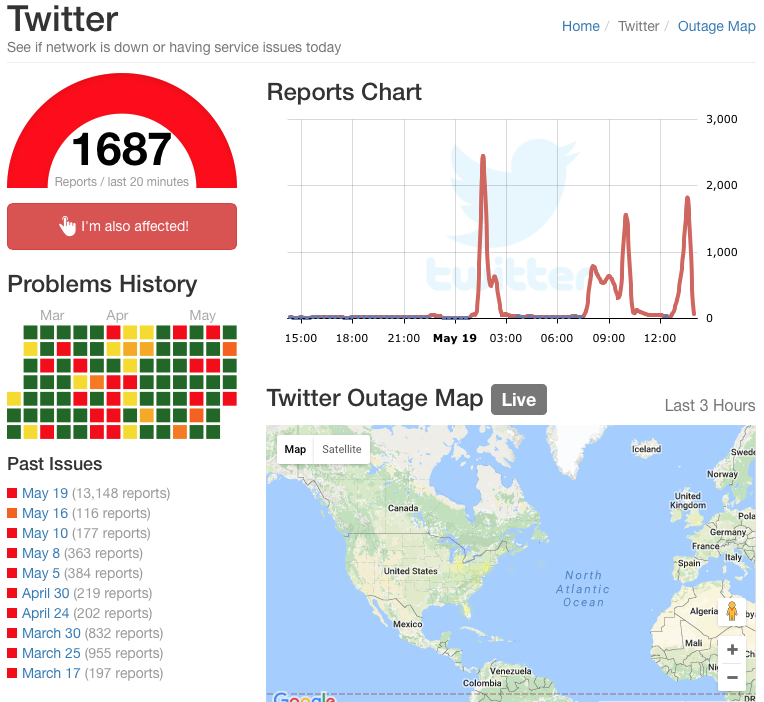
However, nowadays, Outage Report has interspersed ads such that there’s no tight, ad-free grouping of information and the long-term periodic reporting of issues has been eliminated.
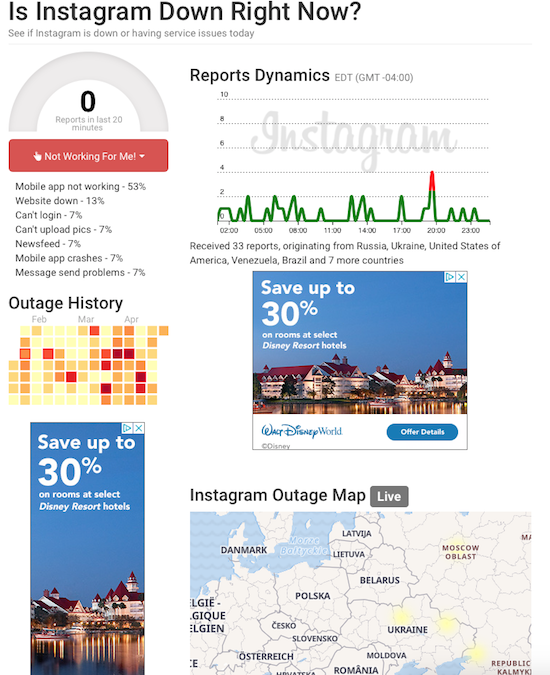
The results page is overwhelmed by ads, as well as on-site comments and ported-in tweets. However, the site does a great job of telling you where (in terms of countries or regions) particular outages exist, so if you work with clients abroad, you might find this a useful auxiliary tool.
Google Workspace Status Dashboard
If you live and work in the Google environment, you may be less concerned about a social media or banking site going down and more about whether you can get to your life-giving Google Doc, Sheet, Slide, calendar or Gmail. Last Monday morning, for example, millions of users were up in arms over Google Docs being inaccessible.

If you have a paper due for school or a presentation to give over Zoom, not being able to access your materials is pretty stressful, but at least being able to screenshot this should make it feel less like you’re claiming that the dog ate your homework.
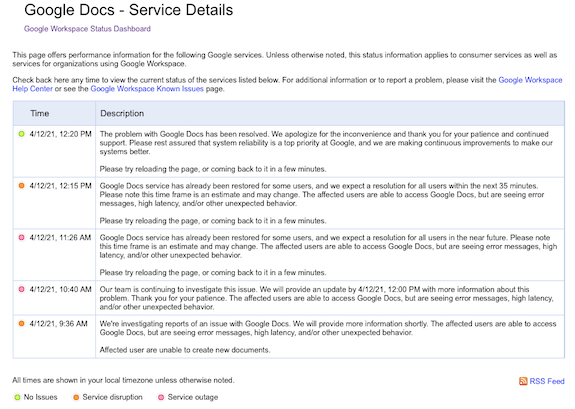
The Google Workspace Status Dashboard should be your first stop if you’re experiencing a kerfuffle with a Google product. The dashboard simultaneously reports the status of 18 regular Google products: Gmail, Calendar, Drive, Docs, Sheets, Slides, Sites, Groups, Hangouts, Chat, Meet, Vault, Currents (formerly Google+ for GSuite), Forms, Cloud Search, Keep, Tasks, and Voice, with a column for each of the past seven days and a status indicator for each day.
- Green indicates that there are no reported issues
- Orange indicates a service disruption
- Pink indicates an actual service outage (and no, I am not sure about the difference between a disruption and an outage)
Click on the dot and it opens a problem-specific page like the one above. At the bottom of the seven-day chart, you can select “older” to see more historical data.
In addition to the above products, the Google Workspace Status Dashboard also tracks the status of website management apps like Admin Console, Google Analytics, and App Maker, as well as Google Maps, Blogger, Google Sync for Mobile, and Classroom.
I encourage you to pick one of the solutions above, and the bookmark the URL on your computer and mobile devices. Next time you encounter difficulties getting to a site, verify that the problem is not on your end, check the status, and if you find that a site is down, move along to the next thing on your task list.
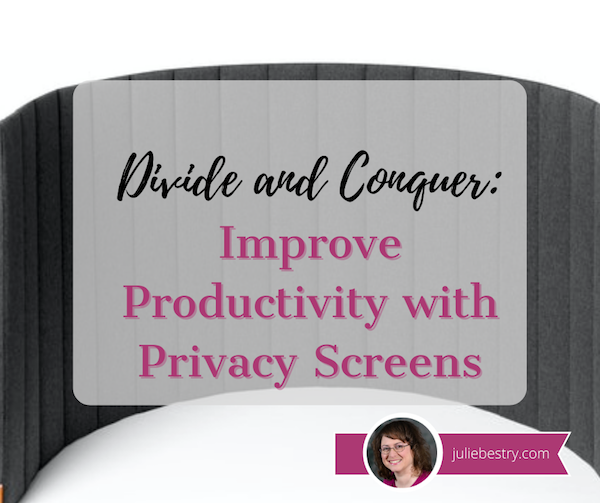
Divide and Conquer: Improve Productivity With Privacy Screens
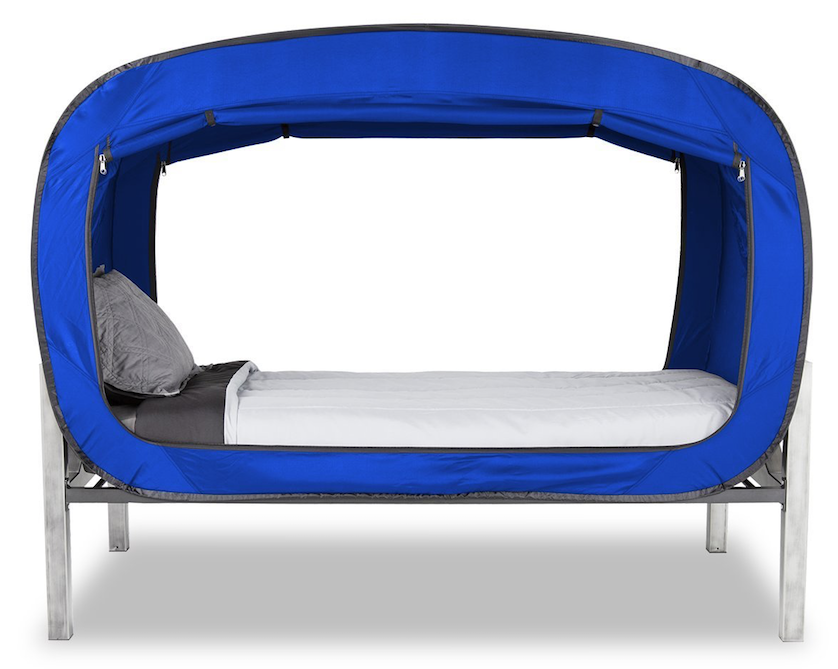
One of the most popular photos ever posted to the Paper Doll blog has been the Privacy Pop Bed Tent. Whether for a shared dorm room, children’s room, or any situation where you might want a little privacy – for sleeping, reading, meditating, or focus – a bed like this lets you place a divider between yourself and the world.
Organizing your space for privacy can yield much greater productivity.
A room or personal space divider can have the following advantages:
- Delineate a purpose for a space, motivating a stronger sense of purpose.
- Eliminate visual distractions for the user so you can maintain focus longer.
- Eliminate visual distractions for the audience during online classes, video chats, or during webinar presentations. (While virtual backgrounds can be useful, many computers are too old to run this digital solution.)
- Eliminate auditory distractions for the user.
- Dampen sounds for podcasts and audio/video production (if your dividers provide help with acoustics).
- Provide a sense of privacy from prying eyes. (If you aren’t worried about who is watching watching you, you can stay focused on your work.)
- Create a sense of ownership of one’s own space.
- Create a healthy barrier between oneself and others, particularly during flu season (and, obviously, as we are recovering from a global pandemic).
Recently, I’ve had a number of conversations with clients who are looking for better solutions for dividing their spaces.
Some have been working the better part of the pandemic from home with little to divide their own work space from that of their spouses or to divide grownup workspace from remote schooling space or play space from living space.
Others have been been struggling with a year-long, “Maaaahhhhhhhhm, she’s touching me!” lack of personal space among their kids.
Further, others are approaching a return to working in their offices and are dreading being distracted by their colleagues, anticipating having their focus, concentration, and privacy being threatened after a year of (somewhat) controlling the sensory inputs during work time.
And some are just freaked out about breathing around other people in an open workspace that, even during the best of times, ensured that they all got one another’s cold and flu germs.
Wouldn't you like to create your own private, dedicated workspace wherever you are? Share on XWouldn’t you like to create your own private, dedicated workspace wherever you are? Today, we’re going to look at a variety of options that can help you at home and work to give you more focus, a greater sense of privacy and a little more division between you and everyone else.
SET UP PERSONAL WORKSPACE DIVIDERS
The Poppin Dark Gray Portable Space Divider suits multiple circumstances where you might want a little privacy to accomplish your work:
- At desks or tables shared by multiple students (whether at home or at school)
- At a desk or table in your public or university library
- At a table in a coffee house or co-working venue
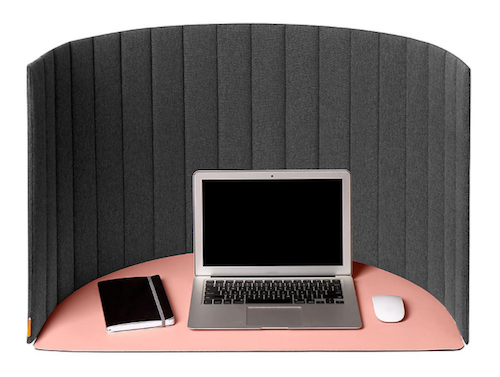
This sturdy 54″ wide by 20″ high divider unrolls and sets up to serve as a self-standing structure and says (politely), “This is my work area. All others, keep out! This means you!” letting you study, read, or work with efficiency and without distractions.
The Poppin Portable Space Divider is made of medium density fiberboard (MDF) and fabric. (MDF is an engineered wood product, manufactured by breaking down residual hardwood or softwood byproducts and turning them into wood fibres, mixing the fibers with wax and a resin to keep it bound. Then, by applying high temperature and pressure, MDF is turned into panels, which are generally more dense than plywood, so they’ll stand up sturdily.) Each of the 18 MDF panels is inserted as a slat in the dark grey fabric.
The divider is lightweight and and portable; just roll it up like a yoga mat, fasten the hook and loop closure, and carry it over your shoulder with the nylon carrying straps. No downward-facing dog required.
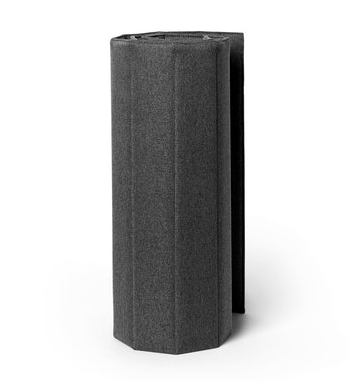 The Poppin Portable Space Divider is available for $59.99 at The Container Store
. (Poppin has also created Curved Desk Pads
in grey, slate blue, and blush to partner with the Portable Space Dividers. They are also available from The Container Store, for $19.99.)
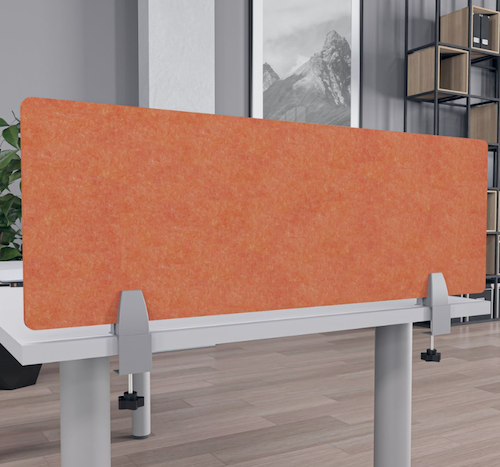
If you own (or work in) an open office, you might be looking for something a little more upscale to give returning employees something to help them maintain focus. eScape Desk Screens come in a wide variety of colors (including Sky Blue, Green, Emerald Green, Orange-Yellow, Orange, Red, Purple-Red, Purple, Blue, Dark Blue, and for some versions, Silver Grey, White, and Sesame Black) and mounting styles.
The eSCAPE Edge Clamp with Knob Acoustical Desk Divider 12″ high version is made of colorful, 12 mm-thick, round-edged, acoustic tiles made from recycled plastic (PET) bottles. Five width options are available (23″, 35″, 47″, 59″ and 71″) and they are attached to desk surfaces with a knobbed clamps (two for the three smaller sizes, and three clamps for the two larger versions):
The 16″ high (shown below) and 24″ high versions offers the same colors, features, and options, but more privacy:
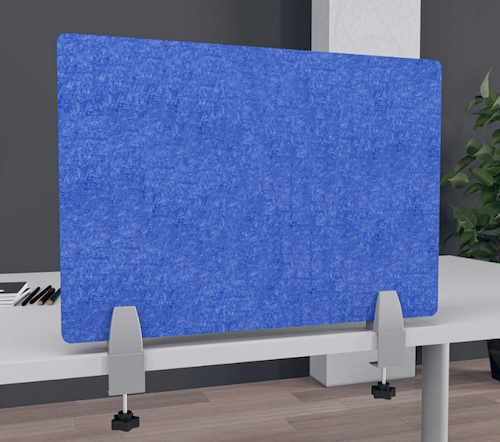 The clamped versions are sold by Skutchi for $133.39.
If you’d prefer a free-standing version of the eScape Desk Dividers, Skutchi also sells those.
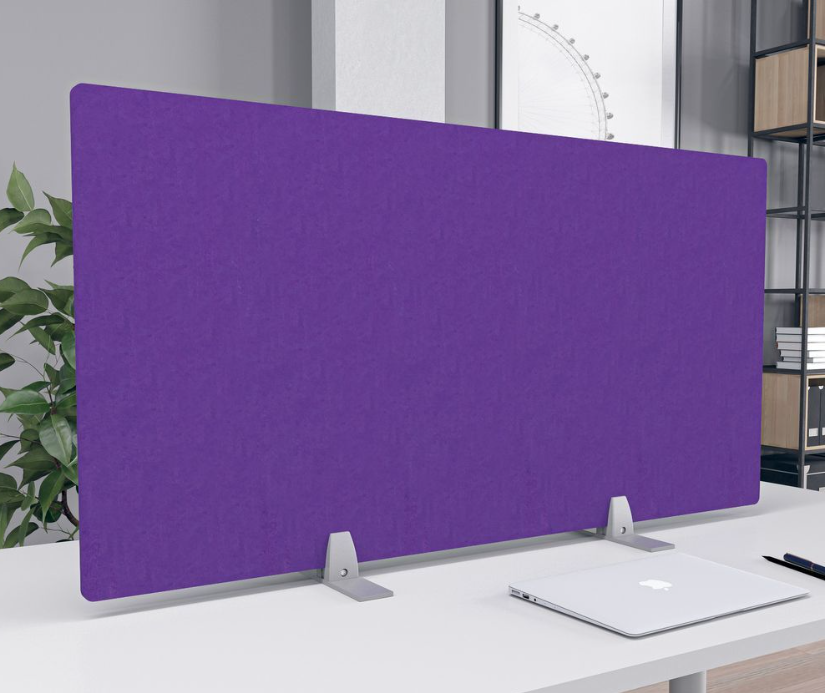
You’ll lose a quite a bit of desktop real estate to make room for the mounts, but you’ll save a bit of money, as the 12″, 18″, and 24″ high options (all with the same width, color, and feature options of the clamped versions) sell for $96.59.
Skutchi’s dividers are custom-made and available with free shipping.
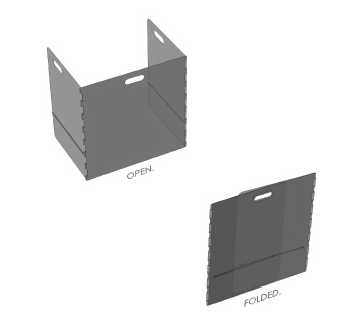
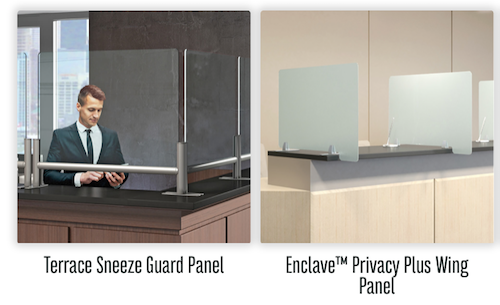
Given everything that’s happened over the past year, you may be considering getting some kind of sneeze-guard to surround your work area or classroom space (for yourself, your children, or for the school in which you teach). These come at a wide variety of price points and aesthetic levels, from Applied Ergonomics’ fold-flat, polycarbonate school hygiene barriers, $299 a ten-pack:
to Mergework’s Terrace and Enclave Sneeze Guard Workspace Social Distancing solutions with multiple mounting options at fancy-pants pricing.
If you’ve ever worked in an office with cubicles, you know that the absence of a door can have impact on privacy. (To be honest, so does the absence of a ceiling, but unless you move that Privacy Pop Bed Tent into your cube, I’ve got nothing for you.) If you’ll be returning cube setup, your HR department might be interested in this rolling Quartet Workstation Privacy Screen to improve productivity (and morale).
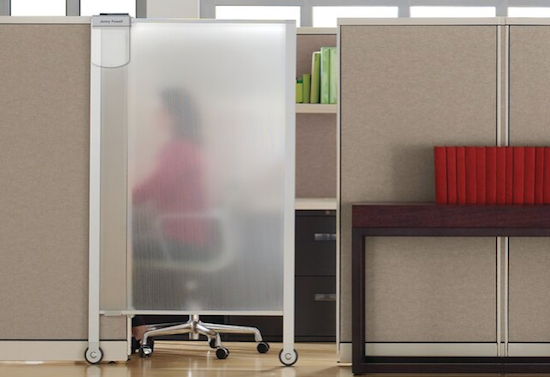
The translucent, shatterproof privacy screen measures 38″ wide by 64″ high. The frame is aluminum, while the screen itself is polycarbonate, making the unit durable and lightweight. As-is, the screen can roll into place for cublicles up to 65″ tall, and there are leg extenders included for cubicles taller than 68″.
There’s even an attached whiteboard with a nameplate so you can tell colleagues when you’ll be available and let them leave messages for you.
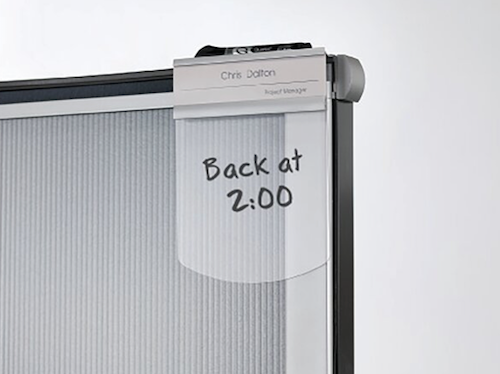
The Quartet Workstation Privacy Screen is available from Staples, Quill, Granger, Amazon, and Walmart. Currently, the price ranges significantly, from $261 to $390, and is the least costly at Walmart and Amazon. (There is also a sliding, non-wheeled version, measuring 36″ wide by 48″ high, which slides into cubicle walls and is not wheeled; it runs about $205.)
USE ROOM DIVIDERS TO CREATE WORK ZONES
Sometimes, you need a divider of greater size and scope. Over the years, I enjoyed being interviewed online, like the eight shows I did for Smead‘s Keeping You Organized video podcast:
Secrets to Organizing a Small Business
Fears That Keep You From Getting Organized
Paper vs. Digital Organizing (Part 1)
Paper vs. Digital Organizing (Part 2)
How to Get Organized When You Have an Extended or Chronic Illness (Part 1)
How to Get Organized When You Have an Extended or Chronic Illness (Part 2)
Essential Lists for Organized Travel (Part 1)
Essential Lists for Organized Travel (Part 2)
The problem? Behind my office is another room that is not appropriate as a professional video backdrop. Until 2019, as a stop-gap measure, whenever I made these kind of videos, I’d turn my desktop computer toward the opposite wall and move my chair; however, the overhead lighting against this background made spidery shadows above and around my head. I felt like a true Not-Ready-For-Prime-Time Player.
About eighteen months ago, when participating in Ray Sidney-Smith’s Productivity Summit 2019, I needed a better solution. My plan was to try to get a pretty room divider, something along the lines of the gorgeous Japanese shoji screens one often sees in movies — light wood, rice paper, hinged panels. Something like this, from Wayfair:
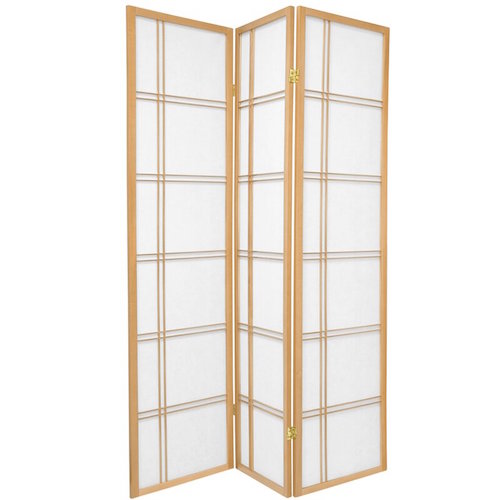
However, I was hoping for something a little less expensive than the (reasonable) $169 that this one goes for, and one available on a little speedier delivery schedule. Unable to find an appropriate screen locally, and with only a few days to go until the summit, my colleague Maria White suggested that I try Ollie’s, a factory close-out store.
There, for a decidedly more pleasing $38, I got a rattan, indoor-outdoor, hinged divider that, on video, looks far more elegant than it does up-close. If you have seen me on any recent webinars or video podcasts, you’ve seen it (and more importantly, you haven’t seen the room behind my office).
For a taste, you can peek at two recent Anything But Idle episodes I did with hosts Ray Sidney-Smith and Augusto Pinaud, focused on women experts on productivity, organizing, and technology. There’s March 8th’s where I was a solo guest panelist, as well as March 15th’s (below), where I shared the spotlight with the always-glorious, brilliant, and charming Deb Lee:
(If you make it all the way through, see if you can find where I almost devolve into a fit of giggles.)
For what it’s worth, if you do want any of a variety of hinged screens, upscale or downscale, two good shopping options are these at Wayfair and the sumptuous designs at RoomDividers.com, including their shoji screens, art prints, office partitions, and other room dividers, like this 6-foot double-sided, Lavendar Road canvas print for $149:

In researching this post, I occasionally found intriguing room dividers that do double-duty. For example, this RHF 5 1/2-foot tall, four-panel privacy screen at Amazon doubles as a corkboard message board and costs only $119.99.
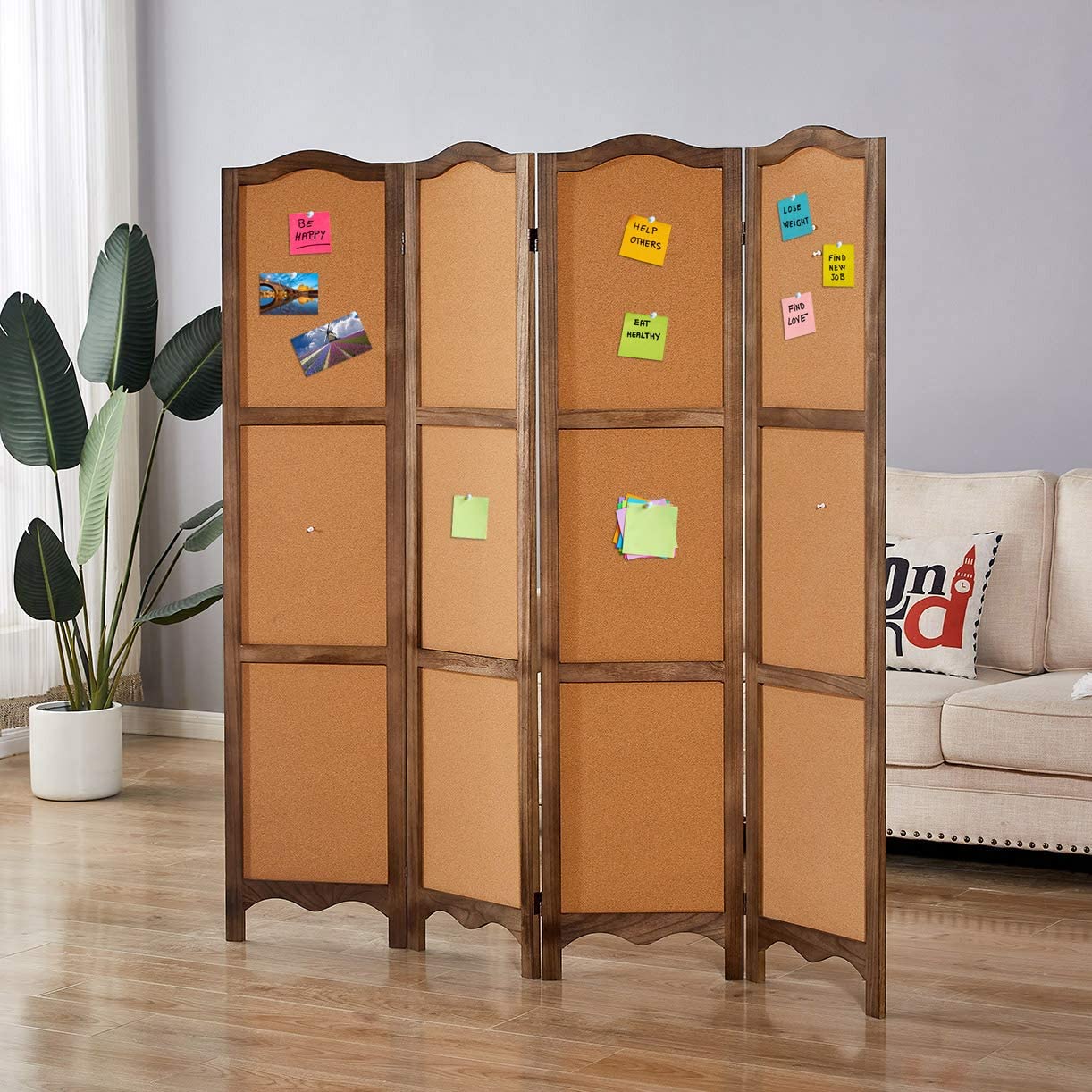
It’s not necessary to purchase special furniture simply to divide a room to provide more focus on each space’s individual purpose.
For example, if you already have a free-standing bookshelf, around five-feet tall or higher, like the Ikea Kallax shelves, you can easily divide a room into sections merely by placing the bookshelf between your two spaces, making a sleeping area and study space, or office and workout area. Check out Apartment Therapy’s The Best Bookcase Room Dividers to get some inspiration.
CONSIDER SPECIALITY DIVIDERS FOR YOUR SPECIAL NEEDS
Of course, sometimes, you will want specialized furniture.
Imagine you’re building a career as a podcaster but you’re a renter and can’t affix acoustic tiles to the wall to create an audio studio. And let’s say you don’t have a walk-in closet loaded with a wardrobe of clothes to muffle the sound. You might opt for the Versare Versipanel Flexible Sound Control Partition Wall, sold by Walmart for $819.
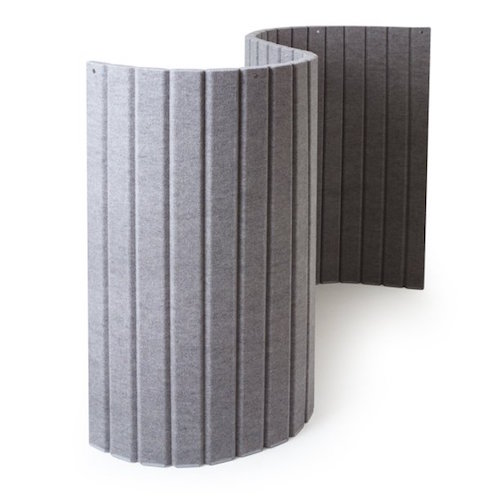
The Versipanel is designed to be an attractive, sound-absorbent, wall enhancement. It’s 8 feet wide by 6 1/2 feet high, comes in blue, black, and grey, and is one single fabric panel with flexible segments.
Rather than being positioned straight-up, like most room dividers, the panel is meant to be positioned with some curve in it in order to stand up & be stable on its own. (For a larger divider, multiple units can be connected end-to-end with the pre-installed heavy-duty magnets.)
Store the Versipanel flat against the wall, or (like a VERY LARGE yoga mat), it can be rolled up and carried away to storage.
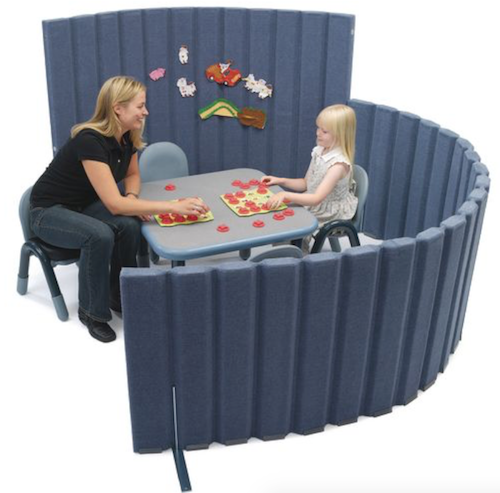
If you offer specialized teaching services for tiny humans, whether at a child care center, private school, or tutoring service, you might have a reason to invest in a more serious set-up. Discount School Supply has a wide variety of room dividers, from their Big Screen Right Angle Panels (for $185):

to their line of Big Screen Right Angle Panels mini-classrooms (sure to muffle sounds and improve focus) for $586.87.
FIND YOUR IDEAL DIVIDER
This post is just a sample of your options for organizing by dividing your space, creating zones, giving you privacy, and eliminating distractions. It’s meant to give you a taste of the possibilities available rather than a complete resource. Depending on your physical needs, budget, and the size of your space, you may want to use the following search terms to locate the right dividers for you:
- Room Dividers
- Privacy Panels
- Modesty Panels
- Hygiene Barriers
- Anti-Microbial Barriers
- Acoustic Dividers
THE ULTIMATE IN PRIVACY
If none of these ideas provide you with the level of privacy you need, especially in the workplace, there is one option short of sealing yourself up at home and pretending you’re still on lockdown, though it may be difficult to get your company onboard with the costs.
Poppin has a line of office “phone booths” that gives you a safe, quiet office within your office. The PoppinPod Om Sit and PoppinPod Om Stand, both for $5499, are made of high-grade glass and steel, and give you the privacy to focus, make confidential telephone calls, and isolate yourself from that office mate who does that thing. (You know what it is. Let’s not spell it out.)
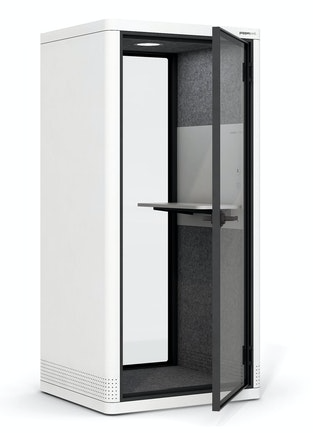
Both of the PoppinPod Om versions come in black or white, have USB chargers and a motion-activated light and fan, and feature dark grey, sound-absorbing PET lining. They’re shipped and delivered fully-assembled, because apparently the Poppin people have seen us trying to assemble Ikea furniture and don’t want to embarrass us.
For fancier workspaces, or if you’re hoping to have a work partner with you but still divide yourselves from your colleagues, the PoppinPod Kolo series upgrades from the Om experience and can accommodate 2, 4, or 6 individuals at prices ranging from $7000-$30,000.
And let’s face it, this is as close to Doctor Who‘s TARDIS as we’re ever going to get.
Paper Doll’s Secrets: Shred Successfully & Save Money
Klop. KaKLOP! Klunkety klunkety. KaKLOP! Grrrrrr uggggggg. KaKLOP!
No, unlike the officer at U.S. Strategic Command (STRATCOM), I haven’t let a tiny human take over my keyboard. The above is a close approximation of the sound my shredder made last weekend when, after two decades of faithful service and about halfway through shredding documents no longer necessary for tax time, it gave up the ghost.
At first, I thought I might have just fed one too many staples into the grinding teeth of my little document destruction devil. But, when I lifted the shredder from the bin and turned it over, nothing was stuck in the teeth. However, as I shifted the up-ended shredder motor from my left hand to my right, I could hear something sliding back and forth within. Ruh-roh!
Far more curious than mechanically inclined, I took a screwdriver to the whole housing unit, wondering if I might be able to just stick something back in place. (Yeah, go ahead and laugh.) Sadly, I found that a large octagonal metal washer (for want of a better description) had broken completely in half. The wheels on this bus were NOT going to go round and round any longer. I had to buy a new shredder.
DIY SHREDDER ESSENTIALS
Although I haven’t had to purchase a shredder in a long time, this is not my first shredding rodeo. Many of my clients find themselves either buying a first or replacement shredder as part of our work when we’re organizing and purging paper. So at least I knew what I needed to consider.
I hate to be crude, but size matters: the size of your shredder unit, the size of your “shreds,” and the size of the pile (or capacity) you can shred at one time.
Shredder Unit Size
There are three general sizes/types of shredder units: mini, medium, and heavy-duty.
Don’t buy a mini.
Yes, I know, regular readers of this blog recognize that I rarely invoke absolutes; the world is far more grey than black-and-white. However, unless you are buying a shredder for a child, I want to discourage you from buying a mini, or desktop, shredder.
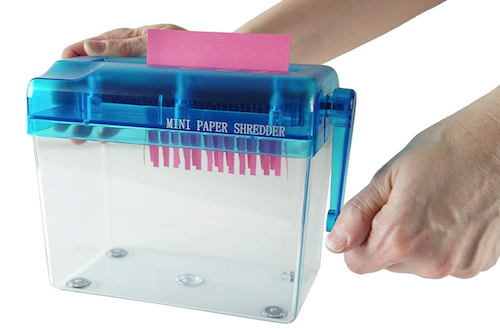
I admit, most “desktop” shredders are not hand-cranked and adorable like the one above. Indeed, most are more like the Aurora AS420C Desktop Style Cross-Cut Shredder below, in that it looks spiffy. But looks can be deceiving.
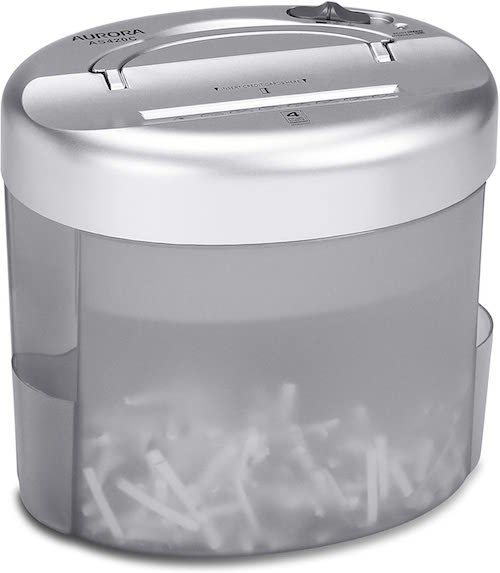 Often, I find that clients purchase desktop mini-shredders hoping that the small profile and easy desktop access will incline them toward keeping up with their shredding. However, the opposite is true.
Tiny shredders like the one above only take four sheets at a time (vs. 8 or 12 for a more serviceable shredder), fed through its 4 1/2-inch “throat,” or feeder slot. As most mail is 8 1/2-inches wide, anything not already folded into halves or thirds will need to be folded before fed. If you’ve got a multi-page credit card or utility bill (AmEx bills are usually a ridiculous number of pages, for example), you’ll have to separate the bill and feed just a few pages at a time. And the entire shredder can only accommodate 40 sheets, meaning you’ll have to repeatedly empty the basket.
You may not ever need to power-shred, but mini- or desktop shredders just aren’t designed for the kind of paper that the average household, and especially the home-based office or actual office, needs to destroy. I‘ve said it before: A mini-shredder is a lot like an Easy-Bake® Oven. Yes, it can do what it promises, but would you cook Thanksgiving dinner without a full-sized oven?
'A mini-shredder is a lot like an Easy-Bake® Oven. Yes, it can do what it promises, but would you cook Thanksgiving dinner without a full-sized oven?' Share on XFor typical home use, and for one-person offices, a medium-sized shredder should suffice. It should be able to handle four to six gallons of shredded paper (or about 150 to 400 sheets).
If you work in a large office, particularly one that deals with medical paperwork (covered by HIPAA regulations) or client financial information, you will want a shredder designed for large-capacity, heavy-duty shredding, one with an eight-gallon or larger basket/bin. (You’ll also be looking at a shredder that costs many hundreds of dollars, rather than one in the $30-$150 range.)
Shred Size (and Shape)
There are generally three types of shred sizes produced by consumer shredders. (Industrial shredders can pulverize paper into a fine dust, but that might be going overboard for destroying old bank statements.) These are known as strip-cut, cross-cut, and micro-cut.
Shockingly, I have another absolute for you: don’t buy the old-style strip-cut shredders; they’re rarely sold anymore, but even if you see a good deal at a garage sale, pass it by. Strip-cut shredders offer poor identity theft protection if someone really wants to get their hands on your data.
You will want a cross-cut or micro-cut shredder. A cross-cut shredder reduces your paper to 1-inch to 1 1/2-inch squiggly strips; such shredders are considered secure or “medium-security” and are rated P-4 or P3 security levels, respectively. On average, a cross-cut shredder shreds paper into 200 pieces (for a P3-rated shredder) or 400 pieces (for a P4-rated shredder). At home or in a one-person office, a cross-cut shredder will suffice.
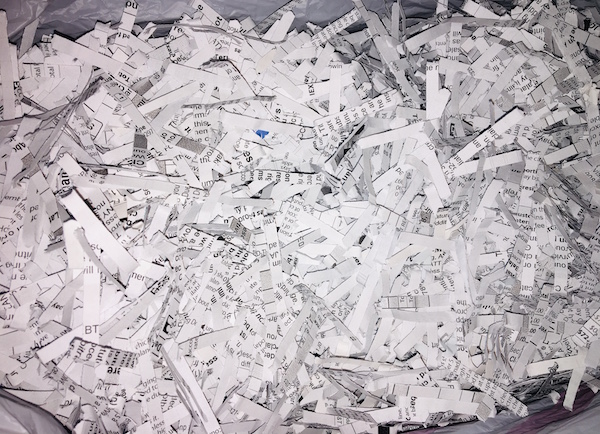
A micro-cut shredder chops paper into tiny fragments; micro-cut shredders are rated P5, P6, or P7 (the latter is also called nano-cut, and recommended for government and classified documents) in terms of security levels, shredding papers into 2000, 6000, or 12,000 pieces, respectively.
For an office that deals with HIPAA compliance, financial data, or spycraft, consider a micro-cut shredder. However, this is going to be over overkill (in terms of both function and cost) for use in a home office. (I mean, unless you’re a work-from-home spy, in which case…cool, dude!)
Capacity
There are three aspects to consider when looking at the capacity of a shredder:
1) How many sheets of paper can you feed at one time?
Most shredders you’ll be looking at for home use will be listed as handling 5-10 sheets at a time; for an office, a capacity of 10-18 sheets can be fed at one time. (There’s some cross-over in the home and office categories.) Bear in mind that at the home level, staples and thicker paper can reduce the number of sheets that can be safely fed at one time.
Heavy-duty shredders designed for office use can accommodate anywhere from 13 to 38 sheets at a time, with those at the higher level being much pricier.
While shredders are generally rated by the number of sheets shredded simultaneously, Paper Doll believes many manufacturers are a bit too optimistic in self-reporting. Just aim for the highest capacity shredder in your budget range.
2) How long can you shred before the shredder conks out? (This is called the shredder’s duty cycle.)
Ever get the red light while you’re shredding? This is the “Do not pass GO, do not collect $200!” message that means your shredder needs to cool down. Promotional materials usually claim that smaller shredders for home use can operate for two-to-three minutes continuously before needing a 20-to-30 minute break.
That doesn’t seem like very much time, but recognize that if you’ve got your shredder set to “on” rather than “automatic,” the shredder is only operating while you are pushing papers through. So, skip the automatic setting, take a few seconds between each multi-page pile of papers, and you’ll be OK.
Shredding companies have started listed their duty cycles on promotional material, but official capacity and real-world usage can be at odds, so do read the reviews.
3) What else can your shredder accommodate besides paper?
Any shredder you acquire should be able to handle stapled papers and (expired) credit cards. Most should also be able to shred CDs and DVDs, but if you have a lot of data on disk, be sure to check that your intended purchase can accommodate what you need to shred.
Other Considerations
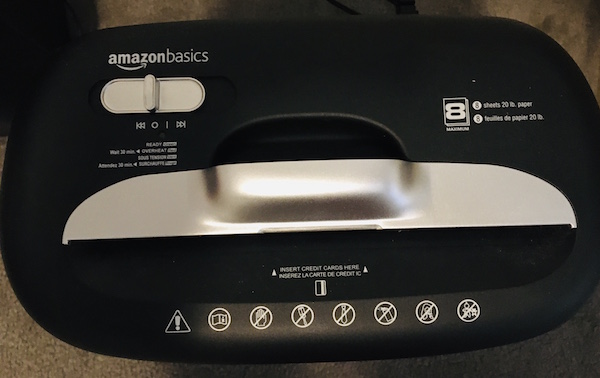
Aesthetics — Unlike cell phones and other modern electronic devices, nobody seems to have given any thought to whether a shredder is attractive (to the eye or to the ear). I have yet to see a shredder in designer colors, and you’re pretty much limited to combinations of black and silver.
Obviously, design shouldn’t be your main concern, but you are likely to avoid using an ugly shredder or one that screeches. (Remember The Great Mesozoic Law Office Purge of 2015? When we cleaned out my father’s law office, he had an ancient, “yellowing” beige shredder. It was capital-U ugly, but Paper Mommy needed a shredder and was convinced she’d make use of it. Yeah. No.)
With regard to sound, whenever possible, test a friend’s shredder or ask a sales associate to help you test a floor model. The noise a shredder makes won’t exactly be pleasant, but some have more vibration or grinding than others.
Ease of Use — The main concerns are an adequate-width feeder and an easy-to-empty basket or bin. The nicest shredders have a removable bin that slides out like a drawer or tips out like a laundry chute, but these tend to be more expensive than the budget versions, where the shredding mechanism lifts off to reveal a metal or rubber receptacle. Avoid the low-rent shredders that only provide a mechanism to set atop a trash can; these are usually ill-fitting, poorly balanced, and lead to a flurry of shreds on your carpet, which furry animals and tiny humans will spread far and wide.
Special features — Some shredders, particularly those designed for a communal workspace, market special features at a higher price. For example, Fellowes markets a “100% Jam-Proof” micro-cut shredder for $1726.99! Others promote energy savings and quiet operations. As always, consider how often you’ll be using your shredder to determine how much extra you are willing to pay for special features.
At the lower end of the scale, you may want to consider the basket or bin into which you shred. The bin for my shredder, the one that bit the dust, was made of metal mesh, which meant that a lot of the shredding dust poured into the air if I didn’t use a bag, but when I used a bag, I couldn’t tell when it was almost full. Further, most shredders are designed so that the shredding unit/lid won’t fit properly into the bin if you’ve lined it with a bag, and if they do, most grocery-style plastic bags are smaller than the bin, so you’re not able to use your full capacity.
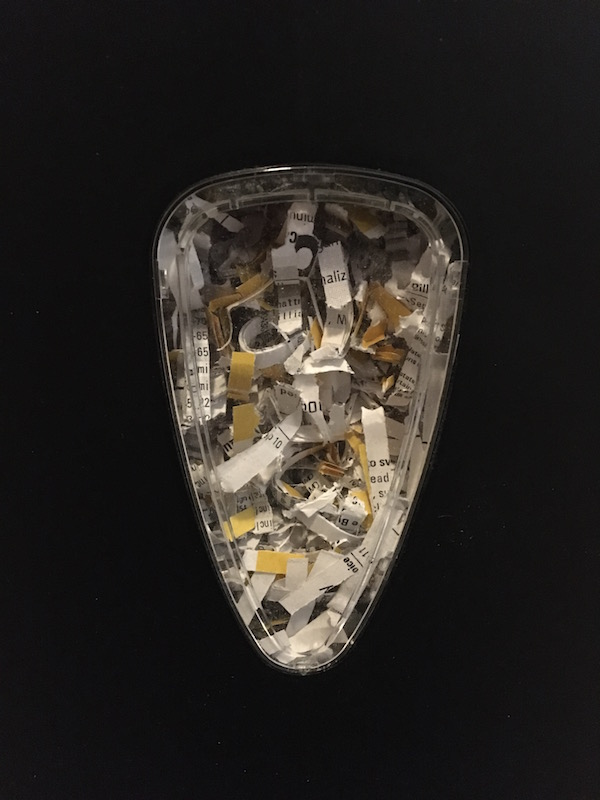
My new purchase warns not to use a bag; however, the base is made of a solid plastic (much like a trashcan) so there’s no shred dust plume, and has a nice window to give me a sense of when I’m about to reach maximum capacity. At that point, I must carefully lift up the shredding unit, tilt and flip it quickly to avoid spreading bits of shreds everywhere, and then I can upend the whole bin into the trash.
There’s always a trade-off. I’m frugal and don’t have a lot of demands, aside from my shredder not making the “Klop. KaKLOP! Klunkety klunkety. KaKLOP! Grrrrrr uggggggg. KaKLOP!” sound more often than every few decades. I purchased the Amazon Basics 8-sheet shredder because it was on sale last week, running five dollars less than it is right now, and because it was a Best Seller (probably because it’s so inexpensive). But again, because you need to live and work with it, it’s important to pick a shredder with the features you need and want.
Still not sure what you want? Fellowes offers an interactive Shredder Selector tool to help you choose among a variety of features, including shredder capacity, feeder type, number of users, volume of shredding, maximum run time, security level, shredder safety, and even a few extras.
PROFESSIONAL SHREDDING SERVICES
You already know how important it is to shred the paper that you no longer need for tax, legal, or proof-of-ownership purposes; merely tossing them in the trash could make you a quick victim of identity theft. But you also know that once your shred pile is as tall as the youngest of your tax-deductible dependents, your home-rated shredder is likely to wimp out before you get through your seasonal pile shredding.
If you lack the time, space, shredding power, or intestinal fortitude to conquer your backlog of shredding, you have a variety of options for getting professional help. A number of companies are available nationwide to help with document destruction, including:
You are likely to have local and regional shredding companies at your disposal as well.
If you need help finding shredding services in your area, turn to the National Association for Information Destruction.
NAID’s interactive map will locate shredding companies nearest to you. Enter your zip code and the system will provide you with a map and list of document destruction services in your area. You can also narrow your search to filter for different kinds of destruction certifications.
Note: Most shredding services offer a combination of drop-off and secure pick-up services; if your office or organization requires regularly scheduled shredding, you can arrange for periodic pickups.
Many retail locations also have relationships with document destruction services. In these situations, you generally self-serve your papers into a slot in a large, locked container that looks much like the garbage and recycling cans you wheel to the street on trash day; the shredding companies usually do pickups every week-to-two weeks and either shred paper in a specialized truck in the store’s parking lot, or trade out an empty bin and take the full one to their physical operations.
Getting your shredding done in the same parking lot where you pick up your groceries or get your office supplies is convenient (and less labor than shredding piles of paper for yourself), but the cost is likely to be a little more than you’d pay if dealing directly with a document destruction service. Prices typically range from 99 cents per pound, upward.
Check with your local retail locations to see if, how, and at what price they offer shredding services. Start with:
Before you go, be sure to check the retailers’ sites for discounts, or use your favorite search engine to search “[store name] shredding coupon 2021” to see what discounts are currently available.
Tax time is usually one of the best times of year to get discounts on shredding. For example, as I write this post, FedEx office is offering a 40% discount on shredding services, so their usual $1.49/pound costs just $0.89/pound from April 1 – May 31, 2021. (No coupon required.)
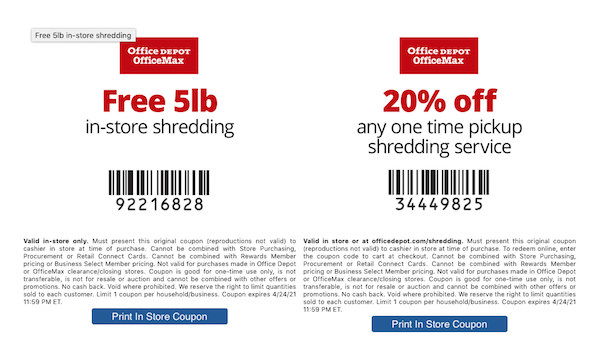
Office Depot tends to change their discount offerings each month. Right now, Office Depot is offering 5 pounds of in-store shredding for free and 20% off any one-time shredding pick-up service. The photo below is a facsimile, so scroll to the bottom of the Office Depot shredding page and click “print” for the coupon you prefer.
FREE SHREDDING EVENTS
Throughout the year, various government agencies, community groups, senior centers, houses of worship, and universities partner with shredding companies for free events billed as shredathons and shred days.
Document destruction companies (like Iron Mountain, Shred-It, Pro-Shred, and Shred Nations) bring their giant paper-chomping trucks so you can get your papers securely shredded on-site. While these events have been less common throughout the pandemic, a quick Googling indicates that they’re starting up again.
Search these terms plus your city or town name to find events near you. Many are held in mid-to-late April, so don’t delay. In addition, the Better Business Bureau also sponsors free shredding events associated with Secure Your ID Day. Canton, Ohio kicks off their event this coming Saturday, April 10, 2021, with many more around the country continuing throughout the month.
Tax time is the perfect opportunity to clear out your file folders, your desk drawers, your purses, wallets, and pockets, and to shred all those random receipts and documents that you don’t need to support your tax returns, keep you legal, or prove ownership of your stuff.
Of course, if you don’t know what you need to keep vs. what you should shred, Paper Doll has you covered with Do I Have To Keep This Piece of Paper?
Whether you shred at home or work, use a service, or attend a shredding event, plan time in your schedule to shred. Declutter, protect your identity, and save time and money!
Paper Doll Models the Spring 2021 Organizing Products

It’s finally springtime, the perfect time for new organizing supplies!
For most of the fourteen years I’ve been writing this Paper Doll blog, I’ve delighted in sharing new organizing products displayed at the annual NAPO Conference & Expo. Unfortunately, last year, the conference was canceled due to COVID. This year, although we’re very excited that we will get to have a 2021 NAPO Conference (albeit virtually) next month, there will not be an expo.
However, that doesn’t mean you’ll miss out on new organizing products! I’ve been collecting tidbits and emails over recent months, enough to assure you that there are novel and interesting organizing products out there in the world, and today, we’ll look at a few of them.
Organize Your Papers & Information
Whether you feel like you’re working from home or living at the office, whether “work” is your career or your volunteer gig or having a serious meeting at your kids’ school, the business of your life involves a lot of moving parts. Let’s look at what make these efforts run more smoothly.
Smead Soft Touch Cloth Expanding Files
Right now, most people’s “meetings” are held virtually, with each person in his or her own Brady Bunch-style box on Zoom or the equivalent. As long as we’re dressed from the waist up and have combed our hair, we pass muster. Nobody can see much below our shoulders, so if we’ve scribbled our notes on a Snoopy memo pad, our co-workers won’t be able to tell.
But imagine someday soon, it will be like the “before times” – eventually, we’ll all be back in the “real” world, with in-person meetings. And for good or ill, style will matter, at least a little, and we won’t be able to just carry an armload of papers as we might do now, from couch to desk. Somehow, I suspect our old briefcases will seem stodgy, a remnant of another era, but backpacks will feel just a little too casual for a meeting with the CEO. Smead has found a middle path.

Smead Soft Touch Cloth Expanding Files offer up an attractive way to look professional and keep your documents organized. It’s never too early to make a good impression, and I think these cloth expanding files help you accomplish just that.
One step up from poly or paper expansion folders, the Smead Soft Touch Cloth Expanding File provides 2 inches of expansion capabilities, so you can store your important documents and files, a small laptop or tablet, your phone, and maybe a bullet journal. Closed on three sides, the top flap has one of two styles of closures to secure the fourth side, securely containing everything when you’re on the go.
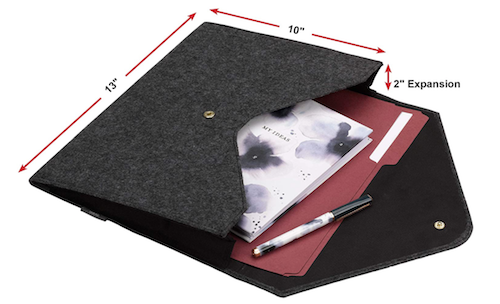
The Smead Soft Touch Cloth Expanding Files come in two styles, letter-sized (13″ wide x 10″ high) with a snap closure or tabloid ( 12″ wide x 18″ high) with a magnetic closure. The soft cloth design comes in black, grey, and dark blue. All versions feature a cloth exterior with matching sewn stitching and a satiny, purse-like, black cloth interior. (Caveat: Smead calls the exterior “soft,” which is a relative term. Let’s say it’s a bit like a woolen blazer.)
You can find these sharp-dressed portfolios at the Smead links above (about $15 for the letter-sized or $25 for the tabloid sized) or on Amazon (about $13 for letter-sized and $21-$25 for the tabloid version).
So, when the world gets back to “normal,” whether you’re heading into a client meeting or an interview, something snappy and professional may not only help keep you organized, but like a new pencil box on the first day of school, might just give you just the confidence you need to re-enter the working world.
Quartet Portable Glass Dry Erase Pads
Recently, Quartet, one of the ACCO family of brands, reached out to show me their new line of Keep notes handy wherever you are with the Quartet Portable Glass Dry-Erase Pad. The idea is that you can keep notes and reminders on a small glass whiteboard that fits in a bag or purse, and opens and folds like a notebook for easy dry-erase writing.

The dry-erase pad is a non-porous glass board made of 5″ x 8″, 4 mm thick tempered glass; along with the cover, it weighs one pound. The pad opens and closes like a notebook, so you can quickly jot down notes, reminders, or squigglies throughout the day, while the durable, poly cover and its small foam pads protect the glass whiteboard’s surface (so there’s no jostling or unintended erasure of your notes).
Write, close, drop it in your bag, roam around our brave, new world, open it again, and pick up where you left off, without smudges.
There’s a bungee closure to keep it closed and protected, and criss-crossed elastic bands hold dry-erase markers and accessories.
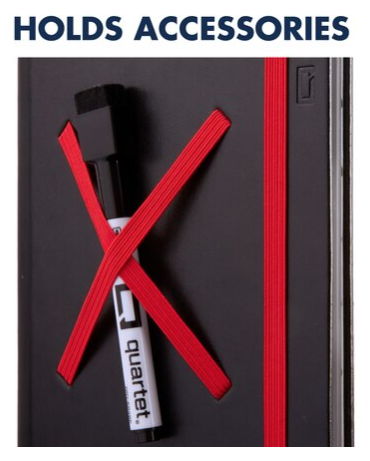
The magnetic kickstand embedded into the cover holds the pad in place and angles it so you can comfortably view your notes while you’re speaking on camera or to a group, or just trying to review your mind-map while eating at an outdoor cafe among other humans (as we’ll all be doing soon, I hope).

The Portable Glass Dry-Erase Pad comes in two cover styles: blue (with orange closures and bands) and black (with red closures and bands), and with one dry-erase marker. (Note: Quartet does make a 9″ x 6″ glass dry-erase desktop “notepad” in two styles, floral and dotted, but these are designed to use at your desk and have no cover (and thus no protection from jostling), so please be careful when ordering.)
The Portable Glass Dry-Erase Pads are priced at $40 on the Quartet website, or a little under $30 at Amazon.
I’ll admit, at first I was puzzled by the appeal of the product. Why would you carry around a piece of glass when you’re already carrying your phone, and maybe your tablet? What’s the appeal of writing something down that’s erasable when you’re mobile if you could type or dictate into your phone? I mean, I’m a paper girl, so I could see the appeal of a notebook or note pad, but to me, dry-erase is for your office space. (Hey, that rhymes!)
What was I missing?!
I shared the product with a few of my colleagues. A few were “meh” about it as I was, finding the sleek design appealing but the utility doubtful. However, others got very excited. For them, the combination of being able to hand-write their notes but have zero impact on the environment (no trees killed, no landfill topped off) got them very jazzed. And, of course, we all noted that information on the pads can be captured and kept permanently via a quick snapshot and upload to Evernote, OneNote, or similar data storage before erasing.
Readers, what are your thoughts? Would you tote around a one-pound dry-erase board? What other uses could you find for this product? Feel free to share in the comments!
Quartet Desktop Glass Whiteboard Computer Pads
While I was scrolling around the Quartet website, I did find something that appealed to me. Although it appears the product isn’t new, it’s new to me.
Quartet’s Desktop Glass Whiteboard Computer Pads are just as environmentally friendly as their portable cousins, but they are designed to be used at the computer, where there’s far less chance of dropping them! (What?! I can’t be the only person who fears being klutzy and having a purse full of shattered glass!)
This two-pound, 18″ wide by 6″ high, angled organizing tool does double-duty. The contemporary-style glass top is made of a sleek, durable, dry-erase surface, designed to fit in with any office or home décor.
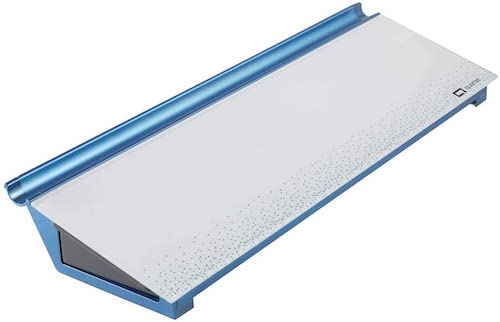
The non-porous glass does not absorb ink, so Quartet guarantees (for 15 years!) that it will not stain or ghost, and it’s made to resist dents and scratches in case you have a cat or tiny human (or co-worker who behaves like either one) visiting your desk. So, write your task list or the phone numbers you’re transcribing from voicemail, erase, write something completely new – all to your heart’s content.
The writing area is only part of what makes the Desktop Glass Whiteboard Computer Pad useful. The item as a whole is designed to sit between your keyboard and your monitor, and the built-in storage drawer slides out to expose space for markers, sticky notes, flash drives, and whatever you want to keep at your desk while maintaining a clutter-free work environment.
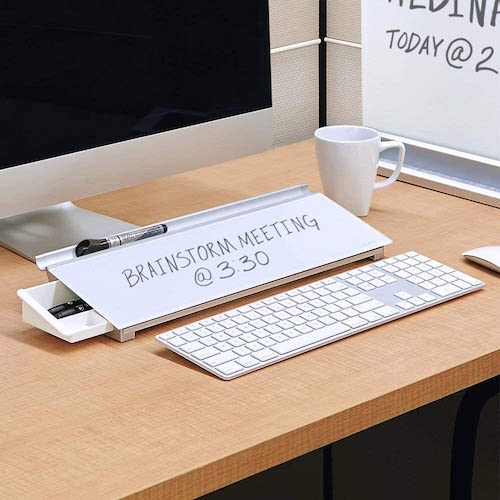
There’s also a small trough at the top of the angled surface where your dry-erase markers can nest comfortably until you write your next reminder.
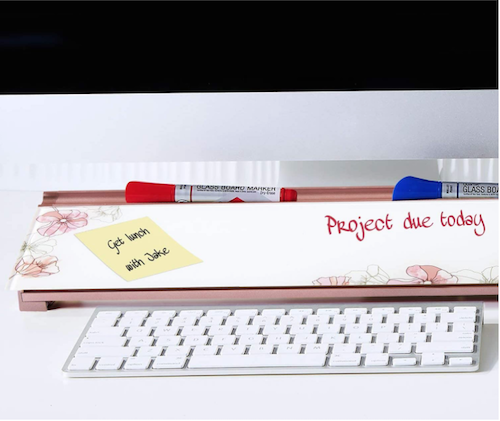
The Quartet Glass Dry-Erase Desktop Computer Pads come in five styles: White, Marble (grey with gold accents), Floral (white with pink accents), Dot (white with blue accents), and Black (with silver accents).
Reviewers advised that while a variety of dry-erase markers will work, the Quartet brand seem to have the best staying power and erase the most cleanly, so caveat emptor. I should also note that it’s not immediately obvious what color dry-erase ink colors would be visible on a black background. It appears the black version comes with white dry-erase marker.
The different versions range in price from $27-$34 on the Quartet website, and $34-$37 on Amazon.
Organize Your Space
Organize Your Home 10 Minutes at a Time Deck of Cards
Longtime friends of the blog and beloved NAPO-Georgia colleagues Diane Quintana and Jonda Beattie have had their own, separate professional organizing practices for some time; they’ve also been collaborating on projects, including speaking gigs, classes, and their children’s books, Suzie’s Messy Room and Benji’s Messy Room.
Recently, Diane and Jonda joined forces to create a collaborative company, Release * Repurpose * Reorganize, and even wrote a book together, Filled Up and Overflowing: What to Do When Life Events, Chronic Disorganization, or Hoarding Go Overboard. But apparently, even that wasn’t enough excitement for them!
Diane and Jonda have created the Organize Your Home 10 Minutes at a Time Deck of Cards. Fully aware that most people don’t have the desire, motivation, or stamina to conquer organizing an entire room or space all at once, they’ve created a 52-card deck to guide you through organizing your home step-by-step, one 10-minute task at a time.
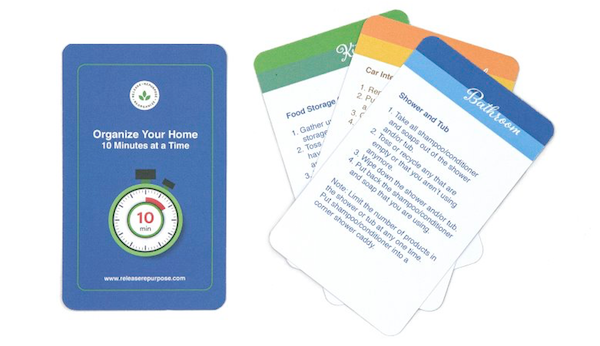
The deck includes two instruction cards to help you get started, plus 50 categorized task cards for coping with typical areas of a home, including kitchens, closets, bedrooms, bathrooms, family rooms, and similar spaces. The top of each card color-codes to the spaces covered, and tells you the space and task to be handled. The body of each card provides instructions for completing the task.
Whether you could use a little personal motivation to get your home organized or want to get your family (or housemates) in on the organizing action with a little competitive guidance, Diane and Jonda have you covered.
The Organize Your Home 10 Minutes at a Time Deck of Cards is available on their website for $19.95.
Organized Travel
As you know, it’s rare for me to report on organizing products unrelated to paper, information, finances, or office space…except when I’m reporting from the NAPO Expo. Given that this post replaces an actual expo report (and the realization it’s my blog and I can make my own rules!), I’ve got one more product to share.
Hang|Fold
HangFold calls itself a “travel partner,” to prevent wrinkled clothes. As someone who despises ironing and generally owns an entire travel wardrobe of (upscale) polyester and spandex in order to avoid ironing, this pricked up my ears. According to the company, Hang|Fold allows you to pack shirts and delicates — perfectly folded — into your suitcase, and then once you get to your destination, you don’t have to worry if there will be enough hangers. The hangers are built in!
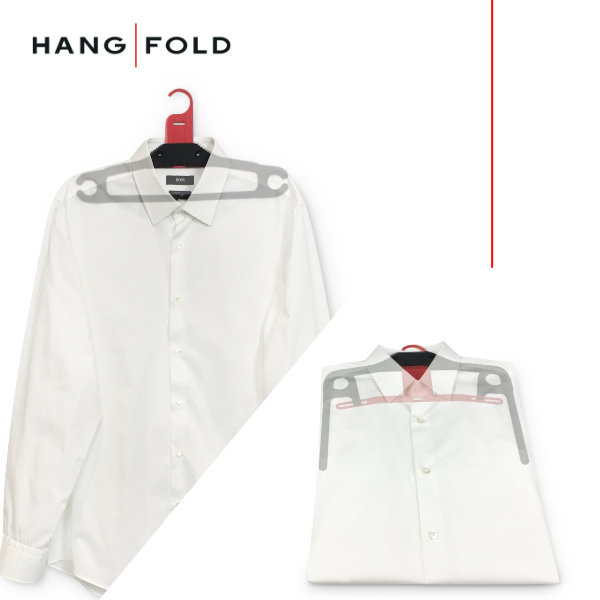
Hang|Fold is a hanger, but it’s also a template for perfectly folding shirts, sweaters, and other clothes to make them both suitcase-ready while traveling and hanging-ready for when you get to your hotel or home-share. (Remember hotels? Remember traveling?)
Everything you fold goes into your suitcase the same size, as if you were using Dr. Sheldon Cooper’s Flip & Fold method, and it all comes out smooth, unwrinkled, and unsquished.
Hang|Fold is less than a quarter of an inch wide and measures 15″ long x 7.5″ high in the hanger position. In template mode, it’s less than 12” x 10”. It is a one-size-fits-all product. Pull up or push down on the hanger to change modes.
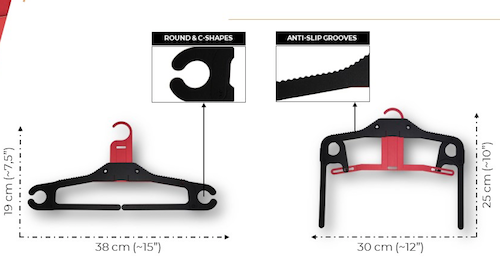
Hang|Fold features rounded edges and C-shapes, as well as anti-slip grooves, so no pointy shoulders or unseemly clothing dents!
Hang|Fold weighs about the same as a dress shirt (6.34 oz) but is capable of supporting more than 5 1/2 lbs. on the shoulders and more than 6.6 lbs. on the trouser bar. It’s light weight, but it’s no lightweight, if you know what I mean!
Hang|Fold is a patented product made 100% out of recycled polypropylene (PP), and is produced in the European Union (Spain) by ISO 9001-certified manufacturers, ensuring the quality and sustainability.
While I don’t usually promote products that are in crowdsourcing mode, in case they don’t come to fruition, I liked that the company is thinking about the environment as well as the future of travel:
Juan Flores, CEO at Hang|Fold reports that, “It has not been easy to move ahead with a project created from scratch in the middle of a pandemic, especially with a product aimed for travelers and a business model that defies the status quo in production, financing and materials used. However, despite all the challenges faced, we’ve launched our crowdfunding campaign in Indiegogo and shared this dream with our customers hoping they will join and support us.”
It’s not available yet, but is going live on April 13, 2021. You can sign up at Hang|Fold’s Indiegogo page to get notified when the campaign goes live and to get a 45% discount. Until then, see Hang|Fold in action:
Usually, my NAPO Expo recap runs for a few posts, and it’s quite possible that in the run-up to the 2021 NAPO Conference, I might get more sneak peaks at new and unusual organizing products. Until then, share what you think of these, and let me know if you have any of the items I’ve profiled.
Affiliate Disclaimer: This site uses affiliate programs to help generate a supporting income which allows us to continue our work and provide you with the best overall experience and valued information. If you have any concerns, we suggest you do not click on any affiliate links found throughout the website or blog. If you are uncertain as to the resulting link’s destination, you may hover your cursor over the linked material to see where it goes. We will always provide you with a company or agency name, which you can type into any search engine in order to reach the site independently of our links. For more information, please see the Affiliate Tracking section of this site’s Privacy Policy linked at the bottom of each page.
Follow Me