Archive for ‘General’ Category
Treasures of the NAPO Expo: Paper (and Plastic) Solutions for Organizing Paper
Last week, I shared some of the wonders of the vendor expo at the annual conference of the National Association of Professional Organizers. You may wonder how exciting an organizing expo might be. Well, imagine yourself in a candy store, a cozy bookshop, a George Clooney emporium…picture being surrounded by the newest and niftiest of whatever floats your boat.
Now imagine Paper Doll and her organizing cohorts and you can imagine the excitement that abounded in the NAPO Expo, with about a thousand attendees (organizers and exhibitors), in an open-air, fully-attended, air conditioning-challenged annex. From Thursday’s boxed luncheon to the closing bell after the awards ceremony, the Expo was a frenzy of sampling, research and shopping.
This week, we’ll review some of the paper (and plastic) non-digital organizing tools that caught my eye:
 The
The 
by Oprah’s buddy and previous Paper Doll mentionee Peter Walsh (in cahoots with Office Max) was the freebie that generated the most excitement. Many of us had seen a preview webcast designed for industry members, and we were all eager to see the elements of the system up close. The Starter Kit contained the following:
Document Wallet (1) —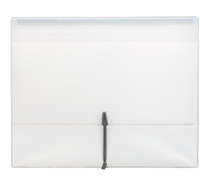 A sturdy, inch-thick rectangular, boxy but flexible project envelope with an elasticized closure, is perfect for containing file folders, document sleeves, loose papers and more. An interior sheet of plastic hugs the back panel with just enough space for one piece of paper, allowing you to insert a customized cover page or labeling system. The wallet is just translucent enough for some bold typeface to be read, or you could insert different colored sheets in different wallets to color code each for your needs: financial, legal, medical, household, personal, etc.
Document Sleeves (3) — Unlike file folders, these are more like sheet protectors, bound on two sides, and open on two sides (think: a capital “L”), allowing papers to easily slide in. Although most of the [In] Place items are translucent, the sleeves are slightly more opaque, blocking content from prying eyes. The back of each document sleeve is slightly larger than the front, making it easy to use the enclosed, oddly-shaped Post-Its for color-coded labeling.
Document Envelope (1) — Although the Starter Kit includes only one example of this less-opaque, patterned, snap-closure envelope, if you were to buy a packet of document envelopes, you’d receive three different assorted patterns. Mine has a cute little diamond pattern on the front and reverse of the envelope, while the envelope flap is pattern-free. Although more translucent than the document sleeves, the envelopes also provide good coverage for your sensitive materials.
File Folders (3) — These were the least appealing items to Paper Doll, as instead of left, center and middle tabs, as one sees with standard file folders, the top tab (i.e., the top “back” of the folder extends almost the full 11 horizontal inches, and there are faint white markings to indicate where the special narrowed-top Post-Its can be affixed for color-coded labeling. The file folders also have white horizontal markings on the reverse side (five abreast above three larger ones abreast), to allow for labeling directly on the poly folders with the enclosed erasable marker.
Super-Sticky Post-It Note Block (1) —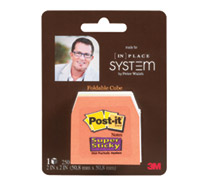 The one in my kit is white, though myriad colors are available. The narrowed top of the notes (as if someone were trying to make them look more like little houses) allows them to appear similarly-shaped to standard file label tabs.
Binder Clip Tabs (5) — 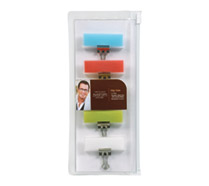 Picture teeny tiny alligator clips. Now, change the black part to sliver and affix sturdy color coded plastic tabs, similar to the kind usually used to label hanging folders. The nifty part is that there are rubberized coverings over the tiny clip handles, allowing them to better clip the paper. The clips are designed to group and bind similarly themed file folders.
In addition to these items in the Starter Kit, the system also includes binder clips (like the binder clip tabs, but used when you don’t need the labeling function), poly wallets to hold the little house-shaped Super-Sticky Post-It Notes, expanding files, file totes, interlocking hanging folders, magazine files, desktop sorters and a rolling case file to take the whole system on the road.
A few keys about the [In] Place System:
- The obvious advantage of the [In] Place system is durability. Paper files and folders bend, crease, tear and generally can’t stand up to tough treatment. These poly files, sleeves, wallets, folders, etc. should stand the test of time.
- Practically all of the elements of the system are made of a translucent, slippery polypropylene plastic. This is an advantage for people who like to vaguely see the contents of their file and project folders without opening them, yet desire privacy from prying eyes. Unless the contents were printed in bold type in a large, clear font, it’s unlikely that anyone looking over a shoulder could make out enclosed text.
- Another possible advantage, which many organizers originally perceived as a disadvantage, is that the system is largely color-free. There are color Post-It labels and binder clips, but the white/clear poly materials provide a neutral platform upon which a user can create customized color themes for organizing and accenting.
- For people who love a pre-built system, prefer poly to paper and either live near an Office Max or will order online from OfficeMax.com, [In] Place could appeal.
- For those who are unsure of the recycle-ability of polyproplylene, prefer colorful folders to color-coded labels, who want more variety (or bargain options) than Office Max might offer, it’s still worth checking out the video and web site to see what creative ideas the system can stir.
BUT WAIT, THERE’S MORE! Actually, lots more to report, of items that require far less explanation.
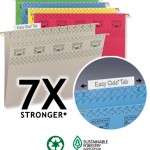
Filed under “great minds think alike”, both Smead’s Tuff Hanging™ Folders and
Esselte’s Pendaflex HangTuff™ Hanging Folders offer a huge leap forward in the world of hanging folders!
Smead’s Tuff Hanging Folders purport to be seven times stronger than the competition (one assumes that’s a comparison with standard hanging folders) and are 40% stronger in order to resist some of the major hanging folder problems–bending and bowing (of the rods) and tearing of the folders. The rods have been specially-designed and reinforced; the rod tips are coated for extra smoothness and strength. If you’d like to try your hand at testing Tuff Hanging™ folders, click to get a free sample. They run out quickly, but check back often.
An associated highlight came with the display of Easy-Slide Tabs. Instead of those icky plastic hanging file tabs that never fit where they ought, Smead has created a new type of tab that slides into place (on standard or “Tuff” hanging files). You simply slip the tab onto the folder and secure it in place by aligning the tab notches with the pre-cut folder slots. Better yet, the tab can be easily repositioned by just flexing (it’s easy-peasy: just squeezy!) and sliding it to the new location.
Unfortunately, Pendaflex’s HangTuff™, won’t be available for sale (or photo ops) until this summer. However, our NAPO Expo samples state they use SureHook™ technology and tension-spring rods to keep the rods from bending, enabling the folders stay on the hanging rails. Happily, hanging files from Esselte/Pendaflex and Smead can be used interchangeably, so you can expect a Paper Doll Hanging Folder Death Match sometime before Labor Day!
Back to Smead, regular readers know how much Paper Doll loves tickler files, so you can imagine how pleased I was with a number of their newer binder-style products:
Smead Tax Organizer 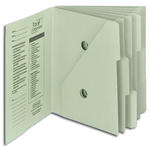 has six secure pockets (for convenient and safe transport), as well as easy instructions and tax checklists printed on the internal cover.
Smead Weekly Organizer 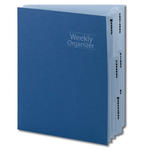 is a less intensive version of my beloved tickler file. Instead of slots for 31 days and 12 individual months, this weekly version has pre-printed dividers to create a slot for each day of the week. Separate your task-assigning papers, calendars, and projects easily for when your life needs to planned one week at a time…and when you can’t even imagine thinking about next week, let alone next month.
Smead Project Organizer 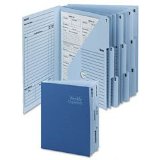 is not officially “new”, but deserves a lot of love in the age of project management software. Too often, all of the project paperwork tends to be forgotten in the glitter of Basecamp and MS Project. Each binder has a stiff, durable cover, ten secure pockets with tough two-ply numbered tabs, and spacious areas for listing task follow-ups (date assigned, tasks, assignees, start and end dates) and notes.
While I’m a big fan of all of the above Smead organizers/binders, which are made of 10% recycled content and 10% post-consumer material, I’m less enthusiastic about the Smead Travel Organizers, 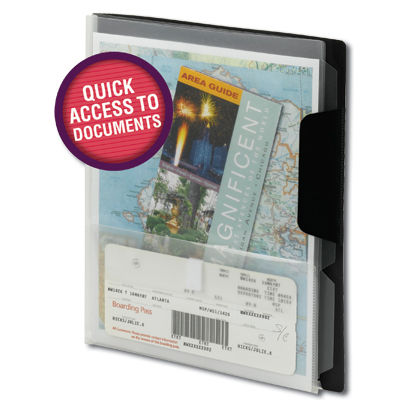 which are more like durable sheet protectors than binders. Made of a clear, acid-free archival polypropylene that seems to lack the quality or the durability of the [In] Place products, the Travel Organizer has three clear plastic tabbed sheets, a stiffer plastic backing and a small #10 envelope-sized, Velcro-closured envelope attached to the front divider. The pocket is designed to hold boarding passes and receipts, while itineraries, notes, flat maps and confirmation numbers would be easily slotted in the tabbed pages.
While the above products for organizing paper were my favorites of the new items, you might also want to check out:
- Family Facts, makers of binder-style planners including the Family Life Organizer & Planner, GO planners for busy parents, Pregnancy Planner, Wall Calendar, Peace of Mind Planner for health and estate planning and School Year Memento Keeper.
- Freedom Filer, a NAPO Expo perennial, is a self-purging file system that comes in ready-made systems or customizable kits.
- Priceless Legacy is an intriguing option for preserving a loved one’s legacy by collecting photos and memorabilia and conducting interviews with Legacy Consultants to create “This Is Your Life”-style histories in hardcopy book form. It’s less an organizing tool than a way to collect information in a unified display format. (We’ll discuss Priceless Legacy in the future, when we talk about creating customized books.)
- Recipe Relish’s Recipe Nest has a newish design for collecting of your recipes as full-page documents. It’s a combination box, clipboard and easel made of spill-proof vinyl in designer colors and patterns, with special themes for particular types of cooking.
If you’ve already used any of these products and would like to share your opinion, please leave a comment.
Next week: a rundown of NAPO Expo’s electronic/digital offerings for organizing your photos and documents, keeping track of your tasks and appointments, accessing helpful lists and more.
The Secret World of the NAPO Conference 2009: An Intro
For those of you who follow multiple professional organizers, either in the blogosphere or in social networking (Twitter, Facebook, etc.), you’re probably aware that most of us snuck off to Orlando last week to learn about the latest and greatest in the organizing industry at the annual conference of the National Association of Professional Organizers (NAPO).
While one pal got a kick out of teasing that NAPO was a conference focused on napping, he wasn’t entirely wrong. After all, getting organized helps you sleep better at night, without the stress of tangible (or temporal) clutter. Plus, nobody dreams a more delighted dream than a professional organizer whose day has been filled with talks of filing and decluttering and time management (oh my!)…
We attended productivity classes with names like Detox Your Inbox: Overcoming Email Overload presented by the amazing Lauren Halagarda of Organize B.I.T.S. & Bites, An “Apple” Today Keeps Disorganization Away, a Mac productivity class taught by clever D.C.-based professional organizer Scott Roewer of Solutions by Scott, and Time Management in the Age of Speed, a fascinating philosophical and strategic look at hurry sickness and managing the pace of life, delivered by Canadian time guru, Harold Taylor.
Residential organizers sat in rapt attention, learning Residential Organizing: Tips, Tricks and Tools from veteran Sue DeRoos, while Casey Moore talked about Quantifying Progress in the Office Client. Other classes covered how to provide motivation and stem client backsliding, exploring feng shui and step-by-step solutions for home relocations, investigating green organizing solutions and serving senior citizens, the chronically disorganized, clients with disparate processing and learning styles. (Of course, we were also learning how to run our businesses more efficiently, including how to communicate with all of you via social networking, blogs, podcasts and traditional media.)
We said goodbye to our outgoing president of the past two years, the indefatigable Standolyn Robertson, and a hearty hello to our incoming head honchette, Laura Leist. There was eating, drinking, sunning by the pool and a ridiculous amount of Twittering done by all. There’s even a rumor that Geralin Thomas led (and Twittered) an evening poolside exploration of the motivational aspects of RickRolling, including my own virtual mention of the Muppets’ own Beaker getting into the act.
In other words, it’s a small world, after all, and for a few days last week, NAPO conference attendees were organizing it, and learning how to help you organize it more effectively, more effortlessly, and more enjoyably. And for those of you who imagined that most professional organizers were more like this:

(Grant Wood’s American Gothic)
the truth is that we’re more like this:

Of course, learning (and eating and sunbathing and RickRolling) were not the only happenings at the NAPO conference. We all had the distinct pleasure of getting our excited little eyes and hands on the neatest and newest products and services in the organizing industry.
Some were new residential products from established players, like Rubbermaid’s Premiere line of food storage containers with the Easy Find Lids (about which, Paper Doll will have a surprise for readers in the near future) and Ziploc’s new Flexible Totes for those who desire some see-through squishiness for their storage needs.
Others options were new products from new companies, like Clip It Up from Simply Renee. 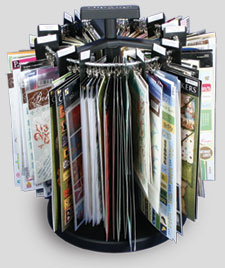 Modeled on the idea of the clothing racks in department stores, it lets you enclose small things (like scrapbooking doodads, recipe cards, hair ribbons, decorative items, outfit accessories, Barbie clothes…) in miniature hanging bags. The bags can be labeled, the items “paged through” as one might do with apparel, and different styles/versions are being developed for work and play. (I can definitely imagine interior designers using the “swinging wall arm” for fabric samples and home-schoolers using the system to organized flashcards.) Of course, there were also new services on display this year, like the adorably named and market-expanding College Hunks for Hauling Junk.
Of course, to a Paper Doll, there is nothing more exciting than finding new solutions for handling family, home office and business paperwork. Thus, in the coming weeks, I am looking forward to sharing with you the best and most interesting of the products that allow you to organize your papers and/or avoid them altogether using technology.
From Pixily to Neat to ScanDigital, from Smead’s Organomics to Esselte’s Pendaflex line, from Collectify‘s digital inventories to Xamance’s Xambox, a document scanning whirligig (whose marketing provocatively states “Thou Shalt Not Sort Thy Papers!”) to Peter Walsh’s see-through In Place System for Office Max, to ListPlanIt‘s 400+ planning pages, innovation is spreading organizing solutions far and wide, and Paper Doll hopes you’ll join in to review and chat.
Over the next few weeks, I hope to share my take on some of the most intriguing new products and services, and I’ll be linking to what other bloggers have to say. If you’re a professional organizer blogger who attended this year’s NAPO conference and want to share what you thought with Paper Doll readers, please send a comment, a tweet or a signal by carrier pigeon (if you reject technology), and I’ll be sure to point readers to you.
Until then, please know that the professional organizing community continues to commit to you, the consumer, to learn and grow, to challenge ourselves so that we might better serve you. And if that means having to go to places like Orlando, Florida…well, we’re willing to make that sacrifice. We’re never gonna give you up, and we’re never gonna let you down.
Zooming With Zumbox
You can peg the children of Sesame Street and The Electric Company by their responses when you say something like “phenomena” (MahnahMahna…do doot de doo doo) or “You got soup?” (That’s Rita Moreno and Morgan Freeman’s Menu Song!) Similarly, people of a certain age, like Paper Doll, get a particular thought when they hear the Z and M sound, such as when the wide-eyed, vaguely European boy in the Mazda commercials intones “Zoom Zoom”. In fact, we get an uncontrollable urge to shout “Boston, Mass oh-two-one-three-four. Send it to Zoom!”
There’s some new zzmm buzz on the web these days, with a green twist that should appeal. Have you heard about Zumbox?
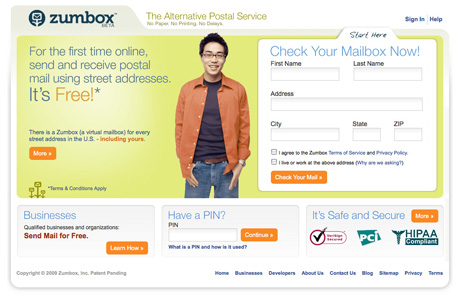
Right now, the site only serves the U.S., but has an intriguing business model to save the trees and eliminate the piles of bills, letters, investment prospectuses and junk mail letters that show up in our home or office mailboxes.
It’s not that you’ll get less mail, per se, but if the idea catches on, you’ll get less paper mail, and you’ll be able to control who can send you mail (Yes! to the shy but environmentally-conscious new neighbor who doesn’t know your email address; No! to the marketers trying to scam you about foreclosure protection).
Your street address is a matter of public record; even if you’ve opted out of receiving catalogs and other mail, paper mail keeps coming your way. But if green is your favorite color, here’s an option to limit the paper you do receive from people who have your physical address, without having to share your email address with anyone who don’t already trust to not send you the latest hoax or chain letter.
Zumbox posits itself as an alternative postal system, and they’ve created a virtual mailbox platform to match up with (they claim) every mailing address in the United States…including mine, yours and, one assumes, George Clooney’s. The point is that any business or person can send an electronic message to any who has a physical address, and the person who resides or works at that address can receive the message without a single tree cut down or paper cut received. You need not give out your email address, but you can still access the message electronically instead of having a mailbox full of paper.
The idea is that businesses, the folks that send the bulk (no pun intended) of the paper mail, will eventually need to switch over to a digital platform, but given that most internal records and mail systems are based on geography, it makes sense to have a digital platform that depends on getting mail to someone at a geographically-specific address.
It took Paper Doll some time to get a handle on exactly what Zumbox could realistically offer, so I walked myself through the steps on your behalf:
1) Go to Zumbox.com and register.
2) Provide your name and mailing address.
3) Agree to the boilerplate terms of service and privacy policy.
4) Confirm that it’s really your address.
It takes about 10 seconds unless you’re a really slow typist. You’ll immediately see one new Zumbox welcome “mail” in your account (similar to a web mail account).
You’ll also be notified that you’ll be getting an actual U.S. letter within a matter of days, at your home/office address, with your PIN number. This is the only time they’ll send paper mail, and one assumes it’s to make certain you haven’t pretended to be your neighbor to purloin an account. I registered on a Sunday, the envelope was postmarked Monday and I received it (three time zones away) on Thursday.
5) Return to Zumbox to type in your PIN (this one time only) and complete your account registration (with just a few additional pieces of info and a repeat confirmation that the address in question really is yours). From then on, you’ll log in with your selected username and password.
From there, you have multiple options:
- View mail you’ve received–It’s a nifty visual wherein you see what appears to be the “outside” of an envelope or the “front” of a post card. It seems it’s been designed to have the feel that you’ve just come from your mailbox and have spread the mail out on the counter to see what’s worth opening first. One imagines that as time goes on, there will be an option for a more typical, less graphical, inbox setup.
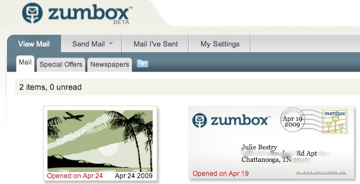
(Note: My attempt to quickly learn iPhoto to blur my address is imperfect…It’ll actually be crystal clear when you’re looking at your own account online.) Click to view and any envelope/card icon “opens”, letting you view what the actual mailing would look like if you’d received it on paper.
- View and read national, regional or local newspapers to which you’ve subscribed. (Of course, this is dependent upon publications making their materials available digitally, but that’s already happening more and more often.)
- View mail you’ve sent–In this section, mail is organized exactly as it would be in a typical webmail inbox, indicating various elements like date, mail type (postcard, letter, other), number of views, etc. No cutesie graphics here.
- Send postcards to any street address for a Zumbox user (or someone you, and Zumbox, expect to become a user). I sent one to myself as a test, and my inbox shows a cute picture postcard, the message for which I can see with one click.
- Send a letter to any street address for an actual or potential Zumbox user.
- Send invitations, birth announcements, church bulletins or anything else you might send in an envelope or on a postcard. Zumbox provides a mail wizard to send marketing campaigns for your business on a geographically-targeted basis. This means sending to any one of 150+ million U.S. street addresses you might have in your own address book or database. If you’re running a business or non-profit, you can select a specific geographic region–pick a city, state, county, zip code, street, specific building or even a mileage radius from a specific address.
Multiple formats are supported…you can send a Microsoft Word document or a PDF, raw data from a customer relationship management system like ACT, accounting software output, graphics, video, audio, HTML and oodles of formats, discussion of which is more suited for a technical blog than one on paper-decluttering. There’s generally no need for scanning, because most of what is sent in the mail starts out in digital form. If you like the marketing/business applications, you can check out the tech-y page here, or better yet, contact Zumbox directly. (Paper Doll found out about them on Twitter.)
Other options including maintaining an address book and/or blocking senders from getting their messages to you, and you can set a daily alert to remind you to check your Zumbox account. But the greenest aspect of Zumbox is that you can set your options to stop receiving paper mail altogether from any given sender.
I like the accountability. With email, spammers can fake an email address and take a stab at guessing your email address to send you email at no cost to them. (Grrrrrr.) With this system, marketers can’t be anonymous (because they have to use their REAL addresses from which to send Zumbox mail), plus you can stop unwanted mail from any sender.
Basically, Zumbox acts as your email address so that any/all the people and companies who send you mail at your physical address (and who don’t have–or whom you don’t want to provide–your email address) can get a message to you…without you having to divulge your email address or further harm coming to the environment.
Receiving mail via Zumbox is free for everyone. Sending mail may be free if you qualify for Zumbox’s free postage system for individuals and some non-profits, government agencies and businesses, but involves a nominal charge (five cents per mailing address) for others, such as greedy, evil, corporate types (kidding!). But even if your small company or organization doesn’t qualify for free sending, with the U.S. Postal Service raising rates yet again on May 11th, these charges are distinctly less than the cost of postage.
Of course, the efficacy of Zumbox depends on two huge “ifs”. First, will senders learn about Zumbox, trust it and will decide to use the service? The pizza parlor around the corner might eagerly do so if they find they’ll get a better response to their marketing efforts if they don’t ask customers for email addresses.
Aside from companies whose central non-revenue tenet is already environmental concern, will banks, utility companies and marketers play ball? Yes, this format is cheaper for junk-mailers to send that stuff you don’t want in the first place, but it’s also easier (and better for the planet) for you to dispose of the message without ever clicking, let alone shredding and carrying it to the recycling…and the senders will never get access to your actual email box.
But will companies buy into the idea? It seems Canada Post is already on the same wavelength with ePost, currently just for electronic delivery of bills, wherein companies send electronic messages to your ePost account, rather than to your email address. For those who change email addresses often and don’t always remember to notify corporate correspondents, this might work. Or not.
Second, will recipients set up accounts to receive digital versions of their mail at Zumbox? Certainly, if/when tha occurs, paper mail can be canceled and environmental joy shall abound! But none of this, if it happens at all, is going to happen overnight. Zumbox will have to communicate with potential users to make sure they understand that this isn’t a twist on something like Earth Class Mail, a company that charges receive your mail, open it, scan it and email it to you.
Paper Doll is no corporate trend prognosticator. I didn’t think people would create queues of DVDs they might want to watch, someday, and agree to pay a monthly fee for the privilege, because I considered movie viewing as a spontaneous, instant-gratification, pick-up/put-down/pick-up/carry-around experience. But that business model, technological advances, and Netflix killed the radio star (oops, I mean video store).
As I get on the road to the National Association of Professional Organizers annual conference to see what’s new and great in other organizing-related products and services, I turn to you to talk amongst yourselves about Zumbox. Great idea? Overly ambitious business model? What do you think?
Celebrate “Organize Your Files” Week…With Ice Cream!
The third week in April is designated “Organize Your Files” Week. Professional organizers like Paper Doll are all beside themselves with joy and celebratory glee for this paperific observance. What about you, are you all aflutter over this holiday week?
No? But organizing your files with lift your spirit. And there’s ice cream at the end of this post!
I understand how overwhelming it is to face a clock ticking to zero minutes, zero seconds, and the need to find an essential piece of paper. In fact, many of you probably experienced exactly that stress-inducing situation last week, striving to prepare your tax returns while searching your home for files or papers you knew you’d just seen days (or moments?) ago. (Our Canadian friends, who have nine more days to file their own tax returns, maybe going through this same anxiety now. Eh?)
The pandemonium of tax week is almost assuredly why the third week of April became “Organize Your Files” week. After all, aren’t you more likely to take better care of your health in the aftermath of an illness? Don’t you pamper your car a bit more after you’ve had expensive repairs? It’s human nature to give greater attention to something after a crisis. With tax return chaos in your active memory, don’t you want to avoid that kind of pain and anguish?
So, whether your files are practically tip-top, look like a tornado hit, or are non-existent, here are some basic strategies for getting in order.
Finish your taxes.
You thought you were done, just because you filed with the government? Filing your return just puts you in Big Brother’s good graces, but aren’t your own needs more important? Gather up your copy of your tax return and all your supporting material, and put them in a new folder labeled “Taxes-2008”. (If you did your taxes online using TurboTax or a similar program, burn the PDF version of your taxes to disc or copy to a flash drive and keep them in a safe place.)
Repeat with each year’s return and supporting material, and put the folders in reverse chronological order. If you have oodles of space (and slender files), keep them in the financial section of your Family Files. If you have 30+ years of returns, own a home-based business, or your tax files yield phonebook-thick folders, gather all but the most recent return, and store them in a banker’s box or (better yet) a fireproof safe, accessible, but not taking up your prime real estate. If you’ll need frequent access to the old returns over the coming years (e.g., you’re carrying a loss forward over multiple years), affix tape flags as page markers to make it easier to find the information you’ll need at tax time.
Don’t tax yourself.
Seriously, after the exhaustion you’ve forced upon yourself in getting your tax returns together, don’t penalize yourself by keeping your tax-related paperwork in a shambles. Create a brand new tax prep folder or folders for the current year. If your financial life is simple, one “Tax Prep-2009” folder should suffice. If complexity is the name of your financial game, have a hanging folder with interior folders for Charitable Donations (e.g., confirmation letters, canceled checks), Medical Expenses/Health Savings Account Expenses (e.g., paid bills, pharmacy receipts…but remember you can always get a tax-year summary print-out of expenses from your pharmacy), Childcare Expenses and any other category for which you or your family tends to have lots of supporting material.
(If you run your own business, on any scale, you’ll need careful records for each deduction category. We’ll be talking about small business records in an upcoming blog series.)
If Your Files Are All Piles…
If you don’t already have a filing system and your papers are all over the place, you’re probably depending on your memory to know when and where you saw any particular document. To keep that straight in your brain, you’re blocking off space you could be using for conjugating naughty verbs in Italian or remembering the name of that person walking towards you right now whose name you always forget (gulp) just as you need to be introducing her. Save the brain strain…and turn the piles into files.
Remember that all of your papers belong in one of five categories:
- Financial
- Legal
- Medical
- Household
- Personal
This means creating five simple categories of files will keep you out of bankruptcy, prison, or (possibly) the hospital, and will help make your home, professional and person life easier and more enjoyable. So, if you’ve never created a filing system, or yours is so old that your paper weights are naturally-occurring igneous rock formations, begin by reading Paper Doll‘s classic blog series on Family Files:
- Family Filing–As Easy As (Eating) Pie–This intro will help you figure out what supplies you need, and explains a bit more about your basic categories.
- Financial Filing–Scrapbooking Snapshots of Your Money’s Life–If you have a sense of what kind of financial records you should have…once you unearth them from the piles, you’ll know what to keep and where to keep them.
- Mom, Why Is There a Receipt Stuffed In The Turkey?–This post continues talking about the flimsiest, tiniest financial records and how to deal with them.
- I Fought the Law…And the Paperwork Won–Your legal paperwork keeps you out of jail, prevents someone from being able to make decisions for you (unless that’s what you want) and proves ownership of the things for which you’ve labored. Treat your legal records with respect and you’ll win most of your legal battles without further effort. (What, you’ve never watched Judge Judy?)
- Patient: Doctor, It Hurts When I Do This! Doctor: Then Don’t DO That!–This is a basic overview of keeping your medical files in order. For an advanced lesson, read my recent Vital Signs blog series on medical paperwork.
- Paper Dolls Live In Paper Households–This gives you the basics for keeping your household documents in order. For an extended look at the user’s and owner’s manuals, visit our mini-series from the last two weeks, starting here.
- I Hope Nobody Ever Writes A Nasty Tell-All Called “Paper Doll Dearest”–It’s easy to get your personal papers, everything from reviews of tourist attractions you’d like to visit someday to your third grade report card, mixed into a wacky mess. This article will help you delineate personal (academic and professional) history and personal interests.
If you’ve got a desk or even a room of mismatched papers, grab a stack and clear enough floor space for yourself and five piles (financial, legal, medical, household and personal). Just sort, and trash/shred anything that’s no longer of use to you. Once you’ve got your five stacks, it’ll be much easier to break the piles down by accounts (banks, brokerage) or categories (transcripts, rsums, certifications) and create the labeled folders you’ll need.
Once you’ve read through these posts, if you still have questions about how to organize your filing system, add a comment or send an email. Organizing truths aren’t secrets…Paper Doll wants to share with everyone!
Halt Backsliding and Evict Squatters!
Two banes of any filer’s existence are backlogged piles that never to made it into the fabulous filing system, and squatters, files that no longer contribute any value but take up prime real estate.
Stop the backsliding by using this week to do a mini-version of the file set-up described in the last section. If you haven’t filed since the last time you read one of my posts about filing, don’t worry–at least you have a system in place, a home for each document. Just sort the files into one of five categories, then start playing the matching game (though instead of duckies or bunnies, you’re going to match all the cable bills or insurance renewals), category by category, until you can easily plunk each sheaf of papers in the front of the right folder. (That’s the beauty of reverse-chronological filing.)
As for the squatters, start with the records retention schedule of your choice and your own good common sense. Move from the front of your system to the back, and take just 10 minutes each day to shuffle through the folders and toss what’s no longer of value. Just as you should discard the spoiled items from the fridge when you’re identifying what you need at the grocery store, the process of evicting these squatters will help keep your filing system “sanitary” and allow you the chance to review file contents.
Extra tips to make filing fun:
For those of you who (somehow) fail to find organizing as luminously fascinating as I, there are ways to make it easier:
- Treat yourself to good supplies. I’m not saying expensive supplies, but good ones. Three-times-recycled file folders, with wrinkled tabs and torn edges, are the paper equivalent of underwear with elastic that’s lost its zing. You (and your files) deserve better. You don’t have to buy fancy new supplies (though, in two weeks, I will be reporting back from the National Association of Professional Organizers’ annual conference on all that’s new and zippy in office and filing supplies), but you do need to have some standards.
- Label clearly. My research is anecdotal, but I find that people are more likely to file often and according to their own defined rules if their files are labeled with a label maker rather than handwritten. Perhaps typeface is authoritative?
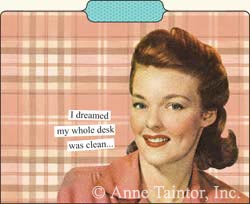
- Opt for color if you’re colorful. If manila is too vanilla, keep your berry important papers from heading down a rocky road. (Sorry, today–4/21/09–is Free Cone Day at Ben & Jerry’s, and Baskin Robbins is selling cones for 31 cents on Wednesday, April 29th. Is it any wonder I’m thinking of filing in terms of ice cream?) What was I saying? Oh, yes, if you’ll be more tempted to stick with your filing routine, opt for colorful or patterned interior or hanging folders. I’m a big fan of anything with an Anne Taintor design
 , or perhaps you’d like something a little more communicative, like these Knock-Knock folders
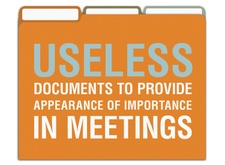 sold at Office Candy and elsewhere.
 - Schedule a filing ritual. People often fail to file because there’s no time built into their schedules to do it. However, although we don’t have “brush teeth” listed in our Blackberries, we remember to adhere to our dental hygiene because we’ve developed rituals. Build filing into your schedule, preferably for two minutes prior to having lunch and three minutes before finishing up for the day, using an on-screen reminder or cell-phone alarm, if necessary, and within a matter of days or weeks, you’ll file without needing to be told.
- Enhance the atmosphere. Filing isn’t brain surgery–it doesn’t take every bit of your concentration. Play music–even make yourself a playlist or mix DVD–for getting your filing done to a syncopated beat. Moderately peppy music makes every task, from laundry to emptying the dishwasher to matching account numbers just a little more fun.
I’d be remiss if I didn’t remind you that “Organize Your Files” Week applies to electronic files, too. Make time to review each digital folder until you’ve trashed the duplicates and digital squatters and made a back-up of everything (photos? financial records? system preferences?) you’d be sad to see disappear in the event of a computer crash.
Happy “Organize Your Files” Week! But please, no presents. Your loyal readership is enough…though I’d be glad to meet you for a celebratory ice cream cone!
Put Manuals On Automatic–Organizing Digital Owner’s Manuals (Part 2)
Are you running out of space for your printed user’s manuals?
Did you buy a nifty gadget on eBay or at a yard sale, only to find it was missing the manual? (Was your manual was lost among your paper clutter long before you started reading Paper Doll?)
Perhaps the manufacturer mistakenly packaged your purchase with instructions written in French, Japanese, Spanish and something that looks like a fortune-teller’s tea leaves, but not the one language in which you are (theoretically) conversant?
No matter the situation, it’s relatively simple to find the manual you need:
- Contact the manufacturer to request a replacement manual.
This works fine as long as you know the manufacturer, they have a (preferably toll-free) phone number in your country and they have manuals available. If you’ve acquired a product in the last few years, and the company is still in business, the only obstacle may be a fee, anywhere from $1 plus shipping to upwards of $30. If, however, you’re trying to find the instructions for a circa 1930 sewing machine, this method may be problematic.
- Find the official web site.
Start with the site map for the manufacturer’s web site, like Kenmore.com until you find the page for manuals. As long as the company is still in business, you stand a fair shot of locating an online version.
- Use standard search engines to locate the specific manual.
Usually, you can type in something along the lines of:
and Google (or your preferred search engine) should yield either the online version of your manual or information regarding how to retrieve it. Please note that this may bring up sites like Manuals Online, which want to charge you for access to a manual. As a last-ditch effort, buying a manual might make sense, but I encourage you to exhaust all possible free options first.
- Bookmark and use any of these nifty, free sites for finding the manual you need.
 DiploDocs (AKA Safe-Manuals.com) is a collaborative site. Once you register (at no cost), you can access any of the manuals in the database by selecting from a list of brands and products, either by using drop-down menus or a search box. The manuals are all smaller than 60 MB and in PDF form. Not only can you find, view and print a manual, but you can also save it to your “personal space” so that you can quickly access it the next time something blinks at you with dismay. You can also participate by uploading and sharing any PDFs of user, owner or instruction manuals that you possess. Paper Doll likes DiploDocs’ ease of brand search (from Acer to Zyxel), multiple language searches and wide variety of categories and brands.
 ManualsMania.com claims that thanks to its community of users, the site offers more than 700,000 manuals. It’s easy to be wowed by a claim of such enormity, but size isn’t everything. Ease of use is paramount, and ManualsMania.com lets you decide whether you want to be associated with a social group of manual-locating pals or just find a manual, grab and go!
Select from brands (ranging from AEG to Zanussi, with lesser-known international brands mingling with Canon, Ford, and Xerox), drill down by product type and select the exact model need. Before downloading a manual, to make sure you have the right one, ManualsMania provides a full preview via Scribd and Docstoc, two social publishing sites. For a hard-to-identify item, skip the brand list and use a text search. If you prefer a more participatory mode, sign up for membership, contribute your own PDF manuals, and chat in forums. There’s no vault for saving your manuals; it’s assumed you’ll save to your own computer. Mostly, ManualsMania asserts they are trying to amass the largest collection of user manuals on the web…and they want us to recycle our paper manuals. Fair enough.
 TheUserManualSite.com, operated by OwnerIQ, lets you search thousands of items by manufacturer, product type and model and download the manuals. From there, you can create a personalized home page with an inventory of your collected manuals, all available in one customized on-site location. It’s also a community where you can seek out advice from other members to solve product problems and read blogs and ownership newsletters to learn about product changes and developments. You can even sign up for updates, tips and solutions, personalized by the products you’ve selected. Your level of involvement can range from stealth mode (for those avoiding Big Brother’s steely glare) to active (not literally) card-carrying member.
 ManageMyHome is a glossy (read: corporate, with advertising) membership site designed to help homeowners with everything from home remodeling projects (way beyond Paper Doll‘s meager skills) to redecorating (ditto) to painting (uh, double-ditto). However, I was captivated by their home handbooks and homeowner education sections on everything from architectural design structures to bathtub plumbing. While this all may be overkill for an apartment-dweller, the site really does cater to the needs of a homeowner, right down to the personalized page for saving and accessing manuals, articles and clippings. To merely find the manual you are seeking, type the brand and model number. However, don’t expect to find manuals for video games, digital cameras or personal electronics. ManageMyHome is all about home appliance manuals.
 The UsersManualGuide.com is a real bare-bones approach to finding the manual you need. There’s no membership, no forum, no personalized home page…which suits Paper Doll just fine. Not everyone wants to sign up for a membership or have to create yet another new password, and the Users Manual Guide serves that audience. There’s no sense that this was created for building any kind of community…there’s no easy way to even find out more about who put the site together, but there’s a charm to the gruff simplicity.
The main screen offers up an outline similar to what one might create for a 7th grade Social Studies project, absent the Roman numerals. While the list of manufacturers covered (Panasonic, Motorola, Samsung, Kenwood, Sharp, Casio, Yamaha, Funai, Icom, Philips, and Sanyo) is shorter than at some of the other sites, the array of product categories and manuals is still dizzying. Even a selection as seemingly obscure as Panasonic’s AV Control Receiver yields 40 model number choices.
Beyond the generalized owner manual search sites listed above, you can also find specialized manual sites, such as:
 ReplacementDocs is an archive specifically for game manuals. So, if you’ve decided to dust off that video game you haven’t used in eons, or you’ve found the perfect game at a garage sale, but can’t figure out the settings sans manual, this site has what you need. The site is devoted to “electronic documentation in a graphical format” and has a Mom & Pop feel; someone named “sleepy” apparently hand-edits each contribution, and there’s an active forum of gamers contributing to and discussing the manuals. For those who care, the site does have a teeny bit of advertising, but it doesn’t interfere with readability or search functions.
 Retrevo is all about consumer electronics, from televisions to camcorders, MP3 players to PDAs, telephones to universal remotes. If you’re frustrated by your wireless router because you can’t efile your taxes (before Midnight) or you can’t bare that drive to Disney Word without assurance that the SUV DVD player will keep you toddlers entertained, Retrevo is a good place to start. While the site is designed to help you search for actual products, compare prices and then click over to an online store to make a purchase (from which, I assume Retrevo gets an affiliate cut), the site’s user and blog reviews, manufacturer info pages and manuals are all available free of charge. There’s a MyTrevo personalized account, but access to manuals is not dependent upon joining or purchasing anything.
 Henry’s, a Canadian company that’s celebrating it’s 100th anniversary, has collected a wide selection of downloadable camera manuals. If you’ve got an older camera passed down through the generations (or from a great yard-sale find), Henry’s may have what you need.
 Appliance 411 is another low-tech, high-yield option for locating PDF versions of much-needed appliance manuals. Rather than warehousing the manuals on their own service, Appliance 411 connects the with the appropriate manufacturer’s website.
 Edmond’s.com, best known for helping consumers select the right used or new price for their needs, has a nifty blog post with links to each auto manufacturer’s site for downloading electronic car manuals. Although the post hasn’t been updated in over a year, one may assume each company’s site has been updated as new cars rolled off the lines.
Whew. That’s a lot of online advice for finding the right manual, but organizing these manuals takes far less effort than keeping your paper handbooks in order. In fact, just a few tips can provide you with easy, organized access to what you need:
- Download a manual (in PDF form) as soon as you acquire a new appliance or gadget. Waiting until you need the manual to go looking for one will waste time at the very point you’re likely to be stressed and cranky.
- Don’t print out whole manuals. Chances are good that your problems involve very specific issues, like needing to know how to install a minuscule battery or set a timer, so printing out a 200 page manual is excessive. Print what you need and maintain that page with your other print manuals, as described last week.
- Create a folder on your hard drive for storing manuals. If you already have a digital home maintenance folder on your hard drive, just create a sub-folder for the manuals. Just set your preferences so all downloads go directly to your desktop–it will be much easier to drag them, en masse, to the right folder.
- Revise the file names for easy retrieval. A file named Panasonic3X45X62e.pdf is meaningless. The same file, named PanasonicVCRGrandma.pdf, lets you know that it’s your direct access to helping your beloved family matriarch cope with changing her VCR clocks for Daylight Savings Time.
- Back-up your manuals folder to a flash drive (or two). If your computer isn’t working, having a computer manual available on the hard drive doesn’t help much. Keeping a back-up on a flash drive lets you borrow a laptop, run to the public library or Kinko’s, or otherwise find quick alternative access without killing a tree to print out the whole manual in the first place (a solution that won’t even work if your computer dies while you’re on the road).
It’s substance, not style, that counts. Why not maintain all the important user information you need digitally, saving space and the environment?

Follow Me