Archive for ‘General’ Category
Trapper Keepers® & Diaper Bags–Keys To Organizing Mobile Paperwork (Intro)
Darling readers, do you remember the Mead Trapper Keeper? Those of us of a certain age might recall the organizational equivalent of the 9th grade Holy Grail, a system whereby all of one’s important papers could get from home to locker to class and back again without getting lost, soiled or mishandled.
For those of you unfamiliar with the organizational magnificence of the Trapper Keeper, let it suffice to say that it was no mere three-ring binder. Beneath that Velcro closure, the three-hole-punched Trappers, like traditional school folders but closed on the top, bottom and outer margins, kept papers supremely, serenely secured. The ability to carry an artistically- (ahem) themed Trapper Keeper was an additional boon to image-conscious adolescents.
(Those of you unfamiliar with the I Love The 80’s splendor of the still-going-strong Trapper Keeper, there’s a modern-day 3D demo and a nostalgic video. And yes, that is Lori Laughlin, in case you’re wondering.)
So, what’s got me thinking about how to keep my Home Ec notes and timeline of the Industrial Revolution sorted and tidy?
Recently, someone asked Paper Doll, “Where do you get the inspiration for posts?” While I’d like to say that I’m so organized that I plan a year’s worth of blogs in a tidy editorial calendar, that’s generally not the case. Often, a particular news event or happening might trigger an urgent need (like an ice cream craving) to post on a particular topic.
Sometimes, however, it seems that fate intervenes and is determined to tell me what my subject should be. First, the day before heading to the National Association of Professional Organizers’ annual conference, the fabulous Erin Doland, editor-in-chief of the must-be-read Unclutterer blog, wrote about having found her perfect laptop bag for business travel. To be honest, at first it was merely nice to know that Erin loves her Tom Bihn Checkpoint Flyer 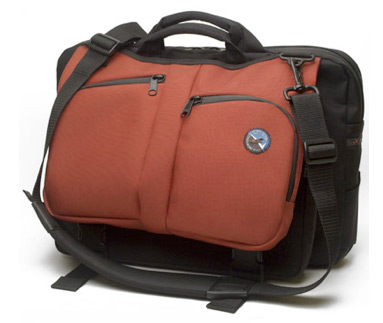 , but it wasn’t particularly useful to me, as I don’t carry a laptop. However, the necessity of keeping one’s stuff organized and portable began to germinate an idea in my head.
Within that same conference week, overwhelmed by all the research material I’d picked up at the NAPO Expo, I dropped my serviceable but seen-better-days Mad About You backpack  (leftover from Paper Doll‘s days as a television program director) on the expo floor and took time out for a stretch of my back and a quick breather.
It must have been apparent to all that I was in need of re-energizing, as I was quickly joined by a bevy of professional organizers, including Geralin Thomas (yes, the same one loyal readers will recall having led a NAPO pool-side session on Rickrolling). Our little crowd began discussing the relative merits (and demerits) of various bags and systems for carrying our portable papers, both for events like our conference and for everyday use. Geralin won the show-and-tell with her display of her Zca Business Backpack 
 (of which, I’ll have more to say in coming weeks).
The fates continued to whisper to me. A few weeks ago, as I worked with a client to help her organize her home filing and bill-paying systems, she recalled that she’d “just seen” her stamps…somewhere. She knew they were in one of the many canvas bags she uses to tote groceries, library books, newspapers, receipts, documents…and apparently, stamps. Unfortunately, narrowing down the main color (red) and theme (Southwestern) wasn’t enough to identify the right bag and quickly find the stamps.
The multiple canvas bag system is no system at all.
For the ladies reading, if you’re the type who moves from purse to purse, you know that unless you have a system in place, you’re going to end up having things you don’t need and needing things you don’t have. It’s no different with mobile paper.
For the parents among you, recall what it would have been like (or imagine) if you had half a dozen or more diaper bags, each with its own collection of necessities. Some bags might have had diapers (possibly in the right size/age group, depending on how long ago you schlepped the bag), some might have had wipes, some the “right” pacifiers and stuffed animals, the preferred (by parent and child) folding changing table covers and clean, season-specific, size-appropriate changes of clothes. But what’s the likelihood you or your spouse would have picked a “totally right” bag every time, to suit all occasions?
Wouldn’t having one diaper bag (or one per parent, at least), fully stocked with the right materials work better? Any mobile paper system must work along the same lines–after all, out-of-date paperwork for the wrong tax is year is as useless to you as newborn diapers when your little sprinkler is toddling.
The bare minimum physical attributes you’d want in either case need would be:
- Defined spaces for each essential item
- Enough space for all essential and preferred items
- Not too much “open” space as to allow items to flop around, spill or get lost
- Secure closures
A good system is more than just the right space; it requires adherence to particular procedures. The diaper bag example, applied to paper or anything else portable, requires:
- Loading all essentials, preferably according to a checklist so nothing is missed
- Unloading all used, dirty, broken, sticky or non-essential items at the end of the day
- Reloading essentials, once again, on a timely basis, preferably upon return to base (home, office, nursery, etc.)
Finally, while working with a client last week to organize her closet, she mentioned that her biggest frustration was that her “mobile office” was not sufficiently organized to constitute an office, nor did she think the fact that her papers went wherever she did categorized it as a mobile system.
As it was, items she brought from her office to her client locations, and those she acquired from her clients, sat in the passenger seat or the rear of the car…unless or until someone (a client, a coworker, a family member) had to ride along, at which point everything got moved to the trunk, where it all stayed until there was a significant trigger for retrieving it.
This is a common enough occurrence for anyone who drives, but it’s particularly devastating to the professional equilibrium of mobile professionals. We professional organizers see this all the time, and while the process itself can be problematic, it’s the end-result that causes real damage.
“The end-result? You mean, when I remember where it is and I look for it?”, clients tend to ask? Well, yes, but there are many other less satisfactory reasons why the sedimentary rock-like layers of the mobile office trunk might experience some shifting plate tectonics. From best, to worst, case scenario:
- You need a document and remember you had it in the car, so it must now be in the trunk. Unless it’s the last thing you tossed it there, it’s probably not on top.
- You can’t find a piece of paper, so you hope it’s somewhere in the trunk, and go spelunking. Lose one turn, do not collect $200.
- A colleague, client, supervisor or neighbor gives you something and stands there, next to your car, waiting and watching as you put it “away”, forcing you to toss it in the back seat or expose your trunk to potential ridicule.
- Your mobile office experiences what is technically termed a hitch in the giddyup and will go no further. This might require extrication of jumper cables to help the vehicle (and those un-filed files) to move towards an eventual goal location. This causes the files in bins and tubs and shopping bags to be moved to the left and right until the cables are located. Worse, you may need access to a spare tire, which more likely requires removal of EVERYTHING from the trunk…and often untidy relocation to the back seat of the car. If the end game is an overnight session with the mechanic, the contents of the no-longer mobile, not-quite-an-office, must be collected, retrieved, and taken home (or to the workplace). (That headache? It’s a bat signal to tell you this might be a good time to call in a professional organizer!)
For mobile office types who need to put their hands on client-specific papers as well as reference documents (either of which they might or might not have expected to need when the day started), a combination system would include:
- A portable-if-you-must filing center (for reference material, one-sheets, glossies, etc.) for back seat or trunk storage includes file crates
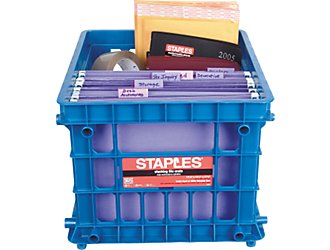 or sturdy lidded totes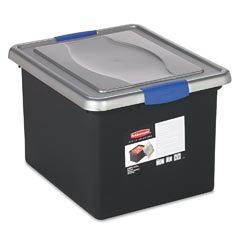
- One or more mobile file crates for when you have to repeatedly drag not only paper, but also supplies or samples, from headquarters to car and from car to various mobile destinations
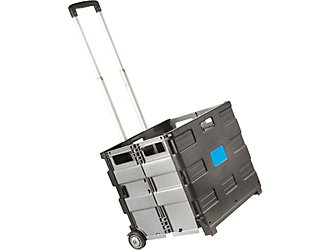
- Front-seat portable file boxes
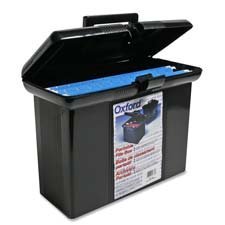 , the equivalent of your non-mobile office’s desk-top file box, to keep the “next items needed” close at hand.
“Perfect” bags for each user, a diaper bag system model for reducing the number and improving the use of tote bags, or a peek inside someone’s mobile office trunk…you never know what might inspire a Paper Doll post.
Whether you’re a student or a business traveler, a busy parent or an overwhelmed mobile worker, it’s obvious that you need a system that lets you get your papers from point A to point B (and often, back again) without loss, damage or fuss. Over the next few weeks, we’ll be looking at the challenges and solutions available in a wide variety of mobile paper circumstances.
Until then, feel free to write in with your own questions, concerns, tips and worries.
Yours in mobility,
Paper Doll
P.S. For you younger readers, here’s a link to a 1990’s era Trapper Keeper commercial. There’s even a Trapper Keeper themed episode of South Park, but be forewarned that the language and content is not what Paper Doll would term family-friendly.
Paper Manners Matter: Cut Card Clutter & Store Social Stationery
In my field, we often find that disorganization is the symptom of a bigger issue. For example, when parents bemoan that our hard work is for naught because the kids will fuss and fume and refuse to follow any organizing rules (even those created with their own input), it ceases to be an organizing issue. It’s a parenting issue.
When a client is pleased with the financial files we’ve organized and the debt-reduction plan we’ve designed, but reports back that the spouse is unwilling to discuss finances, bring home receipts or stop spending money they can’t afford, it’s not about the clutter. It’s a marital (and communications) issue.
And when we unearth oodles of stationery and cards that have never been touched, it may just be a simple session of decision-making, purging, sorting and storing. Is it paper goods addiction or something more?
It’s understandable why people don’t write letters anymore. The messages of daily life are more easily and quickly delivered by phone, tweet or text, and all for less than the cost of a stamp. Paper Doll gets that nobody has the time or inclination to pen:
My Dearest Friend,
…should I draw you the picture of my heart it would be what I hope you would still love though it contained nothing new. The early possession you obtained there, and the absolute power you have obtained over it, leaves not the smallest space unoccupied. I look back to the early days of our acquaintance and friendship as to the days of love and innocence, and, with an indescribable pleasure, I have seen near a score of years roll over our heads with an affection heightened and improved by time, nor have the dreary years of absence in the smallest degree effaced from my mind the image of the dear untitled man to whom I gave my heart.
(Abigail Adams to John Adams, December 23, 1782)
We’re busy. We feel silly being flowery. Postage is ridiculously expensive. But ask yourself, honestly:
- Would you rather receive a hand-written love letter or get a Twitter tweet that says “I <3 you”?
- Can a shout out on your Facebook wall really replace a cheery, heartfelt Get Well card when you’re recuperating from surgery?
- Might anyone possibly think it’s OK to send a message of condolence via text?
Paper Doll may seem hopelessly old fashioned (and at odds with my mission of minimizing paper clutter) by promoting paper communication in the age of the Kindle. But there are worse things than being old fashioned.
So why do people have piles of note cards and stationery that they don’t use? The explanations crisscross the fields of organization and etiquette. Why might you have oodles of unused stationery?
1) You forget the events for which cards should/can be sent.
Open your address/phone book and identify the people whose birthdays, anniversaries and (repeating) special days you’d really like to remember. If you know the dates, put the information on the perpetual calendar that came with your daily planner or plug them into your PDA. If you don’t know the dates, let go of the embarrassment and find out. I’m sure your friends would rather have you say “You know how terrible my memory is–when’s your birthday again?” just once, rather than receive belated cards each year. (If you’re really loathe to ask, check the “Info” section of their Facebook page or ask your embarrassment-free kids or spouse to play Sherlock Holmes.)
If you have a lot of people on your list and you use a Tickler File (and you know I think you really should), hand-write (or make a printable spreadsheet) with the names, occasions and special dates, and pop them in the appropriate month slot. Make a note on your calendar for the first day of the month, and then sometime in the middle, to check to see whose special days are coming up…then use up those cards you have before heading out to buy the ones that are occasion-specific.
2) You fear you don’t have the right kinds of stationery.
Haunted by the cobwebby etiquette directives of the 19th and 20th centuries? Yes, there are officially “correct” types of stationery you’re supposed to have. It’s called a stationery wardrobe, and like a traditional clothing wardrobe, what you own often depends on your gender and stage of life. Yet even Miss Manners doesn’t believe one needs to acquire all of the items allegedly required for a classic stationery wardrobe.
The official word from Crane, the biggest wigs of stationery bigwigs, is that women’s personal stationery wardrobes include(d) letter sheets (trust me, you don’t have these), correspondence sheets, monarch sheets, fold-over notes, monograms, informals (that aren‘t informal), correspondence cards and house stationery (in case, one supposes, your house wants to invite that cute condo out for lunch). The official stationery wardrobe for men is far less complex, as men were assumed to be busying their pretty heads with business and not social niceties.
If you truly care about classic etiquette, get yourself to Amy Vanderbilt. And certainly, if you’re a high enough muckety-muck that you have your own protocol officer or you’re having a formal wedding, you’ll need all the formal, matching paperwork. However, if you just want paper that will keep Aunt Gertrude from looking at you askance, I advise:
Get fold-over note cards in ecru. (It’s sort of a light beige. You’ll know it when you see it.)
Really, that’s all you need. Unless you move in fancy circles, off-the-shelf cards are fine, especially if you’re youngish. At some point, invest a small amount of money in cards embossed, engraved or thermographically printed with your name or initials. For formal social occasions (messages of gratitude or condolence, in particular), these will suffice. (Of course, in my best Miss Manners’ Younger Cousin voice, I’m asking “you do know the difference between social and business correspondence, don’t you?”)
All those other goofy cards with pictures of animals or emblazoned with cartoons? If you’ve been using them all along for informal social notes, keep on. However, if you’ve just been collecting them and letting them gather dust, it’s time to purge the clutter. Some ideas for what to do with cards you won’t ever use socially:
- Write notes to put in your child’s lunchbox or (unstamped) in the mailbox for “Special Delivery.” The younger your child is, the more of a treat it will be to have mail of his or her own, especially with a message of encouragement on a day of tests or tryouts.
- Donate colorful stationery to local daycare providers for Arts & Crafts.
- Leave a box of cards in the ICU waiting room of your local hospital with a note saying “take one”. Often, family members would like to leave a note of gratitude for a caregiver or aid, but will having nothing upon which to write.
- Donate unused boxes of stationery or cards to non-profit thrift stores or charity shops.
- Set free the picture postcards you’d otherwise never use, via Postcrossing.

- (Once you sign up, you’ll get an address and Postcard ID, and then be able to surprise some participant with a postcard from a place that seems exotic to them (even if it’s just down the road from you). You’ll end up receiving postcards, too. Enjoy, then toss!
3) Your stationery is so disorganized that you forget what you have or can’t find what you need when you need it.
Typical stationery errors include:
- Mixing unused cards with signed cards you’ve received
- Mixing blank cards with occasion/message cards
- Having multiple places (but no one home) for all your cards and stationery
- Storing cards in inconvenient, inaccessible or forgettable locations
- Keeping card or stationery sets received as gifts (or as inducements to donate to charity) which you don’t like and won’t ever send
So, gather up all of your own personal paper wardrobe from hither and yon. Be ruthless about letting go of cards you know you’d really never send, and set them free (using the tips in #2).
Next, sort the cards and stationery by occasion: birthday cards, anniversary cards, religious/cultural occasion cards (sort by religion or occasion, depending on whether you go to billions of Bar Mitzvahs or quantities of quinceaneras) and blank cards. If you really do write lots of social notes, consider sorting the blank cards by theme (animals, cartoons) or mood (from frivolous to serious), so you can quickly pick what you need.
Finally, pick a storage framework and location that fits your personality. If you’re a busy mom with barely enough time to write, let alone dust an ornate stationery credenza,
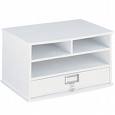
be fair to yourself and skip a complex system. A drawer in your desk or bedside table, near where you’re likely to do the writing, should be fine.
If you prefer to be mobile, some simple but attractive all-purpose leather, cardboard, or plastic containers and stackable boxes offer dual-purpose dcor/storage that you can carry to your preferred writing spot:
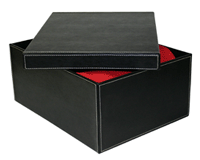
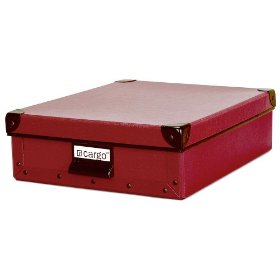
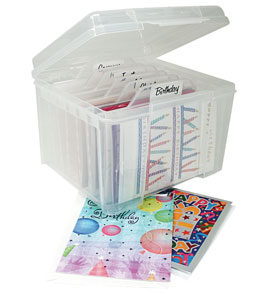
4) You are more attached to keeping the cards than sending them.
Stationery is a DIY gift–just add words and give away.
But sometimes, a note card or piece of stationery bears a photo or message that so completely captivates us, we can’t bear to let go. The pain of never seeing the photo again outweighs the pleasure the note might bring your recipient. We’re toddlers refusing to share our toys.
The solution? Frame the card and display where it will give you ongoing joy, even on a wall hidden from general view, if it won’t match your dcor. Sometimes, you’ve got to give yourself the gift.
5) You don’t know what to say or how to say it, so you say nothing.
When gratitude or condolences are due, silence is inexcusable. It really is the thought that counts, so in most cases, just speak from the heart. However, if even the idea of expressing your thoughts makes you queasy, the web has you covered. The following sites (or a quick Googling) will help you figure out what to say and how to say it:
My Thank You Site – The creator provides guidance on everything from selecting useful phrases to express gratitude and sympathy to tips on wording lengthier messages.
Thank You Note Samples – This site walks you through showing gratitude for everything from shower and wedding gifts (including money) to hospitality and acts of kindness.
About.com – reviews the elements of writing a condolence letter, from salutation to signature and all the awkward lines in between.
e-How – explains how to write a thank-you letter for wedding gifts. (Print or forward it for your new spouse so you can share the gratitude duties!)
Emily Post – The etiquette expert walks you through the salient points of thank-you notes for children of every age.
Clear the clutter, sort the stationery, write the words. You’re welcome.
Organizing Your Car Maintenance Records
When you think “car paperwork”, what comes to mind? Your purchase agreement? Title and registration? Insurance? All the maps and directions to where you’ve been?
What about the receipts for all the maintenance and repair you’ve had done to your car? Are they squished in your glove compartment? Do you lovingly smooth out the wrinkles and file them away in the Household section of your Family File system?
Last month’s issue of my newsletter, Best Results for Busy People: Organizing Your Modern World, featured an article about preparing your car for a road trip, which got me thinking about cars in general. After our homes, cars are our second largest expenses, yet we don’t always treat the paperwork related to our vehicles with respect. Today, we’ll review some options for maintaining that paperwork and/or safeguarding the information by avoiding paper altogether.
No Tech
When we discussed creating a basic Family File system, I said:
Auto Maintenance Records
Even if your mechanic keeps computerized records of all maintenance to your car, keeping accurate records will help you financially.
If your automaker issues a recall or technical service bulletin, you may be able to recoup money you’ve paid for repairs.
If you sell your car privately, prospective owners may be more inclined to purchase a car with a carefully maintained service history.
Keep a file folder for each car in the household in order to track:
- Service records — Each time you get an oil change or have a car repair, the mechanic should provide you with printout of what was done, on what date, at what mileage.
- Purchases – Include records of all purchases for your car, such as tires, batteries and windshield wipers.
- Mileage records – While not essential, if you maintain mileage records for purposes other than tax deductions, keep these here.
Standard file folders are low-tech and easy to maintain, but heavy-duty drivers and those who road travel for work might be inspired to keep auto maintenance records in a flexible three-ring binder under the driver’s seat or in the glove box or console. Sheet protectors (as we’ve used to organize recipes) can keep oily/sticky paperwork from further damage or degradation.
Ease of access is an advantage of an in-car maintenance notebook, but Paper Doll worries about what happens to carefully-kept records in case of a serious accident or car theft. For most drivers, it will suffice to just keep a photocopy of major purchase records (for tires and batteries) in the car in case you need to replace a warranteed part while traveling; originals stay safely at home.
Either way, in a file or notebook, nothing could be easier to maintain–just drop in each new receipt, diagnostic or record (reverse chronologically, of course). However, the longer you own your car, the more paper there is to manage, and the bigger your folders or notebooks get, and the more faded those tissue-paper-thin receipts become. The alternative?
Moderate Tech

Your Garage Online is a web site devoted to helping you track the information related to your car. It stores information in three broad categories:
- The Virtual Garage stores the basic data you need to know about your car–not just the color, make and model, which you’re unlikely to forget even after a theft, but the VIN (vehicle identification number) and your license data. You can manage up to three vehicles per account.
(Let’s face it–if you own more than three vehicles, you’re either a car aficionado and probably have your own record-keeping system, or you’re Jay Leno or Mario Andretti, and you can afford to pay someone else to organize your records.)
- Searchable Repair Forms let you use search terms to find any repair or maintenance record, even if you can’t remember when, where or if it occurred. This is particularly helpful when there’s been a recall or a technical service bulletin that would allow you to recoup the cost of a particular repair for free, provided you can find the record of the repair.
- A Comprehensive Service History allows you to keep track of everything done to your card, whether the service was performed by the dealer, an independent shop or you and your (eight-year-old) shadow.
Signing up for the service is a snap: create your username and password, then agree to the Terms of Service. You’ll be asked whether you wish to keep your car record public or private and told that autos registered as private will not be able to be displayed in the system’s “Showroom”. Paper Doll suggests that unless you own a Nash Rambler, or some other car for which recordkeeping is secondary to getting to show it off to other gearheads, list your car as private.
Completing the sign-up automatically prompts you to fill in the registry form with your car’s Virtual Garage data, so you won’t even be tempted to procrastinate on getting started. Next, you’ll be encouraged to start filling in your basic repair records so you’ll later be able to search by keyword.
So, are you going to fill in all your back maintenance records on a ten-year-old truck? Probably not, though it might be an interesting task to assign a newly-licensed 16-year-old to encourage responsibility and allow the earning of driving privileges. However, for those of you who are digitally-inclined and have a new(ish) vehicle, hoping to get off on the right tire (I mean, foot), this is a fun alternative to collecting piles of curling, fading car maintenance receipts.

RepairPal is an independent service site formed by car enthusiasts. Use drop-down menus to enter your car’s basic information and mileage, then easily create your account. The system will display a small profile card with a photo of your car model (though not in your color, as the registration doesn’t ask about that), the basic information you’ve added, and links to commonly reported problems, recalls and technical service bulletins.
At the bottom of the “card”, you click a button to “Add a service”. The ensuing screen offers an incredibly detailed drop-down menu of very specific car maintenance/repair options (from all aspects of general maintenance to brakes, drive train, electrical engine, exhaust, HVAC, suspension, etc.) but in the unlikely event you had something done that isn’t in their database (perhaps you had the car’s aura scrubbed?), there’s a field to add it in. There’s also space to record the mileage at time of service, the date, the cost and ample space for service notes. You can search the database by zip code or keyword for the location of the repair shop, or enter an unlisted shop (or your own driveway).
If you’re tracking expenses for business tax purposes, or even if you just like to keep track of your auto budget, another nice feature lets you upload scanned images of your receipts and other maintenance records.
RepairPal has other useful features–it helps you find a mechanic, get an impartial estimate on a repair type, review complaints about other car makes and models, fill in time-saving self-diagnostic forms, and review an encyclopedia of car-care articles or the blog for even more auto-education. (Pun intended, dear readers.)

ServiceBeacon.com is slightly fancier than most of the other car maintenance web sites, but is still available at no charge, and for many cars as you choose to register. First, you enter your car’s basic information (year, make, model, VIN, engine type and current mileage); then, the system provides:
- An electronic version of your vehicle’s official maintenance schedule (that you’ve ignored since you bought the car)
- Recall notices (on your account screen and via email)
- Monthly email reminders regarding when upcoming regular maintenance is due. If you aren’t the one who normally cares for the car (i.e., your spouse usually takes it in), you can arrange to have the emails sent to someone else instead of or in addition to you.
- An option to use the service to book an appointment with your service provider. Instead of waiting on hold (and wincing at that easy-listening music), the system sends a service order with all your basic information to your preferred repair provider.
- Online storage of a record of each instance of performed maintenance
Carefully maintained auto records are always a boon when you’re trying to sell your car; ServiceBeacon goes that one better by allowing you to transfer the electronic car history to the new owner once you transfer ownership.

eCarLog helps owners log, track and check vehicle maintenance records. The site offers suggested maintenance intervals for your car based on your reported current mileage. You can then have eCarLog email maintenance reminders to you.
The basic free account provides access to the Check-My-Car™ feature for oil changes and the Log-n-Track™ for other common maintenance tasks. You can set up one reminder, upload a picture of your vehicle and set up one classified ad. This free account is only suitable for tracking information for one car. Upgraded account levels let you increase number of vehicles and offers broader selections of Check-My-Car™ features, including more emailed reminders, display pictures and classified ads.
Finally, while we’re talking about car maintenance and servicing, because Paper Doll‘s mission includes helping you save those little green pieces of paper, I would be remiss if I didn’t point out two other sites worth noting:

Fuelly helps car owners track, share and compare fuel mileage information. While fuel prices are down from what they were last summer, they’re up close to a dollar since December. Fuelly helps you gauge your fuel efficiency so you can make smart decisions about your budget, what vehicle(s) you choose to keep and how you maintain them.
After a quick sign-up for a free account, add any car, truck or motorcycle to your profile. Fuelly lets you keep track of miles driven between fill-ups by using your vehicle’s trip odometer, or you can just record what your main odometer shows at each fill-up. Record your information once you get back to your computer, or, for you fancy space-age Paper Doll readers, upload mileage/fuel information from your smartypants iPhone using Fuelly Mobile.
Fuelly configures member-reported data to allow everyone to share and compare fuel efficiency by make and model.

FrugalMechanic.com is so easy to use, it doesn’t even require registration. Just select your vehicle’s year, make and model from the drop-down menus, then choose from major or minor categories of parts: accessories, air intake, body, brakes…and so on. The site’s database of over five million vehicle parts and configurations lets you search and compare prices and attributes from a wide variety of auto parts retailers.
Got a tip or question about organizing your auto maintenance records? Please share a comment. Until next time, drive safely!
Final Roundup of NAPO Expo Digital Solutions
Neat was a favorite at past NAPO conferences where they’d displayed their streamlined NeatReceipts hand-held scanners, which looked more like sleek Apple-designed three-hole punches than a powerful productivity devices. Neat stole some serious scanning thunder this year with NeatDesk. NeatDesk is up and running on both Mac and Windows platforms, and I’m only a little embarrassed to say that some of its appeal is because, like George Clooney, it’s so darned pretty!
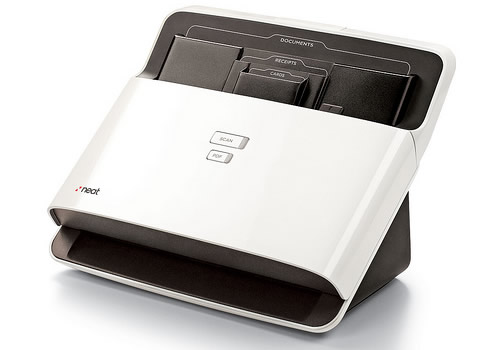
So what else makes NeatDesk so neato?
- It’s a desktop ADF (automatic document feeder) scanner with its own digital filing system.
- It’s high speed, so you can scan business cards, receipts, expense reports, multi-page (unstapled) documents one at a time, or you can (allegedly) throw 50 items at it and it will swallow them up and make sense, putting each in its correct category. (Actually, there are three item types you can scan: documents, receipts and business cards, each with its own slot, and one ought not to try more than 10 of each at a time to prevent NeatDesk from having indigestion. As with most scanners, you wouldn’t want to load it up and walk away…wrinkly paper can cause jams in all kinds of technological devices. Be on hand in case some TLC is needed.)
- Those two little buttons on the front are pretty straightforward: Scan makes it scan and PDF turns what you’re scanning in to a PDF.
- The patented NeatWorks software uses OCR (optical character recognition) and its own “patented parsing technology” to capture data. A visual of what you’ve scanned shows up in your NeatDesk inbox on your computer screen, at which point you can make your own decisions about how you want things categorized.
- The software figures out what kind of item you’ve scanned, so you get back tax records, expense reports, digital contents, searchable PDFs or whatever you need, which you can then file in your own database or export to Microsoft Excel, Quicken, TurboTax or wherever else it needs to go.
NeatDesk is available directly from Neat (Mac-users, scroll way down), at office supply stores, and usually for a price that makes Paper Doll particularly happy at Amazon.com.

Blis (Best Life Information System) wasn’t new at this year’s NAPO Expo, but it did seem to have more fans this time around. Blis bills itself as a “web-based home-life management and information system specifically for on-the-go individuals and families”. But what exactly does that mean?
Blis is a secure, web-based site, so there’s no software to download or install and it’s PC- and Mac-compatible. The site is divided into seven sections. You enter your information and it’s available to you in one place for viewing and printing.
- The calendar has monthly/weekly/daily views, and you can look at events in summary or detail form, just as you’d see on Outlook, iCal or Google Calendar. (Indeed, Blis is compatible with Outlook and iCal, if you want to export events.)
- The planning section has customizable templates, including menu planning, which seems to be what makes this package so popular. As you pull down menu items, the software generates a grocery shopping list. (As Paper Doll‘s idea of menu planning involves choosing between take-out sushi items, she’ll bow to the better judgment of people who actually cook.) Lists available include planning parties, trips, meals, shopping, etc.
- The home section provides a plethora of fill-in lists. There’s a place for tracking emergency as well as regular home-service contacts, identifying the location of emergency supplies, listing home maintenance tasks (when were those smoke detector batteries changed?), and noting who has borrowed items from your family. There’s also a home inventory screen, where you can upload photos and scanned receipts, and a home “updates” page to note remodeling efforts and other aspects of improving your home’s value.
- The health section lets you track health issues for each person in the family, from general overviews, to upcoming appointments to questions you want to ask your healthcare provider. You can even upload test results right into the system.
- The activities section lets you track lists related to personal habits: websites, books you wish to read (or have read), movies you want to rent (or have seen and rated). It also provides spaces for update-able printouts, like babysitter info sheets.
- The My Choice section lets you add miscellaneous lists Blis hasn’t considered so you can customize for your special needs.
- The address book, like the calendar, is compatible with Outlook and iCal.
Blis also has a newsletter, with tips for better using the system and getting advice from professional organizers, and associated products for keeping printed pages in an organized, attractive fashion. The whole system is $125/year, with an $80/year renewal. Yes, I thought “ouch” too, until I thought about prospective users’ needs.
While Blis doesn’t really do anything new, it does it in a unified way. For families who don’t have the time, comfort level or inclination to use or buy and install various software programs, Blis puts it all in one place and does a lot of the thinking so the user need not do so. Plus, for those who not only want it unified but aesthetically-pleasing, Blis has designed an attractive format.

Collectify is a collection management software system focused on being “your own personal curator”. It organizes: initial costs, insurance appraisals, insurance coverage, photographs, copies of auction or sale catalogs, condition ratings, history and provenance…anything that you will ever need to know, quote or prove about your collection. In addition to text, you can also collect audio and video clips (from auctions, interviews with designers and artists, etc.) and photos.
The system offers 33 pre-designed collection templates, but if you collect crocheted hats shaped like dinosaurs or bottle caps with Millard Fillmore’s face on them, you can customize the system for your needs. Collectify offers hundreds of collection-specific data-fields, but you can also customize those (in case you to separate out Millard Fillmore caps produced West of the Mississippi) as well as 40+ report format styles.
Collectify charts your collection’s financial and insurance details as you purchase and sell items, and lets you track the current real-world value in the marketplace. You can even designate in the Beneficiary section whom should get what from your collection…and when. (You still need a legal, notarized will, of course.) Collectify’s written reports can be printed or emailed (to your insurance agent, lawyer, crocheted dinosaur hat-loving nephew…), and a photographic slide show can be emailed or turned into a nifty screen saver.
Collectify costs $149.95 and has a 30-day free trial. Unfortunately, it’s only Windows-compatible. Mac and Linux users must to look elsewhere.

ListPlanIt is the brainchild of Jennifer Tankersley (also known as List Mama), and she understands what I’ve always believed about LIST LOVE — that Lists Organize Virtually Everything–and she’s walking the talk. ListPlanIt is a membership-based site designed for those who live for lists as well as those who need some help in figuring out what goes on which lists to make life easier to lead.
ListPlanIt offers up 400+ lists, browse-able by topic (everything from business planning to time management to moving to travel planning, from student living to holiday planning to organizing clubs to managing your home). Need a template for a sign-in sheet for your book club? It’s there! Want help putting together a budget for an anniversary party? Look no further!
ListPlanIt’s lists and planning pages are mostly in template form, and the type of membership you select determines how/whether you can manipulate the forms. Print Members pay $20/year and can access and print any of the web site’s lists. Download Members pay $30/year and have the added ability to type directly into the forms to add information electronically before downloading or printing. (There’s even a $50/year professional membership for professional organizers wishing to use the lists to help their clients master the art of list-living.) ListPlanIt also offers the L.I.S.T., a weekly opt-in email newsletter, filled with tips and sample lists.

Jibidee was a newcomer to the NAPO Expo, and I’ll admit that I was distracted by its similarity to the goofy catchphrase/sound popularized by Glenn Quagmire on Family Guy. That aside, Jibidee seems to see itself in the same light as Blis–a secure, digital site to keep track of all of the information of life in one central hub, but with a unique visual paradigm.
Jibidee calls its platform a webtop, and is designed to look like a familiar PC or Mac desktop view, with lots of blank space atop a customizable background (like your computer’s wallpaper). Jibidee lets you create new task lists, checklists and notes within categories saved, folder-style (e.g., home, health, school, work, recipes, shopping, etc.), and you can upload scanned documents to be included with your saved pages/sheets.
Open multiple sheets or screen views on one Jibidee webtop, and arrange or tile them at will; by comparison, a typical website only allows you to open multiple windows or tabs, making it hard to see all at once. You can color code the boundaries of the individual sheets to aid your organizing style, and simple drag-and-drop functions let you create sortable mini-spreadsheet checklists. In addition to the self-created lists and screens, Jibidee also has a library of templates.
Jibidee is free to users with up to 20 sheets; after that, it is subscription-based: $18/year, to go ad-free; $18/year for an unlimited number of “sheets”; or $29/year for a combined membership (unlimited sheets with no ads). When asked how Jibidee differs from free sites like GoogleDocs, the reply is that they offer more and greater types of formatting functionality, useful templates and a platform they consider easier to use and more “whimsical” than their competitors.
Frugal Paper Doll imagines that fully utilizing the features would eat up the free 20 sheets quickly, but Jibidee offers a free trial to help you determine if it’s the right platform for you.
If you try Jibidee, or have comments about any of the solutions (for organizing paper and information) displayed at this year’s NAPO Expo, please share your thoughts.
The Digital Stars of the NAPO Expo
Last week, we reviewed the paper-based solutions for organizing information and paper displayed at this year’s NAPO annual conference and expo. Today, we start covering the gems of the digital side of the expo–the software, hardware and services that help us live, if not paperless, at least with a bit less paper.
Pixily was the adorably-named star of the expo. Pixily bills itself as an affordable, secure, easy document management service to help individuals and small businesses get more organized and efficient through the magic of pixelating (OK, digitizing) information and transferring it from paper to neatly-ordered, easily-accessed electronic files.
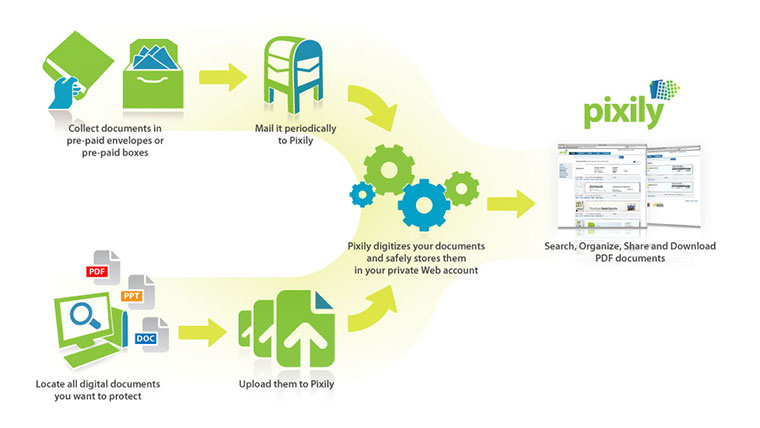
Once in digital form, any data from Grandma’s strudel recipe to illustrations for your patent-pending invention can live securely “in the cloud” of the internet. You can also download anything in your account as a PDF and save it to your own computer or flash drive to ensure you’ll have access whenever…wherever. And, of course, it’s all environmentally friendly.
First, create a Pixily email account: e.g., Paper_Doll@pixilymail.com
Next, choose from four options to get your paper data into the Pixily system:
1. Mail if the idea of hand-scanning your documents is what’s allowed the clutter to pile up in the first place. This method probably saves the most time and effort. Request Pixily’s special “Scanvelopes” via your account; they’re water-and tamper-resistant, pre-paid postage envelopes. Scanvelopes can hold myriad documents, from bills and expense receipts to love notes to your child’s “What I Did Over Summer Vacation” essays.
Skip the staples, smooth the wrinkles, pop in up to 50 sheets and send it via First Class USPS mail. To send documents in bulk, use Pixily’s pre-paid labels (on their boxes or your own) and ship via United Parcel Service. The pre-paid shipping includes return shipping of originals unless you notify Pixily that you don’t want the papers back. Pixily also offers secure shredding services as an option.
Within 3-5 business days of receipt, Pixily’s authorized personnel (right here in the United States) scan and digitize your documents, sending them directly to your private account on Pixily’s secure servers.
2. Upload or Email–If your documents are already in digital form (or once you’ve gotten them that way–see #3), gather them together and send them to Pixily as email attachments or by easily uploading them via Pixily’s website. Pixily supports the following formats: .txt, .html, .pdf., .png, .jpg, .gif and .tif. (M-O-U.S.E. Sorry, but tell me you weren’t humming the Mickey Mouse theme song in your head by that point!) Pixily offers 256-bit encrypted SSL communication, so you can feel secure sending, storing, accessing and retrieving your data.
3. Self Scan–If you aren’t comfy with your documents leaving the house or office, there’s a D-I-Y approach: scan your own documents using your own scanner. Pixily recommends using Fujitsu’s ScanSnap, whose Quick Menu automatically prompts you to select an email address (i.e., your Pixily address!) to which to attach the scanned documents. That’s where option #2 comes in.
4. “Snap it”–It’s a little like Spy vs. Spy, but you can use your camera phone (the system has an iPhone-optimized interface) to snap shots of documents, office whiteboards, etc., and email them directly to your Pixily account.
Once Pixily scans, categorizes and uploads the documents to your account, you or any user whom you authorize can access the files and organize them using Pixily’s digital labeling tools. From there, you can use keyword searches to find the exact documents, and securely share your materials with others.
Pixily offers three pricing plans (Value, Value Plus and Select), starting at just under $15/month for 3000 pages of online storage with one Scanvelope per month.
Pixily seems ideally suited for busy families and small businesses who are long on paper and short on time or resources for getting those documents securely organized in digital form.

ScanDigital was another popular NAPO expo contender. ScanDigital asks:
Yikes, that’s hitting the emotional core, isn’t it? But the truth is that while we all desire our photos to be neatly organized according the rules (in acid-free, lignin-free, archival quality albums or photo boxes), many readers are cringing, knowing that precious memories languish at the bottom of heat- and moisture-exposed cardboard boxes in the garage or attic, in those awful, cellophane-and-adhesive albums that were so popular in the 1980’s, or in closets awaiting us having the time and inclination to start scrapbooking “for real”.
Aging and decay of our photos is a leading source of the “clutter guilt” I encounter as a professional organizer, so it’s not surprising that more and more photo scanning services are marketing to consumers, but ScanDigital has both a 100% Satisfaction Guarantee and keeps all scanned/digitized materials within the United States, which many of their competitors do not.
The steps for getting started with ScanDigital are straightforward. Create an online account and then:
- Select your pricing options: Standard Pricing, at a flat rate per image, or Package Pricing (Starter, Go Digital, Premium or My Life, Digital™), with pricing for blocks of photos/slides/negatives
- Alert ScanDigital whether you’ll be shipping via envelope or box (up to three sizes).
- Select your shipping option (UPS Ground, Next Day Air or 2nd Day Air) or opt to ship the item yourself, at your own cost. For $10, get ScanDigital’s secure DigiPac. Shipped directly to you, DigiPacs include a prepaid return shipping label, secure packaging supplies and detailed instructions.
- Pick your resolution options. For photos, that means “normal quality” (300 dpi for paper photos, or 2000 dpi for slides/negatives) or “highest quality” (600 dpi/paper, 1200 dpi slides/negatives) at an additional 20 cents per scan. For video/film transfer to DVD, the options are for a “premium” digital transfer (suitable for most customers) or “expert” (for professionals).
- Choose your digital storage format (CD, DVD or hard drive).
ScanDigital handles more than photos. They’ll also scan film and negative formats, slides and transparencies, and full photo albums and scrapbooks, as well as film at a price per feet and video (including that long, forgotten standby, BetaMax) at a flat rate per tape.
Assuming you generate a UPS label directly from ScanDigital’s site, you’ll be able to track your materials from your home, through ScanDigital’s departments, and then back to you via their EssentialTracker.
Once ScanDigital gets your items, trained technicians oversee a full process of digital optimization, where they inspect, manually process and quality-review the images, including cropping, rotating and color-correcting, as necessary.
Your originals and the media format you selected are then returned to you, usually within a week, according to ScanDigital. You’ll be able to flip through your originals, enjoy your digitized upgrades and share your free, unlimited online gallery as you desire.
Note: ScanDigital is not inexpensive, and you know that Paper Doll is always price conscious. However, only you can place a price on the value of your time (and memories).
Xambox, from French newcomer Xamance, had an intriguing message to prospective users, based on something they proudly (!) call a chaotic filing system. Indeed, they say:
As shocking as such a statement was to Paper Doll, who lives to sort papers, I was compelled to learn more. How in the world could they advise…no, command…users not to sort?
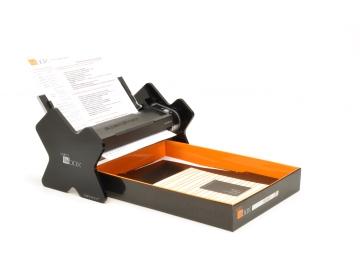
The basis of the Xambox is a Windows- and Mac-compatible compact scanner with an unusual format. You stack your paper documents in any order in the Xambox Professional scanner and press a button. The Xambox then scans the photos, analyzes the content (including full indexing, color detection, and automatic optical character recognition), stores the digital data for integration with your computer…and then archives the original papers in a box.
Yes, a box. Unsorted, in a box.
When you need to access a document, you perform a keyword search and Xambox displays the digital copy of the appropriate document(s) in PDF form. The twist is that Xambox will also indicate exactly where the hard copy is archived. Xambox says that it will then report “Your invoice is located in box #2, 7th page past the green divider!”
Um. OK. On one hand, it’s nifty to think that the system acts as a Fairy Godorganizer to tell you where the original of any scanned document now lives (i.e., in black and orange Xambox boxes, in your hall closet). On the other hand, this flies in the face of the notion that hard copies, if they must be kept, should be organized and sorted so that they may be retrieved logically, by any authorized person, even when the web is down or the electricity is out.
Xambox definitely has some features of which they’ve a right to be proud. Xambox’s data processing accepts papers in sizes ranging from business cards to legal sized and can correct for vertical or horizontal formatting. It has automatic OCR, in both English and French, and automatic digital copy creation of PDFs.
Their searches definitely seem powerful. Full text searches by keywords are offered, in addition to advanced searching via “Booleans, wild cards, fuzzy searches…” (or so Xambox says…Paper Doll feels pretty fuzzy, herself, reading that). Users can also add meta data to documents and create virtual folders.
Xambox also touts “easy access to original papers”, including archiving and optimum storage conditions in durable boxes. While the boxes may be durable, it doesn’t remove the obligation of the user to store the boxes away from moisture, extreme temperatures or “critters”. Storage capacity of each box is 250 pages, and hard copies are separated by bar-coded dividers to make manual searches more convenient.
Paper Doll is always impressed by the magic of scanning, especially when paired with powerful searching and a user-friendly interface, and Xambox has all that and more. But I’m afraid I just can’t get passed the idea of unsorted, boxed hard copies. What do you think?
The NAPO expo was all about technology this year, so we’ll need one more week to finish up our review and talk about Neat, Blis, Collectify, Jibidee, List Plan It and SaveMyPix.com. Until then, feel free to share your thoughts about these services and products in the comments section.

Follow Me