Archive for ‘Paper Organizing’ Category
Organize Your Travel Documents
Last month, I traveled to the MARCPO conference and then enjoyed a vacation up the Eastern seaboard, traveling from Washington, DC to Providence, Rhode Island to Boston and Salem, Massachusetts. During that time, I took four airplanes, two airport shuttle vans, one car and multiple subway trains. In ten days, I stayed in four hotels in three cities. It may seem like a shocking confession for the 21st century, but I navigated them all without benefit of a smart phone or tablet.
Keeping track of travel information these days seems made for digitization. Nifty apps can replace piles of paper printouts. But should they? On the morning of my return flight, a flustered man stood in front of me in the security line, unable to show his boarding pass because he couldn’t get his cell phone to boot up. Power outages, cell phone tower outages, lost chargers, dead gadgets, limited or intermittent web access — they can all wreak havoc with your travel plans if you don’t have a paper alternative.
I strongly recommend the following basic steps for organizing your travel documents and information to minimize any potential catastrophes.
1) Gather and isolate documents as they arrive. As you make your travel arrangements, print out the confirmations, the bar-coded and QR-coded passes, and any other items you need. Collate them and tuck them away in your tickler file for the day your trip is set to start.
2) Use the belt-and-suspenders approach. Yes, you should print your documents, but there’s no reason not to keep electronic copies, too. Convert each confirmation email or web page to PDF, then back it up in any of a variety of ways. Send it to your Kindle or other e-reader. Save it in a Dropbox or Evernote folder marked with the trip name. Email it to Gmail or another web-based account.
For a lower-tech option, snap photos of your documents with your phone or camera. If necessary, access data using the zoom function to get a close-up on whatever you need.
3) Arrange essential documents in the order in which you WILL need to access them.
- Airline tickets and boarding passes — Printing your boarding pass in advance of your flight allows you to bypass lines at check-in and ticketing kiosks. At larger airports, just give your checked luggage (if you have any) to the Skycap, and you’ll be on your way. Even at airports where you need to check your luggage inside the airport, having your tickets and boarding pass available in advance will expedite the process.
- Special air travel documents — If you are recently married and your honeymoon arrangements were made in your new name, but your photo ID lists your maiden name, having a copy of your marriage certificate with you will help things along, especially if you’re traveling internationally. If you’re divorced (or married, traveling without your spouse) and are traveling with your child, or if you are traveling with a child who is not your own (such as a grandchild or your child’s playmate), you will need a notarized Minor Consent Form from a custodial parent.
- Redress number — This is a code granted to certain passengers whose names have been added to the No-Fly list in error. Providing your accurate redress number should eliminate travel difficulties.
- Train reservation tickets/confirmations
- Cruise tickets/confirmation
- Auto rental reservations/confirmations
- Ground transportation (shuttle/car service) reservations/confirmations
- Printed directions or maps if you’re driving yourself
- Subway/commuter train maps and directions
- Hotel reservations/confirmations
- Writing pad for itinerary changes, directions, messages, etc.
Some travel items should be kept separate from your basic travel documents:
- Airport parking ticket — When you arrive at the airport and take your ticket, tuck it into a safe place in your wallet, away from your cash and other items you’ll be rifling through during your trip. (Snap a photo of your parking level/area to find your car easily upon your return.)
- Passport and Visas — These legal documents need to be kept even more securely than the itemized information above. Rather than keeping your passport and visas with your travel information, maintain them on your person with an RFID-blocking, wearable passport wallet.
4) Arrange non-essential documents in the order in which you MAY need to access them.
- Itinerary
- Airline and frequent traveler loyalty contact numbers
- Travel aggregator (e.g., Travelocity, Orbitz) or travel agency numbers
- Credit card company concierge numbers
- Printout of alternative flight options
- Emergency contact numbers at home and at your destination
- Groupons, Living Social, Restaurant.com and other discounts/coupons for dining at your destination(s)
- Envelope for collecting receipts, especially for items that will need to be expensed/reimbursed, checked against a bank or credit card statement, or needed for tax purposes.
5) Contain documents in a translucent document organizer.
Certainly, you could maintain your travel documents in traditional file folders or kraft envelopes. They aren’t optimal, however, because you have to open them to see anything, even the very next item you’ll need, and each opening of the file or envelope risks loss and items fluttering to the ground.
The trick with a see-through travel document organizer is to have the items you know you’ll need in “front,” with the items you may need, located at the “back.” Place the stacks of the two types of items back-to-back. Then, just flip over the whole document organizer, and your itinerary will be easy to read without removing it from the organizer, while items behind the itinerary can be easily accessed should they become necessary.
In the twelve minutes between when I confirmed that my flight to DC was on time and the moment I’d entered the airport, soaking wet, after parking in the last available airport parking spot, my flight had been canceled due to mechanical difficulties. The rumor among the equally-soaked passengers was that we’d be boarded onto a bus to take us to a nearby city’s airport. That option would certainly have caused me to miss my connection.
Flipping my translucent document organizer over, I perused the items in the back. Behind my itinerary, the next two sheets provided what I wanted — Delta Skymiles’ direct number and Travelocity’s schedule of other flights to my destination. In what almost seems miraculous in this age of grumpy traveling, well before I’d reached the head of the line, I’d been rebooked for a flight that got me to my connecting airport only 40 minutes later than originally planned, tidily making my connection. Meanwhile, people who had been ahead of me in line, frantically shuffling and dropping papers, were delayed up to eight hours.
So, Paper Doll is a big proponent of using translucent poly envelopes or pockets to corral travel documents. Some excellent options include:
Smead Poly Wallets are highly durable, four-sided, reinforced wallets which repel moisture, resist tears and hold up to 200 letter-sized sheets.
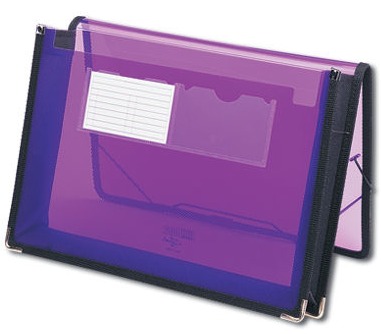
They come in blue, green and purple, are highly visible and are unlikely to blend in with your surroundings and be left behind. The poly wallets can expand up to 2 1/4″, and feature sewn fabric trim, heavy-duty black cloth gussets, a protective cover flap and an elastic cord for securing the corners. In addition, the wallets have two clear pockets on the front for positioning business cards or keeping emergency information easily accessible. You can clearly read the documents within.
Pendaflex’s Oxford Storage Envelope Plastic Tab Dividers offer a simple but elegant alternative. Coming in packs of three colored envelopes (red, blue and yellow), each with one of three tab positions, these pockets have a fold-over flap with a Velcro dot closure, securing the contents on all four sides. The plastic flap can be closed or tucked inside the envelope to keep it out of the way when you’re flipping through your travel documents.
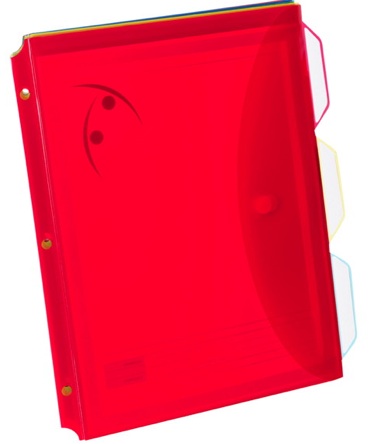
On the left side (if one holds the envelope vertically), the Storage Envelope Tab Dividers have a three-hole-punched poly extension. Each pocket holds about 50 sheets of letter-sized paper. Use just one pocket for a shorter trip; for a longer one, label the tabs and use individual pockets for each day or leg of your travels. Again, you can read the “top” contents (on either side) right through the Storage Envelope Tab Dividers.
Smead Travel Organizers are made of a clear, acid-free archival polypropylene and have three clear plastic tabbed sheets.
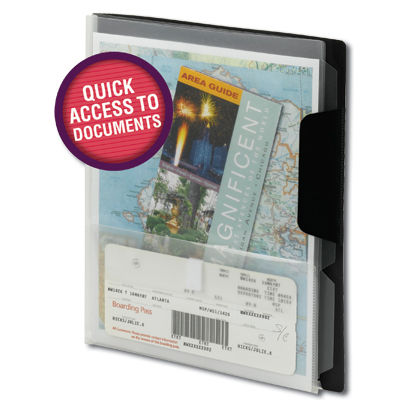
There’s a stiff plastic backing and a Velcro-closure plastic envelope (about the size of a standard #10 envelope) attached to the front divider. The pocket is designed to hold boarding passes and receipts, while itineraries, notes, flat maps and confirmation numbers can be easily slotted in the tabbed pages. To see how it might be customized for your travel needs, take a peek at how Janine Adams of Peace of Mind Organizing personalized her Smead Travel Organizer.
6) Upgrade for extended travels. If you’re going to be traveling for weeks at a time and headed to multiple venues, you might want to consider a three-ring binder and upgrade from standard plastic sheet protectors by using the above-mentioned Oxford Storage Envelope Plastic Tab Dividers.
Or, for creating more categories, look at the Oxford Full-Pocket Plastic Tab Dividers.
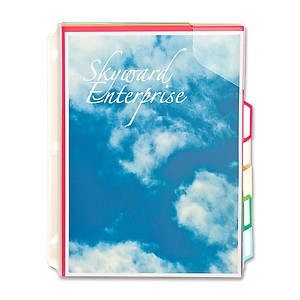
These come in packs of five colored pockets (red, orange, yellow, green and blue), each with one of five tabbed positions. The front is clear, while the back of the pocket is translucent colored poly. The pockets are closed along the bottom and left (hole-punched) sides, while the top and right (tabbed) sides are open. A poly corner lock positioned at the juncture of the two open edges keeps documents in place (provided you remember to tuck the corners of your documents underneath it).
Unlike the Storage Envelope Plastic Tab Dividers, the Full-Pocket Plastic Tab Dividers hold only about 20 sheets of letter-sized paper. However, they do feel a bit sturdier than the Storage Envelopes.
Since both styles are already three-hole punched and tabbed, drop them in your binder and color-code for cities/states/countries or use multiple packs, coding red as airlines or blue as hotels at each destination.
Another alternative is the Oxford Pocket Storage Folder with 4 Sliding Pockets. When closed, it appears similar to the Storage Envelopes above, albeit with a larger flap and made of stiffer, more durable poly.
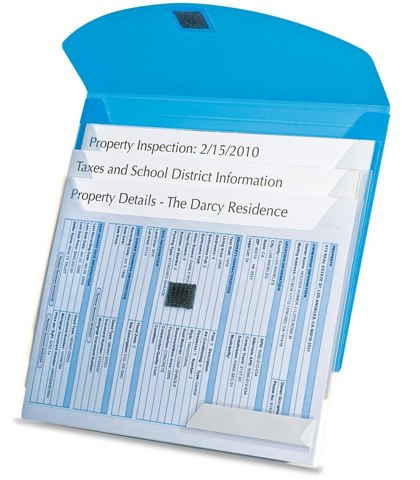
The Oxford Storage Pocket Folder’s divided pockets are clear, while the backing and flap are opaque blue poly. When opened, the four connecting pockets slide apart, vertically as well as in terms of depth, to enable you to view bits of each section simultaneously.
7) Have a human backup. Make sure an always-reachable assistant, BFF or spouse has paper or digital copies of your essential travel information. I always send copies of my trip info to Paper Mommy and to a tech-savvy hero/friend (who blushes if named publicly). So far, so good.
Happy travels!
An Organized Hybrid: The Evernote Smart Notebook By Moleskine
Reese’s Peanut Butter Cups – “Two great tastes that taste great together.”
Toyota Prius – combines an internal combustion engine with an electric motor
Zedonk – a cross between a zebra and any other equine

A hybrid takes two things that exist perfectly well independently and combines them to make something altogether more fabulous. Today, we’ll look at how two great product brands have united to create something fascinating: The Evernote Smart Notebook By Moleskine.
THE CLASSIC

It was the original little black book, made of moleskin (a thick, cotton fabric with a shaved pile surface). In the 19th and 20th centuries, artists like Matisse, van Gogh and Picasso sketched and painted in them, and authors who couldn’t have been more disparate in writing style or personality, from Oscar Wilde to Ernest Hemingway, scribbled their stories in them. Back then, the notebooks were black, handmade by French bookbinders, and, while utilitarian, represented a kind of artistic chic. The notebooks were for creative geniuses on-the-go.
In the 1980s, it was reported that, “Le vrai Moleskine n’est plus” (“The real Moleskine is no more”) and bookbinders had ceased fashioning them, but in 1997 the product was reborn via a Milanese parent company under the Moleskine brand. A strong marketing campaign and a passion for the ever-expanding line of notebooks made, and makes, Moleskine cool for hipsters and soccer moms, alike.
The features are basic, but beloved: luxurious covers, high-quality acid-free paper, narrow grosgrain ribbon bookmarks and color-matching elastics to keep everything together. Moleskine has followers every bit as passionate and devoted as Apple’s fanboys (and fangirls). Bloggers show off their notebooks and creative doodlings, as at SkineArt, and share their secrets, such as Freelance Switch’s noted The Monster Collection of Moleskine Tips, Tricks and Hacks post.

The collections include the original notebooks — ruled and unruled, with interior pockets and without, with squared or rounded edges — diary-like journals, tabbed “Passion” journals (to log one’s favorite books, films, restaurants, recipes, wines, travel locales, etc.), memo books and address books.
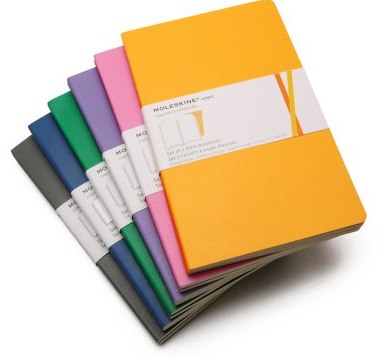
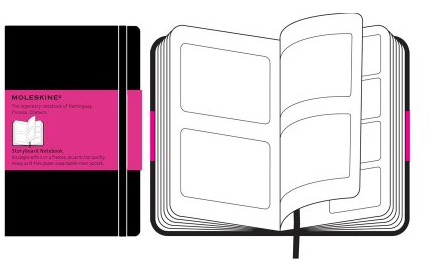
For creative types whose muses delight with other than words, there are sketchbooks, watercolor notebooks, music notebooks, and storyboard books.
There are even limited-edition collections, with design themes including Peanuts, The Little Prince, LEGO and Star Wars.
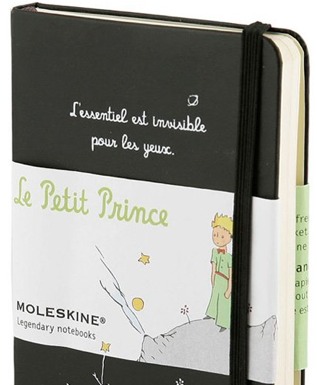
Moleskine feeds the addiction for a sensory experience only paper can provide.
THE MODERNIST

Evernote: It’s a service. It’s an app. (It’s two mints in one!) It’s almost an independent nation of global citizens, given that it has ambassadors (including friend of Paper Doll, Brandie Kajino). You probably either use it, or you wonder, “What’s the big deal?”
For the uninitiated, at its most basic, Evernote allows you to take digital things, collect them, and organize them. Anything you save, like a Paper Doll blog post, can be a note. Notes combine into notebooks (like how you have Excel worksheets within workbooks), and all are kept safely within your account, synced across all of your computers and digital devices.
You may wonder why you need Evernote — can’t you just use a bookmark in your browser? Ah, but have you ever clicked on an old bookmark or favorite to find the link you’d preserved yields a disappointing 404 Error message, meaning the page you wanted no longer exists? Evernote doesn’t just preserve the link — it preserves the entire page or document, along with comments, tags and anything else you wish to keep.
The Basics
Install Evernote, create your account and put a little “clipper” in your browser bar — it works much like Pinterest’s “Pin” bookmarklet to speedily grab what you want and tuck it away. Any time you want to save something digital, you can just click on the clipper bookmarklet and up pops a window to walk you through your options.
For example, at some point in the not-too-distant past, I went to Evernote’s page for getting started, and clicked on the clipper, bringing up a little window, as you see below.
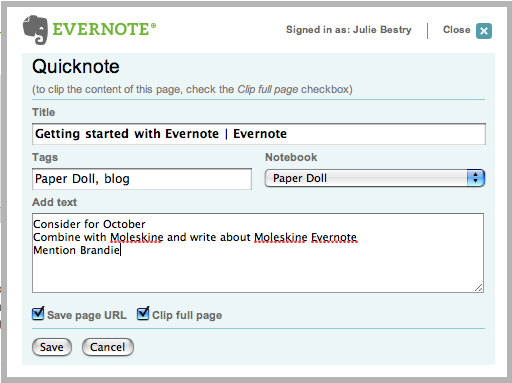
Evernote selects a default title for your note; adjust it as you see fit. Add your tags, select in which notebook (for any of your various themes or projects) you wish the note saved, and add comments or stray thoughts. You can save an entire page, or highlight just one section for faster and more accurate “clipping” of web material (to skip ads and extraneous text or photos). And, of course, you can opt to save the original URL.
Beyond Baby Steps
Evernote saves much more than web sites and text. Instead of using your clipper, log in to your Evernote account and click “New Note” from the main page or within any of your already-created notebooks.
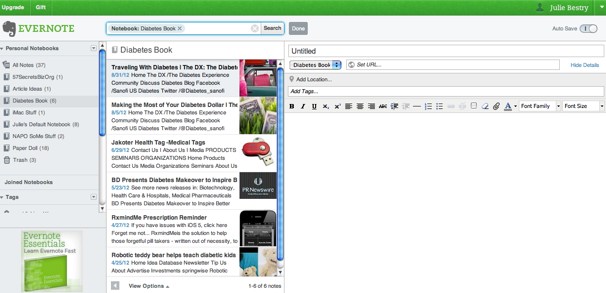
Above, the left column represents my various notebooks and tags; the center column shows previews of various clippings (i.e., notes) and the right column provides a place to create a more complex note, with formatting. Let’s say you have a brilliant idea for a blog post, or a wedding toast, or your packing list for an upcoming trip. Instead of scribbling it down on a random floozy, lock it up on Evernote.
Once in your account, you can drag-and-drop images from your desktop, files, and web pages. For convenience, you can also drag images directly onto any specific notebook (without having created a detailed note) or, for Mac users, directly onto the Evernote icon in your Dock. And it’s not just text and pictures. Record audio and move the .MP3 file to a notebook. Save videos, too. And tweets! Then combine them all in the way that works best for you.
Bing, bang, boom. Your “stuff” is saved to the cloud and synced across all of your devices. Better yet, it’s searchable, so between the native text of what you’ve saved and the keywords you create, you have your own private search engine to find what you want, when you want it, no matter how long ago you clipped or created it, accessible from anywhere in the world.
Now What?
Evernote has myriad uses. I save product reviews, news stories and articles that may be useful for Paper Doll posts and my Best Results for Busy People newsletter, as well as for current and future articles and books I’m writing. A recent discussion on the NAPO email chat found that my colleagues are using Evernote for various professional and personal solutions, including:
- Notes, statistics and ideas for presentations and workshops
- Titles of books, movies and other entertainment to check out later
- Household data, like battery sizes, light bulb wattages and air filter dimensions
- Organizing solutions for particular clients or situations
- Grocery lists (shared across devices with family members who can access them while shopping)
- Collated travel information and directions to use while on vacation or attending conferences
- Party planning and menu ideas, including recipes, organized by meal or ethnicity of cuisine
This is just a smattering of options — Evernote has a video library of tutorials and suggestions for ways to maximize its use. Evernote continues to expand its interactivity with other apps. Draw or hand-write with a stylus on your iPad or tablet in Skitch and Evernote saves it (and even translates handwriting to text). Save news and articles to read later via Pocket (formerly Read It Later) or InstaPaper. Study for exams (or your Jeopardy audition) by creating study notebooks with Peek, and record (with permission) phone calls with CallTrunk.
Evernote is free at the basic level. For $5/month or $45/year, the Premium level grants the ability to upload up to 1 GB each month (handy for photos and lots of files) and have individual files of up to 50 MB. You can also view historical versions of files, take notebooks offline for when you lack web access, collaborate across accounts, hide promotional language, and more.
THE HYBRID: PAPER + DIGITAL = EVERNOTE SMART NOTEBOOK BY MOLESKINE
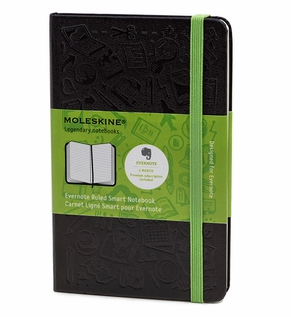
The Evernote Smart Notebook By Moleskine combines the advanced technology of Evernote with the sensory delight of a Moleskine notebook.
Paper notebooks are tangible and concrete. Digitizing provides accessibility, navigation, searchability and a different kind of permanence. What if you could combine the two? What if you could scribble down your thoughts on paper in your own quirky handwriting, then record, modify, and preserve them forever? Now, you can.
The Evernote Smart Notebook by Moleskine lets you create naturally, then use Evernote’s handwriting recognition and search capability to turn your scribbles and scratches into symbols of your brilliance. (Haven’t you always wanted a way to digitally search through piles of handwritten notes to find the paragraph or phrase you needed?)
Affix Smart Stickers to automatically add digital tags to your notes — kind of like built-in QR codes, to take information from paper to the cloud.

Just write in your notebook, and when you’re done, the Page Camera feature inside Evernote on iOS (on your iPhone or iPad — Android access is still-to-come) recognizes the tiny, square stickers, adds tags to the digital note, optimizes it and files it into a selected folder in your Evernote Digital memory.
Getting Started
Pick one of two sizes: the 240-page Large (5″ x 8 1/4″) notebook for $24.95 or the 195-page Pocket (3 1/2″ x 5 1/2″) notebook for $29.95. Both come with black hardcovers, green elastic bands and four sheets of Smart Stickers (tucked in the back pocket).
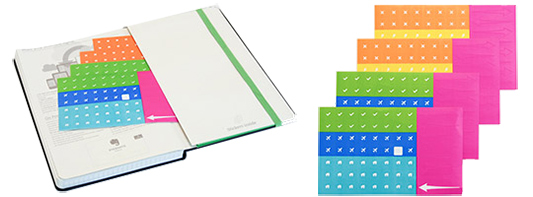
Then select your paper preference: a gridded pattern (like graph paper) or (dotted) ruled paper. You can use pencil or pen, though dark pens will yield the clearest digital results.
Each Evernote Smart Notebook purchase includes a complimentary subscription to Evernote Premium for three months, so your next step is to sign up for your Premium Digital account…and start creating.
This isn’t the first nifty blending of paper and technology. There’s the LiveScribe Echo and Pulse smart pens, which digitally record text written on special notepads and contemporaneous audio. But the Evernote Smart Notebook by Moleskine combines two products you either already use (or would enjoy using) in a stylish, magical and far more affordable manner. It’s prettier than a Zedonk and less expensive than a Prius.
Of course, it’s no Reese’s Peanut Butter Cup…but then, what is?
How To Avoid Paper Management Mistakes–Part 3: Libel of Labels
“Don’t rely too much on labels, for too often they are fables.”
~Charles H. Spurgeon
“Once you label me, you negate me.”
~Sren Kierkegaard
“Labels are devices for saving talkative persons the trouble of thinking.”
~John Morley, Viscount of Blackburn
Outside of the organizing field, the view of labels is twofold. We’re warned against labeling, for fear of reducing that which is labeled to something without nuance. You remember the final soliloquy of The Breakfast Club, don’t you?

Conversely, the advertising industry (remember “Libby’s Libby’s Libby’s on the Label, Label, Label“?), would have us believe that without labeling, we’d be lost in a sea of confusion.
As a fan of John Hughes, it pains me to say this, but when it comes to paper management, I must side with Don Draper. Labeling is essential.
Over the last two weeks, we reviewed some of the major mistakes of paper management in Paper Doll Explains How To Avoid Paper Management Mistakes — Part 1 and How To Avoid Paper Management Mistakes–Part 2: Fat Vs. Skinny Jeans:
Mistake #1: You Have No Physical System At All
Mistake #2: You Have No Behavioral System In Place
Mistake #3: You Toss Just About Every Piece of Paper in the Trash
Mistake #4: You Save Everything Until the Paper Crowds You Out
Today, we look at the final set of paper management mistakes that can keep you from having a productive, useful system.
Mistake #5: You Don’t Know How to Label Your Files
In organizing, good function tends to come from good form. In order to organize, you must first purge that which is unnecessary and then take the rest and sort it so that like is grouped with like. We reviewed this with Mistake #1 about having no physical system whatsoever. If you just toss everything together, you have a salad and not a system. Without labels, you don’t know if you have a Side or a Caesar.
Mini-Mistake #5A: You Don’t Label Anything
Nomenclature is important. In your closet, if you mix together all colors and sizes and styles of shirts, it will make it hard to dress in the morning. If, however, all of the long-sleeved dress shirts are grouped together, then all of the short-sleeved dressy casual shirts, and the printed T-shirts, you’ll find it easier to locate what you need. You don’t necessarily need to label parts of your closet with the names of the shirt types.
Individual papers, however, live inside opaque file folders, so the folder can’t show you what’s within. Every manila folder looks alike, with the contents obscured just the same as if you stored each article of clothing in an identical garment bag. Thus, labeling tells you what you have, specifically.
Mini-Mistake #5B: You Have a Labeling System That Is Too Broad
If your categories are too broad, and a file folder is labeled as “financial papers”, you will soon find the folder overflowing and it will be impossible to find the exact paper, for the exact date, that you need. Narrowing the categories down only slightly will yield, not surprisingly, only a slight improvement.
“Bank Statements” or “Brokerage Statements” might be fine categories if you have only one of each type of account and never augment or change. If, however, you have a personal checking account with Wells-Fargo, a business checking account with Bank of America and a savings account with ING, you might save a few seconds when filing a particular bank statement in a catch-all banking file, but you’ll waste precious time if trying to retrieve it.
Mini-Mistake #5C: You Have a Labeling System That Is Too Narrow
Another common mistake I see is that, having neglected to visualize any kind of hierarchy in advance, people will create a file folder and label it such that it reflects the one piece of paper it holds. Thus, I’ll find file folders labeled:
IRA Statement 3rd Quarter 2008
Car Insurance Bill 6/2009
Karen’s Report Card — Spring 3rd Grade
There’s so little in each folder, and each folder is labeled so narrowly as to allow such a tiny subset of all of the papers owned, that the user is wasting folders, space, time, effort and efficiency.
A folder can actually neatly contain a year or more of IRA statements. (If end-of-year statements duplicate the information on the monthly or quarterly statements, shred the interim papers.) Even if one has a penchant for saving old (and not necessarily needed) insurance policy documentation, a folder can probably hold one car’s (or one household’s cars’) policies for multiple years. And, in most cases, all of Karen’s report cards from Kindergarten through graduation can likely fit tidily in one folder.
Sidebar on Specificity
I’m an unapologetic fan of specificity. Unless a client has a particular reason to contravene my usual approach, I’m more likely to make a file with the name of each individual account. For example, I’ll use the actual bank name, account type and maybe even the last four digits of the account number if the client has complex financial holdings. Similarly, I’m far more likely to create file folders that state the company name: Comcast, Verizon, Bank of America, Terminex. However, if you tend to move frequently enough that your label names might change every few years, it’s certainly fine to create general categorical labels: Cable, Phone, Mortgage, Exterminator.
Not every professional organizer agrees with this technique. Many of my colleagues find my method a bit fussy; they’re fans of the Freedom Filer approach, which files away monthly non-deductible bills (like utilities, for example) in a dated folder for the appropriate month, with the expectation that most pieces of paper filed away will not need to be accessed again. This approach also allows for quick and easy destruction for collected months that have aged out of the records retention schedule’s “current” category.
When it comes to filing, there are few absolutes. Experts differ, but I think you’ll find that we’d all agree that you should pick a system that works for you, and stick with it. Commitment to a system, rather than the system itself, is usually the final arbiter of success.
Sidebar on Fat vs. Fit Files
When we talked about Mistake #4 last week, we noted, in general, the importance of purging as necessary. Well, don’t just slim down your system — keep individual files lean, too, and label accordingly.
So, instead of a file for all business expenses, you may choose to have one to correspond with each business expense category on the Schedule C (if you’re a sole proprietor or LLC). If your personal medical history file is so thick that it’s causing the hanging folder to bow and bend, break the file down chronologically (Medical History 1996-1999, 2000-2004, 2005-2009, 2010+) so that no file is thicker than about 1/2″-3/4″, and aim for your hanging folders to have no more than three interior files, each.
Keeping your files neither too fat and all-encompassing to be handy nor so specific as to be inefficiently and useless, will help you find the papers you need whenever you need them.
Sidebar on Uniformity
No matter how much specificity you choose when labeling files, seek uniformity in your naming system. If one folder says ’96 Hyundai Repairs, while another says Maintenance For Mary’s Car, even if the two are placed together in your filing system, the lack of uniformity will make your brain stop, for just the slightest moment, when you’re searching for what you need. Opt for parallel structure in labeling.
Mini-Mistake #5D: You Have Messy, Unreadable Labels
Paper Doll has two types of handwriting: the relatively neat, painstaking cursive I use for Thank You notes, condolence letters, and the rare check, and the scribble I use for grocery lists and phone numbers transcribed from voice mail. A lifetime of using computers has eroded whatever handwriting skills Ms. Minklein, my beloved second and third grade teacher, imparted to me.
If you have exquisite penmanship, I encourage you to save time and resources and to label your files on your own, with a sharp Sharpie or other pen. However, if your handwriting resembles nothing so much as a two-year-old’s attempts at map-making, I encourage you to invest a small amount of money in a label maker. Brother no longer makes my adored PT-65 but both Brother and Dymo, the leaders in labeling, have excellent hand-held label maker lines.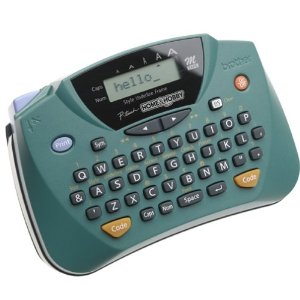
In the coming months, this space will present a comparative analysis of brands and models and the keys to selecting a label maker, but for most household and small office purposes, any affordable label maker with a QWERTY keyboard should suffice.
Sidebar on Authority:
Although I have yet to find any academic research on the subject, it’s my professional belief and experience that users are more likely to file away their papers when their paper management system bears the “official” imprint of typewritten labels. I suppose those who are iconoclasts might rebel against “the Man”, but I’ve found that neat, uniform, typed labels tend to incline people towards loyally maintaining their filing systems more so than handwritten, scribbled labels.
Mini-Mistake #5E: You Have a Labeling PLACEMENT System That is Too Complicated
Labeling isn’t just about what it says on the label. Some systems rise or fall on the complexity of how and where they are labeled. To that end, I suggest two rules:
Skip 1/5 cut label tabs. You’ve seen those manila file folders with tiny one-inch tabs positioned at left, left of center, center, right of center and right. These tabs are simply too small to create meaningful labels unless you choose the absolute smallest font-size on your label maker or hand-print in teeny, tiny letters, thereby making the labels fit, but less easy to read from a distance. Just say no. Stick with 1/3 cut label tabs.
Don’t fuss over placement. I know people who have strict rules regarding placement of file folders and hanging folders tabs. For example, they’ll require that all major categories run behind one another, such that all financial accounts should be kept in left-tab files and that sub-categories must be center-tabbed and sub-sub-categories right-tabbed. Conversely, others will require that each successive folder in a system, from to back, should change tab position, from left, to center, to right, and over to left again.
There are two major problems with such approaches.
First, in both cases, if you run out of folders of the “correct” type — if, for example, you want to add a new financial folder but are out of left-tab folders, or if you need to add a new type of insurance policy, but the next folder should be a right-tab and you are out of right-tab folders, you’re stuck. Would you rather rush out and buy a new box of folders ASAP, or risk putting off completing your filing system until the next time you might feel inspired?
The second problem only involves the left-center-right (lather, rinse, repeat) label method. If you had a new sub-category to add, but the folders behind that category have already “restarted” the left-center-right pattern, your new folder will be the odd man out. A rigid system just sets you up for failure because it violates Mini-Mistake #4e, the one about leaving no room for the future.
For those of you who just don’t worry that much about file placement, I applaud you.
However, for you readers who are perfectionist procrastinators who can’t get started for fear of eventually encountering a “failure”, I have one secret. Did you know that you could flip folders inside-out? It can be a little more obvious that you’ve done so with colored folders than standard manila, but if you flip a left-tab folder inside-out, you now have a right-tab folder, and vice versa. It’s no miracle, but it helps keep the paper management process moving forward when things get bogged down.
Again, the simpler you can make your system, the better. As Albert Einstein said:
“Everything should be made as simple as possible, but no simpler.”
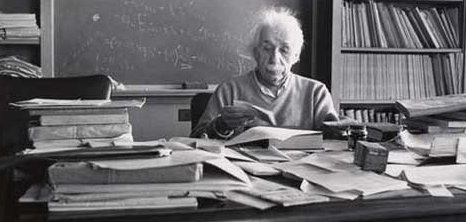
Most people think Einstein was probably thinking about quantum mechanics or the mysteries of the universe when he said that. But before he was a world-famous physicist, Einstein worked in a patent office. And throughout his career, he was surrounded by paper clutter. Albert Einstein knew about paper management mistakes. Just imagine what magnificent things he might have discovered if he’d just been a little more organized.
Paper Doll Explains How To Avoid Paper Management Mistakes — Part 1
Some people learn well from rules regarding what they should do, what they ought to do. These are the always-prepared scouts, the by-the-book officers of the law, and at least a healthy percentage of professional organizers. However, sometimes it’s more instructive, more motivating, more urgent, when we hear what we ought not to do.
Be honest, aren’t you more likely to schedule a doctor’s appointment after reading a cautionary tale of someone who ignored a medical symptom? When you hear of a computer crash (or this week, when you heard that the cure for cancer might be on a stolen laptop that was not backed-up), don’t you back up your files or start Googling Carbonite or Mozy?
We’re simply programmed to pay better attention to what NOT to do. This week and next, we’ll examine some of the biggest mistakes people make with their paper management systems.
Mistake #1: You Have No Physical System At All
Papers are everywhere. OK, maybe not everywhere. Maybe you’ve never found a 1099 in the lettuce crisper or a bank statement propped against a toothbrush holder. But whether your papers are merely limited to all the horizontal surfaces near your desk or are defying the laws of physics throughout your home and office, you’ve got only a rudimentary idea of where anything is, and everyone is dependent upon your memory of where something might last have been seen.
The Solution? Create a system!
Recall our Golden Rule of Organizing: “Don’t put things down. Put them away!” where “away” signifies the home where an item belongs. With paper, that means having a system of categories (and subcategories) to enable grouping like items together. While an occasional piece of paper might have two equally logical homes, guesswork will be eliminated 99% of the time.
When prospective clients contact me for help with paper, the first thing I ask, before I inquire about what’s causing them problems and what’s working well, is, “Do you have a filing system?” It doesn’t matter whether their systems involve a state of the art filing cabinet, a neon pink milk crate or thirty labeled shoeboxes, the very first step is to put some kind of system in place for handling the three types of paper in life:
Reference – This is all of the documentation you’re likely to need to put your hands on. In most cases, paper management solutions for reference work best in file folders or three-ring binders, but we’ve examined myriad solutions. Take some time to travel through the Paper Doll archives to locate solutions for all your reference paper systems. We first covered setting up a Family Filing system:
Family Filing—As easy as (eating) pie
Financial Filing—Scrapbooking snapshots of your money’s life
Mom, why is there a receipt stuffed in the turkey?
I Fought the Law…and the Paperwork Won!
Patient: “Doctor, it hurts when I do this.” Doctor: “Then don’t do that!”
Paper Dolls Live In Paper Households
I Hope Nobody Ever Writes a Nasty Tell-All Called “Paper Doll Dearest”!
Financial and legal paperwork may not always live at home, which is why we’ve talked about how to Safeguard Your Very Important Papers: Safe Deposit Box Basics. We’ve also reviewed, at length, how to deal with your medical paperwork.
Vital Signs: Organizing For A Medical Emergency, Part 1
Vital Signs: Gathering Information During/After A Medical Emergency–Part 2
Vital Signs: Maintaining Your Family’s Medical Records–Part 1 (Paper)
Vital Signs: Maintaining Your Family’s Medical Records–Part 2 (Digital)
Paper Cuts: Don’t Let Hospital Billing Errors Bleed You Dry
While financial, legal, and medical paperwork tend to live in your main filing system, your household papers, regarding the running of the home and the things in it, often need systems developed in other household locales:
A Recipe for Decluttering: Kitchen Paper
Organizing Your Takeout Menus, or How NOT To Order Like Bob Newhart
Boom! Crash! “Honey, where’s the user manual?”
Put Manuals On Automatic: Organizing Owner’s Manuals: Part 1 (Paper) & Part 2 (Digital)
Organizing Your Car Maintenance Records
And, of course, there are systems (physical and behavioral) for handling the most personal paperwork in your life:
Zing Went the Strings of My Heart: Organizing Your Love Letters
Action – You know I’m a big fan of using a tickler file, whether that’s an accordion-style
file or 43 folders (31 daily and 12 monthly) in a desktop file box or drawer. Each action-oriented piece of paper represents a task you need to perform, so unless you’re going to tackle a task today, figure out when’s the earliest or optimum day to handle it, assign the task to that date and tuck the paper away. (Of course, the behavioral side of your system requires that you’ll check your tickler!)
Archive – The whole history of your life need not be at your fingertips. If you no longer need a piece of paper for action or immediate-access reference purposes but aren’t ready to let it go, at least get it out of your Prime Real Estate. Box it up in a Bankers Box and tuck it in storage or go digital, scan the material and recycle or shred the paper.
Mistake #2: You Have No Behavioral System In Place
You’ve got filing cabinets, hanging files…even a label maker. You might once have had a working system. But it’s been weeks (months? years?) since you’ve put things away in any designated spot.
The Solution? Build maintenance rituals into your schedule!
There are no filing fairies. No folder elves. No matter how nifty it would be, files and folders and ticklers do not perform a “Beauty & the Beast” musical number while you’re sleeping. It’s all up to you.
Think of your physical filing system like the kitchen. You have a sink, dishwasher, pots and pans, and kitchen cabinets, all physical accoutrements ready to handle your food preparation, dining, and cleaning system. But the hardware isn’t enough.
Imagine that you start your day in a hurry, rush to get out the door and fill the kitchen sink with sticky, syrupy breakfast dishes and glasses thick with the remnants of pulpy orange juice. Perhaps you manage to make it home for lunch, between appointments, and have just enough time to move your lunch dishes from the kitchen table to the sink. And then there’s the all-too-brief snack time before piano lessons or soccer games.
By the time you get home for dinner, you’re faced with the prospect of washing all of the dishes, or even scraping and rinsing the dishes so they can go in the dishwasher, just so that you’ll have the requisite room to prepare dinner. That prospect is likely to be daunting enough to convince you to order pizza or get take-out. Lather, rinse, repeat — but eventually, you’ll run out of clean dishes and your kitchen will become an untenable mess. However, when you get in the habit of washing the dishes right after eating and emptying the dishwasher right before bed, even if you momentarily resent the fact that you are so put-upon that you must do such harsh physical labor…deep down, you know that your life runs more smoothly with these tasks completed.
Similarly, you can see that a paper management system with the hardware (file folders, hanging folders, cabinets or cubes, etc.) but with no behavioral system in place is a recipe for ruin. When you need something NOW, like the phone bill that was due yesterday or the policy number for your auto insurance, digging through piles of where you last saw something is not only less than ideal; it makes things worse.
If, like Paper Doll, you don’t cook, perhaps you’d prefer to think of your paper management system like the one you should have for organizing your closet. There are tasks you perform daily or at least weekly (hanging up clothing, putting away laundered items) and tasks that are handled less often (like seasonal closet switches or purging of excess).
Similarly, figure out what you need to do and when you’ll do it:
Whenever you feel overwhelmed
Turn off the ringer and the computer alerts, place a Quarantine sign on your door and follow the instructions here:
WhitePaper RAFTing: Adventures In Paper Organizing
Daily
Get in the habit of putting away each piece of paper when you’re done with it. I’m not a strong proponent of the OHIO (Only Handle It Once) Rule, but I do believe that as soon as you receive a piece of paper, you should try to figure out what’s the very next thing you have to do with it. If it triggers a task, either do it, delegate it or put it in your tickler file. If it’s reference, file it away. Once your physical system is up and running, it shouldn’t take more than five or ten seconds to put away any piece of paper.
What about a To File Pile, you ask? Well, sure, you could put a tray on top of your filing cabinet and plan to file everything all in one fell swoop, daily or even weekly. But without diligence, that gets perilously close to our sticky kitchen example.
Let technology prompt you to put papers away. If you work in an office, set an alarm on your computer to alert you fifteen minutes before your lunch hour and fifteen minutes before you close up for the day. At home, set alarms to remind you to check your tickler file at the start of each day and tidy papers before you amble away from your desk.
Weekly
Book time on your calendar, preferably Friday afternoons, for catching up on abandoned tasks. No, that’s not being defeatist; it’s being a realist. Life is messy. Kids get sick, washing machines overflow, catastrophes happen at work and at home. Building a paper management backup system into your life is like an insurance policy. If you’re all caught up, you can release the blocked time for something more fun.
Might you put off these daily and weekly tasks because you fear boredom will set in? Get yourself an accountability buddy. Arrange to phone or Skype a friend and do your procrastinated-upon tasks at the same time. You don’t even have to both be doing the same thing, just as long as you’re both aware that the other has this set task to complete. It’s a distance/virtual version of what Judith Kolberg calls body doubling. There’s something soothing about performing (or even appearing to perform) a similar task simultaneously. (If your chum’s procrastinated-upon task is a cardio workout, you might want to mute Skype or only talk to your friend at the start and end of the appointed time.)
Annually
Normally, you’ll be concerned with what you put into your paper management system (filing) and what you need to access from it (retrieval). However, unless you encounter an overstuffed system, apparent duplicates that require a careful examination to differentiate or some kind of disaster, you’ll rarely be concerned by all the stuff you never need.
That’s where the reviewing and purging parts of your behavioral system will come in. We’ll discuss the process of winnowing an overstuffed paper management system next week. For now, just block time on your calendar for the annual process. At the office, pick the part of the year where demands are low and the phones are quiet — for example, between Christmas and New Year’s or in July or August. For personal files, it might be when the kids are at summer camp.
You won’t have to do it all at once, but plan time to purge your filing system a little bit every day during the blocked period.
Start at the front and move backward. If you’re dealing with client files (or anything alphabetical), aim to manage one or two letters a day. You might find you’ve got extra work cut out for you when handling the A’s, M’s and S’s (that’s just the way things work out), but you’ll be able to double-up on the days you get K, Q, U, V, X, and Z.
Next week, we’ll continue with more paper management mistakes, like overstuffed file systems and bad labeling practices. Until then, please back up your computer — especially if you’ve found the cure for cancer.
A Different Kind of Bankruptcy: Jettison Email Overwhelm
[Editor’s note: This post from the Paper Doll vault was originally published January 13, 2009, back when we were still using two spaces after a period. Sixteen years later, email still plagues people, so this post has been refreshed and updated as of February 2025.]
My parents once told me about a long-lost relative who, when his bank statement got too terribly out of balance, withdrew all but a small amount (estimated to cover all outstanding checks), opened a new checking account at a different bank across town, and abandoned the old one! New bank account, new check register, new sense of freedom.
That long-ago relative declared bankruptcy on his unfathomably unbalanced checking account.
We tend to think of bankruptcy as a bad thing, and certainly by the standard definition, but it’s sometimes the best of a bad set of options. When you lack the funds to pay your bills, bankruptcy is the legal option that allows people (or businesses) to liquidate their assets, create a payment plan going forward, and start fresh without the stress associated with unpayable debts.
But today, let’s look at a different kind of bankruptcy, inspired
EMAIL BANKRUPTCY
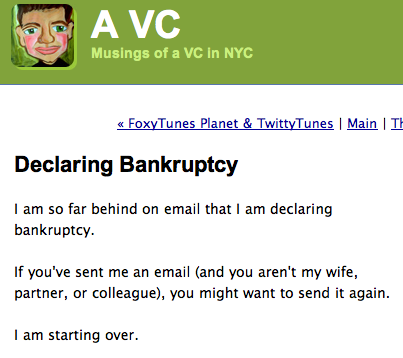
In the 21st century, that old story has new wings. For avid web surfers, the idea seemed to have started with a man named Fred Wilson, a venture capitalist. In early 2007, Wilson declared bankruptcy on his blog — email bankruptcy. He wrote, simply:
Wow.
While Wilson’s pithy post got linked and tracked and repeated all over the web (and this, in the days before social media), he wasn’t the first.
It turns out the real father of this movement might have been Stanford professor, copyright attorney and Wired columnist Lawrence Lessig, who, in 2004 sent an email to everyone in his address book, apologizing for a “lack of cyber decency” (which, I suppose, we could almost consider 21st century moral bankruptcy), and saying that if anyone was awaiting a response to an as-yet-unanswered email from him, they should reply directly to this particular email, implying all emails that had come before would be ignored.
Lessig apparently saw a declaration of email bankruptcy as the only option to allow him to repay any of his email debts — attacking the most urgent or important would be better than the hopeless and time-consuming attempt to handle them all. With this method, he’d give “creditors” with the most valid claims on his time a chance to recoup their long-awaited loses, and he’d start clean.
Certainly, this method has some appeal. Lessig and Wilson absolutely aren’t the only ones in email bankruptcy court; they’re not even the only high-profile ones. Even musician Moby (known for his high-tech & digitally-designed creations) is reported to have done it.
Although often credited to Lessig, the term email bankruptcy seems to have been coined a full decade ago by MIT Professor Sherry Turkle, and she’s been speaking on the subject for a decade, and as recently as national conferences in 2008. Apparently, the fantasy of freeing oneself from the burden of massive and multiple screens’ worth of email is a common, appealing and compelling one.
The concept for anyone who works at a desk all day is fairly shocking. But isn’t it also intriguing?
As a professional organizer, I’ve seen clients facing this dilemma, with anywhere from hundreds to thousands to tens of thousands of emails in their in-boxes haunting and taunting them. I’m sure you can empathize and see the appeal of this seemingly reckless abandon.
There are great advantages, not the least of which is that unlike financial bankruptcy, you don’t have to wait 7 years to rebuild your online reputation. However, I can’t say I’ve ever encouraged a declaration of email bankruptcy, which seems to involve three steps: alerting everyone to your situation, apologizing, and deleting everything emailed prior to this moment.
I’ve you’re thinking of email bankruptcy, Paper Doll encourages you to consider some compromise measures. Instead of complete bankruptcy, it puts (email) debts in abeyance so that you can focus on what are likely the most pressing obligations.
Peruse the following approach, which can be taken in baby steps. Sit down at your computer, where it’s easier to manage email than on your phone:
- Sort emails by date — Just click the top of the date column, no matter what platform (Gmail, Outlook, etc.) you’re using. It will reorder your emails, just like magic, and is an entirely reversible action.
- Create an email folder called “Archive” so you can move mail (without deleting anything, assuming that’s too scary a step for you).
- Drag old mail (everything from prior to last two weeks) to the Archive folder. It’s staying within your possession, you’re just moving it to a different pile. Of course, if you’ve got 50,000 emails in your inbox, this fear (and anticipating the time it might take) could be paralyzing. If that’s too overwhelming, try carrying over just one smaller chunk at a time, starting with the oldest. If you’re moving 134 emails from July 2008, you’re going to immediately eyeball that “Jeez, I don’t need any of that” and the fear of just moving them out of your inbox will abate.
- Take a deep breath — Remember, you can still do a global search of your email account to find something specific you want. This is just to give you a little elbow (or eyeball) room.
- Now, just handle whatever is current, and you can define that any way you like. — Perhaps that’s the last 10 days or two weeks’ worth of mail in your in box; maybe it’s everything from this calendar year. Only you know what’s going to relieve you from your sense of recent email debt. But be ruthless about processing that email getting it out of your inbox. Use any of the productivity tools Paper Doll has given you. Maybe you’ll want to do a series of Pomodoros to complete the tasks associated with those emails. Maybe you’ll Zoom with an accountability party to body-double one another. And maybe you will recognize that not only can you comfortably delete the email, but you can unsubscribe from the obligation to get more. (It’s like canceling your gym membership when you’re getting billed monthly but realize you’ll never, ever go to the gym!)
- Pat yourself on the back. Having dealt with the most recent email, you should already feel lighter. From here, you have a few options. You can completely stop, or you can organize that whole backlog, knowing you can always use the search function to find any of that older stuff.
- Go to the Archived Folder. Create a sub-folder called “Archive [YEAR] & Prior” or “Before [YEAR]” or something like that.
- Move everything from the Archive folder that’s dated prior to (for example) 01/01/2025 to the sub-folder. In other words, the last year’s worth of stuff is archived, but stuff older than a year is SUPER-ARCHIVED. (If you’ve been using your email inbox as an endless “to do” inbox for years, you may have up to 10 years worth of emails in your box. Chances are good that if you missed anything prior to about 6 months ago, someone has already called to bug you about it.)
At this point, you could just stop and walk away, content that you’ve caught up on what’s truly essential. You could also delete the whole sub-folder, because how likely are you to really need something sent to you between when you got your first AOL account in 1994 and the start of last year?
But just having all your most previous year of email set aside can make it seem more manageable, because if someone does contact you about an email sent a few months back, using your search function to find one email out of a year’s worth will be easier than location one in a decade’s.
Now that things are tidier, you might decide to handle ten ancient emails a day. You could sort that archived folder by sender and look at everything your colleague who retired three years ago sent you to see if anything is vaguely useful, or mass delete everything Kohl’s has sent you since you first got a charge card there. (Seriously, Kohl’s, do you really need to send me three emails every day? I’m not going to forget I have a 40% discount, but more emails aren’t going to trick me into shopping if I don’t already need to buy it at full price. I’m strong that way!
But remember, don’t feel like you have to delete everything from your archive. Inbox:Zero is still only a snapshot in time; people will no more live forever with Inbox:Zero any more than you’ll achieve LaundryHamper:Zero by any method other than becoming a nudist. Email, to our dismay, is here to stay. But getting rid of the ancient and the excess will give you some breathing room to get your work done.
I’m Paper Doll, so why am I talking about email? Because this urge to run away, to abandon your paper debts, is just as strong as that to free yourself of email. Look around — do you have months, even years, of magazines, catalogs, old charitable requests, junk mail, greeting cards, credit card statements, and loose papers surrounding you? Wouldn’t it feel good to be free? (Wouldn’t the foundation of your house be less likely to creak under the weight of it all?) To that end, consider similar bankruptcies.
CATALOG BANKRUPTCY
It’s January. Last year’s (or last decade’s) prices don’t magically stay valid just because you’ve saved the catalogs.
- Get a recycling bin and dump every catalog into it.
- If you REALLY think you’ll order from any of these catalogs, take a minute to bookmark the URL so you can surf anytime you like.
- If you’ve spotted a turned-down page bearing a product you simply must have, tear out just that page–catalogs print their names/URLS/phone numbers on at least one side of every page. Surf the site, bookmark the product page in a bookmark folder called “pending purchases” and recycle the paper.
- Call the 800 numbers and take your name off their mailing lists.
MAGAZINE OR NEWSPAPER BANKRUPTCY
Do you hand-write a transcript of every episode of Oprah? (No!!!) Then you don’t need to save every issue of O Magazine! If nobody is paying you to be an archivist, stop taking that on as a responsibility. [Editor’s Note: Oprah’s magazine may be gone, but the concept still stands.]
- Read what I had to say about magazine clutter last year, here and here.
- Go back and read it again. This time, take it to heart. Owning a magazine does mean you have a slightly greater potential to gain the knowledge within, but it’s only potential unless you actual read the articles, retain the information and release the magazine back into the wild. Set them free!
- Start by making some rules to make the pain of letting go a little easier. Perhaps you can save just the fancy-pants Holiday Issue of each magazine and let go of other months?
- Recognize that old news is history; if you haven’t read Time or your local paper from last April or even last week, trust me, your life will be none the poorer.
- Affirm that there’s not that much new under the sun; if you throw out an issue emblazoned “A Flatter Belly in 30 Days,” be assured “A Tighter Tummy in 4 Weeks” will probably appear in your mailbox next week, anyway.
- Trust Paper Doll (and failing that, Antiques Roadshow) that your 6-year-old National Geographic issues and daily papers will not become collectors’ items.
- Stop renewing subscriptions to magazines you don’t read in full by the time the next issue arrives. Really. (If you miss them that much, go read them at the library where the magazine clutter gets managed by the staff.)
- Donate the magazines to doctor’s office waiting rooms (where they’ll still be decades fresher than whatever is there) and enjoy your free space.
JUNK MAIL BANKRUPTCY
- Do a reality check. Last week, there was a vigorous discussion on social media regarding how so very many of us spent our childhoods coveting Samantha’s or Tabitha’s magical twitches (from Bewitched). But we accept it’s not going to happen. Now it’s time to face another truth. You are very unlikely to win a magazine clearinghouse’s million dollar sweepstakes. Your time is too valuable to play affix-the-sticker-on-the-contest-form, and we’ve already determined you don’t need new magazine subscriptions.
- Donate or don’t, but make a decision. Too many people hold onto charitable donation requests for week, months or even years. There’s no more or less inherent value in replying to any given request from the same non-profit (except, quite possibly, letting their marketing firm make suppositions regarding which design was more popular).
- Shred convenience checks and any other “junk” mail that bears any personal information. It’s junk if you don’t want it, but that doesn’t mean it’s not appealing to dumpster-diving identity thieves.
There are dozens of ways you can free yourself by declaring a positive kind of bankruptcy. Starting today, think about what else you can jettison: tasks and obligations that don’t fit your goals so you can spend more time with your loved ones? Email newsletters you only subscribed to so you could read the bonus ebook? Delete those apps you never, ever use!
Set yourself free! Declare bankruptcy.


Follow Me