Don’t Get Locked Out: How to Set up a Recovery Contact for Apple and Google
Our relationship to technology gets ever more complicated with each passing year.
People are glued to their phones. Some folks fall in love with their AI chatbots. We get so frustrated when we can’t live with our technology, but we know from experience we also can’t live without it.
So what do we do when we get locked out?
Previously, we’ve talked about what to do if you are no longer walking the planet. As I explained in these posts from the Paper Doll vault, there are preparations you can make in case you aren’t around to access your Apple, Google, or social media accounts:
- Paper Doll Explains Digital Social Legacy Account Management — This post walked through the main concepts of managing your social media legacy, how to inventory your social media digital assets, and the steps to take to secure legacy access to social media accounts, like Facebook, Twitter/X, Instagram, TikTok, and LinkedIn.
- How to Create Your Apple & Google Legacy Contacts — This post delved into the specific steps necessary for setting up legacy contacts for Apple and Google to ensure that your loved ones can secure your digital assets (photos, email, etc.) once you’ve shuffled off this mortal coil.
But what do you do if you’re alive but your access to your digital stuff is not?
Maybe Grandpa forgot his password (or all of his passwords).
Maybe you have been hacked. After all, the first thing the bad guys do is change your password so you can’t see all the other nefarious things they’re doing (and often fill your your Outlook or Gmail inbox with junk to obscure the clues that would point to the hack). When things go awry, you can use all your passwords, passkeys, and 2-factor authentication skills, but sometimes, you need a human solution.
You need someone to vouch for you. This is where the concept of a recovery contact comes in.
Today’s post will review how to set up and use a recovery contact to regain access to your digital resources. But first, let’s get clear on what a recovery contact really is.
WHAT IS A RECOVERY CONTACT?
It may seem that a recovery contact would be the same as a legacy contact.
You might think that you could set up just one or the other and use them for the same purpose. After all, the purpose of a legacy contact is to designate an individual to give official access to your accounts after your death. Why not just pretend that you’re “only mostly dead” to get back into your account?
As explained in earlier posts, a legacy contact doesn’t just randomly give someone your login credentials, like leaving a key under the digital mat. Rather, it sets up a secure process for giving a trusted contact access to the data stored in your accounts after you die to that everyone can achieve financial and structural closure.
A recovery contact, however, works differently. Rather than giving someone the ability to get into your accounts and control them, a recovery contact is the individual whom, when you get locked out of your account, gets to stand up for you that you are really who you say you are and deserve access to your own account. (There’s not a lot of literal standing up. Usually, they receive a code and give it to you. So it’s more like they’re meeting you on your front step to hand you your spare key.)
What’s the Difference Between a Legacy Contact and a Recovery Contact?
Again, they can seem similar, but are used for different purposes.
Key Traits of a Legacy Contact
An Apple Legacy Contact, or what Google calls an Inactive Account Manager, is designed to be used after your demise, upon your appointed contact providing proper documentation (like a death certificate).
The key traits of a legacy contact are that it:
- provides (limited) access to your data after you’re gone — an Apple Legacy Contact can access anything in your iCloud account, while a Google Inactive Account Manager has more curtailed access
- does not allow logins or account control
- may be time-limited
- involves a separate set-up process (for a separate Apple ID, for example) for access by the legacy contact
Key Traits of a Recovery Contact
An Apple or Google Recovery Contact is designed for short-term account access assistance. You get the access; they don’t!
The key traits of a recovery contact are that it:
- helps you regain access while you’re alive and kicking (and probably kicking yourself for forgetting or losing your password or somehow bringing this problem on yourself)
- does not give ongoing access to your account
- does not grant access to actually seeing your data
- only works when you initiate the account recovery process
The bottom line is that your recovery contact helps you get back into your (digital) life, while a legacy contact helps your loved ones wind it down.
Situations Where You Might Need a Recovery Contact
It might seem like it’s obvious — you need a recovery contact when you’ve been locked out, but why might that happen?
- You’re locked out of your account because of suspicious activity (by someone else) or your own failed login attempts attempts (like too many misremembered or mistyped passwords).
- You forgot your password and you’ve lost your device.
- You forgot your password and you can’t access your email.
- You forgot your Apple ID.
- Two-factor authentication is sending codes to a device you no longer have.
- Your phone has been stolen and you no longer have the device with Google’s associated passkey.
- You got really angry at the person to whom you were talking while walking across a bridge and in a fit of pique, you threw your phone into the lake, river, or ocean. (Does anyone really do this? It keeps happening in movies!)
- You upgraded devices and now your new device doesn’t know the things your old device kept sacred.
- You’re ill or injured, and it’s making it hard for you to manage your own tech or you’re having trouble communicating with caregivers helping you.
- Your device access is limited during travel emergencies.
- Your phone got “factory reset” while you were trying to make things work again.
I had a client who had to wipe his phone (that is, restore it to factory settings) such that the phone no longer recognized who he was. He had two-factor authentication set up, so Apple looked for a second device to which to send the code.
Normally, if you’ve got an iPad or a Mac connected to the same Apple ID, your two-factor authentication should work. My client, however, had mostly Windows products, and was getting more and more stressed out. However, because we’d set up his child’s iPad (mostly for toddler videos) with my client’s Apple ID, he was able to get up and running again.
However, we used the opportunity to set his wife (who has her own Apple ID) as his Apple Recovery Contact so that he never had to worry about this again.
From a tech organizing perspective, recovery contacts are especially helpful for people managing multiple devices, juggling shared/family tech, or dealing with caregiver situations.
HOW TO CHOOSE YOUR RECOVERY CONTACT
Choosing a recovery contact is much like choosing a legacy contact, but you’re looking for different characteristics and skill sets.
When I talked about setting up a legacy contact, I focused on the attributes of a good digital executor:
- Whom do you trust to carry out your wishes, or anticipate your preferences if you leave no instructions?
- With whom will you still be in close contact by the time a digital social legacy has to be managed?
- To whom are you comfortable giving access to private conversations?
- Which of your friends is likely to stay current enough with technology to be able to handle your digital legacy?
However, for your recovery contact, you want to look for different features in your peeps.
A good recovery contact is reliable, responsive, calm, and appropriately nosy (but only when invited to be).
A Good Recovery Contact Won’t Ghost You
You recovery contact needs to be reachable in real time.
- Do they check email and/or text messages frequently?
- Are they unlikely to miss time-sensitive notifications?
- Will they dependably check (and not ignore) a message because it looks like it might be automated?
If someone has 37,000 unread emails or the number bubble above their text app icon looks more like a phone number, this isn’t a good recovery contact for you.
A Smart Recovery Contact Will Verify It’s Really You
You recovery contact shouldn’t have a knee-jerk reaction to share your information.
- They’ll pause to consider and confirm that it’s really you who triggered the recovery process and not a Russian baddie in a hacker farm.
- They’re comfortable calling or video-chatting with you to confirm it’s really you who’s stuck before taking any required steps.
- They won’t blindly follow instructions just because Apple (or Google) said so.
Your ideal recovery contact will have at least mild skepticism rather than unquestioning compliance. (Good characteristics for a fellow citizen, as well as a recovery contact, eh?!)
An Ideal Recovery Contact Will Stay Calm Under Mild Stress
We all know folks who freak out when a football game runs long and their show doesn’t start on time. That’s not who you want. Pick someone who:
- Won’t start spiraling when they see the words “account recovery” or “security alert.”
- Can follow step-by-step instructions without melting down.
- Knows when to ask for help instead of guessing and clicking, willy-nilly.
The Best Recovery Contact Has Mental Bandwidth and Time to Deal to Help
Speed matters during account recovery, especially if someone has hacked you. Select a recovery contact who:
- Is routinely available during work hours (or during the hours you’re likely to need help). — If your bestie works 12-hour shifts, she may not be the best option.
- Is in a profession where interruptions won’t be dangerous or impossible. — Brain surgeons can’t just step out to handle your iPhone kerfuffle.
- Can likely respond within hours (or even minutes) and not days.
While we should respect everyone’s work style, your work-from-home friend is probably a better option than your pal who is an airline pilot. Your retired sibling makes a better recovery contact than your friend with a three-week-old baby.
Other Considerations for a Recovery Contact
- Pick a person who respects your boundaries — They should understand that they aren’t being given access to your account, and you can trust that they won’t waste time snooping around or attempting a recovery when you haven’t actually asked for one. So, nobody named Gladys Kravitz.

- Identify someone who is comfortable with basic technology — Your contact doesn’t need to be a web developer, but they need to know how to handle links, codes, and authentication steps. In other words, not someone who needs daily assistance to check their texts, avoid clicking on spam links, or keep themselves from getting locked out of their phones.
- Pick someone who is stable and likely to be in your life for five or ten years — So, not your hinge date from last weekend. Not your friend who flakes on half the meet-ups you plan. Not the boyfriend you’re considering breaking up with. (And not just because you’re afraid he’ll log into your account. But because you have no idea when the two of you might go “no contact” and you’ll have to decide whether to break that status or just give up on the last 20 years of your digital real estate.)
Finally, ask if they’re OK with being your recovery contact so they won’t be startled by a sudden, “Apple [or Google] is contacting you” message. Surprises are for gifts and birthdays, not account security. Capisce?
A legacy contact needs discretion and emotional steadiness. A recovery contact needs availability, clarity, and a cool head when you’re locked out, pacing the floor, and cursing Steve Jobs.
A legacy contact needs discretion and emotional steadiness. A recovery contact needs availability, clarity, and a cool head when you're locked out, pacing the floor, and cursing Steve Jobs. Share on XYour recovery contact may be, but need not be, your spouse, adult child, or next of kin. Pick the person who dependably answers your calls and texts. In the words of Grey’s Anatomy, select the one to whom you could honestly say, “You’re my person.”
If you found your way here because someone asked you to be a recovery contact
Maybe you’re wondering if it’s safe to be someone’s account recovery contact. Yes, because you’re not granting access to anything of your own.
If you agree to the position, they’re no pay, no reward (except undying gratitude), and you won’t be gaining access to their goodies. Rather, the only superpower you’ll get is the ability to furnish them with a recovery code upon their request.
Obviously, you should only give that code directly to the person who trusted you to do so (like by phone or video call); if someone claiming to be the police, a hotel concierge, or a hospital worker requests the code, that’s a scam. Duh. (But you knew that, right?)
HOW TO SET UP YOUR APPLE RECOVERY CONTACT
To set up your Apple Recovery Contact, you’re going to need the following:
- All of your devices set to at least iOS 15, iPadOS 15, watchOS 8, or macOS Monterey or later. Apple may prompt you to update any devices, or remove devices you aren’t using. (I have an iPad from 2013; Apple let me know I had to update the iOS, which I can’t, or remove it from the recoverable device options.)
- Two-factor authentication to already be enabled
- A trusted person (aged 13 or older) who already has an Apple ID
Follow these steps:
1) Go to Settings.
2) Tap your name (Apple ID) at the top.
3) Select Sign-In & Security. (Depending on your iOS version, it might say Password & Security.)
4) Tap Account Recovery. (Depending on your iOS version, it might say Recovery Contacts, as mine does, below).

5) Tap Add Recovery Contact. — At this point, you’ll likely be asked to and authenticate, so be prepared to use Face ID or Touch ID, as applicable.
6) Choose a trusted person from among your contacts.
7) Apple will then send them an invitation to accept.
How to Delete Your Apple Recovery Contact
If you ever need or want to change your Apple Recovery Account, follow the same steps as above, but after once you get to Account Recovery, tap the person’s name and then tap Remove. Your contact will see a message that you’re no longer their account recovery contact.
For more on the Apple Recovery Contact process, check out these Apple pages:
Set up an account recovery contact — This page explains much of what I’ve written above but with additional details.
How to use account recovery when you can’t reset your Apple Account password — This page explains how to request an account recovery when everything has gone kaflooie. (Yes, that is the technical term. Thanks for asking.) You can either do this from your device or on the web at https://iforgot.apple.com in your browser.
Help a friend or family member as their account recovery contact — This explains how to be a good Apple Recovery Contact, including what such an individual does, how they can assist with recovery, and how to remove themselves as a recovery contact.
HOW TO ADD A GOOGLE RECOVERY CONTACT
You may have found Google account recovery to be problematic in the past. Happily, in October 2025, Google upgraded their systems to allow for improved Google Recovery Contact.
Functionally, a Google Account Recover Contact works much the same as an Apple Recovery Contact. (Note if you have Android devices (e.g., phones, tablets), be sure to set up a Google Account Recovery Phone for Android access protection.)
To set up your Google Trusted Account, you’re going to need:
- Access to your Google account (duh!)
- A trusted person with a reachable phone or email. (Google doesn’t specify that the trusted person must be a specific age, but Google’s minimum account-holder age is 13 in the United States; it varies by country. If your contact is old enough to have a Google account, you’re good.)
Follow these steps:
1) Go to your Google Account — If you’re on the web, that’s myaccount.google.com)
2) Click Security.
3) Find the “How you sign in to Google” section.
4) Click Recovery contacts. You may have to scroll down below the listed options (like 2-step verification, password, recovery phone, recovery email, etc.) to find this option in a “more sign-in options” bubble.
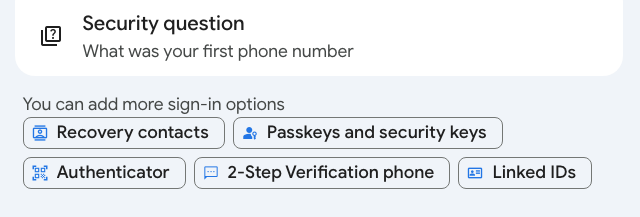
5) Click Add recovery contact.
Note: If you’re prompted to sign in, do so. If you’re setting this up in a browser, Google will likely show you a number code, direct you to open the Google app on your phone, and ask you to confirm the right number from multiple choices. If it doesn’t work the first time, hit “resend” to get the code again. (You have my permission to sigh.)
6) Enter the email address of your trusted contact. Assuming you already have that person among your contacts, their name, face, and email address will pop up, assuring you that you’ve selected the right person. Tap their name/face/email to accept your selection.
7) Click Continue.
8) Click Send Request when Google asks, “Send a recovery contact request? Your request will be sent via email, and [trusted contact’s name] will be able to see your name, email address, and profile photo.”
You’ll now see a list of your open request(s) for Google Recovery Account(s), with the person’s name, email, and photo (if they’ve created a photo for the account), so you’ll know you did it right.
Your contact will receive an email to accept the request, and they’ll have seven days in which to confirm their willingness. After 7 days, the request expires. Once they accept the request, you have to wait seven more days before you can actually use them as a Google Recovery Contact, so don’t go spelunking around your settings and accidentally blitz your access. Step away from the keyboard for a week and stop experimenting!
How to Delete your Google Recovery Account
Maybe you’ve broken up with your Google Recovery Account trusted contact, or perhaps you just know their lives have gotten too busy with babies or work. Just use the same steps as above to navigate to your Google Account’s Security & Sign-in page, then tap Recovery contacts, and find the trash can icon next to the account you want to delete. Tap the trash can and hit Confirm.
To Use your Google Account Recovery
If you encounter difficulties logging into your Google account, go to g.co/recover and enter your Gmail address. Try to answer the identifying questions the best you can and follow the suggestions for regaining access.
If you do need to recover your account, you’ll either 1) select your Google Recovery Contact from the list of recovery options, or 2) follow a pop-up prompt to reach out to them and select Get Number to get a short code.
Google will then send your Google Recovery Contact an email with three different numbers from which to choose, and you’ll have 15 minutes to tell them the number you got so they can select it, too. (This is why you may need to call or text to be clear on what’s going on.)
For more information, read Google’s Add, Manage & Use Recovery Contacts page.
Of course, protecting against from losing access to your essential accounts is always better than having to try to recover access after the fact. This is your reminder that the best ways to organize access to your tech life are to:
- use strong passwords
- don’t repeat passwords across accounts
- change/revise your passwords with frequency
- make use of passkeys, which are device specific and don’t require you to remember anything
- record your passwords somewhere safe, preferably a digital password manager
- use two-factor authentication
- don’t share your passwords with anyone (but if you must grant access, check your digital password manager for ways to share and/or rescind access with greater control)
- keep your devices updated to the latest operating systems and software versions
- set up your account recovery options before you need them
Have you set up recovery contacts? (Did you ever get around to setting up legacy contacts?) What else do you do to keep from getting locked out of your essential accounts? Please share in the comments.
Paper Doll Post:



Already done! But great advice.
Great job! I’m glad to hear you’ve got it covered, but I’m not surprised.
Thanks for reading!
Julie, this is a lot of information. I just copied your blog link and sent it to my daughter-in-law asking for her help to accomplish this.
Assuming your operating system is updated, the whole process for each will take less than a minute (not counting figuring out whom you wish to be your recovery contact). I’m sure you and your daughter-in-law will get this done quickly and easily.
Thanks for reading!
Great information, Julie. I never knew there was a difference between the two contacts, I have set up one – I think the legacy contact. This has prompted me to go back and make sure I have someone in the recovery spot.
Many thanks for this. I also appreciate the step-by-step instructions.
I was originally surprised that there was a difference, too. And Google’s recovery account is a new thing; previously, there were hoops to jump through and it didn’t really accomplish things nearly as well.
It’s easy to do, but it can be intimidating until you see that it’s just a series of clicks, so I’m hoping this will inspire more people to take care of it (and go back and take care of the legacy contact assignment, too).
Thanks for reading!
I had no idea this was even possible, so I’d never have gone looking for the information. I’ve added this to my task list!
I really think that Apple and Google should send notifications to people who DON’T have recovery (and legacy) accounts set up to periodically remind them to do this. I had been hoping that I’d find lots of different types of accounts (social media, etc.) that offered recovery contacts, but a deep dive told me that there weren’t. Phooey.
Thanks for reading, and I hope this helps!
You are a fountain of information, and I’m so grateful. I knew about the legacy contact through one of your posts, but I didn’t know about the recovery contact. Very good to know.
While I’d love for my husband to be that person, he has an Android, so I don’t think it would work. However, our daughters are both Apple users, so I will ask one of them to be that person for me. Thank you for the detailed instructions. It’s one of those things that I’ll be glad I did if something were to ever happen. And as we know. Stuff happens. 🙂
For what it’s worth, I’m pretty sure you don’t have to have an Apple device in order to have an Apple ID, so he could get an Apple ID for this purpose. But yes, having one of your daughters do this is helpful.
And just because you use Apple products doesn’t mean you shouldn’t get the Google recovery contact set up, so your hubby can cover that for you, and you for him.
Thanks for reading!
I shared this, but also pinned so I can do this with both accounts. I want to connect at a time that my contact has a free moment, and maybe we can do this for each other.
I never even heard of it before… thanks so much for the detailed instructions!
I’m so glad this resonated with you. For the most part, it’s easy to do. My only hiccup was that I had an Apple device that can’t be updated because it’s so old, but it took me longer to type the text telling my friend that I was going to make him my Google contact than it did to actually make him my contact!
Thanks for reading, and I’m so delighted by your positive reaction.