Digital Disaster Prep: How to Organize Your Tech Info Before You Need It

Do your digital devices ever frustrate you?
You probably use your computer much of the day. Even if you don’t, you likely grab your phone or your tablet with some frequency. You’re on the internet, and you want to connect to Wi-Fi. Perhaps someone in the house plays online multi-player video games or likes to stream movies or TV shows.
And when something goes wrong with any of it and you can’t figure out why, you may find that you want to exhibit less than delicate language and less than genteel behavior.
I feel your pain.
MONGO AND A TALE OF TWO PRINTERS
Decades ago, I needed to install more memory in my Ruby iMac G3 (may it rest in peace) and had been assured that it was a simple process. I just had to turn the computer upside down, remove some teeny screws holding a panel in place, and insert the memory card thingy. Except, it didn’t work. I mean, it would go in, but it didn’t seem to be going in properly. I gingerly pressed it as far as it would go, but it did not give that satisfying “click” you expect, like with a seatbelt. (Oh, how I wish I’d thought of “seatbelt” as a metaphor at the time!)
After more than a few frustrating minutes, I called my grad school friend Phil, one of my BFFs and the person who knew my level of tech capabilities. After multiple go-rounds, Phil could not understand what I meant by “The memory thingy is going in, but it’s not clicking like a compact.” Frustrated, he passed the phone to Mongo.
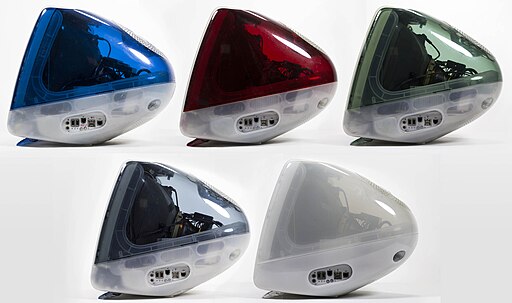
iMac G3 series courtesy of Stephen Hackett, CC BY-SA 4.0, via Wikimedia Commons
Mongo listened to my woes, figured out what I meant by “clicking like a compact” (which, at the time, seemed perfectly comprehensible to me) and eventually the problem was solved. I realized that day that if we were going to survive the internet revolution and live in a digital world, we would all need a Mongo (and a Phil), as well as a better sense of how to detail and explain our tech situations.
I was recently reminded of this by two experiences. First, I had a problem with printer/scanner. It would not scan. Or print. Although it had worked perfectly two days prior, my computer couldn’t see it, and vice versa. I suspected the printer/scanner had lost connection to my Wi-Fi network.
I set about manually inputting the network passcode into the printer, which is like old-timey texting, because you only have an Up and a Down arrow and a Select button. To get to a capital M, you have to scroll through 1-9, then lowercase a-z, then A-M uppercase before saying “select” and then move on to the next letter.
Still, nada.
I eventually asked ChatGPT, which walked me step-by-step through each possible activity, brimming with (sometimes misplaced) confidence. Over the course of an hour, I deleted my printer, re-installed it, then installed the printer and scanner drivers. I’d done everything right and it was STILL not working. The scanner driver troubleshooting mechanism alerted me that it couldn’t see the Wi-Fi and encouraged me to make sure the computer and scanner were on the same network. Doh!
Would you believe that although my printer/scanner was on the right network, my desktop computer (which I use everyday, and which I never manually change to any other network) had somehow been reset to the Xfinity public hotspot network rather than my own, private network?
Weird. However, had I not had all of the various network information written down and handy, from the beginning, the process would have taken much longer.
In a second case, I was working with a beloved elderly client whose family had just bought her a new printer to replace her formerly reliable but lately exhausted one. We’d even used it to make copies at the prior session. However, on deadline to print some documents and to take to a notary, the new printer wouldn’t print.
My client abandoned ship to make a cup of coffee and play Sudoku.
With a series of questions to Google and many false starts, I was able to install the correct drivers (because contrary to what the client’s family had told her, printers are not plug-and-play) and get the printer on the correct network. However, had I not previously secured the client’s home internet and computer information all in one place, I’d probably still be struggling.
Whether you have a Mongo and Phil, or a well-intentioned if bewildered Paper Doll, the key to a happy and well-connected digital life is organizing your tech information. You definitely don’t want to act out the printer-beating scene from Office Space.
Please don’t wait until the next time you need your tech information to start amassing it. Instead, develop a cheat sheet/folder and keep it someplace safe and accessible, whether on paper or digitally.
NETWORK AND DEVICE INFORMATION
Your home (or office) network is the lynchpin to getting anything done. Without a network, you wouldn’t be able to surf the internet (sigh, maybe sometimes access to the internet is keeping you from getting things done, but let’s circle back to that), scan documents to your computer, print from your various devices, or do much of anything.
There are four basic “chunks” of information you’ll need to have and/or know to keep your network running smoothly: your IP address, your router and modem information, your Wi-Fi network essentials, and your ISP details.
IP Address
IP stands for Internet Protocol. Think of your IP address as a unique identifier or label assigned to every single device connected to a computer network that uses the Internet Protocol for communication. You’re probably thinking about computers, tablets, and cell phones, but lots of other things have IP addresses that you might not expect, such as:
- Boring tech, like printers, scanners, and peripherals
- Internet of Things devices, like smart fridges, smart thermostats, or smart lighting use IP addresses to allow you to monitor or remotely control them
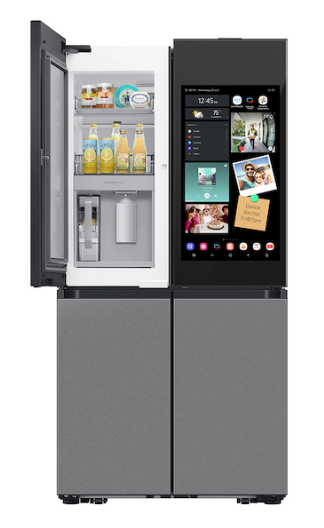
- Security devices like doorbell cameras similarly use IP addresses for remote control and remote access monitoring.
- Gaming consoles like PlayStations and Xboxes need IP addresses to connect to online gaming services and other players
Think about how you might use your label maker or a chalk outline on a pegboard to show where a coffee mug or your favorite wrench lives. The IP address is a digital version of that, a digital address, making it possible for your devices to send (and receive) information — data, instructions, etc. — over the internet as a whole or, across a local network in your workspace. The IP address is how your devices are able to identify and locate each other online.
Why and when do I need my IP address?
All the devices on your Wi-Fi network get assigned an IP address, ensuring the system will avoid conflicts and be able to smoothly communication. Your network administrator at work may need your IP address to optimize system performance or manage bandwidth. Security firewalls use IP addresses to filter unauthorized devices for incoming and outgoing traffic.
But what about you? You might need to access or provide your IP address in the following circumstances:
- Setting up a new modem or router when your internet provider sends you email saying “Hey, dude, your hardware is out-of-date! Trade it in for something that’s faster and shinier and won’t freeze during Zoom or your favorite MMORPG (Massively Multiplayer Online Role-Playing Game).”
- Troubleshooting connection problems. Maybe you want to access a streaming service but are being blocked because they’re not supposed to let people in your country (or wherever you are) access their good stuff. (In which case, you might want to look into a VPN.)
- Tech support, whether you’re getting assistance from your internet service provider or your grad school BFF.
- Beef up your network security so you don’t get hacked.
- Increase or modify your privacy so that advertisers (and their delicious cookies), your ISP, or your government can’t peek at what you’re doing (or, in the case of your smart fridge.
Where can I find my IP address?
You can find your IP address in two general ways.
- Use a website that shows your IP address. If you click on the link for https://whatismyipaddress.com or https://www.whatismyip.com/, it will automagically detect and your IP address and show you two different flavors of your IP address assigned by your internet provider.
- IPv4 addresses are a string or set of four numbers separated by dots. It’ll look something like 172.16.0.1. (Sometimes, when you’re trying to set up a router or deal with a tech kerfuffle, you’ll be advised to use the IP address 10.0.0.1 to access the admin panel.)
- IPv6 addresses use eight hexadecimal groups separated by colons. They’re freakier looking, like 2001:0db8:85a3:0000:0000:8a2e:0370:7334.
- Let your fingers do the walking to find your IP address.
If using the internet feels like cheating and you want to pretend you’re a programmer, you can:
-
- Use the Windows Command prompt — click the Start button, type “cmd”, and press Enter. Type ipconfig /all and press Enter: This will display detailed network configuration information. Find your IP: Look for the “IPv4 Address” under the appropriate adapter (Ethernet or Wireless LAN).
- On a MacOS or Linux machine, run “ipconfig” or “ip a” in Terminal.
- On mobile devices, like iPhones and Androids or tablets, go to your Wi-Fi settings.
- iPhone/iPad — Navigate to the Settings app and tap on “Wi-Fi”. Then tap the “i” icon next to the network to which you’re currently connected and you’ll see your IP address.
- Android — Go to the Settings app and pick “Wi-Fi.” Then tap on the to which you’re network you’re connected and you’ll see your IP address displayed under “network details.”
You can find a tutorial on the ins-and-outs of IP addresses at Computer Networking Notes.
Router and Modem Information
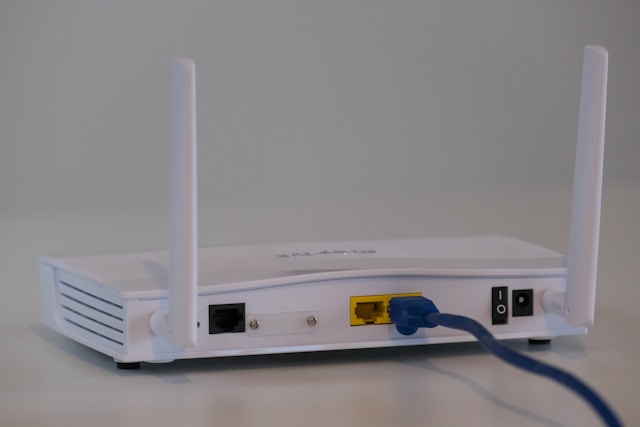
Router by Compare Fibre on Unsplash
Maybe you’re thinking, what’s the difference between a modem and a router?
In the simplest terms, a modem connects your house to your internet service provider (ISP). Your router then creates a network — a local area network (LAN) within your home, enabling all sorts of devices to connect to your internet simultaneously, generally via Wi-Fi. These days, your modem and your router are usually housed in one “box” that your ISP gives you.
Why and when do I need my router and modem information?
- To troubleshoot your network
- To update the firmware for your equipment
- To set parental controls
Document the following router and modem information
- The manufacturer, model number, and serial number of your router or modem. It’s generally written right on the housing. If the typeface is too small for you to read, use the magnifying tool on your cell phone.
- The default administrator login and password (plus any changes you’ve made) — Save the information in your digital password manager, or write it on a piece of paper and put it in an easily-grabbed folder called “Home Tech Stuff.” If you haven’t made any changes, the default might be as simple as “admin”/”admin” or “admin”/”password,” so check the sticker on your router’s manual or a sticker on the device.
- The Configuration URL for your router. It’s usually something like 192.168.0.1 or 192.168.1.1. You just copy it into the URL bar in any browser, the same way you’d type https://www.juliebestry.com to get to Paper Doll HQ.
- Current firmware version and instructions for updating it. It’s shocking how much we own requires “firmware” updates.
To find your current firmware version, go to your Configuration URL, log in, and yo’ll find a section with a label that says something like “System,” “Device Info,” “Firmware,” or “About” and it will show you something that looks like Firmware Version: v3.1.0.4.384_45678.
Alternatively, if your router has an app, check the app’s dashboard.
Wi-Fi Network Information
Why and when do I need my Wi-Fi network information?
You’re going to need to know (or access) this information when you:
- Set up a new router or connect devices to your existing router.
- Reconnect devices — I needed this when I had to get my scanner and computer to talk to one another again.
- Help guests or service workers access your WI-FI — If you don’t want them to know your Wi-Fi password, you have a few alternatives:
- Set up a guest network — If you log into your network’s administrator page as described above, there will be an option for setting up a new network name (SSID) for guests. For example, my home network is Pride & Prejudice; I could make a guest network and call it Longbourne or Pemberley.
- Some routers let you generate a QR code your guests can scan to connect to the network without knowing the password.
- Mobile devices have specific sharing options. On iOS or MacOS, you’ll see a pop-up prompt for sharing; on Android, look for the Quick Share option.
Document the following network information
- Your network’s name (SSID)
- The WI-FI password
- The encryption type (WPA2/WPA3)
- Guest network information, if you’ve created a guest network
Again, collect this information and keep it in an easily accessible digital or analog document. If you maintain it in the cloud, you can access it while traveling if you need to help someone at home, like your teens or a pet sitter.
Internet Service Provider (ISP) Information
Internet service providers are often frustrating, but the more information we have, the better prepared we can be.
Why and when do I need my ISP information?
This section is probably going to be the easiest for you, and you may be tempted not to document this information because you already know it. But what if your spouse or adult child or someone with your Power of Attorney had to help solve a problem?
You’ll may need this information if you want to upgrade (or downgrade) your service, report outages, solve billing questions or problems, or return equipment.
Document the following ISP information
- Your internet service provider’s name — Unless you live in Mayberry, the name isn’t going to be Floyd or MarySue. It might be Comcast/Xfinity, Spectrum, AT&T, Verizon Fios, T-Mobile, Google Fiber, or even a municipal or regional utilities provider.
- The customer support phone number — Note, you may need two different numbers, one for tech support and one for customer support, though they’re usually part of the same phone tree selection of options.
- Your account number — This is printed on your billing statement; if you don’t get printed bills (whether you are on auto-pay or just log in to pay each month), find your account number in your online account portal.
- Your login credentials for your account portal
COMPUTERS, PHONES, TABLETS, AND PERIPHERALS
While network information may be the most confusing — and thus most essential to write down, there are other essentials to capture on a technological cheat sheet.
Device Identifiers
For each device or peripheral, document the following:
- Serial number — You may find this imprinted on a peripheral, but on computers, phones, tablets and other digital devices, log into your Settings app. For example, on an iPhone, navigate Settings>General>About and you will find your serial number.
- MAC address — A MAC address has nothing to do with Apple Mac; it stands for Media Access Control, and it’s a unique hardware identifier that’s assigned to any network-enabled device. It’s a permanent characteristic, like a fingerprint, as opposed to an IP address, which can change. A MAC address looks like 00:1A:2B:3C:4D:5E
You may find a MAC address imprinted on the bottom or back of a physical device, labeled as MAC Address, MAC, LAN MAC, WAN MAC, or Wi-Fi MAC, in the router’s admin dashboard, or in the router’s app.
Alternatively, use a MAC address lookup site like MacAddress.io or MacLookup.app.
- Model name/number — Like the serial number, it may be imprinted in the bottom/back of the device but can also be found in the settings section.
- Operating System — e.g., Windows 11 or macOS 15 Sequoia. Don’t worry about noting the periodic version numbers (like 15.5.1) as that will update too often to make it worth logging.
- Device Name — This is whatever you call your devices so you’ll recognize them when you look at the network. For example, “Julie’s Purple iPhone.”
- On a Windows device, look at Settings>System>About
- On a Mac, it’s in System Settings>General>Sharing
- On iOS, navigate to Settings>General>About>Name
- On Android, it varies by manufacturer, but try Settings>About Phone>Device Name
Why might I need device identifiers?
Try to log your device identifiers as soon as possible after acquiring them in case you need to:
- locate a device on your network
- get warranty support
- get help with tech support or repair
- file insurance claims
- submit a filing for a class action lawsuit — Recent, I filed a claim in the Lopez Voice Assistant Settlement. Although I only had proofs of purchase for three of the four devices, I was able to complete the claim for the fourth by submitting the serial number for my 2015 iPhone6!
Operating System License Keys or Activation Codes
If you ever have to re-install your operating system because something implodes or if you need to transfer the operating system to a new device, you’ll need the license keys or activation codes, which are generally long alphanumeric strings.
In the olden days, we had stickers on the envelopes for installation disks and on older computers, stickers with the packaging. These days, look in your digital accounts, like Microsoft or Apple, to find your keys and codes, and save them locally, just in case.
Installed Software and Product Keys
Whenever you buy, download, and install software or other digital “products,” you may get keys to prove you haven’t “borrowed” someone else’s software. This includes anti-virus software, productivity suites like Microsoft 365 apps, or Adobe products.
Log everything you already own and then make a point of cataloguing new software purchases with:
- a list of all of essential apps and software licenses with the:
- product name
- license number
- date you installed or acquired it
- installation files (or locations) and download links from which you got the software
- activation codes
If you ever have to re-install software after a crash, or if your computer is lost or stolen and you have to move to a new device, you’ll need this data.
Peripheral Setup Information
When you fight the Devil — I mean, reconnect or troubleshoot your printer, scanners, Wi-Fi label makers — you need this information.
For the same technological, financial, insurance, or legal reasons you may need to track your digital devices, you need to record essential information about your peripherals. For each printer, scanner, copier or other peripheral, write down the:
- make
- model
- driver download page URL
- IP address (if it’s networked)
- current driver version
Smart Home Device Information
Do you have a futuristic home? Document the following for each of your smart home devices in case you have to reset your network and everything “smart” gets stupid.
- smart device app logins
- setup instructions
- device warranties and supporting info, including:
- purchase date
- warranty terms
- tech support contact numbers and websites
WHAT OTHER TECH INFORMATION DO YOU NEED TO TRACK?
If you manage to collect and safeguard all of the above information, you’ll be ahead of the game. Still, there are myriad other things to track.
Passwords
You already know that having a strong password is essential. Still, to stay on the cutting edge, read The 2025 Hive Systems comprehensive Are Your Passwords in the Green.
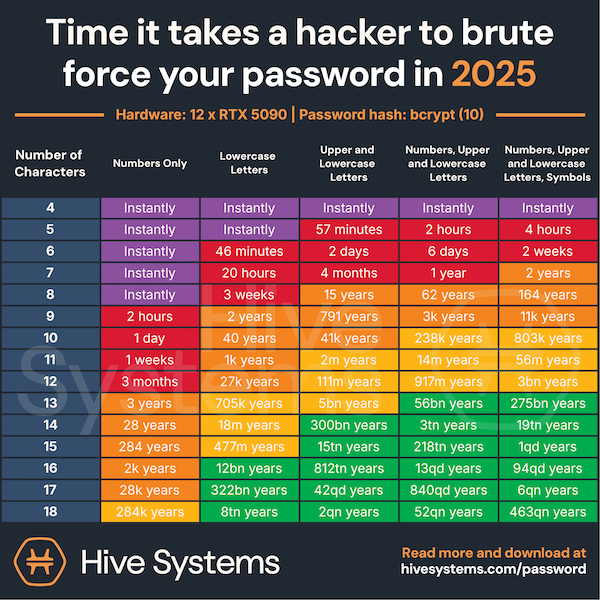
Infographic courtesy of Hive Systems at www.hivesystems.com/password
If you ever need to recover files, sync devices, or re-set your accounts after something goes awry, make doubly sure you’ve captured:
- logins for all of your cloud accounts, like iCloud, Dropbox, OneDrive, Google Drive, Evernote
- recovery email and backup options
- password manager login — If one password or passphrase is the key to your digital kingdom, keep it safe! You may think you’ll remember it forever, but if you get bonked on the head by an Acme anvil or a piano dropped from a high window, you (or your family) will be glad that you recorded it.
2-Factor Identification Backup Codes and Recovery options
Text-based 2-factor identification is quickly being replaced by 2FA backup codes. Take note of your:
- backup codes for services with two-factor authentication
- authenticator app information like which app you’re using, and which phone or tablet it’s installed on
in case you ever lose your phone or switch devices and can no longer have ad hoc codes automatically sent to your phone.
Backup Configurations
I can’t tell you how many times I’ve asked a client, “Do you back your phone up to the cloud?” or “How do you back up your computer?” and received a blank, panicked stare. First, be sure you are backing things up and then document:
- which devices are being backed up?
- how often?
- to where — the cloud? an external hard drive? network-attached storage (NAS)?
- instructions for restoring from backup
If you’ve never had a crash or data loss, you’re lucky. Preserve your luck and back up!
Digital Legacy Information
Think about who should have access to your accounts if you’re incapacitated or unavailable. Then make a plan to provide instructions and logins for your personal accounts. You can put much of this information in your digital password manager and arrange for an emergency or legacy contact. Beyond that, review:
How to Create Your Apple & Google Legacy Contacts
Paper Doll Explains Digital Social Legacy Account Management
Is your tech information captured and organized?




Such value luggable information, as always, Julie. However, I am so wishing that they made printers plug and play like they used to. It used to be so easy.
Thanks, Ellen. I still remember when I got my first Mac, my freshman year, and I got an ImageWriter (dot matrix printer). I plugged the computer into the outlet, the printer into the computer, the printer in the wall, and I was done! Setting it was so easy and I could easily take the printer elsewhere in the dorm if someone needed to plug into their Mac.
Thank you for reading and sharing your thoughts!
You’ve given me something to think about. I use a password manager, so my logins are well-organized, but creating a list that includes my ISP info, IP address, a few other key details and the password for the password manager would make life much easier for the person who has to access it when I’m unable to.
This is one of those times where a good Excel workbook could capture so many things. (I suppose you could upgrade and add photos of your hardware to an Airtable, but that’s more of an insurance approach and might be a bit overboard.)
Personally, I have a legacy (paper) “Technology” folder, and though I’ve built a digital list, I’ve found that there’s no replacement for analog when you’re handling your own tech kerfuffles.
Thank you for reading!
Julie, I know the one thing I need handy is the phone number of my tech guy.
I have copied copiously off your blog and put it on a word document.
I now intend to set up an appointment with my tech guy to get help finding out how to do some of this.
Otherwise, I’m just off for more coffee and work on the Sudoku.
Having a tech guy means getting to offload some of the anticipatory anxiety. Good for you!
I think you’ll be surprised by how quickly you can capture all of these things, and while you could do it on your own, it’ll be lovely that you and your tech guy can partner up to work it out.
And I just laughed so hard at you turning the “coffee and Sudoku” line back at me! 😉
Thank you for reading and making me giggle!
Thanks for spreading the word about passwords!
Hey, you guys do all the heavy lifting! It’s a comfort to know that all of my passwords are will either take 238,000 or 3 billion years to crack by brute force.
I appreciate your wise updates and always like to share them. Keep that wisdom coming!
I’m like Janet — I have all that info, but not all in one place, which would be handy for me, as well as for someone else. And it really is up to me to gather it, since most of my tech help will be virtual and I’ll need to provide it. Thanks for the nudge!
Considering how good you are at organizing data, like your health records, I have no doubt you could smack this together quickly.
And I bet your approach to the “how” of organizing it would make a great blog post. 😉
Thanks for reading, Hazel!
I feel your pain, Julie! My husband is in the tech industry, so he handles most of this. But, over time, he traveled more for work, and these issues would happen when I was home with the kids. So, I created a shared page in my password manager app with all the passwords and other necessary information and shared it with him and my kids. We have a family password manager account. This way, if anyone has issues, we can see what we need when we need it. It has saved me several times and I feel more comfortable going on vacation now knowing that if something happens, my adult son or daughter can handle it. Thanks for sharing your advice.
I wish more people took advantage of their digital password managers to keep everything accessible. Personally, I have a legacy (paper) folder for all my technology information, and I’ve started porting it over to digital, but 9 times out of 10, I reach for the paper folder. I’m such an analog girl! Still, your way is best because it’s in the cloud and accessible from everywhere!
Thank you for reading!
Well, my head is spinning. I need a live-in Mondo to take care of all of this for me. Or, I need to put on my big girl boots and take care of assembling all of this information.
I think this will require input from both me and my husband. I’m going to pin this to go through it with him! Thanks for all the details, so very helpful, especially with this technical stuff that is just tricky.
It seems daunting, which is why I wanted to write a post not just about WHAT to gather, but WHY and WHERE to find it all. If you go through it step-by-step, you’ll find that each item only takes a couple of minutes. Using the web to find your IP address makes it a snap!
The only hard part is finding any of your paid-for software license keys. I got in the habit of keeping a tech folder in Dropbox, so the software license keys live there, while everything else exists in a paper folder, and I’m rebuilding a good Excel workbook.
Trust me, once you know what you’re looking for, the battle is half-won! Come back and share your success — I’ll be watching.
Thanks for reading!
Thank you for making tech so understandable. With Windows 11 coming out in the fall and Windows 10 going to be unsupported, I am now in the market for a new laptop. My current laptop will not support Windows 11. Tech is a never-ending source of work to keep up to date. Thanks for encouraging us.
What a perfect time, with a new computer, to track and log all of these items so you’ll have exactly what you need to know. Good luck finding the right computer for your needs!
Thanks for reading!
Technology is great when it works, but when it doesn’t, it can be frustrating to figure out how to troubleshoot and fix issues.
Like you, my first step is to try myself. I’ll either do it intuitively, click on a “help” button, or search Google for a solution. If, after a short while, that doesn’t work, I contact Customer Service. Some companies are better than others at getting the right help. Apple and HP offer excellent customer service support. And if all of that fails, I will hire someone to help.
As for passwords, IP addresses, serial numbers, and so on, I have a system in place that works pretty well.
Thank you for sourcing and explaining. This can be a frustrating topic and experience when things aren’t working. I appreciate you normalizing it and giving us great information, too.
I’m not surprised that you have it all in place, Linda. You ALWAYS have it all together!
I agree about Apple. I think all of their tech support people are in Canada; if not, I’ve just managed to always get a Canadian support person, and that seems to be the secret sauce to their kind, informed style.
I don’t think I’ll be nerding out like this again any time soon, but every once in a while, I think we need a primer at from the ground up.
Thanks so much for reading!
Julie, I sometimes think you have a camera in my house spying on me at all times. You seem to come up with these blog posts either just before or during the time period that I need them.
I got a new printer. I’m having trouble with it. I had just read your blog post, so I copied all the information that I needed: the model number, serial number, PIN number, the IP address, anything that I could find, and kept it handy for my call to HP. I think the gal at Tech Support was surprised that I had everything on hand to answer her questions. It certainly sped up the call. Didn’t get my question answered, but the call was sped up. Thank you, as always. Right now, this information is in the printer file; however, I am going to set up a system to capture all my digital asset information and store it in NokBox for times when I am disabled (or forgetful) and for my heirs. Thanks as always!
Oh, Michele, being a professional organizer means that I don’t have to spy with a camera — all the work I do provides insight into the human condition. We’re all in the same place! 😉
While I’m sorry that Tech Support wasn’t able to help you, I’m glad that my post (and your proactivity!) meant that you were scuttling around during the call to get all of that information during the call.
Thank you for reading and for the validation!