Archive for ‘Task Management’ Category
Whimsical Tools to Improve Your Productivity: Mochi Focus, Mom Clock, and Kiki
THE NASTY TRUTH ABOUT PRODUCTIVITY
Would you like to know a nasty little secret from the world of productivity? Sometimes, getting things done — or more often, not getting them done — is a drag.
Last month, in Paper Doll’s Cheat Sheet for Celebrating Time Management Month, we looked at all the steps for making progress on the tasks we wish to (or must) complete. We talked about memento mori and knowing what we want to achieve in the precious amount of time we have on Earth, and revisited blocking time so that we can be both effective and efficient.
We also reviewed ways to prioritize the tasks we strive to complete and then dove deeply into the strategies for getting ourselves to start, from body doubling and accountability partners to using timers to make use of activation energy. (Speaking of energy, the post also reminded everyone to manage their physical energy through sleep, rest, and rejuvenation through breaks.)
We explored methods for blocking interruptions and obstacles (whether created by others or ourselves), and tracking our time to reflect on our entire systems to figure out where to make tweaks.
Whew. If that sounds like it would be a lot of work, well, that’s part of the problem. Being productive requires work. That’s why we say we’re going to work rather than we’re going to fun.
In a perfect world, if we followed all of these steps, failure would be impossible. We would know what we had to do, figure out what steps were the most important, schedule the work, settle ourselves in, and get it done. Huzzah!
But this is not a perfect world. We told the clocks to spring ahead over the weekend, so many of us are tired and cranky. (A little of that can be eased along with the advice in Organize Your Sleep When the Clocks Change and Beyond.) Depending on where you are today, it may be cold and grey outside.
And mostly, the inability to accomplish one’s goals — even when applying all of these strategies — comes down to a single, solitary truth: I don’t wanna!
Yes, people want the end result. They want their taxes done, their closets organized, and their dreams fulfilled. But they do not want to be bored, annoyed, wearied, or tasked with labor.
Sometimes we all, even professional organizers, just don’t wanna.
When this happens, it’s usually a matter of more than managing one’s physical energy. There are seasons of life when we need serious mental health care and tenderness, such as when we are grieving, experiencing anxiety, or suffering from depression, before we can think about make headway.
When our internal obstacles are less severe, activation energy, or getting ourselves to start, sometimes needs a rousing kick in the pants. Other times, we need the 21st century to stop kicking us when we’re down. Sometimes, we just need to give ourselves a break and find a way to add a little joy to the process.
At the end last year, in 2025 Wrapped: Do An Annual Review To Design Your Best Life, I wrote that my word for 2026 was WHIMSY. What is whimsy, exactly? It’s defined as:
“a playful, quaint, or fanciful attitude and behavior that is often unpredictable, spontaneous, and charmingly eccentric. It represents a shift away from rigid, serious, or conventional thinking, favoring instead a lighthearted, imaginative approach to life.”
Today’s post looks at some tools that offer a few charmingly eccentric, lighthearted, imaginative tools to tip self-management part of time management in your favor.
MOCHI FOCUS
Do you find that you’re better getting things done when you’re modeling good time management for others?
Mochi Focus combines a playful take on a Pomodoro timer with both a gamification element and a site blocker-turned-gentle-taskmaster.
Rather than an app, Mochi Focus is a browser extension for Chrome. (Why are all the good extensions only built for Chrome? Surely Safari deserves as much love!)
When you begin, Mochi Focus starts you off with a little blob of a pet, which they call it a “mascot.” You set to work, and the longer you stay on task, the bigger the little blob grows. Basically, instead of feeding your app food, you are nourishing it with your focused attention.
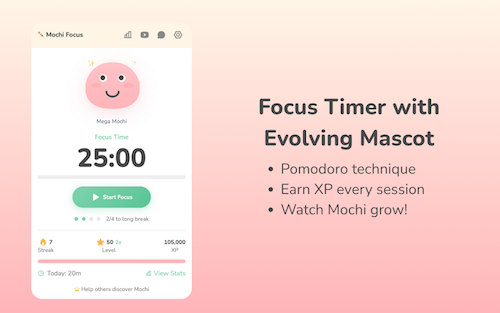
Mochi Focus Timer
A traditional “official” Pomodoro requires 25 minutes of work with a 5 minute break, and no more than four sessions without a longer break. In the abstract, the Pomodoro Technique works well to get our butts in our seats and complete many kinds of tasks.
However, not all tasks are created equal. Crafting an employee review isn’t the same as paying monthly bills, and neither one is the same as editing a chapter of your novel or cleaning out your closet.
Mochi Focus recognizes that some tasks require focus for shorter or longer periods of time. Thus, you get to customize your focus session lengths, anywhere from 1 minute (perhaps to do a plank or sun salutation) to 120 minutes (to rehearse for a presentation or make the mud room look less muddy).
You set the timer, and then Mochi Focus automatically switches between periods of intense focus and the break periods that keep your mental and physical energy from getting stale or expiring altogether. As with an “official” Pomodoro, Mochi Focus enforces a longer break after four sessions for use, but after set-up, you get to keep your hands off the timer for the duration.
The Mochi Focus Timer Mascot
Mochi incorporates gamification, because if we would do the work we have to do just because we have to do it, we wouldn’t need apps to make it fun.
Competing against ourselves is low-stakes, unlike competition with strangers. We win the “game” of getting things done to give our little pal Mochi a boost. You earn 1 XP (in the parlance of gamers, that’s experience points) for each minute you spend on focused work.
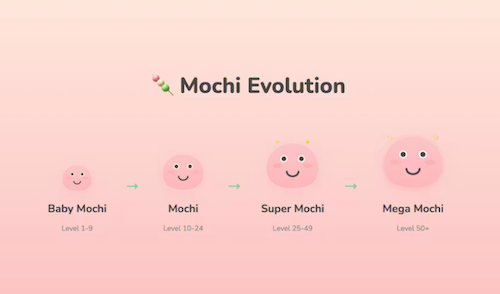
As you work, your Mochi mascot grows from baby-sized to Mega form. Depending on your level of experience (from 1 to 50), there are four stages of evolution. As you go along, you build daily streaks for bonus XP, and there are 14 achievement badges to give you positive reinforcement as you attend to your tasks.
In addition to tracking your progress through Mochi’s growth, there are also some adorable (might we say “whimsical?”) interactive features, including five interactive expressions in reaction to completed activity. The little guy expresses pride in your efforts with eye tracking, blinking, and click reactions.
Mochi Focus Website Blocker
Focus is not achieved by one’s competitive nature alone. Let’s face it, we all sometimes need a little help with boundary-setting.
The Mochi Focus website blocker feature is similar to Rescue Time, Cold Turkey, and Freedom, and allows you block yourself from accessing distracting sites during your focused work time. To get you started, Mochi Focus suggests more than 50 sites to block, and you can add your own time-wasters.
If you try to access those sites when you’re supposed to be working, you get a cheery page both reminding you that your access is blocked and encouraging you to go back to what you’ve assigned yourself to do. It’s like having the most gentle of accountability companions with a hint of Jeeves the butler.
On the up-side, when you’ve finished your pre-set focus session, Mochi Focus automatically unblocks those tempting sites so you can play during your breaks.
Pros and Cons of Mochi Focus
On the plus side, Mochi Focus has great features. It’s:
- is a simple, distraction-free interface that doesn’t require a steep learning curve.
- installs right in your browser.
- works offline, so you aren’t web-dependent.
- doesn’t require an account.
- tracks your progress through the main screen and a stats dashboard.
- stores all data locally on your device.
- is 100% free, with all of the various features unlocked. There aren’t even pesky ads or attempts to up-sell you to higher tiers.
But, more importantly, especially when it’s the mental weight that’s detracting from your motivation, Mochi Focus:
- doesn’t nag you to work, but encourages you to get back to your planned area of focus
- digitally prevents you from goofing off while also giving you a reason to care for yourself and your goals by nurturing a little blobby dude.
- offers a whimsical approach, with a blobby cartoon companion who shares your focus journey, joins in celebrating your achievements, and keeps you motivated!
Mochi Focus isn’t for everyone, though. Consider if the following might make it a bad fit for your practice focus.
- It only works with Chrome, so it’s not for you if you swear by Safari or are fixated on Firefox.
- Because it only works in the browser, if you use multiple devices (computers, tablets, phones, etc.), your stats aren’t going to reflect your entire progress. (Update: Mochi Focus was created by Boyd Guang, a solo developer from Thailand. He reports that cloud sync is coming, along with focus-oriented audio and more themes.)
- If you get anxious when competing against yourself, or this brings up memories of the Tamagatchi digital pet you let die 30 years ago, this might not be your thing.
- It’s simple, gentle, and visually sweet. If you prefer the stick to the stick (vs. carrot) approach, this may not be your jam.
To get a sense of the Mochi Focus vibe, check the Focus with Mochi YouTube channel with a variety of videos (with four+ Pomodoro sessions) backed by focus-inducing, lo-fi music.
Whether you’re a remote office worker or a student or just someone looking for more sticktoitiveness, if you’re looking for something to pep up your Pomodoro-style focus sessions, this might be fun to try. And again, it’s free, so there’s no downside to trying.
Mochi Focus works on a few different levels. It has your back by blocking your distractions and giving you a competitive approach with points and stats, but also covers your softer side by pairing you with a teammate for whom your success is their success. It’s animated accountability.
Whatever works, right?
But hey, if the gentle companion approach doesn’t work, perhaps you need something a little bossier.
Mom Clock
Sometimes, neither the gentle, companionable approach nor the competitive angle works. If that’s the case, you may have to consider seeking support from the one person who can strike fear in you by using your full name — first, middle, and last — in a tone that brooks no debate.
Sometimes, you just have to call in a mother.

The Mom Clock is an iOS app and Chrome extension that adopts a strict disciplinarian approach to stop procrastination.
This is no gentle parenting. Instead, Mom Clock uses alarms and app-blocking to force you to do what you said you intended to do.
The way Mom Clock’s creators explain it:
Mom Clock is not a productivity tool.
It doesn’t motivate you. It doesn’t encourage you. It doesn’t ask how you’re feeling.
You already know what you’re supposed to do. Mom Clock simply enforces it.
Once you set up Mom Clock with your plan for when you’re going to work, you go to work. Full stop.
You’ve got (relatively) little choice, because Mom Clock understands time blocking (as in, when you’re supposed to work) and uses the power of blocking (as in, it will block all of those distracting websites during the hours you tell it you’re supposed to be focused).
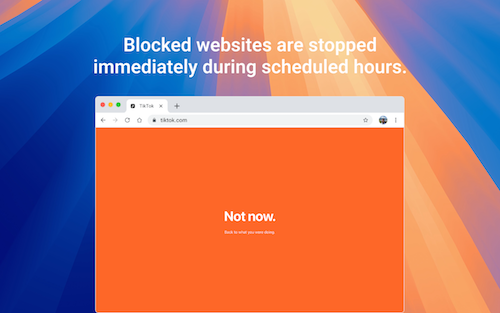
When you’re supposed to be working, you can’t do anything else with your device. When your time is up, Mom Clock starts firing alarms that tell you to stop whatever you’re doing. (Just as “she” enforces your work time, she’s serious about those breaks, too! After all, your mom always knew when you needed a nap, right?)
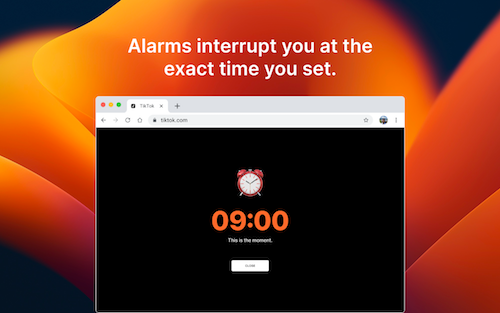
In between your start and stop, Mom Clock is working quietly in the background, just like she was when you were a kid, doing your homework. Unlike Mochi Focus’ companion style, Mom Clock calls to mind the phrase, “I’m not your friend, I’m your mother!”
Pros and Cons of Mom Clock
Depending on your style, pros and cons may be interchangeable, so you have to know your own preferences. Mom Clock is:
- Designed to be as simple as possible to reduce friction and make the activation energy easy to obtain.
- You don’t need to register for an account.
- There’s no cloud sync.
- There’s no data collection.
- Mom Clock runs in the app or locally in your browser.
- Uses no gamification — Because there are no stats, there’s nothing to keep track of and there’s no attention to what you’ve done in the past or where you’re headed in the future. Mom Clock is about what you’re doing RIGHT NOW.
- Brooks no backtalk — There’s no negotiation for snoozing “just five more minutes!” You just do what mom says! There’s not even an “or else!”
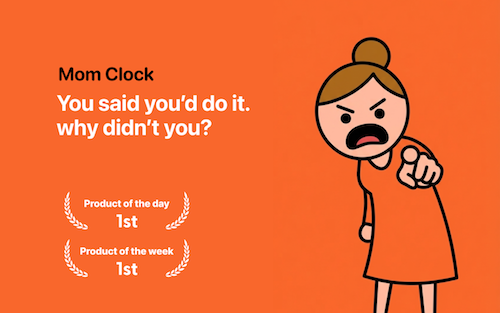
It it just me, or does she remind anyone else of the Angry Mama microwave cleaner?

Just set the rules once for when you want to work, and Mom Clock makes sure you follow them.
Your “Mom” knows your routine, only instead of innately knowing which days you have soccer practice and when you have to stay late for drama club, “she” knows (because you set) your different schedules for work, study, fitness, or sleep. Mom Clock doesn’t ask whether you “feel” like working. She’s just going to stare you down.
Your “Mom” takes away your phone privileges by blocking the tempting apps and websites that prevent you from doing what you should be doing.
As Mom Clock says:
She doesn’t remind. She insists.
No soft nudges. No ‘maybe later.’ Just action.
You don’t need more motivation
Start doing what you said you would. She shouldn’t have to ask twice.
Beyond the main features, Mom Clock has several additional elements, including:
- an online clock — Showing the exact hour, minute, and second; it is constantly updating; it also reports the date (to remind you of time ticking down on those work or school deadlines)
- a time conversion page — Whether you want to convert seconds to minutes or minutes to seconds, minutes to hours or hours to minutes, hours to days or days to hours, or even days to weeks or weeks to years, it’s all available at a click. This way, if you want to remember how many minutes are in a year, and don’t want to start singing Seasons of Love from Rent (though why wouldn’t you?), there’s an accessible feature.
- countdown timers — whether you need to count down to holidays, events, work deadlines, or personally-important dates, just set your timezone, track the countdown in real time, and share links to the countdown when and if necessary. There are a variety of pre-created countdowns for international holidays, so you’ll never forget Mother’s day or Diwali or Hanukkah. You can also select options to count down to when you have to pay your rent, will get paid, can move to your dream home, or may finally retire.
- planner tools — for doing a Pomodoro session (or several) or using time blocks. The Pomodoro timer comes with pre-sets for a traditional 25:5, a 50:10 for deep work, and 90:20 extended session. The time blocking planner has pre-sets to help you with a workday, a study day, and a balanced day for blending focused work, meetings, and recovery time.
- days since counter — whether you’re counting down from the first day you started exercising or the last day you engaged in a bad habit, Mom Clock is keeping track of your landmark dates.
But mostly, the key to Mom Clock is that it eliminates all of the discussion you have with yourself where you let yourself off the hook. There are no more promises to yourself to start “later” or “tomorrow” that you never fulfill.
Mom Clock states its mission as: To make the things you promised yourself actually happen.
Mom Clock knows that willpower is often too challenging and that you can’t always wait to get psyched up into that activation energy.
Sometimes you just need the power of your “Mom” telling you to just do it. NOW!
If Focus Mochi is for workers who embrace gentle parenting, Mom Clock is for those who are seeking an Old School parenting approach because more than motivation, they need someone to hold their feet to the fire.
It’s worth checking out the Mom Clock blog, with wise “motherly” wisdom in posts like:
KIKI
Maybe you need something not as cute as Mochi, but not as bossy as your Mom.
KiKi, created by Isaac Blankensmith, is a MacOS program that calls itself “the accountability monster for people who are easily distracted.” It’s not a very monstrous monster, to be sure.
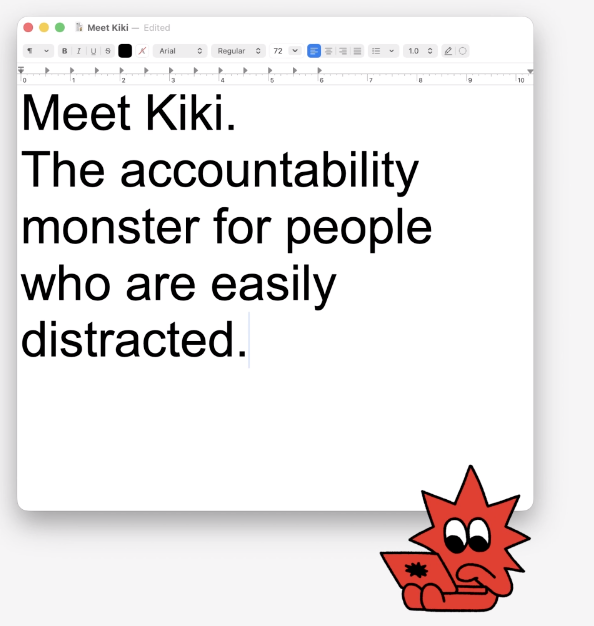
The makers of Kiki envision the program as similar in function to a Pomodoro timer, but better.
First, you identify for Kiki what you’re supposed to be working on in the most specific ways. You write down one concrete task, like:
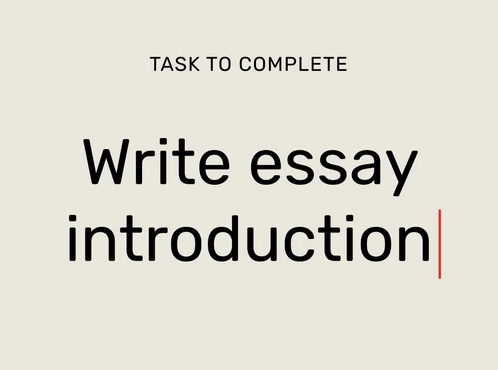
Next, instead of eliminating all the apps and websites you aren’t allowed to use, you select just what sites you will need to complete your task.
For example, if I’m writing a blog, I need WordPress and Canva, and maybe Pexels or Unsplash. (Yes, I’ll need YouTube later for pop culture videos, but to get the writing and graphics selection stage down, just these sites would be essential.) Kiki will block everything else.
Once your intention, resources, and time are set, just focus on your work. Kiki creates a distraction-free, multitask-free realm until your time is up. If you try to do something outside of the plan, Kiki throws flames onto your screen and pipes up with verbal admonishments!
Mono-focus for the productivity win!
Kiki’s Bonus Features
Kiki tracks your progress, showing how focused you were in each session and over time. For those who analyze data points (or need it to keep them honest), Kiki’s tracking feature may help you stay on course.
Kiki is the escape room you cannot escape. There’s no “safe word” and, allegedly, Kiki cannot be tricked. Once Kiki is activated, there’s literally no way to sneak off to entertain yourself while you’re on that device. (I mean, yes, you can go use your phone, but that’ll likely just guilt you out, and if it’s guilt you want, wouldn’t that be better from your (Clock) Mom than from a monster?)
Or, as Kiki says on the website, “Sometimes good work happens after you run out of ways to avoid it.”
Be forewarned about Kiki’s more “monstrous” alerts. One reviewer noted that it shouted “Get back to work!” while she was in a meeting and attempting tasks that we’re part of her scheduled activity. Eek!
Kiki has a free trial, after which it’s $4.99/month paid monthly or $2.49/month paid annually ($29.88year). While it’s designed for Mac, it only plays nicely with Chrome and Safari browsers.
So, if you want to be nagged (by my a monster rather than a Momster) but also want statistics, Kiki may be worth a look.
These are just a few of the delightful productivity-related apps and extensions I’ve found recently. There are others, with sheep and llamas, quirky gamification and silly stats, and there will be follow-up posts with other tools for this year of whimsy.
Is there an app or tool that you use to organize your time or tasks and that you’d describe as whimsical?
26 Ways to Celebrate GO Month to Get More Organized and Productive
Happy New Year! Happy GO Month!
Each January is Get Organized & Be Productive (GO) Month. Back in 2005, NAPO (then called the National Association of Professional Organizers) proclaimed the first Get Organized Month, as a national public awareness campaign about organizing and our profession.
A decade later, the month was expanded to incorporate productivity, just two years before we officially became the National Association of Productivity & Organizing Professionals. Our purpose remains the same. All of us — professional organizers, productivity specialists, declutterers, coaches, etc. — celebrate how we improve the lives of our clients by creating environments and developing skills to support productivity, health, and well-being.
Practitioners like Paper Doll are here to help you create systems and skills, improve your homes, workspaces, and attitudes, and live your best, most productive life.
For more great organizing and productivity tips during GO Month, you can also follow NAPO’s Social Media Accounts:
Today’s post offers some 26 ice cream samples of organizing and productivity tactics to make 2026 a little easier.
ORGANIZE YOUR PAPER IN 2026
1) Create a Tax Prep Folder
April 15th will be here before you know it. From now through February, you’ll receive tax documents (1099s, 1098s, W2s) in the mail. You may also get emails reminding you to log in to brokerage and other accounts to download your important tax documents.
Don’t wait until the last minute to gather these items. It’s not just good organizing advice, but helpful financial advice, too, because the sooner you get your important tax documents together, the faster you (or your accountant) can get you your refund, or at worst, let you prepare for the size of your tax bite.
Your tax prep folder doesn’t have to be fancy; a plain tabbed folder kept at the front of your financial files section should suffice. However, if you’re dealing with a lot of documents, you might prefer a dedicated accordion-style folder like the Smead All-in-One Income Tax Organizer.

Organize now so you won’t lose deductions, pay more taxes, or get in trouble with the IRS!
2) Roll Out the Red Carpet for Your VIPs
Make 2026 the year that you get your affairs in order. Estate documents and other essential paperwork must be created, obviously, but also reviewed and updated on a periodic basis.
As I’ve said before, this aspect of organizing may be boring (if you aren’t a professional organizer), but boring is good! If your VIPs are boring, it means that you and your family won’t ever experience any ugly surprises during difficult times, like when someone is in the hospital, when there’s been a death in the family, or even when dealing with the aftermath of a natural disaster.
Start by reading these from-the-vault posts to figure out your next steps.
- How to Replace and Organize 7 Essential Government Documents
- How to Create, Organize, and Safeguard 5 Essential Legal and Estate Documents
- The Professor and Mary Ann: 8 Other Essential Documents You Need To Create
- Paper Doll’s Ultimate Guide to Organizing Yourself to Get a REAL ID
- Paper Doll’s Ultimate Guide to Getting a Document Notarized
- Paper Doll’s Ultimate Guide to Legally Changing Your Name
- A New VIP: A Form You Didn’t Know You Needed
Then list documents you already have (and their locations) and identify what you need to create, and then plan meetings with your family and a trusted advisor to set things in motion.
3) Declutter and Preserve Your Family Photos and Memorabilia
Two years ago, a beloved client passed away, and I’ve been working with his son to go through more than a century of photos, from passed-down black-and-white picures of ancestors on both sides of the family to lighthearted snapshots and travelogues from the gentleman’s young military years. We review prints and slides, as well as delicate (and crumbling) correspondence.
Do you have print photos that would be lost in case of a fire or flood because you don’t have the negatives (or store them with the photos)? Would digital photos on your phone be lost if your phone got smushed or stolen? You need backup!
I’m not suggesting you do this every day in January, but make a plan. What if you spent an hour every Sunday morning sorting through photos? Could you invite a family member or friend to help you consider what to keep and what categories to use?
Contact a NAPO member who specializes in organizing photos, or visit The Photo Managers to find experts who can help you safeguard your photo history.
While I’m on the subject, I absolutely have to recommend, yet again, my colleague Hazel Thornton‘s What’s a Photo Without the Story? How to Create Your Family Legacy.

For more ideas, consider:
- How to Collect, Organize, and Preserve Family Memories and History (Part 1) — The Questions
- How to Collect, Organize, and Preserve Family Memories and History (Part 2) — The Methods
- How to Collect, Organize, and Preserve Family Memories and History (Part 3) — AI & More
4) Know What’s In Your Wallet
Have you looked at what’s in your wallet lately? Would you notice if one of your credit cards went missing? It’s a new year — did you put your new health insurance card in there?
- Pull everything out of your wallet.
- Discard or put away anything that doesn’t belong in there. (Receipts for taxable events, like medical expenses? Keep. The name of a book your friend recommended? Log it in your Notes app or put it on hold at the public library before you forget.)
- Take an inventory of everything in your wallet. Depending on your patience, you have two options:
- Lay two columns of cards (side by side), face-down, on a copy machine. Press “copy” and then flip each card in place to the rear-side, and copy that, two. Repeat the process until everything in your wallet has been secured. Alternatively, you can scan these to your computer and save it all as a multi-page PDF. If you ever lose your wallet, you’ll be happy to have the account numbers, expiration dates, security codes, and contact numbers for your licenses, insurance cards, and credit and debit cards.
- Use your phone to take photos of the front and back of the cards and upload the pictures.
Whichever method you choose, password-protect digital versions of this document in storage or on your phone, and keep the paper copies in your fireproof safe or lockable file drawer.
5) Clean Off Your Desk
Next Monday, January 12, 2026 is National Clean Off Your Desk Day. Celebrate it by making a clean sweep of everything piled up on your desk, de-germify it, and think carefully about what belongs on it.
Read last year’s Paper Doll Celebrates National Clean Off Your Desk Day for step-by-step for making your desk a space for productivity instead of mystery crumbs and mountains of papers.
Then refresh your space with ideas from Organize Your Desktop with Your Perfect Desk Pad: 2025 Update and Paper Doll Explores the Best of Desktop File Boxes.

ORGANIZE YOUR DIGITAL SPACES IN 2026
Digital clutter may not take up physical space, but it wears down our batteries, both in our devices and our personal batteries because of the overwhelm of excess.
6) Declutter Your Phone Apps
The Pareto Principle says that 80% of our success comes from 20% of our efforts. It holds true in many ways; 80% of the time, we wear the same 20% of our wardrobe, kids play with the same 20% of their toys; we use the same 20% of our apps.
It’s why letting things go from the 80% we hardly ever use makes us feel less cluttered and more productive, even though we anticipate we’ll feel anxious about having let them go — that’s why they’re cluttering up our digital spaces in the first place!
- Flip through your home screens and take inventory — What apps did you download and never even try because they required creating a login? What apps did you give up on because they were buggy? Let go of low-hanging fruit.
- Clean up by deleting apps you used the least often (or never). To see the last time you used an app on iOS (for iPhone or iPad), follow this path: Settings>General > iPhone (or iPad) Storage. There are a few different ways to check app usage on Android devices.
- Addicted to your phone? Check your Digital Wellbeing feature on Android or ScreenTime on iOS. Uninstall whatever is obviously distracting you with overuse.
- Move distracting apps that you can’t (or can’t bear to) uninstall to your last home screen page to create more friction and make it less likely you’ll happen upon them when looking for your bank app.
- Fill your first home screen with apps you need and want to use because of the benefits they bring to your well-being.
- Organize the remainder of your apps by dragging-and-dropping them into folders labeled for shopping, dining, social media, productivity apps, etc. Keep them — just make them less convenient.
The point isn’t to get rid of your digital life. Just eliminate what distracts you from what’s important.
7) Clear Out Your Voicemail Inbox
In the olden days, people called you and either you were home and answered, or not home, and never knew you had a call. (If you’re GenZ and reading this: yes, really.) At work, if you weren’t at your desk during working hours, a receptionist took a message. After hours, either the “answering service” took your urgent call, or people waited until you got in on the next business day.
In the 1980s, we got answering machines and our messages lived where our landline phones did.
In the 1990s, we had voicemail, and at the turn of the century, people started calling less and texting more. Now, too many of our messages are spam, and voicemail fills up.
Have you ever called someone — or worse, returned a call — only to hear “This voicemail box is full and is not accepting messages. Please try again later.”
What if your message is important? Do you text? What do you do if it’s a business? On the flip side, if your child’s school, your doctor’s office, or a client needs to reach you, do you want them to suffer this frustration?
Clear up your voicemail box with the following steps:
- On landlines, dial in, listen, and start deleting messages.
- On cell phones, iPhones and most Android phones show transcribed messages. Known contacts should appear by name, making it easy to figure out whether a message is still needed even before you read it. Unknown numbers may be spammers (swipe left!), but may be people you’ve never entered into your contacts. Review those messages, and anything that doesn’t make the cut, delete!
- Save numbers for contacts you may need in the future. — Add a last name and any context necessary. I have a contact saved as First name: MaryBeth, Last name: “Hit my car in the parking lot.”
Until recently, the only “Terri” in my contacts was my hair stylist, but when I was in Portugal and Spain in September, I added my tour-mate to my regular iPhone contacts. Just before my last haircut appointment, I voice-texted, “I’m here, but looking for parking. I’ll see you in a minute.” When I got to her space, she said she hadn’t received my message. A moment later, my tour-mate Terri texted, “You’re here to see me?” with a series of laughing emojis. Doh!
Last names (and context) are important!
- Be ruthless in getting rid of old voicemails. What should make the grade? Messages that you save for:
- work purposes — but confer with your boss or your IT department regarding rules in this regard
- legal purposes (such as when someone is stalking or harassing you, or offering a set of deal points for a contract.
- sentimental purposes — but be judicious. Can you picture yourself sitting in an airport, listening to a loved one’s message over and over?
- Download messages you want to keep permanently. On iPhones, tap the voicemail you wish to save and you’ll see the share icon in the upper right corner; share the resulting MP3 to your photos or notes app, Evernote, social media or wherever else, just as you’d share an article or a picture.
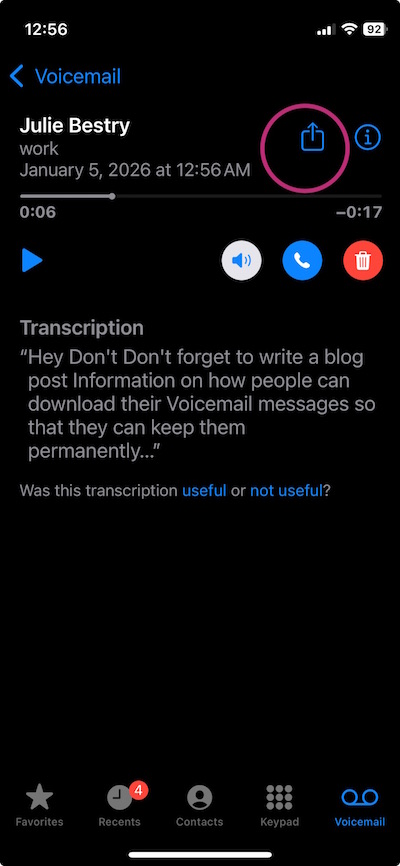
On Android phones, tap on the message to see a list of options. Click one of the save or archive options you prefer and select the storage location. For more voicemail-saving techniques, read Smith AI’s How to Download and Save Important Voicemails.
8) Clear out your email inbox
For years, people have laughed at me, saying that search worked so well and email providers granted so much storage space that it was no longer necessary to clear inboxes. Still, I blithely went on advising my clients to regularly clear their inboxes, and to create a hierarchy based on categories matching their analog filing systems.
Recently, I’ve felt vindicated as Gmail and other email providers have been adding storage limits, and people recognize that search (even AI-assisted search) sometimes takes longer than going to a particular sub-folder with a helpful title.
Email is a headache! According to an analysis by the McKinsey Global Institute, on average, 28% of work time is spent reading or replying to emails. And the average worker — and yes, you’re all above average — checks email 11 times per hour. 84% of us keep email open in the background while working, making it oh-so-easy to “check” our email.
The problem is that we CHECK IT over and over again looking for that dopamine hit, but we often look at emails without doing anything with them, like opening the fridge in hopes that someone has magically made something delicious and put it in there. 
You may think that Inbox Zero is the cure, plowing away at email but getting further behind in important work. James Clear has said, “The most invisible form of wasted time is doing a good job on an unimportant task.” Email clutters our lives like that.
There’s no permanent state of inbox zero (unless you stop sending outbound emails and block all inbound senders), any more than finishing all of the laundry today will create laundry basket zero unless your family plans on becoming very tidy nudists.
There's no permanent state of inbox zero, any more than finishing all of the laundry today will create laundry basket zero unless your family plans on becoming very tidy nudists. Share on XProcessing email isn’t your job, it’s just one method of communication and information acquisition, and it’s not always the right one. Instead:
- Unsubscribe from whatever you never read. (It’s like buying vegetables that you know you should eat but they disappear into the back of the fridge and eventually get slimy.) Take five minutes a day to declutter your future inbox.
- Set up a simple hierarchy of subfolders with names of major projects, client names, or whatever works for you. Having a place for emails to safely, dependably live will encourage you to manually or automatically route necessary ones of your inbox. As with voicemail, don’t feel like you should save everything.
- Learn how to use your email platform’s filters or rules function to automatically sort mailing lists to one sub-folder, anything you’re always CCed on even though you know it’s nothing to do with you to another, and so on.
- If you’re overwhelmed by your huge backlog, move everything from more than a month ago to a folder you call “Archived” and start with a minty-fresh inbox. You can always go into the “Archived” folder and sort if you’re feeling enthusiastic, but at least you’re dealing with something more manageable.
9) Know What You Don’t Know About Your Tech
In Digital Disaster Prep: How to Organize Your Tech Info Before You Need It earlier this year, I walked readers through all sorts of information you need to know before something goes wrong with your tech. Do you know where to find your:
- IP Address
- Network and router information
- ISP contact information
- Device Identifiers
- Operating system license keys
- Software and game activation codes
Your household probably added some hardware and software goodies this holiday season. This is the perfect time for you to read the post and start logging all of your essential tech information.
ORGANIZE YOUR TIME IN 2026
10) Track Your Time to Figure Out Where Your Time Is Going
To improve your productivity, the first thing you must do is get a handle on how you’re spending your time.
Read my How to Use Time Tracking to Improve Your Productivity from last January to understand the benefits of time tracking, including mindfulness and focus, prioritization, data-driven decision making, stress reduction, and accountability. The post also prepares you to face challenges and overcome the obstacles, and offers strategies and resources for tracking your use of time.
Track for just one day, or participate in a weeklong time tracking project such as Laura Vanderkam’s annual event. Register for her 2026 Time Tracking Challenge from January 12-19, 2026. I do it every year!
11) Get a Better Sense of the Passage of Time
For some people, knowing what time really “feels” like takes some effort.
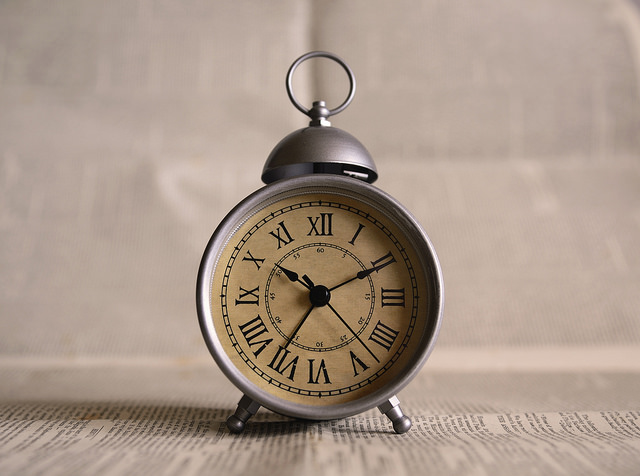
First, put real, analog clocks wherever you tend to get lost in time. Is that your desk (even though you wear a watch and your computer has a clock)? Is that the bathroom, because you lose awareness of time while doing your hair or soaking in the tub? Is it your car, which has a perfectly serviceable clock but the time is always wrong because you never learned how to change it for Daylight Saving Time?
Next, read about all the ways timers can help you get a better sense of your time.
- How to Use Timers for Improved Productivity and Focus — Part 1
- How to Use Timers for Improved Productivity and Focus — Part 2: Picking a Good Timer
- How to Use Timers for Improved Productivity and Focus — Part 3: Tangible Timers
- How to Use Timers for Improved Productivity and Focus — Part 4: Digital Timers
- How to Use Timers for Improved Productivity — Part 5: Hybrid Timers and Bonus Material
12) Time Travel in Your Planner
If you use a paper planner, hopefully you already have one for 2026; if not, that’s step #1. But even if you are 100% digital, this advice goes for you, too.
It’s tempting to just fill in your January pages and figure you’ll adjust as you go along. But even if you’ve had the same meeting every Tuesday for the past 5 years, somehow, some way, you’ll double-book if it’s not in your planner or calendar.
Spread out at your desk or your kitchen table, grab a cup of cocoa or something to soothe you into the new year, and do the following:
- Page through each week of last year’s planner and copy everything that recurs by date (like birthdays and anniversaries).
- Add events that happened in 2025 and are already scheduled to happen again, but not on the same dates (like conferences, work retreats, medical tests and appointments, etc.).
- Use last year’s schedule activities to prompt you to make a list of anything you might need to schedule or add to your long-range tasks, like meeting with your accountant, scheduling annual medical tests/exams.
13) Eliminate What Doesn’t Excite You
I’m a big believer in the concept that whatever isn’t a “Hell, yeah!” is a “Heck, no!” at least in terms of what you can control. (Unlike Marie Kondo, who encourages people to get rid of tangible items that don’t bring joy, I know that you can’t just toss your old tax returns.
Similarly, you can’t strike everything that isn’t joyous off of your calendar. You still have get a dental cleaning at least twice a year, whether you like it or not.
But why not make 2026 the year you step back from volunteer positions that take your time and energy, but don’t give you delight?
How about taking that book club (for which you never like the selected books) off your schedule? You can always agree to meet the people one-on-one without the obligation to read the newest oversized dystopian novel.
Set yourself, and your calendar, free.
14) Pick a Problem-Solving Day
Theming your days can make you more productive because you don’t have to keep switching tasks. Marketing Mondays or Financial Fridays let you schedule a block of similarly-themed tasks so you can focus and get into “flow.”
I encourage clients to pick one day of the week for problem-solving. Block a few hours on a specific day for sitting on the phone and asking, repeatedly, for someone to escalate your call. This is the day you set aside for time to get help on whatever is making your computer do THAT THING.
Knowing that you have a slot firmly in place will allow you to worry less about getting problematic or frustrating things accomplished, and because there’s one place in your schedule for solving problems, you will be able to focus when that day arrives.
ORGANIZE YOUR FINANCES IN 2026
15) Stop Singing “I Owe, I Owe, It’s Off To Work I Go”
Debt creates mental clutter. Knowing is always better than not knowing, so make 2026 the year that you know what you owe and figure out what’s going on with your money and where it’s going.
- Make a list of every credit card, loan, and any other kind of debt you have. Note the creditor, the amount, and the interest rate.
- Next, make a list of every fixed expense you have.
Seeing it all in black and white (and red) may be sobering, but it’s the first step toward figuring what you can do about it.
Maybe you can refinance a car loan or mortgage to lower your monthly costs?
Perhaps you can call your credit card companies and request a reduction in your interest rates. (Nerd Wallet has a great article on How to Get a Lower APR on Your Credit Card.)
Maybe you can cut expenses for things you’re not even using.
16) Go Spelunking for Lost Money
Start with your couch cushions. Whether your loose change is in a jar in the laundry room or at the bottom of your purse, it’s (literally) weighing you down wasting your financial potential. Put on some music and start rolling coins (or bribe your kids to do it) and take the money to the bank. Alternatively, dump it all in a canister and take it to a Coinstar machine or any credit union that accepts and counts coins for free.

To recoup other “lost” money, follow steps in these Paper Doll posts:
- Show Me the Money — A 2025 Guide to Finding Forgotten Funds & Unclaimed Property
- Lost & Found: Recover Unclaimed Money, Property, and Savings Bonds
- How to Track, Lower, or Cancel Your Recurring Subscription-Based Bills
- Organize and Lower Your Medical Bills: Spot Errors, Negotiate Costs, and Save Money
17) Re-Shop Your Auto Insurance
When was the last time you actually shopped for car insurance? If you’ve kept the same insurance for years, you’re almost assuredly overpaying. As with the cable company, this is one of those instances where newer customers are rewarded with the best deals, and loyal customers are not rewarded for loyalty.
It doesn’t cost anything to shop around. Even if you find a better rate, you may be able to return to your agent and say, “Hey, the guys across the street quoted me quite a bit less. Can you match it?”
Note: if you use online pricing comparisons, you’ll be bombarded with emails, so consider creating a new Gmail account just for these replies.
Before you make any calls, though, familiarize yourself with the basics of car insurance with Organize for an Accident: Don’t Crash Your Car Insurance Paperwork [UPDATED]

RECITE THESE ORGANIZING AND PRODUCTIVITY MOTTOS
When you’re having a hard time tackling the clutter or focusing on the work, pick one of these mantras to help point you in the right direction.
18) Don’t put things down; put them away.
19) Declutter first, then contain it. (Don’t acquire clutter to contain your clutter!)
20) Everything should have a home, but not everything has to live with you.
21) Someday is not a day on the calendar.
22) Break every task into its smallest possible step. If you can’t get started, the first step is probably not small enough.
23) Cut yourself slack. Give yourself grace.
24) Progress, not perfection.
25) Albert Einstein said, “Organized people are just too lazy to go looking for what they want.” Be lazy!
Paper Doll on the Power of a DONE List
DON’T BE LISTLESS
We all know the power of a To-Do list.
When we’re feeling overwhelmed by all the little dings in our brains reminding us, over and over, of what we have to do, we turn to a brain dump. While it may, at first, seem overwhelming, completely off-loading everything we have to do — from paying quarterly estimated taxes to making (or ordering) a birthday cake for a tiny human to dropping off that trunk-load of donations — takes the weight off our shoulders.
Having to constantly remember TO do something keeps us from being to think in a nuanced way ABOUT how we’ll approach a task. Think of a brain dump as a prototype To-Do list. It works with almost any kind of productivity technique.
Review How to Make a Big To-Do
If you’re following David Allen’s Getting Things Done paradigm (even if you didn’t know until now that you were doing so), you start by gathering tasks from all of the places you’ve captured what you have to do, like a scribbled note, email, voicemail or memo on your desk.) Then clarify what efforts the end-results involve, and organize them into by context. If the items are actionable, you’ll break big things down into smaller, actionable “next steps” and likely send them to a To-Do list.
Alternatively, you might create lists according to Steven Covey’s Sharpen the Saw approach as part of the 7 Habits of Highly Effective People. Covey’s Weekly Compass allows you to consider your tasks under larger rubrics reflecting your roles. For example, Paper Doll‘s roles include professional organizer, blogger, product creator, marketer, daughter, and friend. (It also includes “aspiring heiress” to cover all my self-care tasks.)
If you’re freestyling, without any particular system, it still goes the same way. Download all of the remembered tasks floating around your brain to a tangible or digital form, add items prompted by reminders in your environment, and ta-da, it’s a To-Do!
Still, it’s hard for your brain to know what to do next when the upcoming tasks are “schedule a colonoscopy, buy a dress for my high school reunion, and write a cost-cutting report for the CEO.” Instead, it makes sense to divide To-Do lists into categories, like “work” and “life.”
Depending on the complexities of your situations, you’ll probably want to break these down into subcategories. For “work,” you might have lists for client follow-up, marketing tasks, reports to write, presentations, and so on. For “life,” you task categories may be financial and household, plus personal concerns like parenting tasks (ranging logistical, like carpooling or being a room mother for a field trip, to big-ticket items like having big talks), relationship management, and self-care.
For mosts of us, To-Do lists are the first step toward getting the work of life accomplished, and numerous Paper Doll have walked you through those steps. But there’s another kind of list that serves a different, though adjacent purpose. That’s a Done list.
WHAT IS THE DIFFERENCE BETWEEN A TO-DO LIST AND A DONE LIST?
It’s possible you’ve never heard of a Done list. You could oversimplify and say that a To-Do list is a log of things you intend to do and a Done list is a list of what you’ve done.
Or, you might say a To-Do list is tactics, while a Done list is metrics.
But there are philosophical differences between the common To-Do list and the far-less-known Done list.
Stress Factor
A To-Do list can be hopeful, but it can also provoke anxiety. All of those “shoulds” can wear a person down, making us feel unproductive. The more we have on a To-Do list, the more we are reminded of what remains undone; for some, this can trigger procrastination.
Aspiration vs. Reality
A To-Do list shows shows our intentions, but that means everything on it is aspirational. As long as there’s a verb at the start, it could include anything, from “pick up the dry cleaning” to “convince George Clooney to invite me to dinner with him and Amal.”
A To-Do list holds potential, but you can’t take potential to the bank or serve it up for dinner. Conversely, there’s nothing aspirational in a Done list; it’s entirely reflective of what you’ve actually done, whether you’d planned to do so or not. Given that, Done lists take into account surprises, interruptions, and how you’ve managed to succeed despite inputs that were out of your control.
A To-Do list holds potential, but you can't take potential to the bank or serve it up for dinner. A Done list take into account surprises, interruptions, and how you've managed to succeed despite inputs that were out of your… Share on XExpectations
A To-Do list it can also be overwhelming, especially if you overload it with more than you can accomplish in a day. A Done list, however, looks at your day’s activities from a different perspective. It leaves aside the should-have-dones or the never-got-to items and embraces reality.
A Done list ignores expectations, allowing you to revel in what you’ve achieved without measuring against any particular pre-conceived benchmarks.
Identity
Your To-Do list says who you want to be. It creates a necessary blueprint, because we can’t accomplish much without a vision. Your idea of who you want to be might involve a ten-point plan taking you from college to career to marriage and parenthood, or it might be more passionate than prescribed. (Are you having wicked dreams about leaving Tennessee? Is Santa Monica calling you? Is there any chance Chappell Roan is reading my blog?)
Your Done list says who you are. There may be more to accomplish, but there’s an achievement or three you can point to and say, “I’m a person who has already [XXXX] and nothing and nobody can take that away from me.”
A To-Do list is akin to the clutter of exercise videos or the diet books you buy or the cardio classes you schedule on your calendar (or the bathing suit you buy because THIS is the summer you will actually swim to get in shape). But a Done list is the steps counted by your Fitbit or Apple Watch, the way your waistband fits, or the numbers when the doctor checks your blood pressure.
Momentum
A To-Do list is static, like runners in the blocks before a race begins. A Done list, as it’s built, reflects the runners making progress (against their own time? against each competitor?) and pushing onward through the winner’s tape.
Don’t burn your To-Do lists. Just see the potential of adding a Done list to your productivity repertoir.
THE BENEFITS OF A DONE LIST?
Blogger Katherine Firth at Research Degree Insiders encourages us to look at our days more deeply. She asks, “But how do we know if we have succeeded in our day, or just succeeded ticking things off our To-Do list? Is a day where we did lots of important, urgent and valuable things (none of which were in our plans) still a success?”
And in the May 28, 2025 edition of Laura Vanderkam’s Vanderhacks Substack, she notes, after we tackle on our To-Do lists, “Now, of course, stuff comes up. Stuff always comes up. … You leave enough space that the unexpected doesn’t derail the expected. Shouldn’t we get credit for doing the stuff that came up too?“
Let’s consider the attributes and benefits of a Done list:
- Compare plans vs. accomplishments — This is the most pedestrian of benefits.
- Create an official record — If you ever wonder if you canceled your satellite radio service or sent that thank you note, the Done list offers concrete proof.
- Perform a reality check — The official record is like sports statistics, but this benefit is like a mini-career retrospective before your jersey number gets retired (for the day). Reflecting Vanderkam’s question, if we’re going to give ourselves credit, let’s make sure we credit ourselves for everything and not just what we said we’d do.
If you’re always asking, “Where did the day (or week or month) go?” or spend each day fighting dragons it’s easy to dismiss your un-done tasks as failures. The Done list tallies your successes.
- Add a real-time component to appreciating your accomplishments — When you try to capture your successes far after the fact, memories of what you did well can be fleeting.
When I worked in TV, I had a boss who favored saying, “One ‘aw [expletive deleted]’ can wipe out 10 ‘atta-boys.'” He meant that a stellar reputation among others can be stained by one misdeed, but I take it to mean how our brains judge us, too.
We remember our failures, our mistakes, our almost-but-not-quites. Instead of remembering that you didn’t get a job, wouldn’t it be more helpful to recall that you made it through four rounds of interviews and have developed better responses to those weird questions?
Instead of remembering that you didn't get a job, wouldn't it be more helpful to recall that you made it through four rounds of interviews and have developed better responses to those wacky questions? Share on X- Develop positive reinforcement — So much of modern life is ongoing: how often does anyone get to Inbox: 0 (or Laundry Basket: 0)? It’s hard to feel like any attention is given to what we’ve finished before it’s time to chase ourselves to the next benchmark.
A Done list reminds you that you can do it because you have done it. Recognize your successes. The Done list gives credit to the depth and breadth of achievements and sends dopamine hits to your brain, making coming back tomorrow easier and more eagerly anticipated.
- Boost confidence in yourself and not just your output — We are always our own worst critics, and in this part of the Western Hemisphere (and in this part of the 21st century), we are bombarded with messages that if we don’t “produce” then we aren’t enough. This is a reminder that you ARE enough, and if you need more to undergird that reminder of your value, may I direct you to:
- Reduce (or reject) your “productivity debt” — In his most recent book, Meditations for Mortals: four Weeks to Embrace Your Limitations and Make Time for What Counts, Oliver Burkeman writes about the role of a Done list in counteracting the sense of productivity debt.

Burkeman notes that:
Many people these days report the feeling that they begin each morning in a kind of ‘productivity debt,’ which they must struggle to pay off over the course of the day, in hopes of returning to a zero balance by the time evening comes. If they fail — or worse, don’t even try — it’s as though they haven’t quite justified their existence on the planet.
While Burkeman clarifies the difference between the tasks we must in order to pay the rent, or how it’s “generally a good idea” to make sure your kids have food and clothing. But very much like what I wrote in my series on toxic productivity, he gets to the heart of what happens when we go beyond the push to be productive pressed on us by society into something more insidious:
But we overlay this everyday sense of obligation with existential duty not only to achieve certain ends, or to meet our basic responsibilities to others, but because it’s a cosmic debt we’ve somehow incurred in exchange for being alive….Our frenetic activity is often an effort to shore up a sense of ourselves as minimally acceptable members of society.
Burkeman reflects that whether the origins of this sense of inadequacy comes from the Protestant work ethic, our parents, or consumerism (um, check out that first toxic productivity post, eh), this “productivity debt mindset” means that even our checked-off To-Do list items create an ever-higher standard to achieve.
He posits that a Done list — rather than serving as a yardstick against your To-Do list — should invite you “to compare your output to the hypothetical situation where you stayed in bed and did nothing at all” and goes further to ask, “What makes that comparison any less legitimate than the other one?”
Whoa.
Of course, Burkeman’s recent area of expertise is the finitude, or limited nature, of life, and he doesn’t see the Done list as merely a way to give ourselves a rah-rah. He envisions the process of the Done list as one that makes us increasingly likely to make better decisions about what efforts and tasks to face in the first place, make more progress on them, and experience less anxiety about the things we’ve chosen to neglect.
My colleague Linda Samuels’ recent post, How a Helpful Productivity Reframe Makes More Time for Fun on making a “satisfying” day dovetails nicely with this line of thinking.
- Conquer task rebellion — Are you the kind of person whom the minute you’re assigned something (even if you assign it to yourself), you suddenly don’t want to do it? A Done list is an alternate productivity tool for keeping a close eye on your important tasks and obligations.
- Make sure others appreciate your achievements — Vanderhack’s Substack post acknowledges two bonuses to the Done list:
If you ever need to convince someone that you are in fact working hard, you can just send your manager your Done list. If you are managing people, you can ask team members to keep Done lists and share them with you. That way, at your next check-in you can congratulate them on a job well…done.
- Create an operations manual — What you did helps you figure out what you will want to do. For example, blogger Randall Degges explains that he uses his Done list to make sure he’s gone through all of the steps in his programming work. For some ideas on how to develop this idea, consider reading Atul Gawande’s The Checklist Manifesto.

- Blend a Done list into your gratitude practice — If you’re inclined to regularly practice gratitude (or, especially, if you’re not), a Done list shows you what you can be grateful for and show gratitude to: your skills and talents, for the time you had available to accomplish something, for the people or agencies that helped you accomplish what you wanted.
A long list of doctor’s appointments and medical tests on your To-Do list can be daunting. But seeing things like “Made mammogram appointment” or “Got dental crown replaced” on your Done list gives you the opportunity to feel grateful to be healthy or restored to health, that there are specialists to whom you can turn for expert care, and that you have health insurance. For those of us who are terrible at gratitude journaling, our Done list is a good alternative.
WHAT GOES ON YOUR DONE LIST?
We all know the joke that on days where we struggle to make headway, we might put “wake up” or “make a To-Do list” on our To-Do list, just so we’ll have things to cross off.
If your Done list were merely your To-Do list with items checked off, those pseudo-tasks, while helping you get your mojo going might* — under most circumstances — feel silly upon reflection. The following that might go on your Done list:
- Calls made
- Appointments kept
- Meetings attended
- Work obligations completed
- Errands run
- Household chores tackled
- Procrastinated-upon “adulting” completed
But a Done list may capture more than just the tasks you performed but also some higher level achievements like:
- ideas you generated, like brainstormed concepts for a blog post or outlining a plan for a vacation itinerary
- metrics of what you are achieving, like if you walked 10,000 steps or recorded three videos or did ten language lessons on Duolingo. If you plan to read a certain number of pages or chapters or books in a set period of time, you can log your efforts toward those goals. If you planned to read 40 books a year, but only read 35, something that shows you that you DID read 35 books is a lot more motivating than the fact that you fell somewhat short of the overall goal. The metrics let you focus on what you did do.
- what you didn’t do that you didn’t want to do. If your goal is to have a no-spend Sunday and you found cost-free activities and didn’t spend a penny, huzzah! Write it down! If you’re struggling to maintain no-contact status with that ex you miss but know isn’t good for you, when you complete a day of NOT CALLING THE PERSON, give yourself a prize!
*Is there anything too inconsequential to put on a Done list?
It depends on you. If you’re not struggling with depression right now, “took a shower” or “brushed teeth” is going to fill up your Done list unnecessarily. If you aren’t suffering with an eating disorder, writing “ate lunch,” or “had a healthy mid-day snack” probably needn’t show up on your list.
However, any challenge you overcome deserves to be celebrated. If you have ADHD, tracking that you got to work (or got the kids to school) on time is valid. Your Done list can track these successes, and it will remind you that you can do, and have done, hard things.
And if you struggle with giving yourself compassion, whether you’re dealing with chronic pain or illness, mental health issues, or anything that makes the tasks of daily living (including self-care, cleaning, organizing, etc.) hard, I recommend How to Keep House While Drowning: A Gentle Approach to Cleaning and Organizing by K.C. Davis.
HOW TO CREATE A DONE LIST
Add items to your Done list contemporaneously with achieving them so you won’t forget anything. If that’s not possible, schedule time at the end of the day to log and review your successes.
I know there’s a temptation to think that if you’ve already got a To-Do list, you can just check items off as you complete them. I’m not saying that you can’t do this, but it’s much too easy to forget things.
So, if you’re tempted to reject my advice to keep them separate, then please do the following:
- add all of your unanticipated achievements to your To-Do list as you go
- at least use a check mark or similar ✅ symbol in the left-hand margin rather than
striking throughwhat you’ve done; the point is to be able to see what you HAVE accomplished - move incomplete tasks to a list for the next (or some future) day; then cross out those items, remembering that crossing it out means it’s been moved, not accomplished.
However, I really encourage you to make your Done list a separate endeavor from your To-Do list.
Pick a style that reflects your preferences:
Analog Done List Formats
- a handwritten paper list
- a journal/bullet journal page
- pretty sticky notes on the wall, perhaps in a Kanban format as I described in Checklists, Gantt Charts, and Kanban Boards – Organize Your Tasks
- index cards — In 2007, Entrepreneur and venture capitalist Marc Andreessen recommended an “anti-To-Do list” as part of Pmarca Guide to Personal Productivity, tracking accomplishments on the flip-side of an index card used for daily To-Do items.
Digital Done List Formats
- a digital document in a format like Word, Google Docs, Excel, or Google Sheet
- daily or weekly emails to yourself — keep a running list of “dones” and then send it to yourself to archive.
- an Evernote note using the Daily Note template function, formatted to your preference
- Apple’s Done List app, which allows you to type or use emoji to track your completed tasks
- your phone’s Notes app
Some people post their achievements as a running list of social media posts. That requires a strong ego, thick skin, and an achievement list that doesn’t include awkward personal care tasks. If you’re an introvert or a menopausal woman, you might want to skip this method.
Not everything lends itself to a list format. Sometimes, seeing a task on a list doesn’t tell the whole story. There are times when journaling “the story of my day” will not only be the better alternative to logging achievements, but appreciating them.
Remember Unplanned Successes
Don’t forget to include huge leaps that weren’t on your list.
Did you fly for the first time since the pandemic even though you’ve been scared to do it? Did you set consequences and enforce a boundary and with someone who historically tramples them? Did you (politely but firmly) explain that you will not be “voluntold” (forced into volunteering) for a project, whether in life or at work?
Put them down as DONE!
DON’T BE DONE WITH YOUR DONE LIST
Post your Done lists for the week on a bulletin board or the fridge so that you can reflect on your successes.
Leave it side-by-side with tomorrow’s To-Do list so that when you sit at your desk, you can review yesterday’s successes before attacking today’s goals.
Put reviewing your Done list on your calendar. Review it before heading out for the weekend.
Create a Success Folder and at the end of the quarter, go through and highlight the “big ticket” successes. When you do your personal annual review, haul these out so you can record the bigger (or small but important) accomplishments. (See Organize Your Annual Review & Mindset Blueprint for 2023 for examples.)
And now…I’m done.
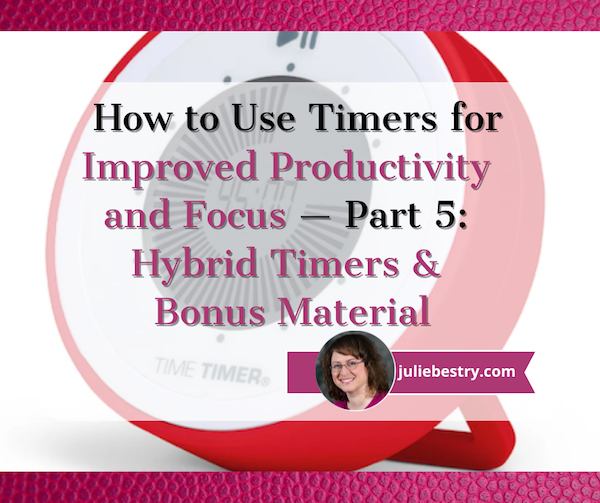
How to Use Timers for Improved Productivity — Part 5: Hybrid Timers and Bonus Material
Depending on how you feel about timers, you’re either relieved or disappointed that we’ve come to the end the series, where thus far we’ve had:
- How to Use Timers for Improved Productivity and Focus — Part 1
- How to Use Timers for Improved Productivity and Focus — Part 2: Picking a Good Timer
- How to Use Timers for Improved Productivity and Focus — Part 3: Tangible Timers
- How to Use Timers for Improved Productivity and Focus — Part 4: Digital Timers
In the past four posts, I’ve offered up the why and how of using and selecting timers to meet your needs, aesthetically and psychologically, and to ensure your greater productivity. Today’s post wraps up with a combo platter.
First, literally, we’ll look at combination timers, those hybrid devices that offer both an analog and digital approach to letting you concentrate on your work without fear that you’ll forget to rest your eyes, roll your shoulders, or pick the kids up from school.
Second, because there are still so many more timers than we had a chance to explore, I’m piling up bonus resources of the tangible and digital sort.
Third, thanks to the generosity of the creator of one of the timers I already referenced, I can offer a little real-world review.
HYBRID TIMERS
We looked at tangible, physical timers which usually (but not always, in the case of the Focus Timer®) express time in an analog-only format. We also examined digital timers timers that were, themselves, digital (in a browser, website, software platform, or app) and which also displayed time digitally in numerals rather than in clock-like, analog time.
However, there are hybrid timers which combine features — they are tangible but with digital (or both digital and analog) display, and digital timers with some measure of an analog display.
Time Timer Watch
The Time Timer Watch takes everything appealing in traditional Time Timers (the Originals, Plus, Mods, Retro ECO, and more) we discussed in the third post in this series and incorporate it all into a wristwatch.
The Time Timer Watch displays time visually with a digital (that is, electronic) version of the red time disk, but also includes a digital (numerical) readout for the clock and countdown settings.
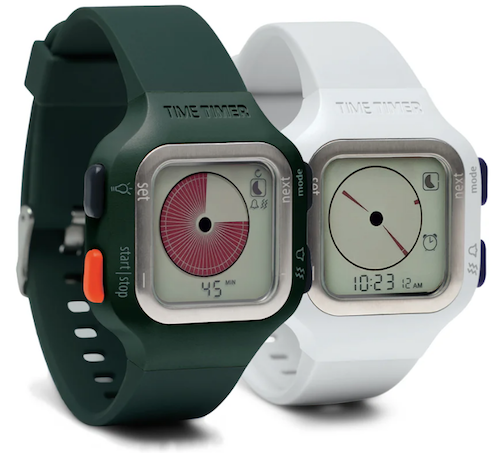
Whether for you or your child, the Time Timer Watch is a discreet and portable timer that helps keep daily routines on track. It supports efforts to maintain and increase focus, and improve independence and self-regulation. As Time Timer notes,
“Whether you depend on Time Timer products to overcome ADHD, Autism, or other cognitive variances, or you just want the look of a fun sporty watch that increases productivity, the Time Timer Watch is your solution. The sporty design makes this wrist-watch a great accessory for students, adults, athletes, teachers, and professionals, of any age or ability.”
The watch band is made of soft silicone in two circumference sizes matched to their color: white (5″ to 7.5″ for small) and dark green (5.5″ to 8.25″ for large), while the watch face is 1.5 inches. Mix and match different silicone band colors (Caribbean Blue, Sedona Orange, and Baltic Blue) to reflect your style.
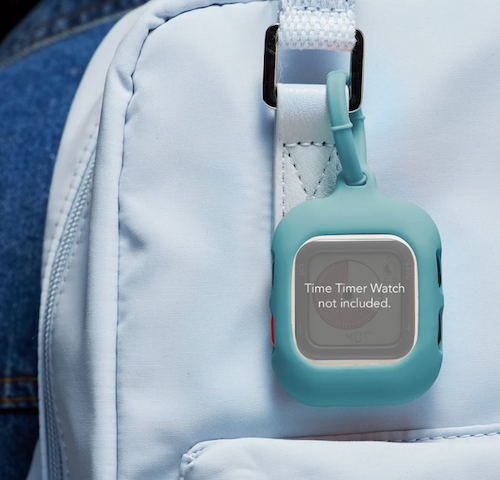
Alternatively, you can carry the watch face in a silicon watch fob accessory; wear it like an 1890s robber baron on a watch chain, on a cord around your neck like an ID badge, or attach it to your backpack.
The Timer Timer watch uses a CR2032 (coin-style) battery and works in three different modes:
- Time Timer — Set an original 60-minute timer or a custom timer for up to 99 hours. (Think you’d never need a timer that long? Imagine counting down how many hours are left having to be nice to a visiting relative who sets your teeth on edge!) You can set an optional repeating alert for circumstances requiring a regular reminders, like to take medication, use the restroom, bring likely-to-wander attention back to the task, or soothe your way into a transition between tasks or modes.
- Clock — The watch has both analog and digital displays in 12- or 24-hour format. (Paper Doll readers know I always prefer an analog clock to a) help children reinforce an understanding of analog time and b) makes time visible and proportional in ways that digital time does not.
- Alarm — While timers give us backup for paying attention to the ebb and flow of our day, an alarm allows us to stop paying attention altogether. Leave it to Jeeves! So, rather than setting a duration of five minutes or 3 hours from now, you can set a time-of-day alarm. The optional alarm has multiple settings such that the alarm can be off, beep, vibrate silently, or beep and vibrate. Pick what works based on sound or tactile sensitivities or variances in hearing abilities.
The Timer Timer Watch is particularly ideal for school and testing situations because it’s not a smart device, isn’t connected to the internet, and can be used in silent mode. Set the visual timer to the duration of a testing session and don’t worry about knowing how much time is left or calculating the time difference.
Time Timer Twist
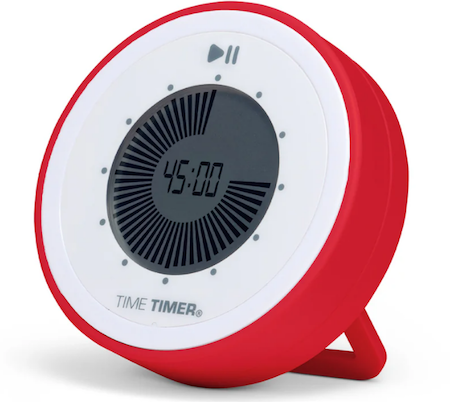
For years, I used to visit the Time Timer booth at NAPO conferences, praising the different devices but wishing for a small magnetic version. I recall being a little giddy when the Time Timer Twist finally made it’s debut, and it ties with the MOD for being my favorite (and the most stylish) Time Timer.
To set the timer on the Twist, turn the outer ring until you reach your desired time, all the way up to 90 minutes, and then push the play button. (Push again to pause.) The digital display shows as a black, self-diminishing, digital version of the traditional red analog disk, while the digital version of the time remaining counts down in the center.
Then just attach it any metal surface, like the kitchen fridge, a filing cabinet in your office, or a magnetic classroom whiteboard, per Time Timer:
At home, use the TWIST® for everything from helping kids’ morning and bedtime routines, timing homework and study sessions, or baking the perfect batch of cookies.
In the classroom, it’s great for timing tests and turn-taking exercises, timing group activities, and helping kids with special needs transition between activities.
In the office, use it to keep track of presentations, team-building activities, and more.
There’s a volume control switch so depending on your environment, you can opt for a silent, low, or high volume alert when your time is up.
Timer Timer Twist runs on one AAA battery and comes in four color schemes: Dreamsicle Orange, Lake Day Blue, Pale Shale Gray, and Original Red. If you love this version and don’t mind sticking with the Original Red, there’s even a Time Timer Twist with Kickstand that’s not only magnetic, but can stand at attention, giving the MOD some competition!
Four-Channel Professional Kitchen Timers
We’ve talked about the convenience of using your cell phone timer when making a complex meal. While it’s pretty far afield from the kinds of timers we’ve been looking at, four-channel commercial kitchen timers are ideal for restaurant kitchens — wanna film your own version of FX’s The Bear? — or in Brady Bunch-style households with big families or lots of housemates.
Digital 4-Channel Kitchen Timers are tangible but digital, and made of sturdy stainless steel with LED lights. Set each of four timers independently. The time mode lets you set in hours and minutes or minutes and seconds, ranging from zero (0000) to 99.59 hours or 0-99.59 minutes. Designed for a busy commercial (or home) kitchen, there’s a loud, high-decibel buzzer.

It’s electric and requires no programming, so it’s plug and play. Find a variety of four-channel digital timers on Amazon or at restaurant supply stores.
BONUS TIMER RESOURCES
I could write another 5-post series and still never hit all of the variety of tangible timers and apps available. Still, there are many that deserve consideration for one or more unique attributes.
Bonus Analog Timers
In the second post of this series, I wrote two potentially conflicting pieces of advice. You want a timer both does something different and is aesthetically appealing. Well, I’ve recently discovered two products that intrigue me by putting more weight on the latter than the former.
Singles Timer
First, I discovered Zone Denmark, a sort of Danish-designer version of IKEA. Reader, I covet them. Their Singles Timer, made of powder coated steel, doesn’t do anything different, but its compact design caught my eye.
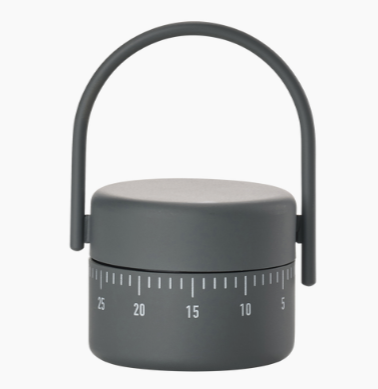
The Singles Timer is a squat cylinder measuring 3.5″ (8.9 cm) high and 2.13″ (5.4 cm) in diameter, and weighs 5.64 ounces. It comes in five colors: Black, Warm (light) Grey, Cool (darker) Grey, Lupine (a sort of violet) and Mud (beige). Turn the basket-like handle on top to set the timer, do your cooking (or whatever), and then carry your timer with you wherever you go.
The Singles Timer costs 25 Euros (about $28.47 US), plus shipping, and while it lacks the attributes necessary for someone needing a visual gauge of time, it’s just darned pretty, making it suitable as a simple household timer.
the dot
the dot wooden timer cube is a mix of ancient and modern, wood and metal and microchips, analog and digital. The base is a rounded block of wood measuring 3.54″D x 3.54″W x 0.98″H with a hole in the center (much like a toad-in-the-hole, egg-and-toast breakfast); affixed to the interior bottom is a metal bowl and suspended from the interior top is the string-and-ball mechanism that strikes the bowl to make it chime. However, the timer is set digitally on the outer top of the dot.
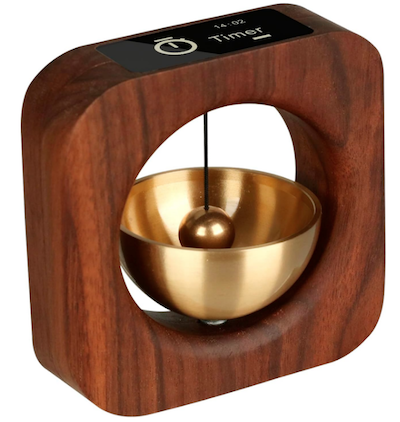
Thus, you have a digital LCD display for easy setting of the timer for meditation or deep work, but a mechanical chiming when the set time is up.
the dot uses one lithium polymer battery, which can be recharged with a USB-C charging cable. It’s a pricey at $80, but it’s an intriguing stylistic mix: yoga retreat-meets-corporate focus.
Bonus Digital Timers
Browser Timers
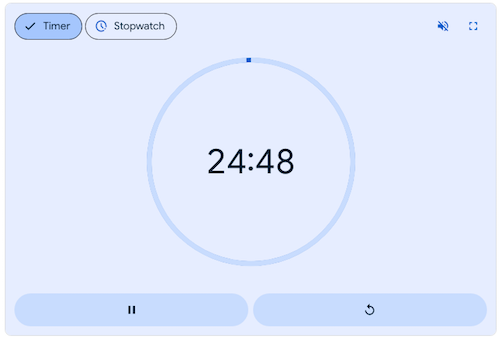
- Google Timer (browser-based) — Did you know that there’s a digital timer built into Google? The default is set for five minutes but you can customize for whatever time you need. Type your exact hour, minute, and second preference or use the pre-set buttons to bump up the time by :30, 1:00, or 5:00 increments. Opt to make the soothing blue background full-screen, mute or unmute the dingle-dingle alert chime, and start the timer. Pause and restart as you like. It’s right on Google, so it’s free.
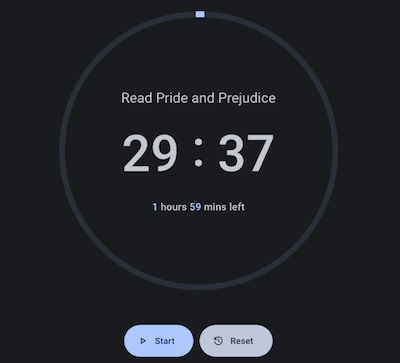
- Focus Hours (browser-based) — This similar browser-based solution is a step up from Google. Click the timer to slide out a settings panel to name your activity, identity daily start times for habits you want to promote, set (one of only two possible) alerts to ring when your focus time is up. Opt for night mode if you prefer, and when you’re ready, click start. Do ad hoc tasks or set up a roster of personal and business high-focus tasks. This free browser app has extensive statistics to let you track your focus by day, week, month, or year.
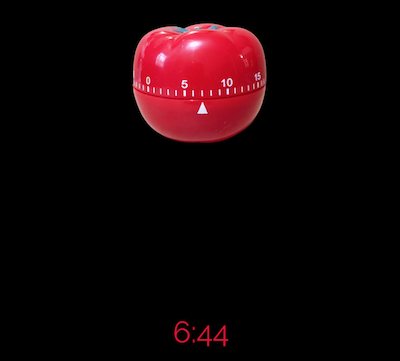
- Juicy Timer (browser-based) — Scroll down to set the time, hit start, and watch as a traditional kitchen tomato timer turns slowly, ticking down to zero, with a digital countdown below. The mid-range (not high or piercing) alert brings you out of focus and prompts a 5-minute break.
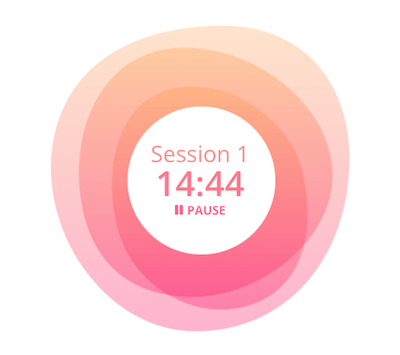
- Zorro Timer (browser-based web app) — This timer is both simple and pretty. Select an ambiance (forest ocean, rain, or café sounds, or “peace” with classical music), select your focus and break times, and just start working.
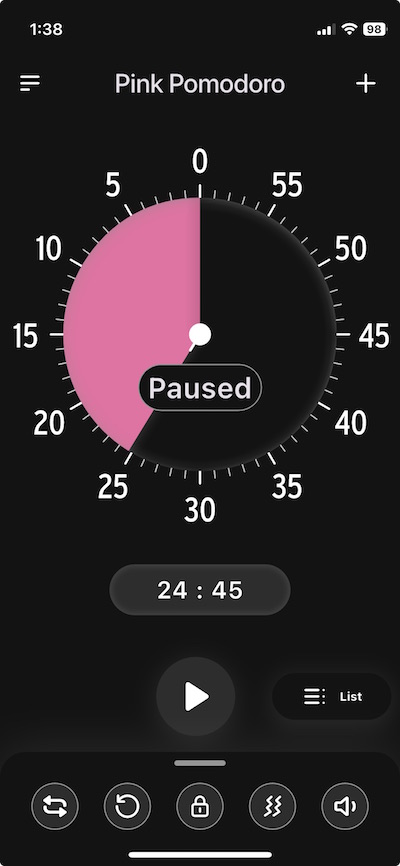
- Tomodoro (browser-based web app) — This customizable, open-source web app has beautiful background colors from which to choose. Set the times for focus and breaks, pick how many rounds/cycles you want to work; choose themes, accent colors, whether you want white noise and whether notifications should be silent or enabled. It supports Always-on-Top, or Picture-In-Picture (PIP) mode without having to install any other app, so you can focus on the work in your browser window without losing sight of the timer.
- Amazing Timer (web browser) — If you’re running an online workshop, interspersing chat with co-working, this is an alternative to a built-in timer in Zoom. Share your screen as Amazing Timer offers a simple countdown with a variety of beautiful, calming, customized backgrounds.

You may also want to take a peek at a few more appealing browser-based timers:
- Big Timer — This full-screen timer is in-your-face with large, white block-face numbers on a solid black screen. Adjust whether you want a sound when time’s up or at each of the final ten seconds (or no sound at all). The timer can also count up after the end (in case you want to know how much more time you took to finish your task). Make the timer full-screen, and have it auto-repeat (in case you want to violate the precepts of Pomodoro and not take breaks).
- Pomotastic — This customizable Pomodoro timer lets you choose literally any RBG colors, with themed colors for focus, short breaks, and long breaks
- Timer.OneClock.Net — Try scary red numbers on a black background, in case you want to feel like you’re deactivating a bomb. (Hey, some people prefer the stick to the carrot!)
- Timesets — Customizable Pomodoro timer has 5 color schemes and drag-and-drop focus and break options.
General Timer Apps
- Time Timer App — This free app is available for iOS through the App Store and for Android on the Google Play Store. It’s fully customizable: select colors, notifications, and multi-timer lists exactly as you like.
- Minidoro (iOS) — This super-customizable timer app is no-nonsense. Set sessions, breaks, goals, and cycles, color schemes and dark or light themes, sounds and notifications. It cycles through analog time rather than providing a full “slice” of time as with Time Timer. Unlike Time Timer’s app, Minidoro isn’t free; it’s $2.99.
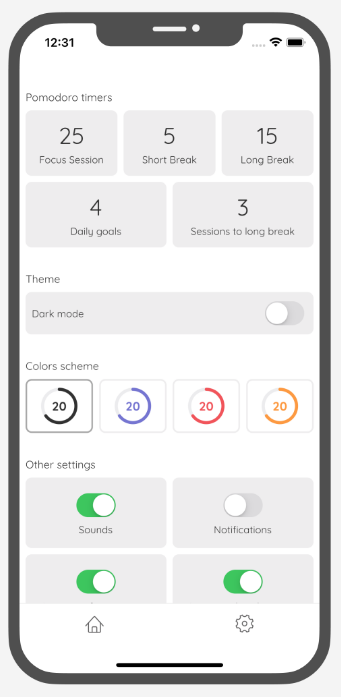
Digital Timer Apps for Wellness Experiences
- Tide (iPhone, iPad, Apple Watch, Android, Chrome) — Unrelated to the detergent of the same name (though it cleans the stress out of your brain), Tide is a mobile and browser app with an immersive timer and features to help you sleep, rest/relax, or meditate. Select a soundscape (like a Hawaiian beach, restaurant, rainforest, a mahjong parlor (!), dishwasher, typewriter, and hundreds more), meditations, or sleep stories. Whether you want to focus and do deep work or empty your mind, relax, and bliss out, Tide has a mode for what you need.
- Marshmallows (iOS) — This is more of a gamified timer, rewarding you with breaks of random lengths after each 25-minute Pomodoro focus session. The breaks range from 5-30 minutes, adding na element of excitement, anticipation, and pleasant uncertainty. (However, it’s not the best option if you’re on a tight turn-around schedule.) This intermittent reinforcement to keep you engaged and motivated is supposed to excite a level of curiosity and encourages focus so you’ll finish your session. The varied break times should reduce stress and burnout. (There’s also a social option to connect with and compete with friends.)
Work Productivity Timers Built Into Productivity Suites
- Focus To Do (Windows, Mac, Chrome extension, iOS, Android, Apple Watch) — This app blends Pomodoro timers with task management features. Create to-do lists, break down tasks into ever-smaller sub-tasks, and set progress reminders and due dates. Generate detailed statistics regarding your time use and the number of tasks completed so you can analyze and improve your productivity patterns. Focus To Do syncs across devices so you can access your timers, tasks, and stats from anywhere. It’s free; the Lifetime Premium level is $11.99.
- TogglTrack (Chrome extension, iOS, Android, Apple Watch) — The Pomodoro timer is just one part of a powerful time tracking and productivity suite for knowledge workers ranging from solopreneurs to small teams to enterprise-levels. It’s designed to track time spent on various projects and tasks, and it generates reports on how individuals and teams use their time, prompting deeper analysis.
- Traqq Pomodoro Timer (Mac, Windows, and Linux, and browser-based) — Traqq is a comprehensive time-tracking suite for solopreneurs, small businesses, teams, and large companies, monitoring how employees spend time on tasks, projects, and breaks. The Pomodoro Timer can be used independently in the browser; it defaults to 25 minutes with 5 minute breaks.
Combination Timers and Task Apps
There’s a proliferation of apps that combine a task function with timers to encourage focus, including:
- Blitzit (iOS, Android ) — There’s a free browser-based Pomodoro timer where you can customize the audio and ambiance, but the full app combines task lists and timers to help you track your focus through your pre-planned work schedule.
- FocusList (iPhone, AppleWatch, Mac) — This app combines a daily planner & Pomodoro focus timer app.
- Podor (Android) — This task app includes a timer, but is also designed to help you organize tasks with tags, access detailed statistical reports of your time use, and customize your experience to fit how you work.
- Pomotodo (iOS, Android, Mac, Windows, Chrome extension) — Designed as a time management app for creatives types, combining tasks and timers and making it easy to generate time sheets for billing after the work is completed.
Whew!
FOCUS TIMER® MINI REVIEW
You may recall that I wrote about the hourglass-shaped Focus Timer® in the third week of this series. Soon after I published, I heard from Dave Zuverink, the creator of the Focus Timer® (and before that, the creator of the SlimFold Wallet).
I’m always happy to hear from anyone mentioned in Paper Doll posts, but I was delighted when Dave asked if I would like to try the Focus Timer® in person and chat with him about it. I would, I did, and we did!

For details about the Focus Timer®, it’s worth going back to that prior post, but I wanted to tell you about my experience and what I learned from Dave.
First, it’s weird to say, but the Focus Timer®’s feels as soft and smooth as a chubby baby’s arm.
Second, it makes no rattling noises, unlike most tangible timers. Dave detailed the various iterations of this super-smooth hourglass timer. It turns out that it’s got a microchip inside; it’s like a little computer processor, always identifying in what direction you turn the timer.
I’d commented to Dave about the chime sound being so satisfying, and it turns out that’s because there’s an actual speaker/amplifier thingie inside, playing a recording of a real chime! (I nodded along as he explained how other timers — and devices like smoke detectors — have a “fisio” that makes a mechanical sound, which is certainly less calming at the end of a Pomodoro!)
Third, between using the Focus Timer® and talking to Dave, I realized that what I’d originally considered somewhat of a drawback was advantageous. It’s tangible, it’s visual, but it’s not analog. There’s no clock face, and there are no numbers. I’d seen that as missing something, but Dave noted that it was intentional so as not to take the user out of focus and to instead shut down the analytical part of the brain — in other words, enjoy the color rings and trust the eventual notification to do their thing.
Dave and I talked about his professional background in interaction design and the psychology of product design, and I shared my perspective as a professional organizer and productivity specialist. Now that I understand how much technology goes into the Focus Timer® and have used it several times (and can’t stop fiddling with it because it feels so nice), I see even better how this novel product brings something new and different to the time management realm.
In the original post, I shared the video for the recent launch of the Focus Timer® V2, but it’s worth watching the original Kickstarter video.
I’m still experimenting with the Focus Timer®, but have already fallen a little in love. It took me a little while (with the well-written and well-drawn directions) but now I can easily rotate the timer (as if it’s doing a fashion show): each turn yield a new time ring. I finally got a feel for how the individual rings (blue for minutes, yellow for ten minutes) work, so the timer counts up by 5 after 20 minutes and up by 10 after 60 minutes. Neato.
Over the past weeks, I’ve read comments and had conversations with readers who have a favorite timer and those who never use them, some who hyper-focus and others who are still seeking to overcome time blindness to focus.
Only you can know whether you need a visual timer or one that merely alerts you to end of a work session; only you can decide whether you need “feel” time by manipulating something tangible or whether a simple (or customized) browser or app timer is right for your needs.
Context matters. My iPhone suffices when I’m cooking, but I want a tangible timer when working with clients, particularly if “seeing” time is difficult for them. When I’m doing deep work, I want a visual timer, but my stress level determines how much I want to bother customizing an app or browser solution.
What doesn’t change is that no matter how precise our internal clock may (or may not) be, there are times when we want to outsource that ticking so that we can focus.
How to Use Timers for Improved Productivity and Focus — Part 4: Digital Timers
In the past three weeks, we’ve explored using timers to enhance focus, reduce hyper-focus, and get stuff done.
- How to Use Timers for Improved Productivity and Focus — Part 1
- How to Use Timers for Improved Productivity and Focus — Part 2: Picking a Good Timer
- How to Use Timers for Improved Productivity and Focus — Part 3: Tangible Timers
After establishing why (and in what situations) timers can boost productivity, we identified the general characteristics of a good timer and the customizable aspects supporting individuals in their unique tasks and projects.
Last week, we examined a wide variety of tangible timers, particularly those (like Time Timer and the Focus Timer® Visual Timer) that allow users to both see the passage of time (particularly with the benefit of showing analog time), and feel like they have some tactile control over manipulating time.
While children, people with ADHD and executive function disorders, and anyone who has difficulty identifying and recognizing time as it passes can benefit from those tangible timers, not everyone needs a physical timer, and while we can all benefit from seeing analog time, it’s not always essential for all.
If what you most need is to have a trusted alert so that you do not overrun your allotted time, digital timers will suffice, but they range from ultra-basic to fancy-schmancy.
DIGITAL TIMERS YOU ALREADY OWN
In the second post in this series, we looked at a long sequence of features that make a good timer, both for the project and the user. You may wish to review those concepts, but in general, you want a timer that is:
- simple to use
- does more than what you’re already able to do with your resources
- integrates, if applicable, with the tools you already have
- process-agnostic, so that you don’t have to use only fixed-durations that aren’t useful for your needs (in case you prefer the 52/17 technique to a standard 25/5 Pomodoro and break, for example)
- aesthetically pleasing, visually (if that matters to you)
- customizable for features such as volume and type of audio alert
- frictionless, because every obstacle to using a timer is an obstacle to your focus
Kitchens stoves have built-in timers, but if you’re in your back yard doing some weeding, at the coffee shop finishing up a presentation, conducting a meeting at the office (or online), taking a nap in your dorm room (or the comfy chairs at the library), or doing anything anyplace that is not your kitchen, you’ll need to possess some kind of timer more sophisticated than asking a patient friend to count one-Mississippi, two-Mississippi for minutes or hours on end and then shouting your name!
Your Built-In Device Timer
The fastest and simplest timer method is to use the one built into your phone. However, I’ve been surprised by how many people don’t know how to use their phone timers or at least all of the features available.
On iOS devices like iPhones or iPads, just open the Clock app on your home screen.
- Tap Timers, generally on the bottom of the Clock app interface.
- Hit the + sign to add a new timer.
- Set the duration by turning the number dials: a 25-minute Pomodoro to get work done, 14 minutes to cook your salmon, 38 minutes until you should check your laundry. Adjust the hours, minutes, and seconds as needed.
- Add a label if you tend to forget what the timer was for. This is helpful if you’re setting multiple timers to get all of the items you’re cooking for Thanksgiving dinner on the table simultaneously; one timer tells you when to baste the turkey, another to reheat the potatoes, and so on. If you’re apt to hyper-focus, labeling the timer PICK UP CHILDREN!!! may give you the boost you need not to snooze or ignore your timer.
- Add a song or sound to play when your time is up if pre-set alerts are too jangly for you. You might want a lilting tone to lift you gently out of hyper-focus or an energetic song to help you transition from your break to the next task.
- Tap Start. The timer will begin counting down. You can now look away and ignore it.
- If you need to pause the timer, because of an interruption, hit the pause icon (universally known among seniors as “the eleven”) and resume (by hitting the “play” triangle) when you’re ready.
When your time is up, the phone will send you a notification, even if you’re in another app.
You may notice that you have other timers in a “Recent” list. If you tend to use an official 25-minute Pomodoro and 5-minute break often, go ahead and create labels for them and keep them in your list; add and label any other frequently-used timers to save you time and effort the next time you want to quickly assign yourself a stop time.
If you want to quickly set a timer on your iPhone and you don’t mind setting it for multiples of 5-minute increments, head to the Control Center:
Alternatively, you can shout, “Hey, Siri, set a timer for 25 minutes” across the office to set a Pomodoro without the temptations inherent in holding a phone in your hand.
Your digital assistant is particularly useful in the kitchen if your hands are wet or you want to avoid touching your phone while cooking. If what’s in the oven isn’t quite ready, asking Siri to set the timer means I don’t have to hover or worry that if I turn to wash some dishes, I could completely forget that three minutes have passed.
Android devices operate much the same way, via the Clock app and using the Timer option. Android users generally set timer durations from a number pad (akin to making a call or using the calculator) rather than a dial, but set customized labels and adjust sounds as with iOS.
Android has the same pause/resume/cancel functions and you can keep multiple timers running concurrently.
You can use your Google Assistant by saying, “Hey Google, set a timer for 15 minutes.” Just be sure to enunciate a little better than than this internet sensation.
The main advantage of using your built-in device timer is that it’s easy-peasy lemon squeezy. Take ten seconds to set a timer by tapping or talking and you’re ready to get started. The obstacles are few and the countdown is simple.
The drawback of using your phone or device as a timer is that it presents an opportunity for distraction when you are setting the timers and again when you reach for the phone to stop the timer alert. If you experience phone addiction, you may wish to read:
- Global Day of Unplugging 2025: Phones and Apps to Reduce Phone Use and Improve Your Life
- Celebrate the Global Day of Unplugging (2024)
DEDICATED DIGITAL TIMERS FOR FOCUS AND PRODUCTIVITY
The next step up from your kitchen or built-in phone timer is a mobile app, desktop app, or browser-based app, and there are numerous options available. Few have any great functional advantages over the others, so it’s often a matter of picking which aesthetic or bonus features you prefer. Most will be marketed as Pomodoro timers, but that doesn’t mean you’ll be limited to 25 minute increments; it’s just branding.
Browser Based Timers
If you’ve got a phone, tablet, or computer, you’ve got an internet browser. Using a web-based timer in your browser means you don’t have to download anything. It’s best for when you are having trouble focusing, want a timer, but know that searching for an app to download will keep you from getting started. Wherever you are, even on a borrowed computer or in the public library, there’s a browser timer for you.
Pomodor
Pomodor is web-based. Just bring up the website and it’s already ready for you tap the play button to start your first (of up to four) Pomodoro timers. While the default is set for 25 minutes Pomodoros with 5-minute breaks, you can can adjust multiple aspects, including:
-
-
- work duration from 5-60 minutes
- short break duration for 1-5 minutes
- long break duration of 1-45 minutes (after four Pomodoro/short break cycles)
- how many rounds (or cycles) you want to do, from 1 to 15
- which of eight alert noises you prefer (all sounding very “iPhone circa 2009”)
-
There’s also a dark mode option, which I’ve employed, below.
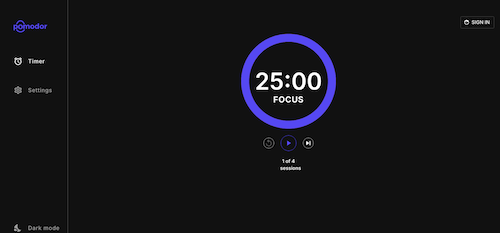
Pomodor is free. While you can create an account to preserve your settings or access your stats overview with charts to visualize which days of the week you were the most productive, it’s not required.
Pomodor’s few customizations means you won’t spend a lot of time futzing with the settings and can (or at least should) get right to work.
Focus Keeper
Focus Keeper is another free and easy-to-intuit web-based timer. Create an account with your email and a password, or Google or Apple ID, and when you log in you can create pre-set timers with labels for various types of activities (reading? meditation? blog writing?) and even have a daily schedule for time-blocked work.
When you’re logged in, just select or create a timer you wish to start, click “play” and start working; you can track your focus by the day, by times of the day, and by focused task-type.
If you don’t want to log in, just start with the default settings: a 25 minute focus setting, a 5 minute break setting, a 30-minute long break between cycles of four sessions and breaks. Turn the ticking (so much ticking!) on or off, and pause if necessary, but otherwise, as you get to work, the soothing “waves” at the bottom of the screen gets higher.
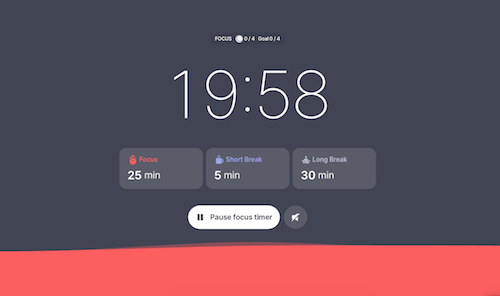
Focus Keeper is available on the web, as well as in iOS and Android versions.
Pomofocus
Pomofocus is another web-based timer that lets you access basic aspects for free. Without signing in, you can set the focus, short break, and long break timers, name the focus task, and select the number of Pomodoros and breaks — which need not be strict 25-minute Pomodoros — I set this up for a 52/17 round; you can also set the number of cycles before a long break.
You can also adjust the volume of the alert and the type of alert sound.
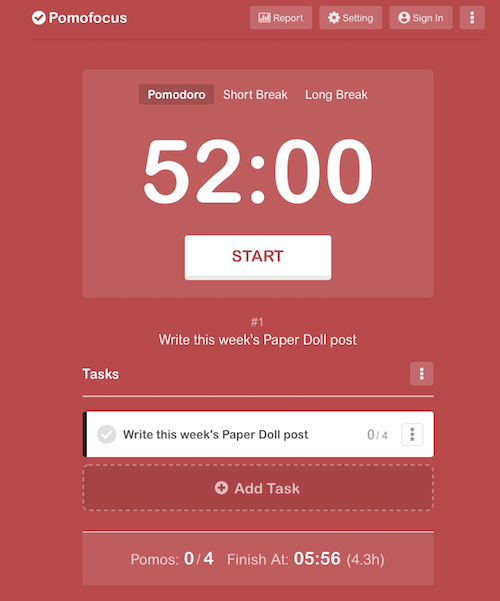
If you create an account and log in, you can use templates, access a summary detailing the number of hours you spent focused, the number of days you used Pomofocus, and how many days of a streak you amassed. (If you’re competitive, you can see how you rank against other Pomofocus users.)
Pomofocus is free, but the ad-free Premium plan gives you lets you add more projects and templates, view a yearly report, download reports, import tasks from Todoist, and connect to other apps. The Premium plan is $3/month, $18/year, or $54 for a lifetime plan.
Deep Work Depot — Want to focus on your deep work in the most bare bones way? Based on Cal Newport’s concept described in his book Deep Work, this timer emphasizes focusing without distraction on tasks that are cognitively demanding.

There are no bells, no whistles, and hardly any color or design. Set your focus and rest timer durations; turn the “Lo-Fi” music on or off.
(Lo-Fi, my aging GenX self has learned, refers to low-fidelity, a musical style that intentionally incorporates imperfections and a relaxed aesthetic. Now that I’ve experienced it with three different timers, I must admit it sounds like elevator music to me.)
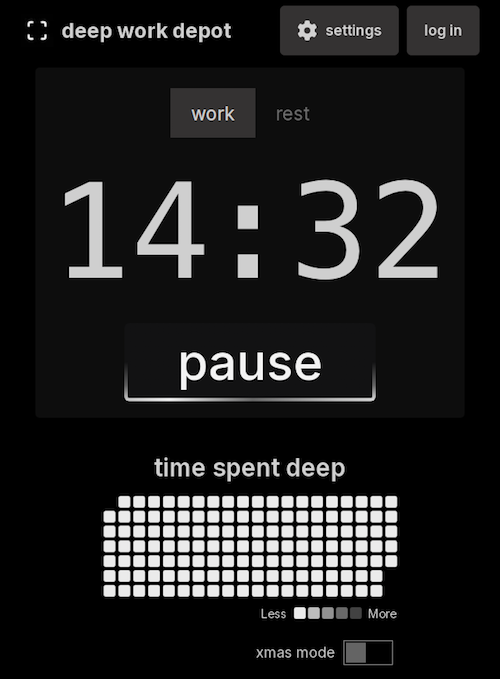
(Note: I’ve yet to figure out what Xmas mode does. The toggle turns green, but otherwise? Nada)
Similar to web-based timer apps, you may also want to explore browser-extension options, like:
- Marinara: Pomodoro® Assistant is a Chrome extension — Marinara creates a toolbar icon for the countdown timer. You can configure preferred work session times, and it offers both short breaks for between sessions and (configurable) longer intervals between cycles. There are 20+ audio alerts, and you can add ticking sounds if that’s your jam. Track your stats and history to gauge when you have been the most productive. You can also set automatic timers. It’s free.
- Momentum Dash is another Chrome extension — It combines a beautiful nature photo and motivational quote with a countdown timer, all on your browser’s “new tab” page. Set up your tasks, create different timer modes, add mantras, customize sounds, and show the number of days counting down to a deadline. The Plus version is $3.33/month and includes Spotify and YouTube sound integration, task app integrations, site blockers and more.

- Otto is yet another Chrome extension. — The free “core” features include unlimited Pomodoros, the ability to block an unlimited number of distracting websites, and the option to create 3 tasks, each up to 15 minutes in length. For real power, the Pro level (at $24/year for $59 for lifetime use) offers an unlimited number of tasks up to 60 minutes in length and other up-leveled features.
Integrated Timer Apps
Some timer apps and programs can integrate with software you’re already using. Note, timers at this level are less intuitive but do more heavy lifting than basic timers. If you are already using the software platforms with which these timers integrate, that goes in the win column, but if you aren’t already dependent on the multi-featured software programs, it’s oversell.
- FocusMode by Geekbot integrates with Slack, so whether you’re doing the corporate thing or are living the start-up dream inside your Slack channels, FocusMode can help you stay the course. Tell FocusMode what you’ll be working on and for how long; as the timer (silently) ticks down, all your notifications will be automatically switched off and Do Not Disturb will be activated. FocusMode is free.
- Pomodoro Tracker is similar to FocusMode and is designed to help you track your Pomodoro efforts while integrating with Slack. (But I think they missed an opportunity to call it Pomodoro Slacker.)
- Pomello is for followers of both Pomodoro and Kanban, as it integrates with Trello. The basic version is free, while the Pro version is $20/year and offers custom sounds, the ability to export your data, and lets you view Trello checklist items as focus tasks.
Timer Apps and Programs
Session
Session for MacOS and iOS for iPhone, iPad, and AppleWatch — For an Apple lover like myself, I’m intrigued that Session boasts so many features, even if it’s kind of kooky to spend real money on a digital timer. True, it’s not just a timer (but remember what I’ve said about not acquiring features you don’t already need!)
Session syncs across Apple devices, integrates with your calendar, lets you customize work and break timer lengths, offers a Mac menu bar app (so it floats atop other windows), and has nifty keyboard shortcuts and a notes section so you don’t have to go searching for information.
You can also see detailed analytics of your focused work efforts — and to boost that focus, the Mac version will block apps and websites. And if co-workers are the reason you can’t get work done? It integrates with Slack! Set a custom status when you start focusing so they’ll leave you alone. You can also have a visual as well as digital timer.
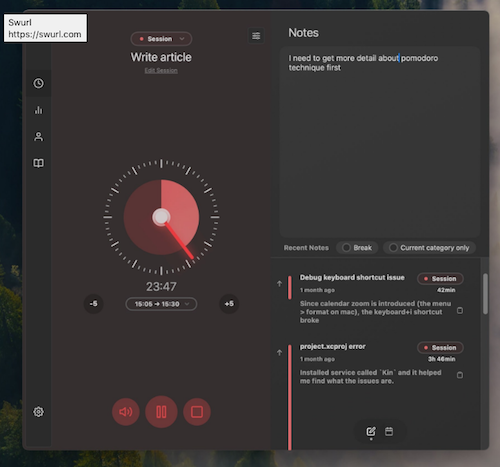
The free plan offers a unlimited basic Pomodoro timers, analytic data from your past two days working, and the ability to view your calendar from inside Session, but the paid versions (Pro Monthly at $4.99/month or or Pro Yearly at $39.99/year) offer all the fancy features, customizations, app and website blocking, automations, and other goodies.
After you set your focus intention and timer, Sessions gives you a meditative breathing exercise to prepare you for work. Ommmmm.
Flow
Flow is a clean, basic Mac and iOS timer. — At the free level, you get an interval-based timer with multiple duration options for your work and breaks, as well as statistics and graphs (synced to your iCloud account) to give you insight into your focus and work habits.
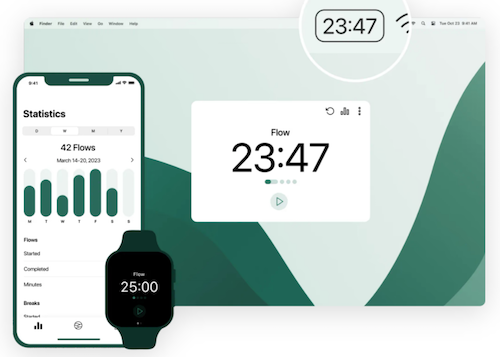
If you upgrade to the Pro level, Flow additionally offers a timer sync, more customizable duration and session cycle settings, the ability to customize your session title, advanced session controls, app and web blocking, Apple Calendar sync, and the ability to export your timer data, all for $1.49/month.
Forest is a fun timer for iOS and Android users, and has a Chrome extension for those seeking an in-browser option — Forest uses playful gamification, knowing your seems-like-a-pipe-dream hope of not getting distracted may need more than a buzzer to achieve success. The iOS version is $3.99; currently the Andoird version is ad-supported.
When you’re ready to focus, you “plant” a cartoon tree. As you continue working, the timer counts down and the tree on your screen grows in front of you (to the sound of calming forest audio, if you like).
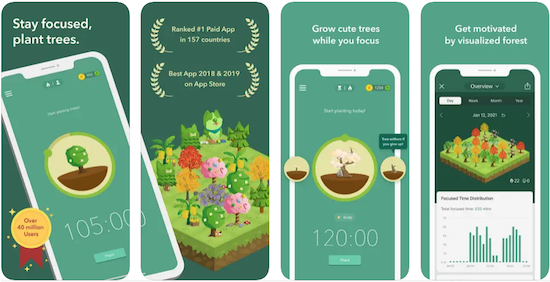
If you put yourself in Deep Focus Mode but then leave the app to do something else on your phone, your tree dies. (For Millennial readers who have just been reminded of your dearly departed Tamagotchis, I’m so sorry.)
With each focus session, you “complete” trees, and over the weeks and months using the app, you grow a forest. Yes, it’s cutesie, but Forest is not without serious analytics. Tag your focus sessions by categories, note trends, and can track when you’re most productive.
While Forest has charm, I imagine that if you’re tempted to watch your forest grow while you’re working rather than waiting until your rest break, your focus will suffer from distraction. But if you’ve got patience, you will be rewarded.
Bear Focus Timer
The Bear Focus Timer is silly. But sometimes we need something silly to keep us motivated, especially when we need longer breaks that we can take and more snacks than we have on hand. From the creator:
Tom is a friendly bear, except when you cannot concentrate. He will do his best to help you focus on something!
Just place your screen face down and focus on what you do.
A variety of white noise will help you focus more.
If you concentrate well, Tom will praise you.
You can change the session time in the settings.
You can reset the timer by pressing Tom’s belly button.
Please keep in mind that Tom can also enjoy fishing when you are focused.
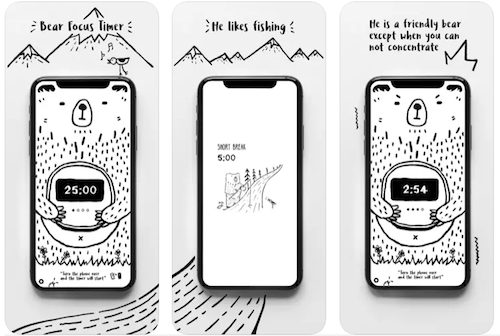
Customize your focus time, short and long breaks, the number of sessions, and the audio accompaniment…and hang out with Tom, the bear.
This iOS-only app is $1.99 in the App Store.
Moosti
Moosti is a gorgeous and deceptively simple timer; it’s fully compatible with iOS, macOS, watchOS, and visionOS. In addition to the traditional timer options, it sets a whole atmosphere with beautiful visual environments and Lo-Fi soundscapes.
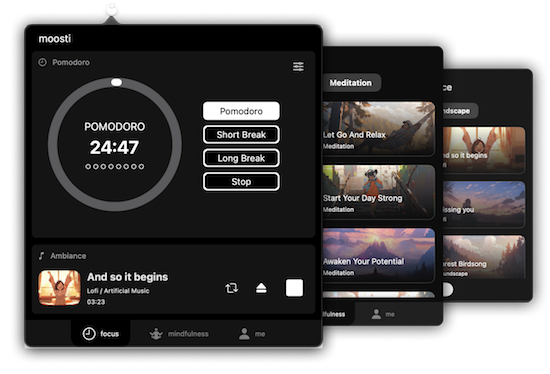
Moosti also offers breathing exercises and guided meditations to support focused work. Moosti is free, with in-app purchases.
The app stores are full of timer apps. If there’s an app that appeals to you (and costs nothing), experiment with it for at least a week; if it doesn’t float your boat, delete it before seeking a new timer.
Online Timers
LifeAt
My colleague Stephanie Denton has recommended LifeAt, a Pomodoro timer within an immersive experience for artificial accountability.
LifeAt blends a timer with virtual spaces, combining visual environments, ambiance, sounds, and musical integration.
The free 7-day trial includes 1,000+ focus video and image spaces, unlimited focus sounds & ambiance, online co-working communities, widgets (including task lists, a calendar, the Pomodoro timer, breathwork exercise, and more). The Pro version provides unlimited tasks and projects, a multi-calendar and task-to-calendar integration, and a daily planner. LifeAt Pro is $16/month, though when I signed up for the free account, it offered Pro at half off.
There are beautiful video landscapes, cozy fires, animated neighborhoods and more, so you have myriad options for finding your LifeAt “space” to set up your timer and features. My personal favorite is this window because, while I like looking at nature, I don’t even want to pretend to get too close.
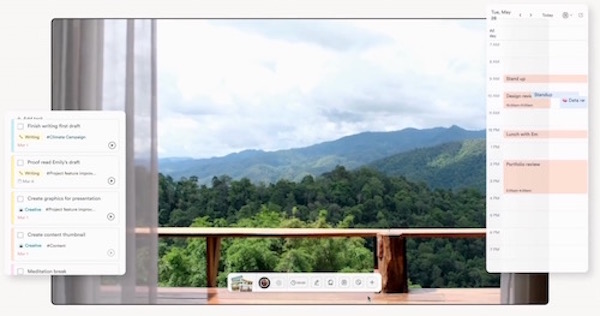 If creating a new environment is part of your focus routine, you might want to check out Flow and Faux (Accountability): Productivity, Focus, and Alex Trebek to see how you can incorporate timers and faux environments.
YouTube Channels with Timers
YouTube is awash with timer videos requiring no downloads or expense. (Most are designed for Pomodoros, so know that the time will not be customizable for your specific needs.)
Just use YouTube’s search bar for “focus timers” and “pomodoro” timers and you’ll get a variety of options like these, which will let you just jump in to a series of timed sessions. And yes, they all seem to be backed by Lo-Fi music. (Forewarned is forearmed, and wow, wouldn’t we be more productive if we had four arms!)
Believe it or not, this only touches on a small percentage of the more popular digital timers at your disposal. Next time, in the final installment of this series, we’ll finish up with hybrid timers that combine tangible, analog options with digital ones for special purposes. There will also be some special bonus material! Whoohoo!
Until then, which of these might you use or recommend to students, colleagues, or anyone else who faces focus obstacles? Would you grow a forest or press a bear’s belly button?
Follow Me